
Advanced document types Course material prepared by Greenstone
Advanced document types Course material prepared by Greenstone Digital Library Project University of Waikato, New Zealand National Centre for Science Information, Indian Institute of Science, Bangalore
Agenda v v v Print documents Downloading HTML & full text tagging Word documents PDF documents Power. Point documents CDS/ISIS
Print documents v Need to be converted to an electronic form – scanning produces a set of images v To add each page as an individual image, process using Image. Plug v To group them into a single document, process using Paged. Img. Plug – Requires an ‘item’ file which lists all the pages and gives additional metadata
Print documents v Can add metadata to the images to enable searching. v If full text searching is desired, use OCR (Optical Character Recognition) to generate an electronic version of the text v Alternatively, if the documents are small and few, manually type the text into a file. v Text files can be included with the images in the item file.
Sample document v 4 newspaper page images and their scanned text v 10_1_1. item v images/10_1_1_1. gif, 10_1_1_2. gif, 10_1_1_3. gif, 10_1_1_4. gif v text/10_1_1_1. txt, 10_1_1_2. txt , 10_1_1_3. txt, 10_1_1_4. txt
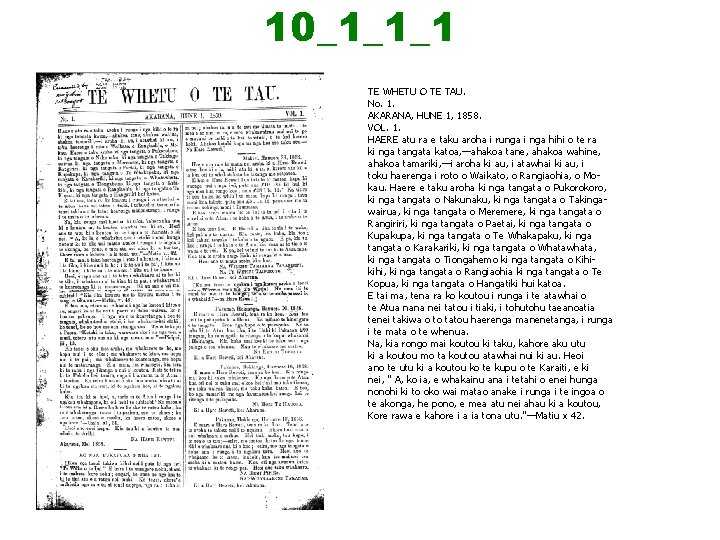
10_1_1_1 TE WHETU O TE TAU. No. 1. AKARANA, HUNE 1, 1858. VOL. 1. HAERE atu ra e taku aroha i runga i nga hihi o te ra ki nga tangata katoa, —ahakoa tane, ahakoa wahine, ahakoa tamariki, —i aroha ki au, i atawhai ki au, i toku haerenga i roto o Waikato, o Rangiaohia, o Mokau. Haere e taku aroha ki nga tangata o Pukoro, ki nga tangata o Nakunaku, ki nga tangata o Takingawairua, ki nga tangata o Meremere, ki nga tangata o Rangiriri, ki nga tangata o Paetai, ki nga tangata o Kupakupa, ki nga tangata o Te Whakapaku, ki nga tangata o Karakariki, ki nga tangata o Whatawhata, ki nga tangata o Tiongahemo ki nga tangata o Kihikihi, ki nga tangata o Rangiaohia ki nga tangata o Te Kopua, ki nga tangata o Hangatiki hui katoa. E tai ma, tena ra ko koutou i runga i te atawhai o te Atua nana nei tatou i tiaki, i tohu taeanoatia tenei takiwa o to tatou haerenga manenetanga, i runga i te mata o te whenua. Na, kia rongo mai koutou ki taku, kahore aku utu ki a koutou mo ta koutou atawhai nui ki au. Heoi ano te utu ki a koutou ko te kupu o te Karaiti, e ki nei, " A, ko ia, e whakainu ana i tetahi o enei hunga nonohi ki to oko wai matao anake i runga i te ingoa o te akonga, he pono, e mea atu nei ahau ki a koutou, Kore rawa e kahore i a ia tona utu. "—Matiu x 42.
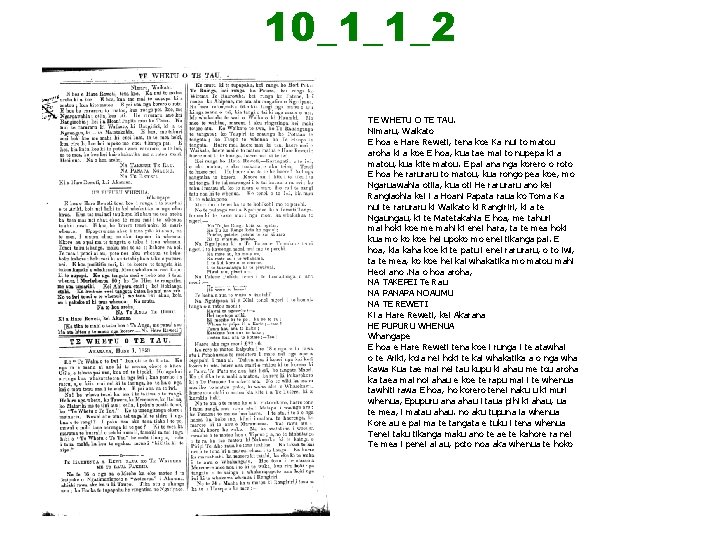
10_1_1_2 TE WHETU O TE TAU. Nimaru, Waikato E hoa e Hare Reweti, tena koe Ka nui to matou aroha ki a koe E hoa, kua tae mai to nupepa ki a matou, kua kite matou. E pai ana nga korero o roto E hoa he raru to matou, kua rongo pea koe, mo Ngaruawahia otiia, kua oti He raru ano kei Rangiaohia kei i a Hoani Papata raua ko Toma Ka nui te raru ki Waikato ki Rangiriri, ki a te Ngaungau, ki te Matetakahia E hoa, me tahuri mai hoki koe me mahi ki enei hara, ta te mea hoki kua mo ko koe hei upoko mo enei tikanga pai. E hoa, kia kaha koe ki te patu i enei raru, o to iwi, ta te mea, ko koe hei kai whakatika mo matou mahi Heoi ano. Na o hoa aroha, NA TAKEPEI Te Rau NA PANAPA NOAUMU NA TE REWETI Ki a Hare Reweti, kei Akarana HE PUPURU WHENUA Whangape E hoa e Hare Reweti tena koe i runga i te atawhai o te Ariki, koia nei hoki te kai whakatika a o nga wha kawa Kua tae mai nei tau kupu ki ahau me tou aroha ka taea mai noi ahau e koe te rapu mai i te whenua tawhiti rawa E hoa, ho korero tenei naku u ki muri whenua, Epupuru ana ahau i taua pihi ki ahau, ua te mea, i matau ahau. no aku tupuna ia whenua Kore au e pai ma te tangata e tuku i tena whenua Tenei taku tikanga maku ano te ae te kahore ra nei Te mea i penei ai au, poto noa aka whenua te hoko
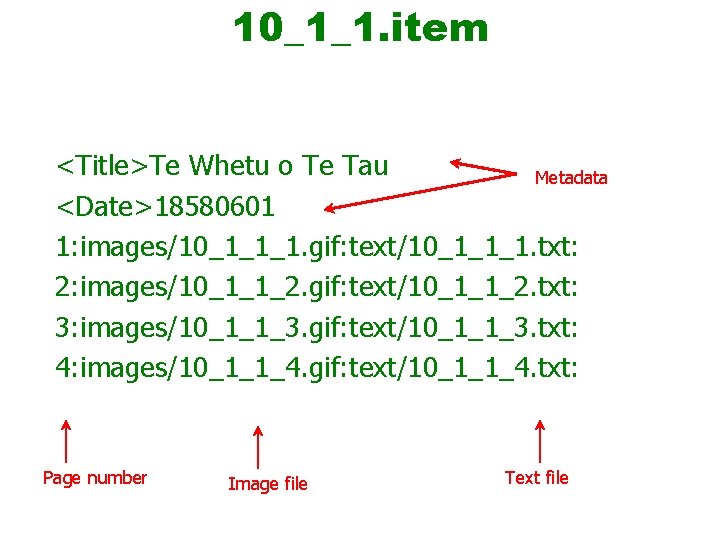
10_1_1. item <Title>Te Whetu o Te Tau Metadata <Date>18580601 1: images/10_1_1_1. gif: text/10_1_1_1. txt: 2: images/10_1_1_2. gif: text/10_1_1_2. txt: 3: images/10_1_1_3. gif: text/10_1_1_3. txt: 4: images/10_1_1_4. gif: text/10_1_1_4. txt: Page number Image file Text file
Paged. Img. Plug v Processes item files and their corresponding image and text files v Options: – screenview (screenviewsize, screenviewtype) – produce a preview image – thumbnail (thumbnailsize, thumbnailtype) – produce a thumbnail image – documenttype – paged or hierarchical
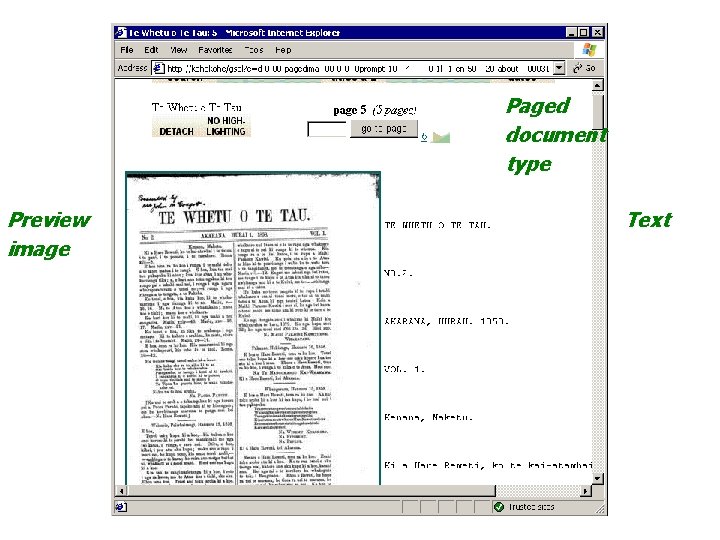
Paged document type Preview image Text
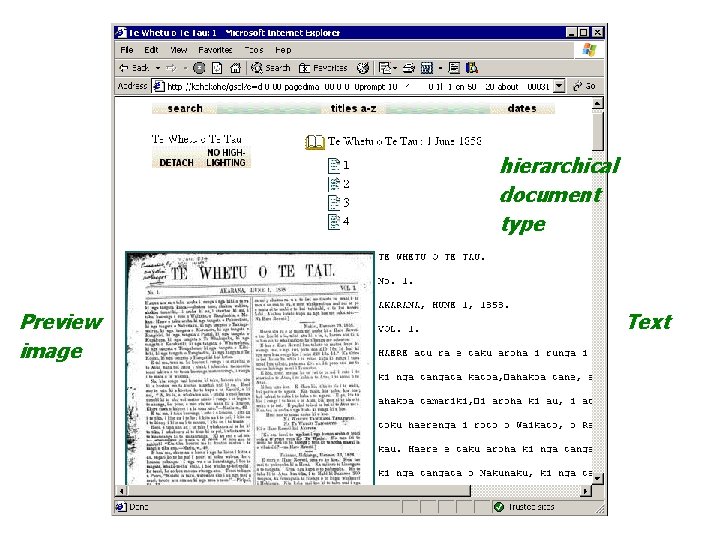
hierarchical document type Preview image Text
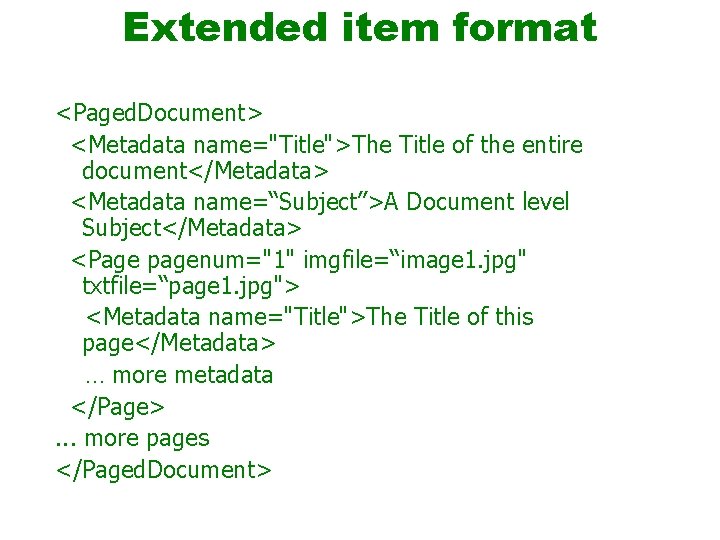
Extended item format <Paged. Document> <Metadata name="Title">The Title of the entire document</Metadata> <Metadata name=“Subject”>A Document level Subject</Metadata> <Page pagenum="1" imgfile=“image 1. jpg" txtfile=“page 1. jpg"> <Metadata name="Title">The Title of this page</Metadata> … more metadata </Page>. . . more pages </Paged. Document>
Agenda v v v Print documents Downloading HTML & full text tagging Word documents PDF documents Power. Point documents CDS/ISIS
Downloading in GLI v Can download, or “mirror”, web pages and web sites to local disk v Options: within URL, within site, depth of links to follow v Can be added into collection
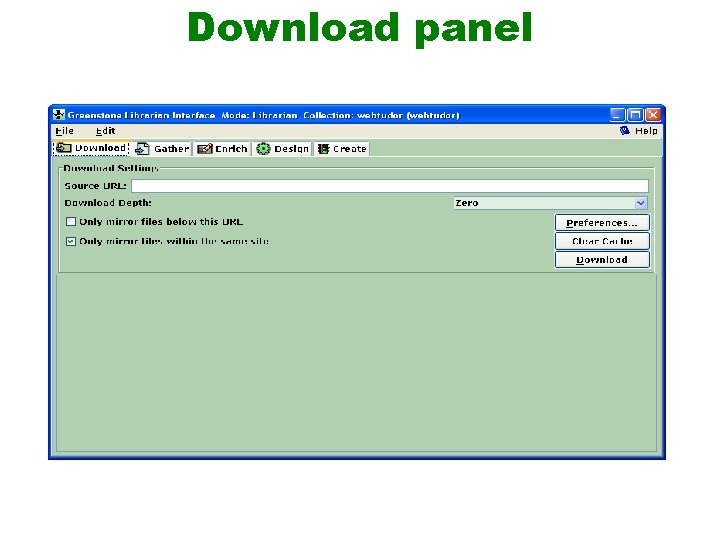
Download panel
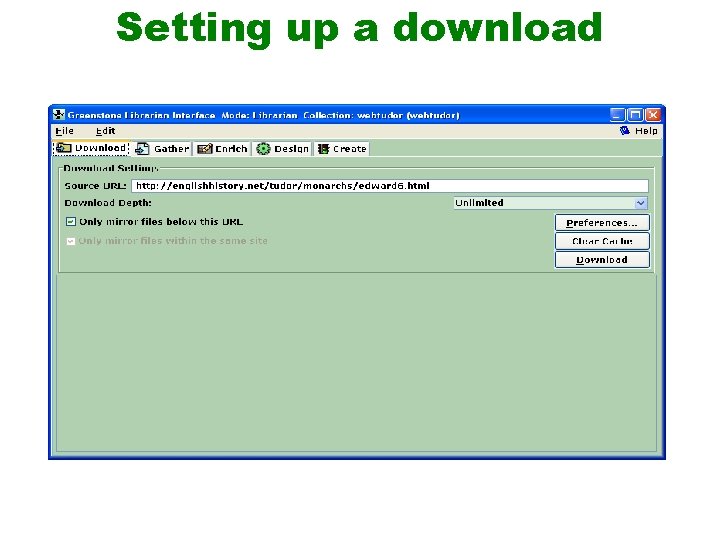
Setting up a download
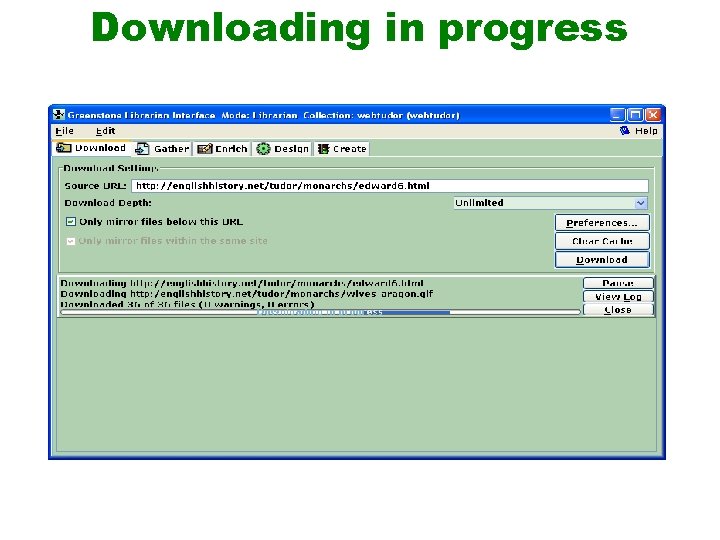
Downloading in progress
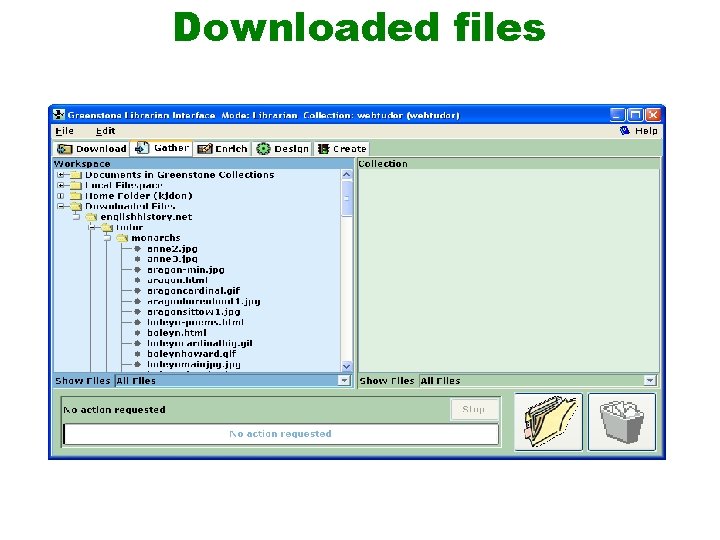
Downloaded files
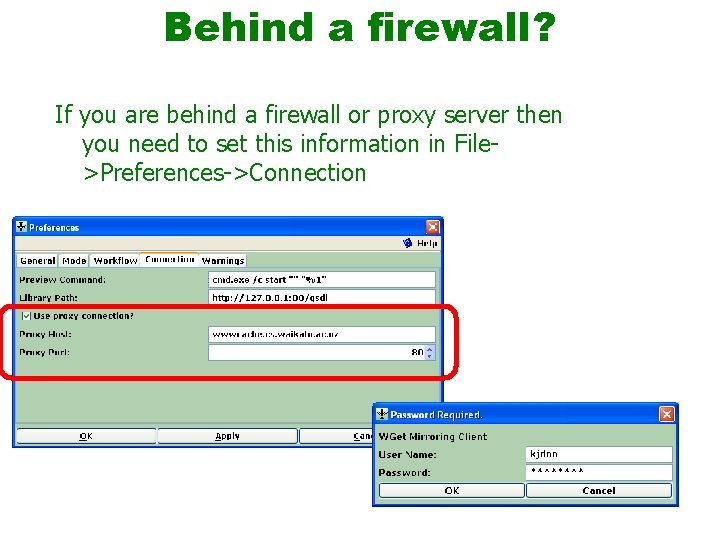
Behind a firewall? If you are behind a firewall or proxy server then you need to set this information in File>Preferences->Connection
Downloaded files v File hierarchy preserves site structure v -file_is_url option to HTMLPlug adds URL metadata based on the file hierarchy v [weblink][webicon][/weblink] links to original if URL metadata has been set. v So you can download web sites to index, then link back to the originals
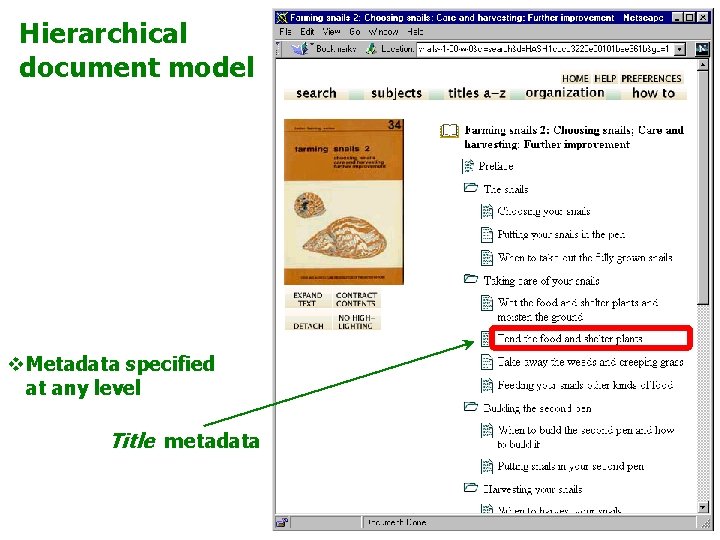
Hierarchical document model v. Metadata specified at any level Title metadata
Full Text Tagging v While creating large digital collections: – the collection must be organized – the larger the collection the greater the need for organization – the larger the documents the greater the need for sections/subsections v Greenstone lets you tag the full text of documents v Then you can read them hierarchically … v … and search them by section
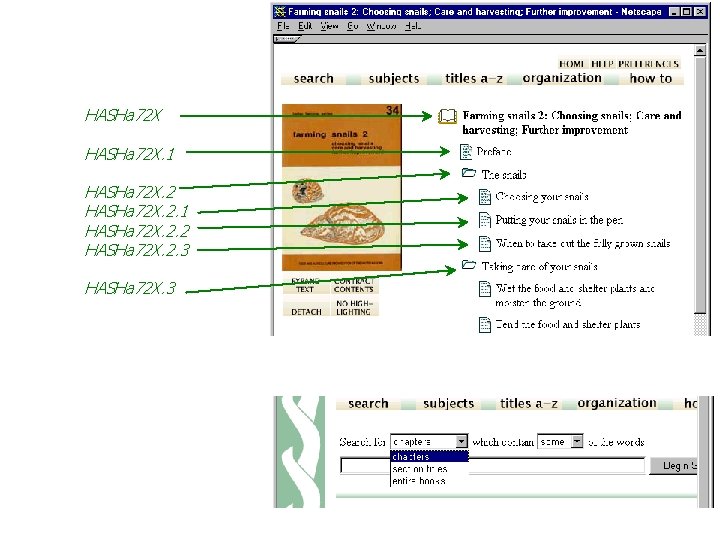
HASHa 72 X. 1 HASHa 72 X. 2. 2 HASHa 72 X. 2. 3 HASHa 72 X. 3
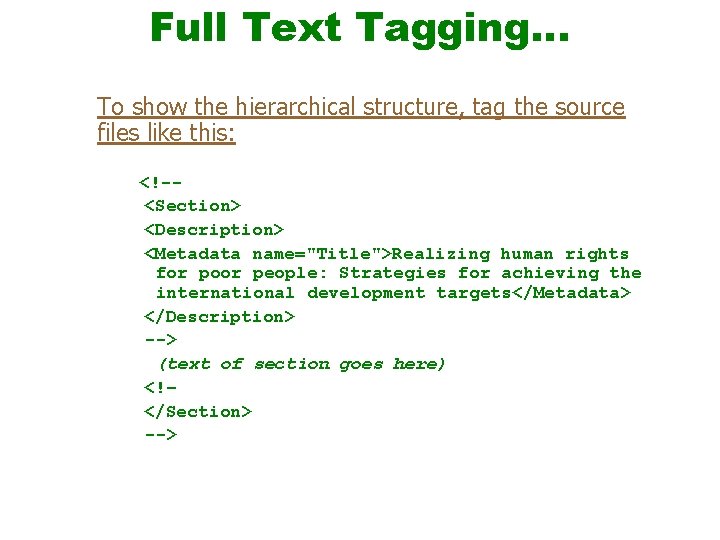
Full Text Tagging… To show the hierarchical structure, tag the source files like this: <!-<Section> <Description> <Metadata name="Title">Realizing human rights for poor people: Strategies for achieving the international development targets</Metadata> </Description> --> (text of section goes here) <!– </Section> -->
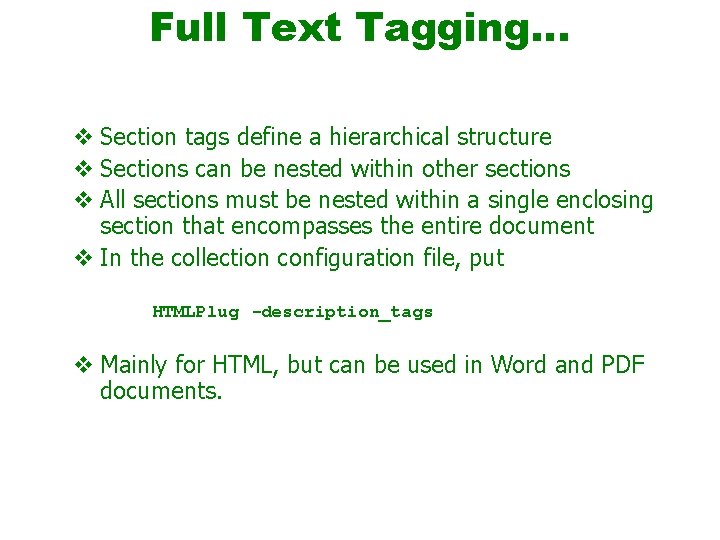
Full Text Tagging… v Section tags define a hierarchical structure v Sections can be nested within other sections v All sections must be nested within a single enclosing section that encompasses the entire document v In the collection configuration file, put HTMLPlug -description_tags v Mainly for HTML, but can be used in Word and PDF documents.
Agenda v v v Print documents Downloading HTML & full text tagging Word documents PDF documents Power. Point documents CDS/ISIS
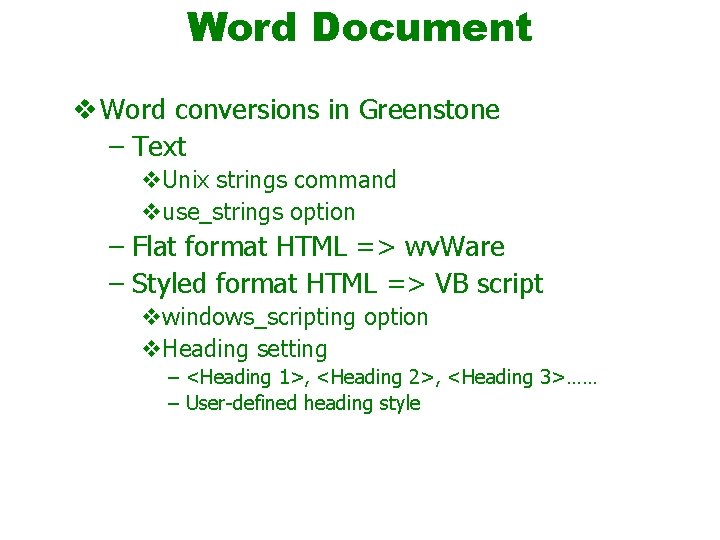
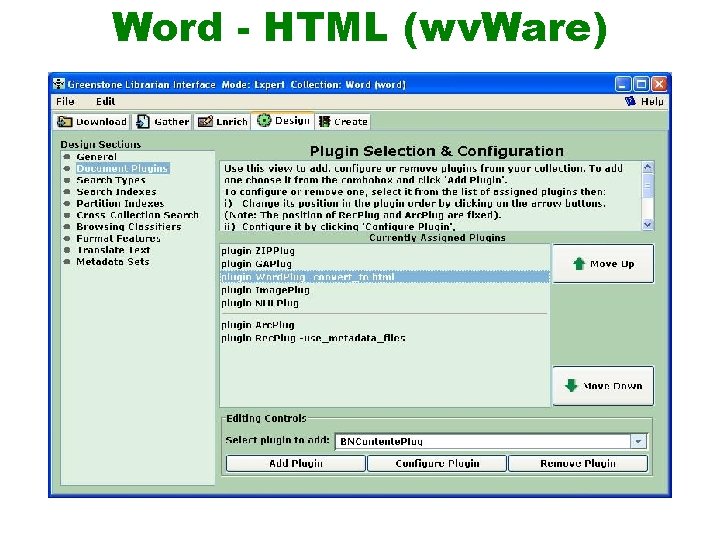
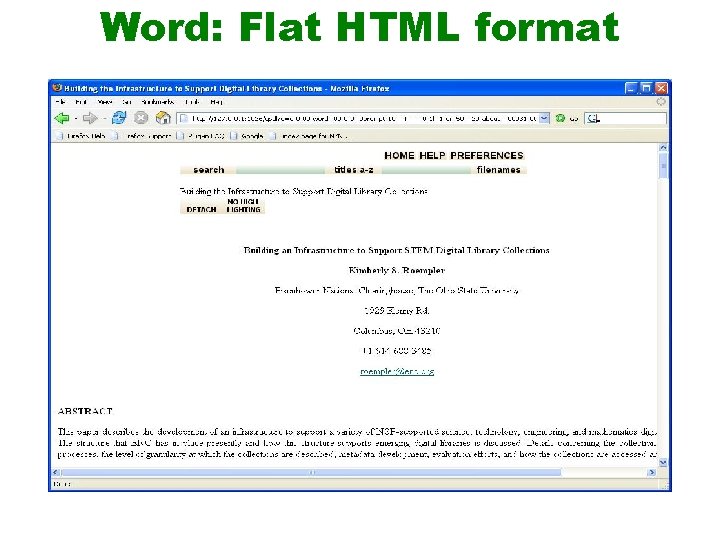
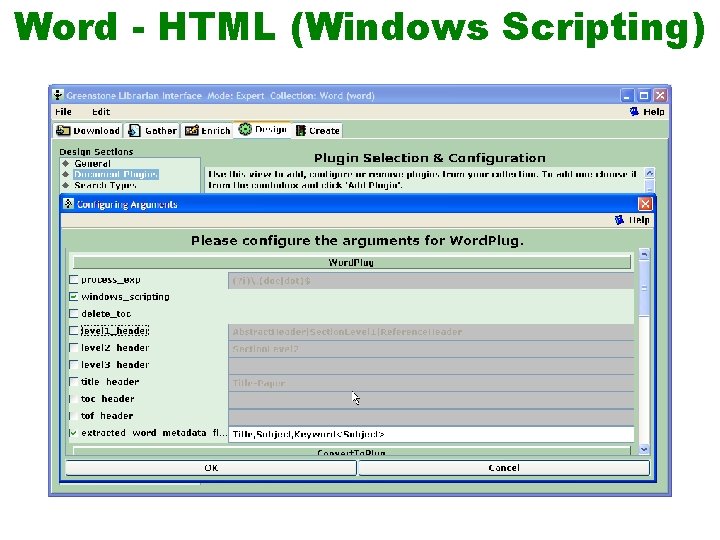
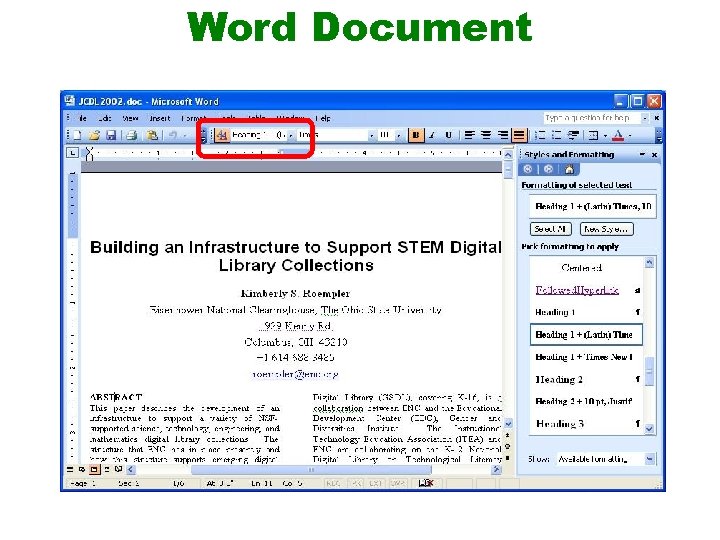
Word Document v Word conversions in Greenstone – Text v. Unix strings command vuse_strings option – Flat format HTML => wv. Ware – Styled format HTML => VB script vwindows_scripting option v. Heading setting – <Heading 1>, <Heading 2>, <Heading 3>…… – User-defined heading style
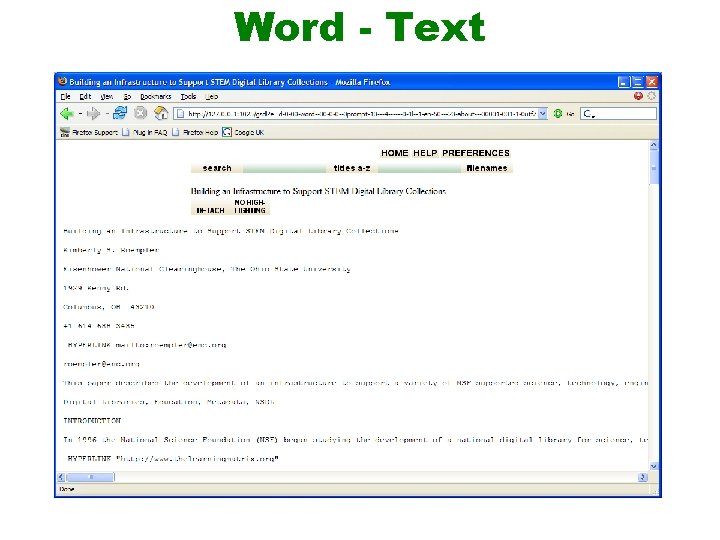
Word - Text
Word - HTML (wv. Ware)
Word: Flat HTML format
Word - HTML (Windows Scripting)
Word Document
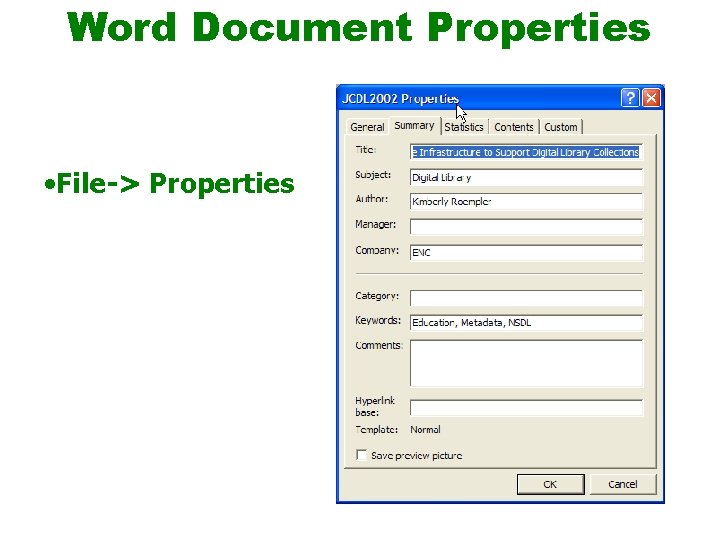
Word Document Properties • File-> Properties
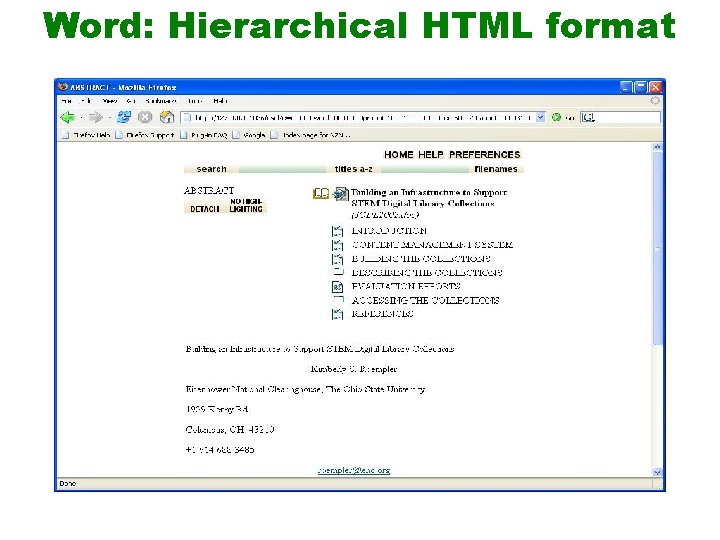
Word: Hierarchical HTML format
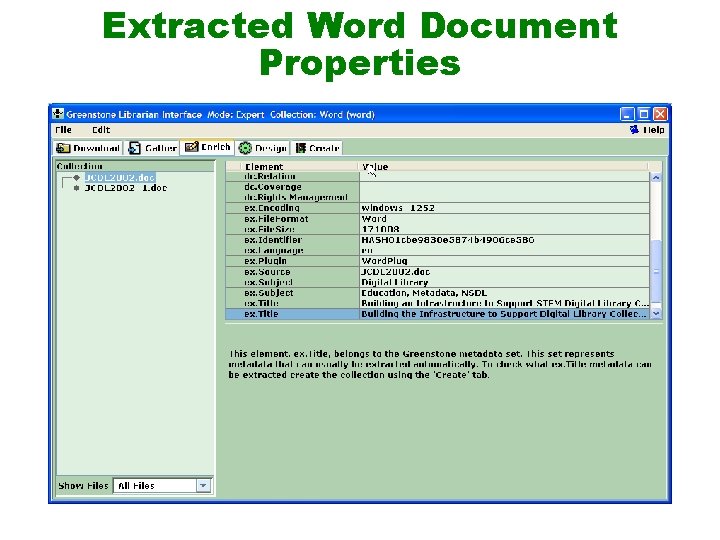
Extracted Word Document Properties
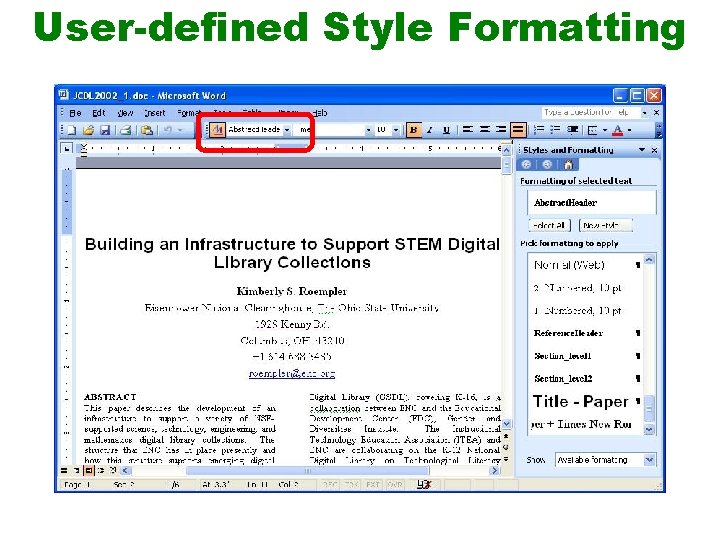
User-defined Style Formatting
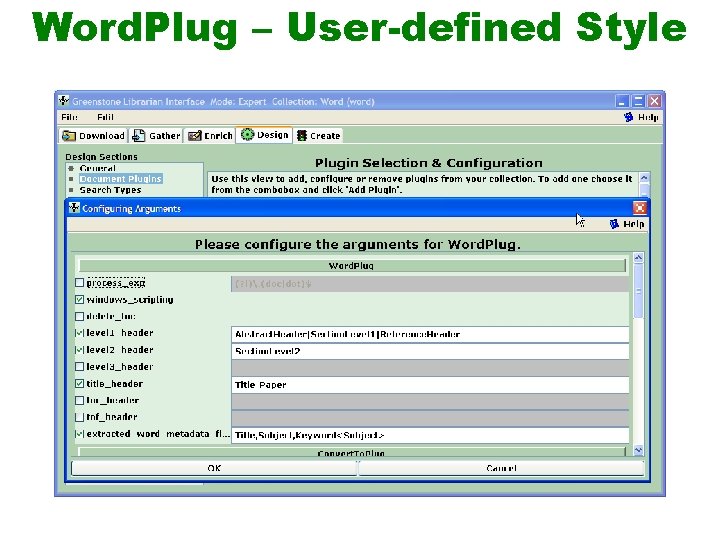
Word. Plug – User-defined Style
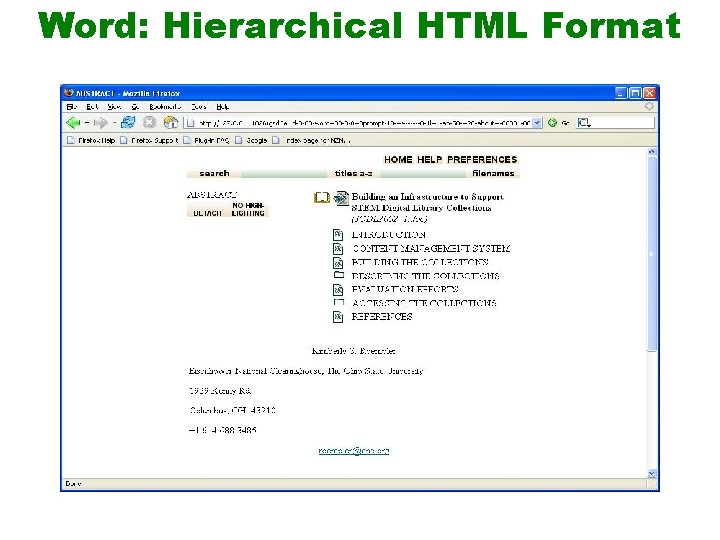
Word: Hierarchical HTML Format
Agenda v v v Print documents Downloading HTML & full text tagging Word documents PDF documents Power. Point documents CDS/ISIS
PDF Document v PDF conversions in Greenstone – Text only for Unix – HTML system vuse_sections option vcomplex option – Image v. Image. Magick needs to be installed v. Use of convert utility v. Convert_to – pagedimg_jpg – pagedimg_gif – pagedimg_png
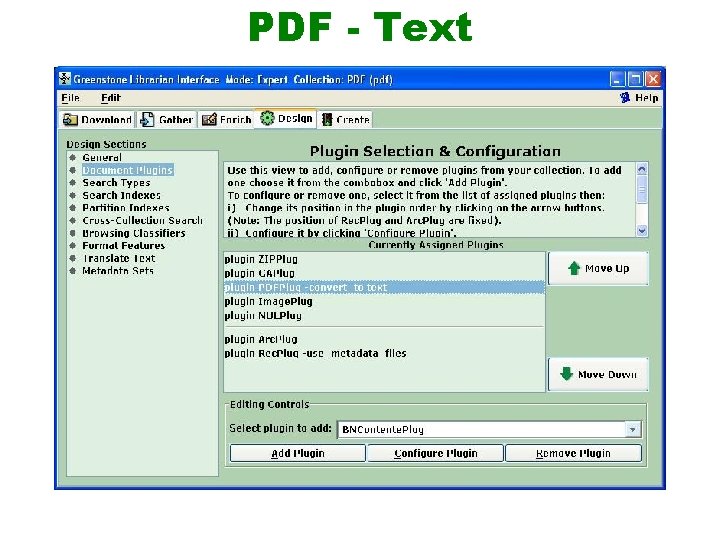
PDF - Text
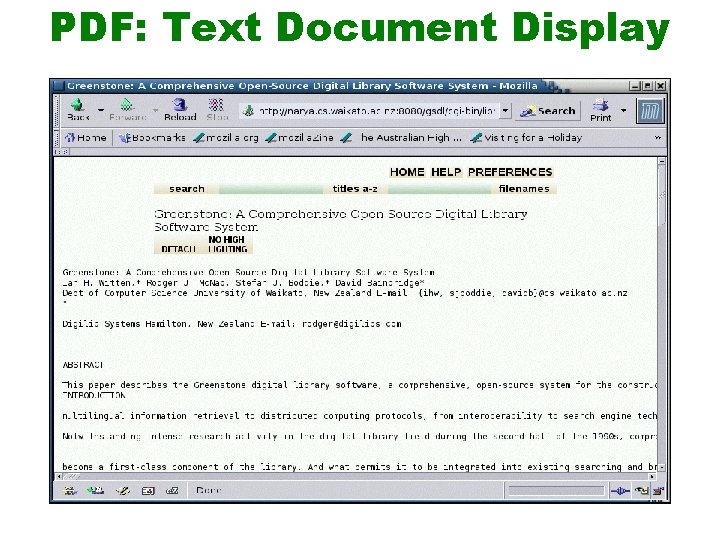
PDF: Text Document Display
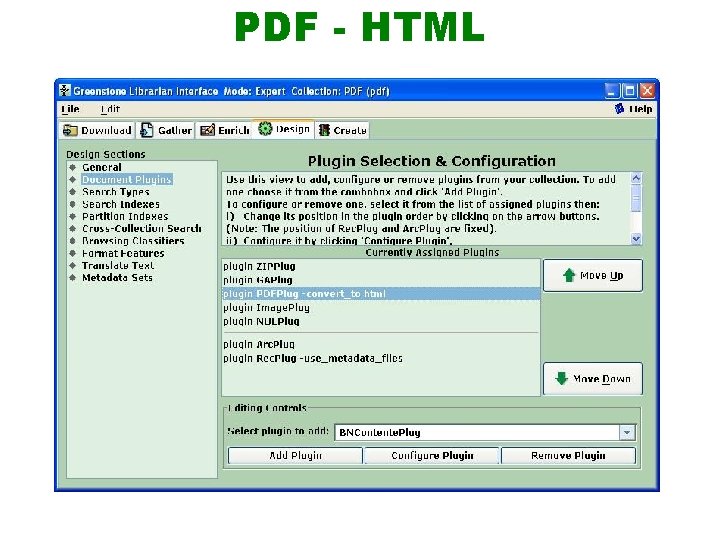
PDF - HTML
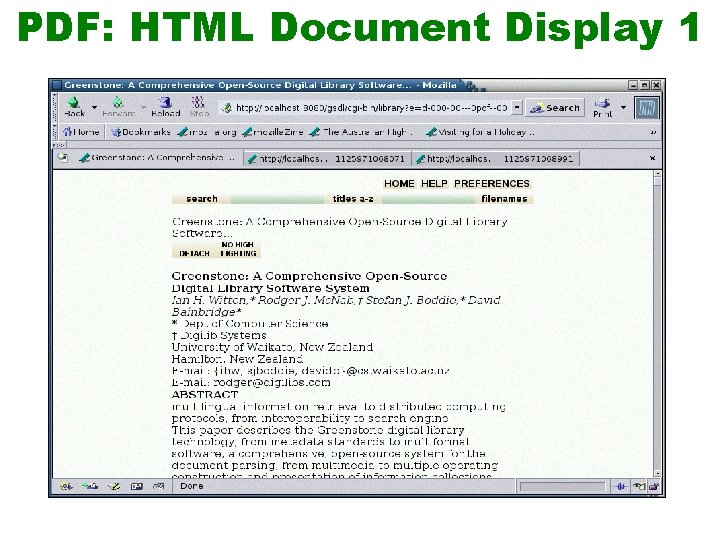
PDF: HTML Document Display 1
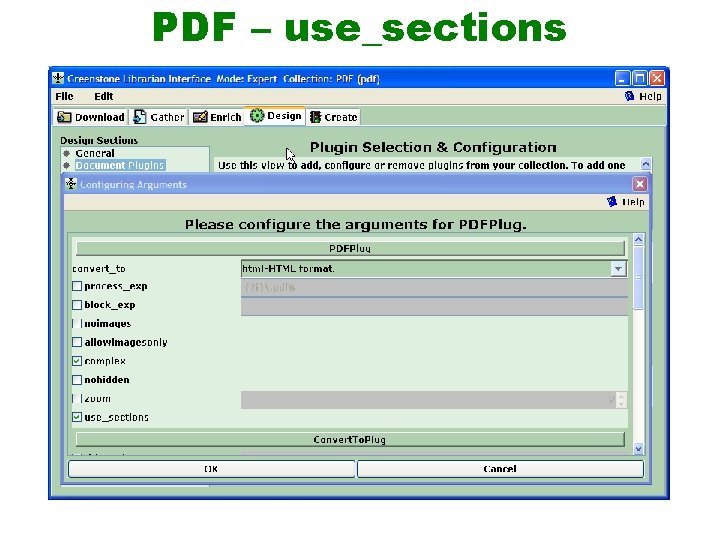
PDF – use_sections
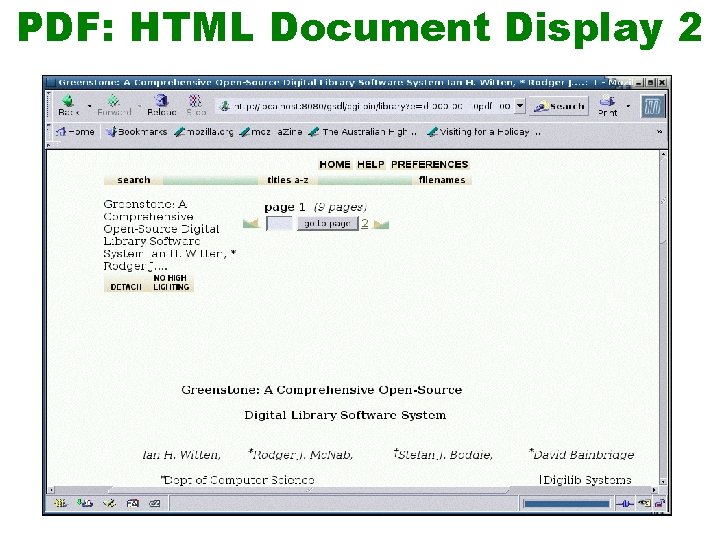
PDF: HTML Document Display 2
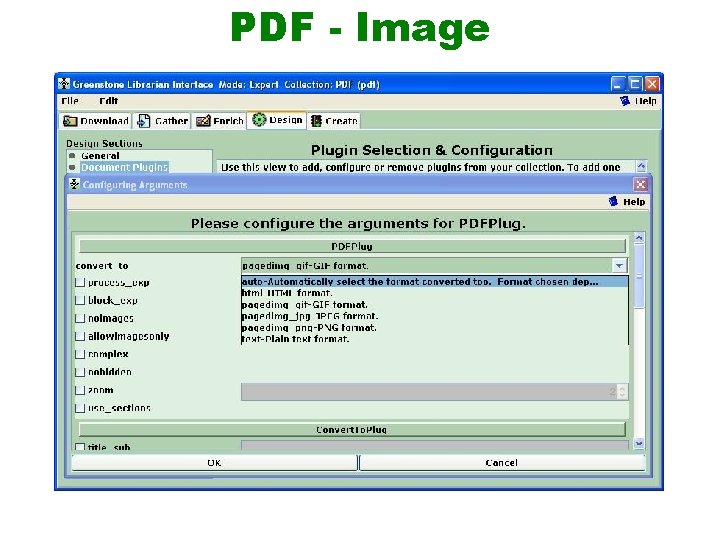
PDF - Image
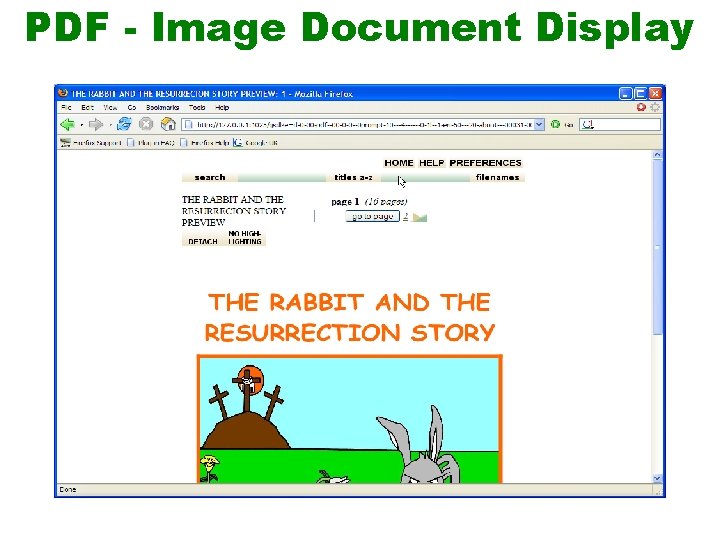
PDF - Image Document Display
Agenda v v v Print documents Downloading HTML & full text tagging Word documents PDF documents Power. Point documents CDS/ISIS
Power. Point Document v PPT conversions in Greenstone – Text vuse_strings option – HTML – Image (JPEG, GIF, PNG) vwindows_scripting option vconvert_to – pagedimg_jpg – pagedimg_gif – pagedimg_png
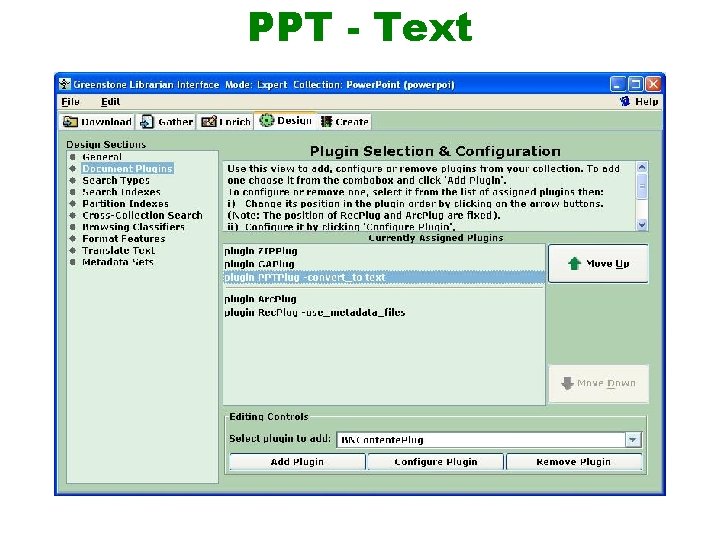
PPT - Text
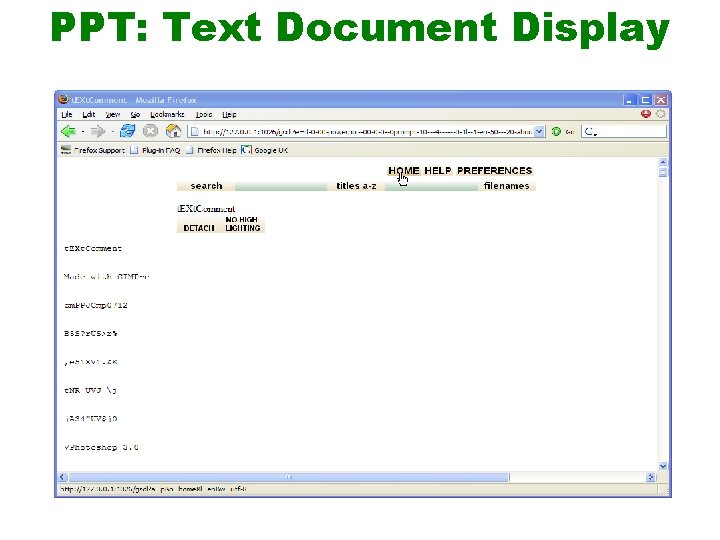
PPT: Text Document Display
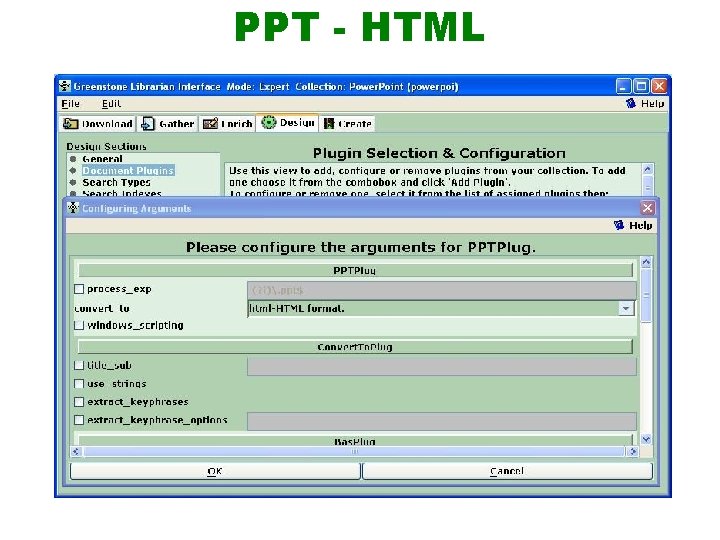
PPT - HTML
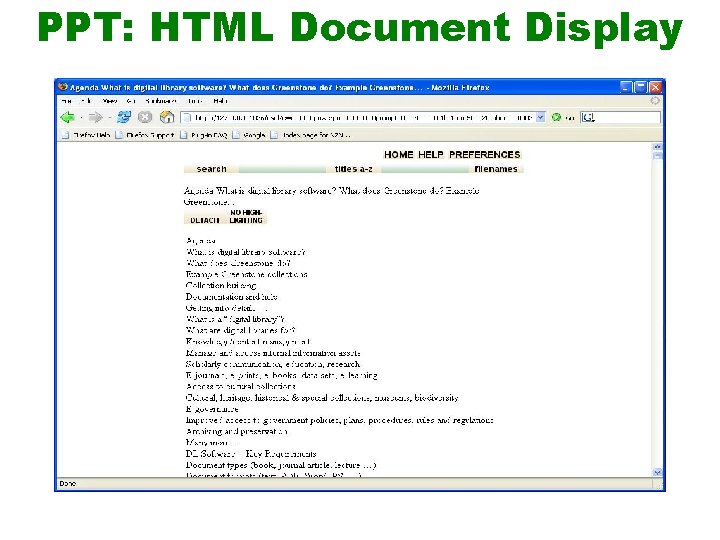
PPT: HTML Document Display
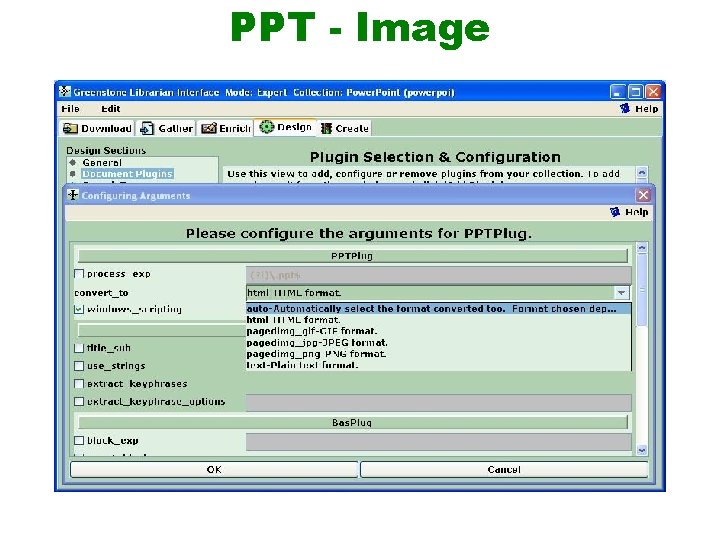
PPT - Image
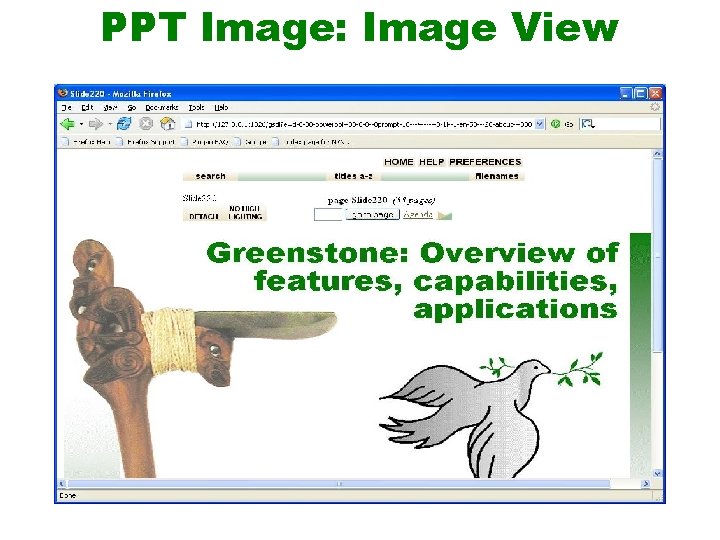
PPT Image: Image View
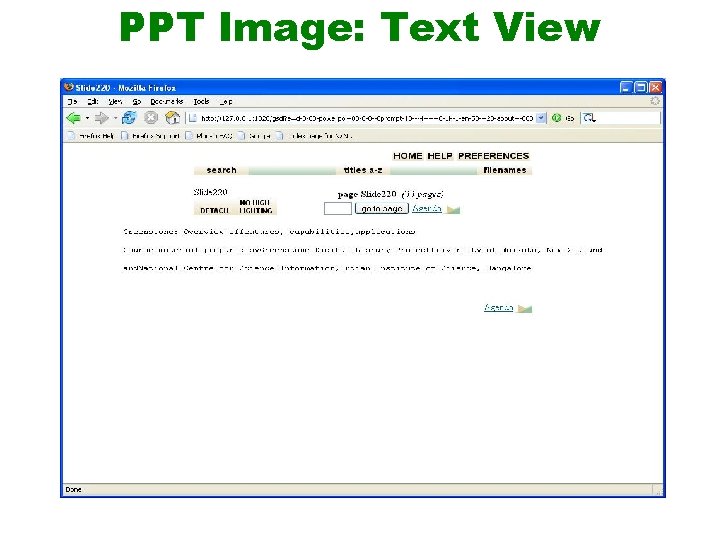
PPT Image: Text View
Agenda v v v Print documents Downloading HTML & full text tagging Word documents PDF documents Power. Point documents CDS/ISIS
CDS/ISIS v Bibliography collections are typically fairly complex: – Form searching – Customised query result and browse lists – Customised document display v Let’s work through creating a simple collection using a small CDS/ISIS database describing a set of film slides (More information in the “Bibliography collection” and “CDS/ISIS” documented example collections)
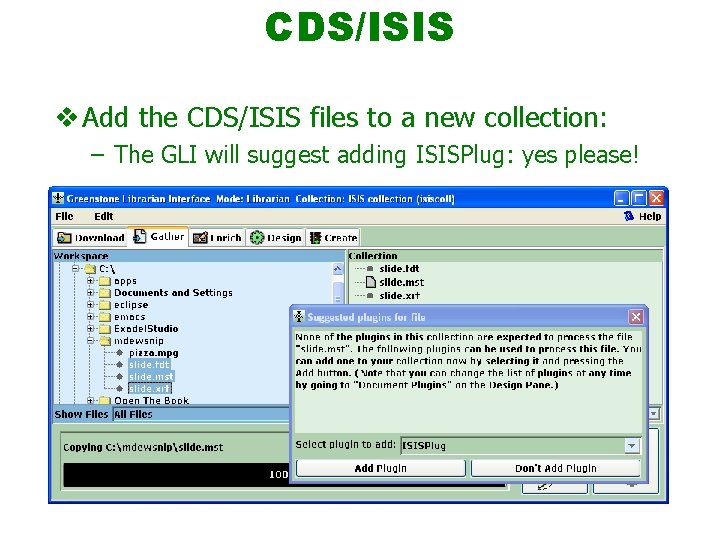
CDS/ISIS v Add the CDS/ISIS files to a new collection: – The GLI will suggest adding ISISPlug: yes please!
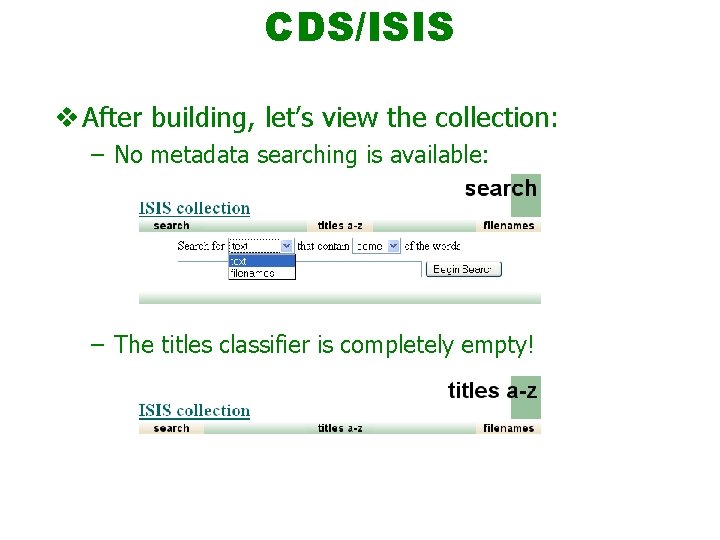
CDS/ISIS v After building, let’s view the collection: – No metadata searching is available: – The titles classifier is completely empty!
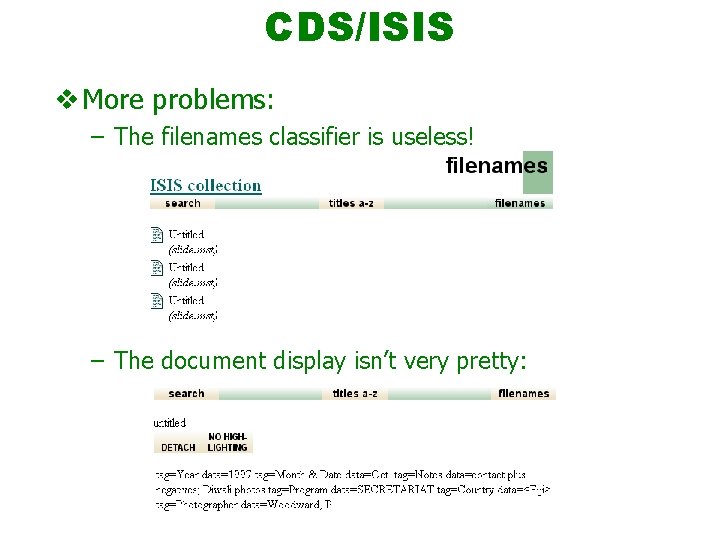
CDS/ISIS v More problems: – The filenames classifier is useless! – The document display isn’t very pretty:
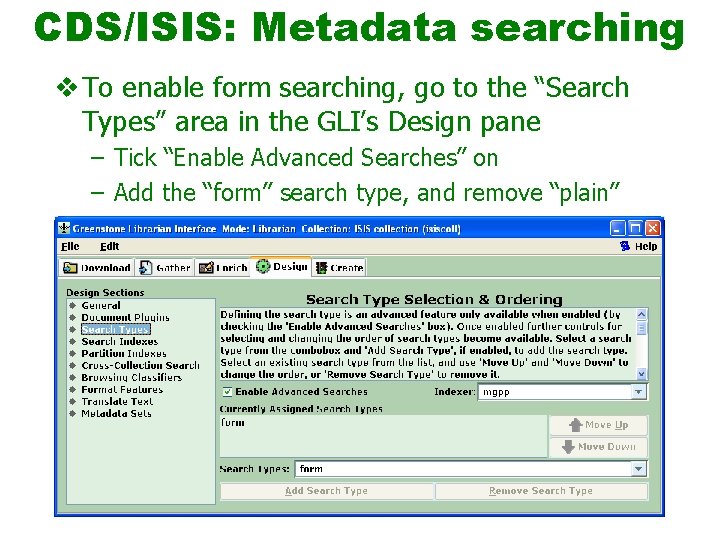
CDS/ISIS: Metadata searching v To enable form searching, go to the “Search Types” area in the GLI’s Design pane – Tick “Enable Advanced Searches” on – Add the “form” search type, and remove “plain”
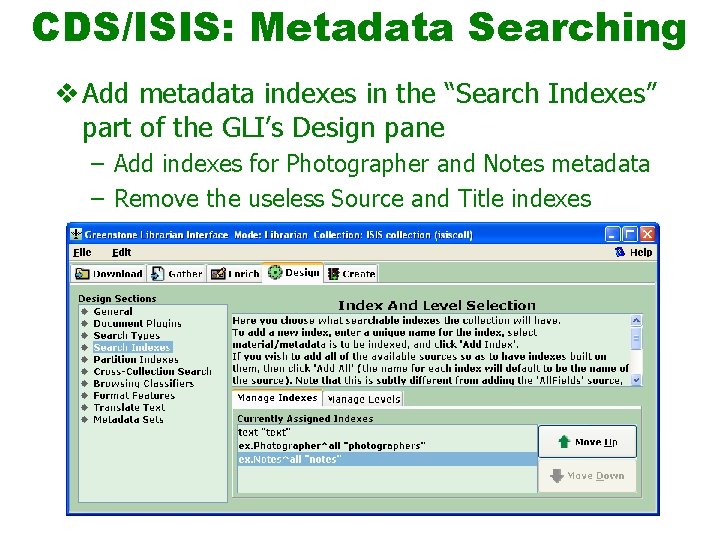
CDS/ISIS: Metadata Searching v Add metadata indexes in the “Search Indexes” part of the GLI’s Design pane – Add indexes for Photographer and Notes metadata – Remove the useless Source and Title indexes
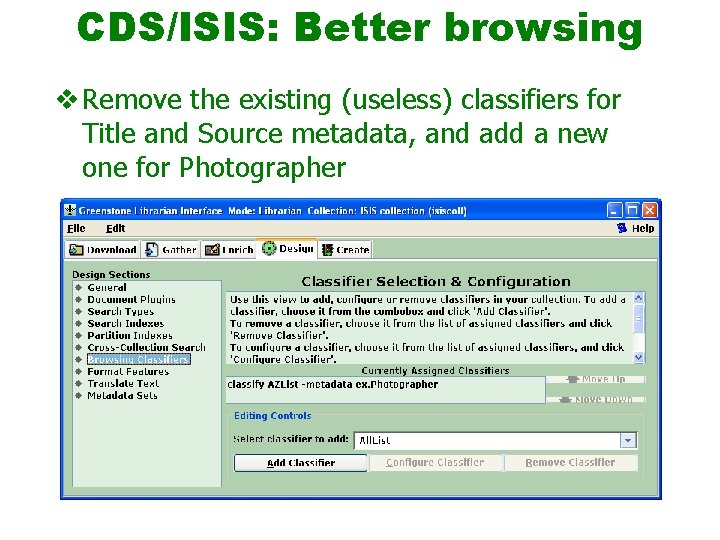
CDS/ISIS: Better browsing v Remove the existing (useless) classifiers for Title and Source metadata, and add a new one for Photographer
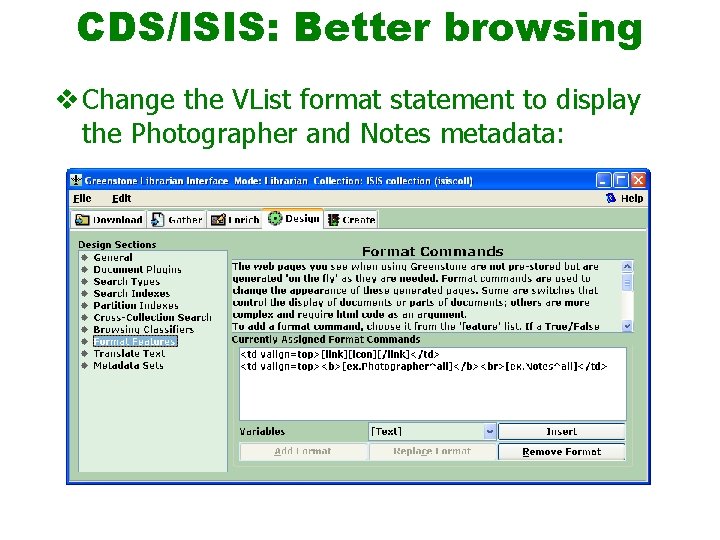
CDS/ISIS: Better browsing v Change the VList format statement to display the Photographer and Notes metadata:
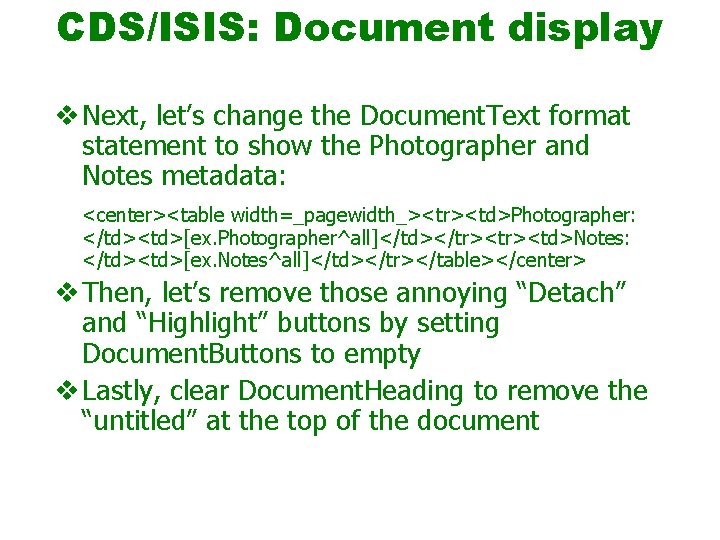
CDS/ISIS: Document display v Next, let’s change the Document. Text format statement to show the Photographer and Notes metadata: <center><table width=_pagewidth_><tr><td>Photographer: </td><td>[ex. Photographer^all]</td></tr><td>Notes: </td><td>[ex. Notes^all]</td></tr></table></center> v Then, let’s remove those annoying “Detach” and “Highlight” buttons by setting Document. Buttons to empty v Lastly, clear Document. Heading to remove the “untitled” at the top of the document
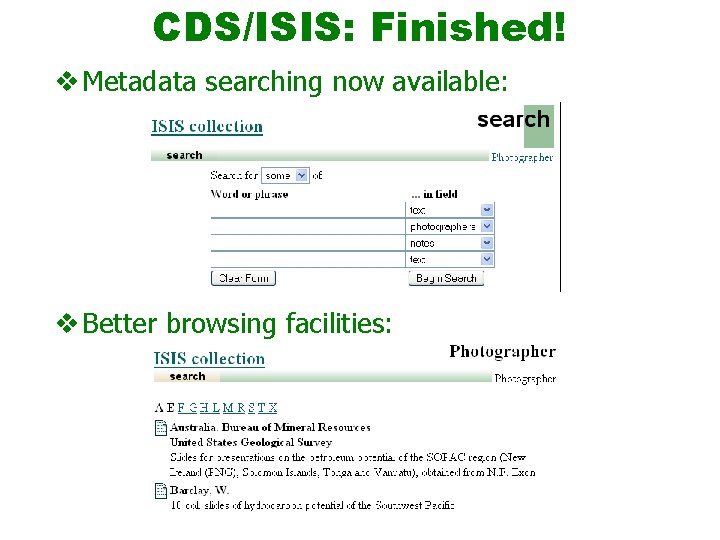
CDS/ISIS: Finished! v Metadata searching now available: v Better browsing facilities:
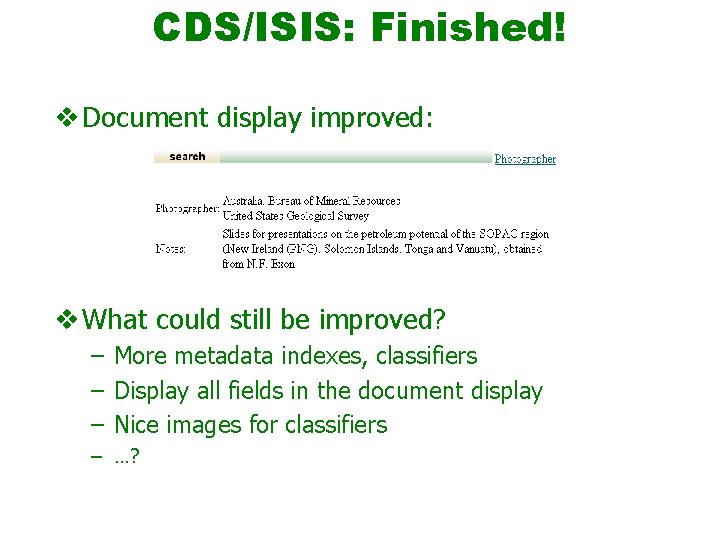
CDS/ISIS: Finished! v Document display improved: v What could still be improved? – More metadata indexes, classifiers – Display all fields in the document display – Nice images for classifiers – …?

Questions? Comments? Discussion? Feedback form!
- Slides: 70