
ADOBE PREMIERE PRO Basic tools and techniques defined
ADOBE PREMIERE PRO Basic tools and techniques defined
Premiere Pro CC Breakdown • This professional and industry standard software provides a great base in order for you to achieve your desired results in completing an audiofilm edit. • You can edit your video/audio in many different styles on this software such as color correction, camera shake, cutting, using filters, transitions and many more.
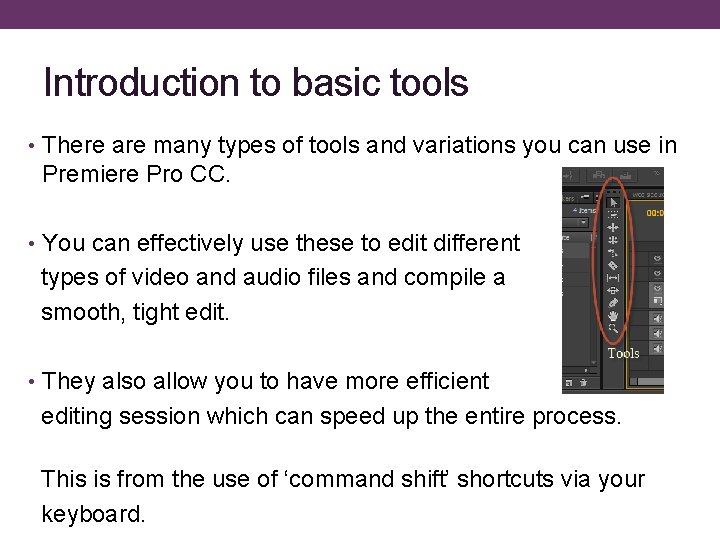
Introduction to basic tools • There are many types of tools and variations you can use in Premiere Pro CC. • You can effectively use these to edit different types of video and audio files and compile a smooth, tight edit. • They also allow you to have more efficient editing session which can speed up the entire process. This is from the use of ‘command shift’ shortcuts via your keyboard.
Your Options: • Selection tool • Track select • Ripple edit • Rolling edit • Rate stretch • Razor tool • Slip tool • Slide tool • Pen tool • Hand tool • Zoom tool
Selection and Track Tool • The selection tool is a default option which selects a particular clip in the timeline • The Track select tool is similar though it selects all clips on a track from a specific point on the timeline
Ripple and Rolling Edit • The Ripple Edit tool adjusts an edit point and can move more clips in the timeline to compensate • The Rolling Edit tool adjusts a point between two clips without affecting the rest of the timeline
Rate Stretch and Razor Tool • The Rate Stretch tool changes the duration of a clip while changing the speed • The Razor tool cuts a clip or multiple clips into two
Slip and Slide Tool • The Slip tool move’s a clips in and out points by the same amount simultaneously, so that the rest of the timeline is not affected • The Slide tool can move a clip back and forth throughout the timeline, while adjusting adjacent clips to compensate
Pen, Hand Zoom Tool • The Pen tool creates control (anchor) points • The Hand tool allows you to drag the timeline left and right • The Zoom tool allows you to magnify the view or select a particular area to focus on
- Slides: 9