
Adobe PhotoshopCS 3 Paths Palette Learning Objectives Define
Adobe Photoshop®CS 3 Paths Palette
Learning Objectives: • • Define Paths Anatomy of a Path Benefits of using Path Recognition & Definition of the Pen Tools Recognition & Definition of Path Selection & Direct Selection Tools Introduction to Paths Palette How the Paths Palette functions? Step by Step Tutorial Using the Pen Tool & Path Palette
Photoshop provides several methods for isolating an Image: Geometric tools, Free-hand tools, the Magic Wand tool, the Quick Selection Tool, and lastly, the Pen tools. Making accurate selections can be a difficult or time-consuming, because each image presents different problems. The Pen tools and the Paths Palette add capabilities to further enhance the accuracy and speed of making selections and defining the smooth edges.
• Benefits of using Paths to create selections are: • • you can save and re-edit the Path at any time, and it is saved as part of the psd (Photoshop Document) file. it creates a very clean 'cut' when forming a selection. Great for geometric shapes or objects with defined edges. a Path can also be traced with another tool, a Brush or Pencil. Great for creating a complex outline of an object. once you master the Pen tools, Anchor Points, and Direction Points (those knobby things!) you can create complex, and accurate selections very quickly.
What are paths? Paths represent vector objects that mathematically define specific areas on an image by virtue of their shape and position. They are composed of anchor Points and line segments, known as Bezier (Bāz-yā) curves.
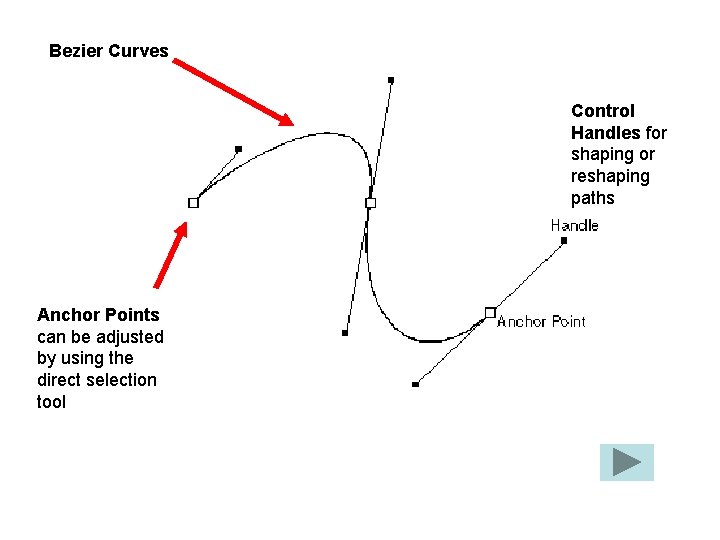
Bezier Curves Control Handles for shaping or reshaping paths Anchor Points can be adjusted by using the direct selection tool
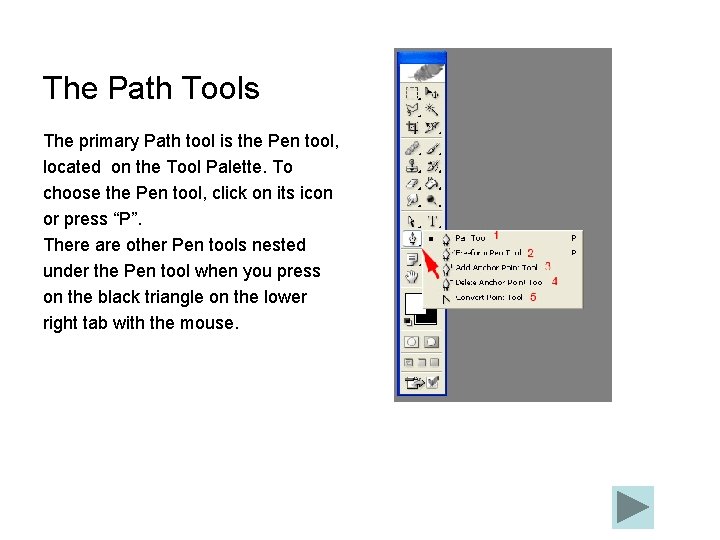
The Path Tools The primary Path tool is the Pen tool, located on the Tool Palette. To choose the Pen tool, click on its icon or press “P”. There are other Pen tools nested under the Pen tool when you press on the black triangle on the lower right tab with the mouse.
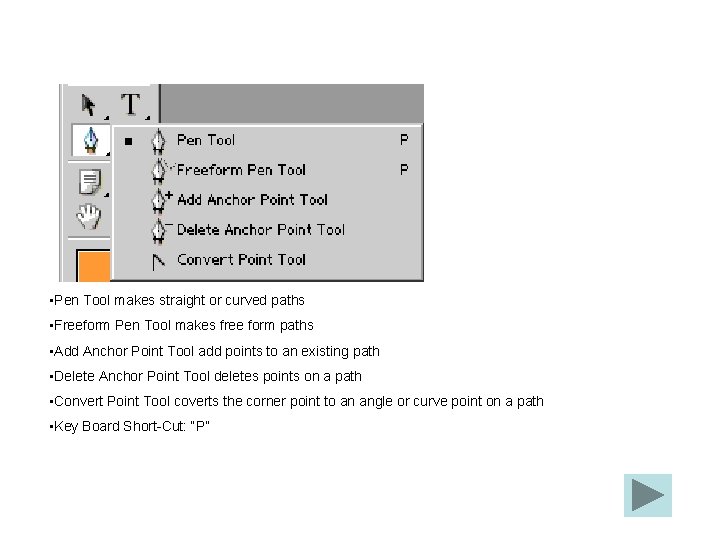
• Pen Tool makes straight or curved paths • Freeform Pen Tool makes free form paths • Add Anchor Point Tool add points to an existing path • Delete Anchor Point Tool deletes points on a path • Convert Point Tool coverts the corner point to an angle or curve point on a path • Key Board Short-Cut: “P”
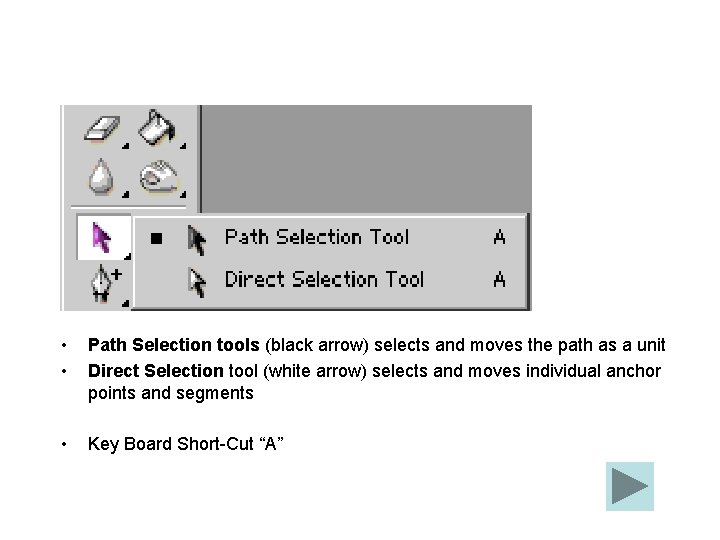
• • Path Selection tools (black arrow) selects and moves the path as a unit Direct Selection tool (white arrow) selects and moves individual anchor points and segments • Key Board Short-Cut “A”

Paths Palette The Path Palette works with the Selection and Pen tools. After you have made a selection using either of the Selections tools, your selection can be converted into a path for tweaking and then converted back to a selection. If you started your selection by using any of the Path tools, it can be converted into a selection, and back to a path for further tweaking. The path is saved in the Path Palette for later use. The Path Palette can be moved anywhere in the work area in Photoshop. It is found under Menu > Window > Paths. By default it is nested with the Channels Palette.
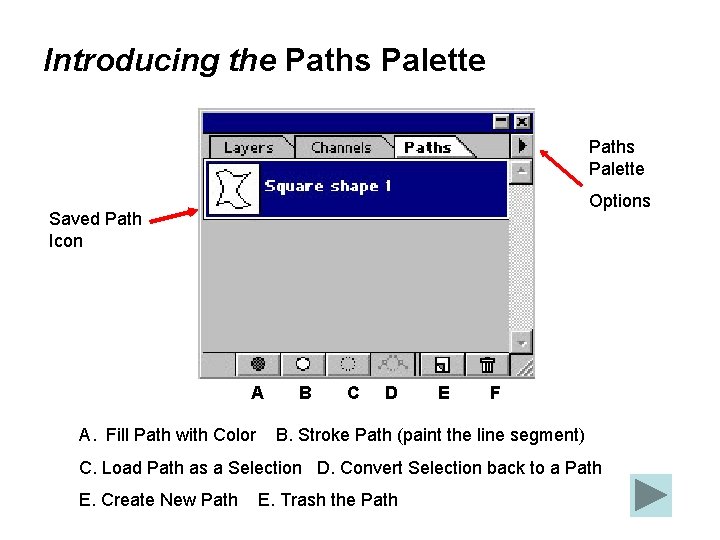
Introducing the Paths Palette Options Saved Path Icon A A. Fill Path with Color B C D E F B. Stroke Path (paint the line segment) C. Load Path as a Selection D. Convert Selection back to a Path E. Create New Path E. Trash the Path
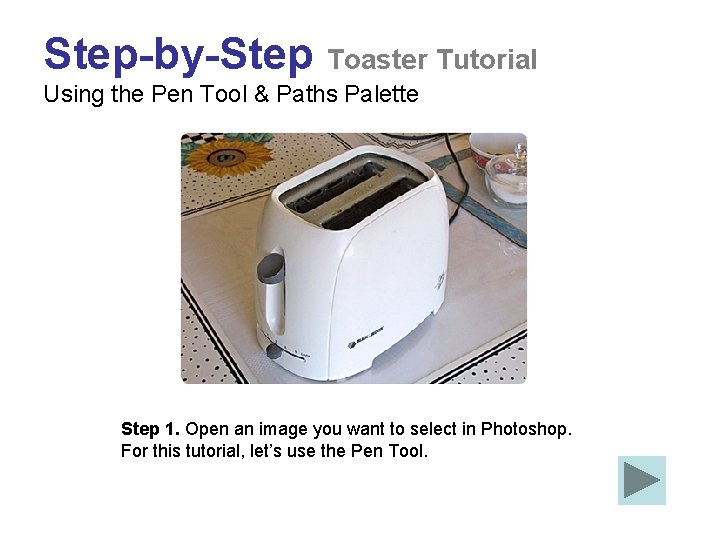
Step-by-Step Toaster Tutorial Using the Pen Tool & Paths Palette Step 1. Open an image you want to select in Photoshop. For this tutorial, let’s use the Pen Tool.
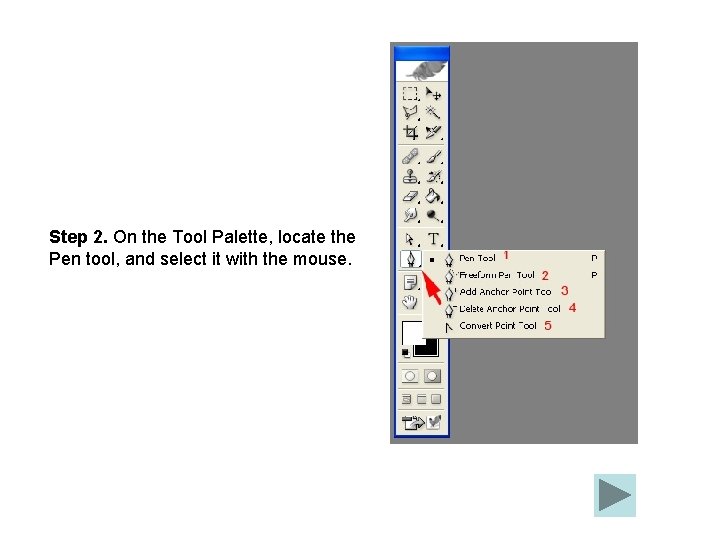
Step 2. On the Tool Palette, locate the Pen tool, and select it with the mouse.
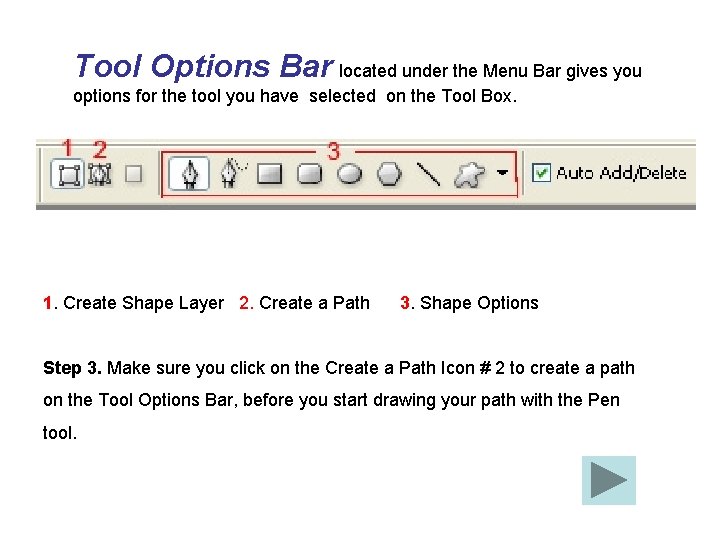
Tool Options Bar located under the Menu Bar gives you options for the tool you have selected on the Tool Box. 1. Create Shape Layer 2. Create a Path 3. Shape Options Step 3. Make sure you click on the Create a Path Icon # 2 to create a path on the Tool Options Bar, before you start drawing your path with the Pen tool.
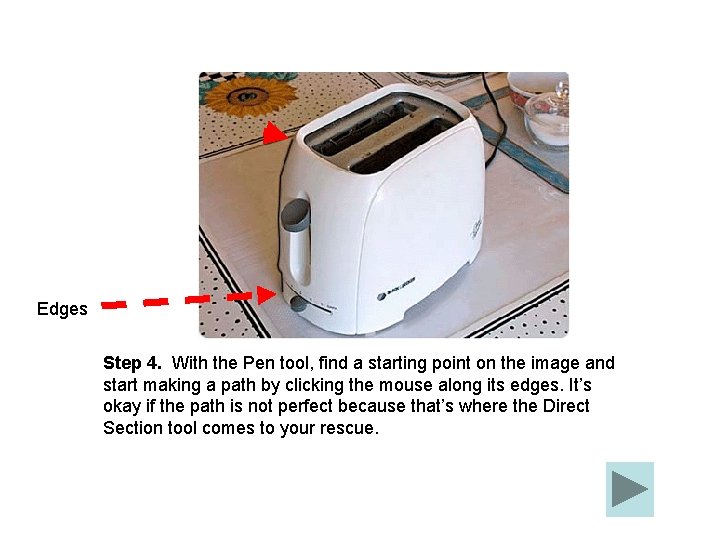
Edges Step 4. With the Pen tool, find a starting point on the image and start making a path by clicking the mouse along its edges. It’s okay if the path is not perfect because that’s where the Direct Section tool comes to your rescue.
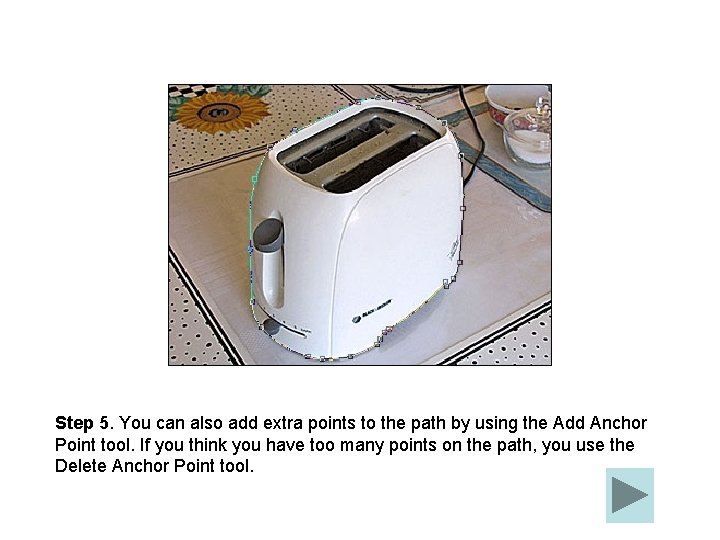
Step 5. You can also add extra points to the path by using the Add Anchor Point tool. If you think you have too many points on the path, you use the Delete Anchor Point tool.
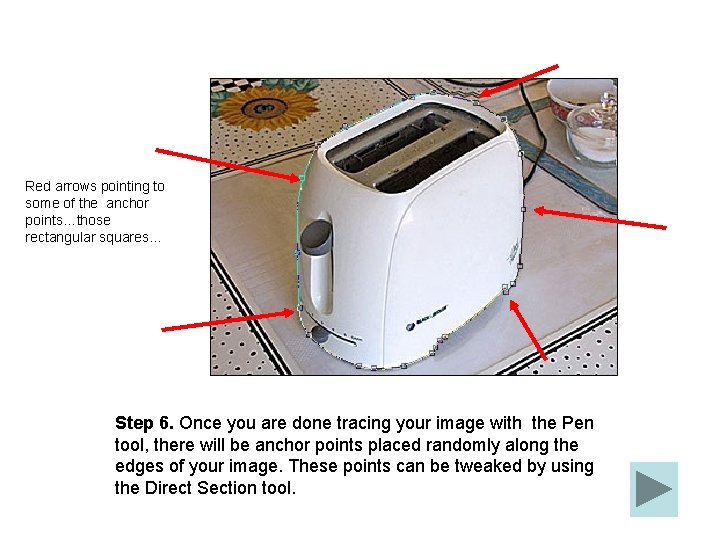
Red arrows pointing to some of the anchor points…those rectangular squares… Step 6. Once you are done tracing your image with the Pen tool, there will be anchor points placed randomly along the edges of your image. These points can be tweaked by using the Direct Section tool.
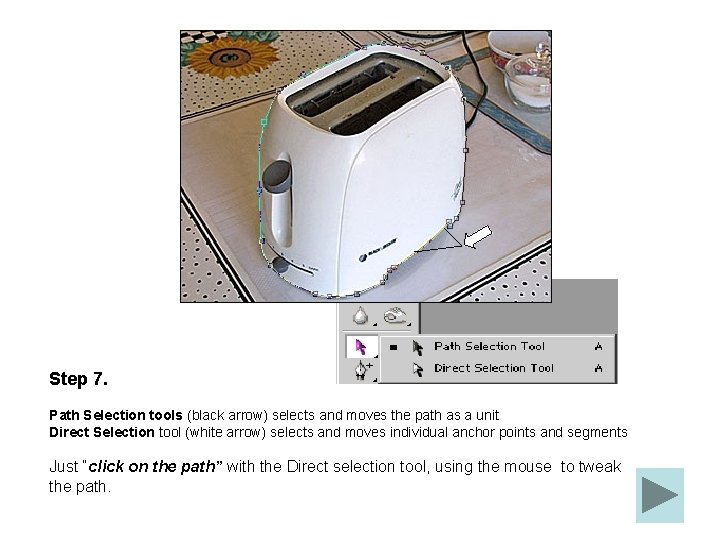
Step 7. Path Selection tools (black arrow) selects and moves the path as a unit Direct Selection tool (white arrow) selects and moves individual anchor points and segments Just “click on the path” with the Direct selection tool, using the mouse to tweak the path.
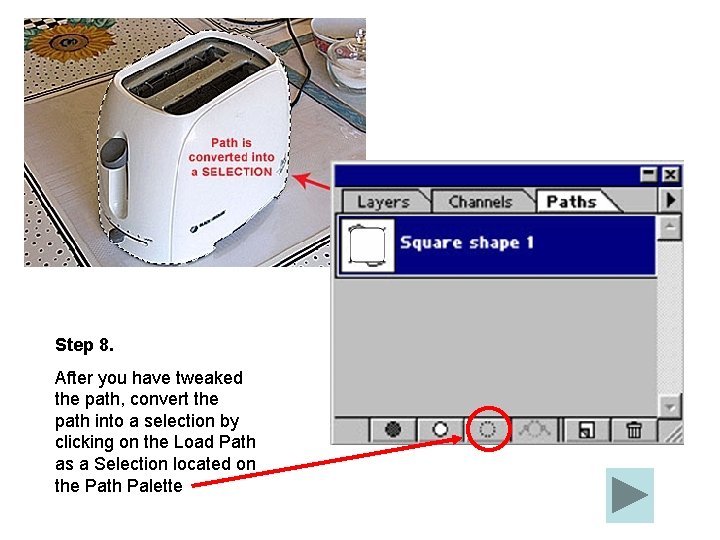
Step 8. After you have tweaked the path, convert the path into a selection by clicking on the Load Path as a Selection located on the Path Palette
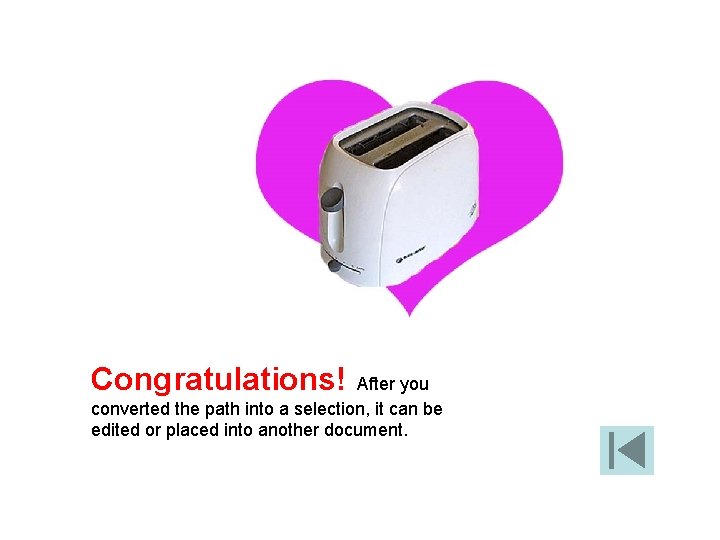
Congratulations! After you converted the path into a selection, it can be edited or placed into another document.
- Slides: 20