
Adobe Dreamweaver CS 5 Illustrated Unit C Developing
Adobe Dreamweaver CS 5 - Illustrated Unit C: Developing a Web Page
Unit Objectives • • Plan the page layout Create the head content Set Web page properties Create and format text Adobe Dreamweaver CS 5 - Illustrated
Unit Objectives • • Add links to Web pages Use the History panel View HTML code Test and modify Web pages Adobe Dreamweaver CS 5 - Illustrated
Planning the Page Layout • • Keep it simple Use white space effectively Limit media objects Use an intuitive navigation structure Adobe Dreamweaver CS 5 - Illustrated
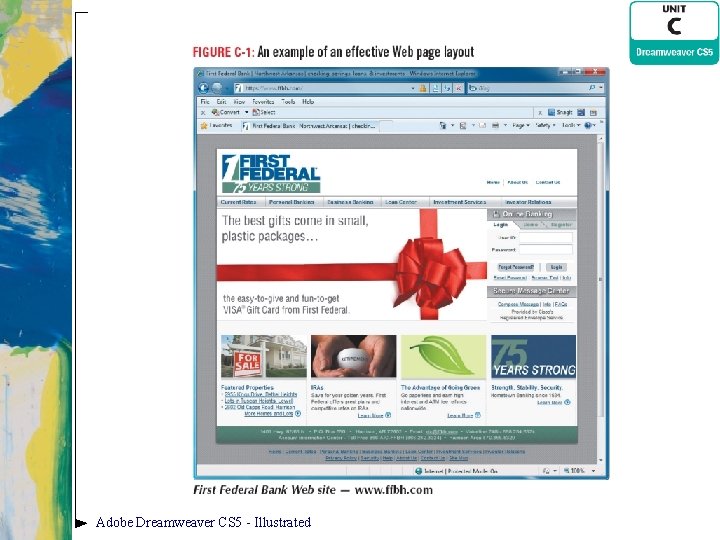
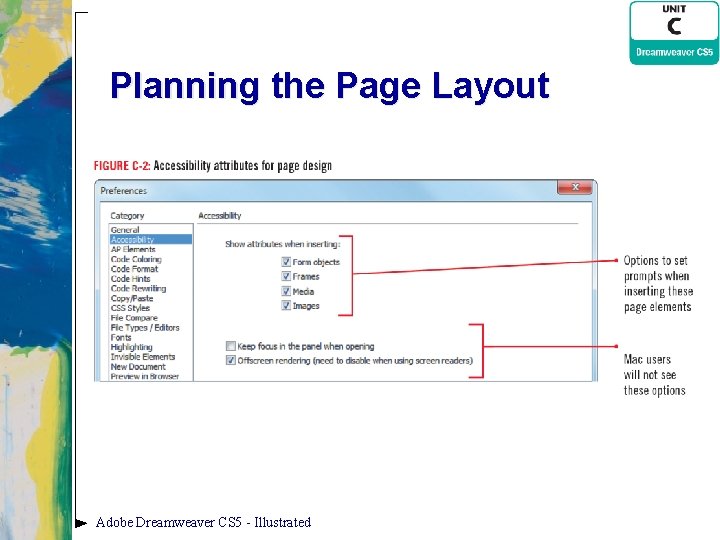
Planning the Page Layout • Apply a consistent theme using templates • Use tables or CSS for page layout • Be conscious of accessibility issues Adobe Dreamweaver CS 5 - Illustrated
Adobe Dreamweaver CS 5 - Illustrated
Planning the Page Layout Adobe Dreamweaver CS 5 - Illustrated
Creating the Head Content 1. Start Dreamweaver, click the Site list arrow on the Files panel – Then click The Striped Umbrella if not already selected 2. Double-click index. html; make sure the Document window is maximized – Click View on the Application bar (Win) or Menu bar (Mac) – Click Head Content if necessary Adobe Dreamweaver CS 5 - Illustrated
Creating the Head Content 3. Click the Page title icon – Place the insertion point after The Striped Umbrella in the Title text box in the Property inspector – Press [spacebar], type beach resort and spa, Ft. Eugene, Florida, then press [Enter] (Win) or [return] (Mac) Adobe Dreamweaver CS 5 - Illustrated
Creating the Head Content 4. Expand the Insert panel if necessary, click the Insert panel list arrow – Then click the Common category (if necessary), scroll if necessary to locate the Head object, then click the Head list arrow 5. Click Keywords, type specified keywords (including the commas) in the Keywords text box, then click OK Adobe Dreamweaver CS 5 - Illustrated
Creating the Head Content 6. Click the Head list arrow on the Insert panel, click Description – Then type The Striped Umbrella is a full-service resort and spa just steps from the Gulf of Mexico in Ft. Eugene, Florida. in the Description dialog box, then click OK Adobe Dreamweaver CS 5 - Illustrated
Creating the Head Content 7. Click the Show Code view button on the Document toolbar, click anywhere in the code, then view the head section code 8. Click the Show Design View button on the Document toolbar, click View on the Application bar (Win) or Menu bar (Mac), then click Head Content Adobe Dreamweaver CS 5 - Illustrated
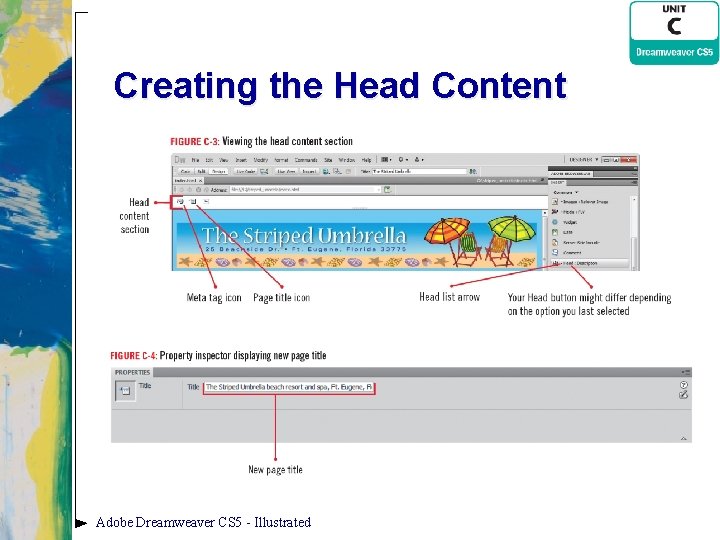
Creating the Head Content Adobe Dreamweaver CS 5 - Illustrated
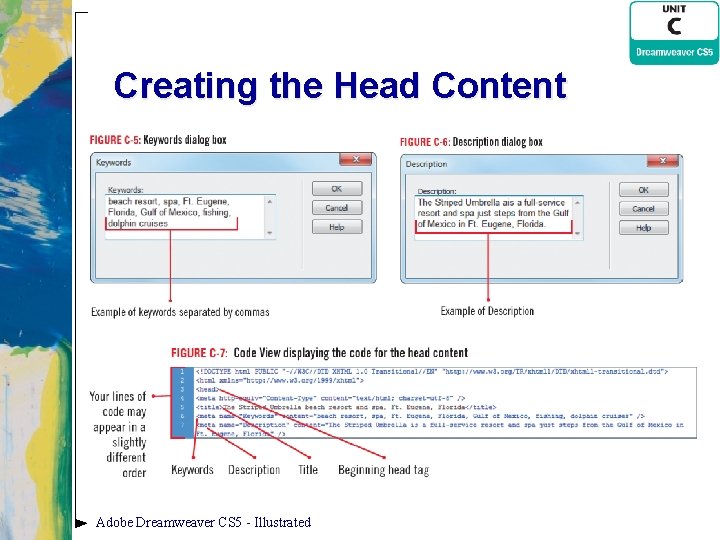
Creating the Head Content Adobe Dreamweaver CS 5 - Illustrated
Setting Web Page Properties 1. Click Modify on the Application bar (Win) or Menu bar (Mac), then click Page Properties 2. Click the Background color box 3. Click the blue color swatch, #9 CF (the fifth color in the last row) 4. Click Apply in the Page Properties dialog box 5. Click next to Background color, click the white color swatch (the rightmost color in the bottom row), then click Apply Adobe Dreamweaver CS 5 - Illustrated
Setting Web Page Properties 6. Click the Text color box, then use the eyedropper tool to select a light shade of blue, then click Apply 7. Click next to Text color, then click the Default Color Icon at the top of the color picker 8. Click OK Adobe Dreamweaver CS 5 - Illustrated
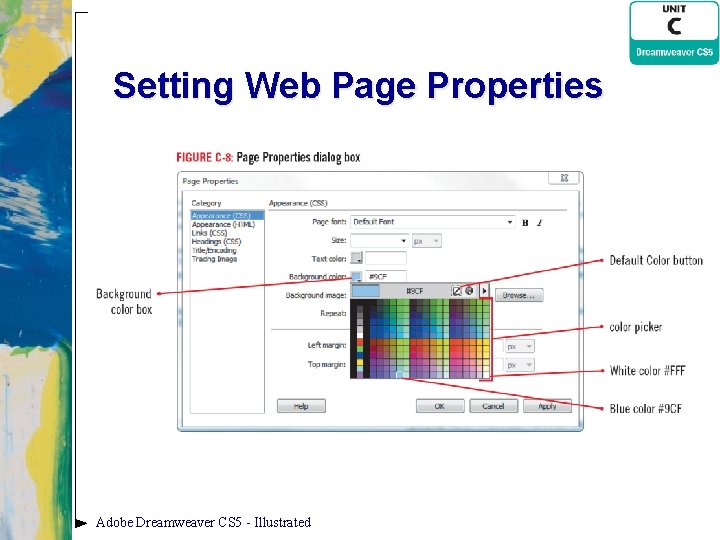
Setting Web Page Properties Adobe Dreamweaver CS 5 - Illustrated
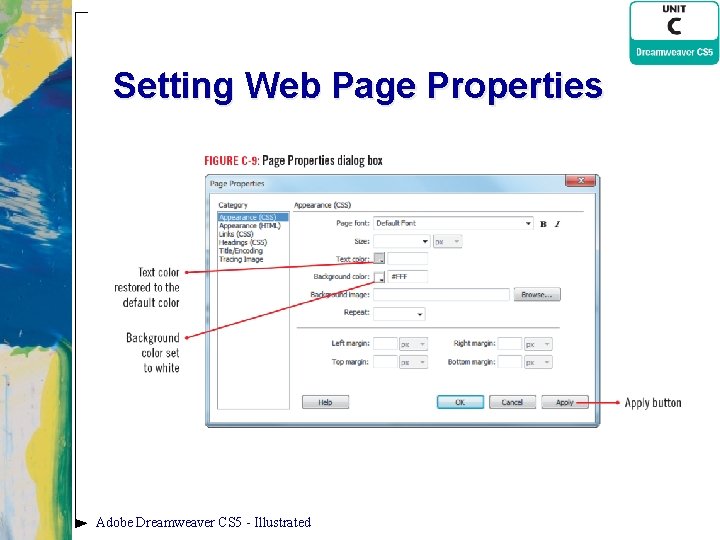
Setting Web Page Properties Adobe Dreamweaver CS 5 - Illustrated
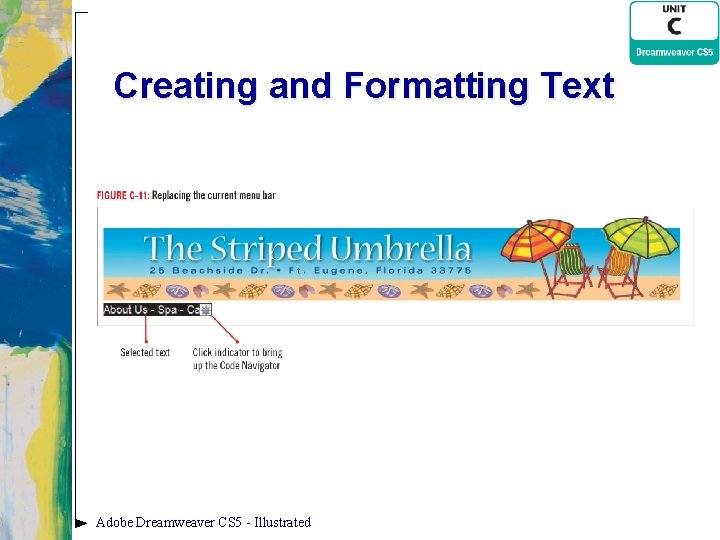
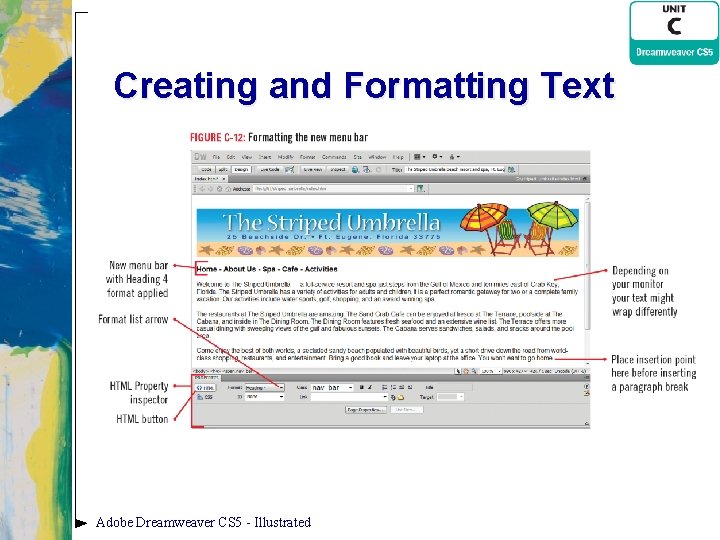
Creating and Formatting Text 1. Position the insertion point to the left of A in About Us, then drag to select About Us – Spa – Café 2. Type Home - About Us - Spa - Cafe - Activities, with spaces in between 3. Position the insertion point to the left of H in Home, then drag to select Home - About Us - Spa - Cafe Activities Adobe Dreamweaver CS 5 - Illustrated
Creating and Formatting Text 4. Click the HTML button on the Property inspector to open the HTML Property inspector if necessary – Click the Format list arrow in the HTML Property inspector – Then click Heading 4 Adobe Dreamweaver CS 5 - Illustrated
Creating and Formatting Text 5. Position the insertion point after the period following …want to go home, press [Enter] (Win) or [return] (Mac), then type The Striped Umbrella Adobe Dreamweaver CS 5 - Illustrated
![Creating and Formatting Text 6. Press and hold [Shift], press [Enter] (Win) or [return]](http://slidetodoc.com/presentation_image_h2/cd136c825f47f48fda64eed01b94f22e/image-22.jpg "Creating and Formatting Text 6. Press and hold [Shift], press [Enter] (Win) or [return]")
Creating and Formatting Text 6. Press and hold [Shift], press [Enter] (Win) or [return] (Mac) to create a line break 7. Enter the following information, placing a line break at the end of each line: 25 Beachside Drive Ft. Eugene, Florida 33775 (555) 594 -9458 Adobe Dreamweaver CS 5 - Illustrated
Creating and Formatting Text 8. Position the pointer to the left of The Striped Umbrella – Click and drag to select all information entered in Step 7 – Click the Italic button in the Property inspector – Then click anywhere to deselect the text Adobe Dreamweaver CS 5 - Illustrated
Creating and Formatting Text Adobe Dreamweaver CS 5 - Illustrated
Creating and Formatting Text Adobe Dreamweaver CS 5 - Illustrated
Adding Links to Web Pages 1. Double-click Home in the menu bar 2. Click the Browse for File icon next to the Link text box in the HTML Property inspector, then navigate to the striped_umbrella root folder 3. Click index. html, verify that Document is selected in the Relative to pop-up menu, then click OK (Win) or Choose (Mac) Adobe Dreamweaver CS 5 - Illustrated
Adding Links to Web Pages 4. Click anywhere on the home page to deselect Home 5. Repeat steps 1 -4 to create links for About Us, Spa, Cafe, and Activities, using about_us. html, spa. html, cafe. html, and activities. html as the corresponding files, then click anywhere on the page Adobe Dreamweaver CS 5 - Illustrated
Adding Links to Web Pages 6. Position the insertion point immediately after the last digit in the telephone number, press and hold [Shift], then press [Enter] (Win) or [return] (Mac) 7. Click the Insert panel list arrow, click Common if necessary, then click Email Link Adobe Dreamweaver CS 5 - Illustrated
Adding Links to Web Pages 8. Type Club Manager in the text box, press [Tab], then type manager@thestripedumbrella. com in the E-Mail text box, click OK 9. If link is not italicized, position the pointer left of Club Manager, click/drag to select text, click the Italic button, then click anywhere to deselect the text Adobe Dreamweaver CS 5 - Illustrated
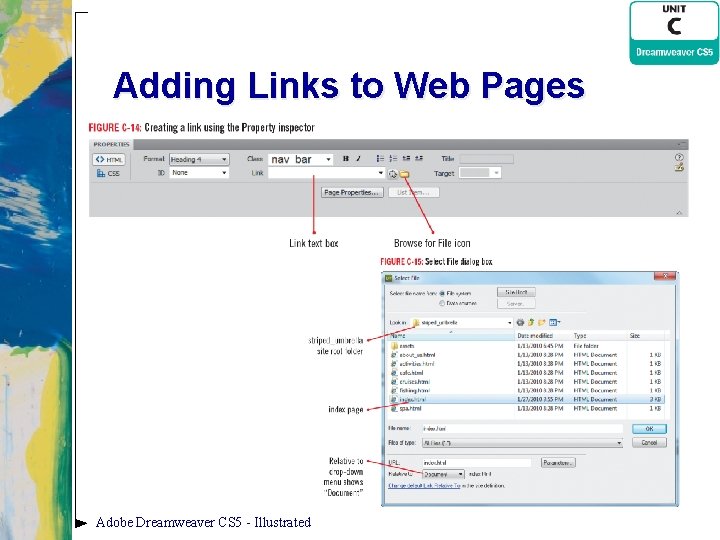
Adding Links to Web Pages Adobe Dreamweaver CS 5 - Illustrated
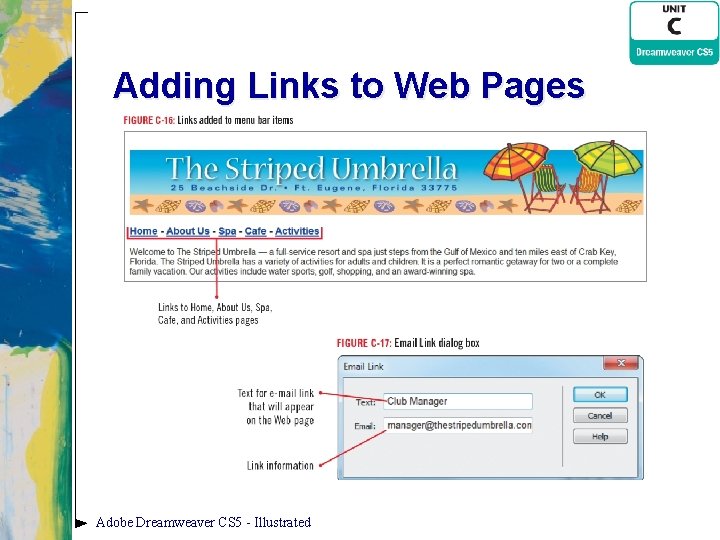
Adding Links to Web Pages Adobe Dreamweaver CS 5 - Illustrated
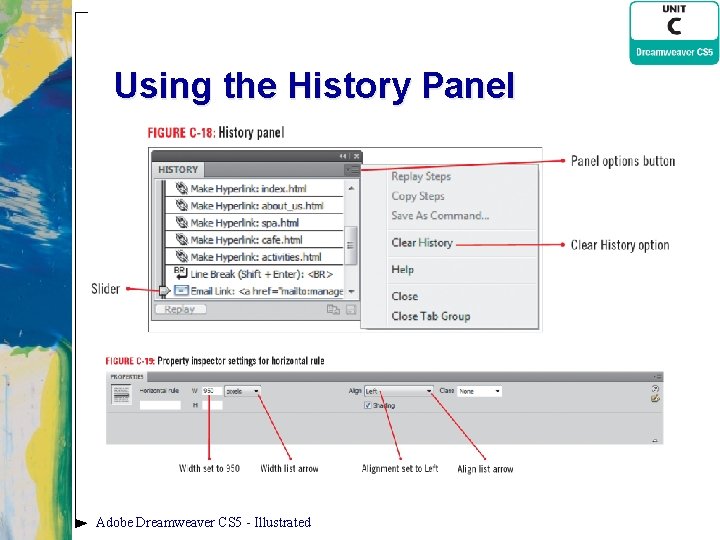
Using the History Panel 1. Click Window on the Application bar (Win) or Menu bar (Mac), then click History 2. Click the Panel options button on the History panel title bar, click Clear History, then click Yes in the Dreamweaver warning box Adobe Dreamweaver CS 5 - Illustrated
Using the History Panel 3. Position the insertion point to the left of the words Welcome to The Striped Umbrella in the line of text – Click Insert on the Application bar (Win) or Menu bar (Mac), point to HTML, then click Horizontal Rule Adobe Dreamweaver CS 5 - Illustrated
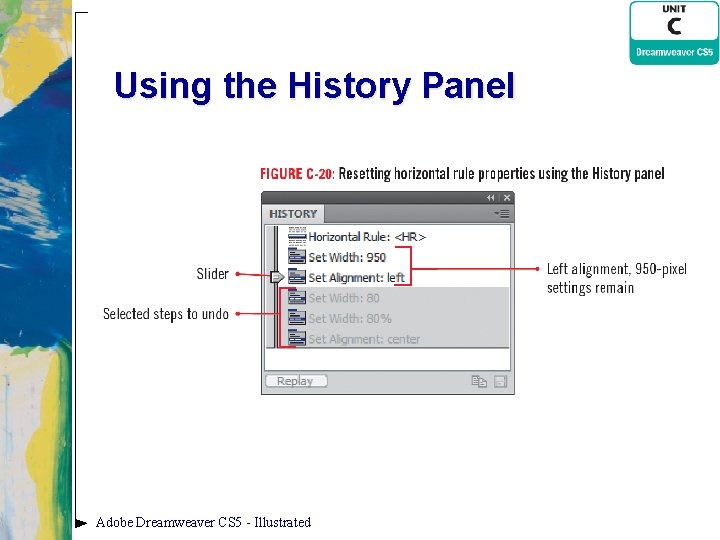
Using the History Panel 4. If “pixels” is not displayed in the width popup menu, click the width list arrow next to pixels in the Property inspector, click pixels, type 950 in the W text box, then press [Enter] (Win) or [return] (Mac) 5. Click the Align list arrow in the Property inspector, then click Left 6. Select 950 in the W text box, type 80, click the Width list arrow, click %, click the Align list arrow, then click Center Adobe Dreamweaver CS 5 - Illustrated
Using the History Panel 7. Drag the slider on the History panel up until it is pointing to Set Alignment: left, then release it 8. Click File on the Application bar (Win) or Menu bar (Mac), then click Save Adobe Dreamweaver CS 5 - Illustrated
Using the History Panel Adobe Dreamweaver CS 5 - Illustrated
Using the History Panel Adobe Dreamweaver CS 5 - Illustrated
Clues to Use • The History panel – Undo or redo steps • By dragging the slider up and down in the History panel – Memorizes certain steps – Some Dreamweaver features cannot be recorded in the History panel – Default number of steps recorded is 50 • Setting this number higher requires more memory, which may affect speed Adobe Dreamweaver CS 5 - Illustrated
Clues to Use • Your screen vs. book figures – They will likely look different – Dreamweaver “remembers” the screen arrangement from your last session – Open, close, collapse, or expand various panels, toolbars, and inspectors to change screen arrangement Adobe Dreamweaver CS 5 - Illustrated
Viewing HTML Code 1. Click Window on the Application bar (Win) or Menu bar (Mac), click History to close the History panel, then click the horizontal rule 2. Click the Show Code view button on the Document toolbar 3. If necessary, click to select the Line Numbers and Word Wrap option buttons on the Coding toolbar Adobe Dreamweaver CS 5 - Illustrated
Viewing HTML Code 4. Click Window on the Application bar (Win) or Menu bar (Mac), point to Results – Click Reference – Click the Book list arrow in the Reference Panel to select O’REILLY HTML Reference – Click the Tag list arrow to select HR if necessary Adobe Dreamweaver CS 5 - Illustrated
Viewing HTML Code 5. Read the information about horizontal rules 6. Click the Panel options button on the Results panel title bar, then click Close Tab Group 7. Scroll down if necessary in the Document window, select January 1, 2013, then press [Delete] Adobe Dreamweaver CS 5 - Illustrated
Viewing HTML Code 8. Scroll down the Common category on the Insert panel until the Date object button appears – Click Date, click March 7, 1974, in the Date format options list – Click the Update automatically on save check box if necessary to select it, then click OK 9. Click the Show Design view button on the Document toolbar Adobe Dreamweaver CS 5 - Illustrated
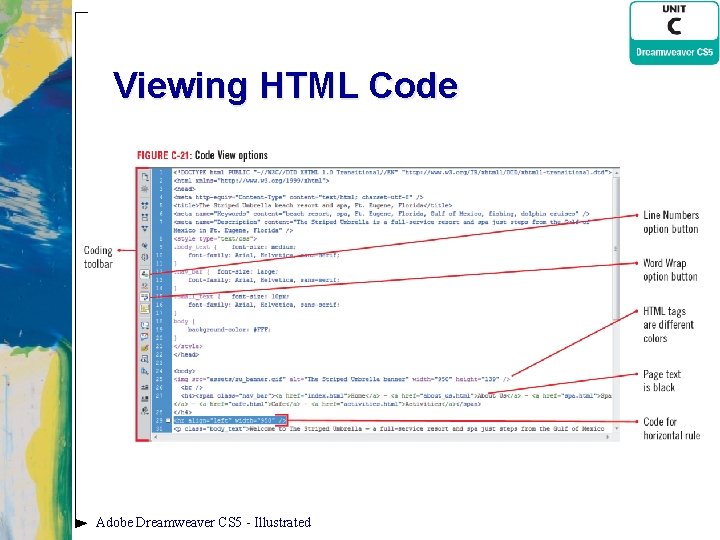
Viewing HTML Code Adobe Dreamweaver CS 5 - Illustrated
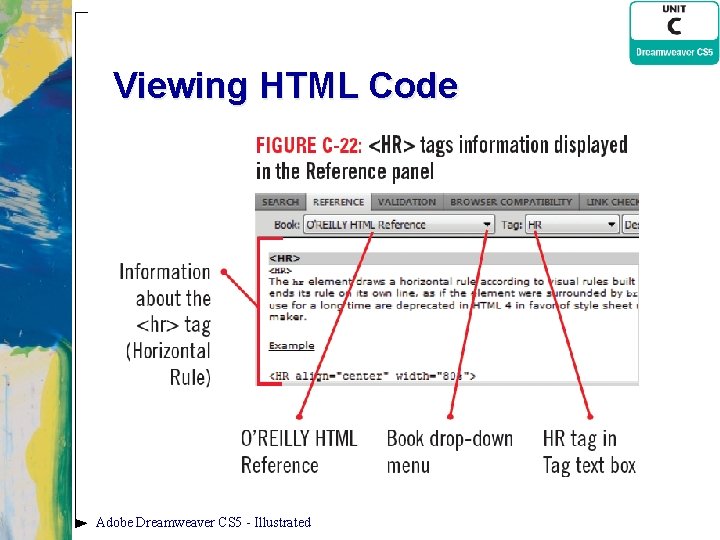
Viewing HTML Code Adobe Dreamweaver CS 5 - Illustrated
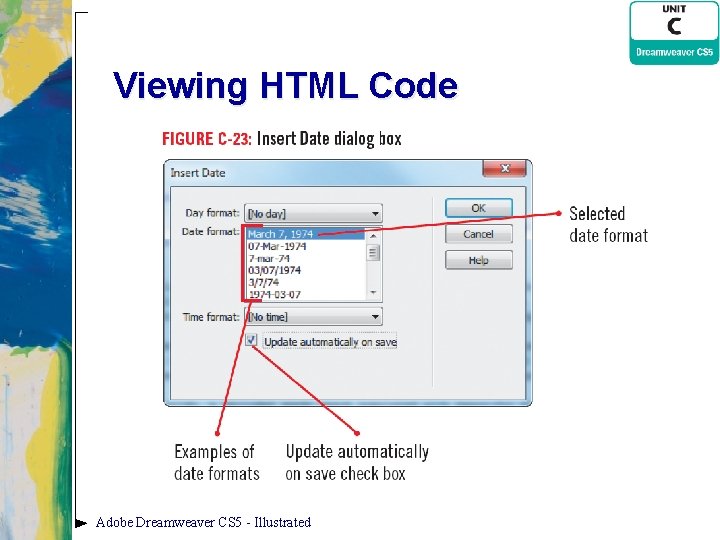
Viewing HTML Code Adobe Dreamweaver CS 5 - Illustrated
Clues to Use • Understanding XHTML vs. HTML – You can save Dreamweaver files in many different file formats • XHTML, Java. Script, CSS, XML – XHTML (e. Xtensible Hyper. Text Markup Language) is the current standard language used to create Web pages – Can convert existing HTML code to XHTML in Dreamweaver Adobe Dreamweaver CS 5 - Illustrated
Testing and Modifying Web Pages 1. Click the Restore down button on your Document window if necessary, click the Window Size pop-up menu on the Status bar, then click 760 x 420 (800 x 600, Maximized) Adobe Dreamweaver CS 5 - Illustrated
Testing and Modifying Web Pages 2. Maximize the Document window, click File on the Application bar (Win) or Menu bar (Mac) – Click Save, click the Preview/Debug in browser button on the Document toolbar, then click Preview in [your default browser] Adobe Dreamweaver CS 5 - Illustrated
Testing and Modifying Web Pages 3. Click the close button in your browser window and highlight the period after the “. . . go home” text, then type “!” (an exclamation point) 4. Click File on the Application bar (Win) or Menu bar (Mac), click Save – Click on the Document toolbar, then click Preview in [your default browser] Adobe Dreamweaver CS 5 - Illustrated
Testing and Modifying Web Pages 5. Click the About Us link on the menu bar to display one of the blank pages you created in Unit B – Then click the Back button on the Address bar (Win) or the Back button on the Navigation toolbar (Mac) 6. Repeat step 5 to test the Spa, Cafe, and Activities links Adobe Dreamweaver CS 5 - Illustrated
Testing and Modifying Web Pages 7. Click the Club Manager link 8. Close the email message dialog box, close the browser window – Close the index page – Then click Exit on the File menu (Win) or Quit on the Dreamweaver menu (Mac) to close Dreamweaver Adobe Dreamweaver CS 5 - Illustrated
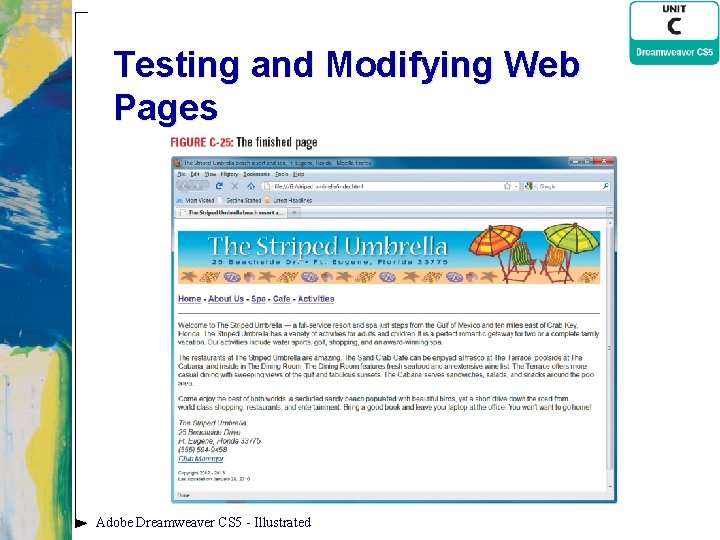
Testing and Modifying Web Pages Adobe Dreamweaver CS 5 - Illustrated
Unit Summary • • Plan the page layout Create the head content Set Web page properties Create and format text Adobe Dreamweaver CS 5 - Illustrated
Unit Summary • • Add links to Web pages Use the History panel View HTML code Test and modify Web pages Adobe Dreamweaver CS 5 - Illustrated
- Slides: 55