
ADOBE DREAMWEAVER CC CLASSROOM IN A BOOK CHAPTER
ADOBE DREAMWEAVER CC: CLASSROOM IN A BOOK CHAPTER ONE: CUSTOMIZING YOUR WORKSPACE
LECTURE OBJECTIVES • Switch document views • Work with panels • Select a workspace layout • Adjust toolbars • Personalize preferences • Create custom keyboard shortcuts • Use the Property inspector • Use the Extract workflow
WHAT IS DREAMWEAVER? Dreamweaver offers a customizable and easy-to-use WYSIWYG HTML editor that doesn’t compromise on power and flexibility. You’d probably need a dozen programs to perform all the tasks that Dreamweaver can do—and none of them would be as fun to use. Pop quiz – what does WYSIWYG mean? ? What You See Is What You Get (WYSIWYG)
WHAT IS DREAMWEAVER? • Coders love the range of enhancements built into the Code view environment • Developers enjoy the program’s support for a variety of programming languages and code hinting. • Designers marvel at seeing their text and graphics appear in an accurate depiction as they work, saving hours of time previewing pages in browsers. • Novices appreciate the program’s simple-to-use and power-packed interface.
TOURING THE WORKSPACE The next slide depicts the Dreamweaver window, with labels identifying what each section is/does.
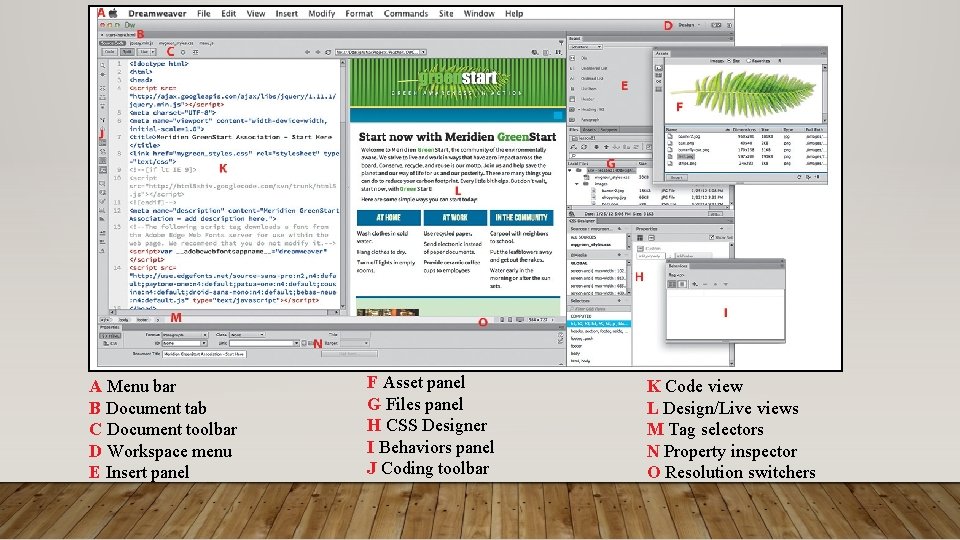
A Menu bar B Document tab C Document toolbar D Workspace menu E Insert panel F Asset panel G Files panel H CSS Designer I Behaviors panel J Coding toolbar K Code view L Design/Live views M Tag selectors N Property inspector O Resolution switchers
SWITCHING AND SPLITTING VIEWS • Dreamweaver offers dedicated environments for coders and designers as well as a new option that allows you to work with Photoshop mockups.
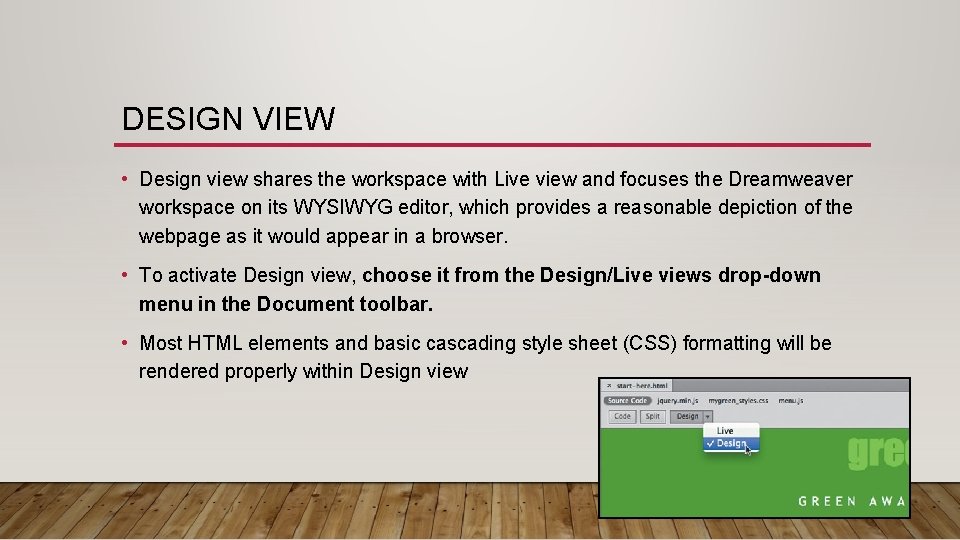
DESIGN VIEW • Design view shares the workspace with Live view and focuses the Dreamweaver workspace on its WYSIWYG editor, which provides a reasonable depiction of the webpage as it would appear in a browser. • To activate Design view, choose it from the Design/Live views drop-down menu in the Document toolbar. • Most HTML elements and basic cascading style sheet (CSS) formatting will be rendered properly within Design view
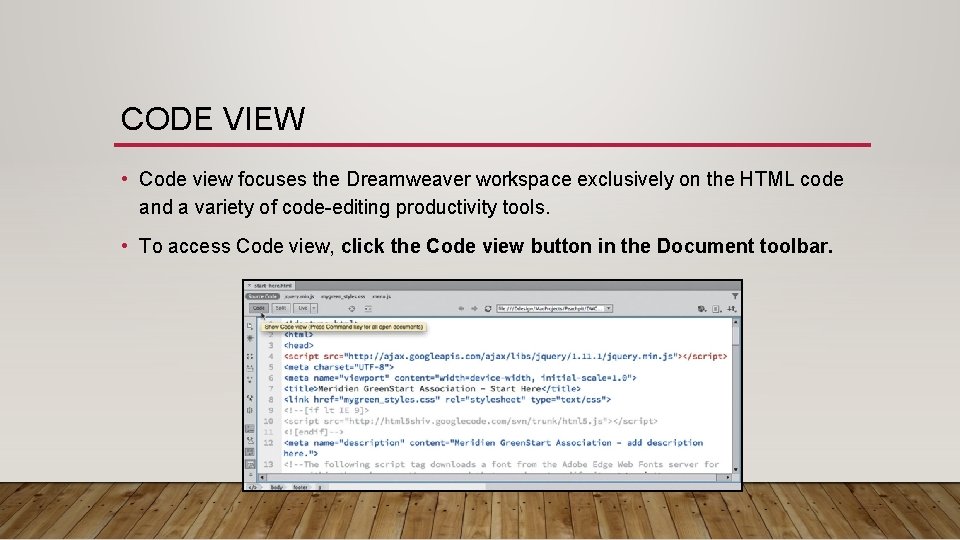
CODE VIEW • Code view focuses the Dreamweaver workspace exclusively on the HTML code and a variety of code-editing productivity tools. • To access Code view, click the Code view button in the Document toolbar.
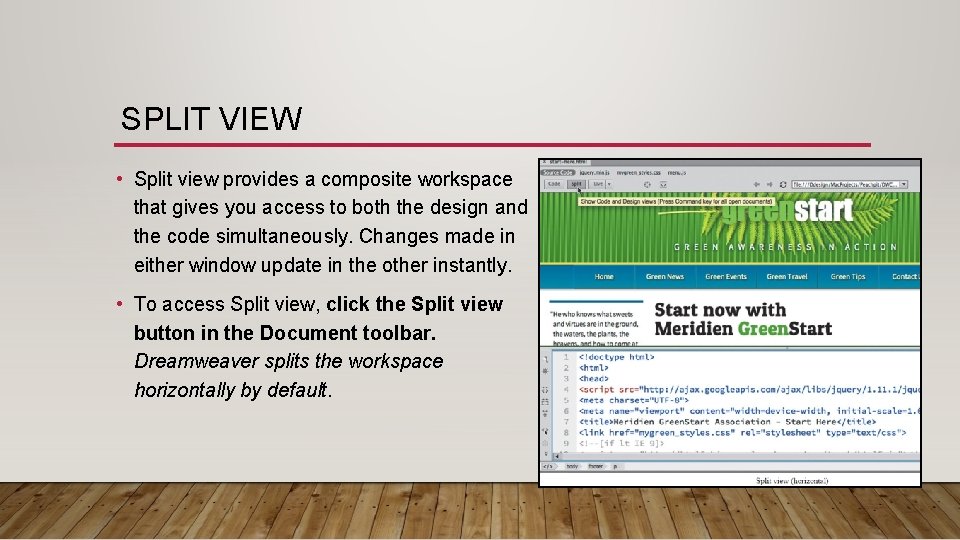
SPLIT VIEW • Split view provides a composite workspace that gives you access to both the design and the code simultaneously. Changes made in either window update in the other instantly. • To access Split view, click the Split view button in the Document toolbar. Dreamweaver splits the workspace horizontally by default.
LIVE VIEW (NEW CC FEATURE) • To speed up the process of developing modern websites, Dreamweaver also includes a fourth display mode called Live view, which provides a browser-like preview of most dynamic effects and interactivity. • To use Live view, choose it from the Design/Live views drop-down menu in the Document toolbar. • When Live view is activated, most HTML content will function as it would in an actual browser, allowing you to preview and test most applications.
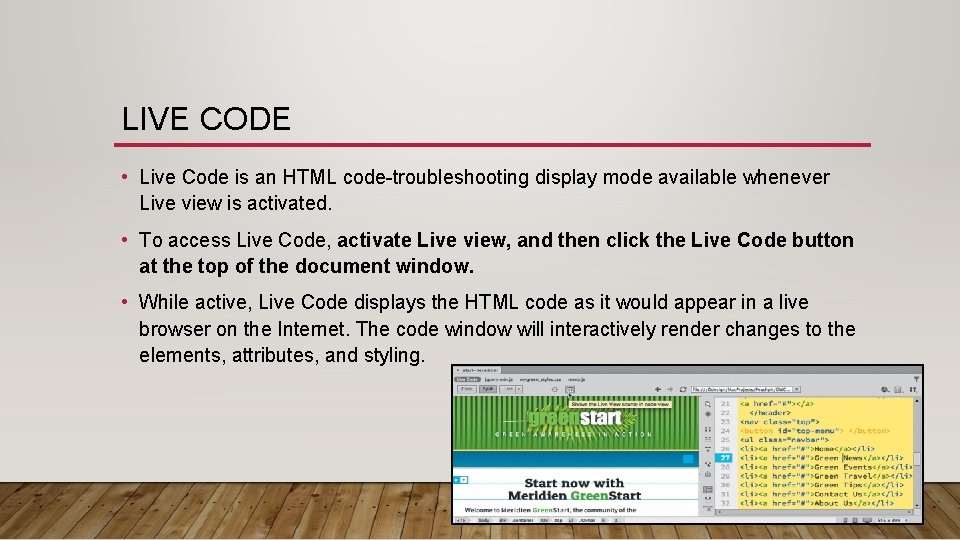
LIVE CODE • Live Code is an HTML code-troubleshooting display mode available whenever Live view is activated. • To access Live Code, activate Live view, and then click the Live Code button at the top of the document window. • While active, Live Code displays the HTML code as it would appear in a live browser on the Internet. The code window will interactively render changes to the elements, attributes, and styling.
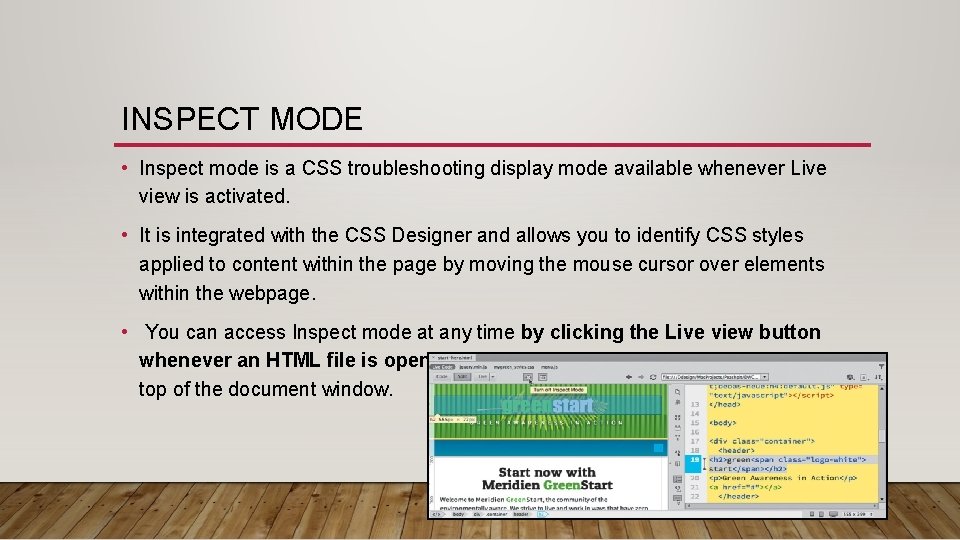
INSPECT MODE • Inspect mode is a CSS troubleshooting display mode available whenever Live view is activated. • It is integrated with the CSS Designer and allows you to identify CSS styles applied to content within the page by moving the mouse cursor over elements within the webpage. • You can access Inspect mode at any time by clicking the Live view button whenever an HTML file is open and then clicking the Inspect button at the top of the document window.
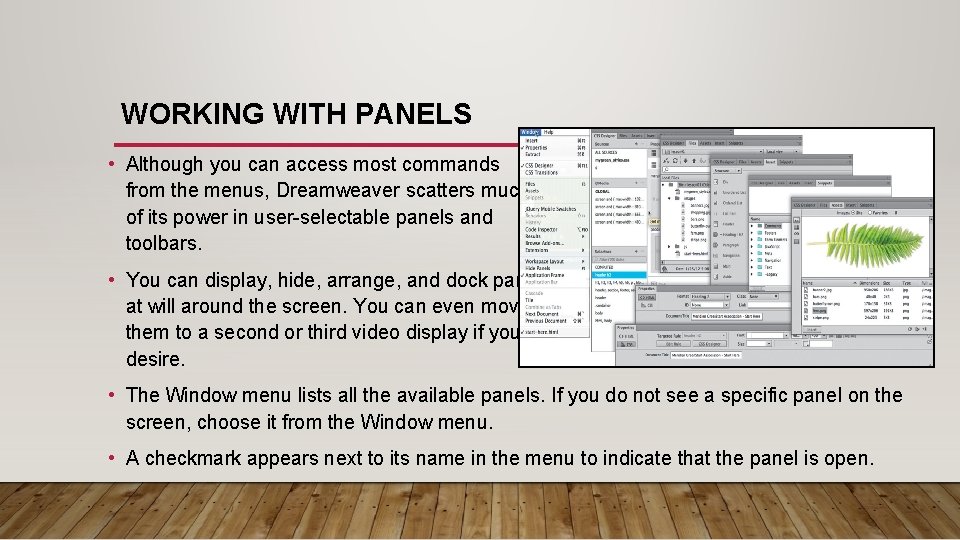
WORKING WITH PANELS • Although you can access most commands from the menus, Dreamweaver scatters much of its power in user-selectable panels and toolbars. • You can display, hide, arrange, and dock panels at will around the screen. You can even move them to a second or third video display if you desire. • The Window menu lists all the available panels. If you do not see a specific panel on the screen, choose it from the Window menu. • A checkmark appears next to its name in the menu to indicate that the panel is open.
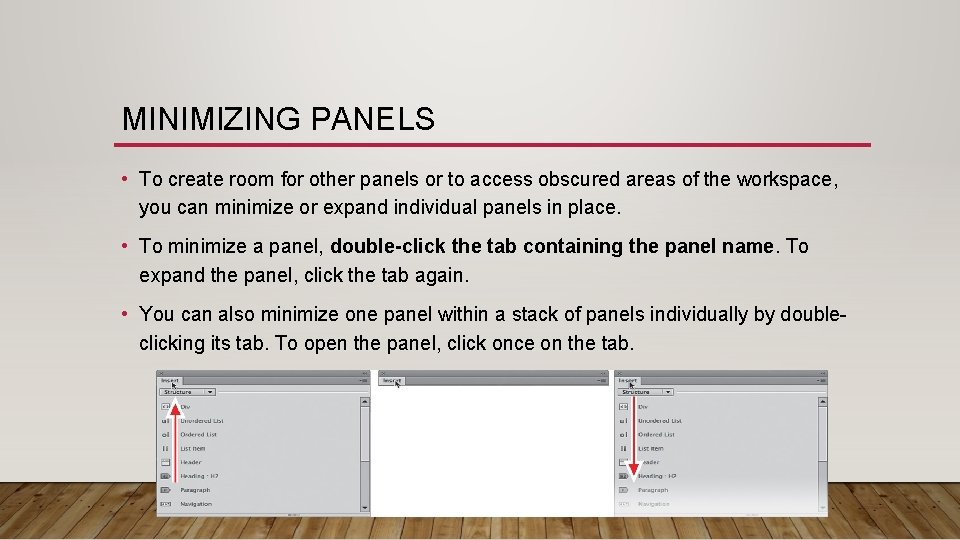
MINIMIZING PANELS • To create room for other panels or to access obscured areas of the workspace, you can minimize or expand individual panels in place. • To minimize a panel, double-click the tab containing the panel name. To expand the panel, click the tab again. • You can also minimize one panel within a stack of panels individually by doubleclicking its tab. To open the panel, click once on the tab.
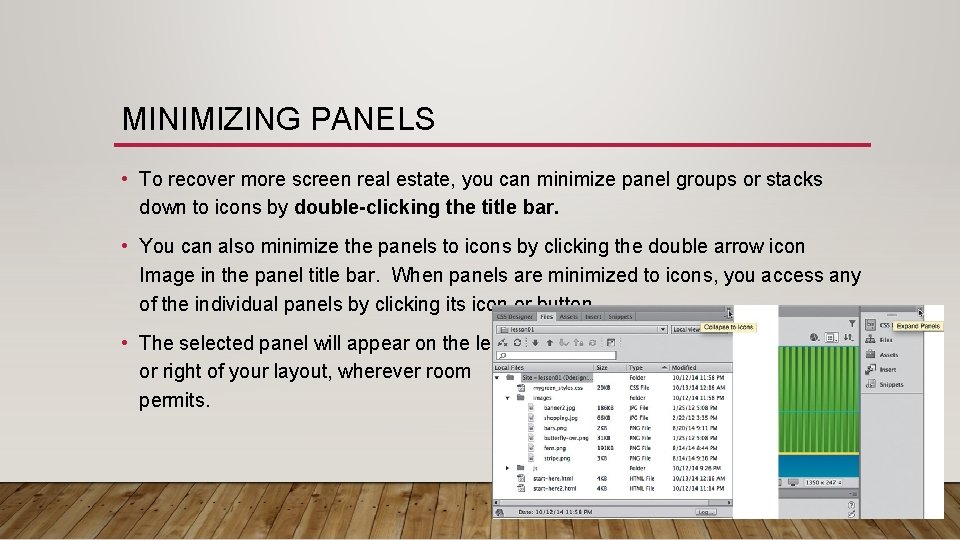
MINIMIZING PANELS • To recover more screen real estate, you can minimize panel groups or stacks down to icons by double-clicking the title bar. • You can also minimize the panels to icons by clicking the double arrow icon Image in the panel title bar. When panels are minimized to icons, you access any of the individual panels by clicking its icon or button. • The selected panel will appear on the left or right of your layout, wherever room permits.
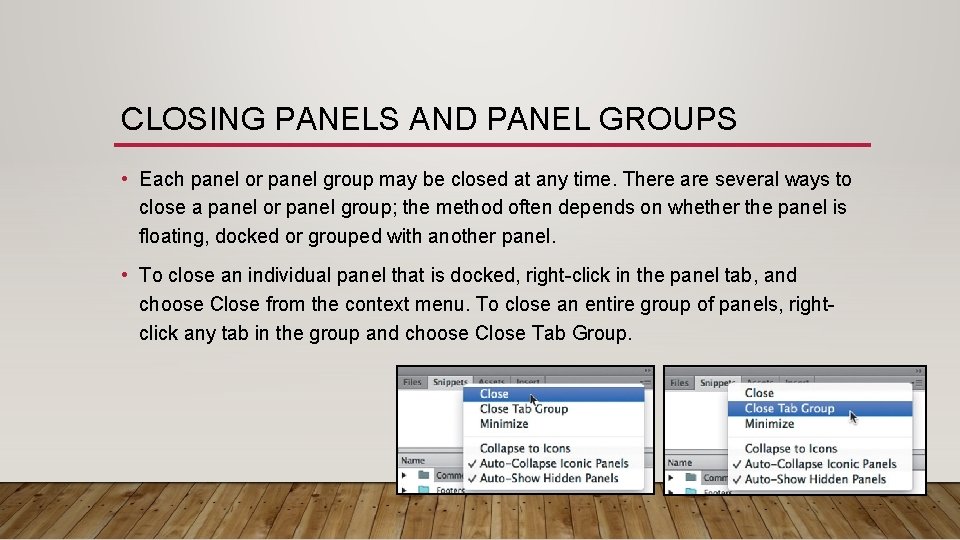
CLOSING PANELS AND PANEL GROUPS • Each panel or panel group may be closed at any time. There are several ways to close a panel or panel group; the method often depends on whether the panel is floating, docked or grouped with another panel. • To close an individual panel that is docked, right-click in the panel tab, and choose Close from the context menu. To close an entire group of panels, rightclick any tab in the group and choose Close Tab Group.
CLOSING PANELS AND PANEL GROUPS • To close a floating panel or panel group, click the Close icon Image that appears in the left corner of the title bar of the panel or panel group. To reopen a panel, choose the panel name from the Window menu. There is no way to reopen a panel group unless it was saved within a specific workspace.
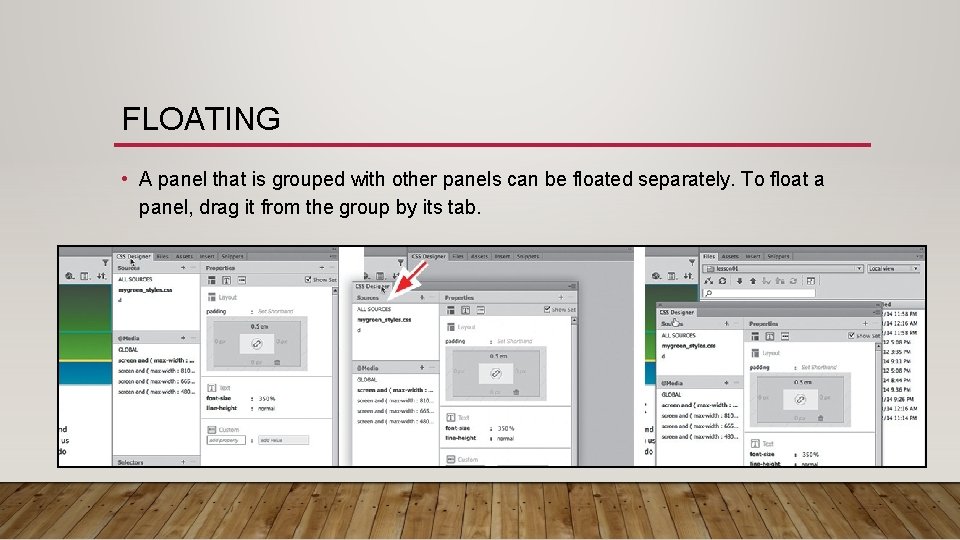
FLOATING • A panel that is grouped with other panels can be floated separately. To float a panel, drag it from the group by its tab.
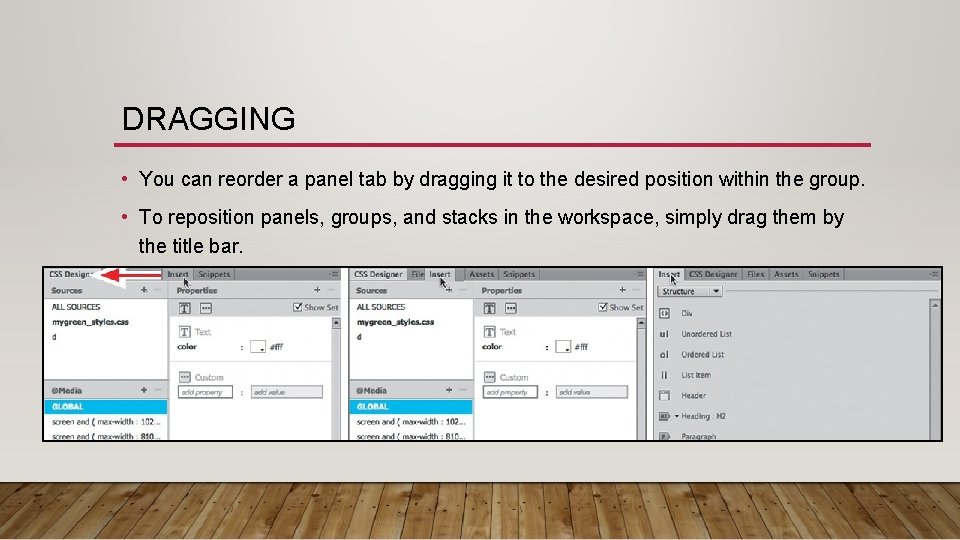
DRAGGING • You can reorder a panel tab by dragging it to the desired position within the group. • To reposition panels, groups, and stacks in the workspace, simply drag them by the title bar.
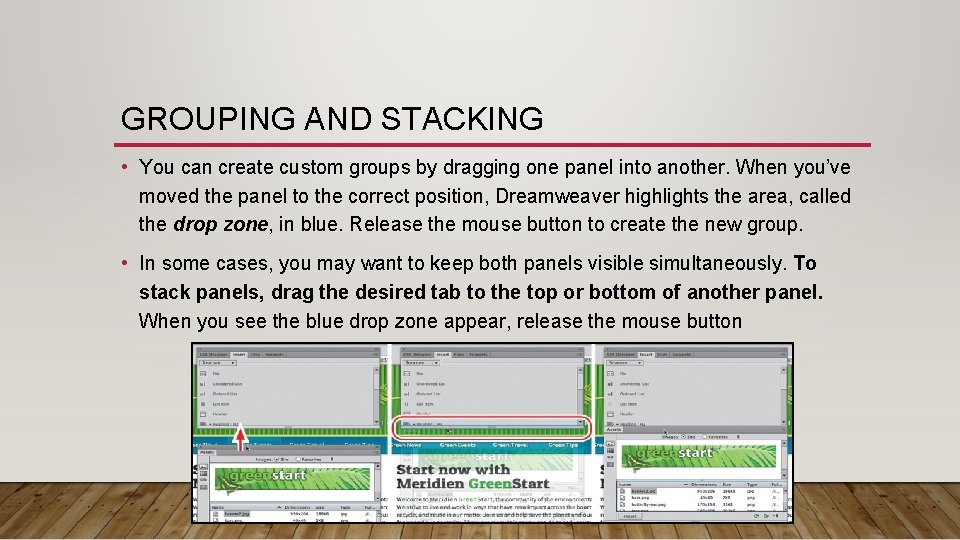
GROUPING AND STACKING • You can create custom groups by dragging one panel into another. When you’ve moved the panel to the correct position, Dreamweaver highlights the area, called the drop zone, in blue. Release the mouse button to create the new group. • In some cases, you may want to keep both panels visible simultaneously. To stack panels, drag the desired tab to the top or bottom of another panel. When you see the blue drop zone appear, release the mouse button
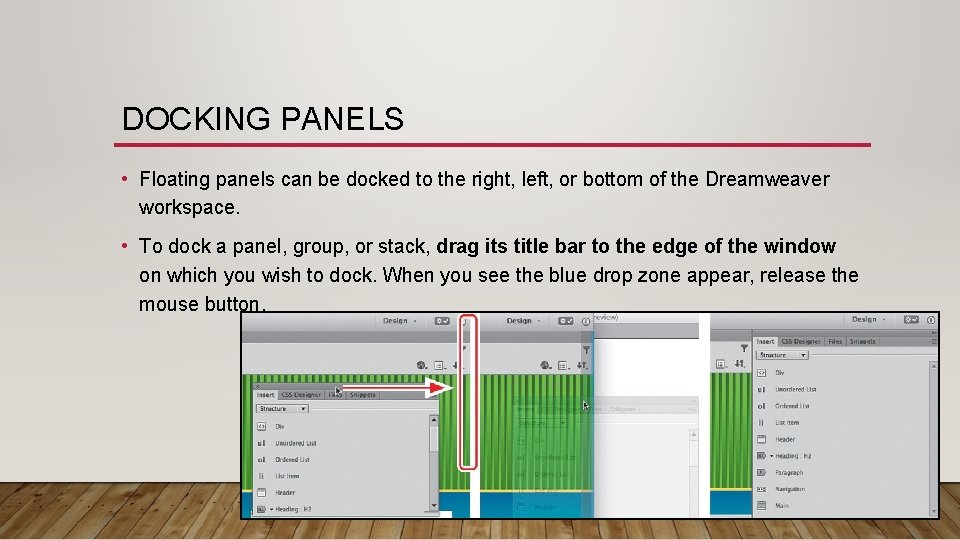
DOCKING PANELS • Floating panels can be docked to the right, left, or bottom of the Dreamweaver workspace. • To dock a panel, group, or stack, drag its title bar to the edge of the window on which you wish to dock. When you see the blue drop zone appear, release the mouse button.
SELECTING A WORKPLACE LAYOUT • A quick way to customize the program environment is to use one of the prebuilt workspaces in Dreamweaver. These workspaces have been optimized by experts to put the tools you need at your fingertips. • Dreamweaver CC includes three prebuilt workspaces: Code, Design and Extract. To access these workspaces, choose them from the Workspace menu located at the top of the document window. • Users who work mostly with code will want to use the Code workspace, because it optimizes the panels and windows to provide an effective workspace for coding.
ADJUSTING TOOLBARS • Some program features are so handy you may want them available all the time in toolbar form. Two of the toolbars—Document and Standard—appear horizontally at the top of the document window. • The Coding toolbar, however, appears vertically, but only in the Code view window. (You’ll explore the capabilities of these toolbars in later exercises. ) • Display the desired toolbar by choosing it from the View menu. You can also display the toolbar by simply right-clicking at the top of the document window and choosing the desired toolbar from the context menu.
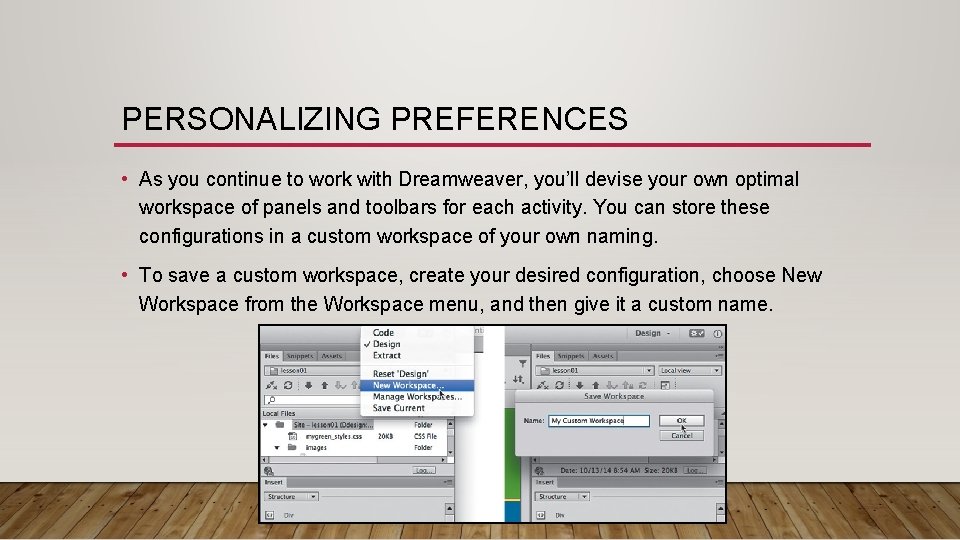
PERSONALIZING PREFERENCES • As you continue to work with Dreamweaver, you’ll devise your own optimal workspace of panels and toolbars for each activity. You can store these configurations in a custom workspace of your own naming. • To save a custom workspace, create your desired configuration, choose New Workspace from the Workspace menu, and then give it a custom name.
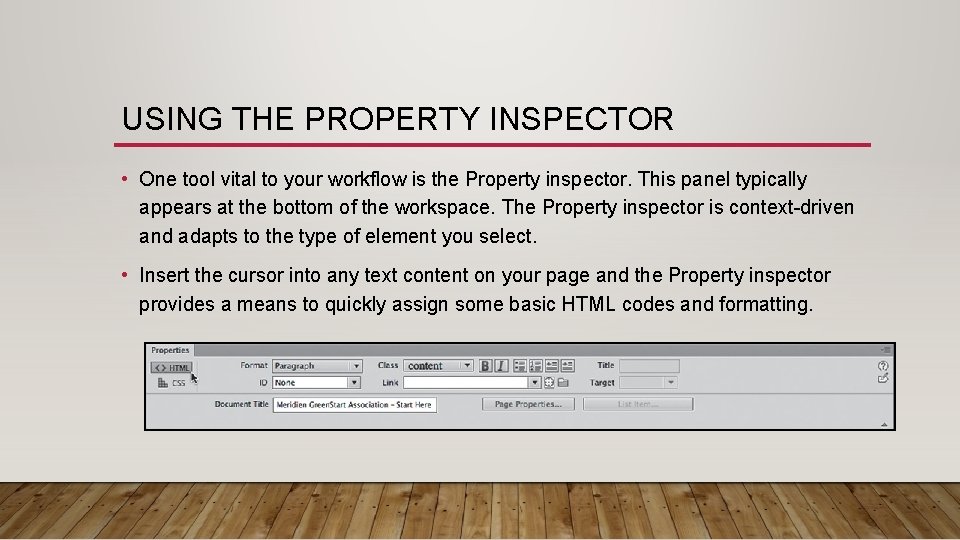
USING THE PROPERTY INSPECTOR • One tool vital to your workflow is the Property inspector. This panel typically appears at the bottom of the workspace. The Property inspector is context-driven and adapts to the type of element you select. • Insert the cursor into any text content on your page and the Property inspector provides a means to quickly assign some basic HTML codes and formatting.
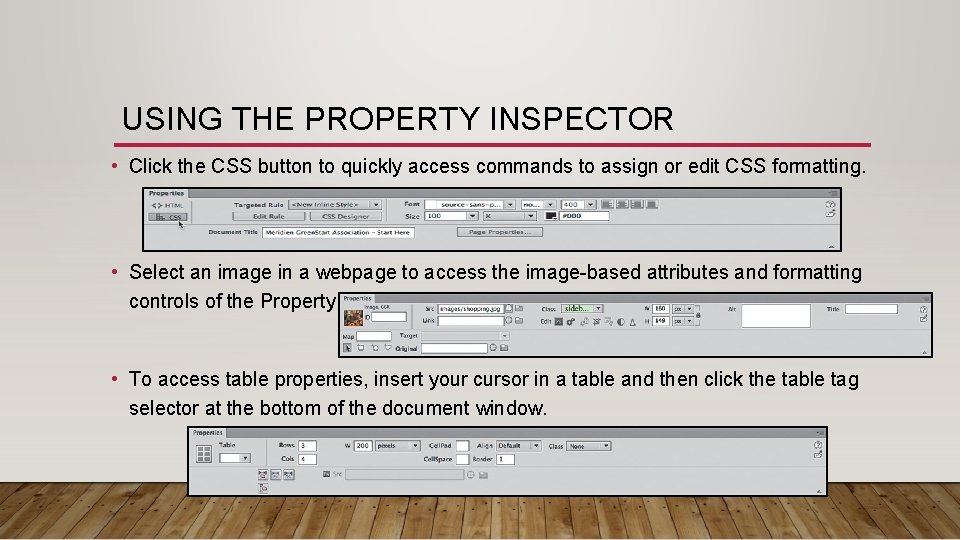
USING THE PROPERTY INSPECTOR • Click the CSS button to quickly access commands to assign or edit CSS formatting. • Select an image in a webpage to access the image-based attributes and formatting controls of the Property inspector. • To access table properties, insert your cursor in a table and then click the table tag selector at the bottom of the document window.
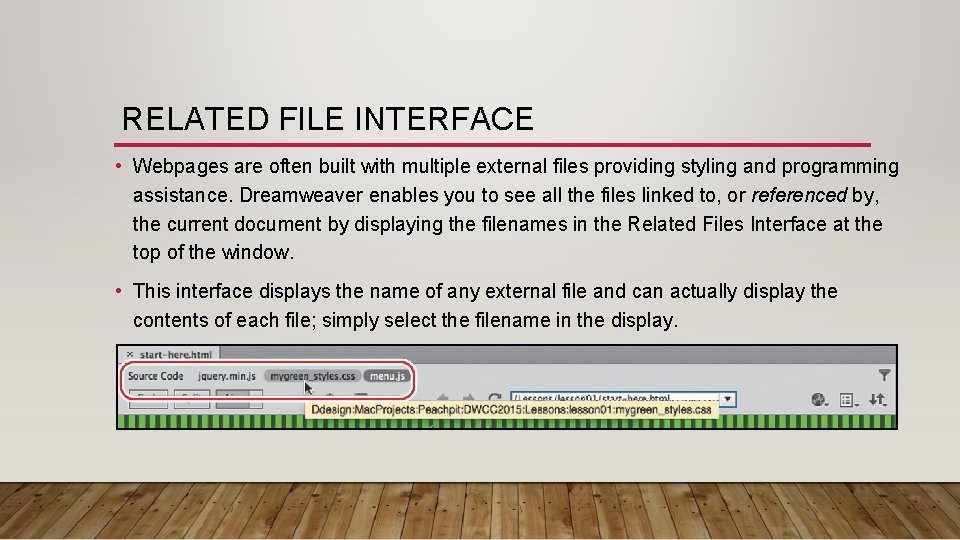
RELATED FILE INTERFACE • Webpages are often built with multiple external files providing styling and programming assistance. Dreamweaver enables you to see all the files linked to, or referenced by, the current document by displaying the filenames in the Related Files Interface at the top of the window. • This interface displays the name of any external file and can actually display the contents of each file; simply select the filename in the display.
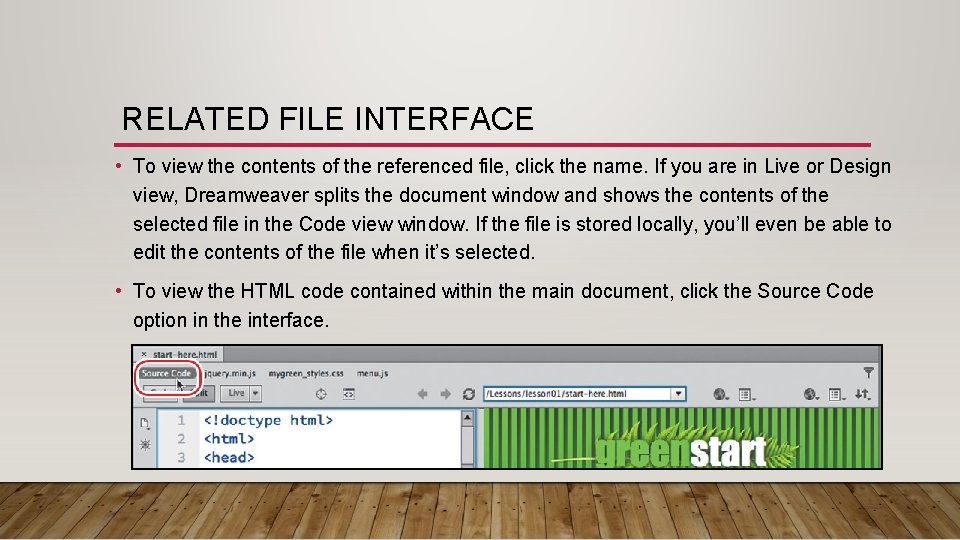
RELATED FILE INTERFACE • To view the contents of the referenced file, click the name. If you are in Live or Design view, Dreamweaver splits the document window and shows the contents of the selected file in the Code view window. If the file is stored locally, you’ll even be able to edit the contents of the file when it’s selected. • To view the HTML code contained within the main document, click the Source Code option in the interface.
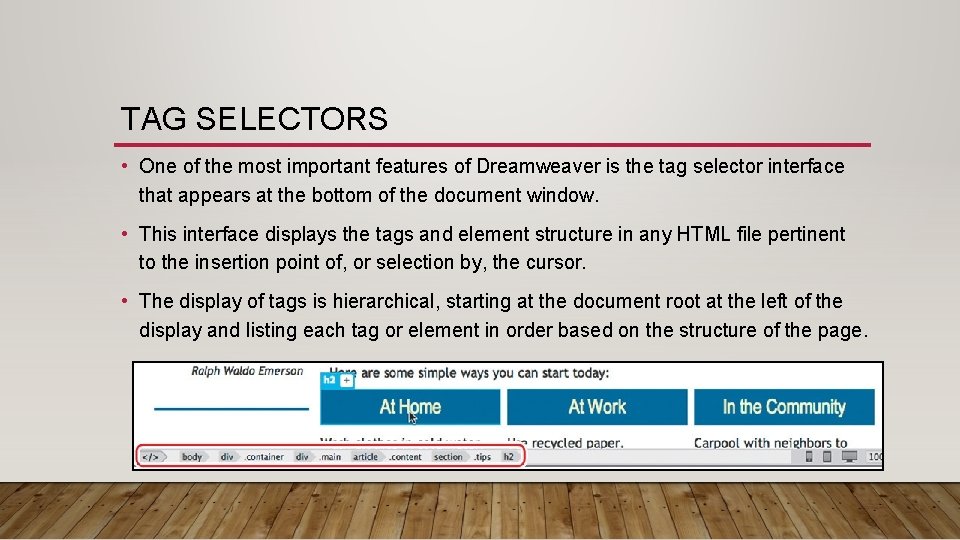
TAG SELECTORS • One of the most important features of Dreamweaver is the tag selector interface that appears at the bottom of the document window. • This interface displays the tags and element structure in any HTML file pertinent to the insertion point of, or selection by, the cursor. • The display of tags is hierarchical, starting at the document root at the left of the display and listing each tag or element in order based on the structure of the page.
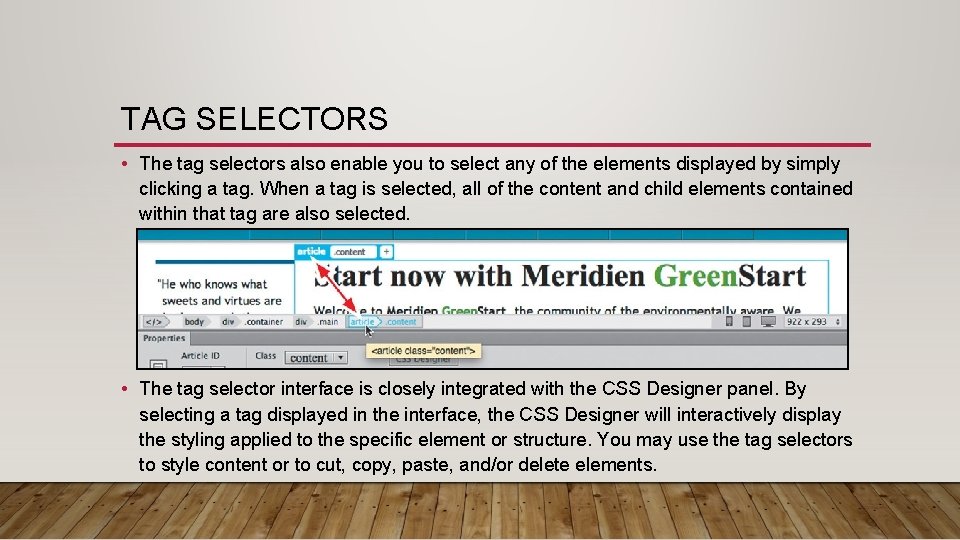
TAG SELECTORS • The tag selectors also enable you to select any of the elements displayed by simply clicking a tag. When a tag is selected, all of the content and child elements contained within that tag are also selected. • The tag selector interface is closely integrated with the CSS Designer panel. By selecting a tag displayed in the interface, the CSS Designer will interactively display the styling applied to the specific element or structure. You may use the tag selectors to style content or to cut, copy, paste, and/or delete elements.
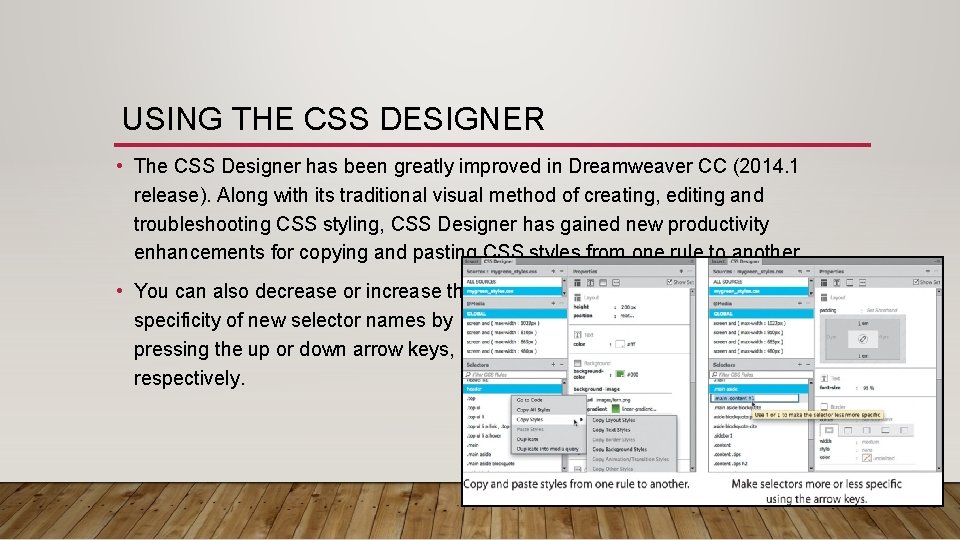
USING THE CSS DESIGNER • The CSS Designer has been greatly improved in Dreamweaver CC (2014. 1 release). Along with its traditional visual method of creating, editing and troubleshooting CSS styling, CSS Designer has gained new productivity enhancements for copying and pasting CSS styles from one rule to another. • You can also decrease or increase the specificity of new selector names by pressing the up or down arrow keys, respectively.
USING THE CSS DESIGNER • The CSS Designer panel consists of four panes: Sources, @Media, Selectors and Properties. • The Sources pane allows you to create, attach, define and remove internal and external style sheets. • The @Media pane is used to define media queries to support various types of media and devices. • The Selectors pane is used to create and edit the CSS rules that format the components and content of your page. • Once a selector, or rule, is created, you define the formatting you wish to apply in the Properties pane.
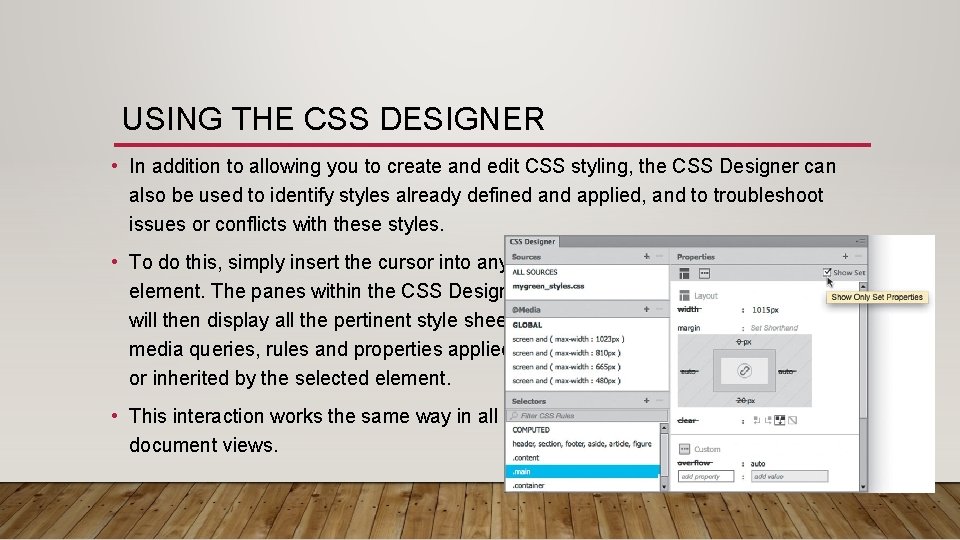
USING THE CSS DESIGNER • In addition to allowing you to create and edit CSS styling, the CSS Designer can also be used to identify styles already defined and applied, and to troubleshoot issues or conflicts with these styles. • To do this, simply insert the cursor into any element. The panes within the CSS Designer will then display all the pertinent style sheets, media queries, rules and properties applied to or inherited by the selected element. • This interaction works the same way in all document views.
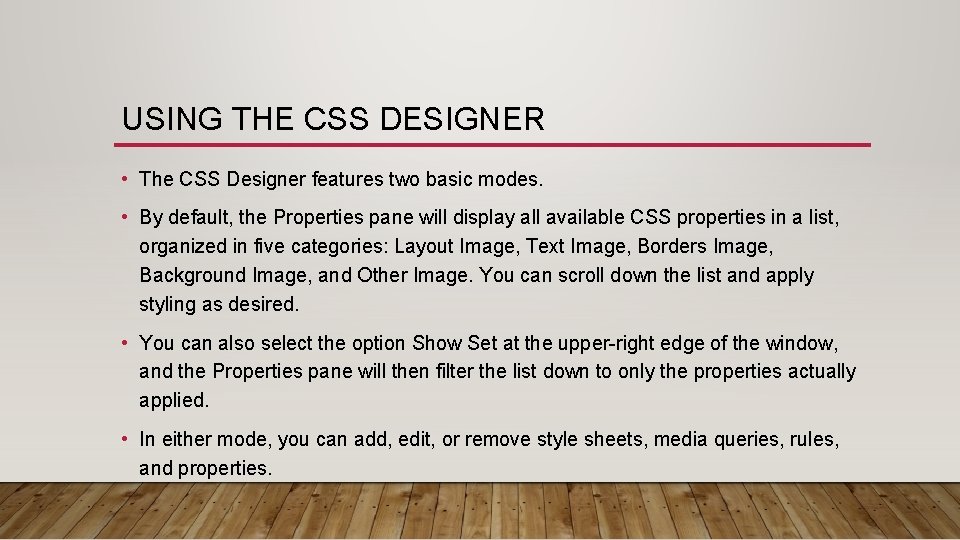
USING THE CSS DESIGNER • The CSS Designer features two basic modes. • By default, the Properties pane will display all available CSS properties in a list, organized in five categories: Layout Image, Text Image, Borders Image, Background Image, and Other Image. You can scroll down the list and apply styling as desired. • You can also select the option Show Set at the upper-right edge of the window, and the Properties pane will then filter the list down to only the properties actually applied. • In either mode, you can add, edit, or remove style sheets, media queries, rules, and properties.
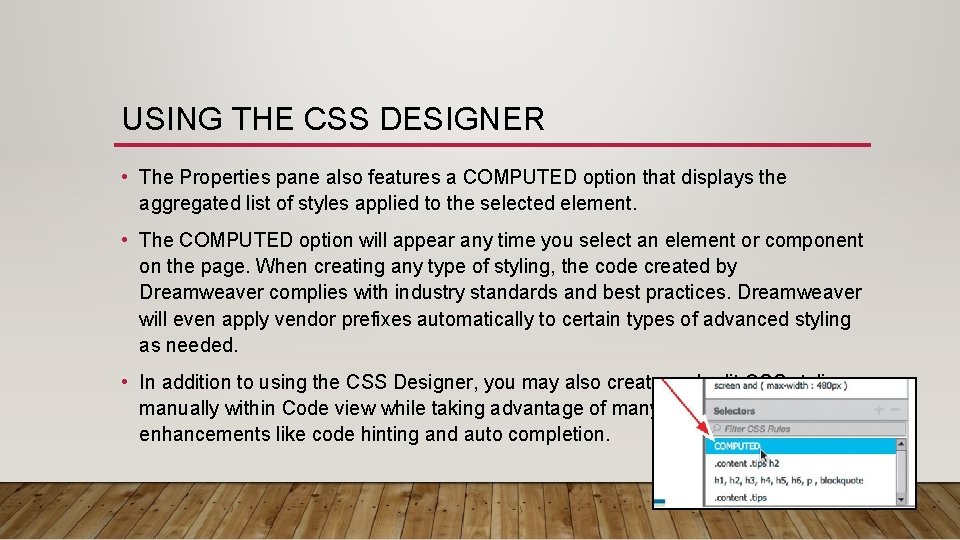
USING THE CSS DESIGNER • The Properties pane also features a COMPUTED option that displays the aggregated list of styles applied to the selected element. • The COMPUTED option will appear any time you select an element or component on the page. When creating any type of styling, the code created by Dreamweaver complies with industry standards and best practices. Dreamweaver will even apply vendor prefixes automatically to certain types of advanced styling as needed. • In addition to using the CSS Designer, you may also create and edit CSS styling manually within Code view while taking advantage of many productivity enhancements like code hinting and auto completion.
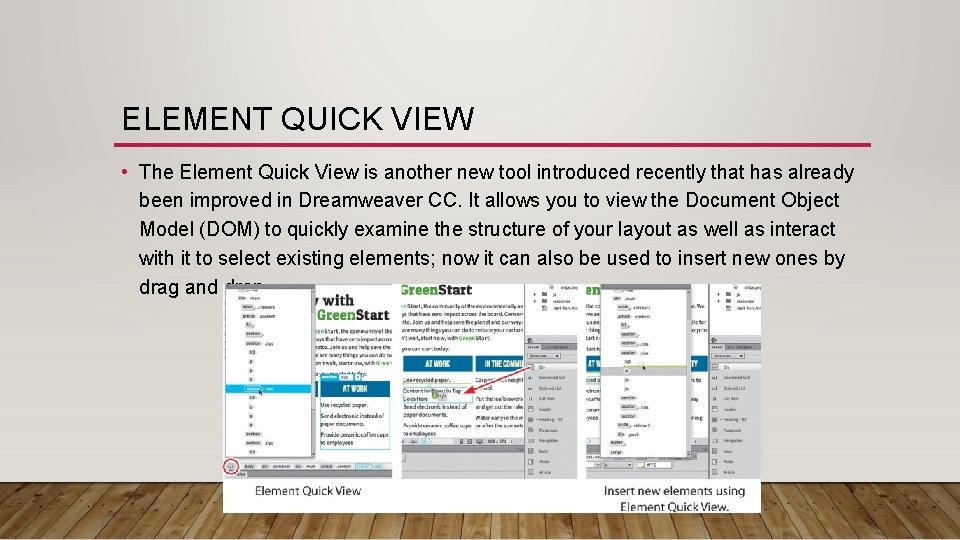
ELEMENT QUICK VIEW • The Element Quick View is another new tool introduced recently that has already been improved in Dreamweaver CC. It allows you to view the Document Object Model (DOM) to quickly examine the structure of your layout as well as interact with it to select existing elements; now it can also be used to insert new ones by drag and drop.
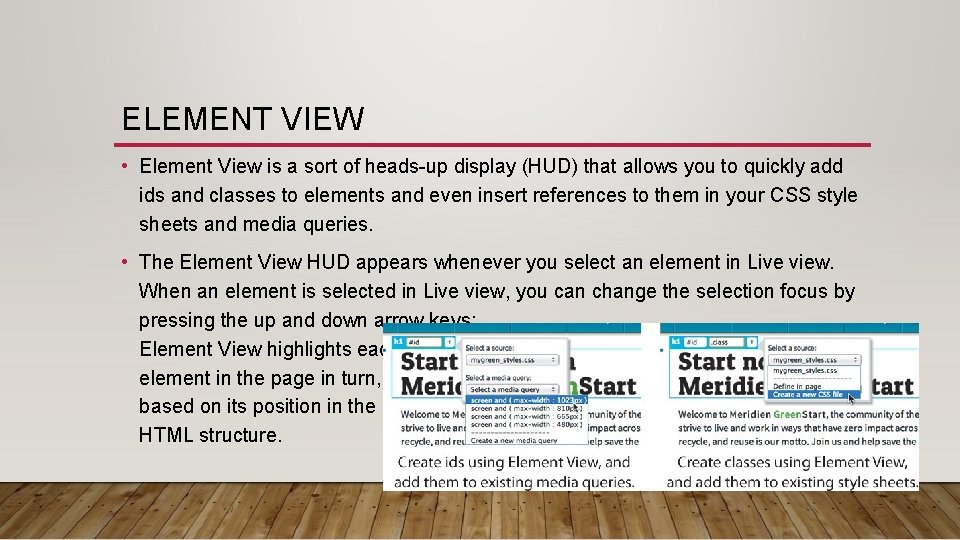
ELEMENT VIEW • Element View is a sort of heads-up display (HUD) that allows you to quickly add ids and classes to elements and even insert references to them in your CSS style sheets and media queries. • The Element View HUD appears whenever you select an element in Live view. When an element is selected in Live view, you can change the selection focus by pressing the up and down arrow keys; Element View highlights each element in the page in turn, based on its position in the HTML structure.
EXPLORE, EXPERIMENT, LEARN • The Dreamweaver interface has been carefully crafted over many years to make the job of webpage design and development fast and easy. • Feel free to explore and experiment with various menus, panels and options to create the ideal workspace and keyboard shortcuts to produce the most productive environment for your own purposes. • You’ll find the program endlessly adaptable, with power to spare for any task. Enjoy.
- Slides: 39