
ADMINISTRATION HANDSON Agenda Task 1 Initial Configuration Task

- Slides: 61
ADMINISTRATION HANDS-ON
Agenda Task 1: Initial Configuration Task 2: Testing disinfection with eicar. com • HTTP traffic scanning, manual scanning and real-time scanning Task 3: Testing email scanning Task 4: Automatic Update Setup Task 5: Advanced Anti-Virus Management Task 6: Spyware Scanning Task 7: Using Browser Control Task 8: Manage Spyware Centrally Task 9: Using System Control Page 2
Task 1: Initial Configuration Configure your AVCS client from the Policy Manager Console with the following settings • Real-time scanning and email scanning should be enabled and the settings should be locked • Check that archives are not scanned in real-time scanning, but are scanned in manual scans and email scans • Enable HTTP traffic scanning • Scanned file types: ”All files” in manual scanning, ”All attachements” in email scanning and only ”files with certain extension” in real-time scanning • Disable the firewall • Configure the console in such way so that security alerts are sent to user. XX@example. com, with email server 192. 168. 100. 50 (XX is the number of your workstation) Task continues on next page… Page 3
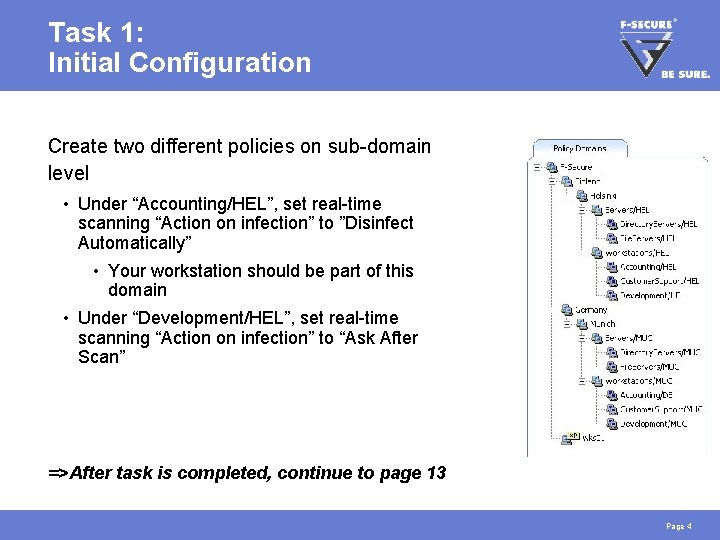
Task 1: Initial Configuration Create two different policies on sub-domain level • Under “Accounting/HEL”, set real-time scanning “Action on infection” to ”Disinfect Automatically” • Your workstation should be part of this domain • Under “Development/HEL”, set real-time scanning “Action on infection” to “Ask After Scan” =>After task is completed, continue to page 13 Page 4
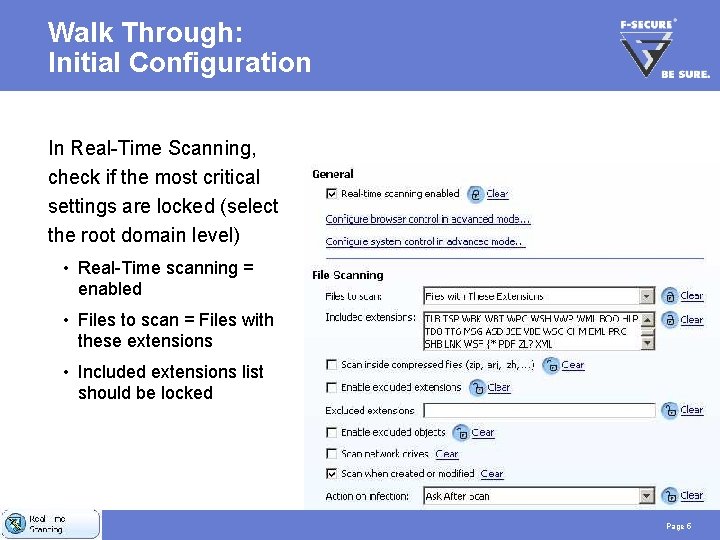
Walk Through: Initial Configuration In Real-Time Scanning, check if the most critical settings are locked (select the root domain level) • Real-Time scanning = enabled • Files to scan = Files with these extensions • Included extensions list should be locked Page 5
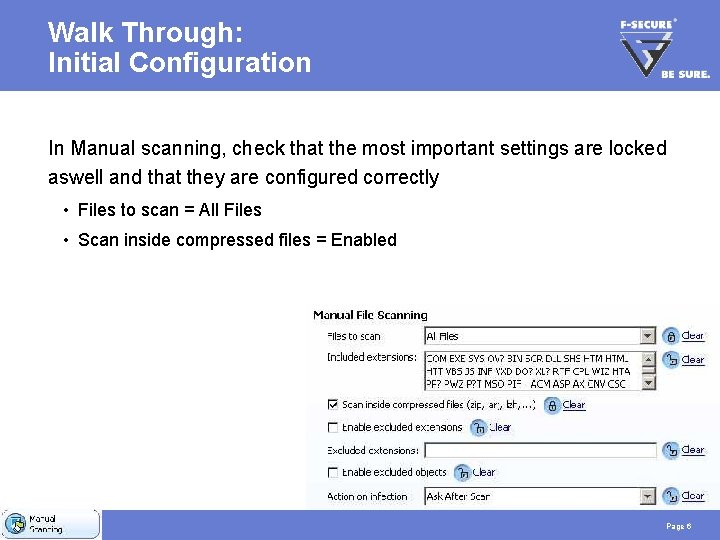
Walk Through: Initial Configuration In Manual scanning, check that the most important settings are locked aswell and that they are configured correctly • Files to scan = All Files • Scan inside compressed files = Enabled Page 6
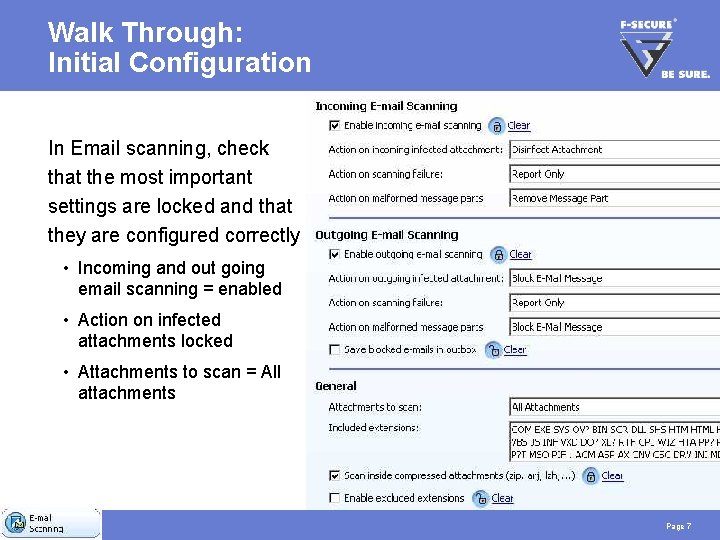
Walk Through: Initial Configuration In Email scanning, check that the most important settings are locked and that they are configured correctly • Incoming and out going email scanning = enabled • Action on infected attachments locked • Attachments to scan = All attachments Page 7
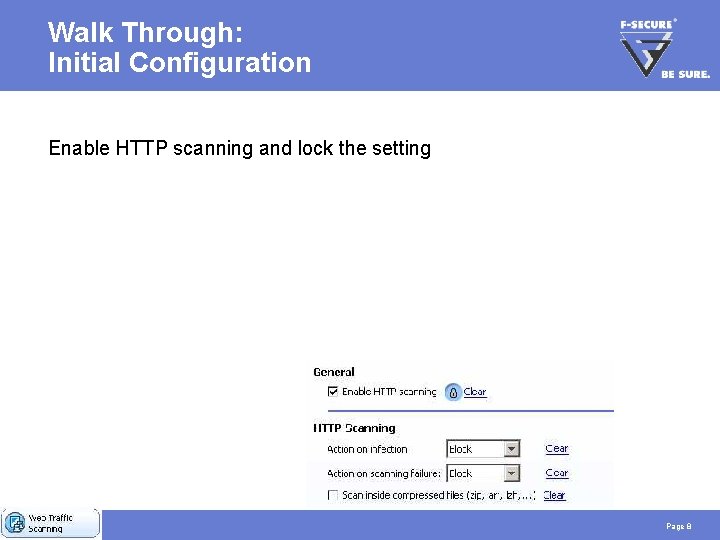
Walk Through: Initial Configuration Enable HTTP scanning and lock the setting Page 8
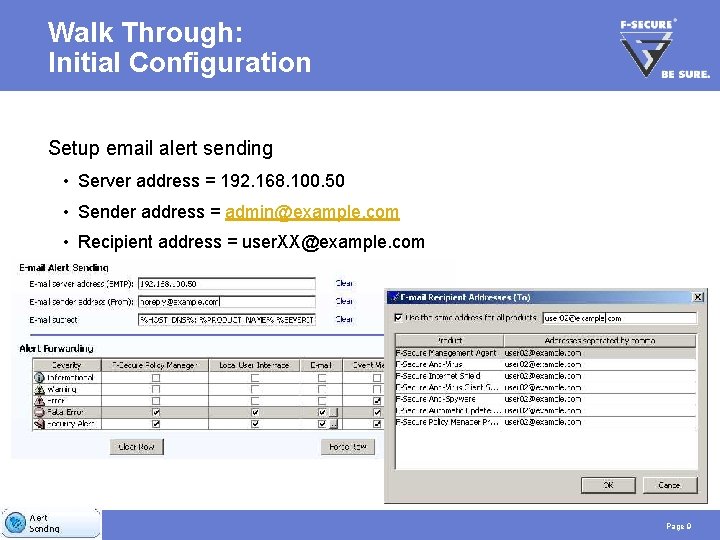
Walk Through: Initial Configuration Setup email alert sending • Server address = 192. 168. 100. 50 • Sender address = admin@example. com • Recipient address = user. XX@example. com Page 9
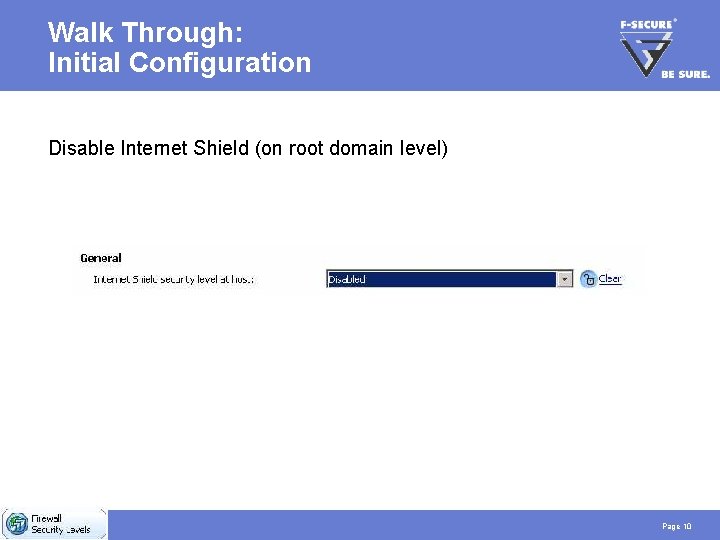
Walk Through: Initial Configuration Disable Internet Shield (on root domain level) Page 10
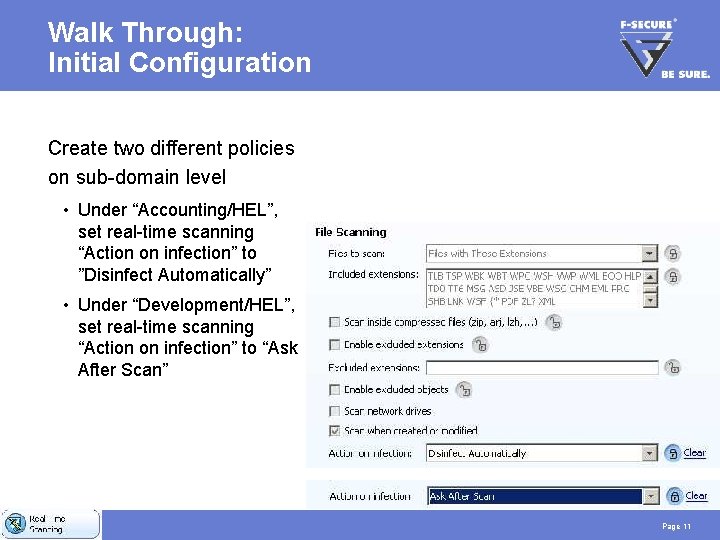
Walk Through: Initial Configuration Create two different policies on sub-domain level • Under “Accounting/HEL”, set real-time scanning “Action on infection” to ”Disinfect Automatically” • Under “Development/HEL”, set real-time scanning “Action on infection” to “Ask After Scan” Page 11
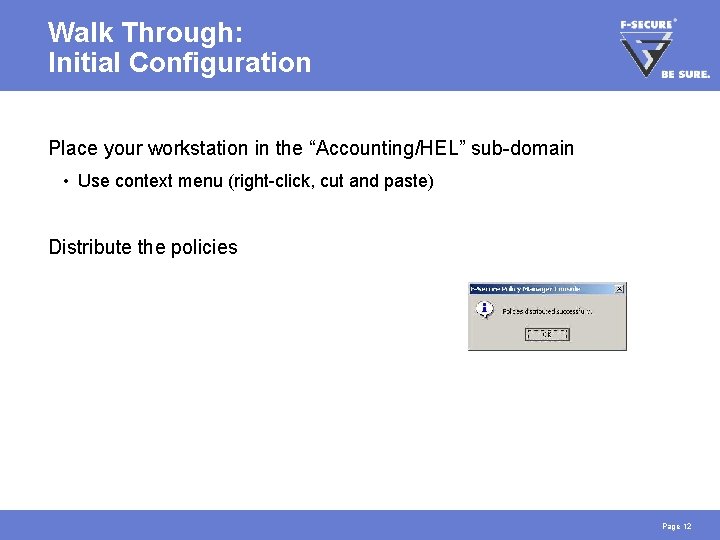
Walk Through: Initial Configuration Place your workstation in the “Accounting/HEL” sub-domain • Use context menu (right-click, cut and paste) Distribute the policies Page 12
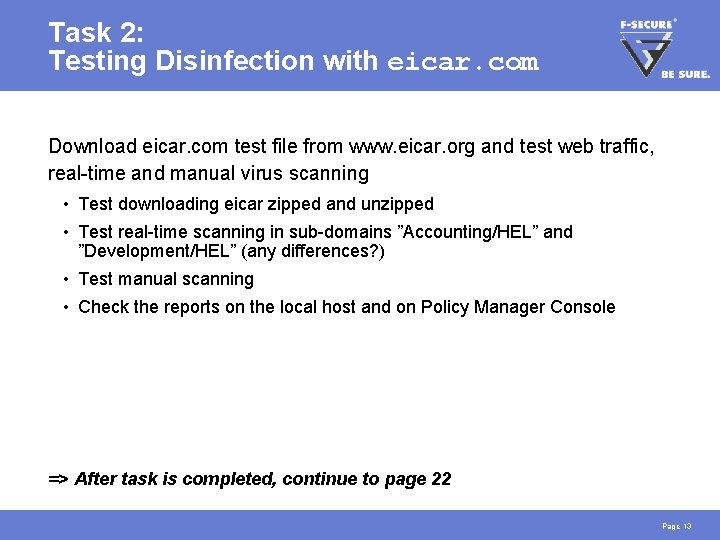
Task 2: Testing Disinfection with eicar. com Download eicar. com test file from www. eicar. org and test web traffic, real-time and manual virus scanning • Test downloading eicar zipped and unzipped • Test real-time scanning in sub-domains ”Accounting/HEL” and ”Development/HEL” (any differences? ) • Test manual scanning • Check the reports on the local host and on Policy Manager Console => After task is completed, continue to page 22 Page 13
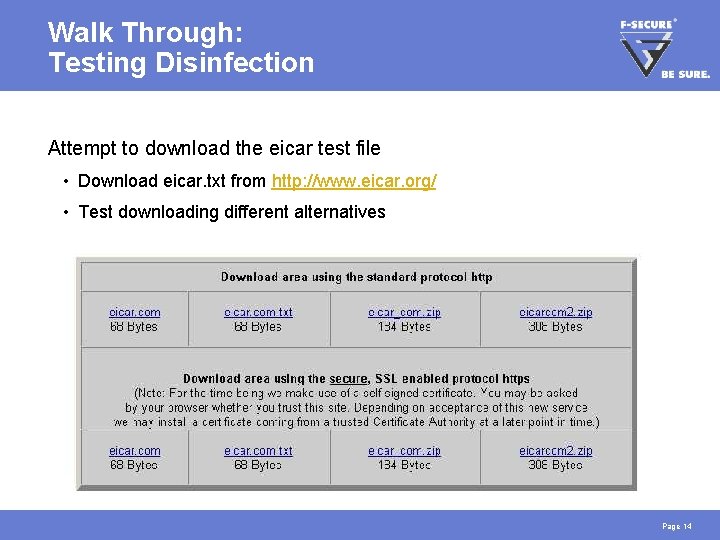
Walk Through: Testing Disinfection Attempt to download the eicar test file • Download eicar. txt from http: //www. eicar. org/ • Test downloading different alternatives Page 14
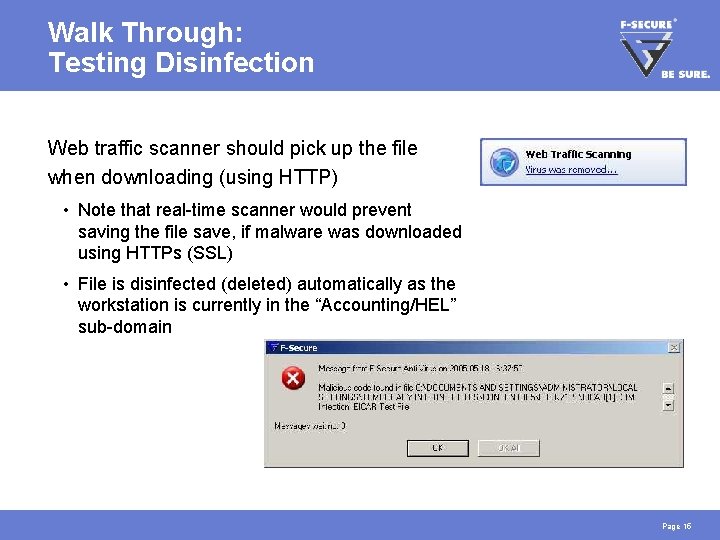
Walk Through: Testing Disinfection Web traffic scanner should pick up the file when downloading (using HTTP) • Note that real-time scanner would prevent saving the file save, if malware was downloaded using HTTPs (SSL) • File is disinfected (deleted) automatically as the workstation is currently in the “Accounting/HEL” sub-domain Page 15
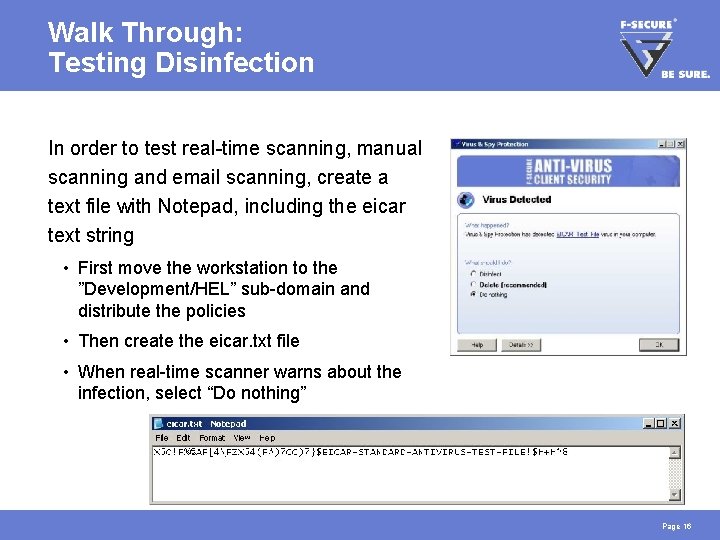
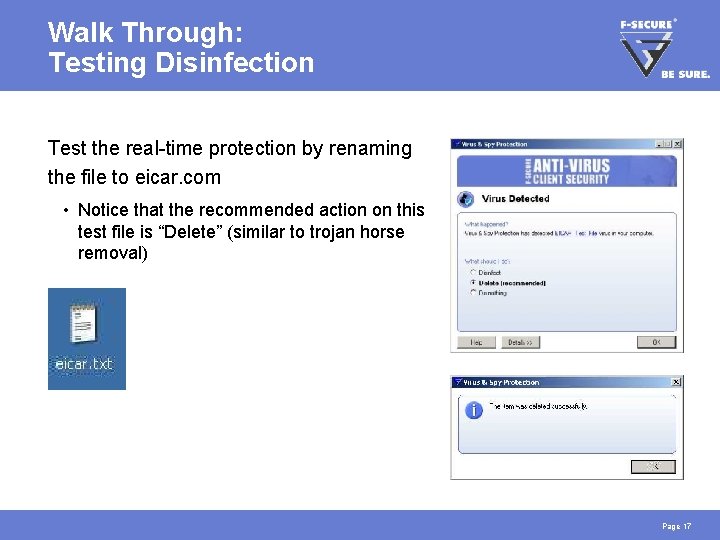
Walk Through: Testing Disinfection In order to test real-time scanning, manual scanning and email scanning, create a text file with Notepad, including the eicar text string • First move the workstation to the ”Development/HEL” sub-domain and distribute the policies • Then create the eicar. txt file • When real-time scanner warns about the infection, select “Do nothing” Page 16
Walk Through: Testing Disinfection Test the real-time protection by renaming the file to eicar. com • Notice that the recommended action on this test file is “Delete” (similar to trojan horse removal) Page 17
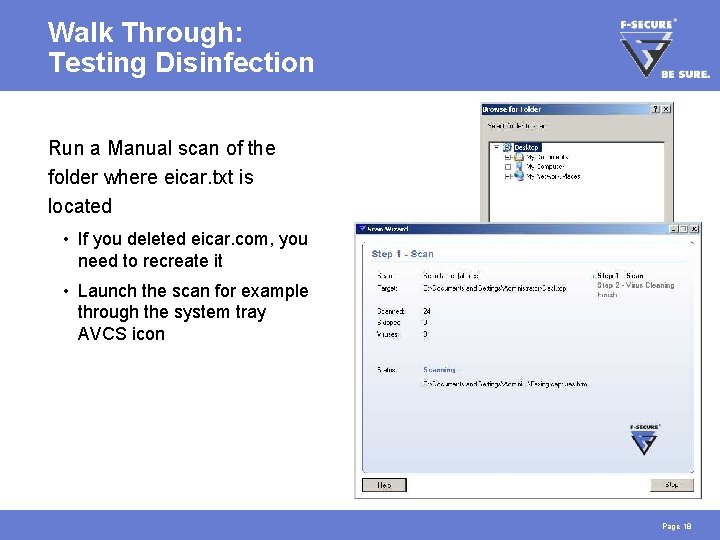
Walk Through: Testing Disinfection Run a Manual scan of the folder where eicar. txt is located • If you deleted eicar. com, you need to recreate it • Launch the scan for example through the system tray AVCS icon Page 18
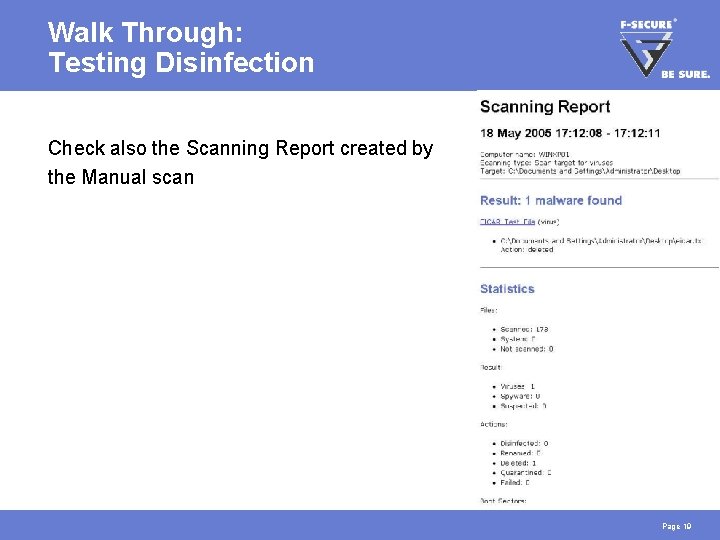
Walk Through: Testing Disinfection Check also the Scanning Report created by the Manual scan Page 19
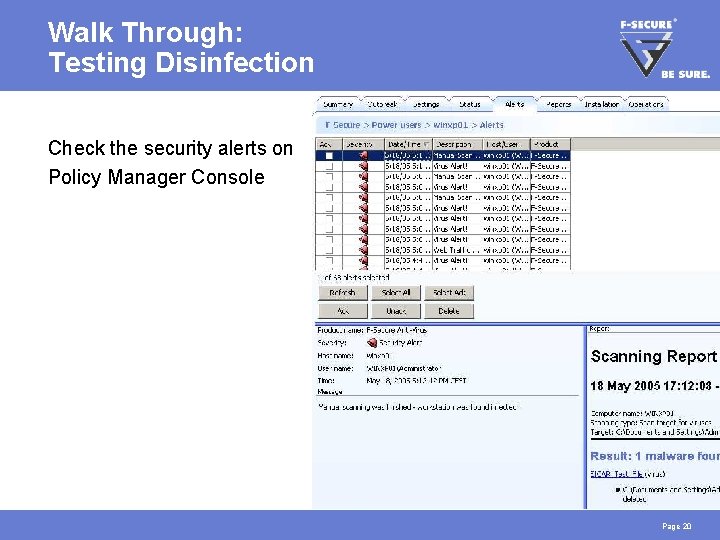
Walk Through: Testing Disinfection Check the security alerts on Policy Manager Console Page 20
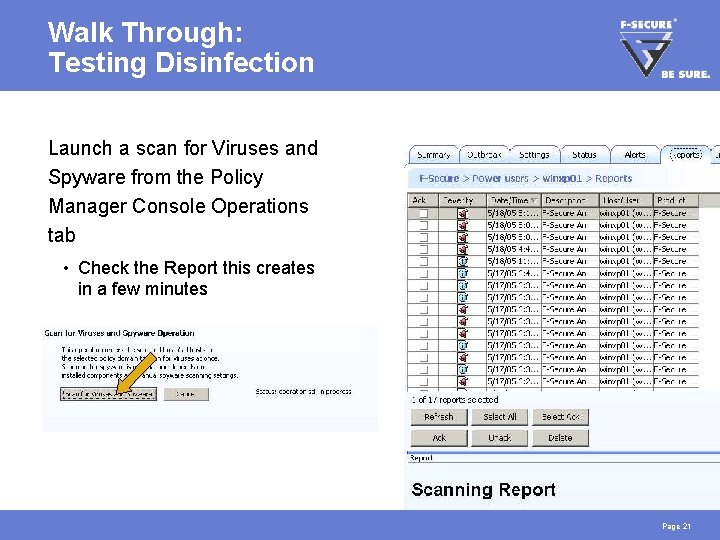
Walk Through: Testing Disinfection Launch a scan for Viruses and Spyware from the Policy Manager Console Operations tab • Check the Report this creates in a few minutes Page 21
Task 3: Testing Email Scanning Configure Outlook Express and send email to yourself (attach eicar. com) • E-mail address: user. XX@example. com • Incoming mail server: 192. 168. 100. 50 • Outgoing mail server: 192. 168. 100. 50 • Check the alerts that have been forwarded to that address as well => After task is completed, continue to page 31 Page 22
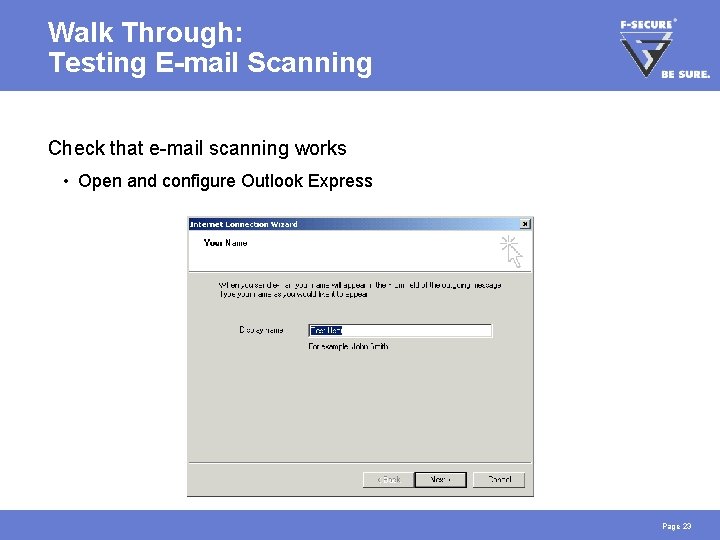
Walk Through: Testing E-mail Scanning Check that e-mail scanning works • Open and configure Outlook Express Page 23
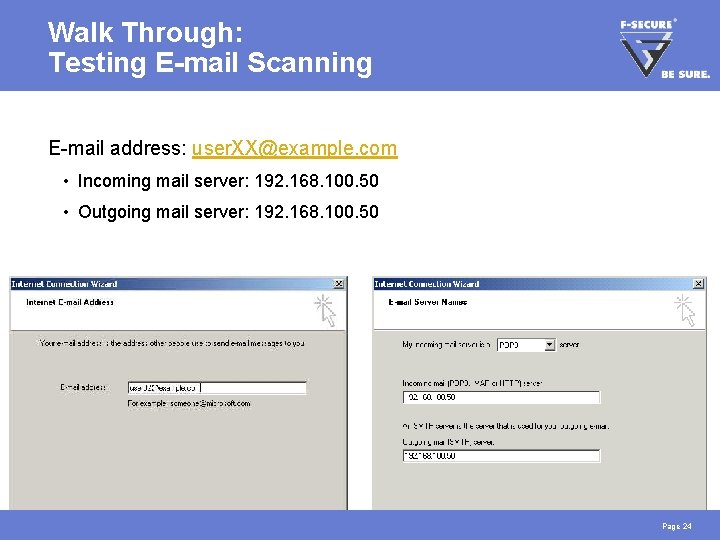
Walk Through: Testing E-mail Scanning E-mail address: user. XX@example. com • Incoming mail server: 192. 168. 100. 50 • Outgoing mail server: 192. 168. 100. 50 Page 24
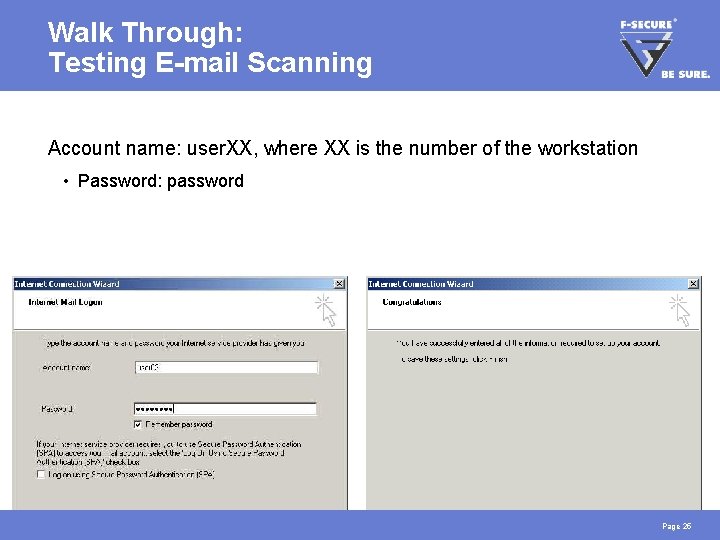
Walk Through: Testing E-mail Scanning Account name: user. XX, where XX is the number of the workstation • Password: password Page 25
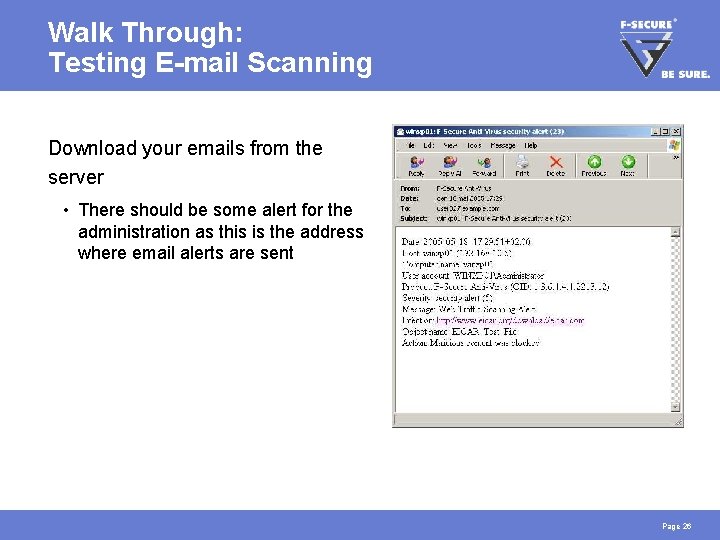
Walk Through: Testing E-mail Scanning Download your emails from the server • There should be some alert for the administration as this is the address where email alerts are sent Page 26
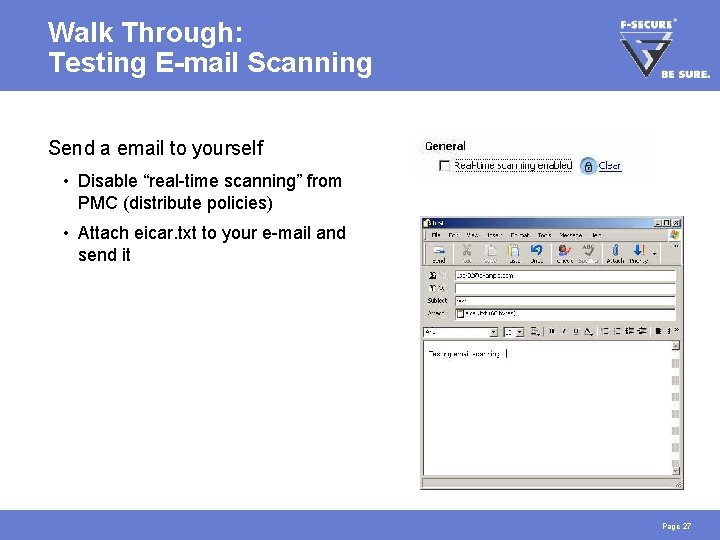
Walk Through: Testing E-mail Scanning Send a email to yourself • Disable “real-time scanning” from PMC (distribute policies) • Attach eicar. txt to your e-mail and send it Page 27
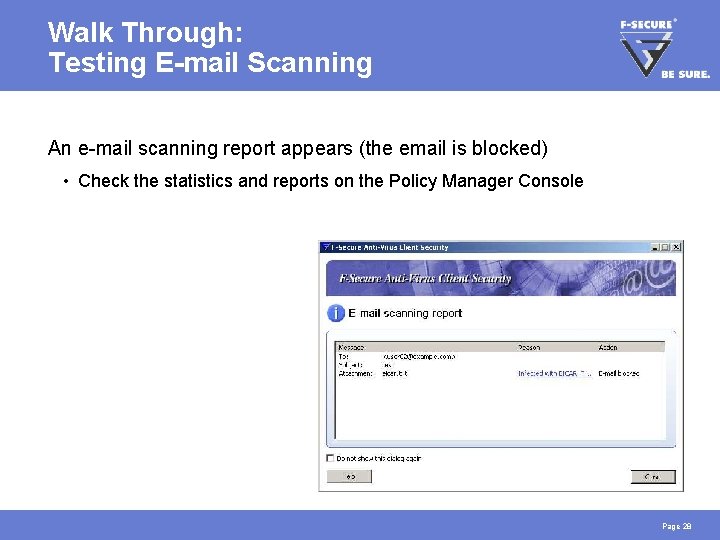
Walk Through: Testing E-mail Scanning An e-mail scanning report appears (the email is blocked) • Check the statistics and reports on the Policy Manager Console Page 28
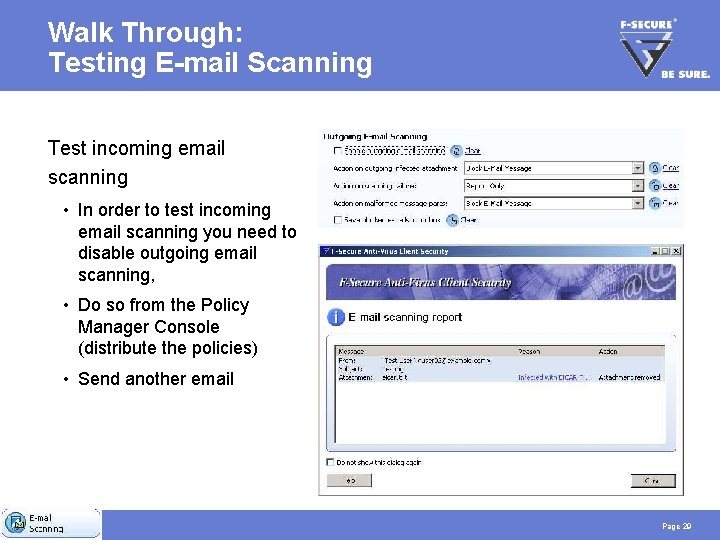
Walk Through: Testing E-mail Scanning Test incoming email scanning • In order to test incoming email scanning you need to disable outgoing email scanning, • Do so from the Policy Manager Console (distribute the policies) • Send another email Page 29
Walk Through: Testing E-mail Scanning Re-enable Virus & Spy Protection • Turn real-time scanning back on • Enable outgoing email scanning • Remember to lock the settings Page 30
Task 4: Automatic Update Confirmation In case the hosts AUA cannot connect to PMS, then it will automatically fetch virus definitions from the F-Secure Root Update Server. Try to come up with a way to test the fail-over mechanism => After task is completed, continue to page 37 Page 31
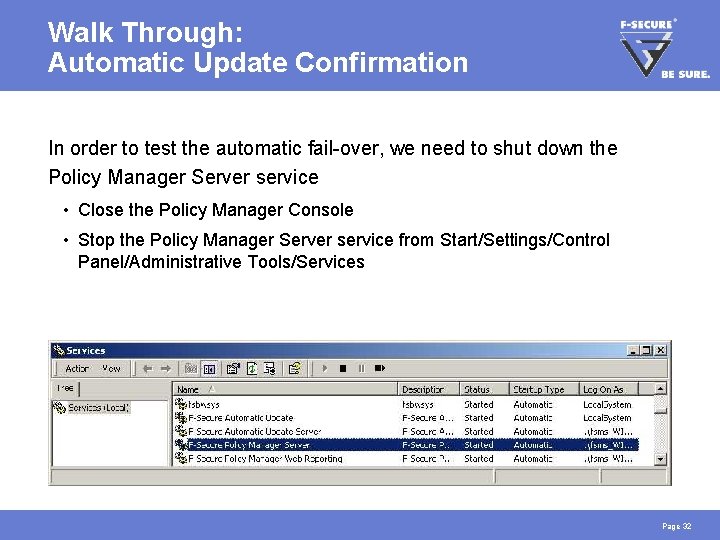
Walk Through: Automatic Update Confirmation In order to test the automatic fail-over, we need to shut down the Policy Manager Server service • Close the Policy Manager Console • Stop the Policy Manager Server service from Start/Settings/Control Panel/Administrative Tools/Services Page 32
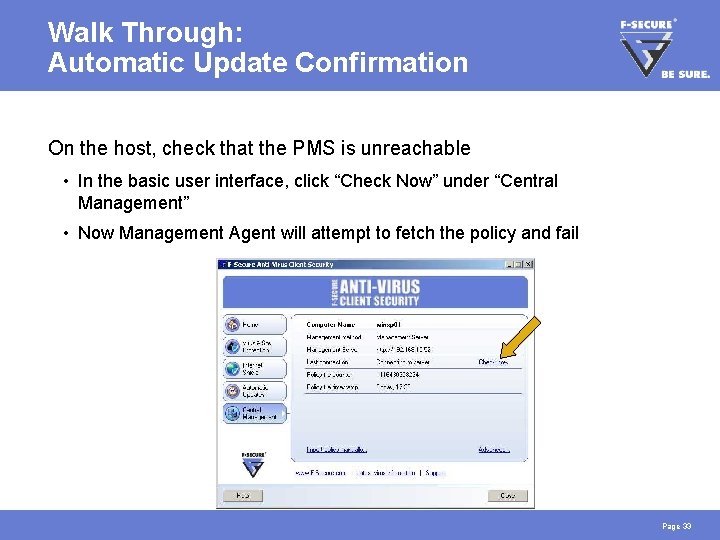
Walk Through: Automatic Update Confirmation On the host, check that the PMS is unreachable • In the basic user interface, click “Check Now” under “Central Management” • Now Management Agent will attempt to fetch the policy and fail Page 33
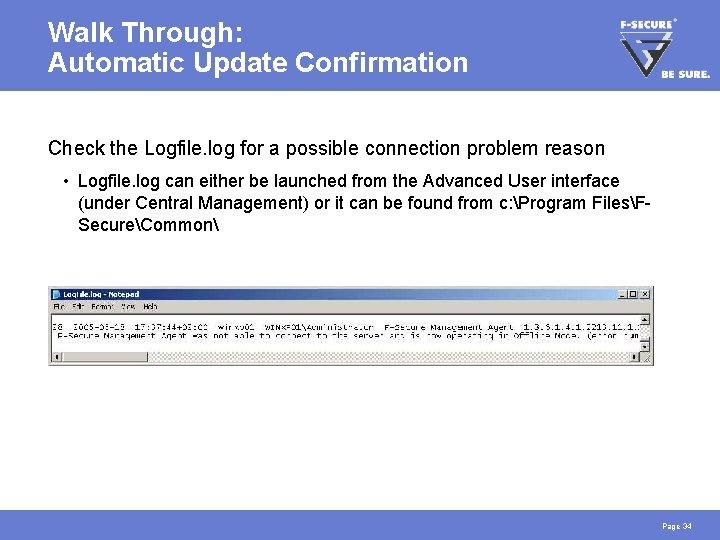
Walk Through: Automatic Update Confirmation Check the Logfile. log for a possible connection problem reason • Logfile. log can either be launched from the Advanced User interface (under Central Management) or it can be found from c: Program FilesFSecureCommon Page 34
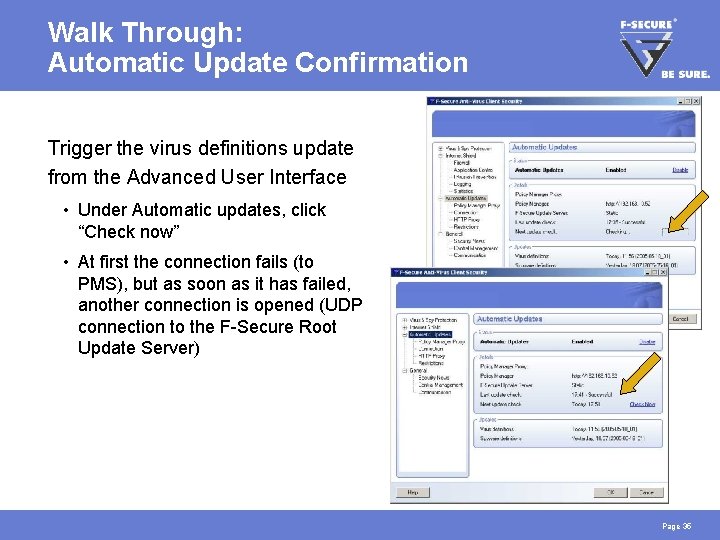
Walk Through: Automatic Update Confirmation Trigger the virus definitions update from the Advanced User Interface • Under Automatic updates, click “Check now” • At first the connection fails (to PMS), but as soon as it has failed, another connection is opened (UDP connection to the F-Secure Root Update Server) Page 35
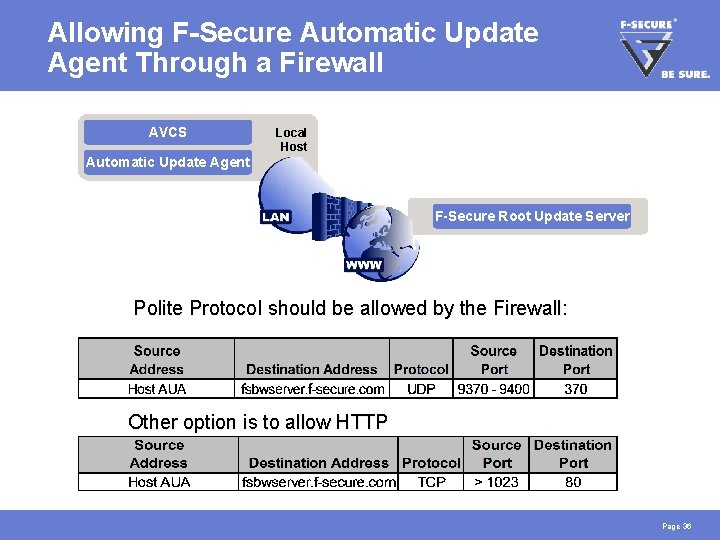
Allowing F-Secure Automatic Update Agent Through a Firewall AVCS Local Host Automatic Update Agent F-Secure Root Update Server Polite Protocol should be allowed by the Firewall: Other option is to allow HTTP Page 36
Task 5: Advanced Mode Management Set up a scheduled scan that takes place weekly and add a custom message, that is shown to end users on local infections => After task is completed, continue to page 42 Page 37
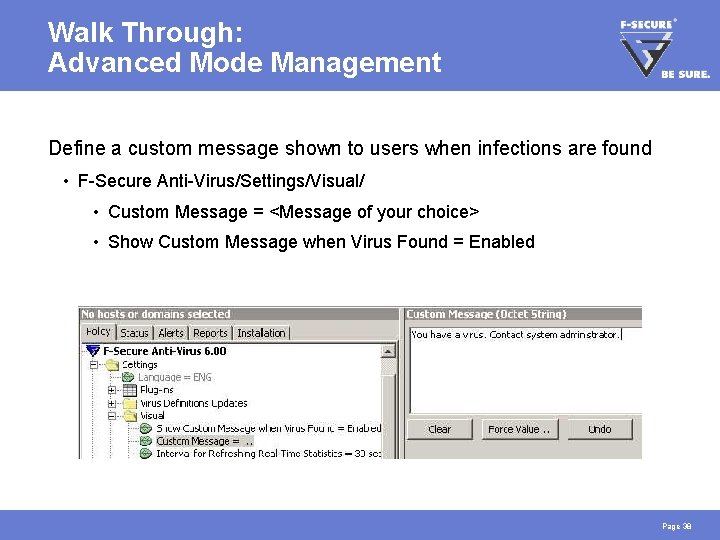
Walk Through: Advanced Mode Management Define a custom message shown to users when infections are found • F-Secure Anti-Virus/Settings/Visual/ • Custom Message = <Message of your choice> • Show Custom Message when Virus Found = Enabled Page 38
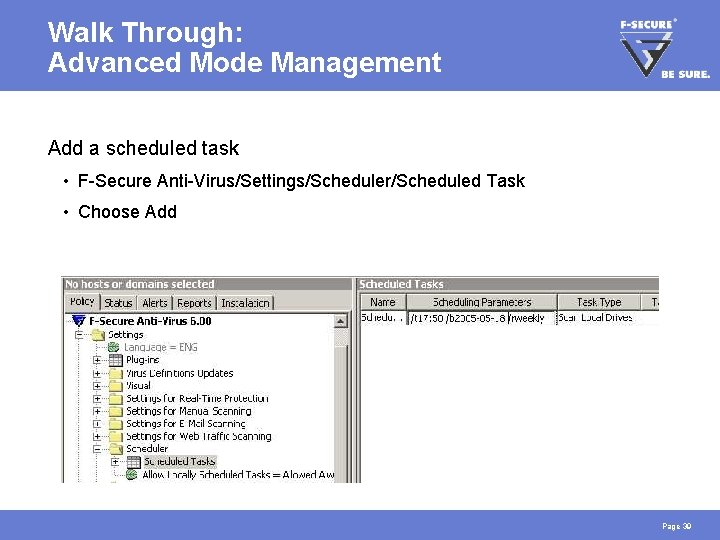
Walk Through: Advanced Mode Management Add a scheduled task • F-Secure Anti-Virus/Settings/Scheduler/Scheduled Task • Choose Add Page 39
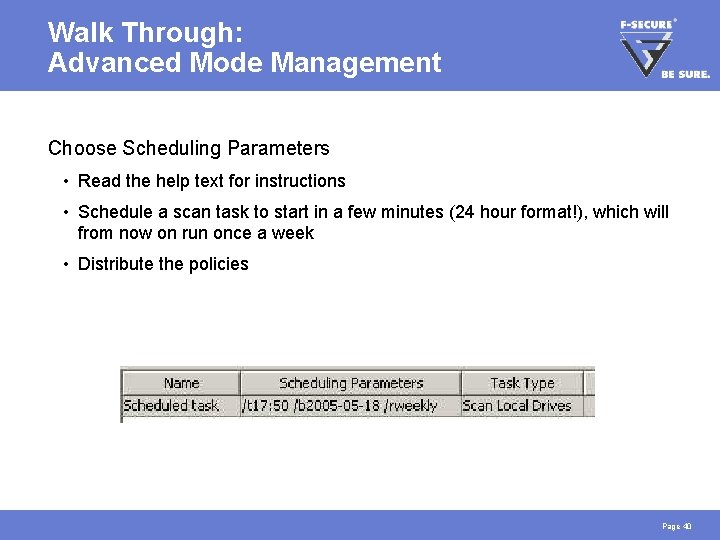
Walk Through: Advanced Mode Management Choose Scheduling Parameters • Read the help text for instructions • Schedule a scan task to start in a few minutes (24 hour format!), which will from now on run once a week • Distribute the policies Page 40
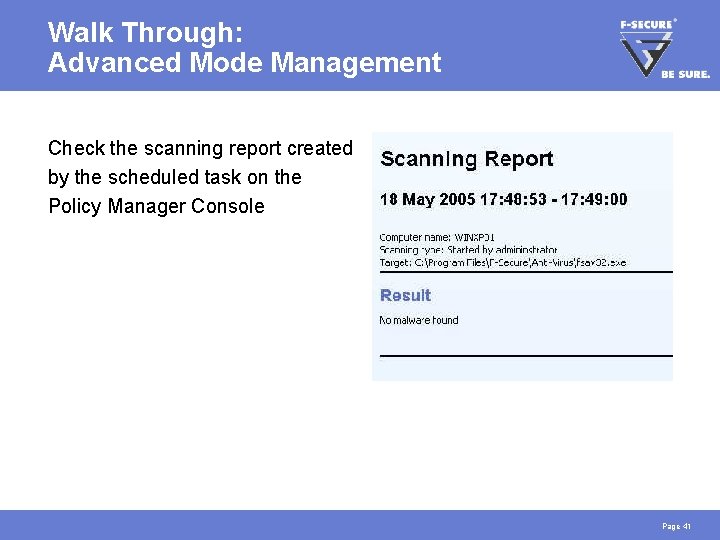
Walk Through: Advanced Mode Management Check the scanning report created by the scheduled task on the Policy Manager Console Page 41
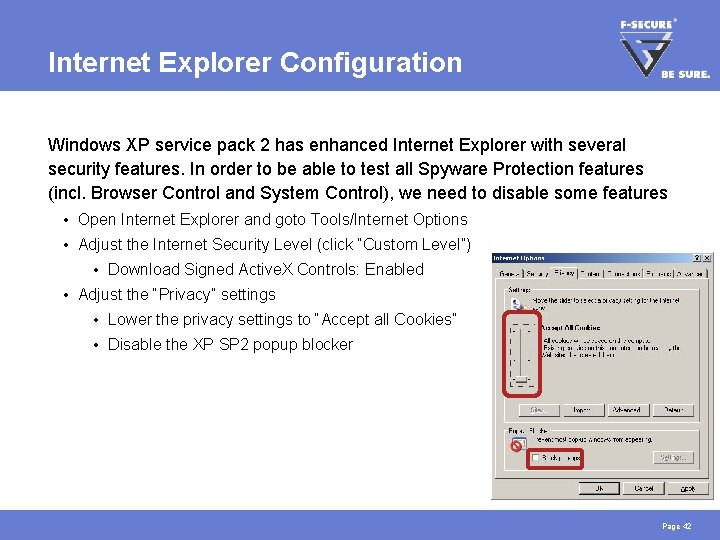
Internet Explorer Configuration Windows XP service pack 2 has enhanced Internet Explorer with several security features. In order to be able to test all Spyware Protection features (incl. Browser Control and System Control), we need to disable some features • Open Internet Explorer and goto Tools/Internet Options • Adjust the Internet Security Level (click “Custom Level”) • Download Signed Active. X Controls: Enabled • Adjust the “Privacy” settings • Lower the privacy settings to “Accept all Cookies” • Disable the XP SP 2 popup blocker Page 42
Task 6: Spyware Scanning Try out spyware scanning • Run a spyware scan on the host • Check the logfiles and alerts => After task is completed, continue to page 47 Page 43
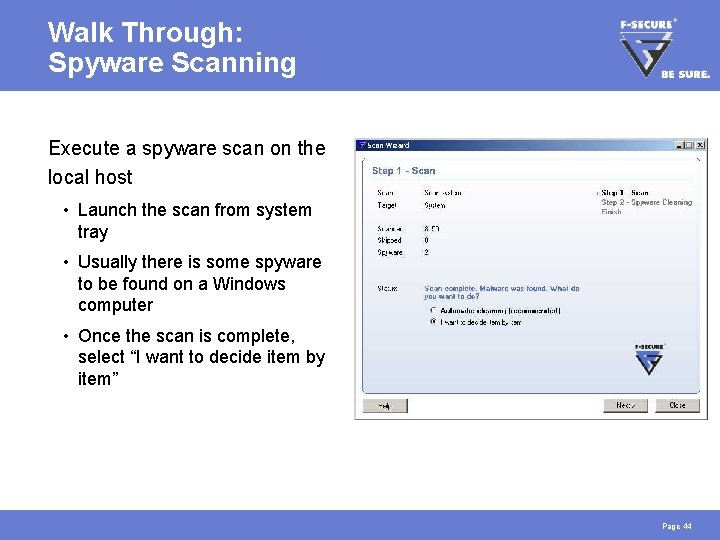
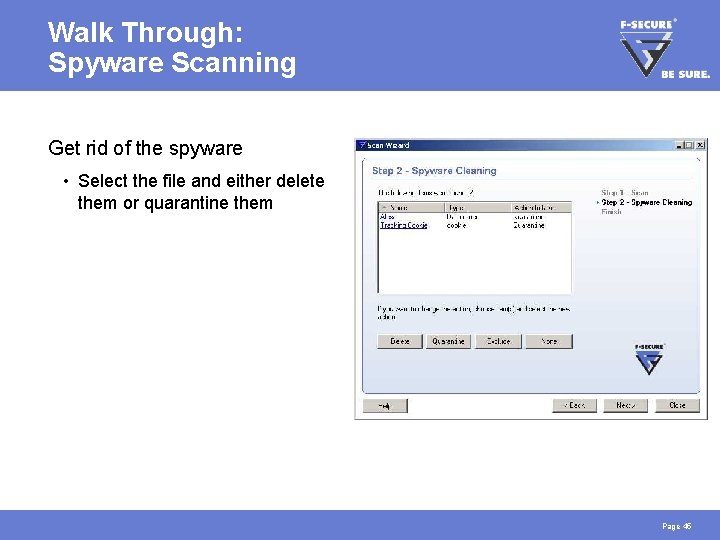
Walk Through: Spyware Scanning Execute a spyware scan on the local host • Launch the scan from system tray • Usually there is some spyware to be found on a Windows computer • Once the scan is complete, select “I want to decide item by item” Page 44
Walk Through: Spyware Scanning Get rid of the spyware • Select the file and either delete them or quarantine them Page 45
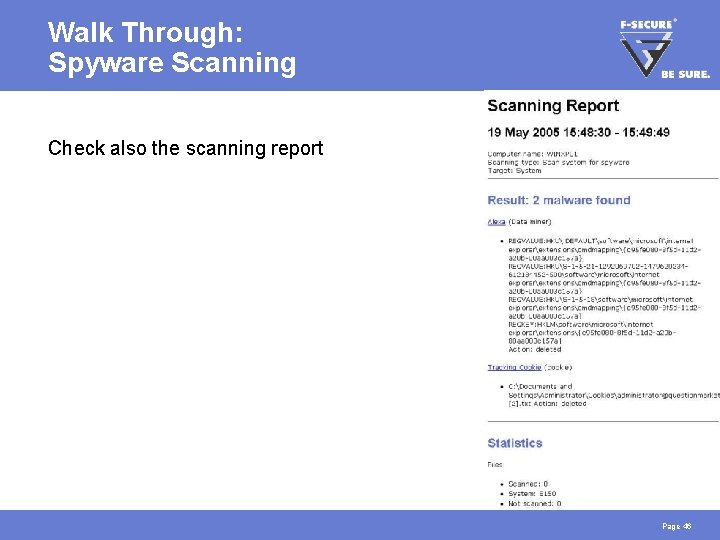
Walk Through: Spyware Scanning Check also the scanning report Page 46
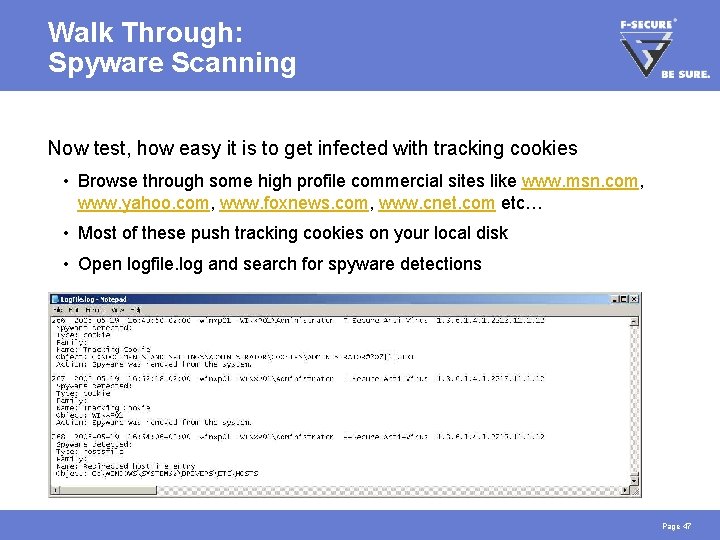
Walk Through: Spyware Scanning Now test, how easy it is to get infected with tracking cookies • Browse through some high profile commercial sites like www. msn. com, www. yahoo. com, www. foxnews. com, www. cnet. com etc… • Most of these push tracking cookies on your local disk • Open logfile. log and search for spyware detections Page 47
Task 7: Using Browser Control Test Browser Control • Enable Browser Control • Simulate an attack on your hosts file • Attempt to change the start page on Internet Explorer • Test Active. X protection using F-Secure Online Scanner => After task is completed, continue to page 54 Page 48
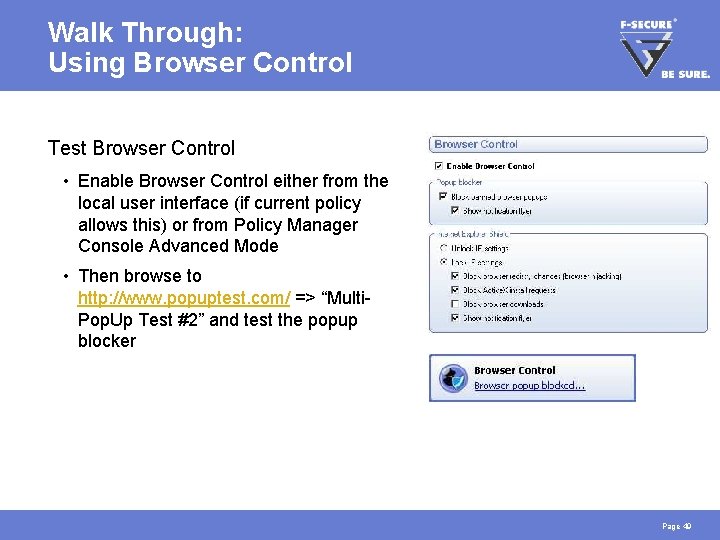
Walk Through: Using Browser Control Test Browser Control • Enable Browser Control either from the local user interface (if current policy allows this) or from Policy Manager Console Advanced Mode • Then browse to http: //www. popuptest. com/ => “Multi. Pop. Up Test #2” and test the popup blocker Page 49
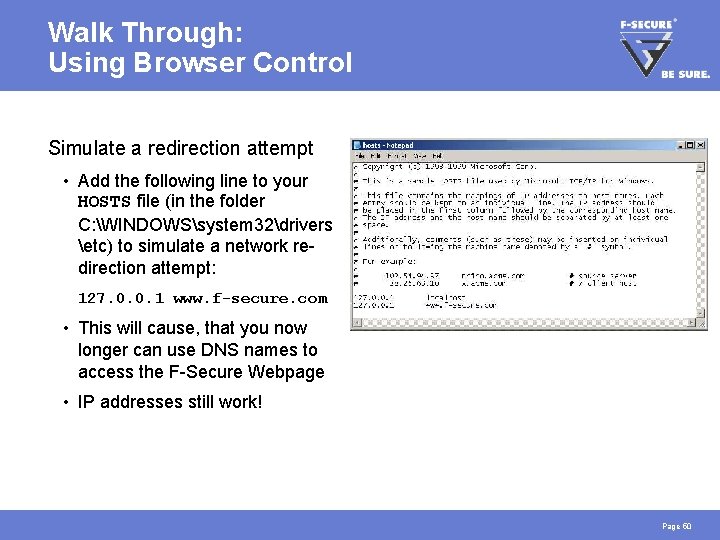
Walk Through: Using Browser Control Simulate a redirection attempt • Add the following line to your HOSTS file (in the folder C: WINDOWSsystem 32drivers etc) to simulate a network redirection attempt: 127. 0. 0. 1 www. f-secure. com • This will cause, that you now longer can use DNS names to access the F-Secure Webpage • IP addresses still work! Page 50
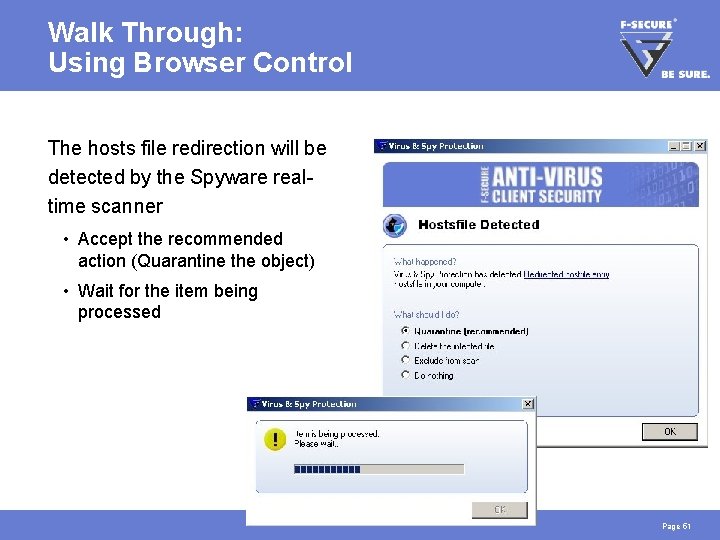
Walk Through: Using Browser Control The hosts file redirection will be detected by the Spyware realtime scanner • Accept the recommended action (Quarantine the object) • Wait for the item being processed Page 51
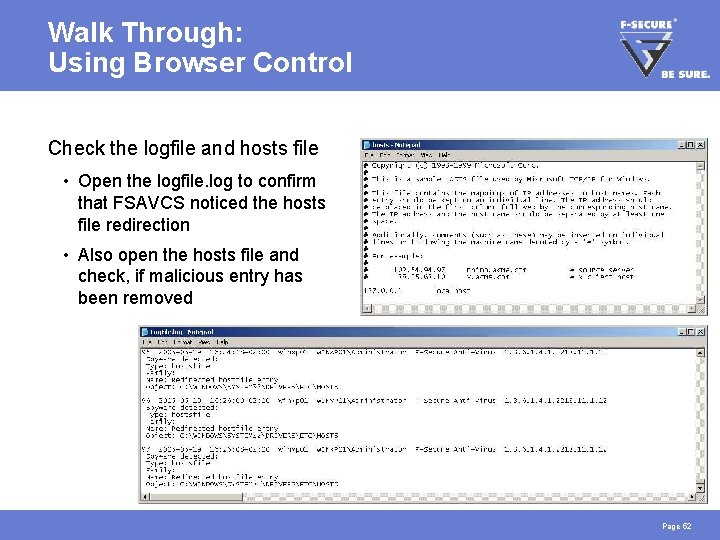
Walk Through: Using Browser Control Check the logfile and hosts file • Open the logfile. log to confirm that FSAVCS noticed the hosts file redirection • Also open the hosts file and check, if malicious entry has been removed Page 52
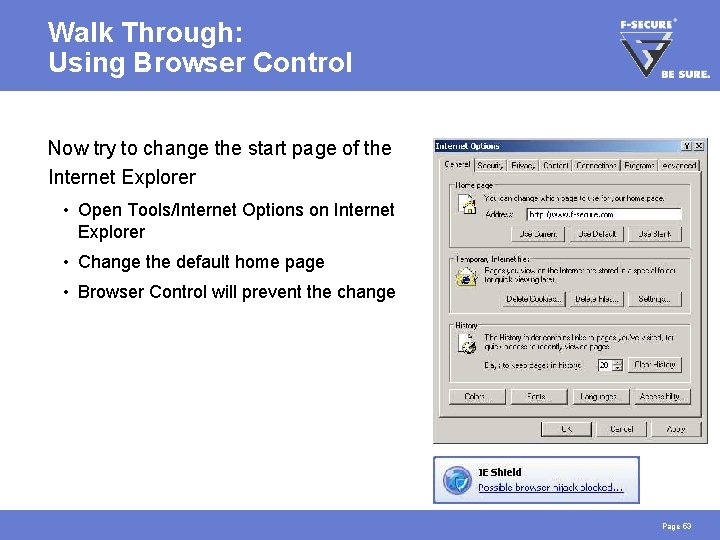
Walk Through: Using Browser Control Now try to change the start page of the Internet Explorer • Open Tools/Internet Options on Internet Explorer • Change the default home page • Browser Control will prevent the change Page 53
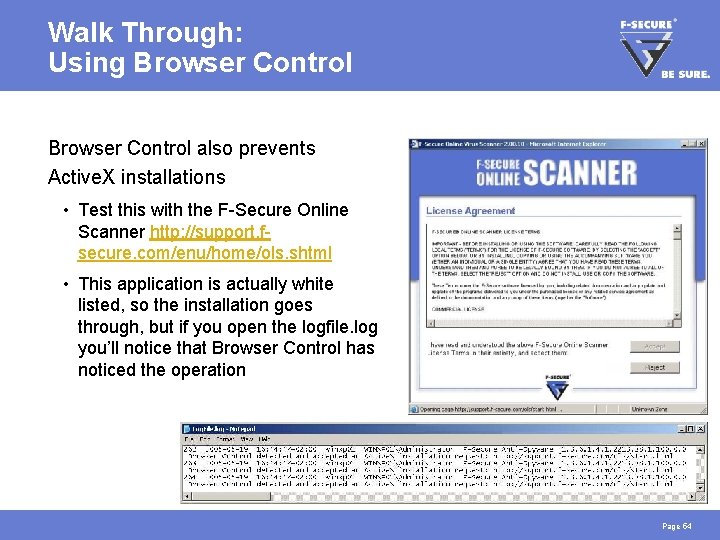
Walk Through: Using Browser Control also prevents Active. X installations • Test this with the F-Secure Online Scanner http: //support. fsecure. com/enu/home/ols. shtml • This application is actually white listed, so the installation goes through, but if you open the logfile. log you’ll notice that Browser Control has noticed the operation Page 54
Task 8: Manage Spyware Centrally On the Policy Manager Console, manage the spyware reported by your host (test the spyware exclusion function) => After task is completed, continue to page 56 Page 55
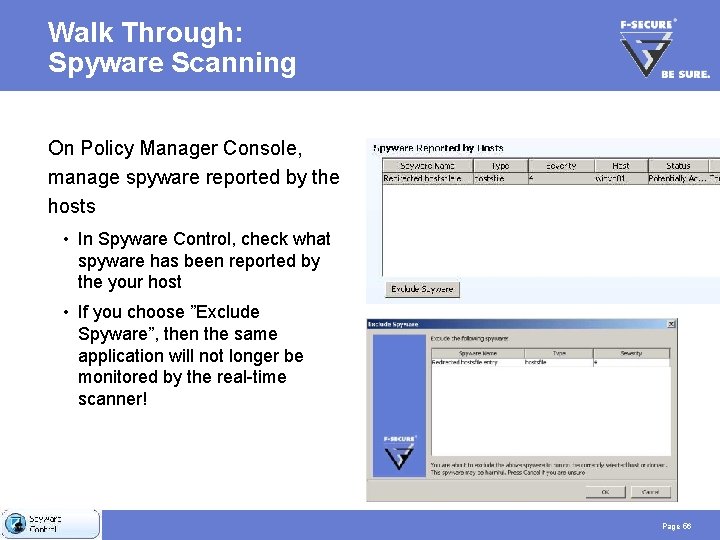
Walk Through: Spyware Scanning On Policy Manager Console, manage spyware reported by the hosts • In Spyware Control, check what spyware has been reported by the your host • If you choose ”Exclude Spyware”, then the same application will not longer be monitored by the real-time scanner! Page 56
Task 9: Using System Control Enable System Control and test it by tampering directly with the registry Some of the monitored registry sections • HKEY_LOCAL_MACHINESOFTWARECLASSES (file extension associations) • HKEY_LOCAL_MACHINESOFTWAREMICROSOFTWINDOWSCURRENTVERSION RUN (and ”RUNONCE”, applications launched at each startup) => After task is completed, continue to page 60 Page 57
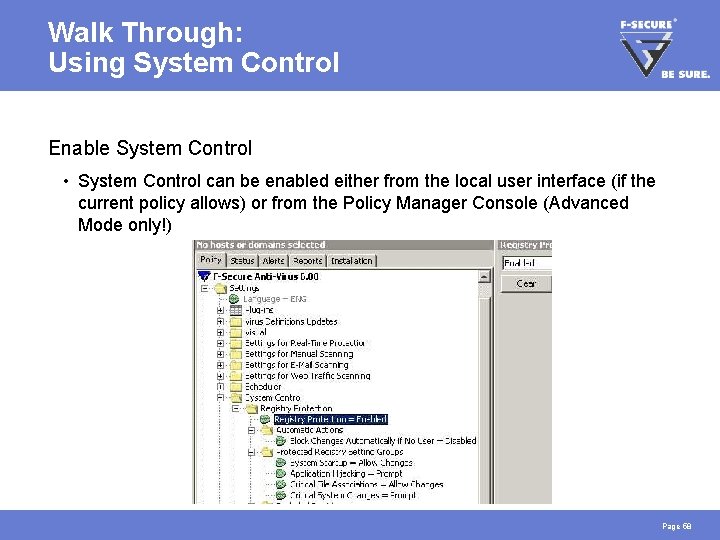
Walk Through: Using System Control Enable System Control • System Control can be enabled either from the local user interface (if the current policy allows) or from the Policy Manager Console (Advanced Mode only!) Page 58
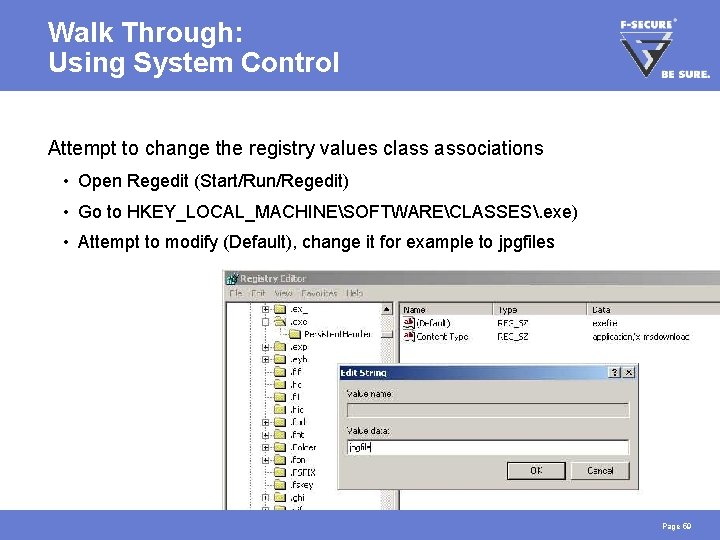
Walk Through: Using System Control Attempt to change the registry values class associations • Open Regedit (Start/Run/Regedit) • Go to HKEY_LOCAL_MACHINESOFTWARECLASSES. exe) • Attempt to modify (Default), change it for example to jpgfiles Page 59
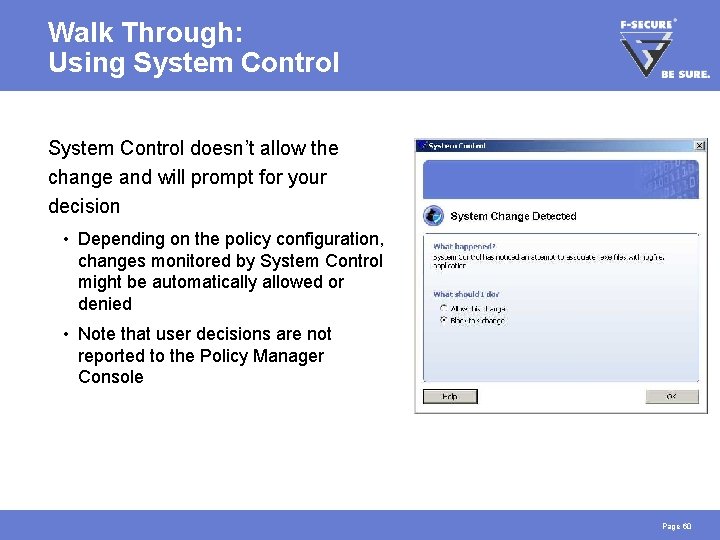
Walk Through: Using System Control doesn’t allow the change and will prompt for your decision • Depending on the policy configuration, changes monitored by System Control might be automatically allowed or denied • Note that user decisions are not reported to the Policy Manager Console Page 60
HANDS-ON FINISHED!