
Administering Windows 7 Lesson 11 Objectives Troubleshoot Windows
Administering Windows 7 Lesson 11
Objectives • Troubleshoot Windows 7 • Use remote access technologies • Troubleshoot installation and startup issues • Understand Branch. Cache • Use Backup and Restore program
Troubleshooting • Primary function of a desktop technician. • Good troubleshooters are often intuitive. • In professional environments, it is good to have a standardized procedure. • Allows you to explain to the client, share your findings, and account for your time.
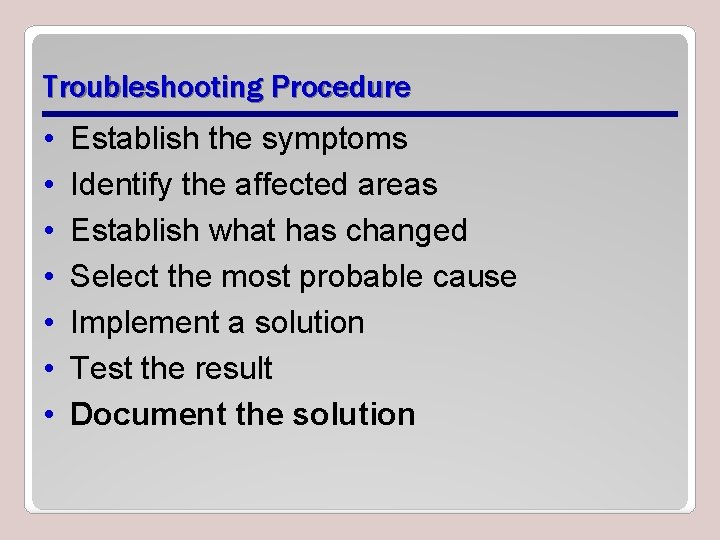
Troubleshooting Procedure • • Establish the symptoms Identify the affected areas Establish what has changed Select the most probable cause Implement a solution Test the result Document the solution
Using Troubleshooting Tools • Troubleshooting requires the right tools and the ability to use them properly. • We have discussed many tools in this course that can and will be used to troubleshoot. See table 11 -1 for a complete list of all the tools discussed to date in class. • More tools specifically for troubleshooting: – Remote Assistance and Remote Desktop – Windows RE — System Recovery Tools

Using Remote Access Technologies • Microsoft Management Console – Redirecting a snap-in/creating a remote console • Remote Assistance • Remote Desktop • Windows Remote Management
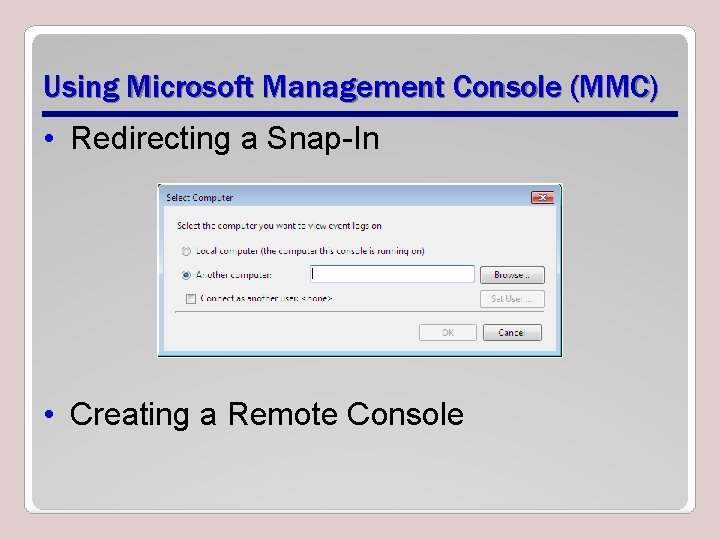
Using Microsoft Management Console (MMC) • Redirecting a Snap-In • Creating a Remote Console
Using Remote Assistance • Enables a person at one location to connect to a computer at another location, to view, chat with, or completely take control of the system: – Technical support – Troubleshooting – Training
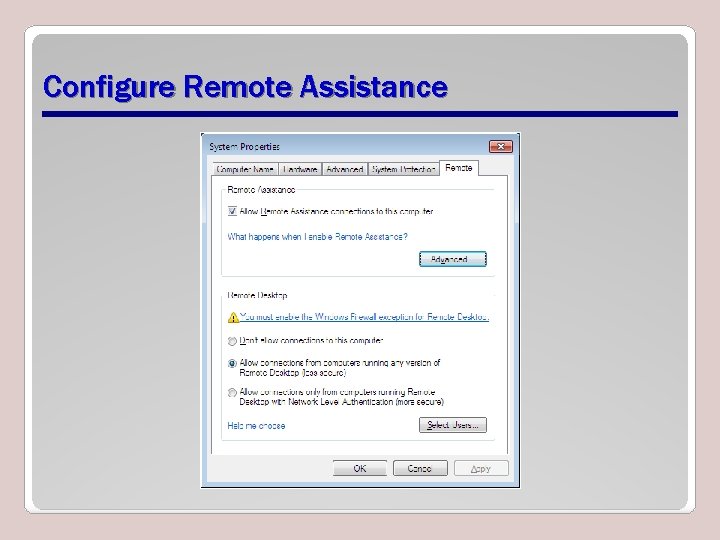
Configure Remote Assistance
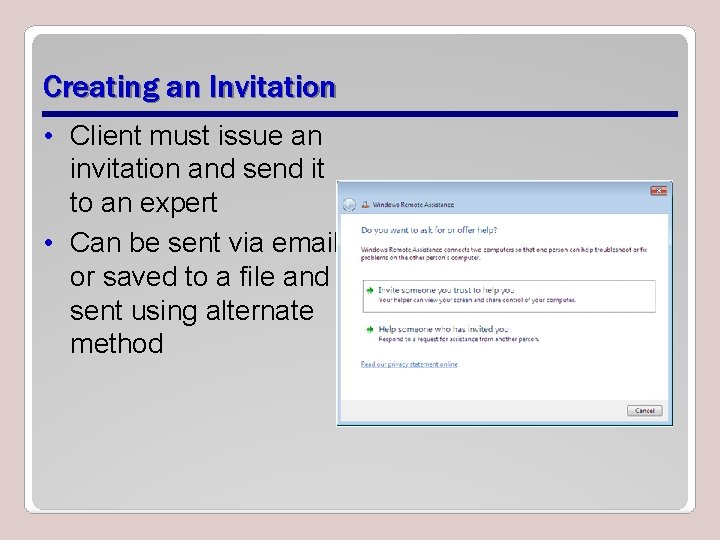
Creating an Invitation • Client must issue an invitation and send it to an expert • Can be sent via email or saved to a file and sent using alternate method
Securing Remote Assistance • Because of the potential damage that could be done by the wrong assistant, there are many protective features built in: – Invitations – Interactive connectivity – Client-side control – Remote control configuration – Firewalls
Remote Desktop • Administrative feature enabling users to access computers from remote locations with no interaction required from the remote site • When connected, it is just like sitting in front of the computer • Usually used for administrators to connect to servers that are not easily accessible • Uses an implementation of Remote Desktop Services from Windows Server
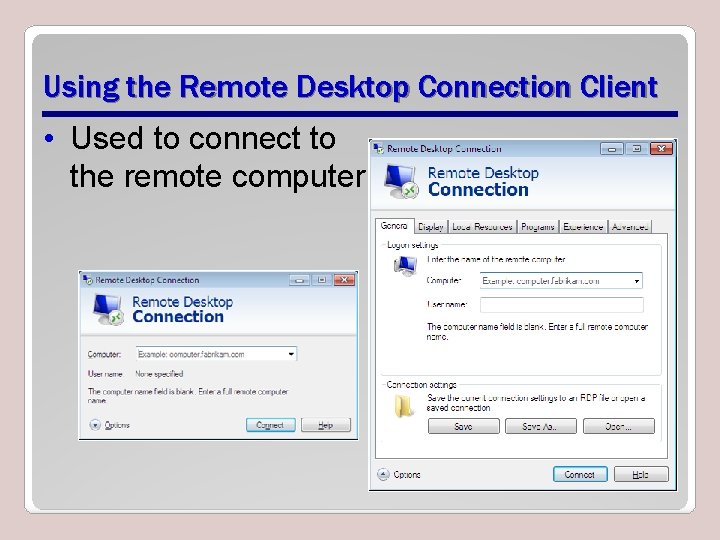
Using the Remote Desktop Connection Client • Used to connect to the remote computer
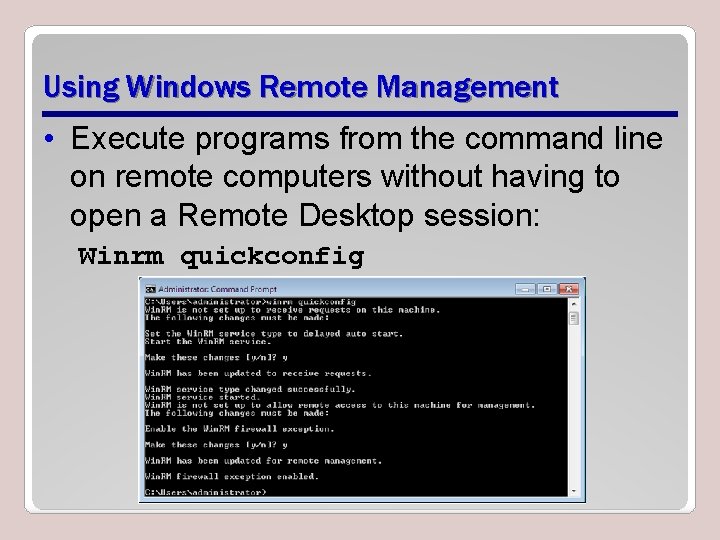
Using Windows Remote Management • Execute programs from the command line on remote computers without having to open a Remote Desktop session: Winrm quickconfig
Using Win. RS. exe • Once Remote Management has been configured, you can execute commands on remote computers who have also been configured: winrs –r: computer [-u: user] [-p: password] command
Power. Shell Remote Commands • Requires the Windows Remote Management service to be configured and running on both computers: icm computer {command}
Understanding the Windows 7 Startup Process • The process is substantially different from those of Windows XP and other NT-based Windows versions: – Power-on self–test (POST) phase – Initial startup phase – Windows Boot Manager phase – Reads BCD – Windows Boot Loader phase – Kernel loading phase – Logon phase
Power-on self–test (POST) phase • When PC is turned on the either – BIOS – EFI • runs a hardware self-test procedure that – Detects devices installed in the system – configures them using settings stored in non-volatile memory – After main POST any devices with there own BIOS will run it.
Initial startup phase • the system reads the BIOS settings to determine which hardware device it should use to boot the computer • from a hard disk, the system loads the master boot record (MBR) from the disk and locates the active (bootable) partition • The system then loads and runs a stub prograrm called Bootmgr, which switches the processor from real mode to protected mode and loads the Windows Boot Manager application.
Windows Boot Manager phase – Reads BCD • The system reads the Boot Configuration Data (BCD) registry file – contains the systemt boot menu information – Provides the user with access to the boot menu • If there is ony one operating system the boot menu can only be accessed by presssing a speicic key a startup. • If there are multiple operating systems the boot menu appears and shows the OS’s available
Windows Boot Loader phase • In this phase various operating system elements into memory including but not actually run. – Windows kernel – Hardware Abstraction Layer (HAL) – system registry hive • A hive is a logical group of keys, subkeys, and values in the registry that has a set of supporting files containing backups of its data. – boot class device drivers
Kernel Load Phase • The system runs the Windows Executive (consisting of the Windows kernel and the HAL), which processes the registry hive and initializes the drivers and services specified there • starts the Session Manager, which loads the kernel-mode part of the Win 32 subsystem, causing the system to switch from text mode to graphics mode
Kernel Load Phase • loads the user-mode porrion of win 32, which provides applications with indirect, protected access to the system hardware • performs delayed rename operarions resulting from system updates that must replace files that were in use when the update was installed • creates additional virtual memory paging files and starts the Logon Manager
Logon phase • ) The system loads the – Service Control Manager (SCM) – the Local Securiry Authority (LSA) • Then presents the logon user interface (Logon. UI) • The interface passes the credentials supplied by the user to the LSA for authentication
Logon phase • the SCM loads the Plug and Play services and drivers that are configured for autoloading. • If the authentication is successful, the Logon Manager launches – Userinit. exe, which is responsible for applying group policy settings and running the programs in the Startup group – then loads the Windows Explorer shell, which provides the'Windows desktop
Troubleshooting Startup Failures • The first step is determining exactly where in the startup process the failure is occurring: – POST failures – Initial startup failures – Driver and service failures – Logon failures
POST Failures • Is the problem software or hardware? • Failures during the POST are hardware failures. • Beep sequences will help you to determine the exact failure.
Initial Startup Failures • Typically a “Non-system disk or disk error” • Errors before progress bar appears are usually: – Incorrect BIOS settings – Hardware faults – Missing startup files – Data corruption • Use recovery tools to fix or replace hardware component
Driver and Service Failures • The appearance of the progress bar indicates that the kernel has loaded successfully. • Problem occurring here is usually an issue with a driver or service that is trying to load. • Use Last Known Good Configuration or Safe Mode to get system running • Use Device Manager to help determine the problem and get the computer running normally
Logon Failures • If the startup process fails after the user has supplied logon credentials, the problem is likely a program in the startup group. • Hold shift key when logging on to prevent programs from loading. • Use process of elimination to test programs.
Using Recovery Tools • • • Alternate boot options Startup and Recovery Dialog box System Configuration tool Boot logging Windows RE
Using Alternate Boot Options • Get the system to boot so you have access to Windows tools to help you troubleshoot • Press F 8 after POST to get to the Advanced Boot Options menu: – Last Known Good Configuration – Safe Mode • Press the shift key while logging on and hold it until the icons appear on the desktop to suppress startup applications.
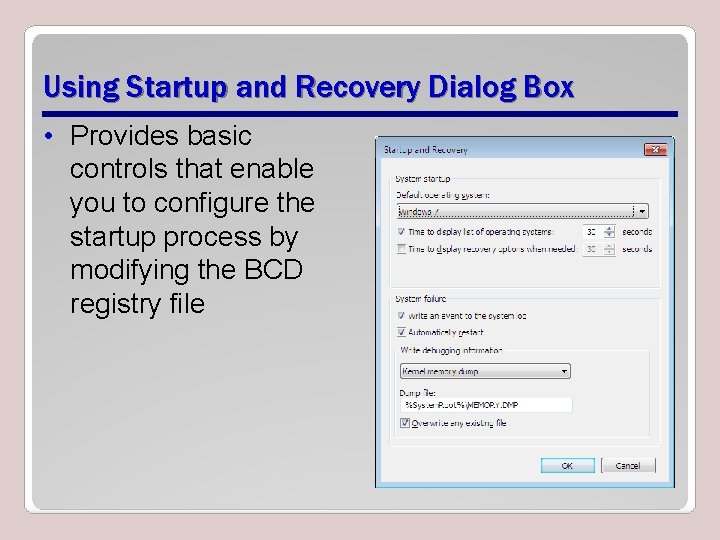
Using Startup and Recovery Dialog Box • Provides basic controls that enable you to configure the startup process by modifying the BCD registry file
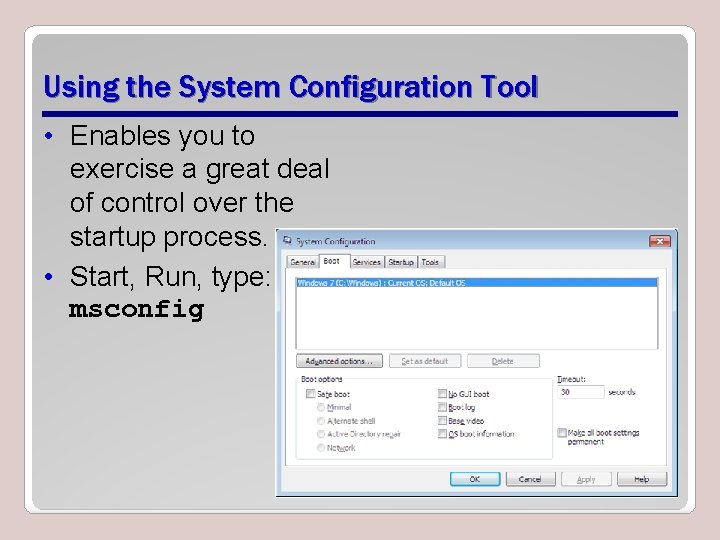
Using the System Configuration Tool • Enables you to exercise a great deal of control over the startup process. • Start, Run, type: msconfig
Enable Boot Logging • Gathers information about the most recent startup process and saves it to a text file for later examination. • To enable: – When the POST completes, press the F 8 key repeatedly until the Advanced Boot Options menu appears. – Select Enable Boot Logging
Using Windows RE • Windows Recovery Environment (almost the same as Windows PE but with Recovery Tools) • Allows you to bypass all of the drivers, applications, and services that can be the source of a startup problem • To run: Boot with installation DVD, click Repair Your Computer when prompted
Using the System Recovery Tools • • • Startup Repair System Restore System Image Recovery Windows Memory Diagnostic tool Command Prompt
Using Branch. Cache • New feature in Windows 7 and Windows Server 2008 R 2 that enables networks with computers at remote locations to conserve bandwidth by storing frequently accessed files on local drives.
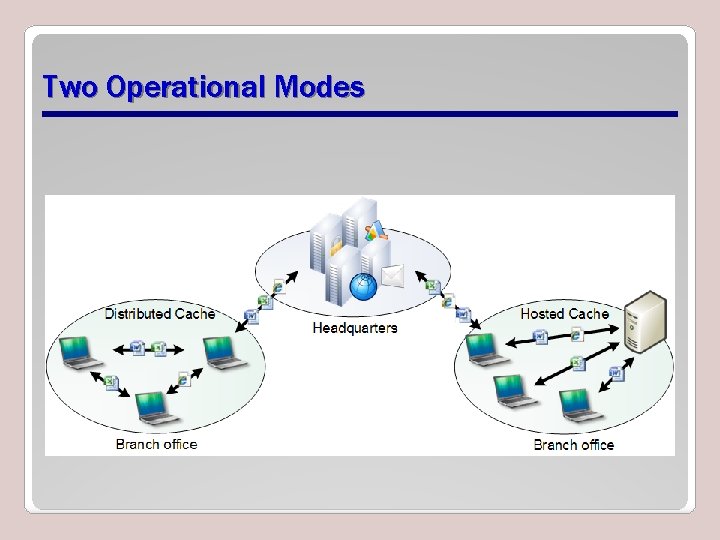
Two Operational Modes
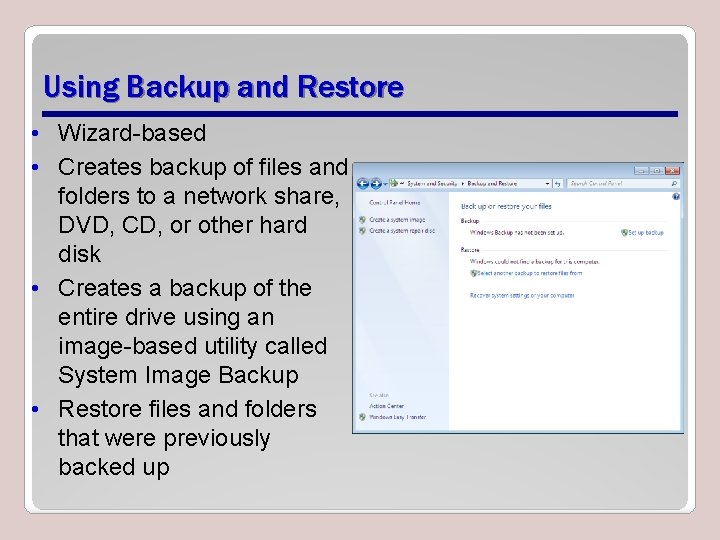
Using Backup and Restore • Wizard-based • Creates backup of files and folders to a network share, DVD, CD, or other hard disk • Creates a backup of the entire drive using an image-based utility called System Image Backup • Restore files and folders that were previously backed up
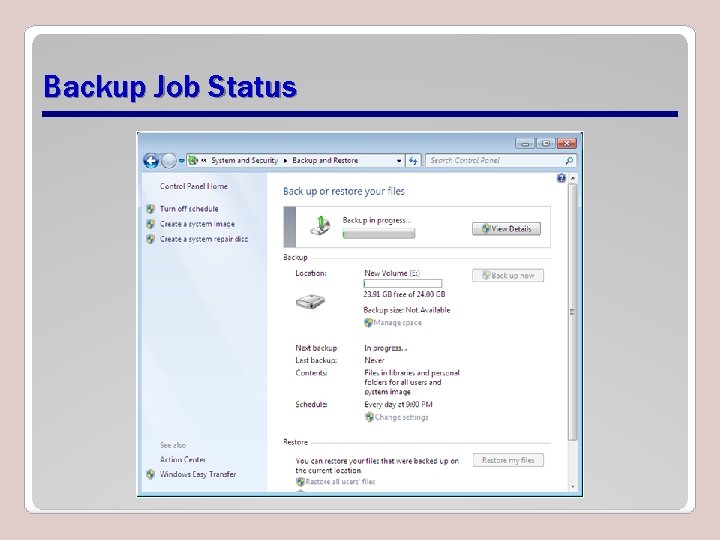
Backup Job Status
Creating a System Image Backup • Creates an image of an entire drive • Saves the information to a virtual hard disk (VHD) on the backup device
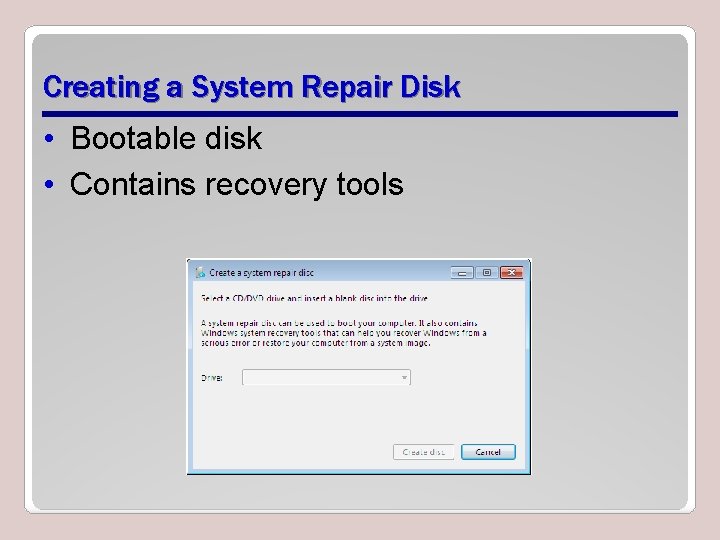
Creating a System Repair Disk • Bootable disk • Contains recovery tools
Skills Summary • It is important to have a set troubleshooting procedure. • Remote Assistance is a feature that enables an administrator, trainer, or desktop technician at one location to connect to a distant user’s computer. • Remote Desktop is an administrative feature that enables users to access computers from remote locations, with no interaction required at the remote site.
Skills Summary (cont. ) • Windows RE contains a set of troubleshooting tools to repair Windows 7. • Branch. Cache is a new feature in Windows 7 and Windows Server 2008 R 2 that enables networks with computers at remote locations to conserve bandwidth by storing frequently accessed files on local drives.
- Slides: 45