
Administering Tests Training Module Copyright 2020 Cambium Assessment
Administering Tests Training Module Copyright © 2020 Cambium Assessment, Inc. All rights reserve

Objectives After viewing this presentation, you should be able to: • Print out student test tickets in TIDE before test administration takes place • Use the TA Interface to start and run a test session • View student test settings and accessibility resources • Monitor the testing process • Pause and stop a test session • Exit and log out of the TA Interface 2
Print Testing Tickets 3

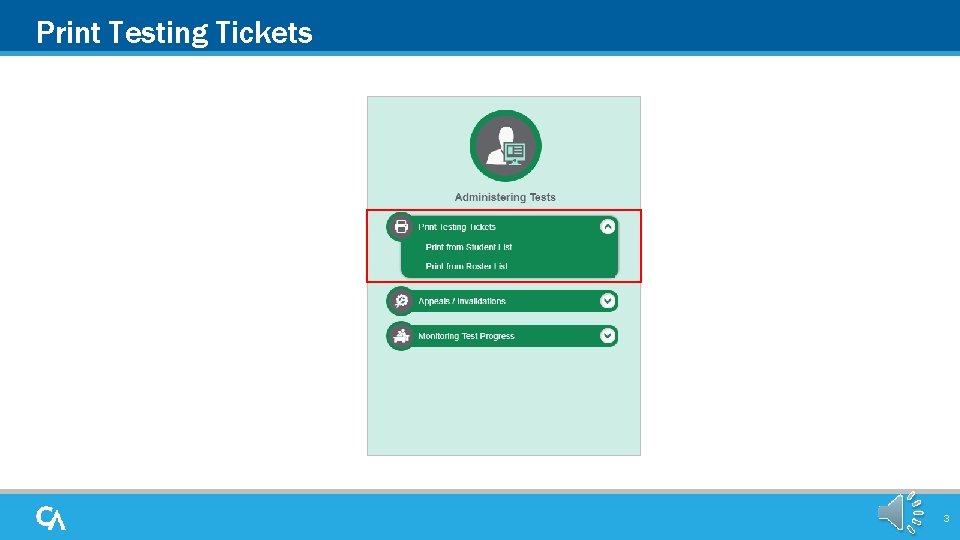
Search for Students 4

Select Test Tickets to Print 5

Print Test Tickets 6
Logging in to the TA Interface 7
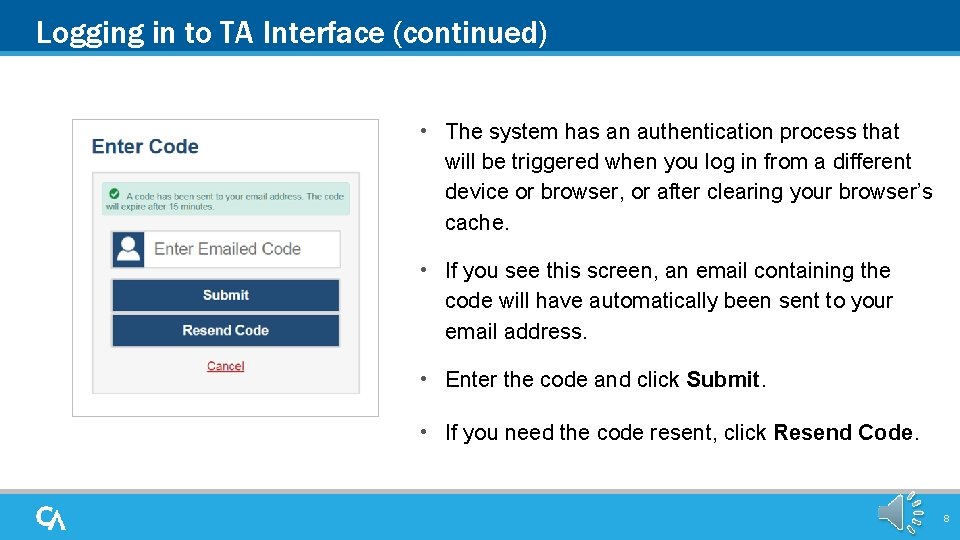
Logging in to TA Interface (continued) • The system has an authentication process that will be triggered when you log in from a different device or browser, or after clearing your browser’s cache. • If you see this screen, an email containing the code will have automatically been sent to your email address. • Enter the code and click Submit. • If you need the code resent, click Resend Code. 8

Create a Test Session 9
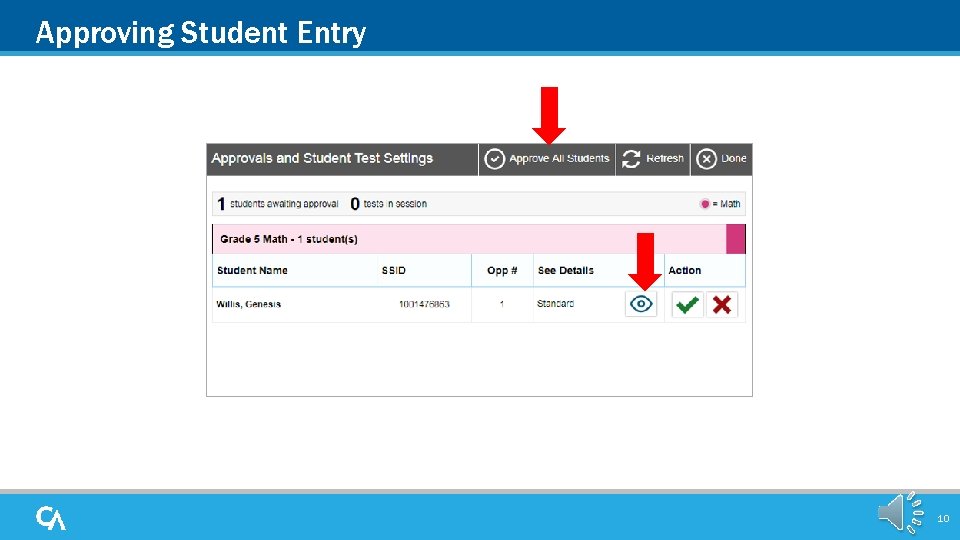
Approving Student Entry 10
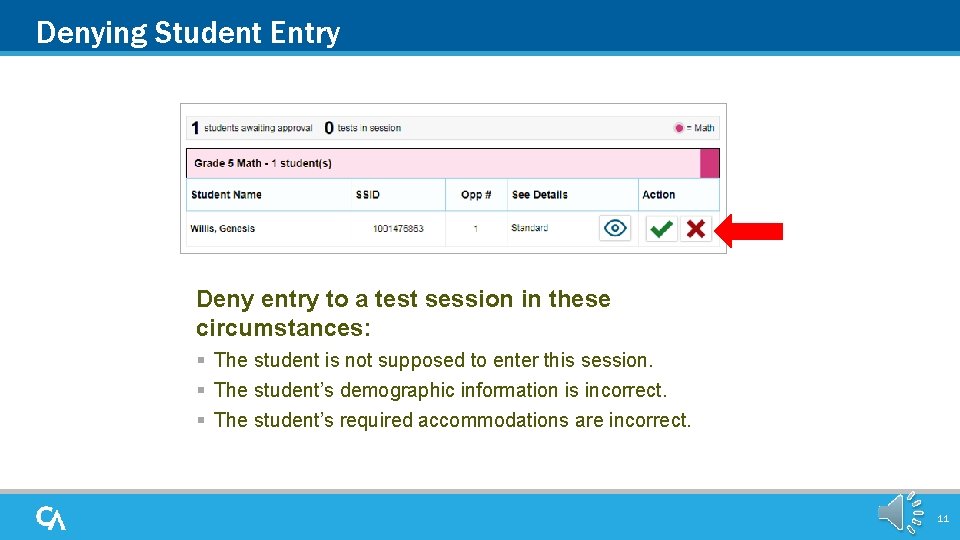
Denying Student Entry Deny entry to a test session in these circumstances: § The student is not supposed to enter this session. § The student’s demographic information is incorrect. § The student’s required accommodations are incorrect. 11
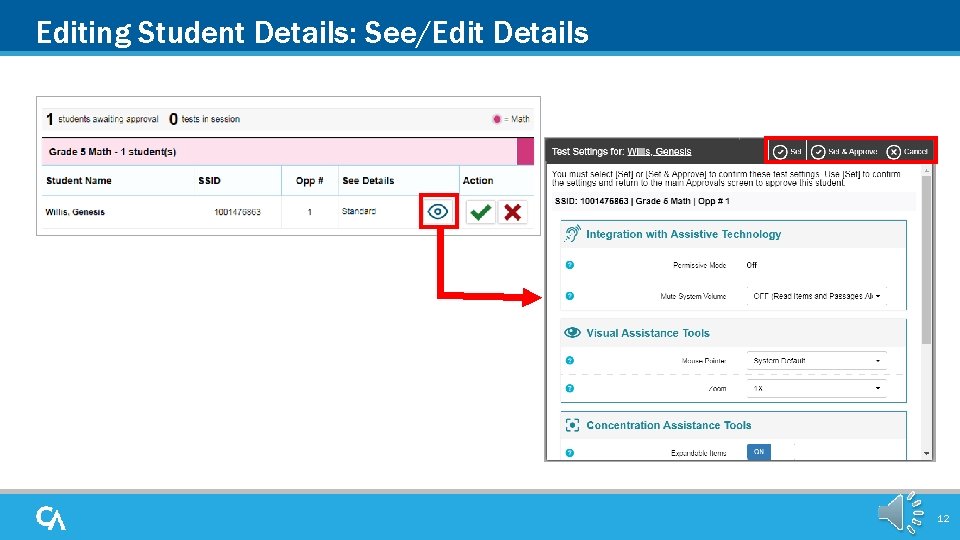
Editing Student Details: See/Edit Details 12
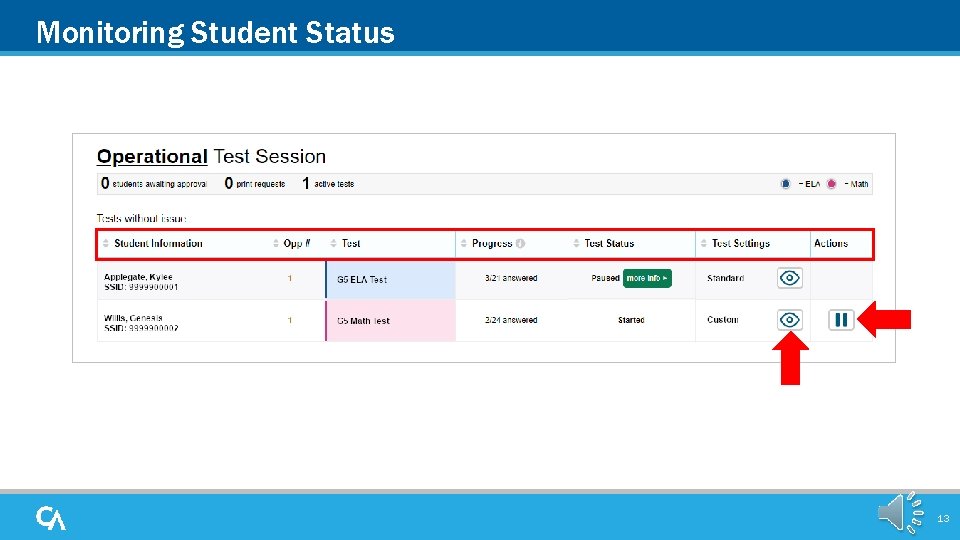
Monitoring Student Status 13

Test with Potential Issues Table 14

Pausing and Stopping Sessions 15
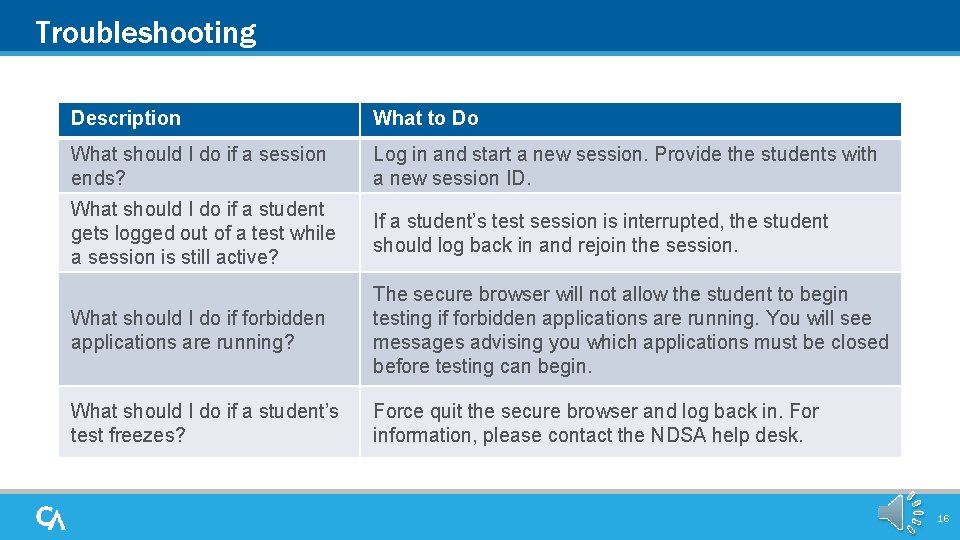
Troubleshooting Description What to Do What should I do if a session ends? Log in and start a new session. Provide the students with a new session ID. What should I do if a student gets logged out of a test while a session is still active? If a student’s test session is interrupted, the student should log back in and rejoin the session. What should I do if forbidden applications are running? The secure browser will not allow the student to begin testing if forbidden applications are running. You will see messages advising you which applications must be closed before testing can begin. What should I do if a student’s test freezes? Force quit the secure browser and log back in. For information, please contact the NDSA help desk. 16
Thank You! Further Information § NDSA Portal § http: //ndsa. portal. cambiumast. com § The NDSA Service Center is open Monday through Friday from 6: 30 a. m. to 6: 30 p. m. Central. § Telephone: Toll-Free 1. 855. 873. 5715 § Email: ndsaservicecenter@cambiumassessment. com 17
- Slides: 17