
Adjusting Your Settings Win GUI Display SAP Transaction
- Slides: 5
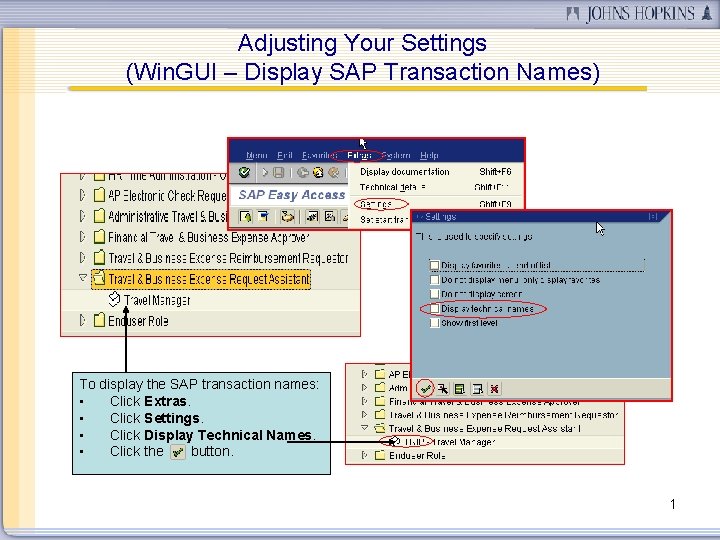
Adjusting Your Settings (Win. GUI – Display SAP Transaction Names) To display the SAP transaction names: • Click Extras. • Click Settings. • Click Display Technical Names. • Click the button. 1
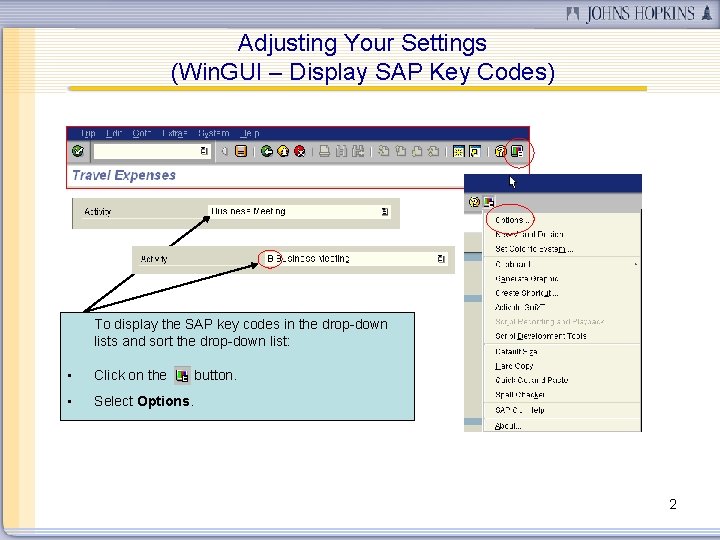
Adjusting Your Settings (Win. GUI – Display SAP Key Codes) To display the SAP key codes in the drop-down lists and sort the drop-down list: • Click on the • Select Options. button. 2
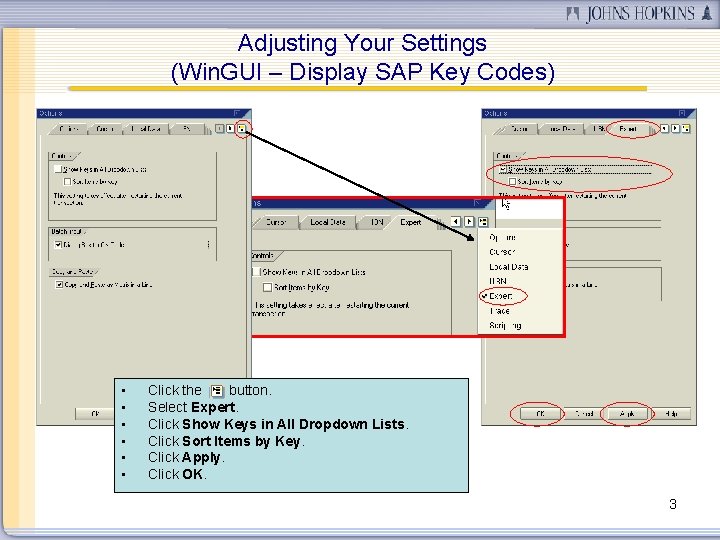
Adjusting Your Settings (Win. GUI – Display SAP Key Codes) • • • Click the button. Select Expert. Click Show Keys in All Dropdown Lists. Click Sort Items by Key. Click Apply. Click OK. 3
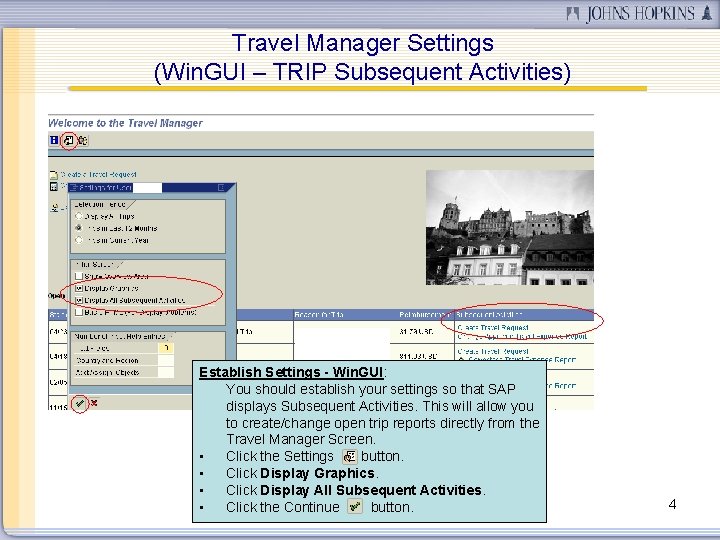
Travel Manager Settings (Win. GUI – TRIP Subsequent Activities) Establish Settings - Win. GUI: You should establish your settings so that SAP displays Subsequent Activities. This will allow you to create/change open trip reports directly from the Travel Manager Screen. • Click the Settings button. • Click Display Graphics. • Click Display All Subsequent Activities. • Click the Continue button. 4
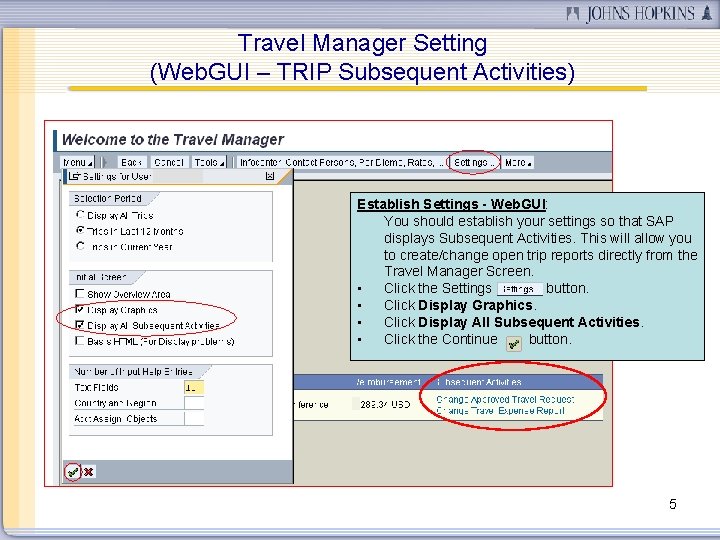
Travel Manager Setting (Web. GUI – TRIP Subsequent Activities) Establish Settings - Web. GUI: You should establish your settings so that SAP displays Subsequent Activities. This will allow you to create/change open trip reports directly from the Travel Manager Screen. • Click the Settings button. • Click Display Graphics. • Click Display All Subsequent Activities. • Click the Continue button. 5