
Additional Customer Transactions 2013 Objectives Process customer returns
Additional Customer Transactions 2013
Objectives Process customer returns and credits Write off customer invoices (record bad debts) Create customer statements Collect sales tax Create sales reports
Recording Customer Returns and Credits Use Credit Memos in following situations: ◦ ◦ Cancel an order that has been invoiced Returned merchandise Credit-on-account for a customer Refunding a customer Customers menu > Create Credit Memos/Refunds
Refunding Customers Refund to a customer when a customer: ◦ Returns merchandise after payment ◦ Requests a discount or refund on paid merchandise or services ◦ Overpays their Invoice and requests a refund If the customer paid with cash or check, issue a refund check If the customer paid with a credit card, credit the customer’s credit card.
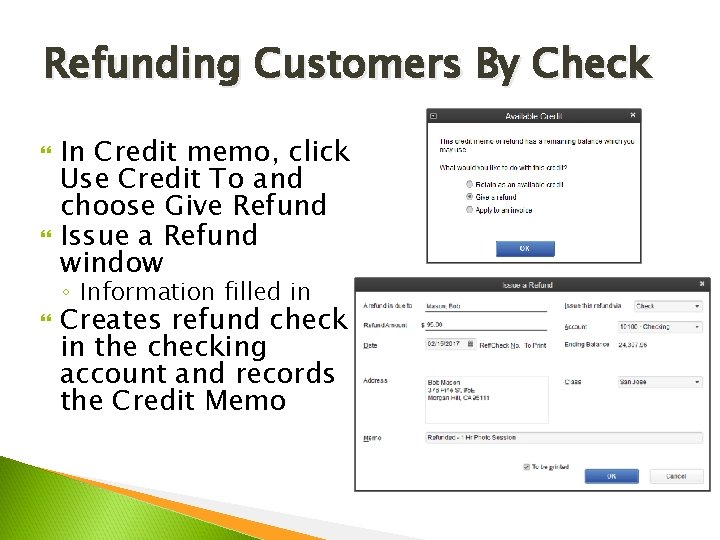
Refunding Customers By Check In Credit memo, click Use Credit To and choose Give Refund Issue a Refund window ◦ Information filled in Creates refund check in the checking account and records the Credit Memo
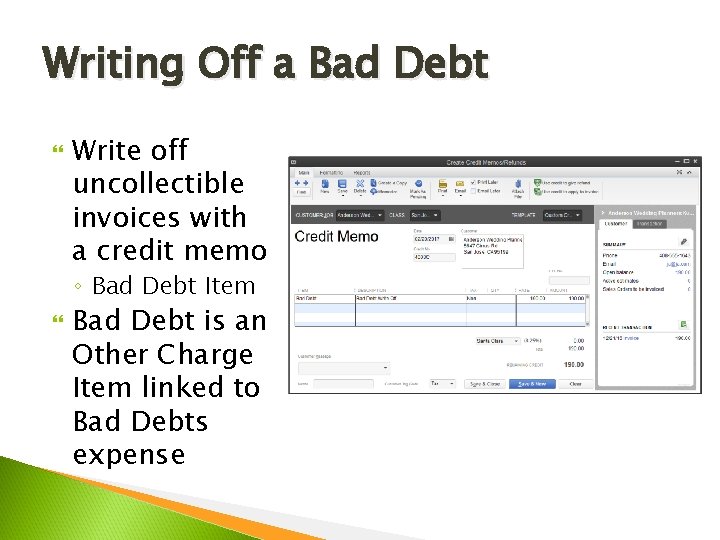
Writing Off a Bad Debt Write off uncollectible invoices with a credit memo ◦ Bad Debt Item Bad Debt is an Other Charge Item linked to Bad Debts expense
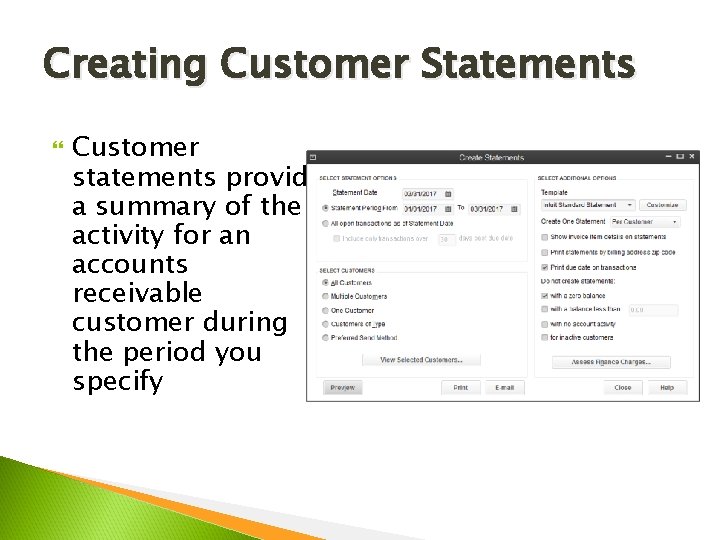
Creating Customer Statements Customer statements provide a summary of the activity for an accounts receivable customer during the period you specify
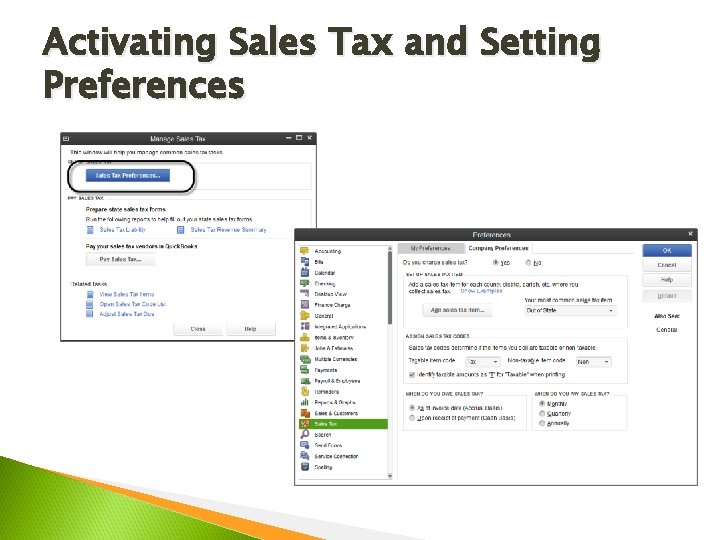
Activating Sales Tax and Setting Preferences
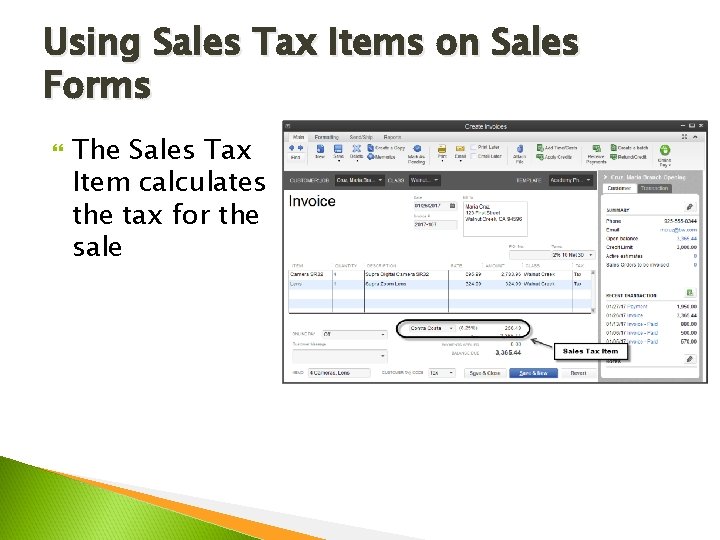
Using Sales Tax Items on Sales Forms The Sales Tax Item calculates the tax for the sale
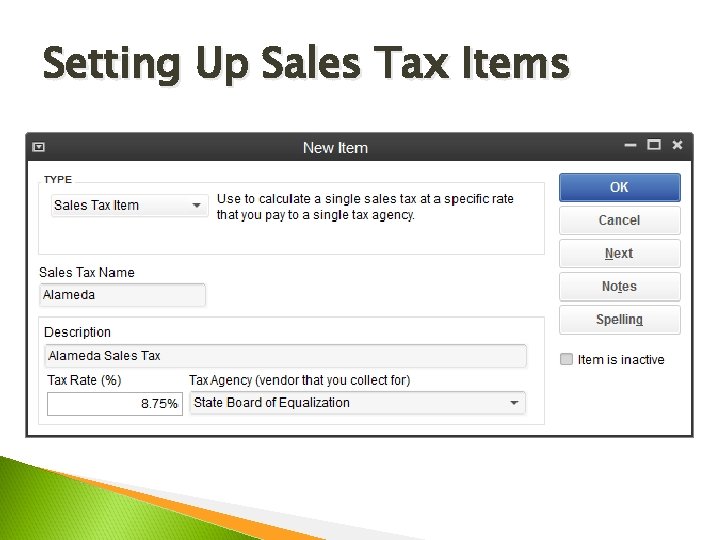
Setting Up Sales Tax Items
Sales Tax Codes Additional classification for calculating and reporting sales tax Assigned to each product or service item, as well as to each customer. Sales Tax Codes serve two purposes ◦ Indicate whether a specific product or service is taxable or non-taxable ◦ Categorize revenue based on the reason you charged or didn’t charge sales tax.
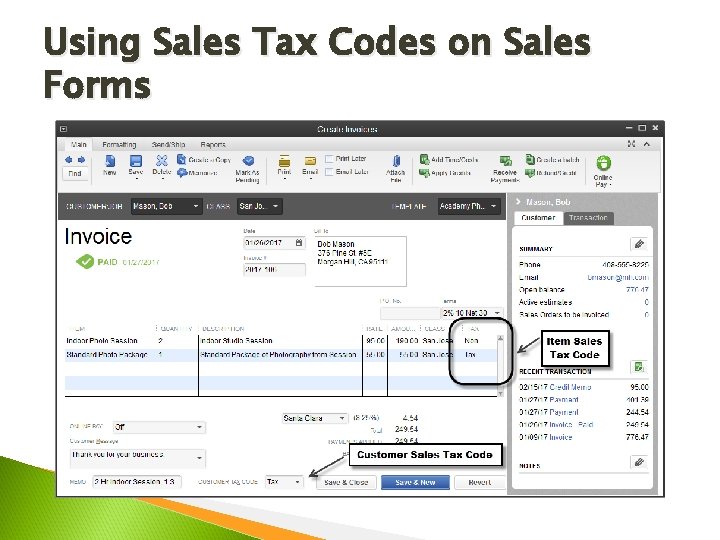
Using Sales Tax Codes on Sales Forms
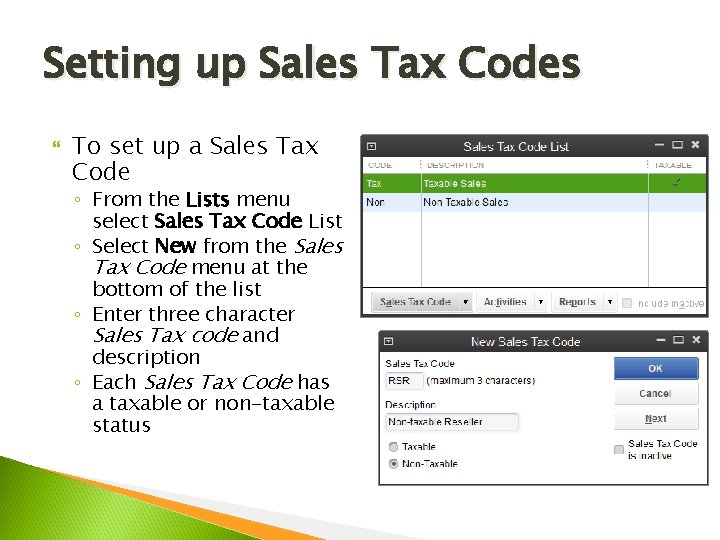
Setting up Sales Tax Codes To set up a Sales Tax Code ◦ From the Lists menu select Sales Tax Code List ◦ Select New from the Sales Tax Code menu at the bottom of the list ◦ Enter three character Sales Tax code and description ◦ Each Sales Tax Code has a taxable or non-taxable status
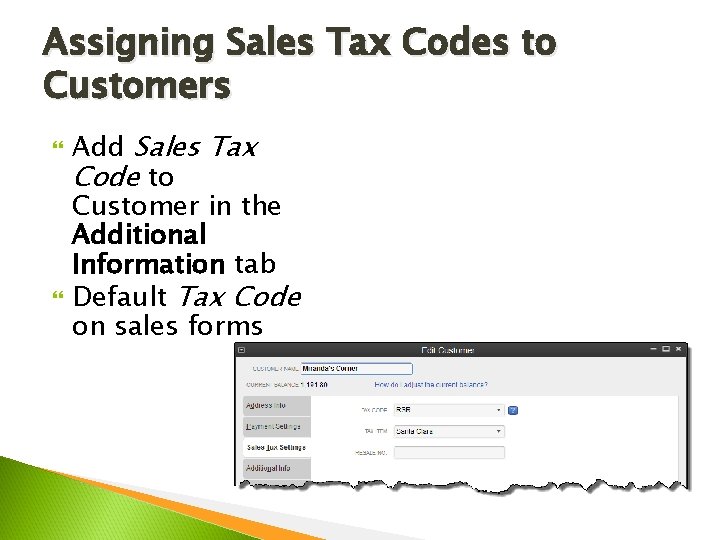
Assigning Sales Tax Codes to Customers Add Sales Tax Code to Customer in the Additional Information tab Default Tax Code on sales forms
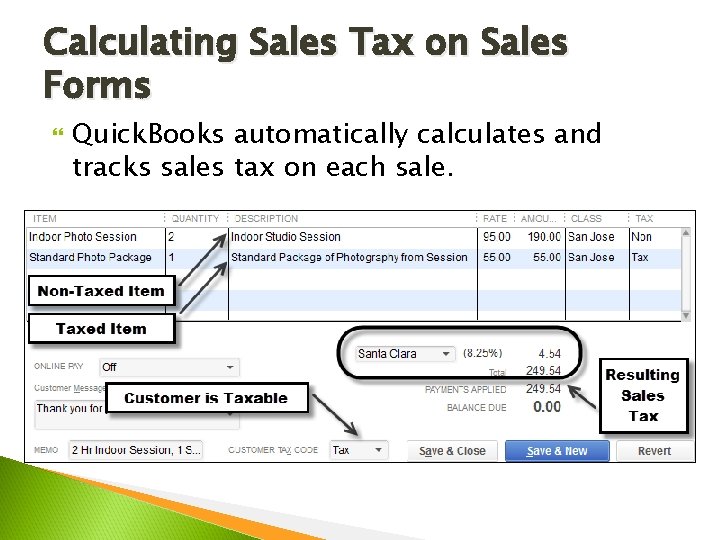
Calculating Sales Tax on Sales Forms Quick. Books automatically calculates and tracks sales tax on each sale.
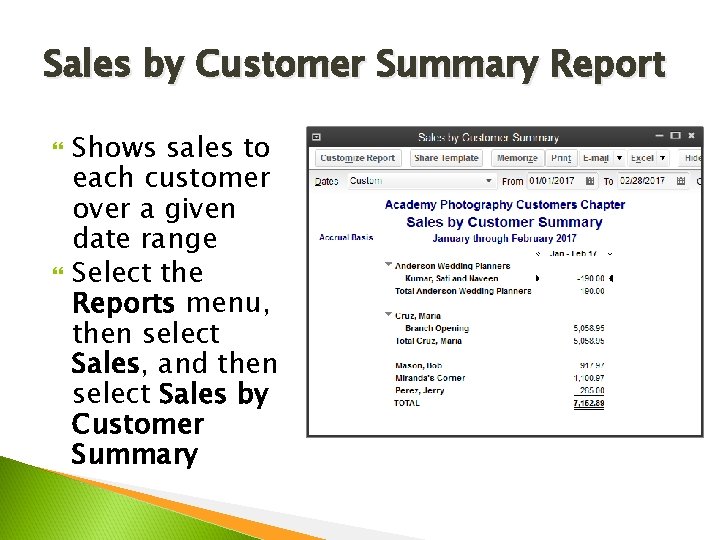
Sales by Customer Summary Report Shows sales to each customer over a given date range Select the Reports menu, then select Sales, and then select Sales by Customer Summary
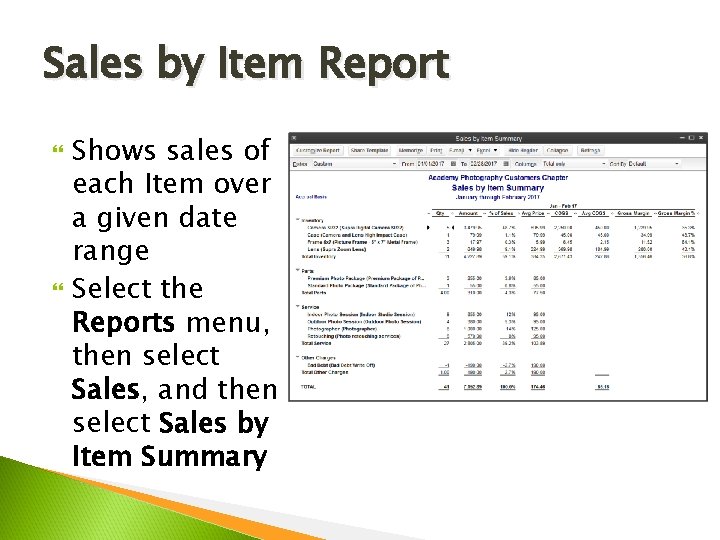
Sales by Item Report Shows sales of each Item over a given date range Select the Reports menu, then select Sales, and then select Sales by Item Summary
Summary of Key Points Process customer returns and credits Write off customer invoices (record bad debts) Create customer statements Collect sales tax Create sales reports
- Slides: 18