
Adding a Secondary Logon Please note This tutorial
- Slides: 11
Adding a Secondary Logon
Please note: This tutorial does not contain sound. Use the play bar at the bottom of the window to view the next slide or view the previous slide again.
The data you see in this tutorial is completely fictitious. It was made for instructional purposes only. Any resemblance to a real person or business is completely coincidental.
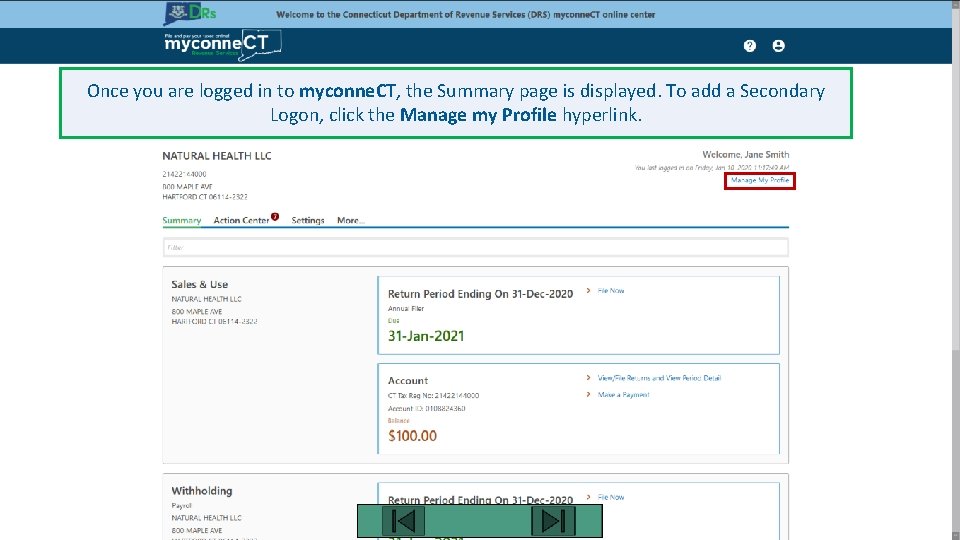
Once you are logged in to myconne. CT, the Summary page is displayed. To add a Secondary Logon, click the Manage my Profile hyperlink.
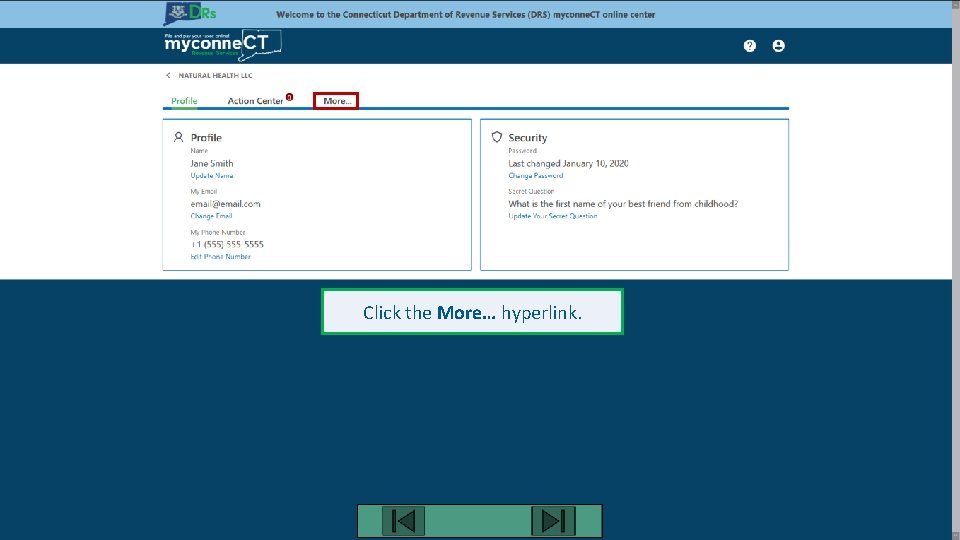
Click the More… hyperlink.
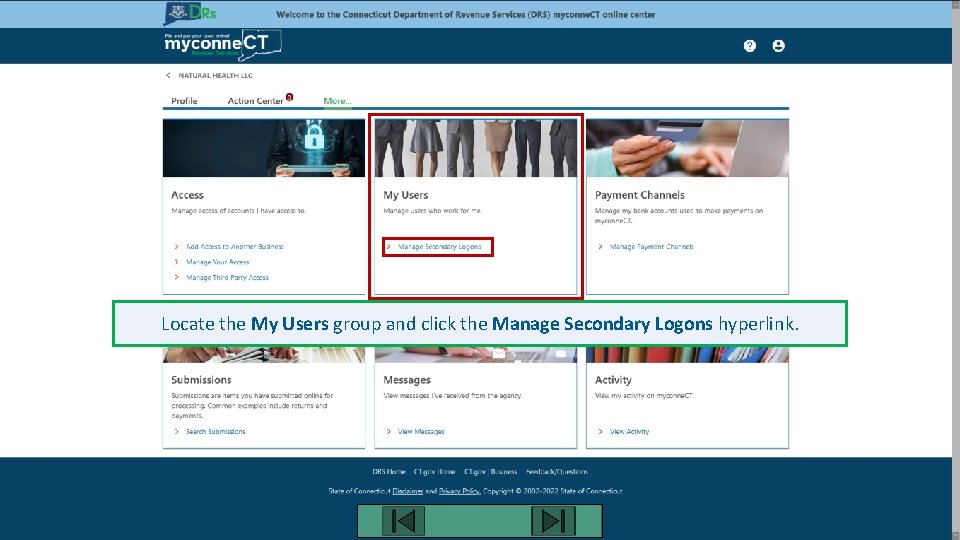
Locate the My Users group and click the Manage Secondary Logons hyperlink.
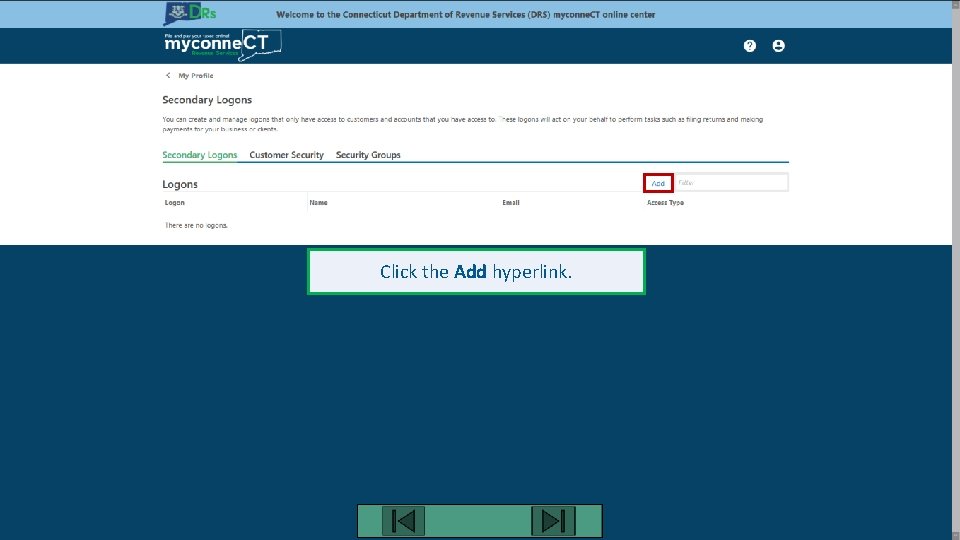
Click the Add hyperlink.
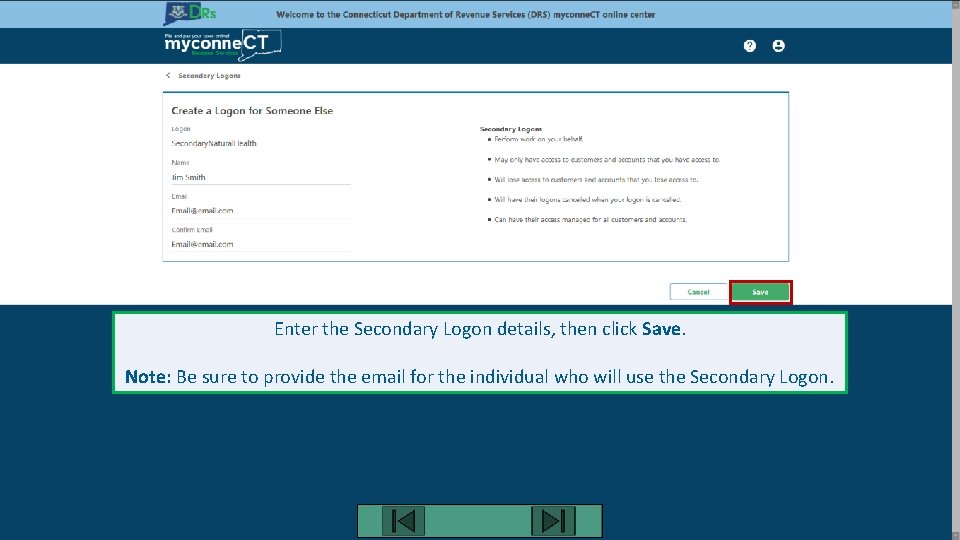
Enter the Secondary Logon details, then click Save. Note: Be sure to provide the email for the individual who will use the Secondary Logon.
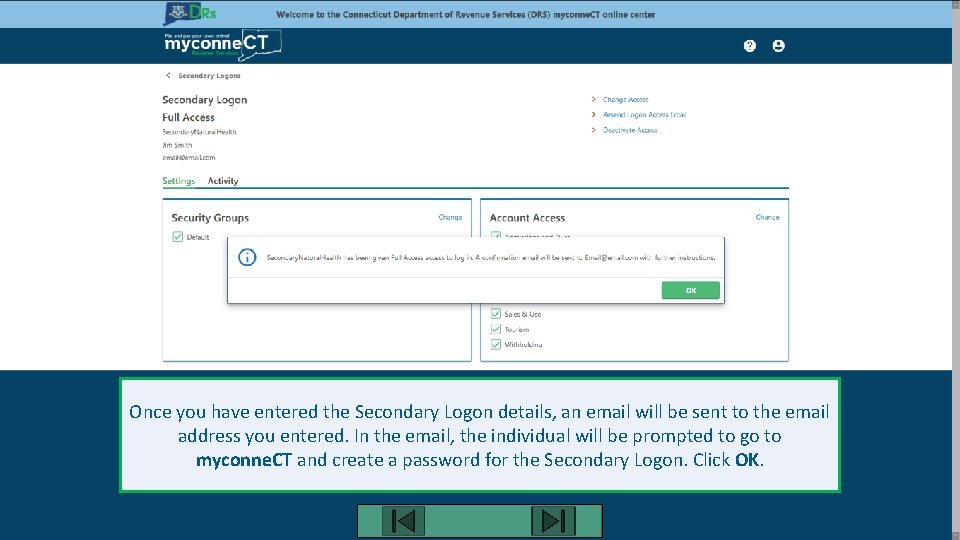
Once you have entered the Secondary Logon details, an email will be sent to the email address you entered. In the email, the individual will be prompted to go to myconne. CT and create a password for the Secondary Logon. Click OK.
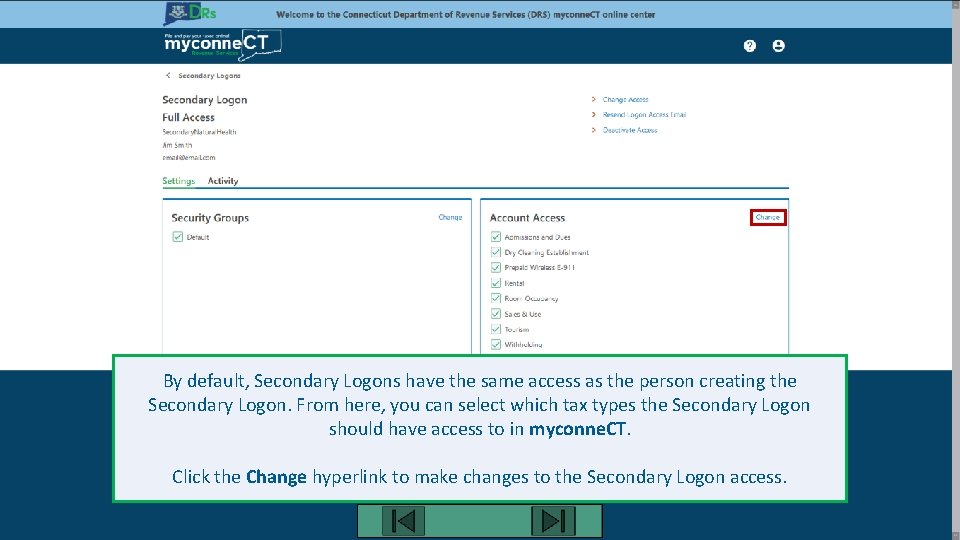
By default, Secondary Logons have the same access as the person creating the Secondary Logon. From here, you can select which tax types the Secondary Logon should have access to in myconne. CT. Click the Change hyperlink to make changes to the Secondary Logon access.
Click here for more tutorials!