
Adding a Nursing Exam to a Blackboard Ultra
Adding a Nursing Exam to a Blackboard Ultra Course Modified on 5. 11. 21 1/17/2022 Copyright Rasmussen College, LLC Proprietary and Confidential
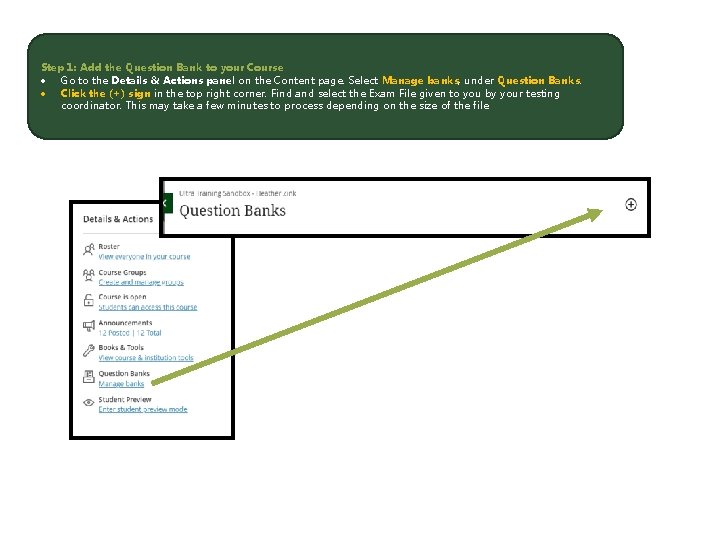
Step 1: Add the Question Bank to your Course Go to the Details & Actions panel on the Content page. Select Manage banks, under Question Banks. Click the (+) sign in the top right corner. Find and select the Exam File given to you by your testing coordinator. This may take a few minutes to process depending on the size of the file.
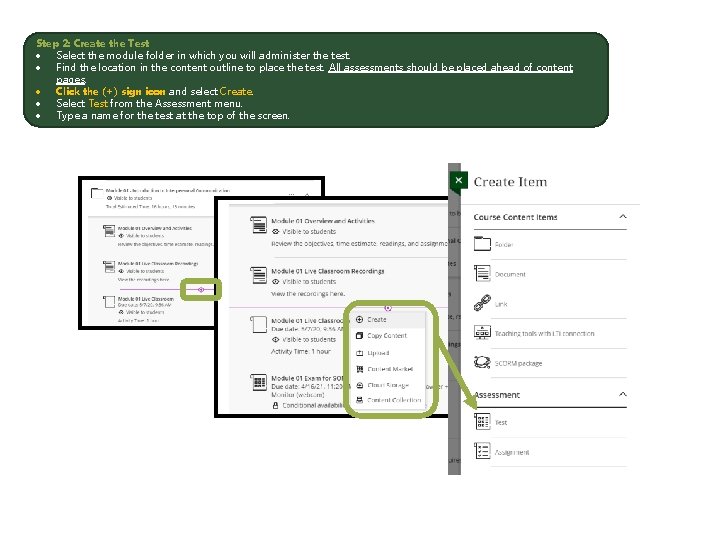
Step 2: Create the Test Select the module folder in which you will administer the test. Find the location in the content outline to place the test. All assessments should be placed ahead of content pages. Click the (+) sign icon and select Create. Select Test from the Assessment menu. Type a name for the test at the top of the screen.
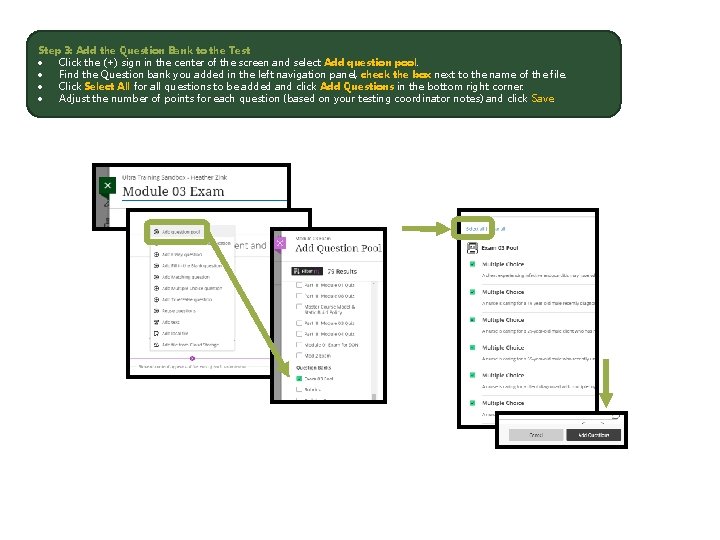
Step 3: Add the Question Bank to the Test Click the (+) sign in the center of the screen and select Add question pool. Find the Question bank you added in the left navigation panel, check the box next to the name of the file. Click Select All for all questions to be added and click Add Questions in the bottom right corner. Adjust the number of points for each question (based on your testing coordinator notes) and click Save.
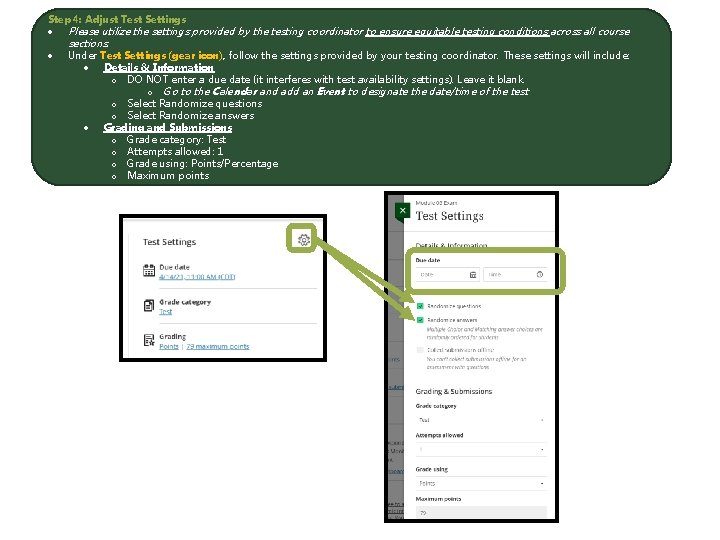
Step 4: Adjust Test Settings Please utilize the settings provided by the testing coordinator to ensure equitable testing conditions across all course sections. Under Test Settings (gear icon), follow the settings provided by your testing coordinator. These settings will include: Details & Information o DO NOT enter a due date (it interferes with test availability settings). Leave it blank. o Go to the Calendar and add an Event to designate the date/time of the test. o Select Randomize questions o Select Randomize answers Grading and Submissions o Grade category: Test o Attempts allowed: 1 o Grade using: Points/Percentage o Maximum points
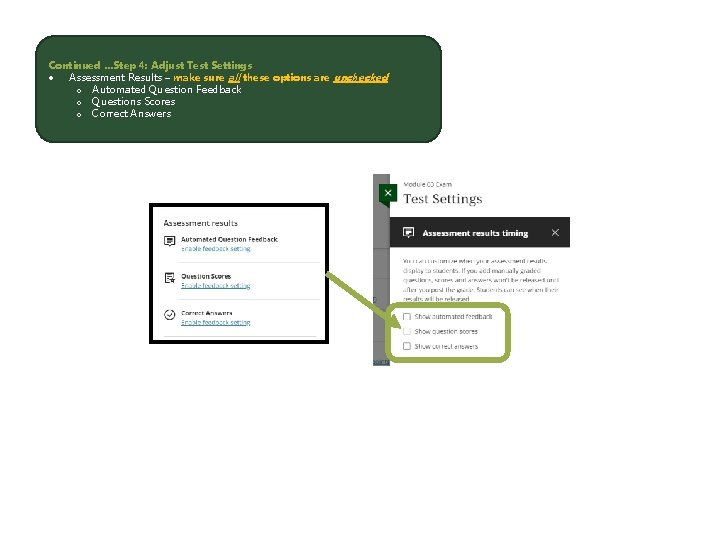
Continued …Step 4: Adjust Test Settings Assessment Results – make sure all these options are unchecked o Automated Question Feedback o Questions Scores o Correct Answers
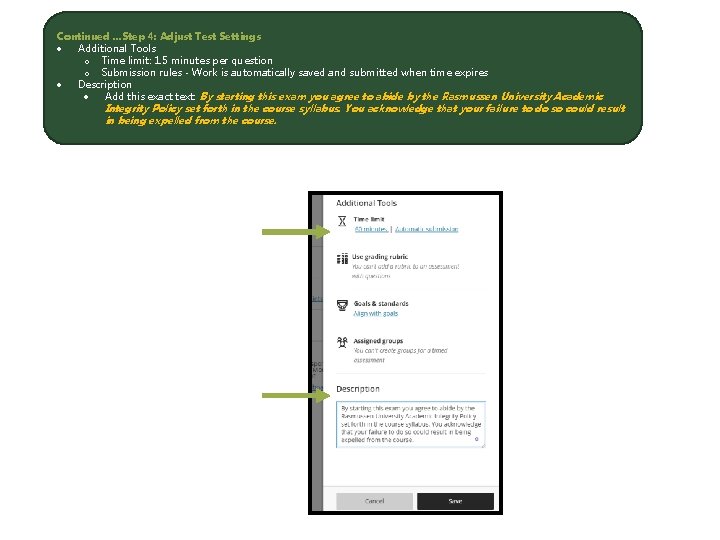
Continued …Step 4: Adjust Test Settings Additional Tools o Time limit: 1. 5 minutes per question o Submission rules - Work is automatically saved and submitted when time expires Description Add this exact text: By starting this exam you agree to abide by the Rasmussen University Academic Integrity Policy set forth in the course syllabus. You acknowledge that your failure to do so could result in being expelled from the course.
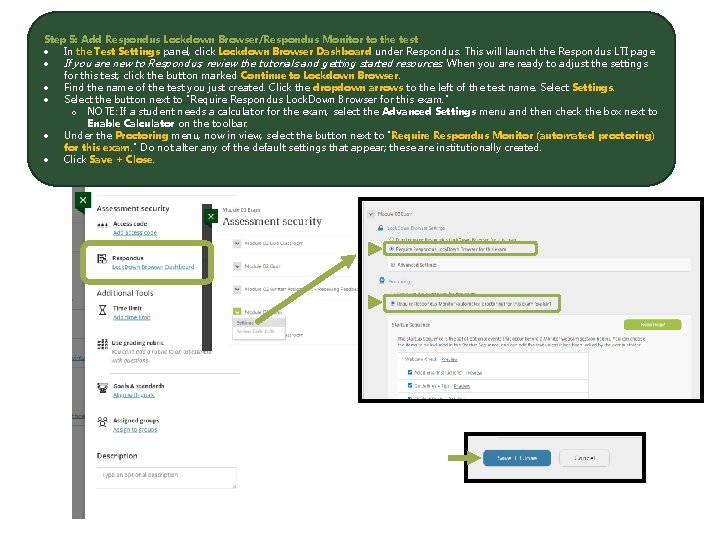
Step 5: Add Respondus Lockdown Browser/Respondus Monitor to the test In the Test Settings panel, click Lockdown Browser Dashboard under Respondus. This will launch the Respondus LTI page. If you are new to Respondus, review the tutorials and getting started resources. When you are ready to adjust the settings for this test, click the button marked Continue to Lockdown Browser. Find the name of the test you just created. Click the dropdown arrows to the left of the test name. Select Settings. Select the button next to "Require Respondus Lock. Down Browser for this exam. " o NOTE: If a student needs a calculator for the exam, select the Advanced Settings menu and then check the box next to Enable Calculator on the toolbar. Under the Proctoring menu, now in view, select the button next to "Require Respondus Monitor (automated proctoring) for this exam. " Do not alter any of the default settings that appear; these are institutionally created. Click Save + Close.
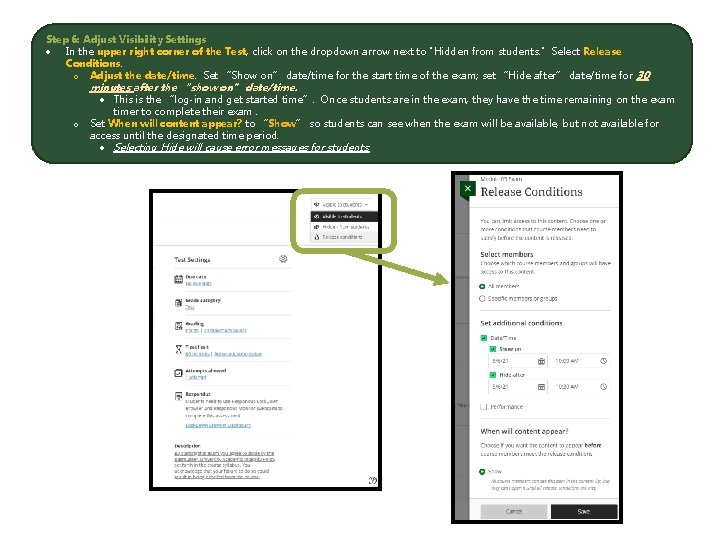
Step 6: Adjust Visibility Settings In the upper right corner of the Test, click on the dropdown arrow next to "Hidden from students. " Select Release Conditions. o Adjust the date/time. Set “Show on” date/time for the start time of the exam; set “Hide after” date/time for 30 minutes after the “show on” date/time. o This is the “log-in and get started time”. Once students are in the exam, they have the time remaining on the exam timer to complete their exam. Set When will content appear? to “Show” so students can see when the exam will be available, but not available for access until the designated time period. Selecting Hide will cause error messages for students.

Step 7: Update gradebook calculations to include the new exam **IMPORTANT – Adding the exam to the course content will not include the exam in a final grade calculation. You must complete the following steps in order to add the new exam to the final grade calculation. Go to the Gradebook icon, in the Course Tools menu (top right corner of the course). Select “Total” in the list view of the gradebook. Select “Calculation Details” in the upper left corner.
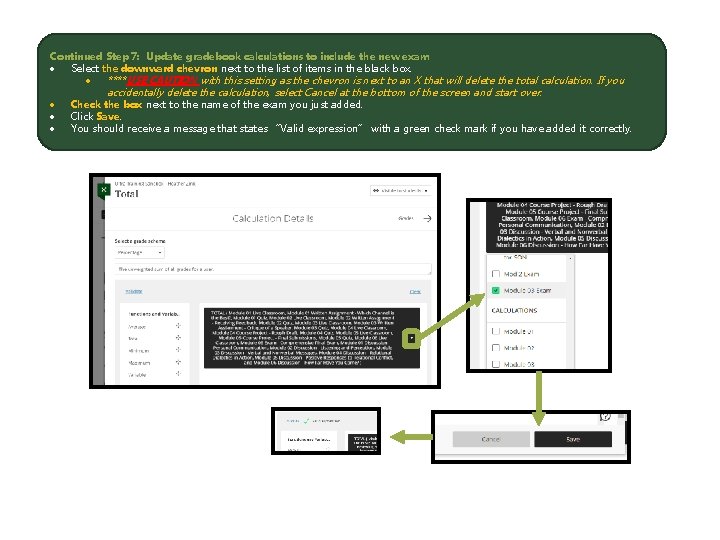
Continued Step 7: Update gradebook calculations to include the new exam Select the downward chevron next to the list of items in the black box. ****USE CAUTION with this setting as the chevron is next to an X that will delete the total calculation. If you accidentally delete the calculation, select Cancel at the bottom of the screen and start over. Check the box next to the name of the exam you just added. Click Save. You should receive a message that states “Valid expression” with a green check mark if you have added it correctly.
Altering Individual Student Test Settings **May need to occur if a student needs to retake an exam. 1/17/2022 Copyright Rasmussen College, LLC Proprietary and Confidential
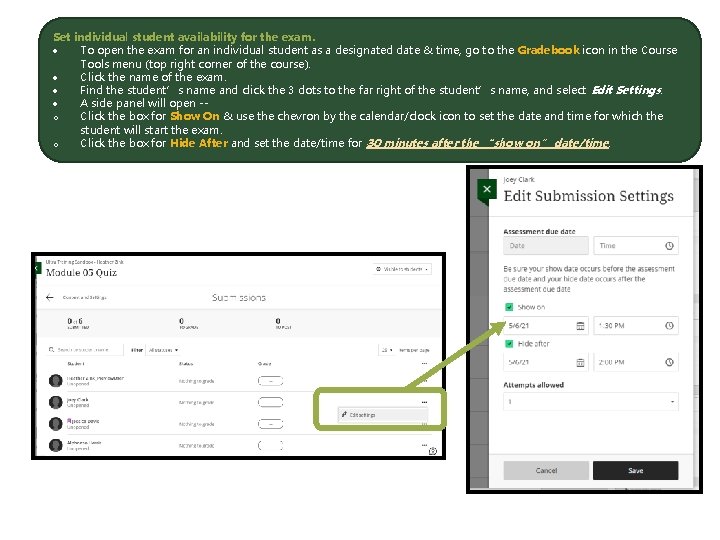
Set individual student availability for the exam. To open the exam for an individual student as a designated date & time, go to the Gradebook icon in the Course Tools menu (top right corner of the course). Click the name of the exam. Find the student’s name and click the 3 dots to the far right of the student’s name, and select Edit Settings. A side panel will open -o Click the box for Show On & use the chevron by the calendar/clock icon to set the date and time for which the student will start the exam. o Click the box for Hide After and set the date/time for 30 minutes after the “show on” date/time.
- Slides: 13