
Adding a New Option to the Framework Introduction
- Slides: 21
Adding a New Option to the Framework
Introduction • This is intended as a step by step guide to adding a new action to the menu or toolbar. • The order of steps is not necessary but useful from an instructional point of view. • For this example I am going to have a button that draws a trapezoid when I press it.
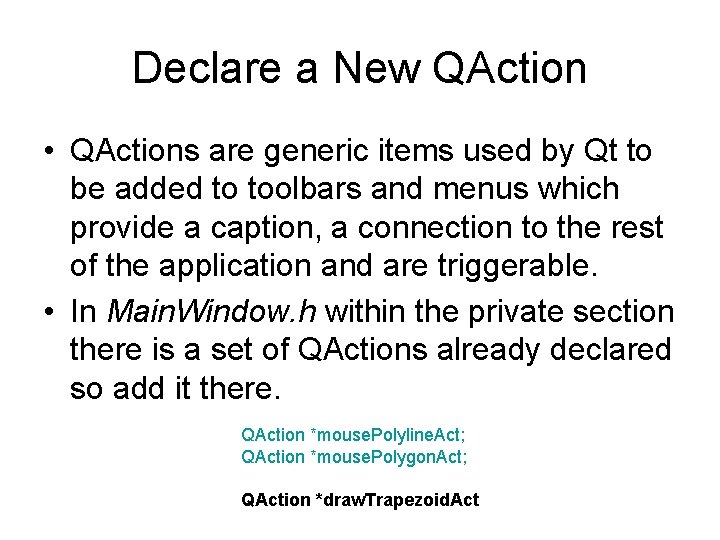
Declare a New QAction • QActions are generic items used by Qt to be added to toolbars and menus which provide a caption, a connection to the rest of the application and are triggerable. • In Main. Window. h within the private section there is a set of QActions already declared so add it there. QAction *mouse. Polyline. Act; QAction *mouse. Polygon. Act; QAction *draw. Trapezoid. Act
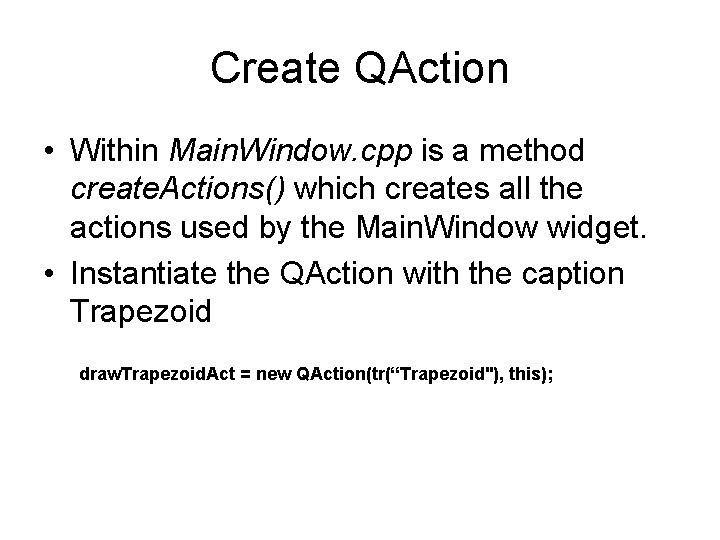
Create QAction • Within Main. Window. cpp is a method create. Actions() which creates all the actions used by the Main. Window widget. • Instantiate the QAction with the caption Trapezoid draw. Trapezoid. Act = new QAction(tr(“Trapezoid"), this);
Create QAction • Set the status tip which displays text in the status bar when the mouse cursor is over it. draw. Trapezoid. Act->set. Status. Tip(tr(“Draws a trapezoid")); • Before we finish a brief discussion of Signals and Slots.
Signals and Slots • Signals and Slots are the methods used by Qt to wire different widgets together • Signals are messages transmitted when an event happens (a button is clicked, a slider is moved, etc. ). • Most Qt widgets have premade Signals like the QAction has triggered() which is fired when the mouse clicks it. • You can also create your own but that is for another time.
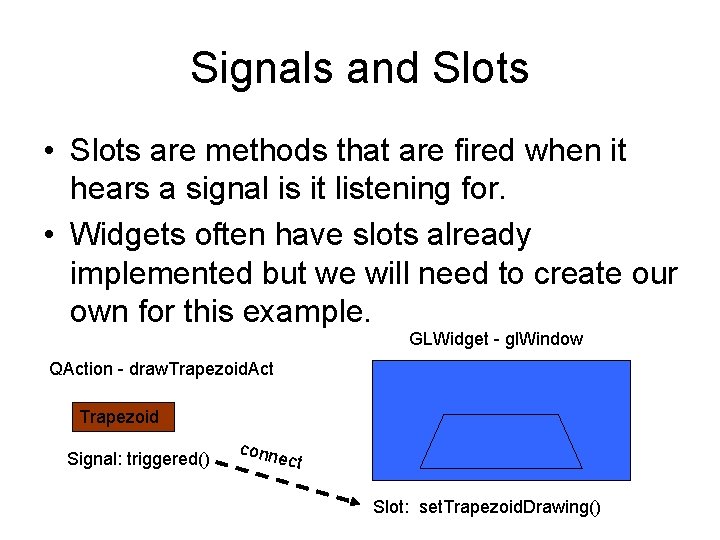
Signals and Slots • Slots are methods that are fired when it hears a signal is it listening for. • Widgets often have slots already implemented but we will need to create our own for this example. GLWidget - gl. Window QAction - draw. Trapezoid. Act Trapezoid Signal: triggered() conn e ct Slot: set. Trapezoid. Drawing()
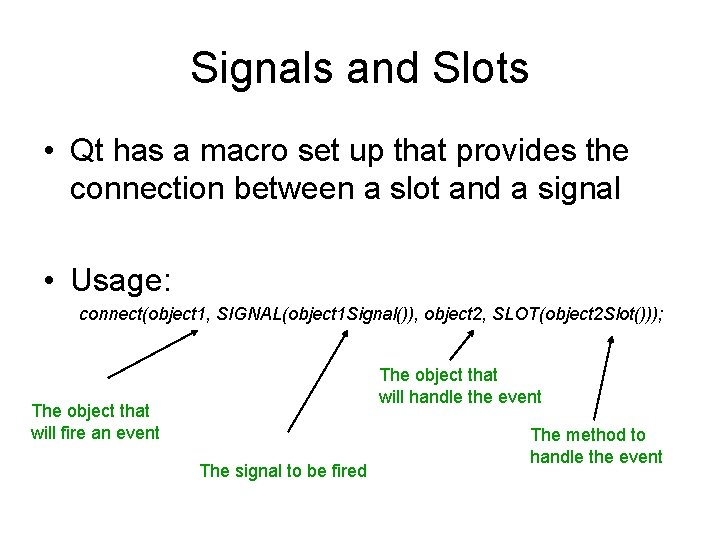
Signals and Slots • Qt has a macro set up that provides the connection between a slot and a signal • Usage: connect(object 1, SIGNAL(object 1 Signal()), object 2, SLOT(object 2 Slot())); The object that will handle the event The object that will fire an event The signal to be fired The method to handle the event
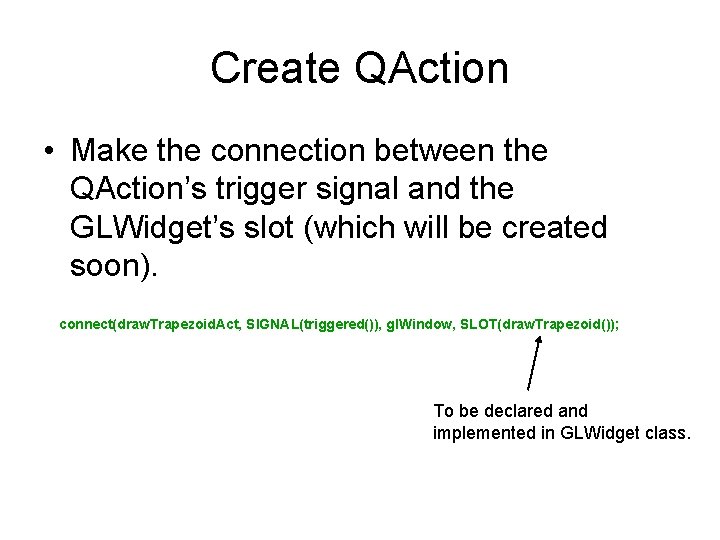
Create QAction • Make the connection between the QAction’s trigger signal and the GLWidget’s slot (which will be created soon). connect(draw. Trapezoid. Act, SIGNAL(triggered()), gl. Window, SLOT(draw. Trapezoid()); To be declared and implemented in GLWidget class.
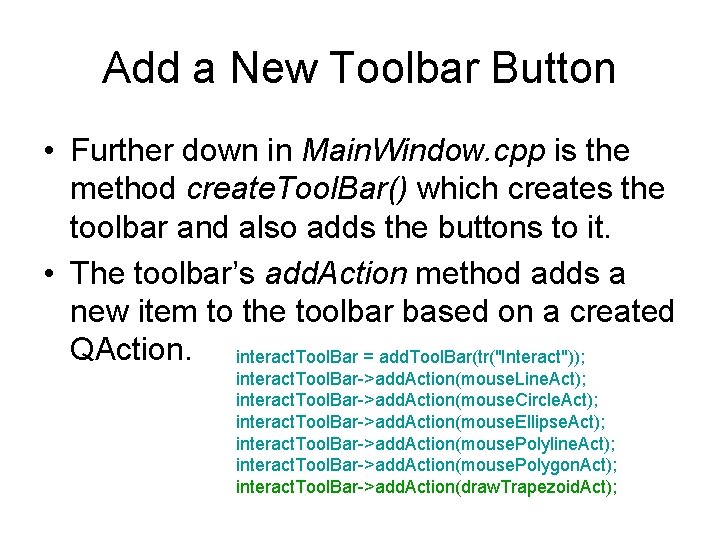
Add a New Toolbar Button • Further down in Main. Window. cpp is the method create. Tool. Bar() which creates the toolbar and also adds the buttons to it. • The toolbar’s add. Action method adds a new item to the toolbar based on a created QAction. interact. Tool. Bar = add. Tool. Bar(tr("Interact")); interact. Tool. Bar->add. Action(mouse. Line. Act); interact. Tool. Bar->add. Action(mouse. Circle. Act); interact. Tool. Bar->add. Action(mouse. Ellipse. Act); interact. Tool. Bar->add. Action(mouse. Polyline. Act); interact. Tool. Bar->add. Action(mouse. Polygon. Act); interact. Tool. Bar->add. Action(draw. Trapezoid. Act);
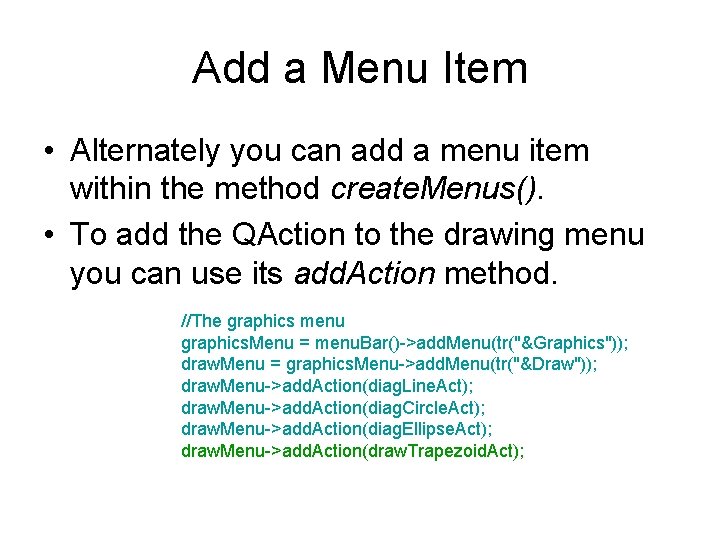
Add a Menu Item • Alternately you can add a menu item within the method create. Menus(). • To add the QAction to the drawing menu you can use its add. Action method. //The graphics menu graphics. Menu = menu. Bar()->add. Menu(tr("&Graphics")); draw. Menu = graphics. Menu->add. Menu(tr("&Draw")); draw. Menu->add. Action(diag. Line. Act); draw. Menu->add. Action(diag. Circle. Act); draw. Menu->add. Action(diag. Ellipse. Act); draw. Menu->add. Action(draw. Trapezoid. Act);
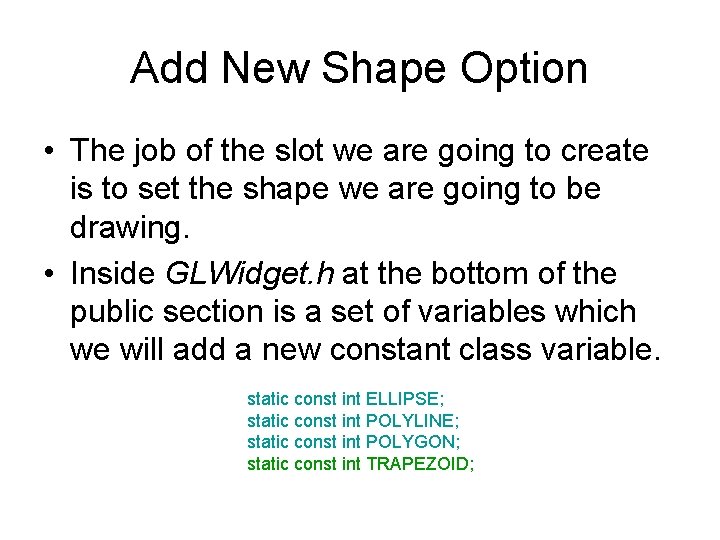
Add New Shape Option • The job of the slot we are going to create is to set the shape we are going to be drawing. • Inside GLWidget. h at the bottom of the public section is a set of variables which we will add a new constant class variable. static const int ELLIPSE; static const int POLYLINE; static const int POLYGON; static const int TRAPEZOID;
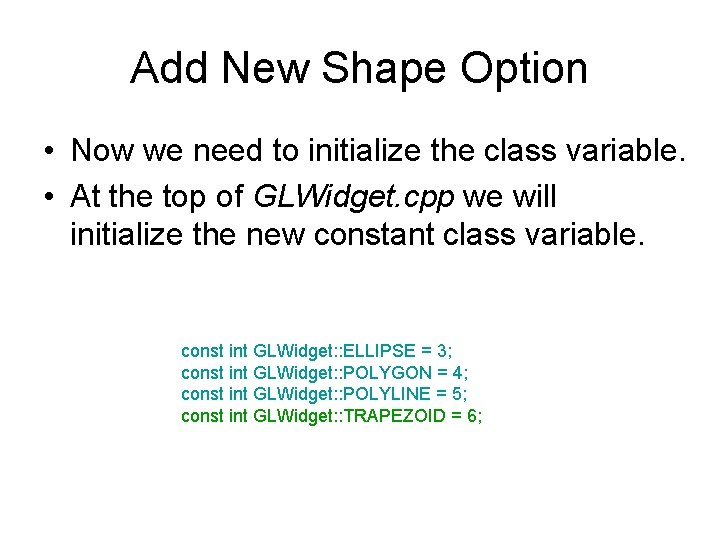
Add New Shape Option • Now we need to initialize the class variable. • At the top of GLWidget. cpp we will initialize the new constant class variable. const int GLWidget: : ELLIPSE = 3; const int GLWidget: : POLYGON = 4; const int GLWidget: : POLYLINE = 5; const int GLWidget: : TRAPEZOID = 6;
Creating a New Slot • A slot is just like any other function / method but is declared as a slot. • In GLWidget. h is a declaration section labeled public slots: . As would be expected these are slots with public scope.
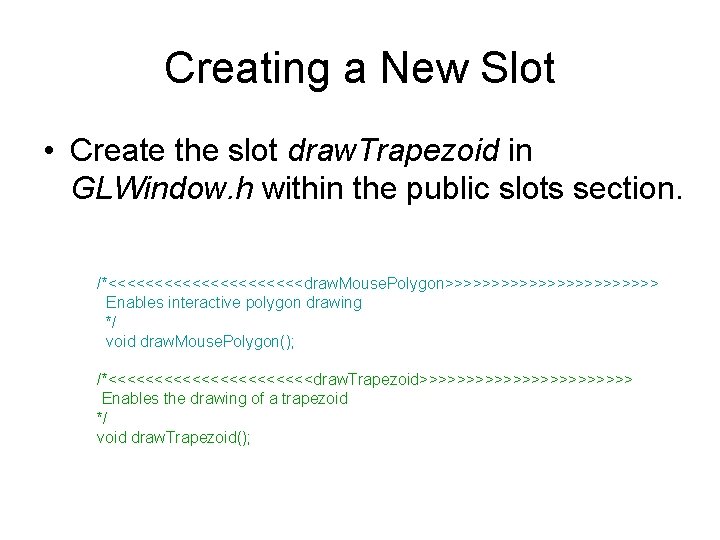
Creating a New Slot • Create the slot draw. Trapezoid in GLWindow. h within the public slots section. /*<<<<<<<<<<<draw. Mouse. Polygon>>>>>>>>>>>> Enables interactive polygon drawing */ void draw. Mouse. Polygon(); /*<<<<<<<<<<<draw. Trapezoid>>>>>>>>>>>> Enables the drawing of a trapezoid */ void draw. Trapezoid();
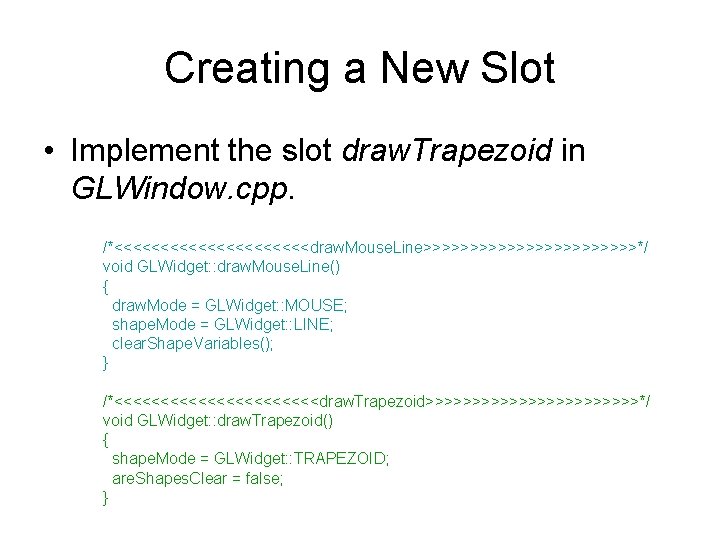
Creating a New Slot • Implement the slot draw. Trapezoid in GLWindow. cpp. /*<<<<<<<<<<<draw. Mouse. Line>>>>>>>>>>>>*/ void GLWidget: : draw. Mouse. Line() { draw. Mode = GLWidget: : MOUSE; shape. Mode = GLWidget: : LINE; clear. Shape. Variables(); } /*<<<<<<<<<<<draw. Trapezoid>>>>>>>>>>>>*/ void GLWidget: : draw. Trapezoid() { shape. Mode = GLWidget: : TRAPEZOID; are. Shapes. Clear = false; }
Adding the Drawing Code • All the drawing is called within the paint. GL() method inside GLWidget. cpp. • This method is called 50 times a second by a QTimer in the GLWidget constructor. • The widget is cleared and then a shape to be drawn is selected in the switch statement.
Adding the Drawing Code • Add a new case to the switch statement based on the variable we declared. case GLWidget: : POLYGON: //stuff here break; case GLWidget: : POLYLINE: //stuff here break; case GLWidget: : TRAPEZOID: //stuff here break;
Adding the Drawing Code • Here is some code that would draw a trapezoid based on the draw. Line algorithm. case GLWidget: : POLYLINE: //stuff here break; case GLWidget: : TRAPEZOID: Drawing. Algorithms: : draw. Line(-10, 10, 10); Drawing. Algorithms: : draw. Line(-20, -10, 20, -10); Drawing. Algorithms: : draw. Line(-10, -20, -10); Drawing. Algorithms: : draw. Line(10, 20, -10); break;
Compiling the Code • Since we have done something with slots and signals we need to run qmake again to generate a new Makefile. • QMake not only generates the Makefile but it also creates the support moc files which actually handle all this slots and signal stuff behind the scenes.
Finished • This should allow you to add new toolbar or menus items to your applications. • This does not cover everything you would ever need to know about Qt but should send you in the right direction.