
ADD UPDATE REQUISITIONS Why do we need to
- Slides: 15
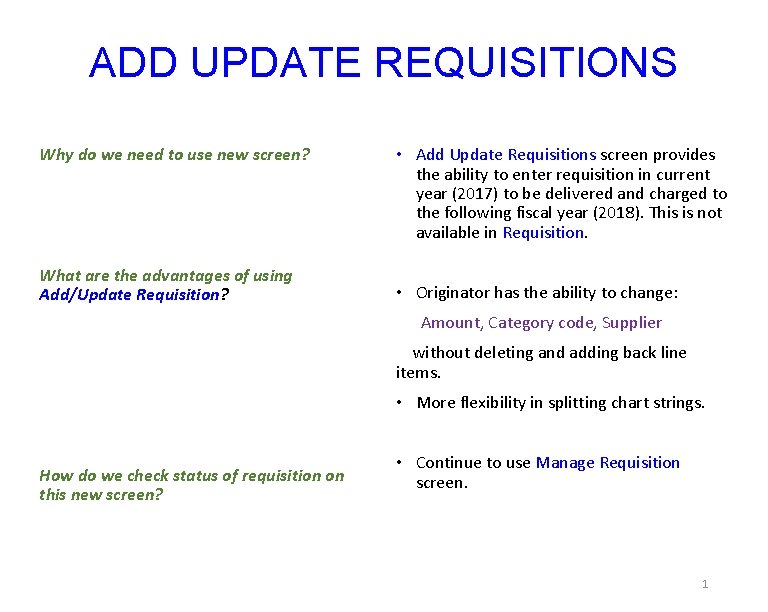
ADD UPDATE REQUISITIONS Why do we need to use new screen? What are the advantages of using Add/Update Requisition? • Add Update Requisitions screen provides the ability to enter requisition in current year (2017) to be delivered and charged to the following fiscal year (2018). This is not available in Requisition. • Originator has the ability to change: Amount, Category code, Supplier without deleting and adding back line items. • More flexibility in splitting chart strings. How do we check status of requisition on this new screen? • Continue to use Manage Requisition screen. 1
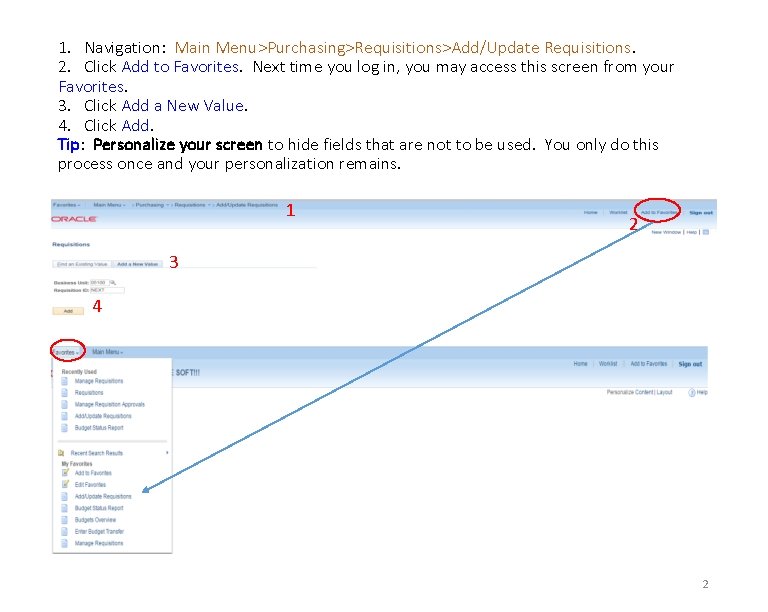
1. Navigation: Main Menu>Purchasing>Requisitions>Add/Update Requisitions. 2. Click Add to Favorites. Next time you log in, you may access this screen from your Favorites. 3. Click Add a New Value. 4. Click Add. Tip: Personalize your screen to hide fields that are not to be used. You only do this process once and your personalization remains. 1 2 3 4 2
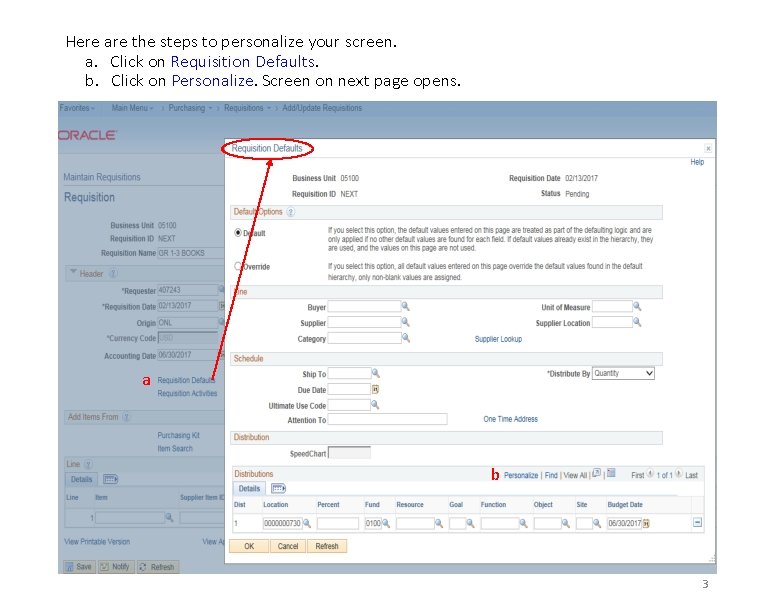
Here are the steps to personalize your screen. a. Click on Requisition Defaults. b. Click on Personalize. Screen on next page opens. a b 3
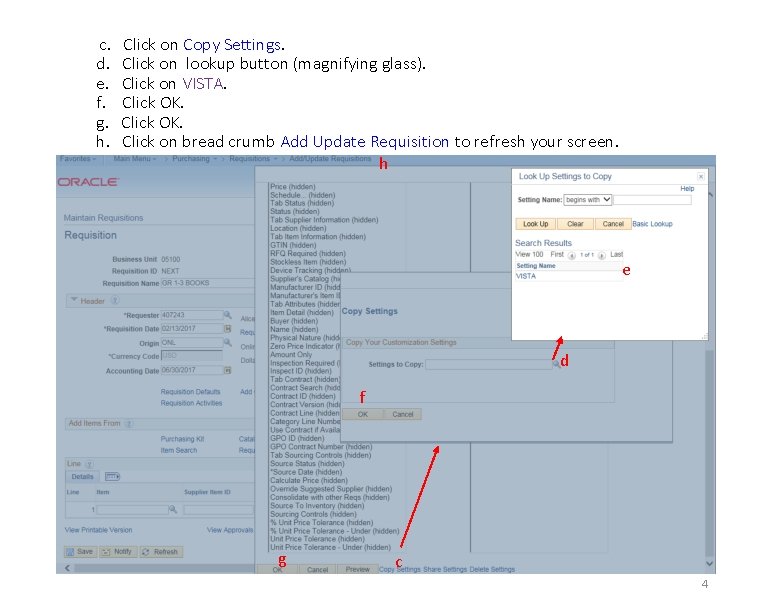
c. d. e. f. g. h. Click on Copy Settings. Click on lookup button (magnifying glass). Click on VISTA. Click OK. Click on bread crumb Add Update Requisition to refresh your screen. h e d f g c 4
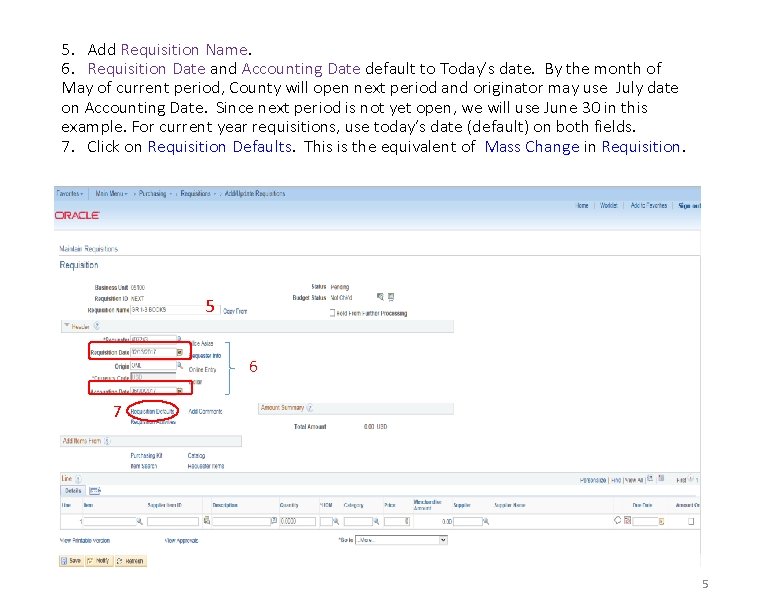
5. Add Requisition Name. 6. Requisition Date and Accounting Date default to Today’s date. By the month of May of current period, County will open next period and originator may use July date on Accounting Date. Since next period is not yet open, we will use June 30 in this example. For current year requisitions, use today’s date (default) on both fields. 7. Click on Requisition Defaults. This is the equivalent of Mass Change in Requisition. 5 6 7 5
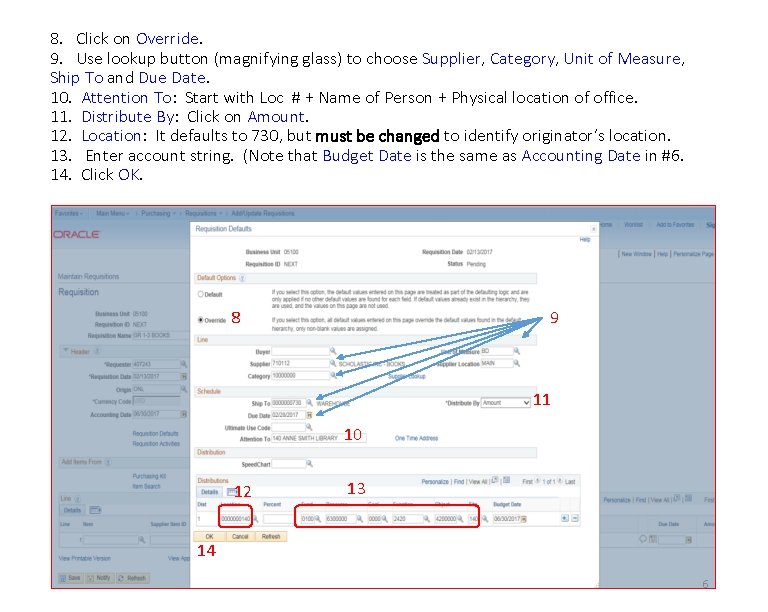
8. Click on Override. 9. Use lookup button (magnifying glass) to choose Supplier, Category, Unit of Measure, Ship To and Due Date. 10. Attention To: Start with Loc # + Name of Person + Physical location of office. 11. Distribute By: Click on Amount. 12. Location: It defaults to 730, but must be changed to identify originator’s location. 13. Enter account string. (Note that Budget Date is the same as Accounting Date in #6. 14. Click OK. 8 9 11 10 12 13 14 6
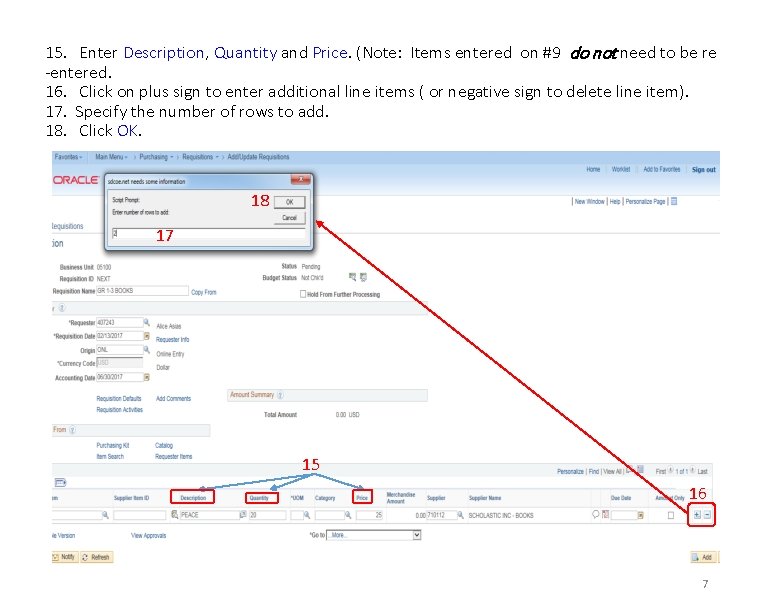
15. Enter Description, Quantity and Price. (Note: Items entered on #9 do not need to be re -entered. 16. Click on plus sign to enter additional line items ( or negative sign to delete line item). 17. Specify the number of rows to add. 18. Click OK. 18 17 15 16 7
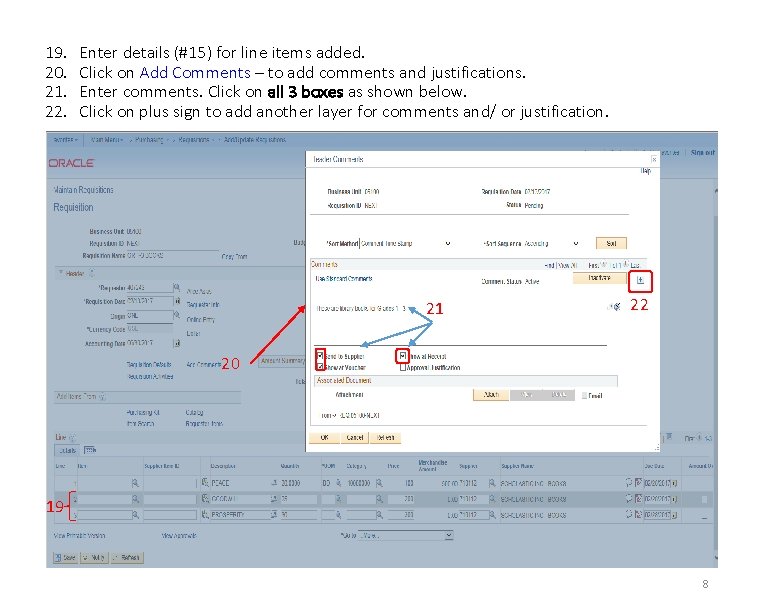
19. 20. 21. 22. Enter details (#15) for line items added. Click on Add Comments – to add comments and justifications. Enter comments. Click on all 3 boxes as shown below. Click on plus sign to add another layer for comments and/ or justification. • + 21 22 20 19 8
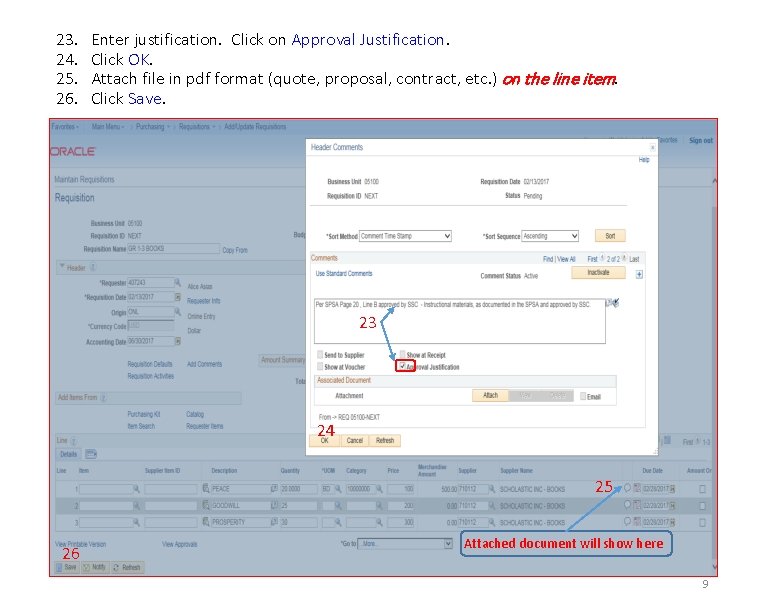
23. 24. 25. 26. Enter justification. Click on Approval Justification. Click OK. Attach file in pdf format (quote, proposal, contract, etc. ) on the line item. Click Save. 23 24 25 26 Attached document will show here 9
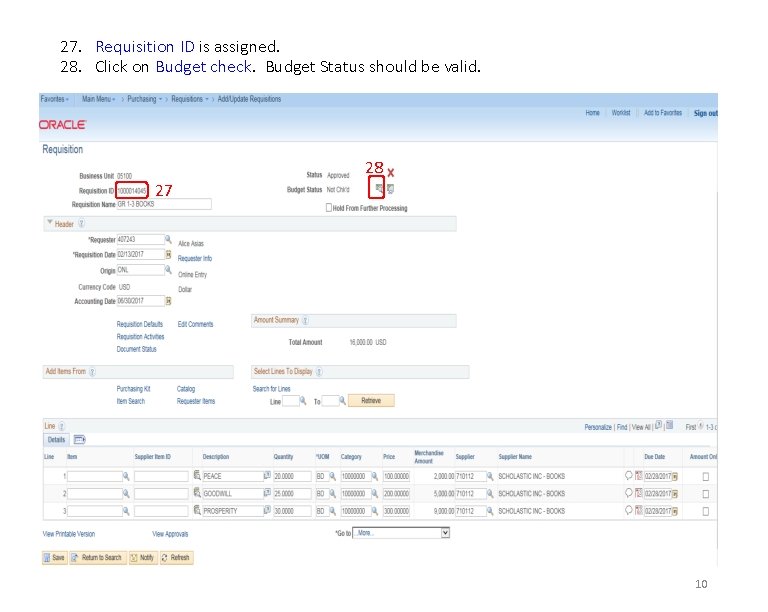
27. Requisition ID is assigned. 28. Click on Budget check. Budget Status should be valid. 28 27 10
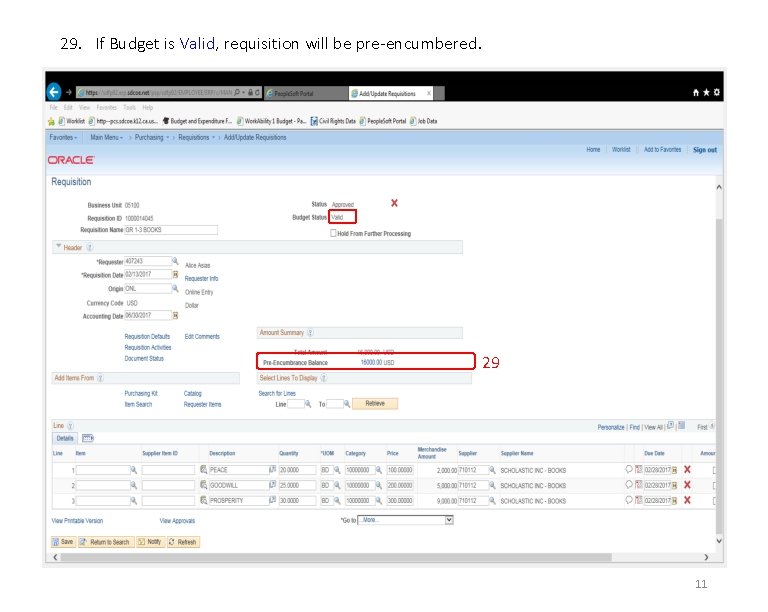
29. If Budget is Valid, requisition will be pre-encumbered. 29 11
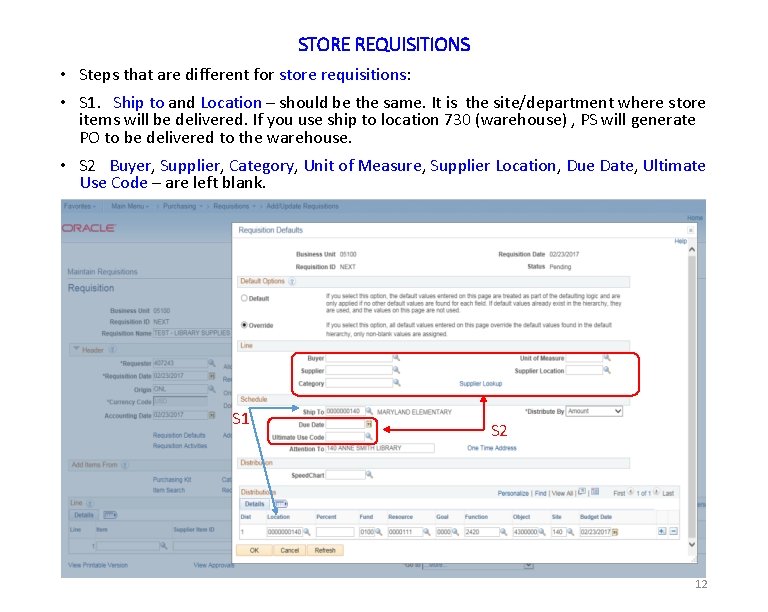
STORE REQUISITIONS • Steps that are different for store requisitions: • S 1. Ship to and Location – should be the same. It is the site/department where store items will be delivered. If you use ship to location 730 (warehouse) , PS will generate PO to be delivered to the warehouse. • S 2 Buyer, Supplier, Category, Unit of Measure, Supplier Location, Due Date, Ultimate Use Code – are left blank. S 1 S 2 12
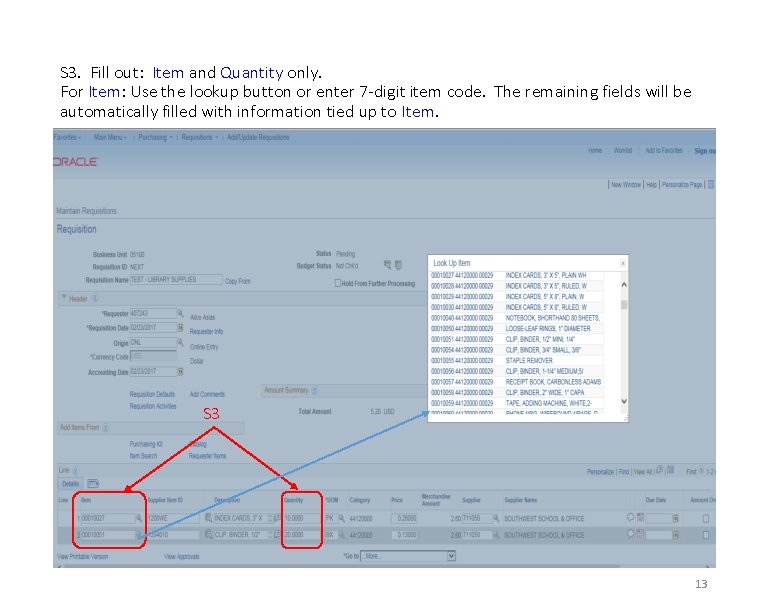
S 3. Fill out: Item and Quantity only. For Item: Use the lookup button or enter 7 -digit item code. The remaining fields will be automatically filled with information tied up to Item. S 3 13
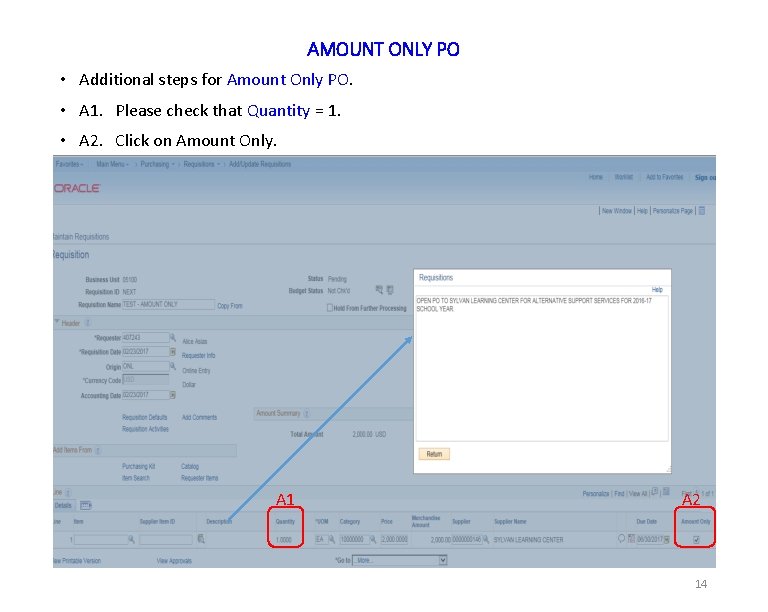
AMOUNT ONLY PO • Additional steps for Amount Only PO. • A 1. Please check that Quantity = 1. • A 2. Click on Amount Only. A 1 A 2 14
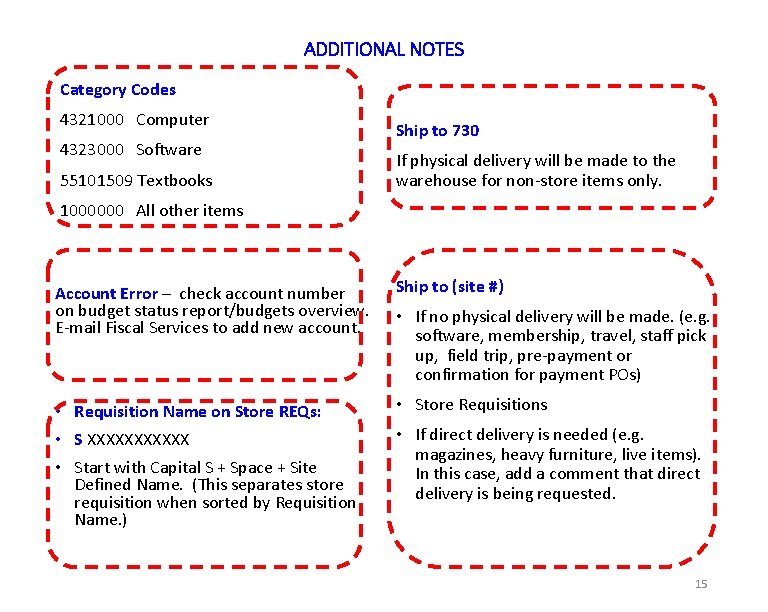
ADDITIONAL NOTES Category Codes 4321000 Computer 4323000 Software 55101509 Textbooks Ship to 730 If physical delivery will be made to the warehouse for non-store items only. 1000000 All other items Account Error – check account number on budget status report/budgets overview. E-mail Fiscal Services to add new account. Ship to (site #) • Requisition Name on Store REQs: • Store Requisitions • S XXXXXX • If direct delivery is needed (e. g. magazines, heavy furniture, live items). In this case, add a comment that direct delivery is being requested. • Start with Capital S + Space + Site Defined Name. (This separates store requisition when sorted by Requisition Name. ) • If no physical delivery will be made. (e. g. software, membership, travel, staff pick up, field trip, pre-payment or confirmation for payment POs) 15