
Activity 2 Resizing and moving a window In
- Slides: 8
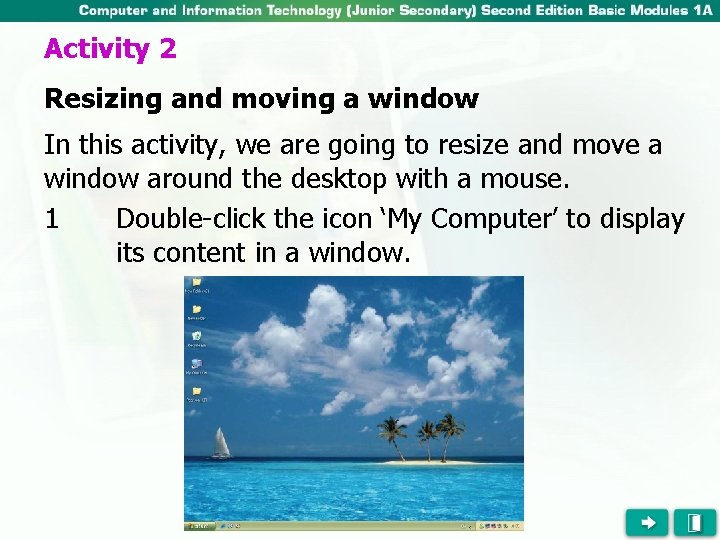
Activity 2 Resizing and moving a window In this activity, we are going to resize and move a window around the desktop with a mouse. 1 Double-click the icon ‘My Computer’ to display its content in a window.
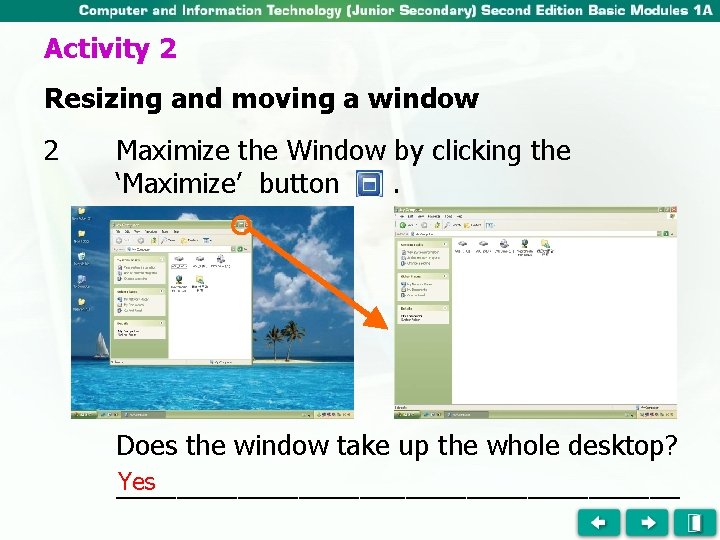
Activity 2 Resizing and moving a window 2 Maximize the Window by clicking the ‘Maximize’ button. Does the window take up the whole desktop? Yes ___________________
Activity 2 Resizing and moving a window 3 Minimize the window by clicking the ‘Minimize button. Does the window minimize on the taskbar? Yes ____________________
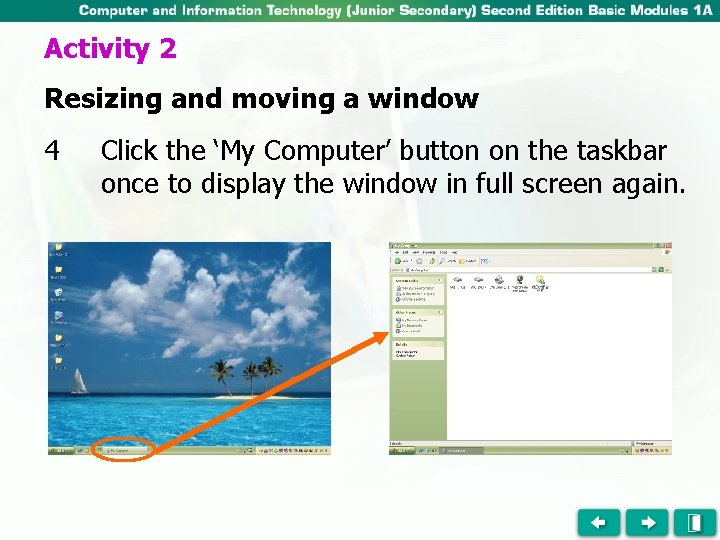
Activity 2 Resizing and moving a window 4 Click the ‘My Computer’ button on the taskbar once to display the window in full screen again.
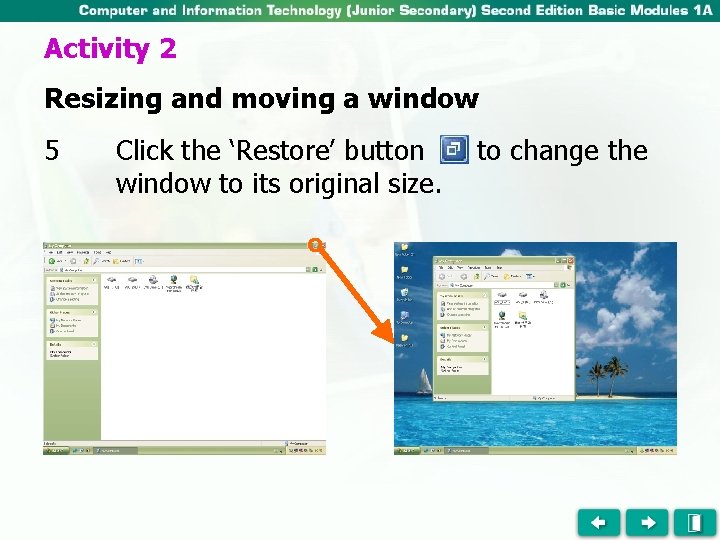
Activity 2 Resizing and moving a window 5 Click the ‘Restore’ button window to its original size. to change the
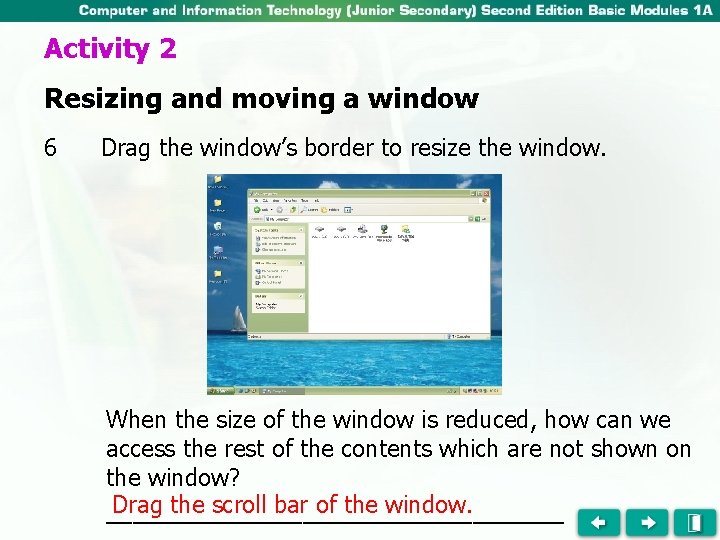
Activity 2 Resizing and moving a window 6 Drag the window’s border to resize the window. When the size of the window is reduced, how can we access the rest of the contents which are not shown on the window? Drag the scroll bar of the window. __________________
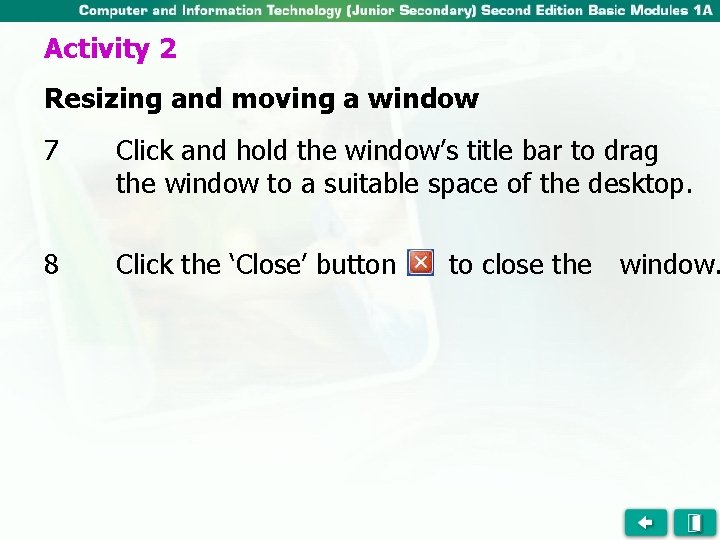
Activity 2 Resizing and moving a window 7 Click and hold the window’s title bar to drag the window to a suitable space of the desktop. 8 Click the ‘Close’ button to close the window.
Activity 2 Resizing and moving a window 7 Click and hold the window’s title bar to drag the window to a suitable space of the desktop. 8 Click the ‘Close’ button window. to close the