
Activity 2 Managing data of a database file
Activity 2 Managing data of a database file This activity consists of two parts. In the first part, we are going to sort the table 'DEPARTING FLIGHTS' by the field ‘Airline’. This facilitates users to search for all the records of the airlines 'Air China' and 'Gulf Air'. We will then change them to their corresponding new names. In the second part, we will add records of a few additional flights and delete the record of a cancelled flight.
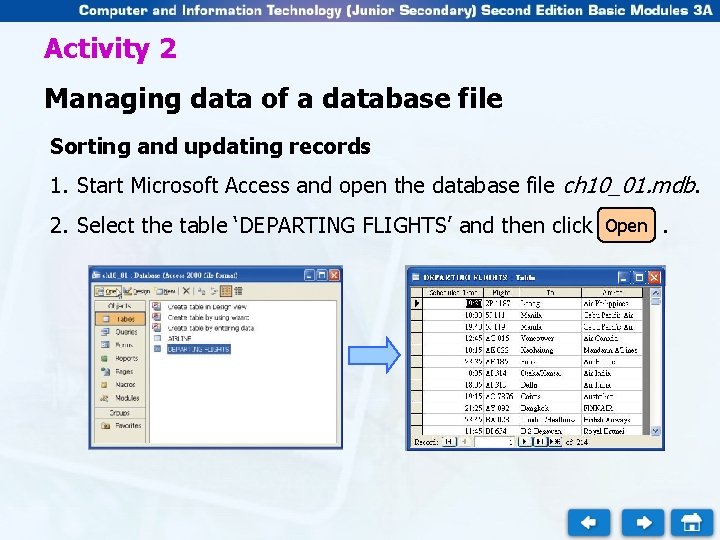
Activity 2 Managing data of a database file Sorting and updating records 1. Start Microsoft Access and open the database file ch 10_01. mdb. 2. Select the table ‘DEPARTING FLIGHTS’ and then click Open .
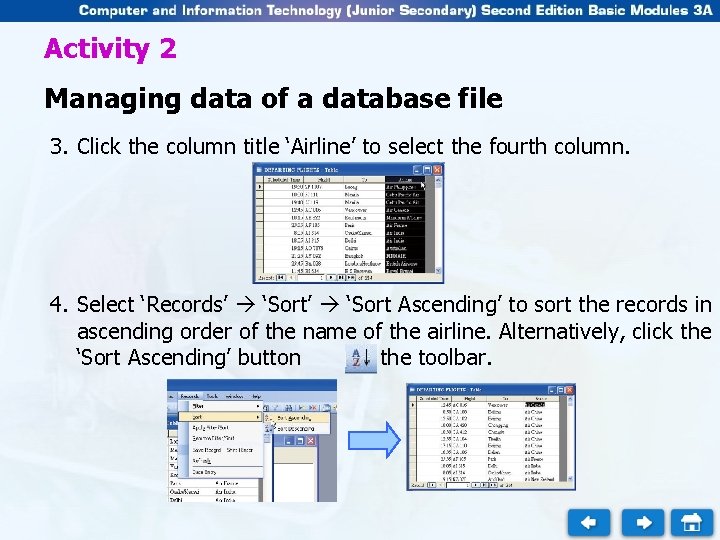
Activity 2 Managing data of a database file 3. Click the column title ‘Airline’ to select the fourth column. 4. Select ‘Records’ ‘Sort Ascending’ to sort the records in ascending order of the name of the airline. Alternatively, click the ‘Sort Ascending’ button on the toolbar.
Activity 2 Managing data of a database file 5. In the field ‘Airline’, find all the records of ‘Gulf Air’ and ‘Air China’ and replace the airline names with ‘Gulf Airline’ and ‘China Int’ respectively. The names of the airlines in both tables ‘DEPARTING FLIGHTS’ and ‘AIRLINE’ will then become the same.
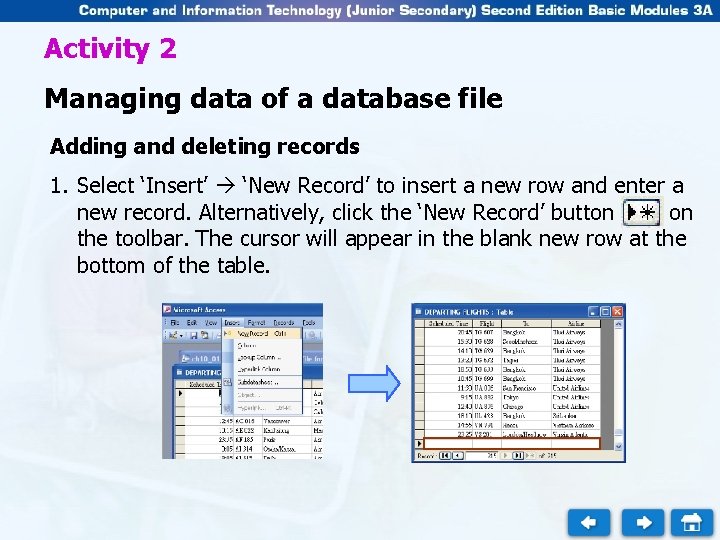
Activity 2 Managing data of a database file Adding and deleting records 1. Select ‘Insert’ ‘New Record’ to insert a new row and enter a new record. Alternatively, click the ‘New Record’ button on the toolbar. The cursor will appear in the blank new row at the bottom of the table.
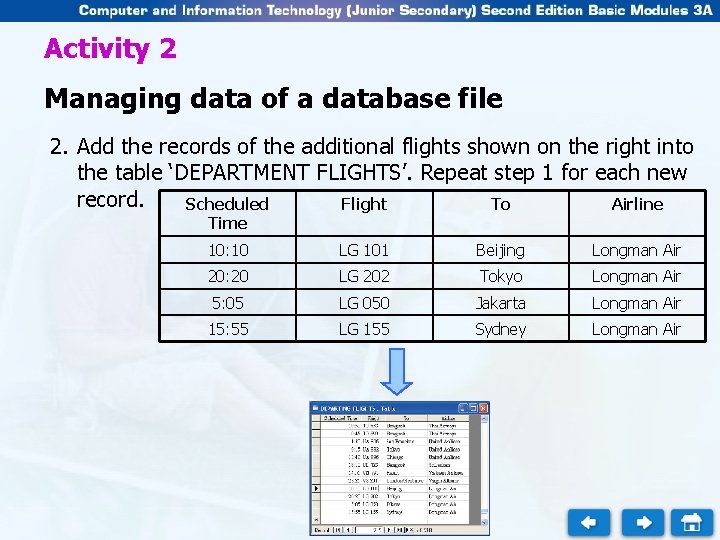
Activity 2 Managing data of a database file 2. Add the records of the additional flights shown on the right into the table ‘DEPARTMENT FLIGHTS’. Repeat step 1 for each new record. Scheduled Flight To Airline Time 10: 10 LG 101 Beijing Longman Air 20: 20 LG 202 Tokyo Longman Air 5: 05 LG 050 Jakarta Longman Air 15: 55 LG 155 Sydney Longman Air
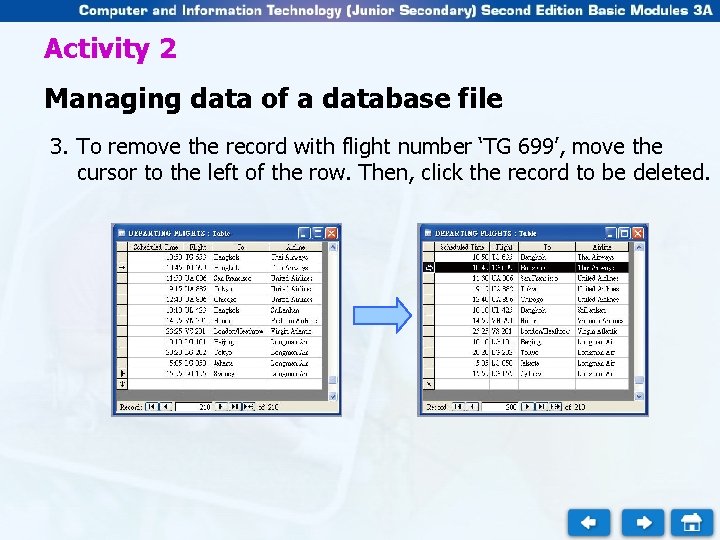
Activity 2 Managing data of a database file 3. To remove the record with flight number ‘TG 699’, move the cursor to the left of the row. Then, click the record to be deleted.
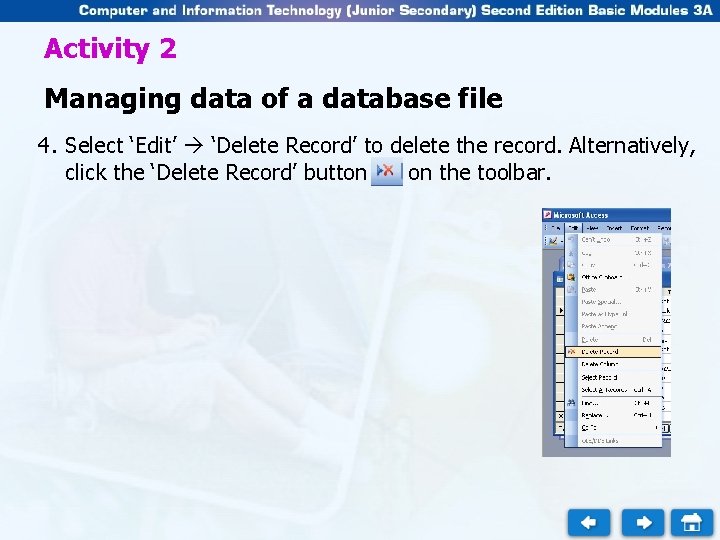
Activity 2 Managing data of a database file 4. Select ‘Edit’ ‘Delete Record’ to delete the record. Alternatively, click the ‘Delete Record’ button on the toolbar.
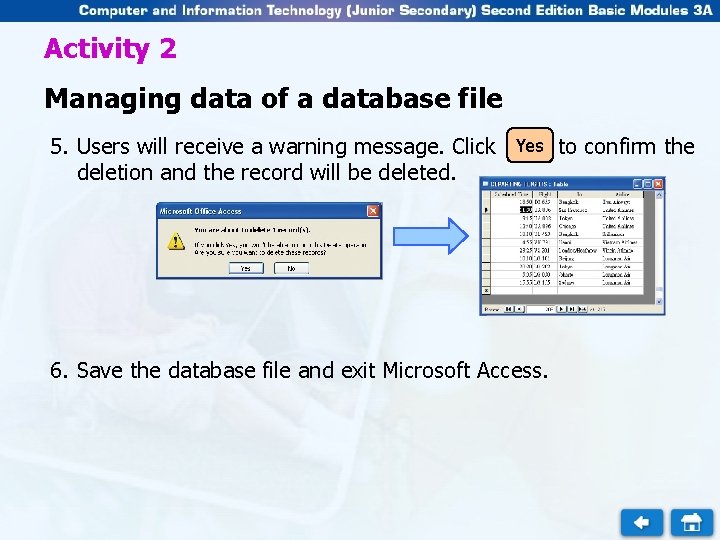
Activity 2 Managing data of a database file 5. Users will receive a warning message. Click deletion and the record will be deleted. Yes 6. Save the database file and exit Microsoft Access. to confirm the
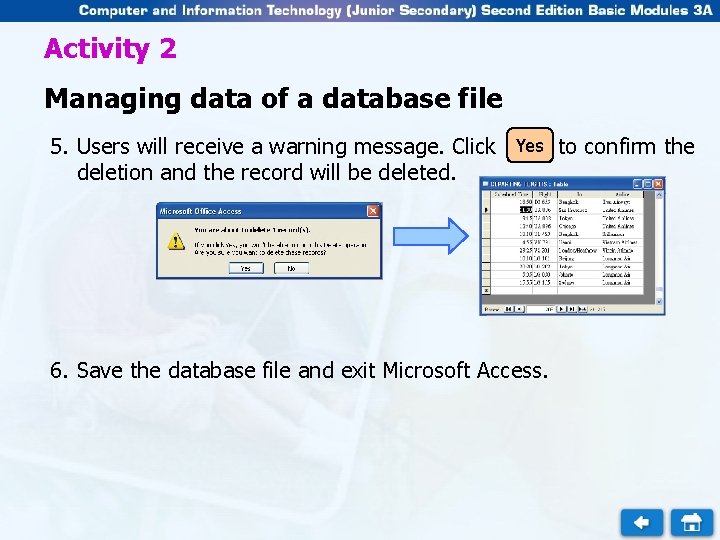
Activity 2 Managing data of a database file 5. Users will receive a warning message. Click deletion and the record will be deleted. Yes 6. Save the database file and exit Microsoft Access. to confirm the
- Slides: 10