
Active Learning with Top Hat Classroom Educational Software

- Slides: 25
Active Learning with Top Hat Classroom Educational Software Consulting edtech@teaching. pitt. edu
Welcome! • This Zoom webinar is different from a regular Zoom meeting. • All participants are muted for the duration. • The Q&A button will allow you to type a question and receive an answer either live from the presenter or as a written reply. • These slides as well as recorded versions of these webinars are available at pi. tt/canvas (click Tech Help Resources) • After this webinar, we will be holding an additional informal Q&A. More details at the end.
Workshop Agenda • What is Top Hat • Support • Why use Top Hat • Questions • How to use Top Hat Integrate Top Hat with Canvas Sign up and Log in Content Creation Student interface Course Settings & Grades
• Presentation, assessment, discussion, and attendance tool that can be used synchronously and asynchronously with your course • BYO device: utilizes cell phones, tablets and laptops as learning tools • Provides instant feedback to the instructor
Assessment Tool • What do my students already know? • What do I want them to get out of this class today / semester? • What are the gaps in learning?
Classroom Engagement • Adjust your teaching pace using Top Hat • Break up your lecture every 12 -15 minutes with interactivity • Ask a question to assess students’ understanding of a topic • Create discussion topics students where can engage anonymously • Back up to review if needed
Variety of Use • Import presentation slides into Top Hat and use the full suite of tools • Simply use Top Hat for questions or discussion • Take attendance • Create a Homework assignment in Top Hat (flip classroom)
Remote Learning Usage • Attendance tool • Polling • Live Discussion board • Whiteboard Feature 2/15/2022
Compatibility • Preferred web browsers: Chrome and Firefox • Phone/tablet operating systems: Android and i. OS
Getting Started with Top Hat • It’s free!* • University Single Sign-on (Duo. Mobile) *Top Hat Marketplace has some items that are free and some that are for purchase
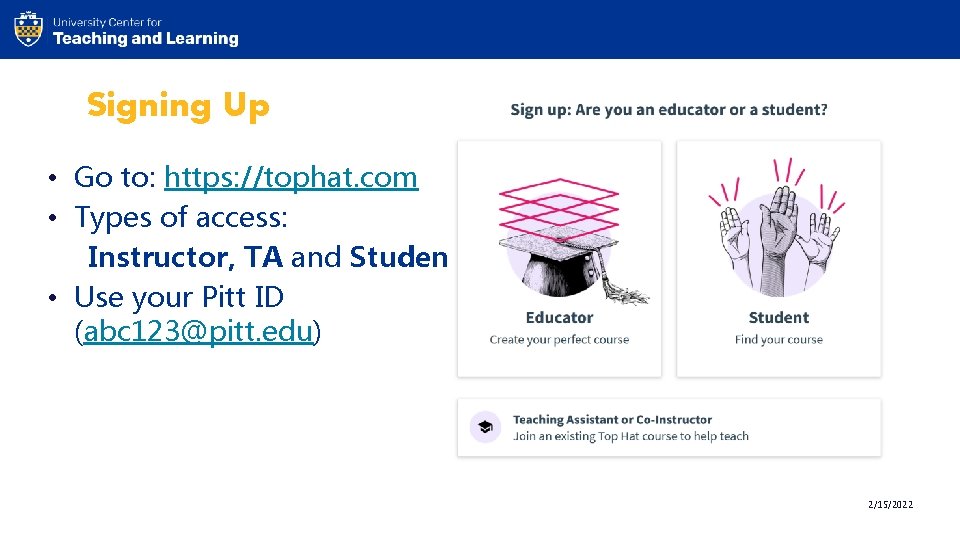
Signing Up • Go to: https: //tophat. com • Types of access: Instructor, TA and Student • Use your Pitt ID (abc 123@pitt. edu) 2/15/2022
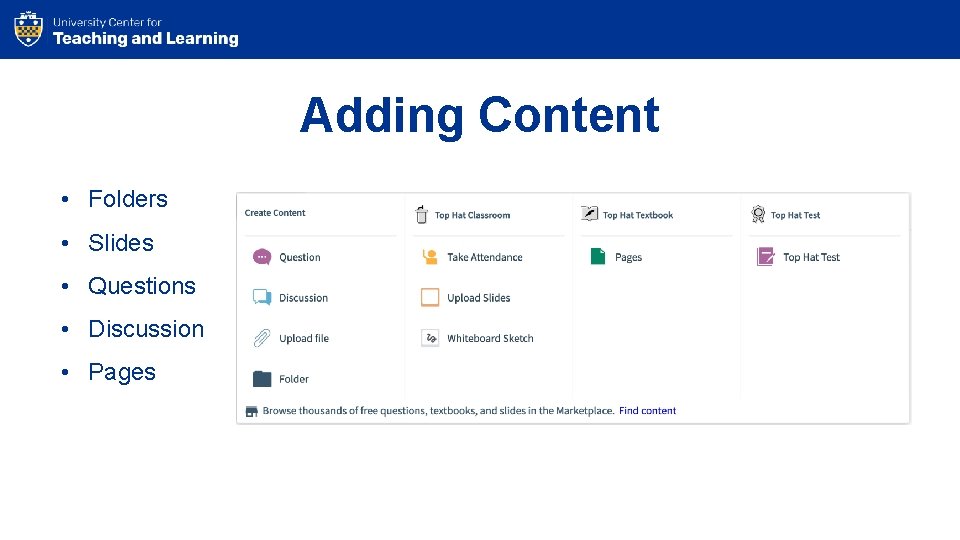
Adding Content • Folders • Slides • Questions • Discussion • Pages
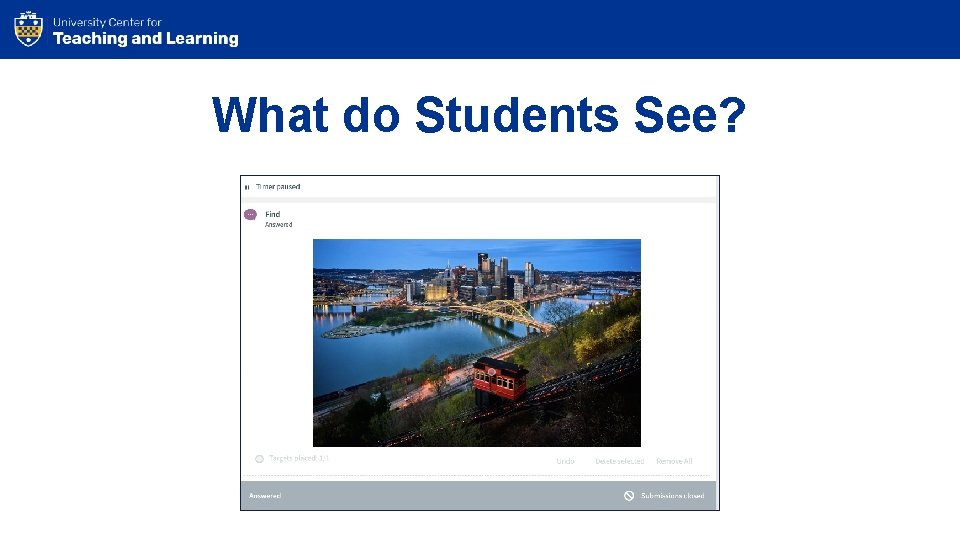
What do Students See?
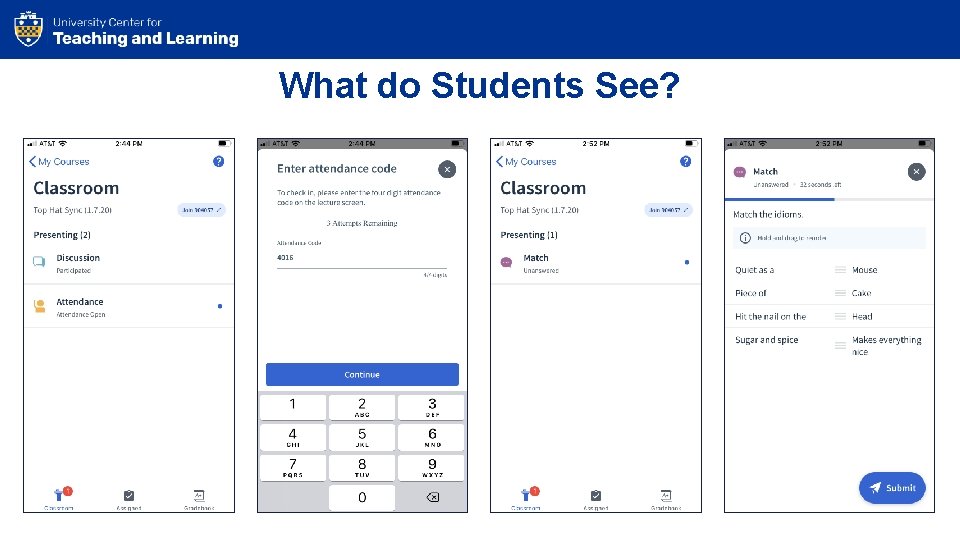
What do Students See?
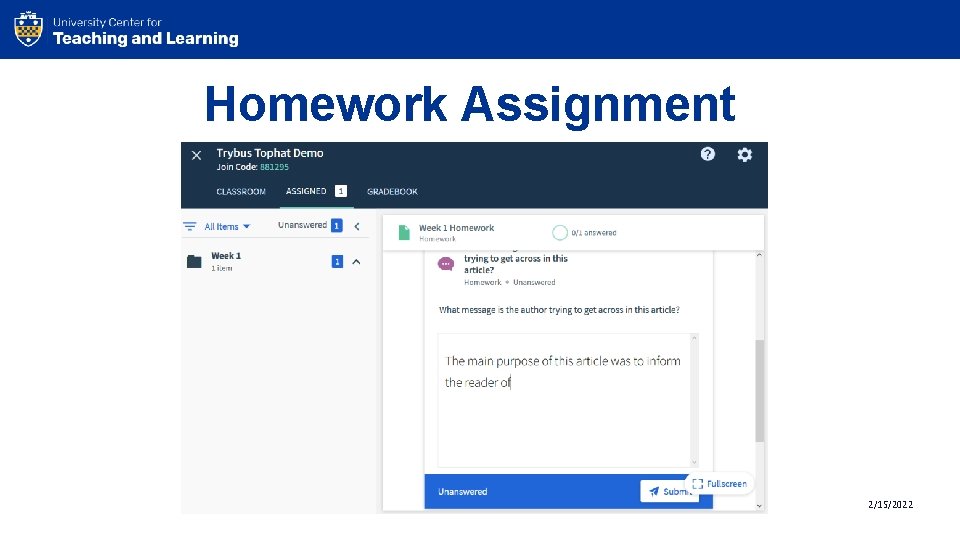
Homework Assignment 2/15/2022
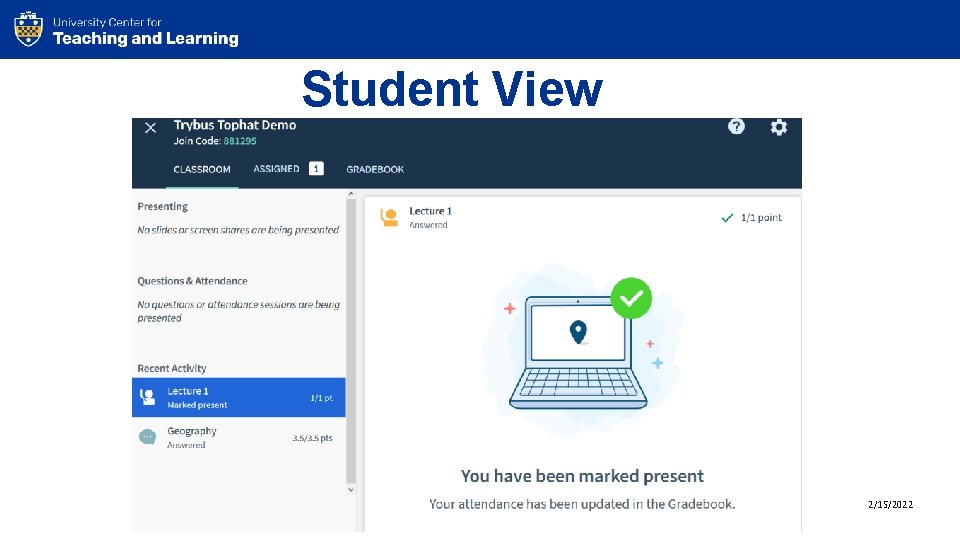
Student View 2/15/2022
Adding Students • Sync LMS • Manually (Course > People > @pitt. edu email addresses) • Provide the Join Code to the students in your Canvas course
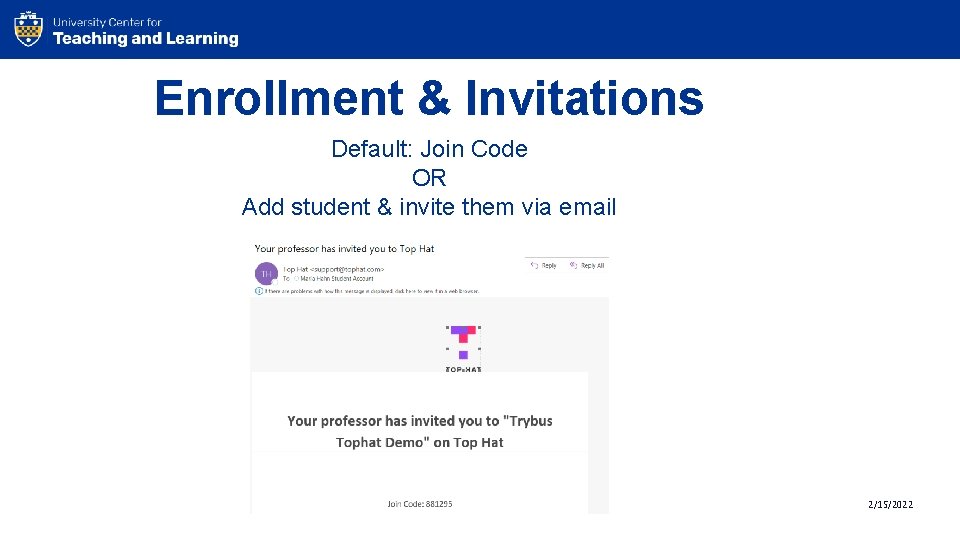
Enrollment & Invitations Default: Join Code OR Add student & invite them via email 2/15/2022
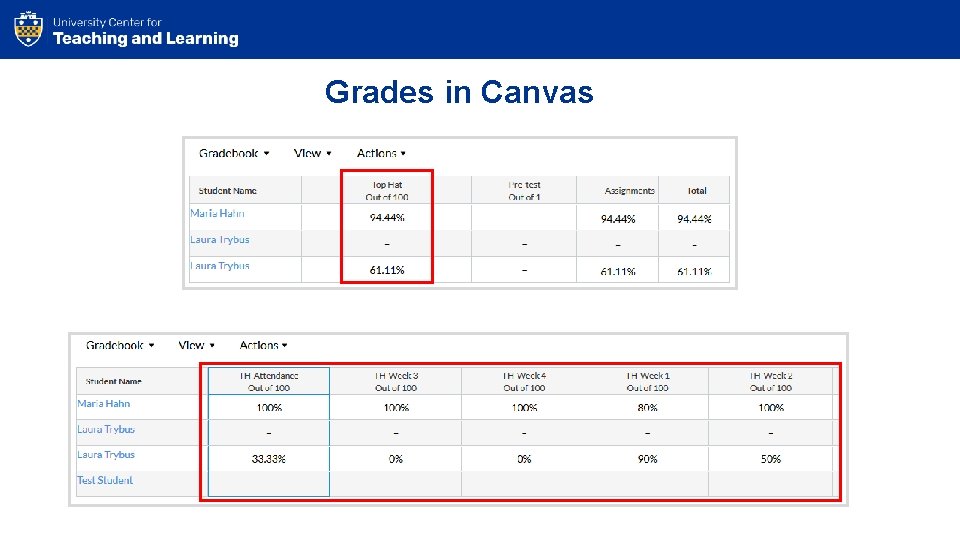
Gradebook • Access Grades right in Top Hat • Grade settings • Run LMS Sync to send to Canvas
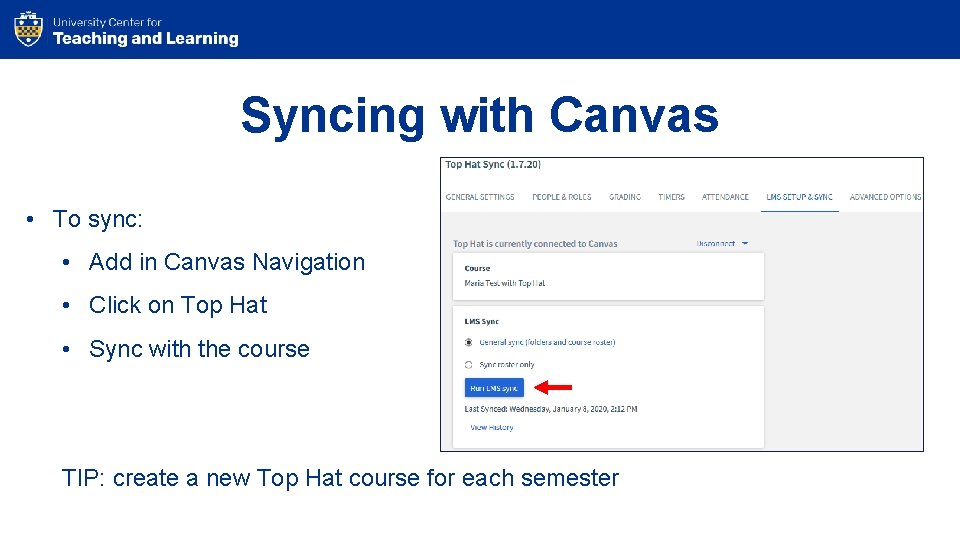
Syncing with Canvas • To sync: • Add in Canvas Navigation • Click on Top Hat • Sync with the course TIP: create a new Top Hat course for each semester
Grades in Canvas
Top Hat Support • Mon – Fri, 9: 00 AM – 9: 00 PM online or phone (1 -888 -663 -5491) • Email: support@tophat. com • Live chat in upper right-hand corner by your name if you need help during class
Top Hat Marketplace • Some content is free, some they charge for • Textbooks written by other professors • Can copy content into your own course • Find something you like your students can purchase
Congratulations! You made it to the end of this workshop! Any Questions?