
Accessible Documents with MS Word Think accessible first
Accessible Documents with MS Word Think accessible first! 6/16/2021 www. htctu. net 1
Access in Word o Documents n n n Logical structure Clear components Good color contrast o Graphics n 6/16/2021 Briefly described www. htctu. net 2
Tips o Show hidden: ON (Alt + Shift + *) o Selecting o Rulers o Columns o Views 6/16/2021 www. htctu. net 3
Four Simple Steps in Word o Links: Name links logically o Images: Add alt text n Picture descriptions o Styles: Use templates and styles o Tables: Mark the header row in tables o THEN make it into a PDF
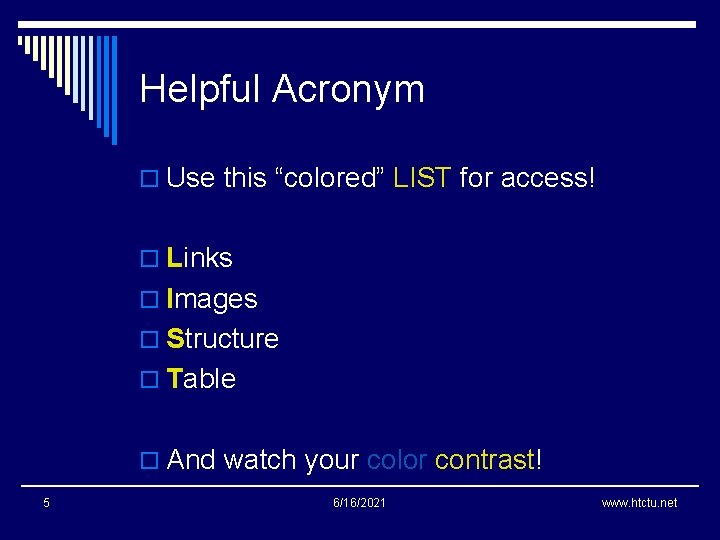
Helpful Acronym o Use this “colored” LIST for access! o Links o Images o Structure o Table o And watch your color contrast! 5 6/16/2021 www. htctu. net
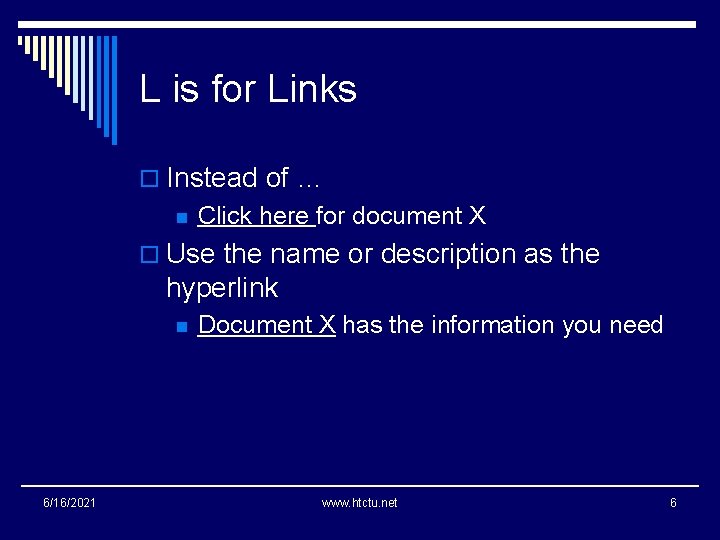
L is for Links o Instead of … n Click here for document X o Use the name or description as the hyperlink n 6/16/2021 Document X has the information you need www. htctu. net 6
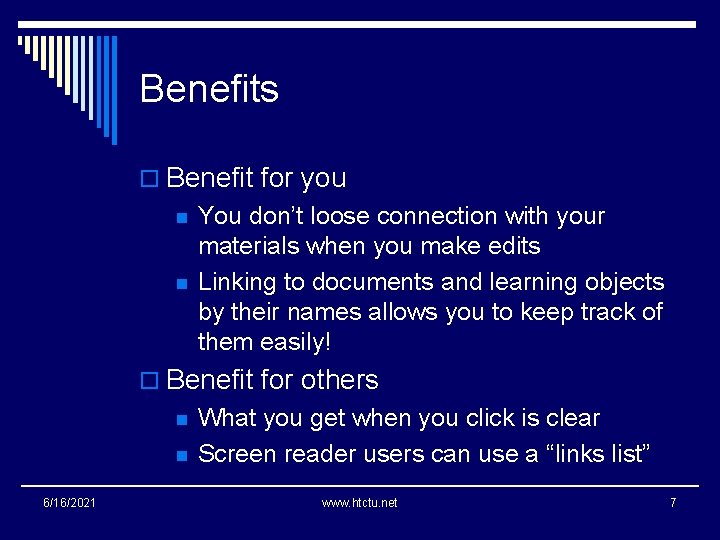
Benefits o Benefit for you n n You don’t loose connection with your materials when you make edits Linking to documents and learning objects by their names allows you to keep track of them easily! o Benefit for others n n 6/16/2021 What you get when you click is clear Screen reader users can use a “links list” www. htctu. net 7
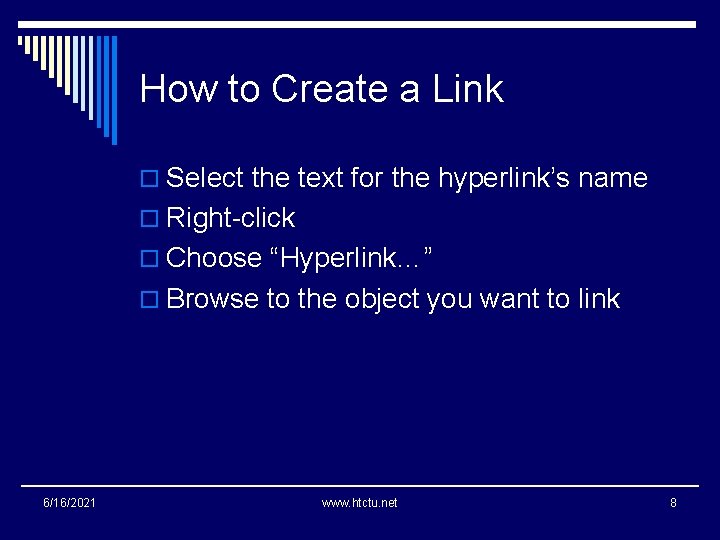
How to Create a Link o Select the text for the hyperlink’s name o Right-click o Choose “Hyperlink…” o Browse to the object you want to link 6/16/2021 www. htctu. net 8
Checklist √ Links 6/16/2021 www. htctu. net 9
I is for Images o Add very brief text description o If graphic is simply decoration, wait and mark it as “decorative” in Adobe Acrobat Pro o If graphic is informative, describe as succinctly as possible 6/16/2021 www. htctu. net 10
Benefits o Benefits for you n n Requires “out of the box” thinking Text becomes searchable online o Benefits for others n n n 6/16/2021 Text appears on mouse-over, clarifying purpose of graphic Provides access for nonvisual users Higher “hit” on Google www. htctu. net 11
How to Create Alt Text o Right click on graphic o “Format Picture” o “Alt Text” o Enter text in “description” 6/16/2021 www. htctu. net 12
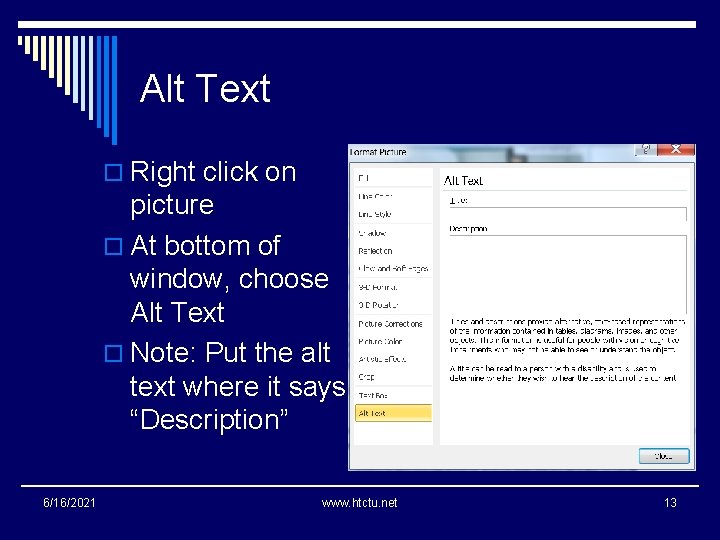
Alt Text o Right click on picture o At bottom of window, choose Alt Text o Note: Put the alt text where it says “Description” 6/16/2021 www. htctu. net 13
Describing Graphics o When determining the purpose, always consider the context in which the graphic is being shown. o The same graphic may have a different purpose in a different context. n n n Sometimes decoration Sometimes informational Sometimes an activity (graphs, charts, etc. )
Informational o If information is being conveyed, then consider… n n n What is the information being presented in the graphic? Is that information already conveyed in the text? How can I describe the graphic in as few words as possible?
Decoration o Does it even need to be described? o If not… n n Null text it or “_” on the Web Mark as “decorative” in Adobe Pro o If yes, how much description? Usually very little!
Activity o If the student must do something with a graphic, make sure the description does not give away the answer to a question 6/16/2021 www. htctu. net 17
First Question to Ask o What is the purpose? Information or Decoration or Activity? o How much is the purpose of the graphic informational? o How much decoration? o Do we have to do something with it? 6/16/2021 www. htctu. net 18
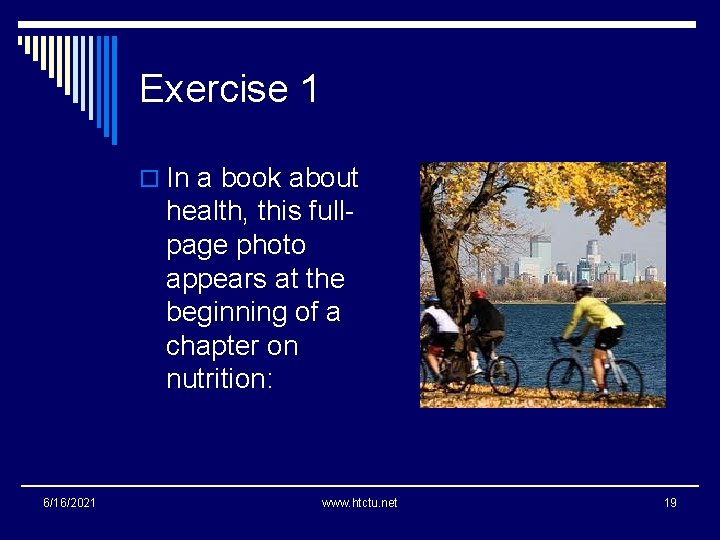
Exercise 1 o In a book about health, this fullpage photo appears at the beginning of a chapter on nutrition: 6/16/2021 www. htctu. net 19
Possible Alt Text o The photo is mostly decorative. n It is simply illustrating theme of the book. o Keep the description simple: n n 6/16/2021 People biking Cyclists www. htctu. net 20
Logo Example 1 Kansas City Kansas Community College Presents an Evening of Jazz Come join us for two hours of wonderful jazz by the lake. …
Possible Alt Text o The logo is mostly decorative. o Logo is branding for school, but in this context is essentially decorative from the end-user’s viewpoint. o Since the graphic is basically decorative, keep it simple. n n College logo KCKCC logo
Logo Example 2 o In marketing your business, the design of a logo can make a big impression or can be a waste of money. The logo needs to be attractive but not dominate other information presented along with the logo. In the example below, what catches your attention?
Possible Alt Text o The logo is informational. o In this case, the same logo is a specific example and requires a more lengthy description. o Focus on what the student needs to know: n Interlocking blue K and red C on left with the words “Making Life Better” in red above the college name in black blocked and underlined with a blue line.
No Single Right Way o There is not only one way to describe graphics. o Just remember… n n Keep context in mind Ask yourself: Is this something the person really needs to hear?
Checklist √ Links √ Images 6/16/2021 www. htctu. net 26
S is for Styles o Use styles n n Headings Lists / bulleted lists / numbered lists o Use columns if needed o DO NOT use text boxes 6/16/2021 www. htctu. net 27
Benefits o Benefits for you n n Allows easy changing and editing Improves document navigation Can use “outline” view to rearrange sections Automatic table of contents o Benefits for others n 6/16/2021 Improves document navigation for all— headings useable with screen readers www. htctu. net 28
In General o Font size and readability n n 12 point is good Avoid fonts that will be difficult to read online o Color contrast n n Be aware of color! Avoid white text on light background; avoid black text on dark background o Avoid using enter key for spacing 29 6/16/2021 www. htctu. net
Selecting Text o Double click o Triple click o Shift + arrow keys o Shift + home/end o Shift + page up/page down o "shift-click" technique 6/16/2021 www. htctu. net 30
Keyboard Shortcuts o Heading One = Ctrl + Alt + 1 o Heading Two = Ctrl + Alt + 2 o Heading Three = Ctrl + Alt + 3 o Remove manual formatting = Ctrl + Spacebar o Normal style = Ctrl + Shift + N o Change case = Shift + F 3 6/16/2021 www. htctu. net 31
Outline/Draft Styles o File > Options > Advanced > Display o Style area pane n 6/16/2021 Set to > 0 (e. g. , . 75) www. htctu. net 32
Modifying Styles o Styles can be modified in MS Word to change spacing, fonts, etc. o Best NOT to modify Normal Style n Use Body Text if you wish to make changes o Styles pane: Ctrl + Alt + Shift + S 6/16/2021 www. htctu. net 33
Checklist √ Links √ Images √ Styles 6/16/2021 www. htctu. net 34

T is for Table o Mark the header row in your tables o Word calls this “Repeat as header row at top of every page” or just “Repeat Header Rows” o Note: If you have column headers (i. e. , header in first column), that will need to be marked in Adobe Acrobat Pro 6/16/2021 www. htctu. net 35
Benefits o Benefits for you n n Always see header row, even across multiple pages Lessens reformatting/editing issues o Benefits to others n n 36 Screen reader users will be able to hear the header text repeated as needed Users of large print will still see header row when enlarging text 6/16/2021 www. htctu. net
Checklist √ Links √ Images √ Styles √ Tables And you’re done! 6/16/2021 www. htctu. net 37
Accessible Documents o For maximum accessibility include both the PDF and the Word document online o If concerned about security with Word, can apply permissions 6/16/2021 www. htctu. net 38
Checking Your Word…er…Work Accessibility Checkers Can Help

MS Word Built-in Checker 40 6/16/2021 www. htctu. net
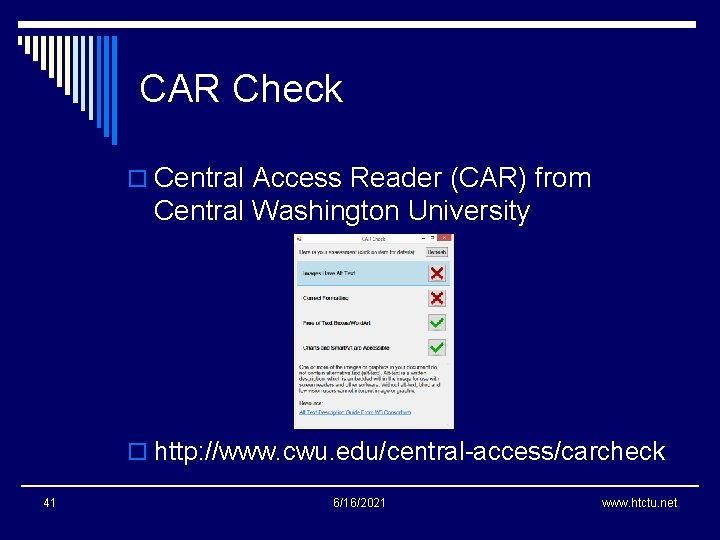
CAR Check o Central Access Reader (CAR) from Central Washington University o http: //www. cwu. edu/central-access/carcheck 41 6/16/2021 www. htctu. net
Color Contrast o Color Contrast Analyzer (CCA) o http: //www. paciellogroup. com/resources/ contrastanalyser/ o Can download checker for free n 42 Windows or Mac version 6/16/2021 www. htctu. net
Accessible Documents o For maximum accessibility include both the PDF and the Word document online n 43 PDF and RTF 6/16/2021 www. htctu. net
Thank you! o Gaeir (rhymes with “fire”) Dietrich n n gdietrich@htctu. net 408 -996 -6047
- Slides: 44