
Accessibility Tips for Power Point Instructor Sandra R
Accessibility Tips for Power. Point
Instructor Sandra R. Childers Web & Information Designer, e. SAIL
Learning Objectives 1. Learn how to make accessible Power. Point slides Ø Includes: Templates/themes, creating new slides, and slide order 2. Learn how to make accessible Power. Point elements Ø Includes: Font, slide titles, tables, contrast, visuals, and links 3. Learn how to save Power. Point as an accessible PDF Ø Includes: Using the Accessibility Checker and converting to PDF
Power. Point Accessibility Templates & themes, creating new slides, and slide order
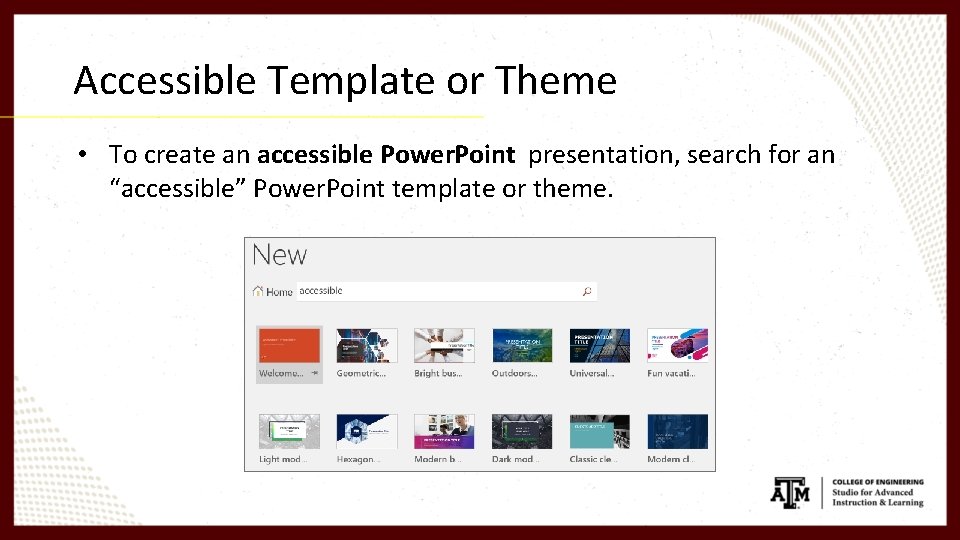
Accessible Template or Theme • To create an accessible Power. Point presentation, search for an “accessible” Power. Point template or theme.
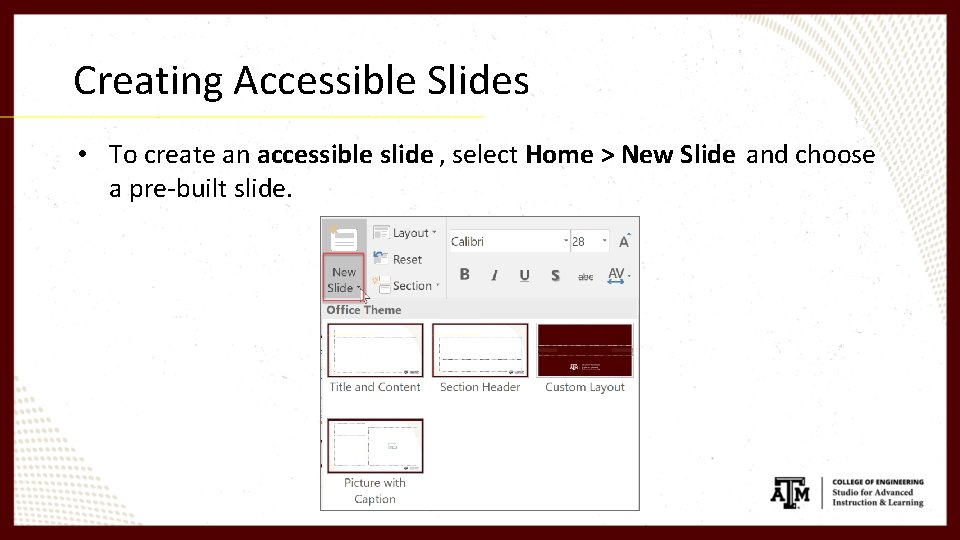
Creating Accessible Slides • To create an accessible slide , select Home > New Slide and choose a pre-built slide.
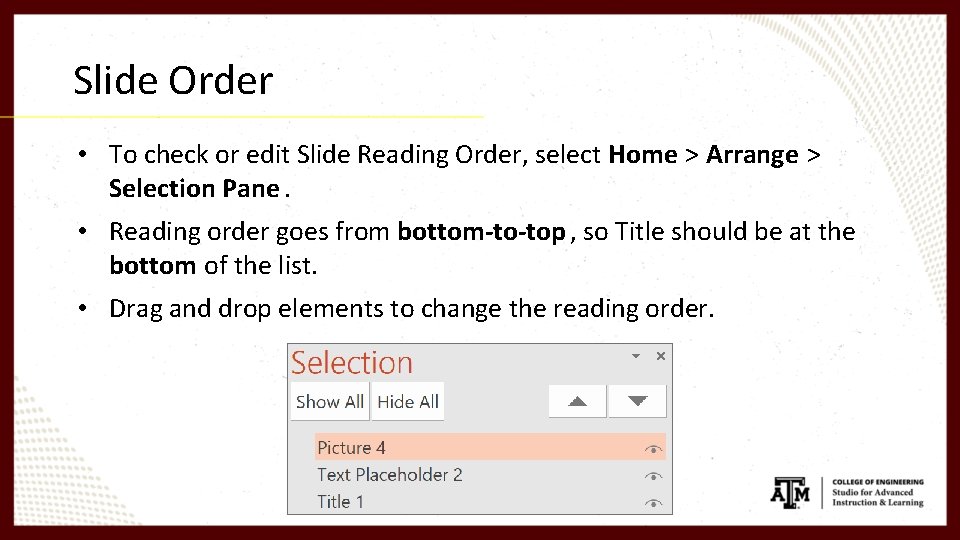
Slide Order • To check or edit Slide Reading Order, select Home > Arrange > Selection Pane. • Reading order goes from bottom-to-top , so Title should be at the bottom of the list. • Drag and drop elements to change the reading order.
Element Accessibility Font, slide titles, tables, contrast, visuals and “alt text, ” and links
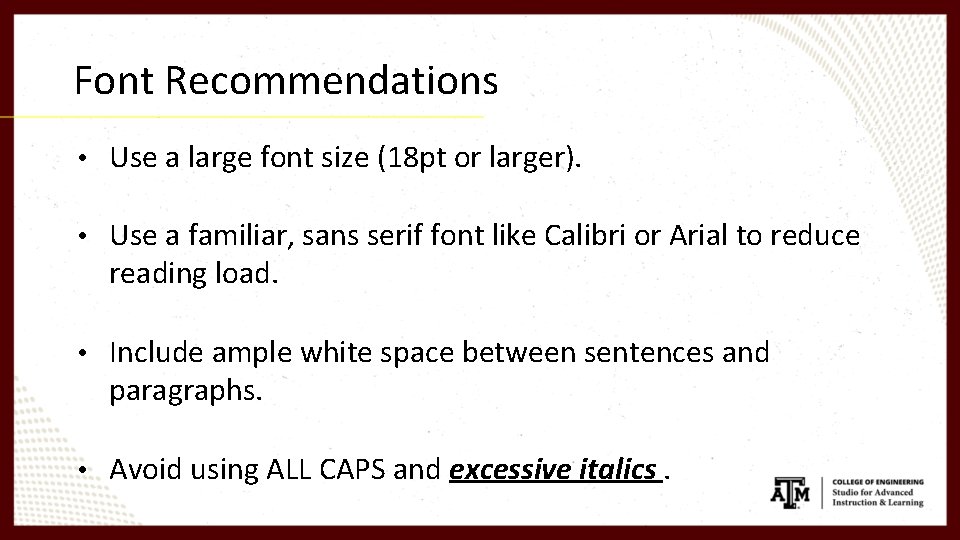
Font Recommendations • Use a large font size (18 pt or larger). • Use a familiar, sans serif font like Calibri or Arial to reduce reading load. • Include ample white space between sentences and paragraphs. • Avoid using ALL CAPS and excessive italics.
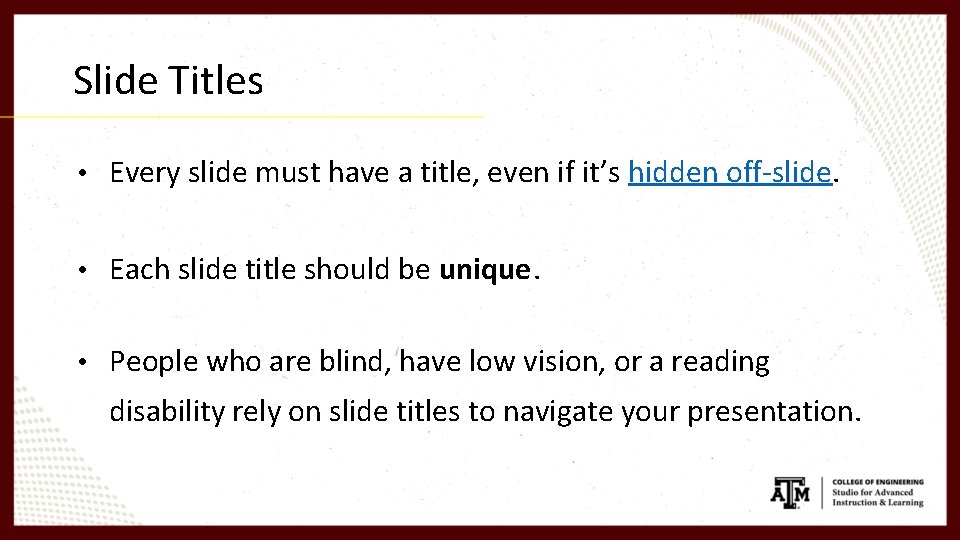
Slide Titles • Every slide must have a title, even if it’s hidden off-slide. • Each slide title should be unique. • People who are blind, have low vision, or a reading disability rely on slide titles to navigate your presentation.
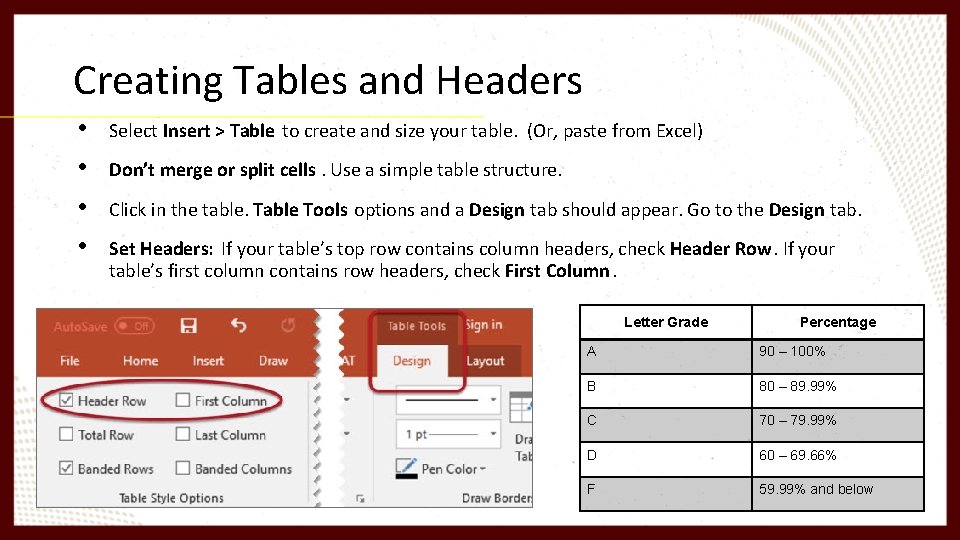
Creating Tables and Headers • • Select Insert > Table to create and size your table. (Or, paste from Excel) Don’t merge or split cells. Use a simple table structure. Click in the table. Table Tools options and a Design tab should appear. Go to the Design tab. Set Headers: If your table’s top row contains column headers, check Header Row. If your table’s first column contains row headers, check First Column. Letter Grade Percentage A 90 – 100% B 80 – 89. 99% C 70 – 79. 99% D 60 – 69. 66% F 59. 99% and below
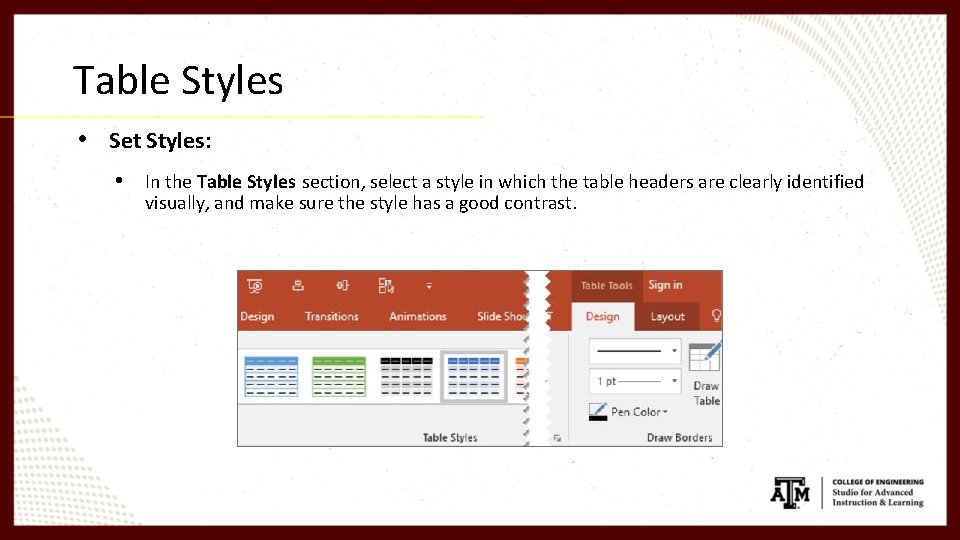
Table Styles • Set Styles: • In the Table Styles section, select a style in which the table headers are clearly identified visually, and make sure the style has a good contrast.

Contrast • Use sufficient contrast for text and its background color. • Use Power. Point’s Accessibility Checker to find insufficient contrast within your content. (More about this later. ) • The highest possible contrast is black text on white, or white text on black. • Web. AIM’s Contrast Checker is a great tool to check your contrast. Must reach Level AA compliance.
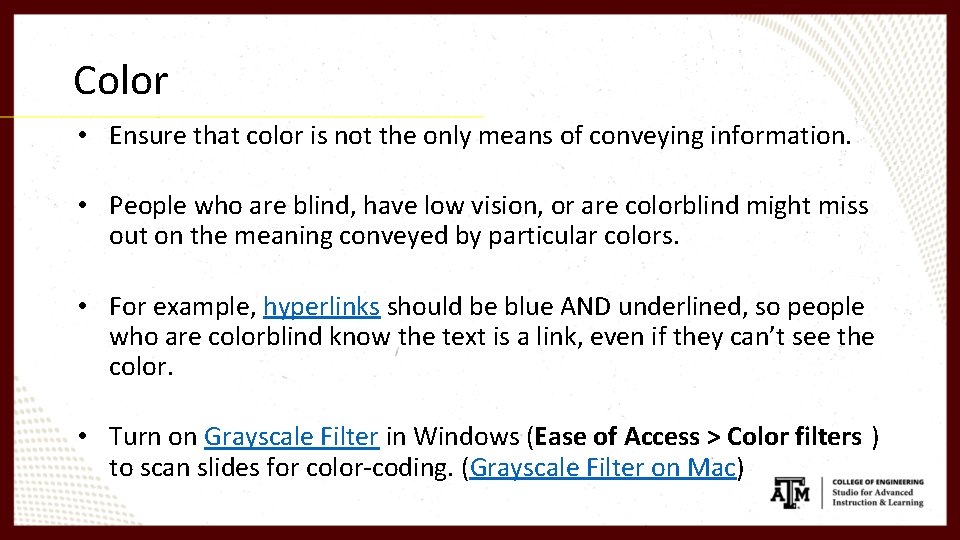
Color • Ensure that color is not the only means of conveying information. • People who are blind, have low vision, or are colorblind might miss out on the meaning conveyed by particular colors. • For example, hyperlinks should be blue AND underlined, so people who are colorblind know the text is a link, even if they can’t see the color. • Turn on Grayscale Filter in Windows (Ease of Access > Color filters ) to scan slides for color-coding. (Grayscale Filter on Mac)
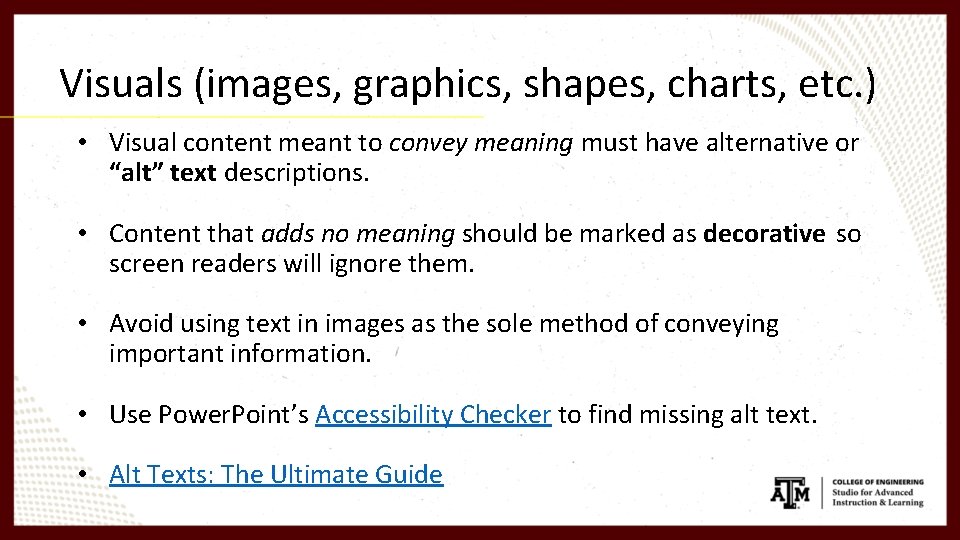
Visuals (images, graphics, shapes, charts, etc. ) • Visual content meant to convey meaning must have alternative or “alt” text descriptions. • Content that adds no meaning should be marked as decorative so screen readers will ignore them. • Avoid using text in images as the sole method of conveying important information. • Use Power. Point’s Accessibility Checker to find missing alt text. • Alt Texts: The Ultimate Guide
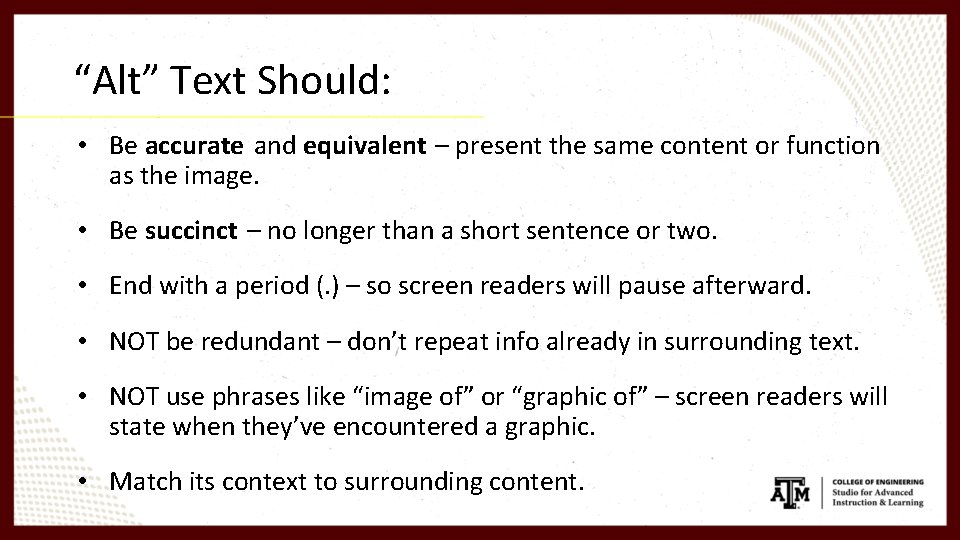
“Alt” Text Should: • Be accurate and equivalent – present the same content or function as the image. • Be succinct – no longer than a short sentence or two. • End with a period (. ) – so screen readers will pause afterward. • NOT be redundant – don’t repeat info already in surrounding text. • NOT use phrases like “image of” or “graphic of” – screen readers will state when they’ve encountered a graphic. • Match its context to surrounding content.
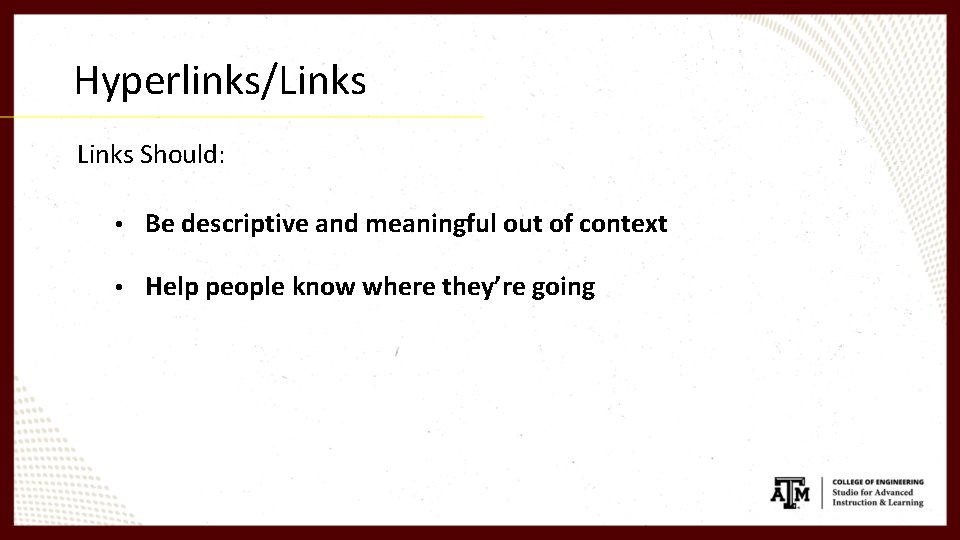
Hyperlinks/Links Should: • Be descriptive and meaningful out of context • Help people know where they’re going
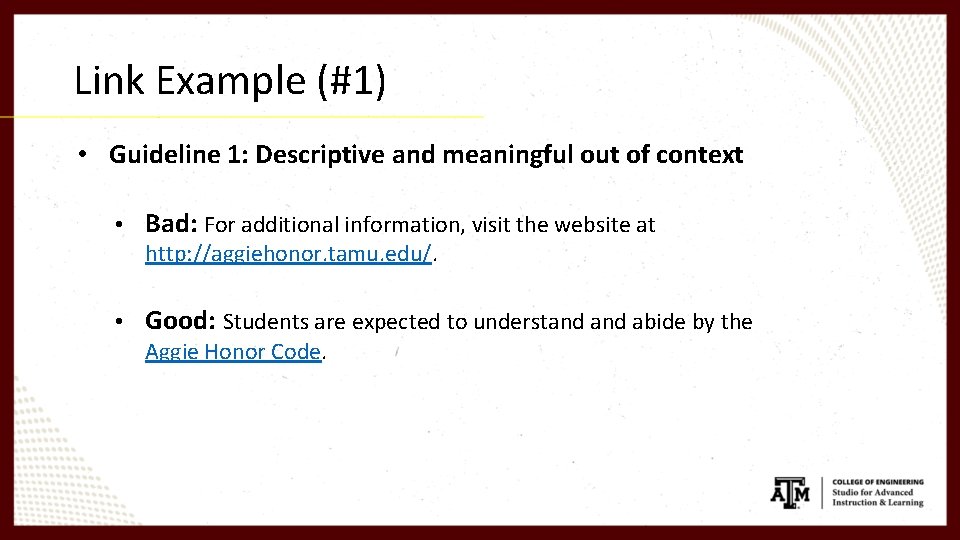
Link Example (#1) • Guideline 1: Descriptive and meaningful out of context • Bad: For additional information, visit the website at http: //aggiehonor. tamu. edu/. • Good: Students are expected to understand abide by the Aggie Honor Code.
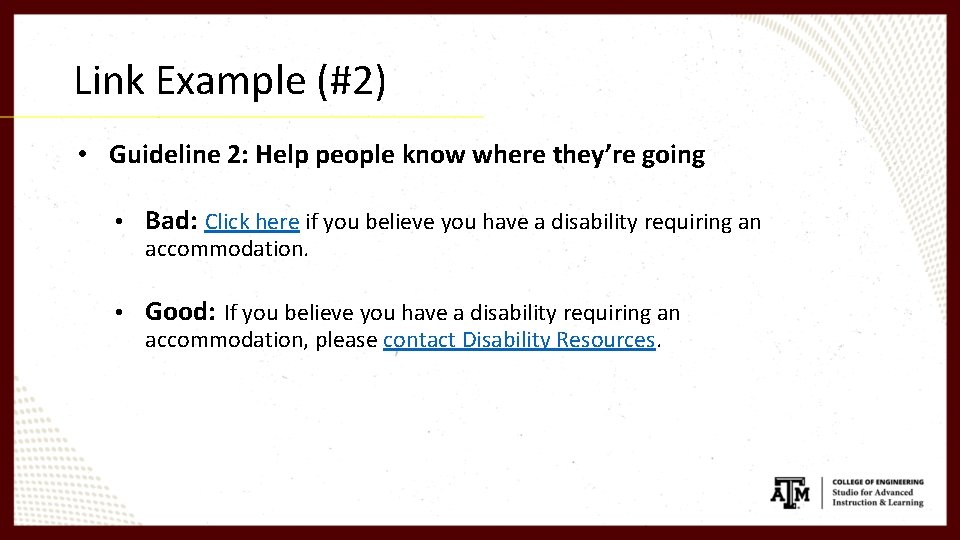
Link Example (#2) • Guideline 2: Help people know where they’re going • Bad: Click here if you believe you have a disability requiring an accommodation. • Good: If you believe you have a disability requiring an accommodation, please contact Disability Resources.
Converting to an Accessible PDF Using the Accessibility Checker and converting to an accessible PDF
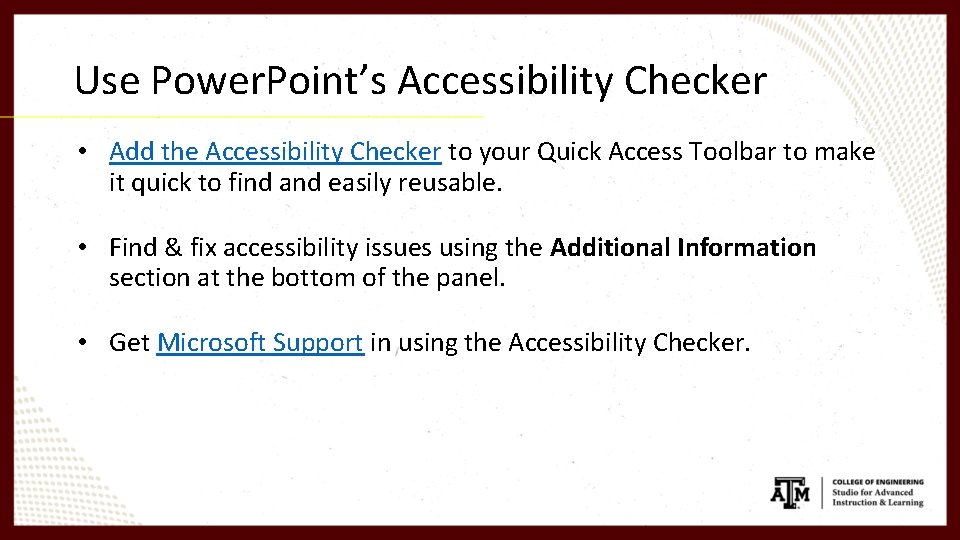
Use Power. Point’s Accessibility Checker • Add the Accessibility Checker to your Quick Access Toolbar to make it quick to find and easily reusable. • Find & fix accessibility issues using the Additional Information section at the bottom of the panel. • Get Microsoft Support in using the Accessibility Checker.
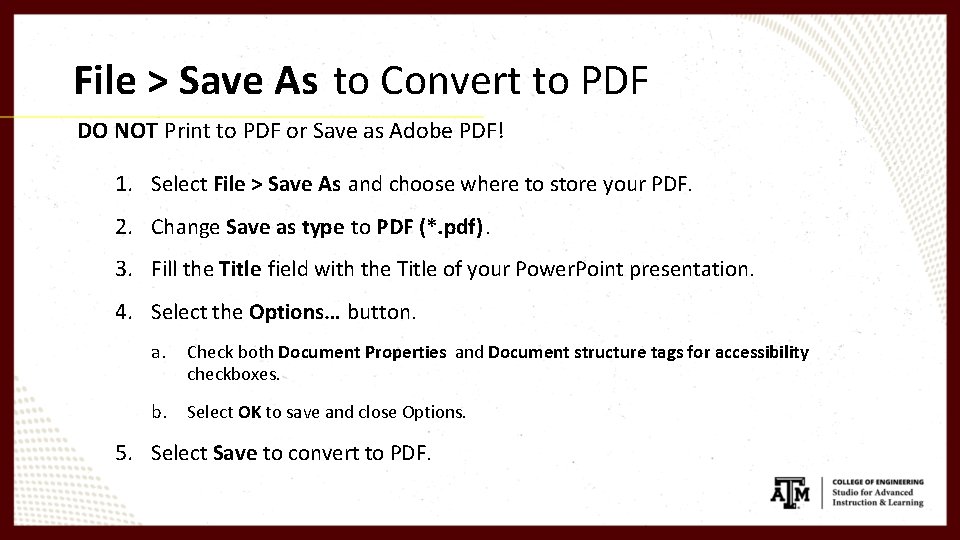
File > Save As to Convert to PDF DO NOT Print to PDF or Save as Adobe PDF! 1. Select File > Save As and choose where to store your PDF. 2. Change Save as type to PDF (*. pdf). 3. Fill the Title field with the Title of your Power. Point presentation. 4. Select the Options… button. a. Check both Document Properties and Document structure tags for accessibility checkboxes. b. Select OK to save and close Options. 5. Select Save to convert to PDF.
Accessibility Resources Microsoft Support, Web. Aim, and our IT Accessibility team
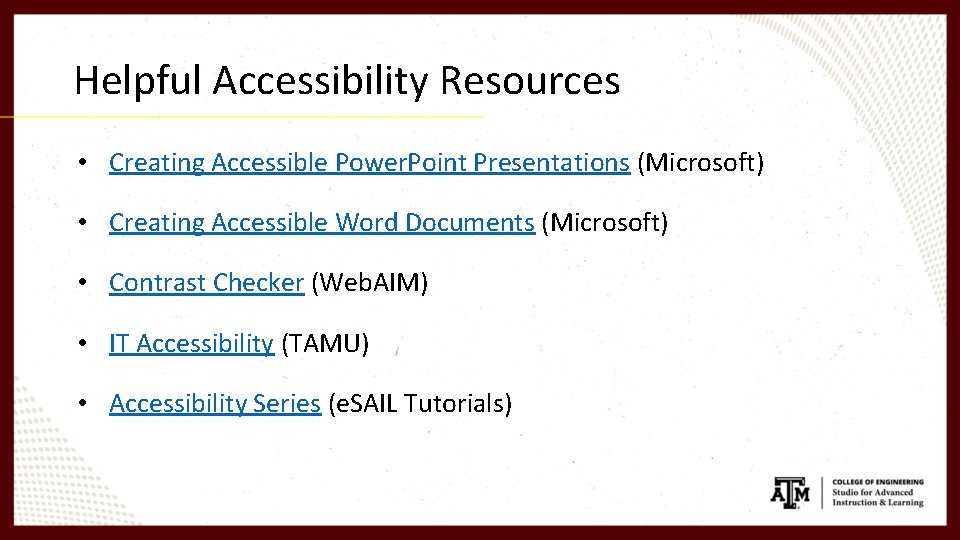
Helpful Accessibility Resources • Creating Accessible Power. Point Presentations (Microsoft) • Creating Accessible Word Documents (Microsoft) • Contrast Checker (Web. AIM) • IT Accessibility (TAMU) • Accessibility Series (e. SAIL Tutorials)

Questions?
Contact e. SAIL: Accessibility & Course Support: Engr. Learn. Tech@tamu. edu e. SAIL website: Learn. Tech. engr. tamu. edu
- Slides: 26