
Access Tutorial 4 Creating Forms and Reports Microsoft

- Slides: 30
Access Tutorial 4 Creating Forms and Reports Microsoft Office 2010 ®
Objectives XP Create a form using the Form Wizard Apply a theme to a form Add a picture to a form Change the color and line type of items on a form • Find and maintain data using a form • Preview and print selected form records • • New Perspectives on Microsoft Access 2010 2
Objectives • • XP Create a form with a main form and a subform Create a report using the Report Wizard Apply a theme to a report Resize fields in a report Insert a picture in a report Use conditional formatting in a report Preview and print a report New Perspectives on Microsoft Access 2010 3
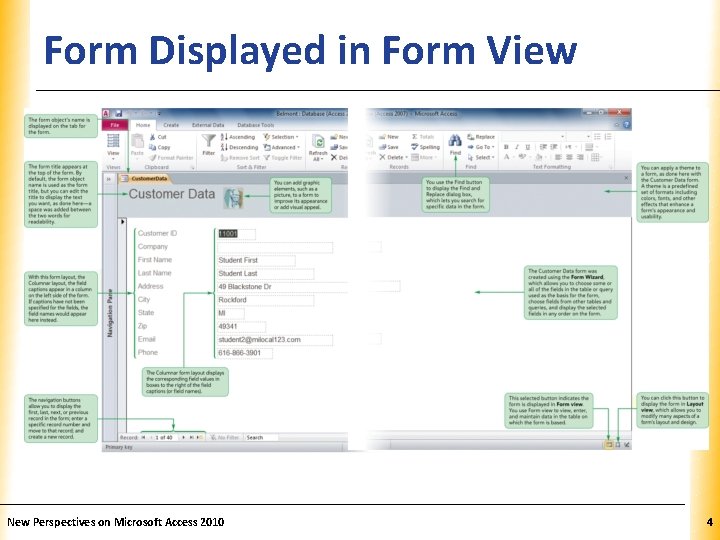
Form Displayed in Form View New Perspectives on Microsoft Access 2010 XP 4
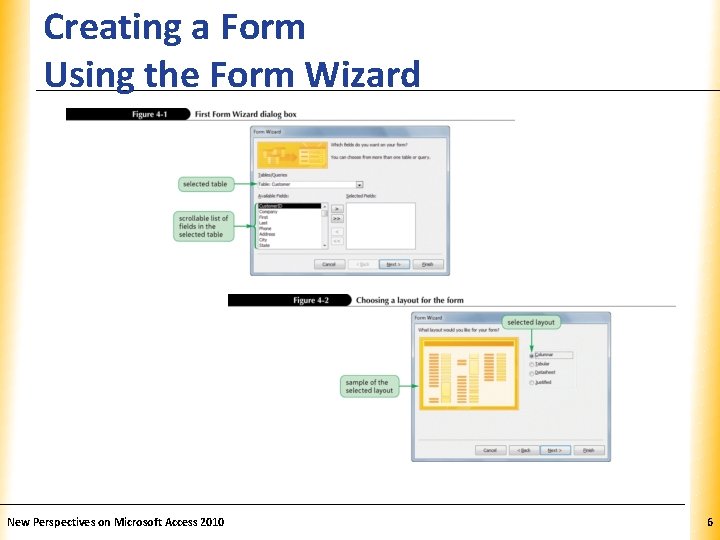
Creating a Form Using the Form Wizard XP • The Form Wizard allows you to choose some or all of the fields in the selected table or query, choose fields from other tables and queries, and display the selected fields in any order on the form • Click the Create tab in the Ribbon • In the Forms group, click the Form Wizard button New Perspectives on Microsoft Access 2010 5
Creating a Form Using the Form Wizard New Perspectives on Microsoft Access 2010 XP 6
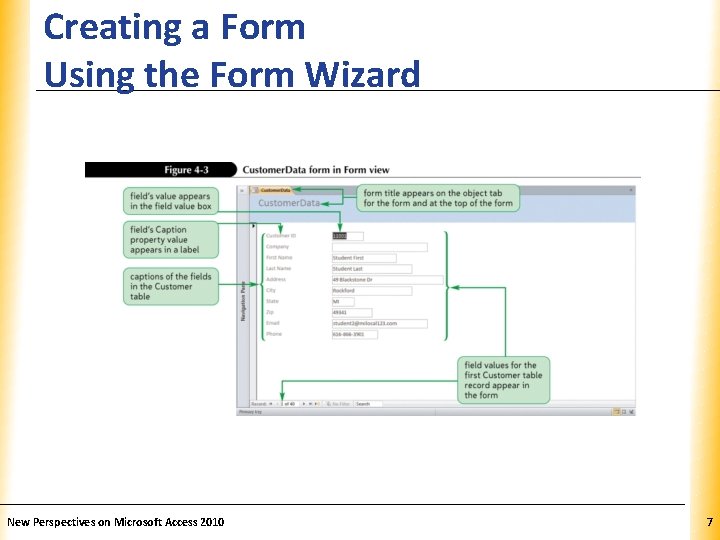
Creating a Form Using the Form Wizard New Perspectives on Microsoft Access 2010 XP 7
Applying a Theme to a Form XP • Display the form in Layout view • In the Themes group on the Design tab, click the Themes button • In the displayed gallery, click theme you want to apply to all objects; or, right-click theme to display the shortcut menu, and then choose to apply theme to the current object only or to all matching objects New Perspectives on Microsoft Access 2010 8
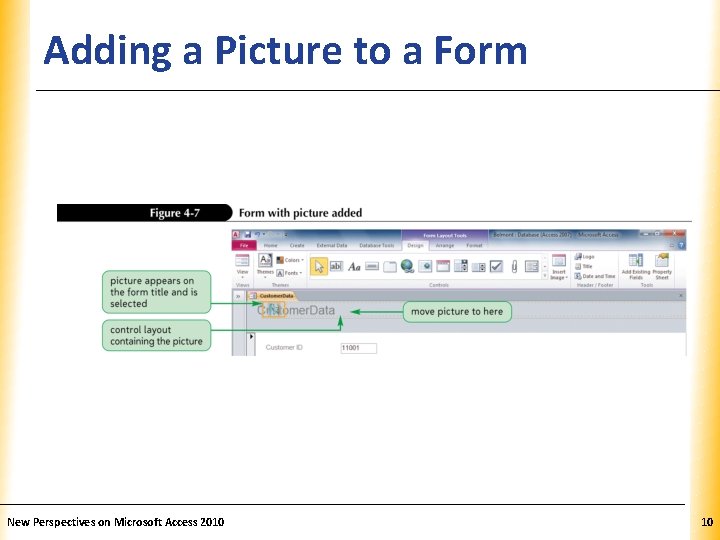
Adding a Picture to a Form XP • A picture is one of many controls you can add and modify on a form • A control is an item on a form, report, or other database object that you can manipulate to modify the object’s appearance • In the Header/Footer group on the Design tab, click the Logo button • Navigate to the picture you want to insert and then click the OK button New Perspectives on Microsoft Access 2010 9
Adding a Picture to a Form New Perspectives on Microsoft Access 2010 XP 10
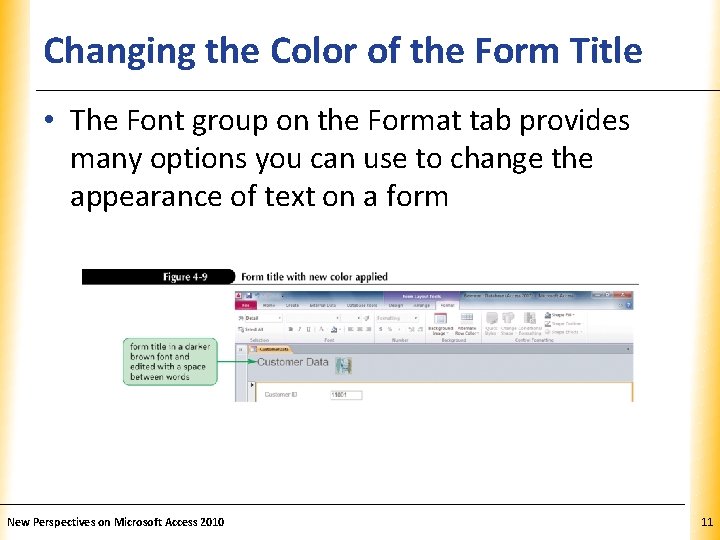
Changing the Color of the Form Title XP • The Font group on the Format tab provides many options you can use to change the appearance of text on a form New Perspectives on Microsoft Access 2010 11
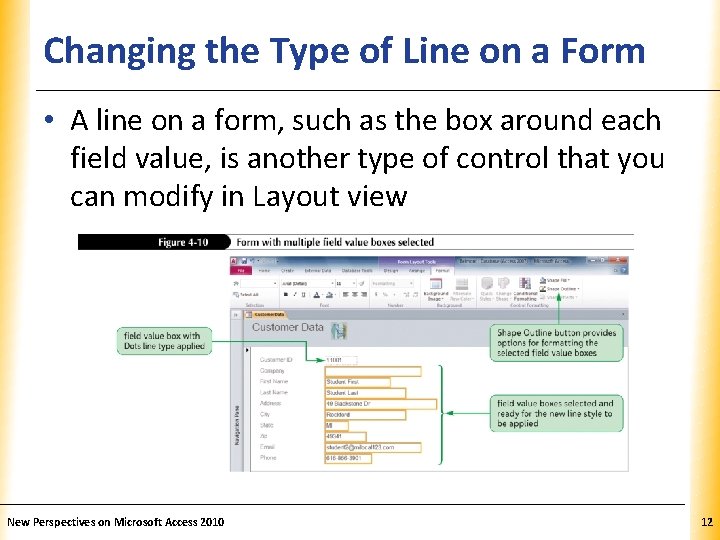
Changing the Type of Line on a Form XP • A line on a form, such as the box around each field value, is another type of control that you can modify in Layout view New Perspectives on Microsoft Access 2010 12
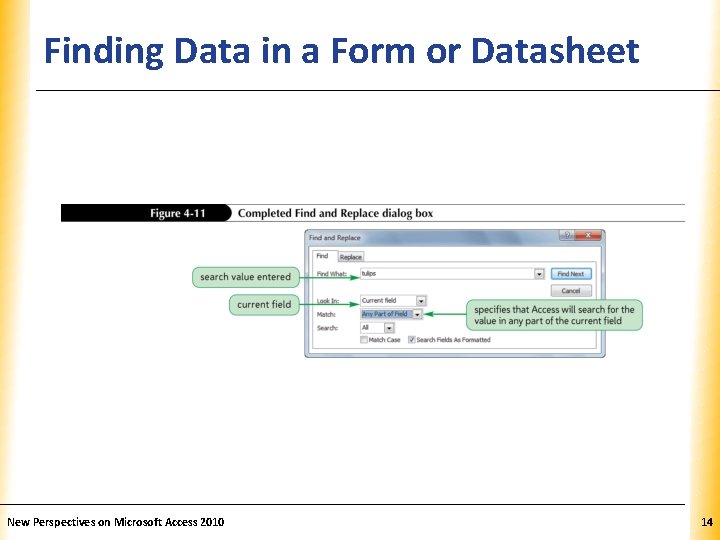
Finding Data in a Form or Datasheet XP • Open the form or datasheet, and then select the field you want to search • In the Find group on the Home tab, click the Find button to open the Find and Replace dialog box • In the Find What box, type the field value you want to find • Complete the remaining options, as necessary, to specify the type of search to conduct • Click the Find Next button to begin the search • Click the Find Next button to continue searching for the next match • Click the Cancel button to stop the search operation New Perspectives on Microsoft Access 2010 13
Finding Data in a Form or Datasheet New Perspectives on Microsoft Access 2010 XP 14
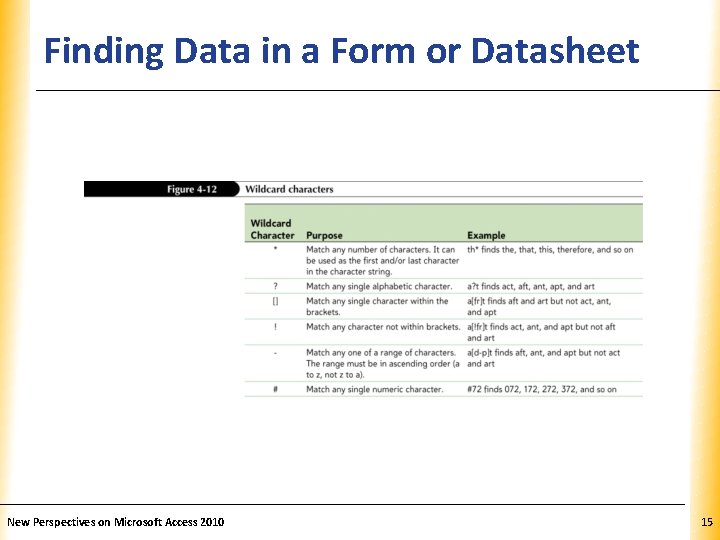
Finding Data in a Form or Datasheet New Perspectives on Microsoft Access 2010 XP 15
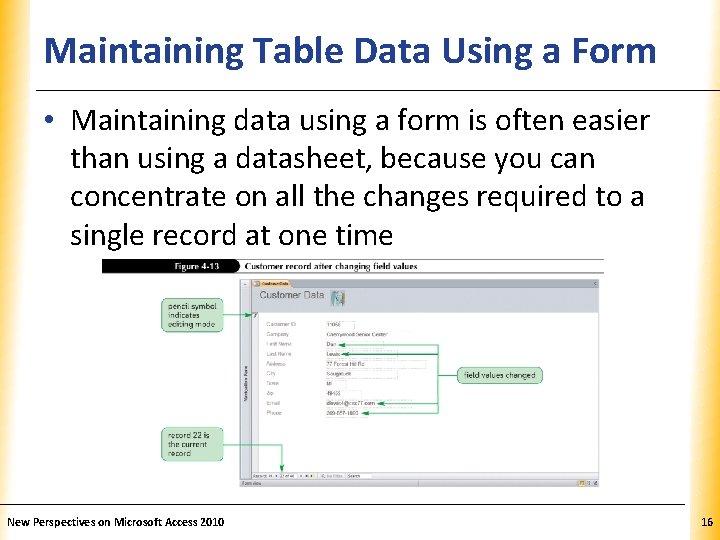
Maintaining Table Data Using a Form. XP • Maintaining data using a form is often easier than using a datasheet, because you can concentrate on all the changes required to a single record at one time New Perspectives on Microsoft Access 2010 16
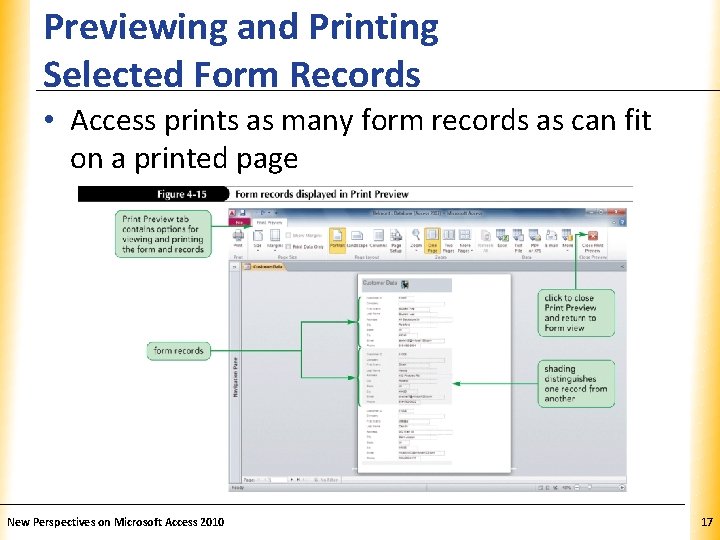
Previewing and Printing Selected Form Records XP • Access prints as many form records as can fit on a printed page New Perspectives on Microsoft Access 2010 17
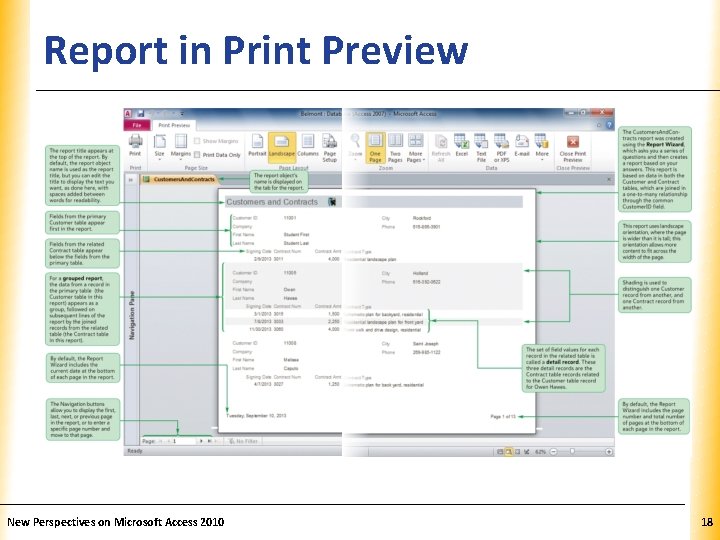
Report in Print Preview New Perspectives on Microsoft Access 2010 XP 18
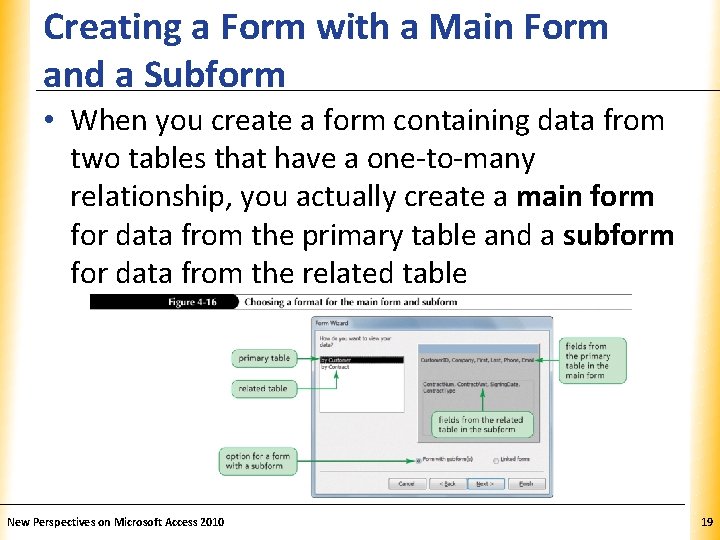
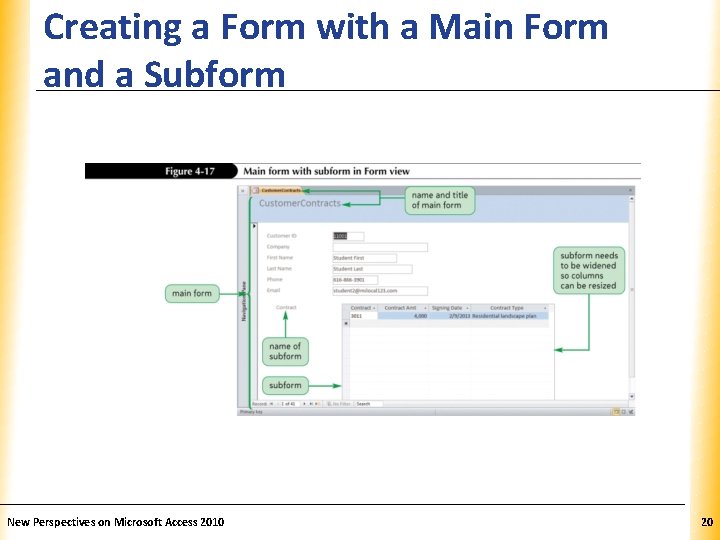
Creating a Form with a Main Form and a Subform XP • When you create a form containing data from two tables that have a one-to-many relationship, you actually create a main form for data from the primary table and a subform for data from the related table New Perspectives on Microsoft Access 2010 19
Creating a Form with a Main Form and a Subform New Perspectives on Microsoft Access 2010 XP 20
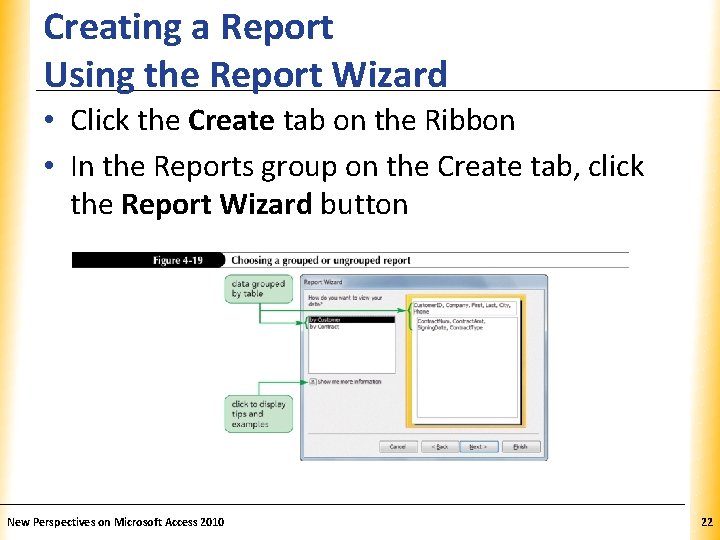
Creating a Report Using the Report Wizard XP • The Report Wizard asks you a series of questions and then creates a report based on your answers • A report is a formatted printout of the contents of one or more tables or queries in a database • You can change the report’s design after you create it New Perspectives on Microsoft Access 2010 21
Creating a Report Using the Report Wizard XP • Click the Create tab on the Ribbon • In the Reports group on the Create tab, click the Report Wizard button New Perspectives on Microsoft Access 2010 22
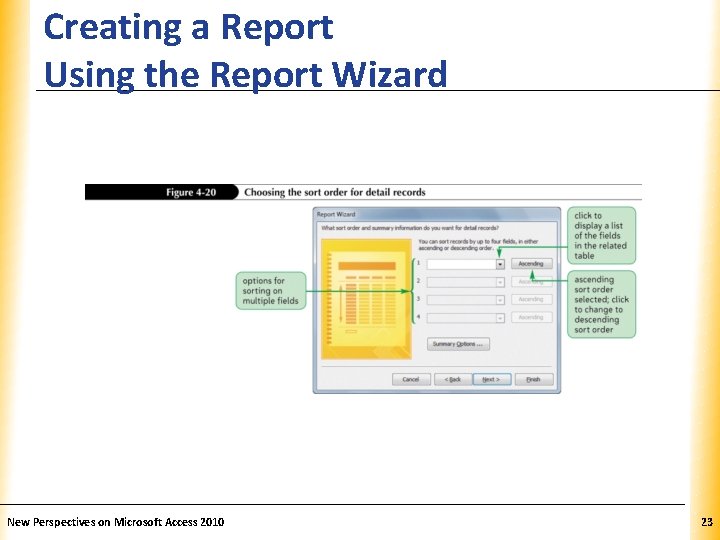
Creating a Report Using the Report Wizard New Perspectives on Microsoft Access 2010 XP 23
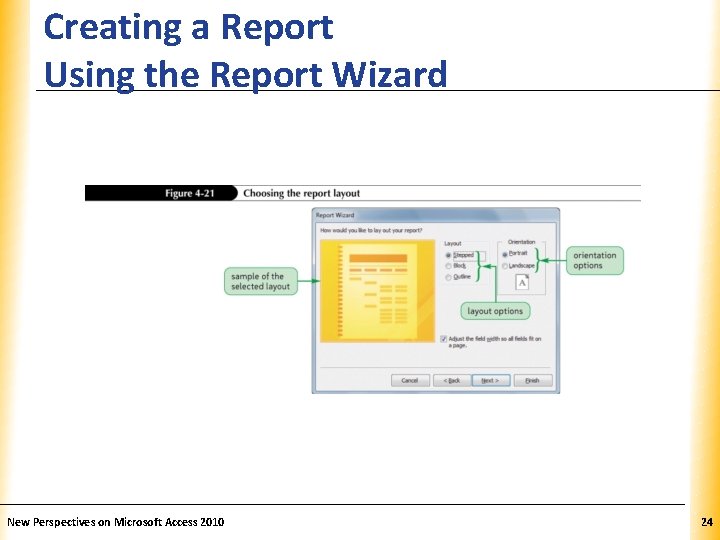
Creating a Report Using the Report Wizard New Perspectives on Microsoft Access 2010 XP 24
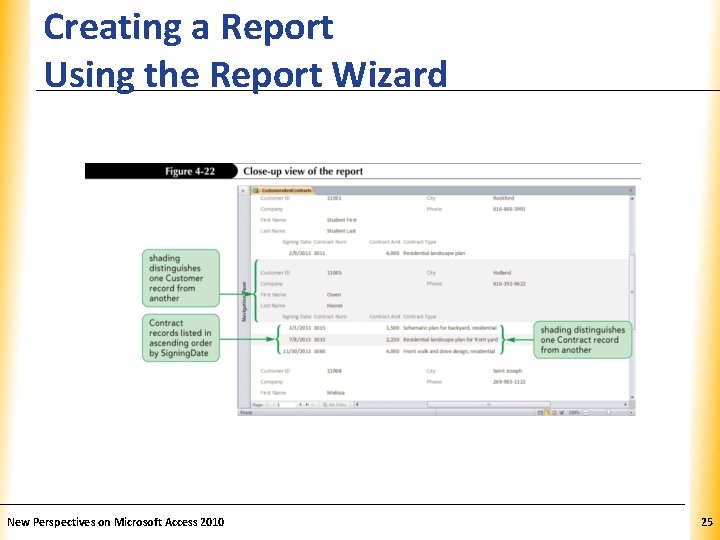
Creating a Report Using the Report Wizard New Perspectives on Microsoft Access 2010 XP 25
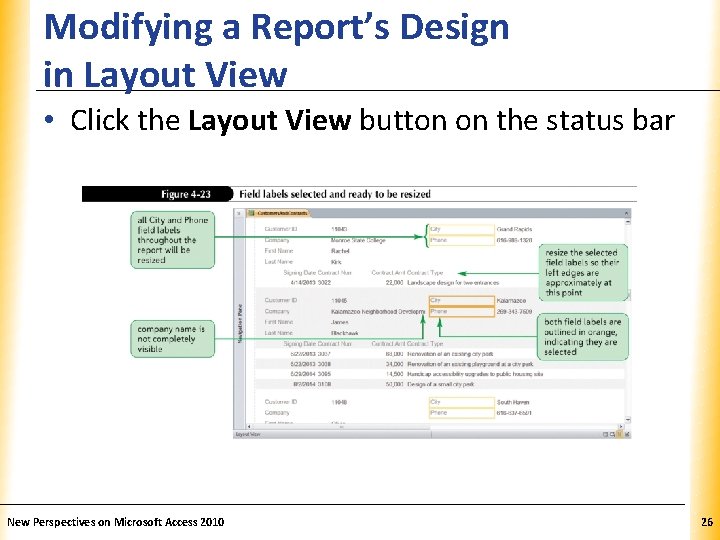
Modifying a Report’s Design in Layout View XP • Click the Layout View button on the status bar New Perspectives on Microsoft Access 2010 26
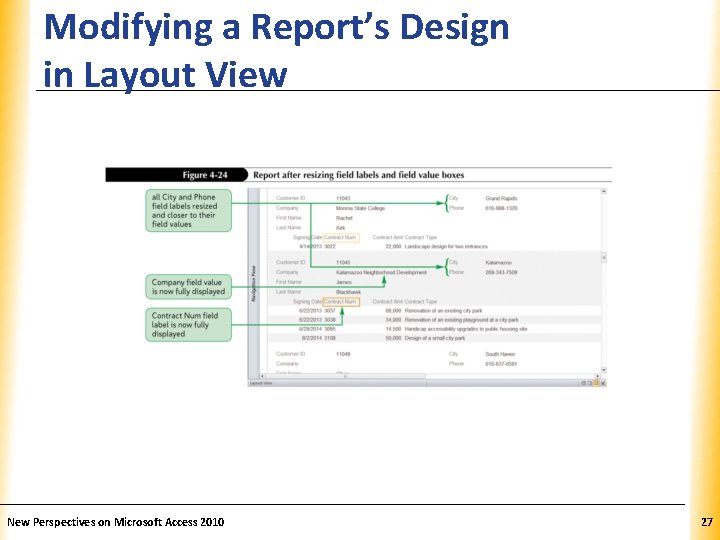
Modifying a Report’s Design in Layout View New Perspectives on Microsoft Access 2010 XP 27
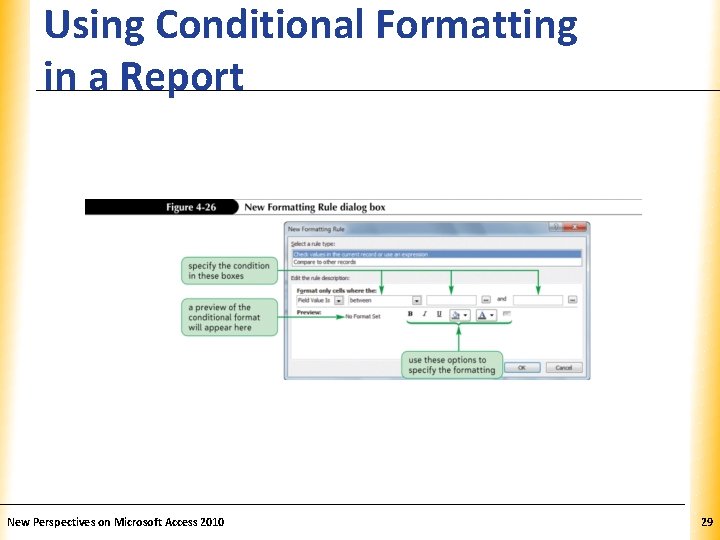
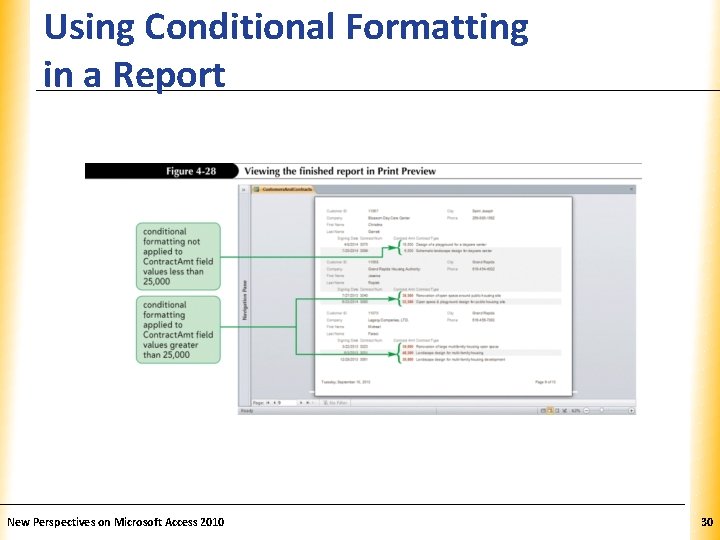
Using Conditional Formatting in a Report XP • Conditional formatting in a report (or form) is special formatting applied to certain field values depending on one or more conditions • Click the appropriate field value • In the Control Formatting group on the Format tab, click the Conditional Formatting button • Click the New Rule button New Perspectives on Microsoft Access 2010 28
Using Conditional Formatting in a Report New Perspectives on Microsoft Access 2010 XP 29
Using Conditional Formatting in a Report New Perspectives on Microsoft Access 2010 XP 30