
Access Lesson 2 Creating Queries Forms and Reports
- Slides: 22
Access Lesson 2 Creating Queries, Forms, and Reports Microsoft Office 2007 Fundamentals Story / Walls
Objectives l l Access Lesson 2 l l l Create queries. Create and use forms. Modify the form’s design. Create reports. Modify and print reports. Sort and filter records. Story / Walls MS Office 2007 Fundamentals
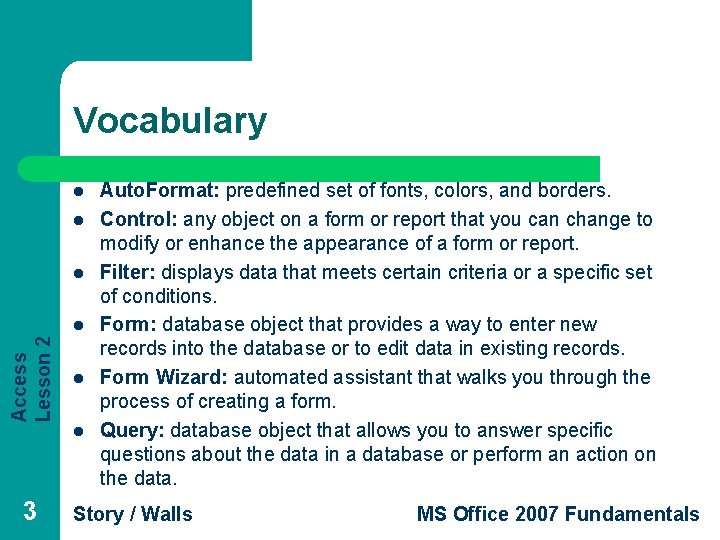
Vocabulary l l l Access Lesson 2 l l l 3 Auto. Format: predefined set of fonts, colors, and borders. Control: any object on a form or report that you can change to modify or enhance the appearance of a form or report. Filter: displays data that meets certain criteria or a specific set of conditions. Form: database object that provides a way to enter new records into the database or to edit data in existing records. Form Wizard: automated assistant that walks you through the process of creating a form. Query: database object that allows you to answer specific questions about the data in a database or perform an action on the data. Story / Walls MS Office 2007 Fundamentals
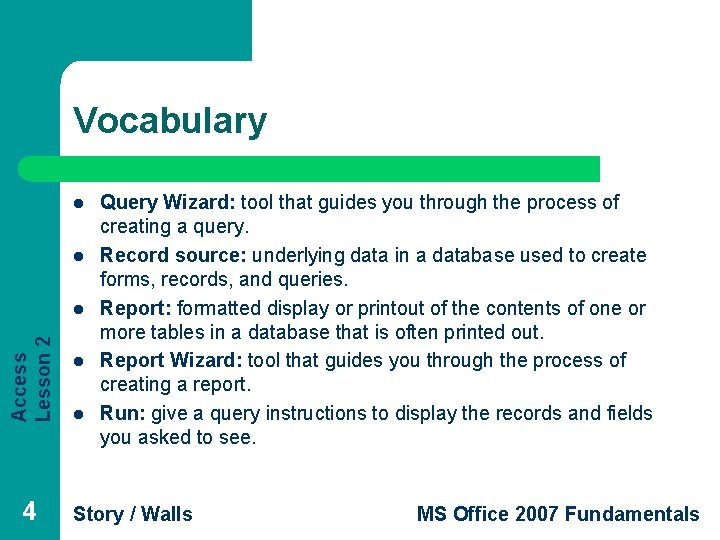
Vocabulary l l Access Lesson 2 l 4 l l Query Wizard: tool that guides you through the process of creating a query. Record source: underlying data in a database used to create forms, records, and queries. Report: formatted display or printout of the contents of one or more tables in a database that is often printed out. Report Wizard: tool that guides you through the process of creating a report. Run: give a query instructions to display the records and fields you asked to see. Story / Walls MS Office 2007 Fundamentals
Vocabulary l l Access Lesson 2 l 5 Select query: retrieves specific data out of a record source for you to use. Simple form: includes all the fields from the selected record source. Sort: rearrange selected data alphabetically, numerically, or chronologically. Story / Walls MS Office 2007 Fundamentals
Introduction l Access Lesson 2 l 6 When you create a query, form, or report, it is based on an existing object in the database, called the record source. In this lesson, you will use a table as the record source. Story / Walls MS Office 2007 Fundamentals
Creating Queries l Access Lesson 2 l 7 l l l A query is a database object that is based upon a specific question you ask about the data in the database. A Table cab be used as a record source A select query simply retrieves specific data out of a record source for you to use. Queries can extract data from one or more tables The Query Wizard is an Access tool that guides you through the process of creating a query. Story / Walls MS Office 2007 Fundamentals
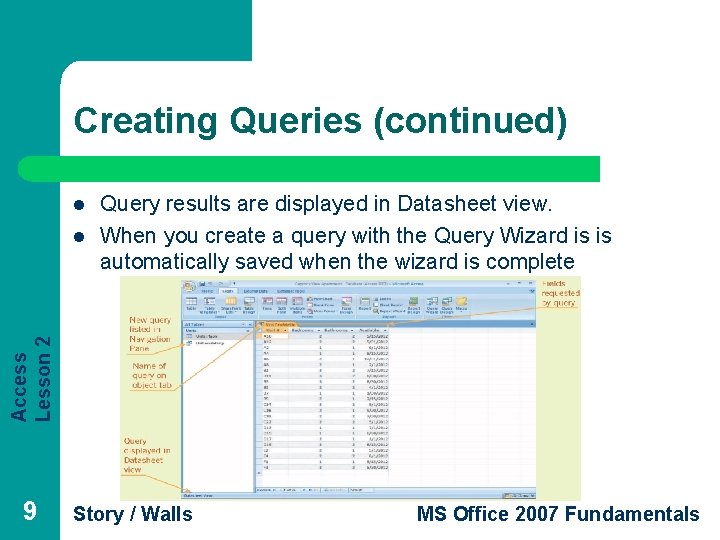
Creating Queries (continued) When you run a query, you give instructions to display the records and fields you asked to see when you designed the query. l When you save a query, you are actually saving the design of the query, not the query results. l The most commonly used query views are Datasheet view and Design view. l When you use the Query Wizard it is initially displayed in a Datasheet view l You can start the Query Wizard by clicking in the Query Wizard button in the Other group on the Create Tab l To run a query at any time double click in the Navigation Pane Story / Walls MS Office 2007 Fundamentals Access Lesson 2 l 8
Creating Queries (continued) l Access Lesson 2 l Query results are displayed in Datasheet view. When you create a query with the Query Wizard is is automatically saved when the wizard is complete 9 Story / Walls MS Office 2007 Fundamentals
Creating and Using Forms l Access Lesson 2 l 10 l l An Access form is an object that you use to enter new records into the database, or to edit data in existing records. Form view is used on enter or edit data in a form Layout View allows you to make changes while it is displaying data Tools for creating different types of forms are accessible from the Create tab on the Ribbon, in the Forms group. Story / Walls MS Office 2007 Fundamentals
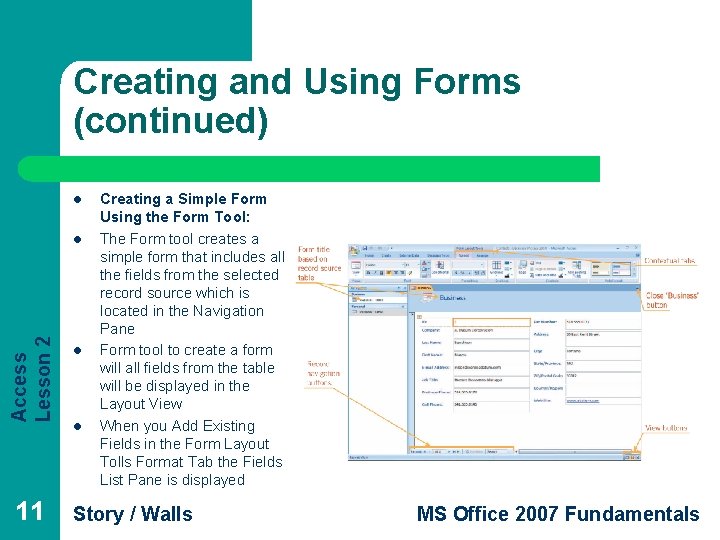
Creating and Using Forms (continued) l Access Lesson 2 l 11 l l Creating a Simple Form Using the Form Tool: The Form tool creates a simple form that includes all the fields from the selected record source which is located in the Navigation Pane Form tool to create a form will all fields from the table will be displayed in the Layout View When you Add Existing Fields in the Form Layout Tolls Format Tab the Fields List Pane is displayed Story / Walls MS Office 2007 Fundamentals
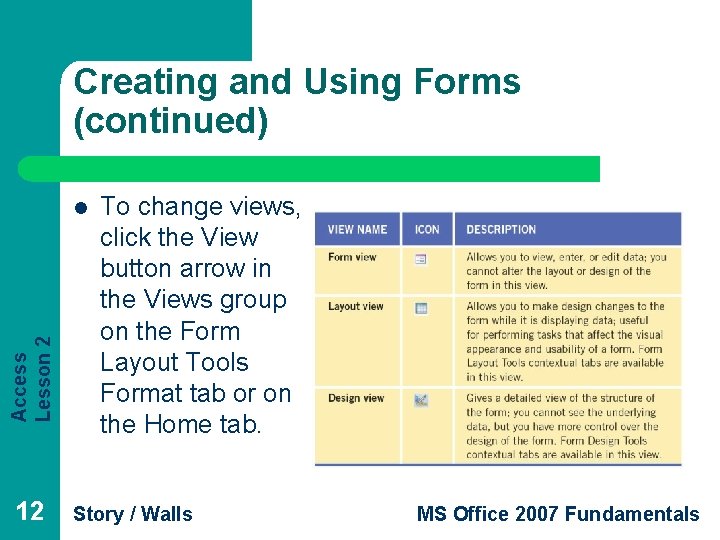
Creating and Using Forms (continued) Access Lesson 2 l 12 To change views, click the View button arrow in the Views group on the Form Layout Tools Format tab or on the Home tab. Story / Walls MS Office 2007 Fundamentals
Creating and Using Forms (continued) l l Access Lesson 2 l 13 l l Saving Forms: Clicking the Save button on the Quick Access Toolbar to display the Save As dialog box. A pencil icon is displayed in the upper left hand corner when a record is being edited. Using the Form Wizard: The Form Wizard is an Access tool that guides you through the process of creating a form. Story / Walls MS Office 2007 Fundamentals
Modifying the Form’s Design l l Access Lesson 2 l l 14 You can modify a form to fit your needs using Layout view or Design view. A control is any object on a form or report that you can change to modify or enhance the appearance of the form or report. An Auto. Format is a predefined set of fonts, colors, and borders. To view the entire gallery click the more button in the Auto. Format group You can also modify a form by moving, adding, or deleting fields. You can delete a form by right clicking on it and by clicking delete When you delete or select a field in Layout View the field name is select with an orange border Story / Walls MS Office 2007 Fundamentals
Creating Reports l Access Lesson 2 l 15 l l A report is a formatted display or printout of the contents of one or more tables in a database. Tools for creating different types of reports are in the Reports group of the Create tab. Using the Report Tool: Use the Report tool to quickly create a simple report that includes all the fields from the underlying table. Story / Walls MS Office 2007 Fundamentals
Creating Reports (continued) l l Access Lesson 2 l 16 l l l Saving Reports: Click the Save button on the Quick Access Toolbar to display the Save As dialog box. To delete a report right click on it in the Navigation Pane. Using the Report Wizard: The Report Wizard is an Access tool that guides you through the process of creating a report. To start the Report Wizard you click on the Report Wizard button in the Reports group on the Create Tab Story / Walls MS Office 2007 Fundamentals
Modifying and Printing Reports l Access Lesson 2 l 17 l l You can modify a report to fit your needs using Layout view. You can easily change the appearance of a report by using an Auto. Format. You can also modify a report by moving, adding, or deleting fields. Reports can be printed from any view or even while closed. Story / Walls MS Office 2007 Fundamentals
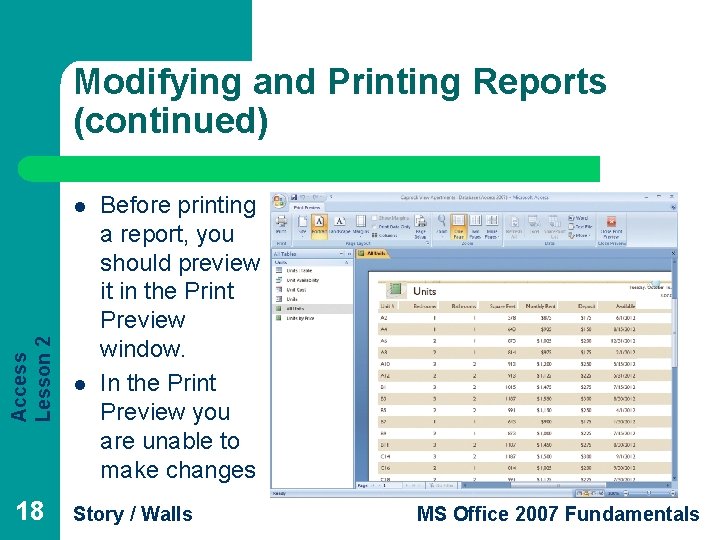
Modifying and Printing Reports (continued) Access Lesson 2 l 18 l Before printing a report, you should preview it in the Print Preview window. In the Print Preview you are unable to make changes Story / Walls MS Office 2007 Fundamentals
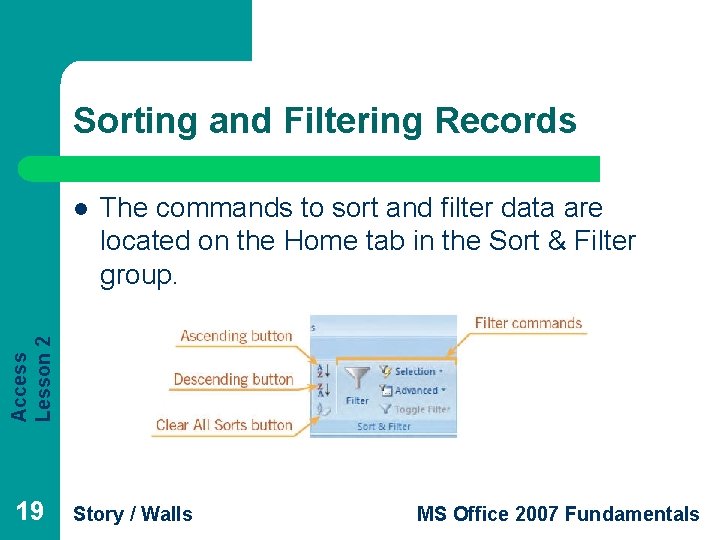
Sorting and Filtering Records The commands to sort and filter data are located on the Home tab in the Sort & Filter group. Access Lesson 2 l 19 Story / Walls MS Office 2007 Fundamentals
Sorting and Filtering Records (continued) l Access Lesson 2 l 20 l l l Sorting Data: When you sort data, Access rearranges selected data alphabetically, numerically, or chronologically. Ascending order sorts from A to Z, 0 to 9 Descending order sort from Z to A, 9 to 0 You can sort data in Form view of a form, in Layout view of a report, or in Datasheet view of a query or table. Story / Walls MS Office 2007 Fundamentals
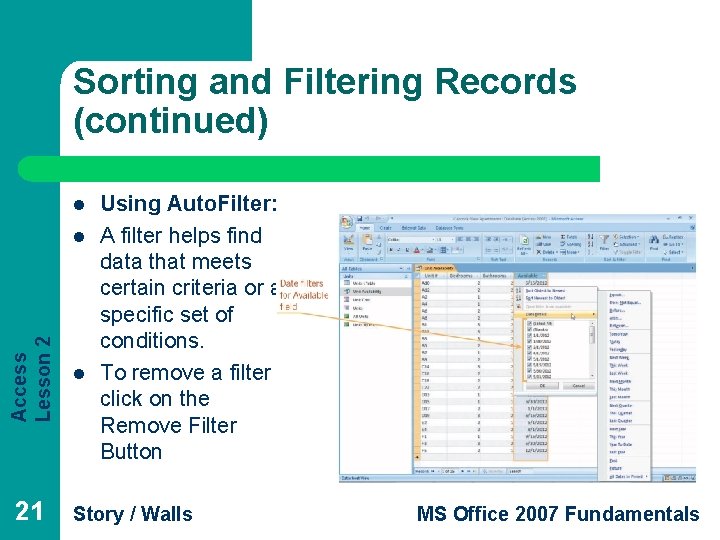
Sorting and Filtering Records (continued) l Access Lesson 2 l 21 l Using Auto. Filter: A filter helps find data that meets certain criteria or a specific set of conditions. To remove a filter click on the Remove Filter Button Story / Walls MS Office 2007 Fundamentals
Access Lesson 2 Summary 22 In this lesson, you learned: l The process of creating a query. l Ways to create and use different forms. l How to modify forms. l Ways to create reports. l How to modify and print reports. l To sort and filter records. Story / Walls MS Office 2007 Fundamentals