
Academic Reports in MLA format Launch Microsoft Word





- Slides: 16
Academic Reports in MLA format Launch Microsoft Word
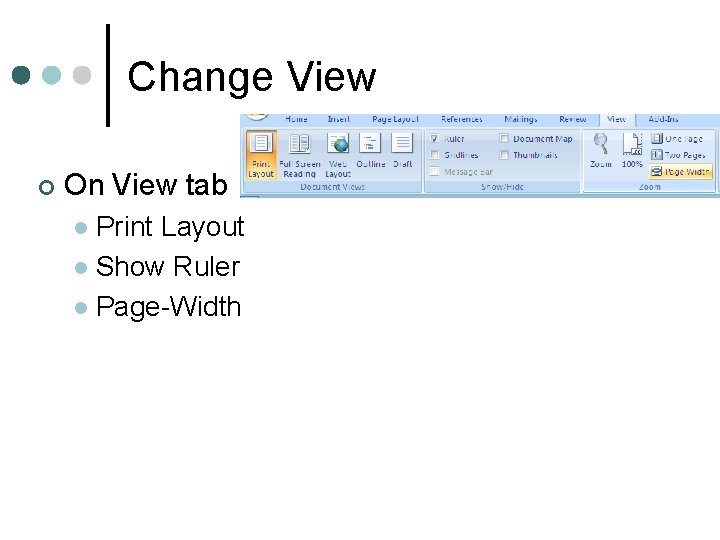
Change View ¢ On View tab Print Layout l Show Ruler l Page-Width l
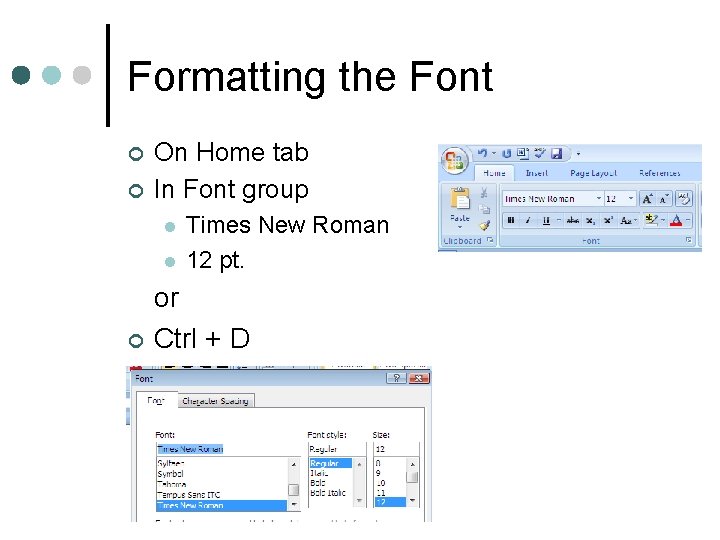
Formatting the Font ¢ ¢ On Home tab In Font group l l ¢ Times New Roman 12 pt. or Ctrl + D
Beginning Our First Report ¢ Create a New File l ¢ Ctrl + N Save File Ctrl + S l save in your reports folder as: report_41 l • short, descriptive name • lowercase • no_spaces
Multi-page Reports ¢ Include last name and pg # in header On Insert tab l In Header & Footer Group l Click Header l Choose Blank l
¢ in header align to right (Ctrl + R) l type last name and space once l
Inserting Page Number On Design tab ¢ In Header & Footer group ¢ Click Page Number icon l Choose Current Position l Plain Number l
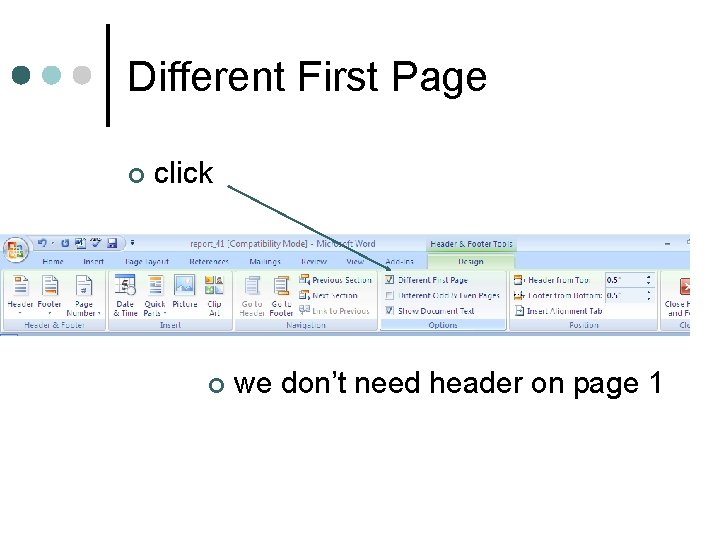
Different First Page ¢ click ¢ we don’t need header on page 1
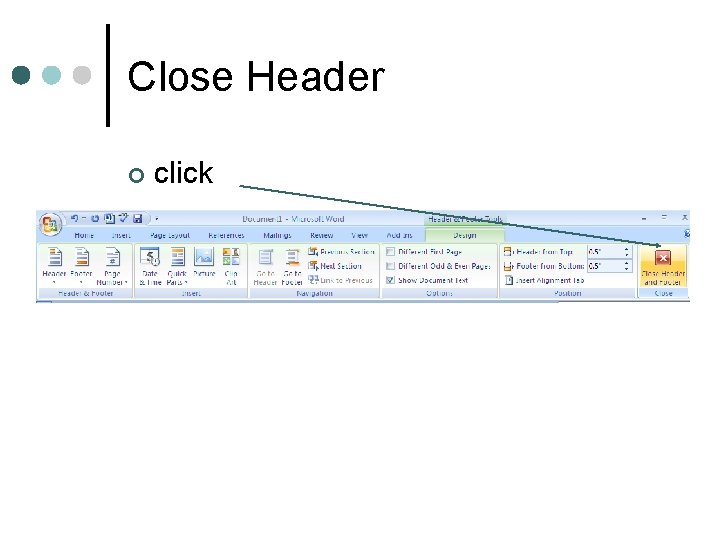
Close Header ¢ click
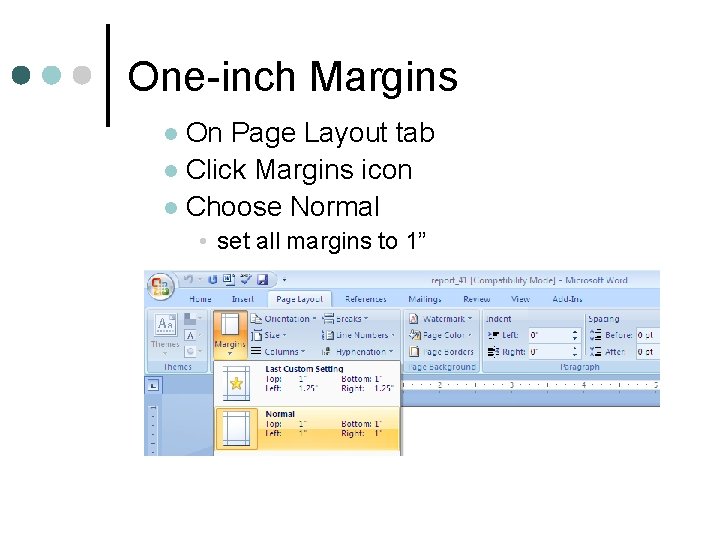
One-inch Margins On Page Layout tab l Click Margins icon l Choose Normal l • set all margins to 1”
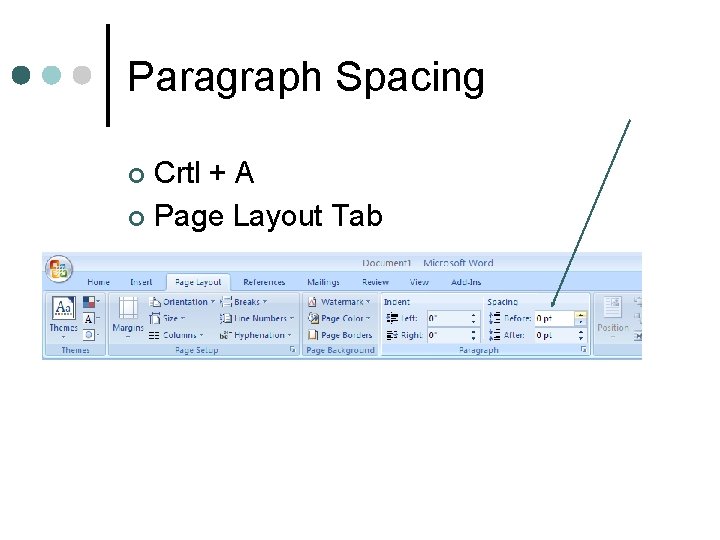
Paragraph Spacing Crtl + A ¢ Page Layout Tab ¢
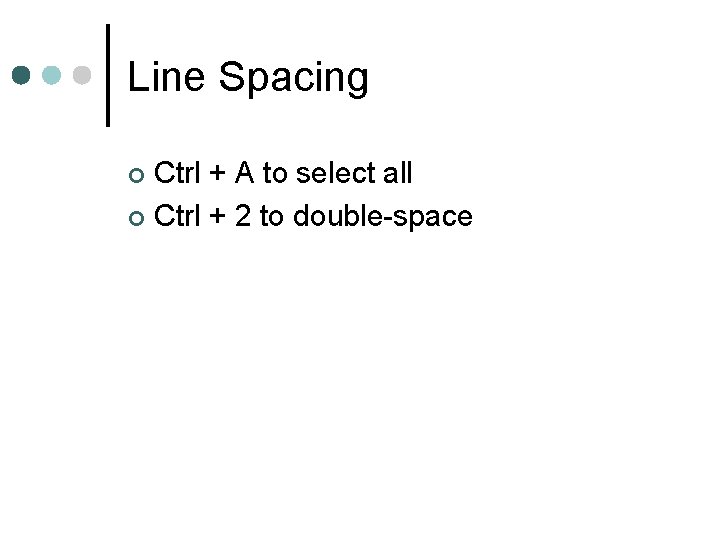
Line Spacing Ctrl + A to select all ¢ Ctrl + 2 to double-space ¢
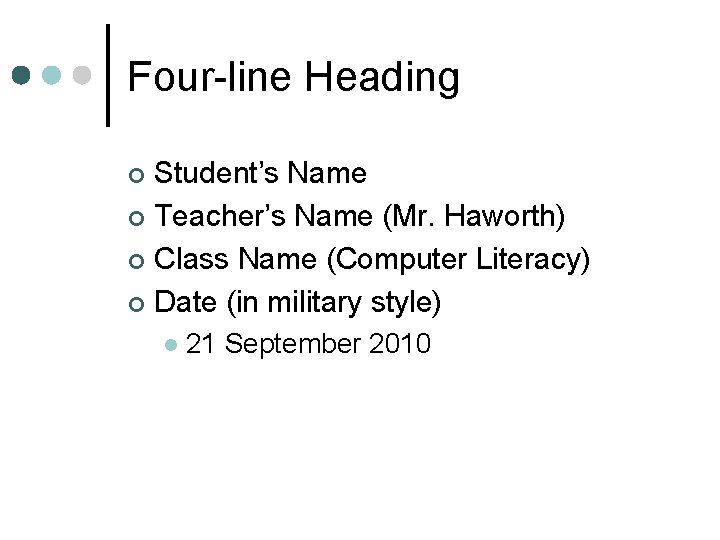
Four-line Heading Student’s Name ¢ Teacher’s Name (Mr. Haworth) ¢ Class Name (Computer Literacy) ¢ Date (in military style) ¢ l 21 September 2010
Title – The Internet in 2010 Ctrl + E to center ¢ Use initial caps ¢ l capitalize first letter of important words • first word is always important
Body Paragraphs Ctrl + L to left align ¢ Tab to indent paragraphs ¢ l ¢ ½ inch Use "word wrap" l enter only at end of paragraph Two spaces after periods and colons ¢ No blank lines between paragraphs ¢ Save Early, Save Often ¢
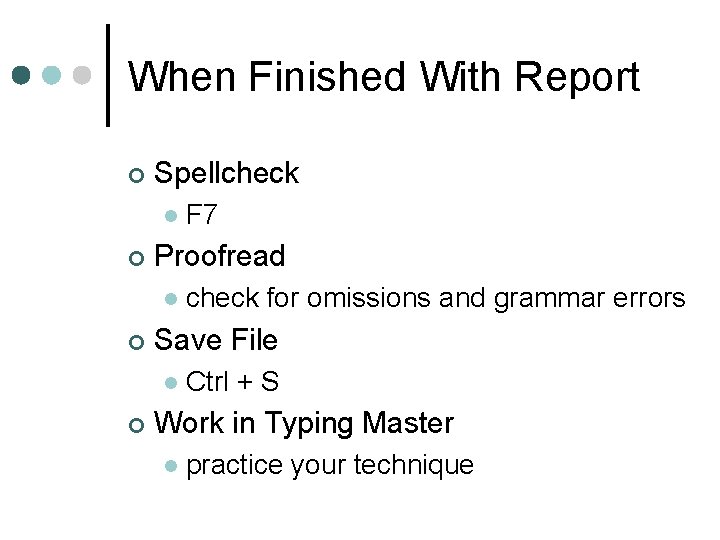
When Finished With Report ¢ Spellcheck l ¢ Proofread l ¢ check for omissions and grammar errors Save File l ¢ F 7 Ctrl + S Work in Typing Master l practice your technique