
Abstract Building Dashboards with JMP 13 Dan Schikore
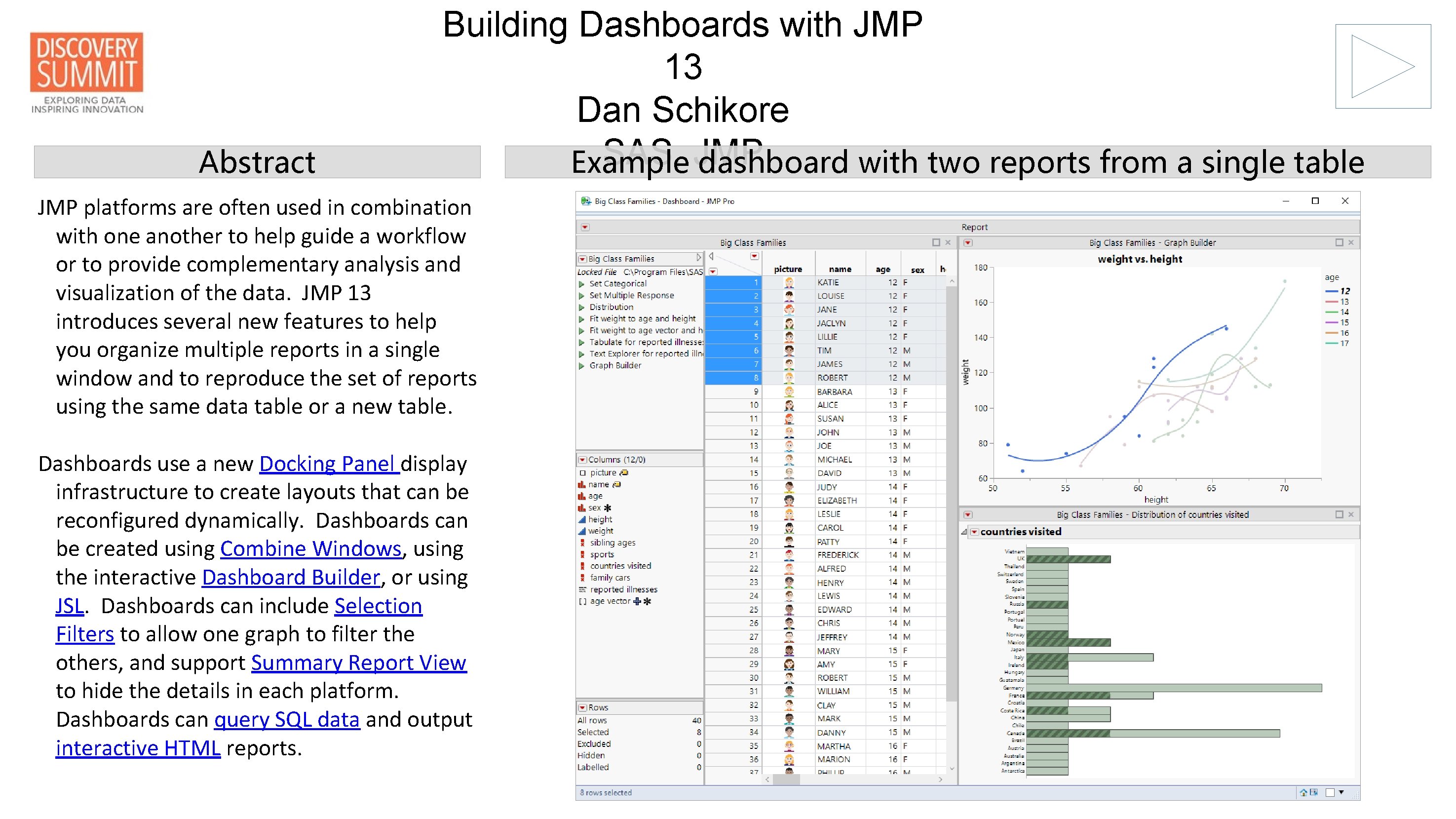
Abstract Building Dashboards with JMP 13 Dan Schikore SAS, JMP Example dashboard with two reports from a single table JMP platforms are often used in combination with one another to help guide a workflow or to provide complementary analysis and visualization of the data. JMP 13 introduces several new features to help you organize multiple reports in a single window and to reproduce the set of reports using the same data table or a new table. Dashboards use a new Docking Panel display infrastructure to create layouts that can be reconfigured dynamically. Dashboards can be created using Combine Windows, using the interactive Dashboard Builder, or using JSL. Dashboards can include Selection Filters to allow one graph to filter the others, and support Summary Report View to hide the details in each platform. Dashboards can query SQL data and output interactive HTML reports.
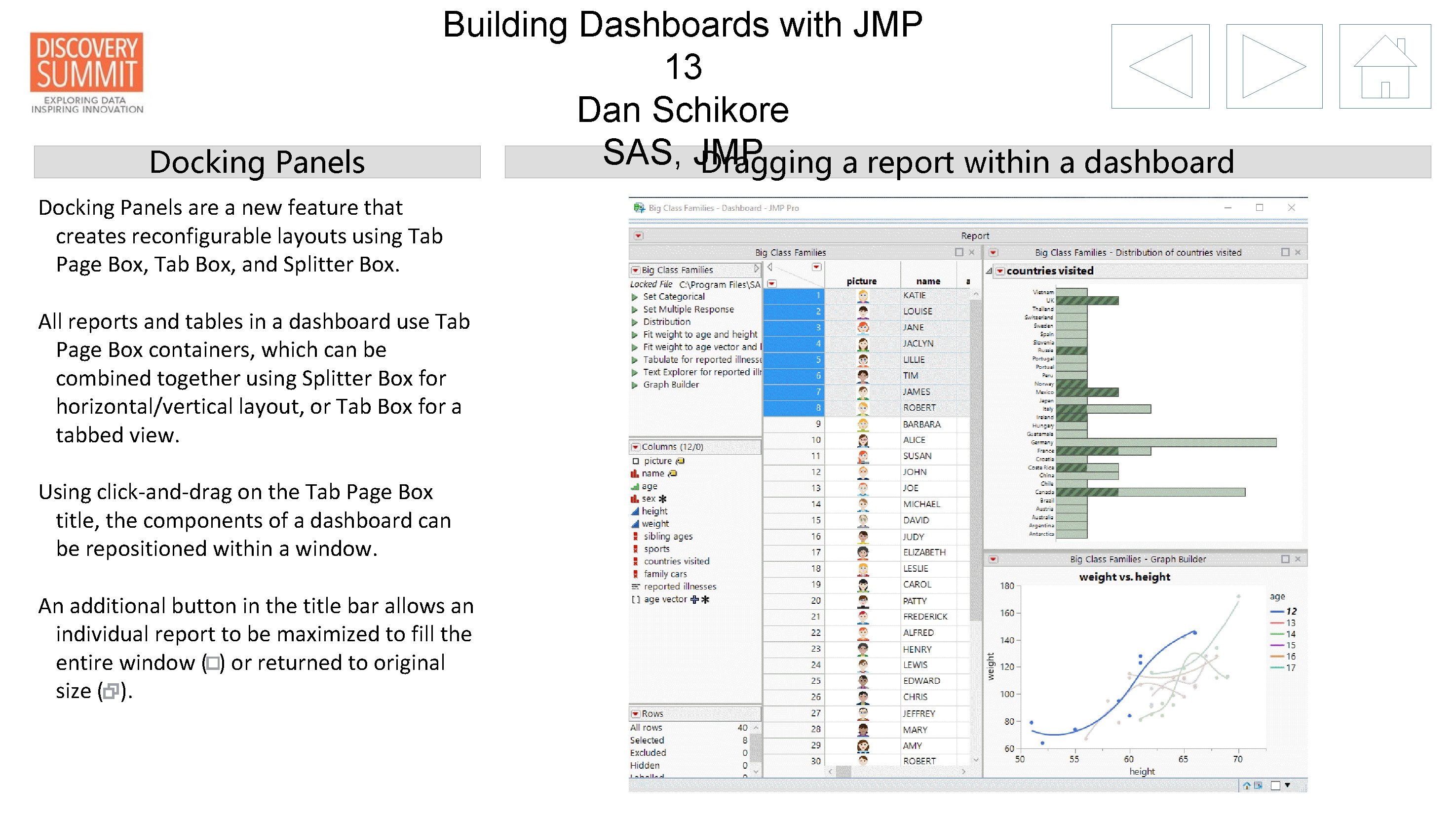
Docking Panels Building Dashboards with JMP 13 Dan Schikore SAS, JMP Dragging a report within a dashboard Docking Panels are a new feature that creates reconfigurable layouts using Tab Page Box, Tab Box, and Splitter Box. All reports and tables in a dashboard use Tab Page Box containers, which can be combined together using Splitter Box for horizontal/vertical layout, or Tab Box for a tabbed view. Using click-and-drag on the Tab Page Box title, the components of a dashboard can be repositioned within a window. An additional button in the title bar allows an individual report to be maximized to fill the entire window ( ) or returned to original size ( ).

Combine Windows Building Dashboards with JMP 13 Dan Schikore SAS, Options JMP The fastest way to interactively create a dashboard is by combining multiple existing reports and data tables. 1. Select Window > Combine Windows 2. Select the Combine check box for each window that you want to include in the dashboard. 3. Click OK Options can be selected during combining: 1. The dashboard name is used when saving to a data table or Add-In 2. Select Summary Report View to hide the details in each report 3. Choose up to one report from each data table to act as a filter on other reports Customizing the Result Dashboards created with Combine Windows can be edited further by choosing the Edit Dashboard option from the red-triangle menu. Other options in the menu allow you to toggle the Summary Report View for all reports, rerun the dashboard, and save the script to a Data Table or Add-In

Dashboard Builder Building Dashboards with JMP 13 Dan Schikore SAS, JMP Populating a template Dashboard Builder is a drag-and-drop environment for building layouts of reports and data tables, with optional Local Data Filters or Selection Filters. Select File > New Dashboard from the main menu to see a list of template options and sample dashboards: Editing and saving the result After choosing a template, you will see a list of reports and display elements that can be added to the report. You can add elements to the display in three ways: Additional features are available through direct interaction or menus: 1. Double-click from the source list 2. Drag from the source list 3. Select in the source list and then singleclick on a placeholder in the workspace 2. Right-click on a report to add or remove a Selection Filter 1. Double-click on a Tab Page title to edit 3. Toggle Preview Mode from the redtriangle menu to see what the final dashboard will look like before saving 4. Save the dashboard to the data table or an Add-In from the red-triangle menu 5. Click and hover a tab page title or text box to change the font or text size
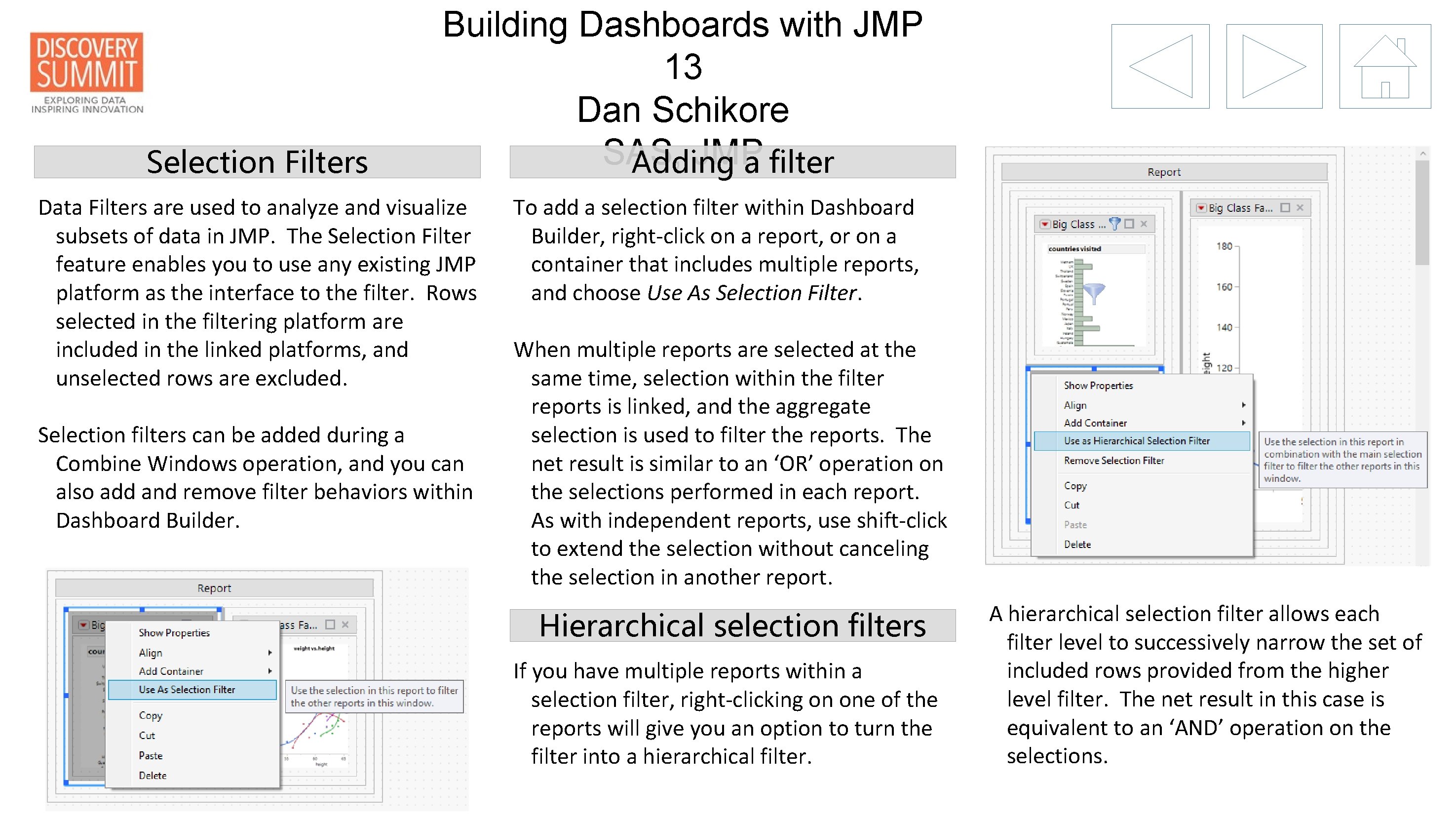
Selection Filters Building Dashboards with JMP 13 Dan Schikore SAS, JMP Adding a filter Data Filters are used to analyze and visualize subsets of data in JMP. The Selection Filter feature enables you to use any existing JMP platform as the interface to the filter. Rows selected in the filtering platform are included in the linked platforms, and unselected rows are excluded. Selection filters can be added during a Combine Windows operation, and you can also add and remove filter behaviors within Dashboard Builder. To add a selection filter within Dashboard Builder, right-click on a report, or on a container that includes multiple reports, and choose Use As Selection Filter. When multiple reports are selected at the same time, selection within the filter reports is linked, and the aggregate selection is used to filter the reports. The net result is similar to an ‘OR’ operation on the selections performed in each report. As with independent reports, use shift-click to extend the selection without canceling the selection in another report. Hierarchical selection filters If you have multiple reports within a selection filter, right-clicking on one of the reports will give you an option to turn the filter into a hierarchical filter. A hierarchical selection filter allows each filter level to successively narrow the set of included rows provided from the higher level filter. The net result in this case is equivalent to an ‘AND’ operation on the selections.

Building Dashboards with JMP 13 Dan Schikore SAS, JMP Summary Report View A main goal in dashboard design is to choose elements that are easily and quickly interpreted. JMP platforms often present statistical results along with supporting graphs. The Summary Report View allows you to easily toggle between the Full view of the Report and the Summary view. The default behavior of Summary View is to show the graphs and make them stretchable, but some platforms override this behavior to show important details as well. When the Report View is set from the main Report red-triangle menu, the change applies to all platforms in the window. The property can also be set from the redtriangle menu for an individual platform in a dashboard. Customizing Platform Views Using Summary Report View is one way to reduce the overload of information when combining multiple reports together. Before you start building your dashboard, consider other ways to eliminate content that does not contribute to the dashboard. Turning off unnecessary platform options and closing outlines to hide secondary details will help to focus attention.
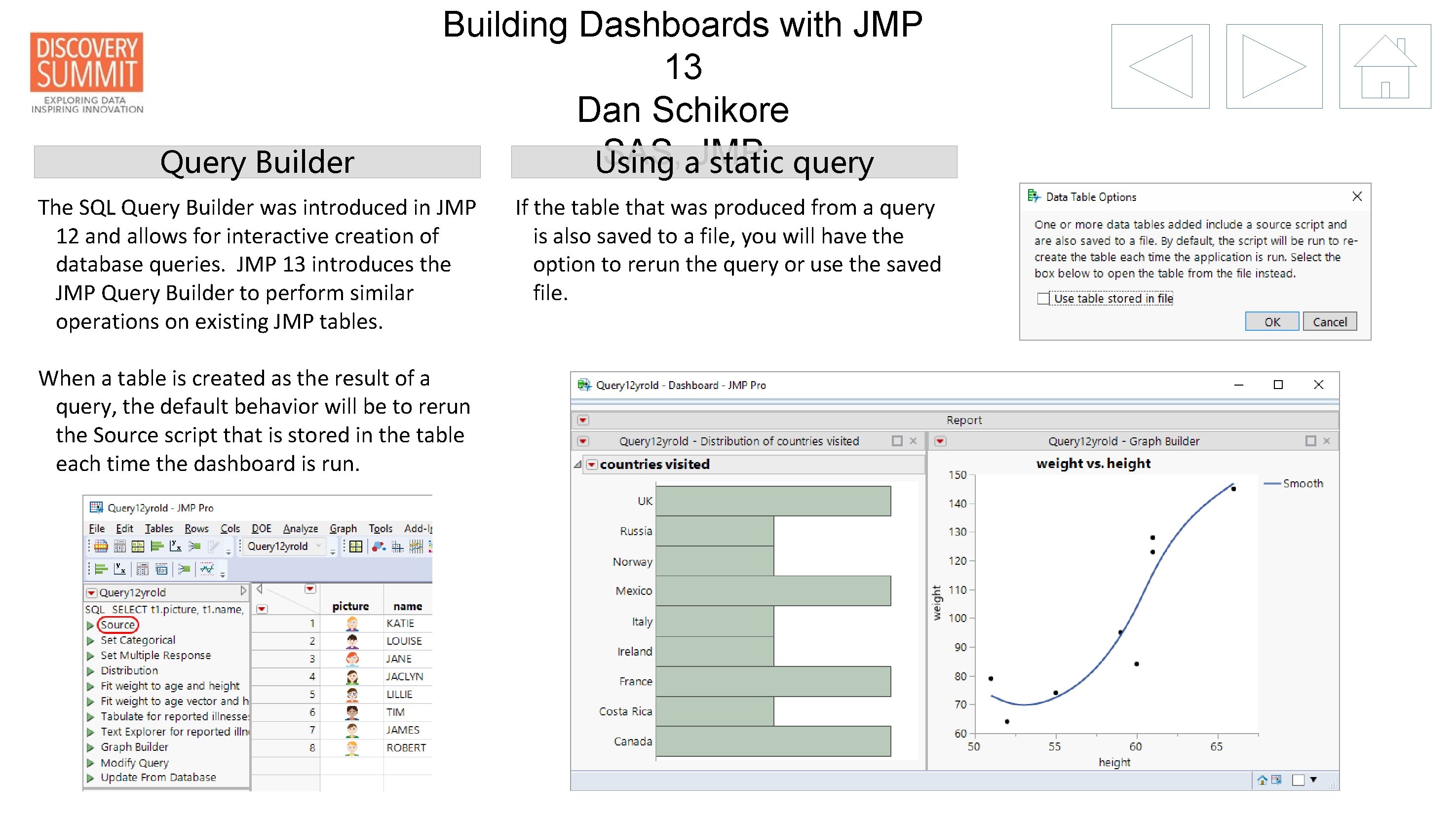
Query Builder Building Dashboards with JMP 13 Dan Schikore SAS, JMP Using a static query The SQL Query Builder was introduced in JMP 12 and allows for interactive creation of database queries. JMP 13 introduces the JMP Query Builder to perform similar operations on existing JMP tables. When a table is created as the result of a query, the default behavior will be to rerun the Source script that is stored in the table each time the dashboard is run. If the table that was produced from a query is also saved to a file, you will have the option to rerun the query or use the saved file.

Building Dashboards with JMP 13 Dan Schikore SAS, JMP Interactive HTML Output Beginning with JMP 12 there is an option to save a report as Interactive HTML, which for many platforms allows interactive selection and brushing to be done in the browser, without using JMP: JMP 13 has many improvements for Interactive HTML output. Support for most of the Graph Builder elements is particularly useful for Dashboard displays, and updates for Tab Page Box and Splitter Box help to faithfully reproduce dashboard layouts. To output Interactive HTML from any individual platform report or dashboard report, choose the Interactive HTML format from the File > Save As dialog. HTML:

JSL Building Dashboards with JMP 13 Dan Schikore SAS, JMP Tab Page Box New features that were added to display boxes to support dashboard layouts are also available for JSL developers to use in custom applications. Docking Panels are a combination of docking support for Tab Box and Splitter Box and moveable support for Tab Page Box: Tab Box / Splitter Box: box << Dockable(1); Tab Page Box has always existed as an interface between a Tab Box container and the content of the individual pages. With JMP 13, Tab Page Box can also be used as a stand-alone container. Tab Pages that are children of a Tab Box will share the title space as before: Summary Report View can be toggled on during combine windows, from the redtriangle menu of a report in a dashboard, or from the red-triangle for the dashboard itself. When Summary Report View is active, only the main results will be shown, and graphs will be made stretchable. To change the report view from JSL: Tab Pages that are stand-alone will draw their own title: platform << Report View(“Full”|”Summary”) A default set of rules determine which graphs or other boxes will be visible in summary view. To change the behavior of any box: Tab Page Box: box << Moveable(1); Tab Pages can also be moveable in a nondocking layout. In this case the Tab Page can be repositioned within a parent Tab Box, but cannot be dragged elsewhere. Summary View To construct a Tab Page Box: page = Tab Page Box( “title”, [options], content ) box << Set Summary Behavior(“Default” | “Visible” | “Collapse”)
- Slides: 9