
About the Office Fluent User Interface The Microsoft
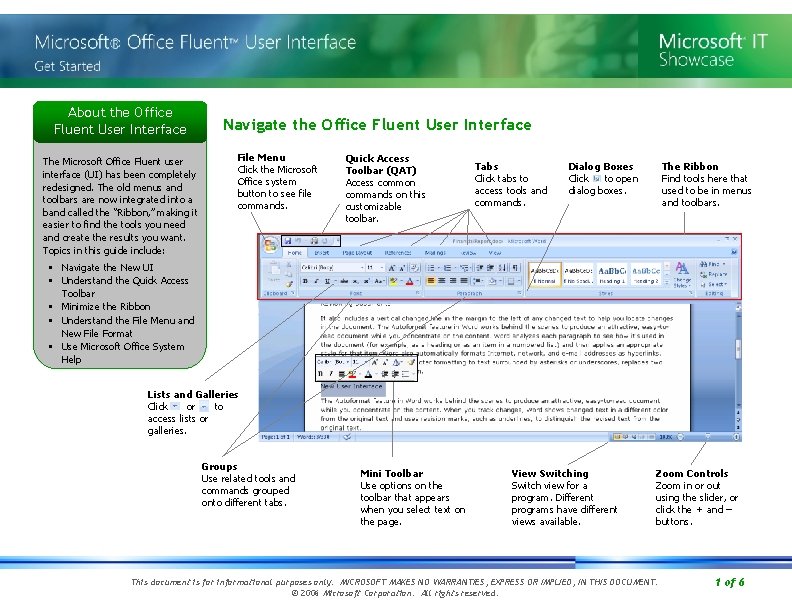
About the Office Fluent User Interface The Microsoft Office Fluent user interface (UI) has been completely redesigned. The old menus and toolbars are now integrated into a band called the “Ribbon, ” making it easier to find the tools you need and create the results you want. Topics in this guide include: Navigate the Office Fluent User Interface File Menu Click the Microsoft Office system button to see file commands. Quick Access Toolbar (QAT) Access common commands on this customizable toolbar. Tabs Click tabs to access tools and commands. Dialog Boxes Click to open dialog boxes. The Ribbon Find tools here that used to be in menus and toolbars. • Navigate the New UI • Understand the Quick Access Toolbar • Minimize the Ribbon • Understand the File Menu and New File Format • Use Microsoft Office System Help Lists and Galleries Click or to access lists or galleries. Groups Use related tools and commands grouped onto different tabs. Mini Toolbar Use options on the toolbar that appears when you select text on the page. View Switching Switch view for a program. Different programs have different views available. Zoom Controls Zoom in or out using the slider, or click the + and – buttons. This document is for informational purposes only. MICROSOFT MAKES NO WARRANTIES, EXPRESS OR IMPLIED, IN THIS DOCUMENT. © 2006 Microsoft Corporation. All rights reserved. 1 of 6
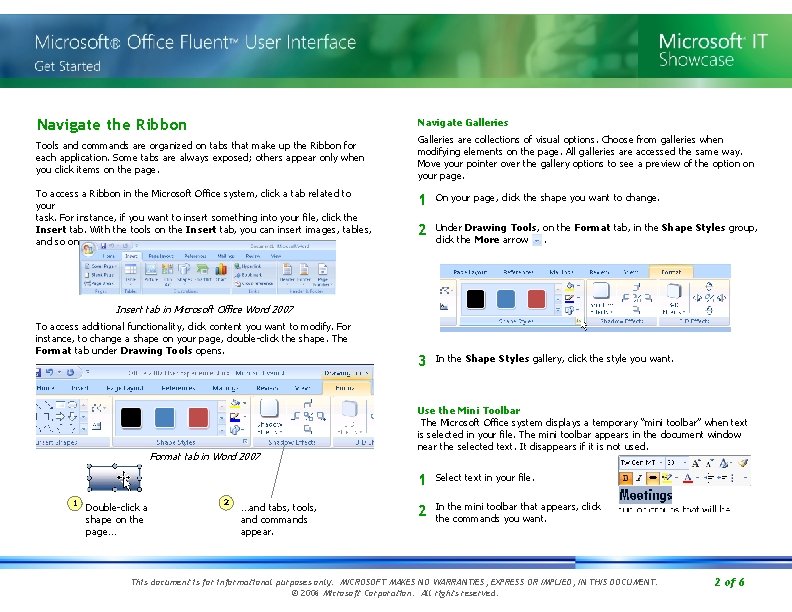
Navigate the Ribbon Navigate Galleries Tools and commands are organized on tabs that make up the Ribbon for each application. Some tabs are always exposed; others appear only when you click items on the page. To access a Ribbon in the Microsoft Office system, click a tab related to your task. For instance, if you want to insert something into your file, click the Insert tab. With the tools on the Insert tab, you can insert images, tables, and so on. Galleries are collections of visual options. Choose from galleries when modifying elements on the page. All galleries are accessed the same way. Move your pointer over the gallery options to see a preview of the option on your page. 1 On your page, click the shape you want to change. 2 Under Drawing Tools, on the Format tab, in the Shape Styles group, click the More arrow. 3 In the Shape Styles gallery, click the style you want. Insert tab in Microsoft Office Word 2007 To access additional functionality, click content you want to modify. For instance, to change a shape on your page, double-click the shape. The Format tab under Drawing Tools opens. Format tab in Word 2007 1 Double-click a shape on the page… 2 …and tabs, tools, and commands appear. Use the Mini Toolbar The Microsoft Office system displays a temporary “mini toolbar” when text is selected in your file. The mini toolbar appears in the document window near the selected text. It disappears if it is not used. 1 Select text in your file. 2 In the mini toolbar that appears, click the commands you want. This document is for informational purposes only. MICROSOFT MAKES NO WARRANTIES, EXPRESS OR IMPLIED, IN THIS DOCUMENT. © 2006 Microsoft Corporation. All rights reserved. 2 of 6
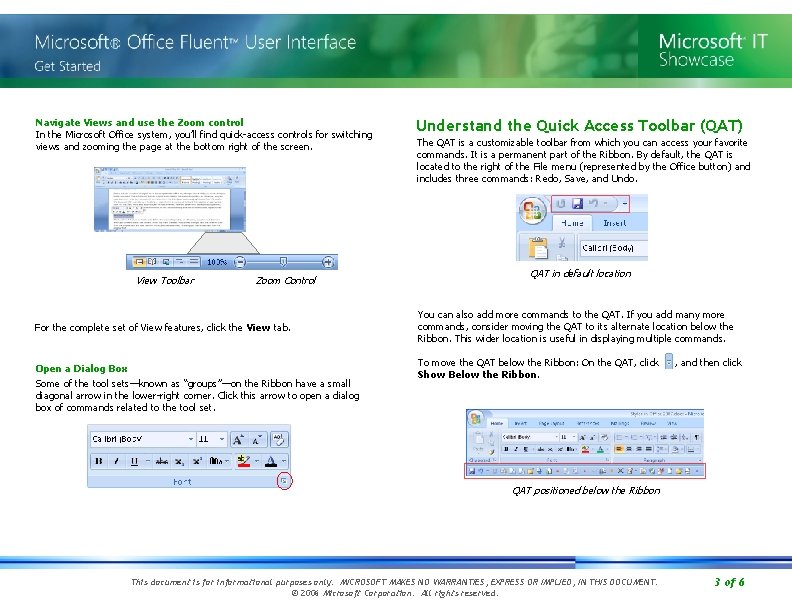
Navigate Views and use the Zoom control In the Microsoft Office system, you’ll find quick-access controls for switching views and zooming the page at the bottom right of the screen. View Toolbar Zoom Control For the complete set of View features, click the View tab. Open a Dialog Box Some of the tool sets—known as “groups”—on the Ribbon have a small diagonal arrow in the lower-right corner. Click this arrow to open a dialog box of commands related to the tool set. Understand the Quick Access Toolbar (QAT) The QAT is a customizable toolbar from which you can access your favorite commands. It is a permanent part of the Ribbon. By default, the QAT is located to the right of the File menu (represented by the Office button) and includes three commands: Redo, Save, and Undo. QAT in default location You can also add more commands to the QAT. If you add many more commands, consider moving the QAT to its alternate location below the Ribbon. This wider location is useful in displaying multiple commands. To move the QAT below the Ribbon: On the QAT, click Show Below the Ribbon. , and then click QAT positioned below the Ribbon This document is for informational purposes only. MICROSOFT MAKES NO WARRANTIES, EXPRESS OR IMPLIED, IN THIS DOCUMENT. © 2006 Microsoft Corporation. All rights reserved. 3 of 6
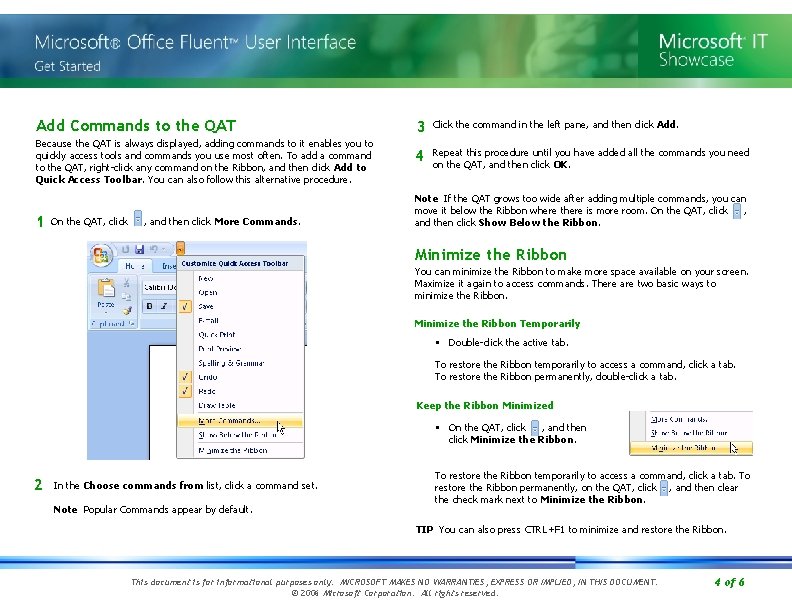
Add Commands to the QAT Because the QAT is always displayed, adding commands to it enables you to quickly access tools and commands you use most often. To add a command to the QAT, right-click any command on the Ribbon, and then click Add to Quick Access Toolbar. You can also follow this alternative procedure. 1 On the QAT, click , and then click More Commands. 3 Click the command in the left pane, and then click Add. 4 Repeat this procedure until you have added all the commands you need on the QAT, and then click OK. Note If the QAT grows too wide after adding multiple commands, you can move it below the Ribbon where there is more room. On the QAT, click , and then click Show Below the Ribbon. Minimize the Ribbon You can minimize the Ribbon to make more space available on your screen. Maximize it again to access commands. There are two basic ways to minimize the Ribbon. Minimize the Ribbon Temporarily • Double-click the active tab. To restore the Ribbon temporarily to access a command, click a tab. To restore the Ribbon permanently, double-click a tab. Keep the Ribbon Minimized • On the QAT, click , and then click Minimize the Ribbon. 2 In the Choose commands from list, click a command set. Note Popular Commands appear by default. To restore the Ribbon temporarily to access a command, click a tab. To restore the Ribbon permanently, on the QAT, click , and then clear the check mark next to Minimize the Ribbon. TIP You can also press CTRL+F 1 to minimize and restore the Ribbon. This document is for informational purposes only. MICROSOFT MAKES NO WARRANTIES, EXPRESS OR IMPLIED, IN THIS DOCUMENT. © 2006 Microsoft Corporation. All rights reserved. 4 of 6
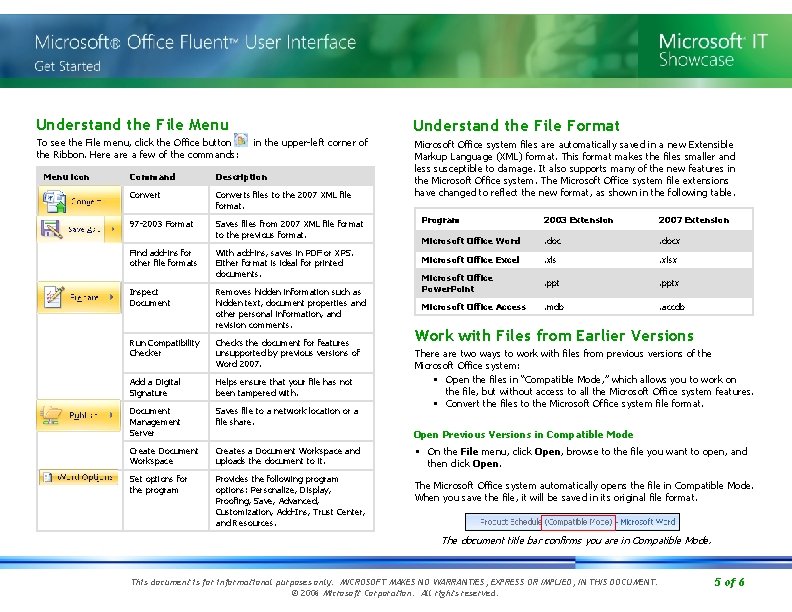
Understand the File Menu To see the File menu, click the Office button the Ribbon. Here a few of the commands: Menu icon Understand the File Format in the upper-left corner of Command Description Converts files to the 2007 XML file format. 97 -2003 Format Saves files from 2007 XML file format to the previous format. Find add-ins for other file formats With add-ins, saves in PDF or XPS. Either format is ideal for printed documents. Inspect Document Removes hidden information such as hidden text, document properties and other personal information, and revision comments. Run Compatibility Checker Checks the document for features unsupported by previous versions of Word 2007. Add a Digital Signature Helps ensure that your file has not been tampered with. Document Management Server Saves file to a network location or a file share. Create Document Workspace Creates a Document Workspace and uploads the document to it. Set options for the program Provides the following program options: Personalize, Display, Proofing, Save, Advanced, Customization, Add-Ins, Trust Center, and Resources. Microsoft Office system files are automatically saved in a new Extensible Markup Language (XML) format. This format makes the files smaller and less susceptible to damage. It also supports many of the new features in the Microsoft Office system. The Microsoft Office system file extensions have changed to reflect the new format, as shown in the following table. Program 2003 Extension 2007 Extension Microsoft Office Word . docx Microsoft Office Excel . xlsx Microsoft Office Power. Point . pptx Microsoft Office Access . mdb . accdb Work with Files from Earlier Versions There are two ways to work with files from previous versions of the Microsoft Office system: • Open the files in “Compatible Mode, ” which allows you to work on the file, but without access to all the Microsoft Office system features. • Convert the files to the Microsoft Office system file format. Open Previous Versions in Compatible Mode • On the File menu, click Open, browse to the file you want to open, and then click Open. The Microsoft Office system automatically opens the file in Compatible Mode. When you save the file, it will be saved in its original file format. The document title bar confirms you are in Compatible Mode. This document is for informational purposes only. MICROSOFT MAKES NO WARRANTIES, EXPRESS OR IMPLIED, IN THIS DOCUMENT. © 2006 Microsoft Corporation. All rights reserved. 5 of 6
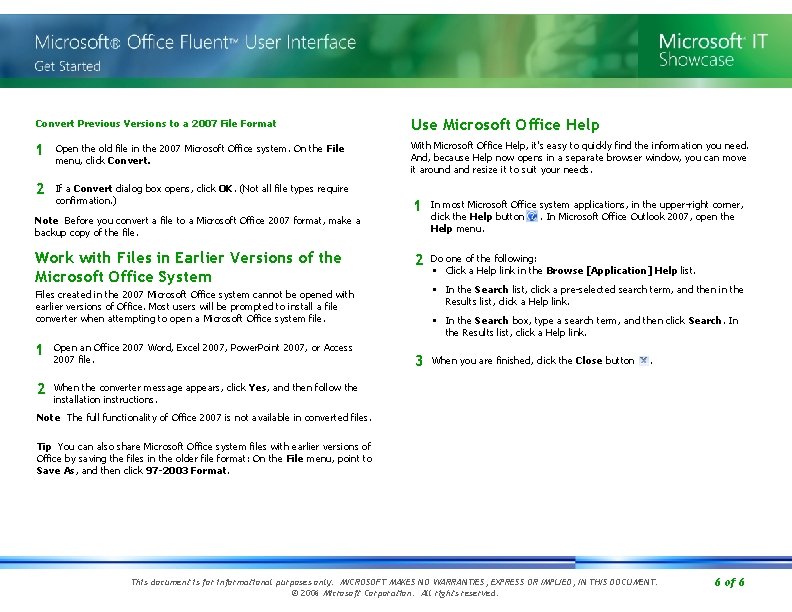
Convert Previous Versions to a 2007 File Format Use Microsoft Office Help 1 Open the old file in the 2007 Microsoft Office system. On the File menu, click Convert. With Microsoft Office Help, it's easy to quickly find the information you need. And, because Help now opens in a separate browser window, you can move it around and resize it to suit your needs. 2 If a Convert dialog box opens, click OK. (Not all file types require confirmation. ) 1 In most Microsoft Office system applications, in the upper-right corner, click the Help button. In Microsoft Office Outlook 2007, open the Help menu. 2 Do one of the following: • Click a Help link in the Browse [Application] Help list. Note Before you convert a file to a Microsoft Office 2007 format, make a backup copy of the file. Work with Files in Earlier Versions of the Microsoft Office System • In the Search list, click a pre-selected search term, and then in the Results list, click a Help link. Files created in the 2007 Microsoft Office system cannot be opened with earlier versions of Office. Most users will be prompted to install a file converter when attempting to open a Microsoft Office system file. 1 Open an Office 2007 Word, Excel 2007, Power. Point 2007, or Access 2007 file. 2 When the converter message appears, click Yes, and then follow the installation instructions. • In the Search box, type a search term, and then click Search. In the Results list, click a Help link. 3 When you are finished, click the Close button . Note The full functionality of Office 2007 is not available in converted files. Tip You can also share Microsoft Office system files with earlier versions of Office by saving the files in the older file format: On the File menu, point to Save As, and then click 97 -2003 Format. This document is for informational purposes only. MICROSOFT MAKES NO WARRANTIES, EXPRESS OR IMPLIED, IN THIS DOCUMENT. © 2006 Microsoft Corporation. All rights reserved. 6 of 6
- Slides: 6