
A tutorial on MS Project James Burns Learning
A tutorial on MS Project James Burns
Learning Objectives · · · Entering Tasks in the Gantt View Task subordination Linking of Tasks Setting start & stop dates Assigning resources Calculating costs 2
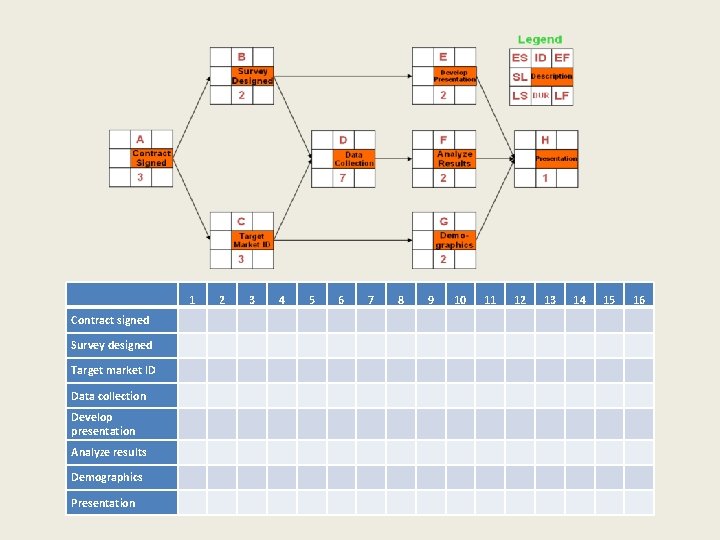
1 2 3 4 5 6 7 8 9 10 11 12 13 14 15 16 Contract signed Survey designed Target market ID Data collection Develop presentation Analyze results Demographics Presentation
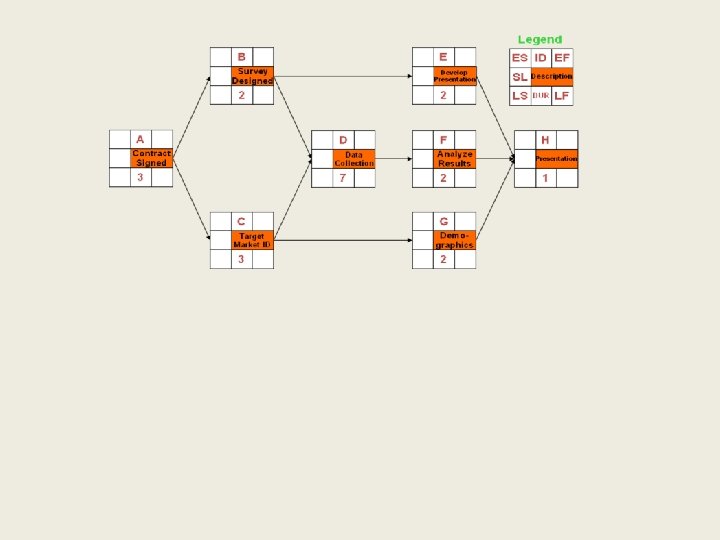
3 0 5 3 6 13 13 15 15 16
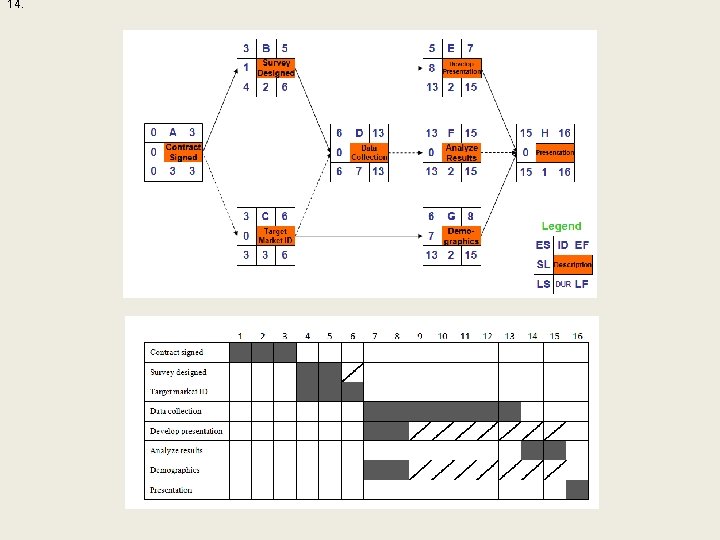
14.
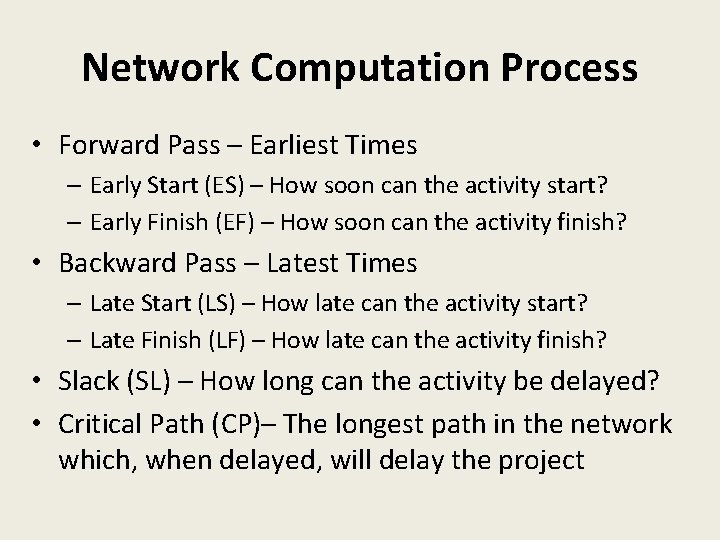
Network Computation Process • Forward Pass – Earliest Times – Early Start (ES) – How soon can the activity start? – Early Finish (EF) – How soon can the activity finish? • Backward Pass – Latest Times – Late Start (LS) – How late can the activity start? – Late Finish (LF) – How late can the activity finish? • Slack (SL) – How long can the activity be delayed? • Critical Path (CP)– The longest path in the network which, when delayed, will delay the project
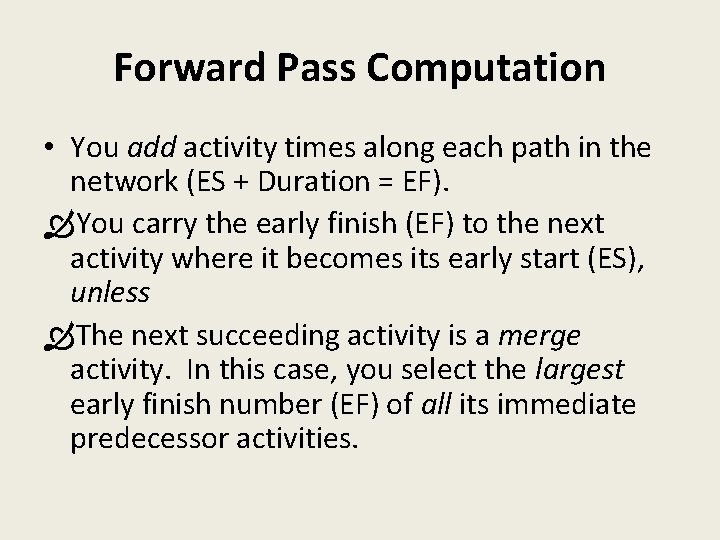
Forward Pass Computation • You add activity times along each path in the network (ES + Duration = EF). You carry the early finish (EF) to the next activity where it becomes its early start (ES), unless The next succeeding activity is a merge activity. In this case, you select the largest early finish number (EF) of all its immediate predecessor activities.
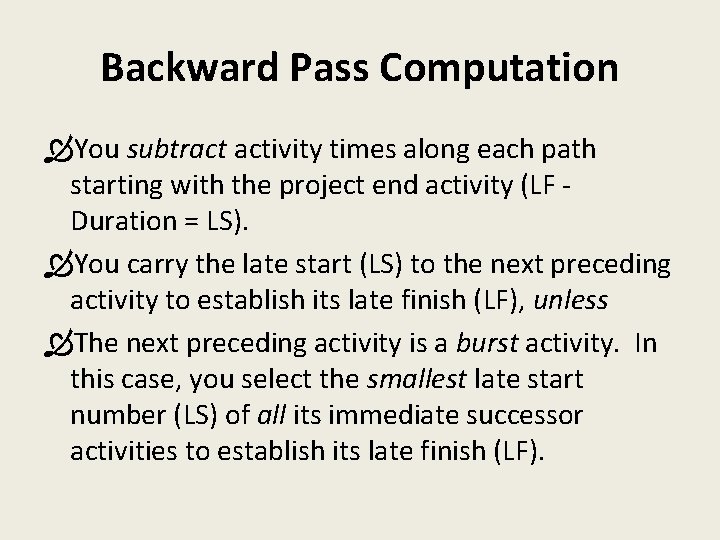
Backward Pass Computation You subtract activity times along each path starting with the project end activity (LF Duration = LS). You carry the late start (LS) to the next preceding activity to establish its late finish (LF), unless The next preceding activity is a burst activity. In this case, you select the smallest late start number (LS) of all its immediate successor activities to establish its late finish (LF).
Determining Slack • Slack for an activity is simply the difference between the LS and ES (LS – ES) or between LF and EF (LF – EF). • Slack tells us the amount of time an activity can be delayed and yet not delay the project. • When the LF = EF for the end project activity, the critical path can be identified as those activities that also have LF = EF or a slack of zero (LF – EF = 0 or LS – ES = 0).
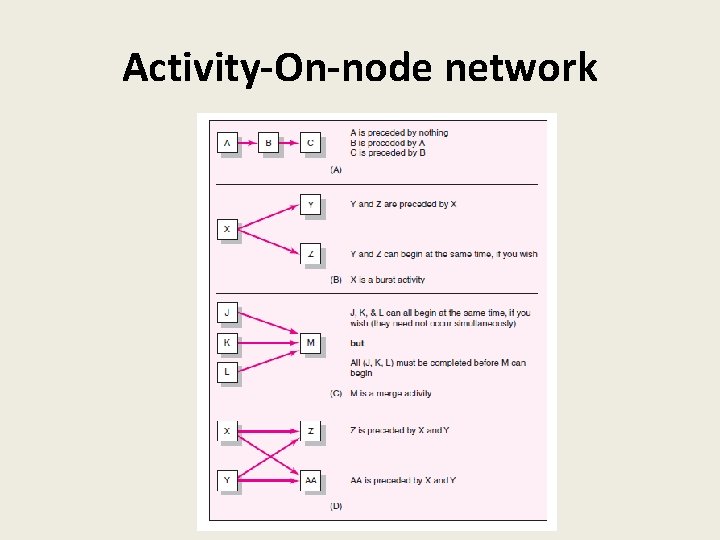
Activity-On-node network
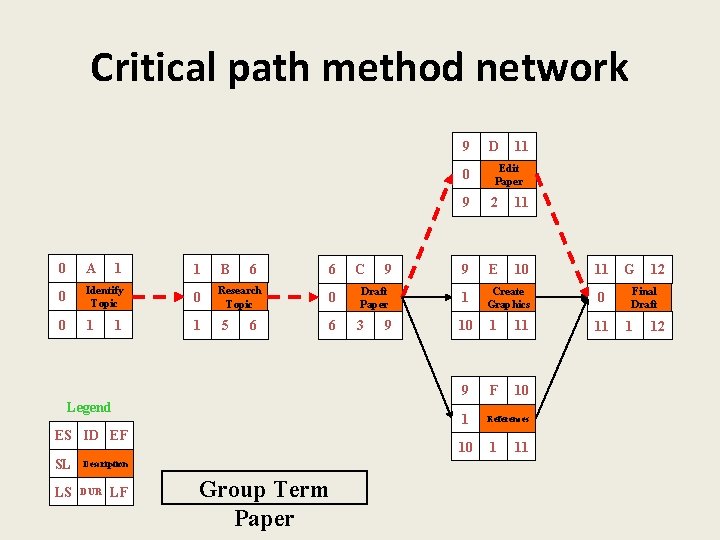
Critical path method network 9 0 0 A 1 1 B 0 Identify Topic 0 Research Topic 0 1 1 1 5 6 6 6 0 6 Legend ES ID EF SL LS LF 9 Draft Paper 3 9 Group Term Paper 11 Edit Paper 9 2 11 9 E 10 1 Create Graphics 10 1 11 9 F 10 1 References 10 Description DUR C D 1 11 11 0 11 G 12 Final Draft 1 12
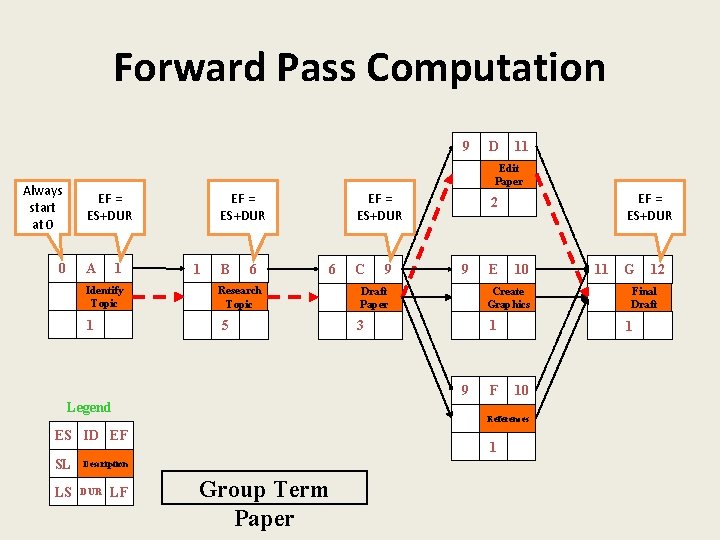
Forward Pass Computation 9 D 11 Edit Paper Always start at 0 EF = ES+DUR 0 A 1 Identify Topic 1 EF = ES+DUR 1 B 6 EF = ES+DUR 6 Research Topic 5 C 9 9 Draft Paper LS 1 3 LF F 1 Description DUR 10 Group Term Paper 11 G 10 12 Final Draft 1 References ES ID EF SL E Create Graphics 9 Legend EF = ES+DUR 2
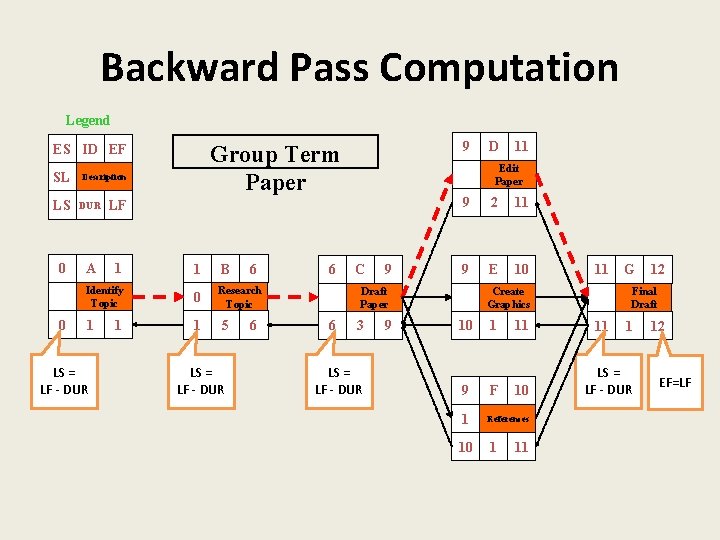
Backward Pass Computation Legend SL Description LS DUR LF 0 A 1 1 B Identify Topic 0 Research Topic 1 1 0 LS = LF - DUR 1 9 Group Term Paper ES ID EF 5 LS = LF - DUR 6 6 6 11 Edit Paper C 9 9 2 11 9 E 10 Draft Paper 6 D 3 LS = LF - DUR 9 11 Create Graphics 10 1 11 9 F 1 References 10 11 G 12 Final Draft 11 1 LS = LF - DUR 12 EF=LF
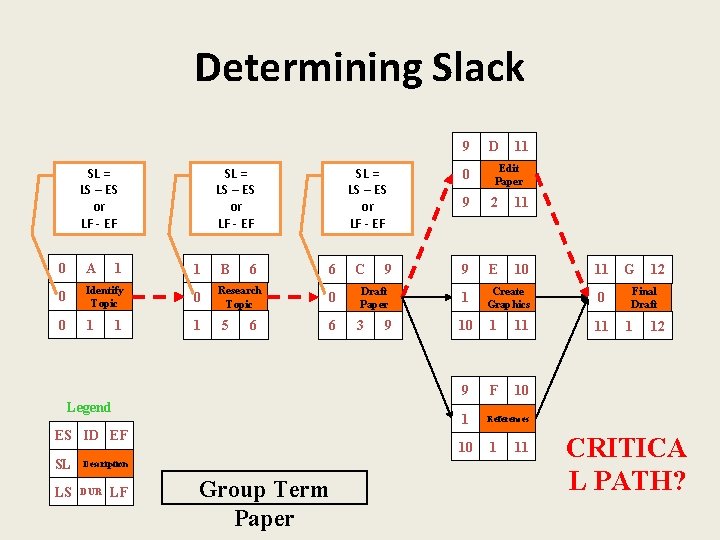
Determining Slack 9 SL = LS – ES or LF - EF 0 A 1 1 B 0 Identify Topic 0 Research Topic 0 1 1 1 5 6 6 SL = LS – ES or LF - EF 6 0 6 Legend ES ID EF SL LS LF 9 Draft Paper 3 9 Group Term Paper 11 Edit Paper 9 2 11 9 E 10 1 Create Graphics 10 1 11 9 F 10 1 References 10 Description DUR C 0 D 1 11 11 0 11 G 12 Final Draft 1 12 CRITICA L PATH?
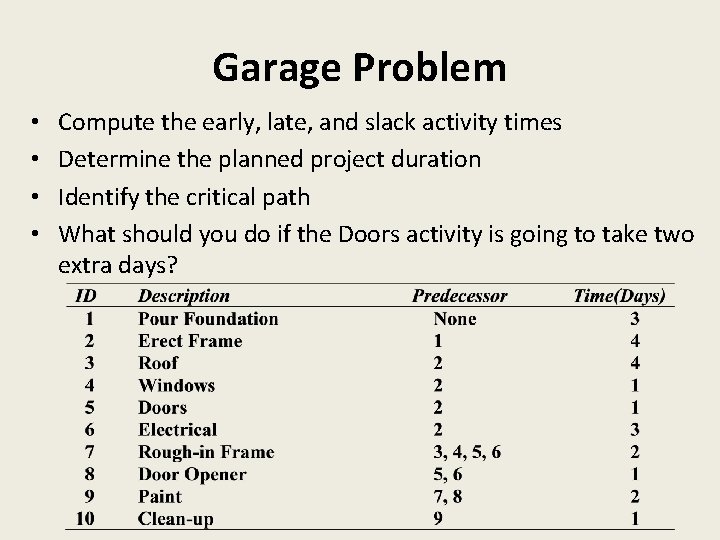
Garage Problem • • Compute the early, late, and slack activity times Determine the planned project duration Identify the critical path What should you do if the Doors activity is going to take two extra days?
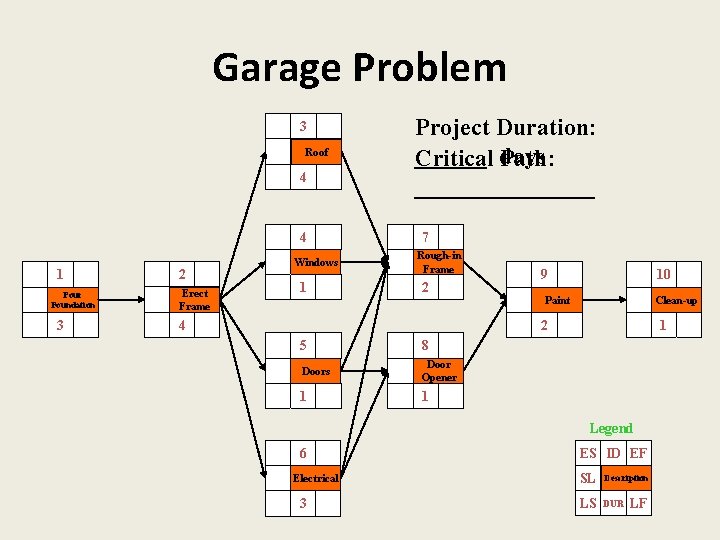
Garage Problem 3 Roof 4 4 1 Pour Foundation 3 2 Erect Frame Windows 1 Project Duration: ______ Critical days Path: ________ 7 Rough-in Frame 2 4 9 10 Paint Clean-up 2 5 8 Doors Door Opener 1 1 1 Legend 6 Electrical 3 ES ID EF SL Description LS DUR LF
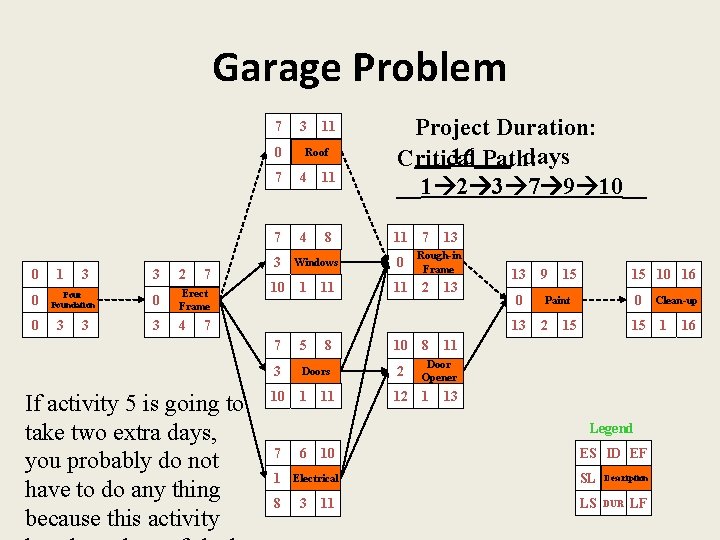
Garage Problem 7 0 0 1 3 Pour Foundation 3 3 3 2 7 0 Erect Frame 3 4 3 11 Roof 7 4 11 7 4 8 3 10 Windows 1 11 Project Duration: ___16___ days Critical Path: __1 2 3 7 9 10__ 11 0 11 7 13 Rough-in Frame 2 13 7 If activity 5 is going to take two extra days, you probably do not have to do any thing because this activity 13 0 13 7 5 3 Doors 10 1 8 11 10 2 12 8 9 15 15 10 16 0 Paint 2 15 15 11 Door Opener 1 13 Legend 7 1 8 6 10 Electrical 3 11 ES ID EF SL Description LS DUR LF Clean-up 1 16
More Learning Objectives · · · Recurring tasks STATISTICS Zoom out/zoom in Precedence relationships Lags between links
PM Software in general
Popular Project Management Software Packages • • • CA-Super. Project Microsoft Project Scheduler Sure. Trak Project Manager Time Line High-End Project Management Software
Criteria for Selecting Project Management Software • • • Capacity Documentation and on-line help facilities Ease of use Features available Integration with other systems 4
Additional Criteria • • Installation requirements Reporting capabilities Security Vendor Support
Advantages of Using Project Management Software • • Accuracy Affordability Ease of use Ability to handle complexity Maintainability and modifiability Record keeping Speed What-if analysis 5
Concerns about Using Project Management Software • • • Becoming distracted by the software A false sense of security Information overload The learning curve Over-reliance on software 6
Must start with • • A list of tasks Or A Work Breakdown Structure Always make your first task a PROJECT summary task to which all other tasks are subordinate
Bring up MS Project • • Start in the Gantt View Enter task detail in the entry table to the left Subordinate tasks appropriately Link Tasks as appropriate
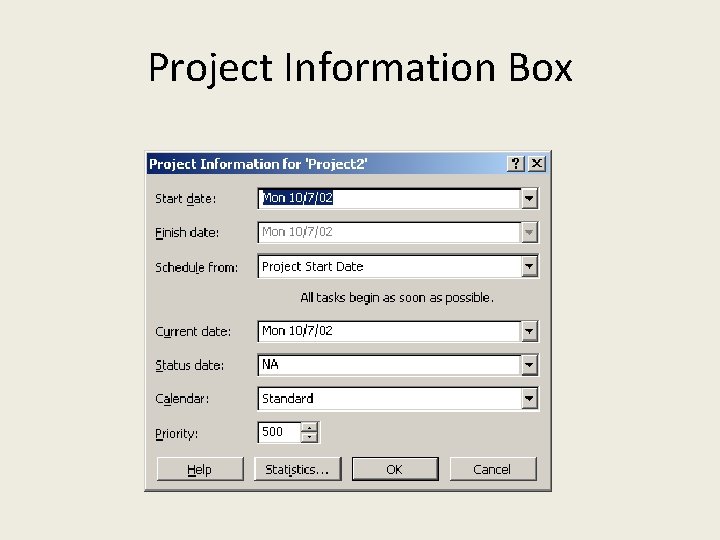
Project Information Box
Project Information Box • Can schedule from a start date or backward from a stop date • Can choose a particular calendar type—that makes assumptions about when people will be working
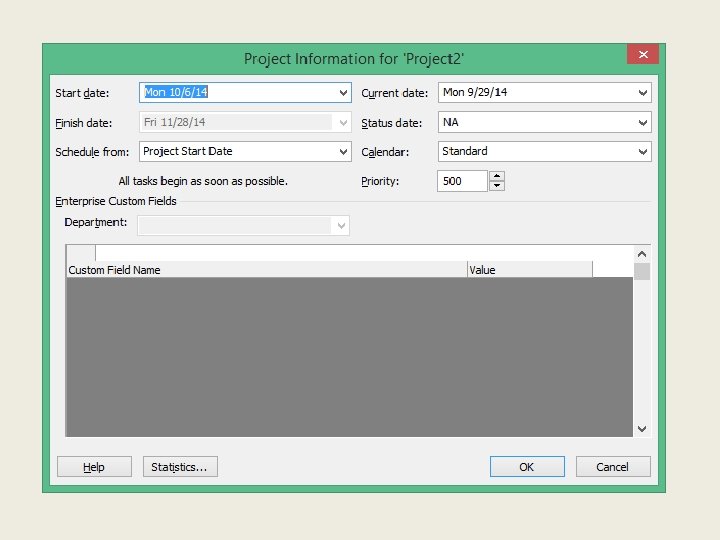
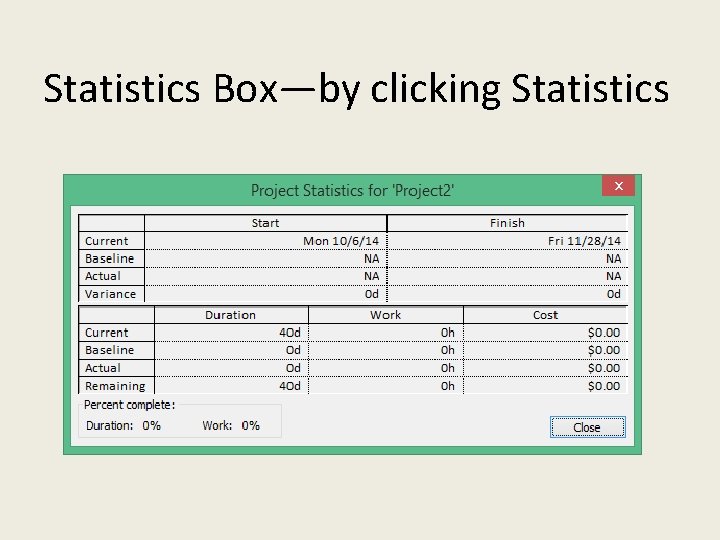
Statistics Box—by clicking Statistics
The Gantt View • Tasks are entered within the Entry Table in the Gantt View
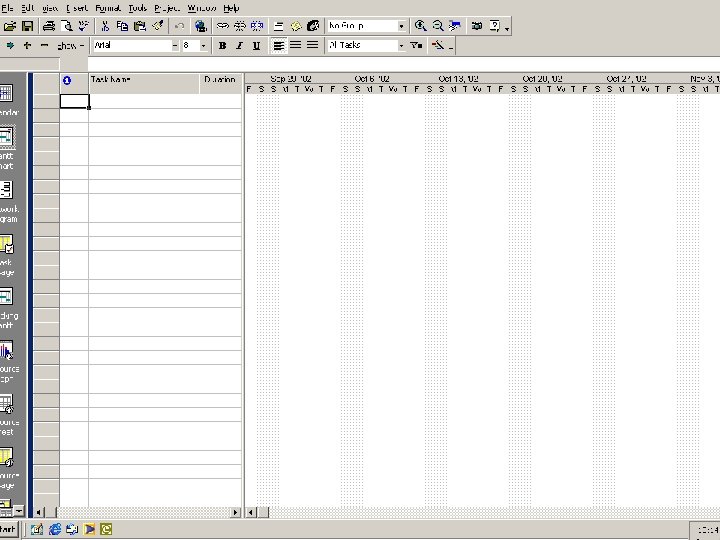
The Main Window of MS Project
Entering Tasks in the Gantt View • Enter Tasks into the entry table on the GANTT view • Entry table is behind the GANTT chart and works just like a spreadsheet • Can also enter tasks in the network diagram or the task usage views
Tables • You can choose a variety of tables to view in conjunction with the Gantt view – Entry, Cost, Schedule, Tracking, Earned value, Usage, Variance, Work, Hyperlink… are just some of the tables you can choose from – Click on View on the Menu bar and then click on Table – To view all the tables, click on More Tables…
Columns • You can add columns to any table in the Gantt view • Click on Insert and then Columns • Select the column you want included in the table by clicking on the dropdown arrow associated with the first box and selecting the desired column name • Click on OK • That column will be included in the table to the left of the point where the selected cell appears
Predefined Reports • MS Project provides a number of predefined, static reports that can be displayed and printed • Click on View and the Reports • The categories are Overview, Current Activities, Costs, Assignments, Workload and Custom
Task subordination • Use indent arrow • MS Proj has a WBS understanding and assigns a WBS code even though it does not explicitly exhibit a WBS chart
Linking of Tasks • Select tasks to be linked • Click on the chain-link icon • Decide on precedence relationship: FS, SS, FF, SF
Setting start & stop dates • When you set a date in the entry table of the Gantt view, MS Project treats it as if it were a “hard” constraint – It schedules everything around such “hard” dates
Assigning resources • Resources have to be created before they can be assigned • You can use the “faces” icon in the Gantt view to both create and assign resources – Resources are created once they are named • Alternatively, you can create resources in the Resources Sheet view – Simply click on this “view” in the column on the left.
Calculating costs • Fixed costs – Enter these in the cost table • From the VIEW menu item change to the cost table • Enter fixed costs • Variable costs – Enter resource hourly rates – MS Project will calculate
Project Management Software Features • • Budgeting and cost control Calendars Email Graphics Importing/exporting data Handling multiple projects and subprojects Report generation 3
Project Management Software Additional Features • • Resource management Planning Project monitoring and tracking Scheduling Security Sorting and filtering What-if analysis

- Slides: 44