
A quick introduction to Subversion Zdenk abokrtsk Subversion
A quick introduction to Subversion Zdeněk Žabokrtský
Subversion . . . is also referred to as SVN. . . is an open-source revision control system. . . allows you to retrieve at any time older versions of your files and directories All commited versions are maintained Documents are securely accessible in a single place Several people can contribute, even to a single document (changes can be merged automatically) Date, time and authorship of changes is maintained
Basic terms repository – central location where the information about all the different versions of your files and directories is maintained. working copy – local copy of the files&dirs from the repo (only one version) – there can be as many working copies as needed check out – creating a working copy from a repository update – updating the content of the working copy according to the latest version contained in the repository commit – uploading changed files from the working copy into the repository
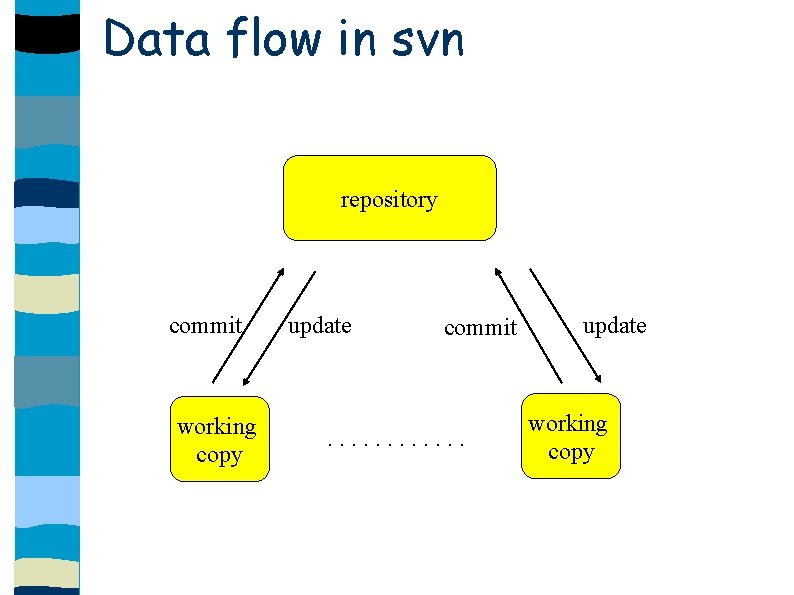
Data flow in svn repository commit working copy update commit . . . update working copy
Revision numbers a newly created repository starts with revision number 0 Each successive commit increments the revision number by 1 the revision-number is repository-wide --> any commit increments revision number of all files
![Command-line interface svn command [options] [args] commands which you must know: – – –](http://slidetodoc.com/presentation_image_h2/946ec18676b17a66301039ca70206265/image-6.jpg "Command-line interface svn command [options] [args] commands which you must know: – – –")
Command-line interface svn command [options] [args] commands which you must know: – – – – – help co (checkout) up (update) ci (commit) stat (status) log (log) annotate add rm mkdir
![Checking out svn co [repository_url] [dir] Besides the copy of the latest version of](http://slidetodoc.com/presentation_image_h2/946ec18676b17a66301039ca70206265/image-7.jpg "Checking out svn co [repository_url] [dir] Besides the copy of the latest version of")
Checking out svn co [repository_url] [dir] Besides the copy of the latest version of repository content, also a hidden directory. svn is created. Never modify content of this directory. You can check-out only a subset (directory subtree) of a given repository, e. g. only the part for which you have valid access rights.
![Updating svn up [filename] svn up -r [revnumber] [filename] By default, the content of](http://slidetodoc.com/presentation_image_h2/946ec18676b17a66301039ca70206265/image-8.jpg "Updating svn up [filename] svn up -r [revnumber] [filename] By default, the content of")
Updating svn up [filename] svn up -r [revnumber] [filename] By default, the content of the current directory (and all its subdirectories) is updated to the latest version contained in the repository. If there is a modified file in the working copy which has been simultaneously modified by someone else and commited to the repo, svn tries to merge the changes automatically (this is not always possible and then the conflict has to be resolved by a human).
![Comitting svn ci [filename] svn -m “message“ By default, a text editor is invoked](http://slidetodoc.com/presentation_image_h2/946ec18676b17a66301039ca70206265/image-9.jpg "Comitting svn ci [filename] svn -m “message“ By default, a text editor is invoked")
Comitting svn ci [filename] svn -m “message“ By default, a text editor is invoked to allow you to enter a log message which should briefly describe the change. You can specify the editor to be invoked by setting the SVN_EDITOR variable in you. bashrc
![Manipulation with files svn svn svn add [file] cp [srcfile] [trgfile] mv [srcfile] [trgfile]](http://slidetodoc.com/presentation_image_h2/946ec18676b17a66301039ca70206265/image-10.jpg "Manipulation with files svn svn svn add [file] cp [srcfile] [trgfile] mv [srcfile] [trgfile]")
Manipulation with files svn svn svn add [file] cp [srcfile] [trgfile] mv [srcfile] [trgfile] rm [file] mkdir [dir]
![Obtaining more info svn stat [file] annotate [file] diff [file] log [file]](http://slidetodoc.com/presentation_image_h2/946ec18676b17a66301039ca70206265/image-11.jpg "Obtaining more info svn stat [file] annotate [file] diff [file] log [file]")
Obtaining more info svn stat [file] annotate [file] diff [file] log [file]
UFAL students' repository Create a working copy of your directory in the svn repository dedicated for UFAL undergraduate students: mkdir mysvn cd mysvn co --username <user> https: //svn. ms. mff. cuni. cz/svn/undergrads/students/<user> undergrads Note: even the last bullet is one (long) command! Create a text file, add it, commit it, change it, use stat, use diff, commit it again, use annotate, return to the first version, return to the latest version Create a second working copy, change the same file in different ways in both copies, see what happens Delete the file from the repository. Add directory 2014 -npfl 092 into the repository and place there all your work related to the course.
SVN best practices Always write reasonable logs! Do update often, to avoid conflicts with other contributors. Commit in small, discrete chunks as soon as your changes make a logical unit. Commit related code changes together. Use trunk/branch/tag top-level division in your project.
- Slides: 13