
A Guided Tour Through Arena Chapter 3 Simulation
- Slides: 35
A Guided Tour Through Arena Chapter 3 Simulation with Arena Chapter 3 – A Guided Tour Through Arena 1
What We’ll Do in Chapter 3 • • Start Arena Load, explore, run an existing model § § § • • Browse dialogs and menus Run the model Look at results Construct the same model from scratch Tour menus, toolbars, drawing, printing Help system Options for running and control Simulation with Arena Chapter 3 – A Guided Tour Through Arena 2
Behavior of Arena • Arena is a true Windows application § § • Appearance, operation, functions, are standard Can interact, communicate with other software (Chapter 9) Assume you already know basics of Windows: § § § § Disks, files, folders, paths Mousing, keyboarding Resizing, moving, maximizing, minimizing windows Menu operations Ctrl, Alt, Shift keys Cut, copy, paste Filling out dialog fields Simulation with Arena Chapter 3 – A Guided Tour Through Arena 3
Starting Up • • Installing Arena – Appendix E (page 637) Locate icon or shortcut; double-click § • • • § Also Start/Programs/Rockwell Software/Arena icon Licensed vs. Academic See File, View, Tools, Help menus § Other menus present if a model file is open Toolbars with buttons Quitting Arena: File/Exit or Alt+F 4 or top right button Simulation with Arena Chapter 3 – A Guided Tour Through Arena 4
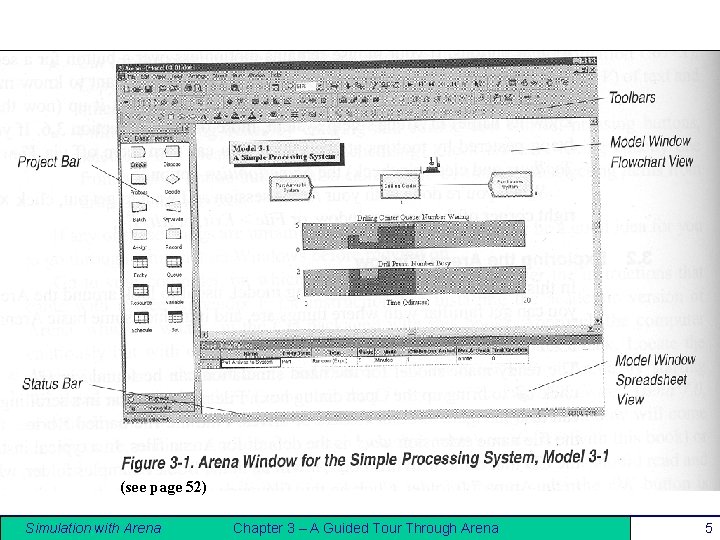
(see page 52) Simulation with Arena Chapter 3 – A Guided Tour Through Arena 5
Opening an Existing Model • File/Open … or § § • Navigate to desired disk/directory Click/Open or double-click Model 03 -01. doe Book examples in … Rockwell SoftwareArena Book Additional examples in … Rockwell SoftwareArenaExamples Model window (page 52, usually on right side of Arena window) § § § • button Where model is built Resize, maximize, minimize, scroll/pan, zoom Can have multiple model windows open at once Cut, Copy, Paste within Arena, and between Arena and other applications (when sensible) Simulation with Arena Chapter 3 – A Guided Tour Through Arena 6
Flowchart and Spreadsheet Views • Model window split into two views § Flowchart view – – § Spreadsheet view – – – § § § Graphics Process flowchart Animation, drawing Edit things by double-clicking on them, get into a dialog Displays model data directly Can edit, add, delete data in spreadsheet view Displays all similar kinds of modeling elements at once Many model parameters can be edited in either view Horizontal splitter bar to apportion the two views View/Split Screen (or ) to see only the most recently selected view Simulation with Arena Chapter 3 – A Guided Tour Through Arena 7
Project Bar • • Usually down the left edge of Arena window Hosts panels with modeling building blocks: modules § • Displays one panel at a time § § • • It contains both flowchart and spreadsheet modules Switch to different panels via horizontal buttons Panels for Basic Process, Reports (after running), Navigate (to different views within a model or to different hierarchical submodels), … others can be attached (Template Attach button ) for different modeling levels, specialties Usually docked to left edge but can move, float Can hide it via View/Project Bar, has its own Simulation with Arena Chapter 3 – A Guided Tour Through Arena 8
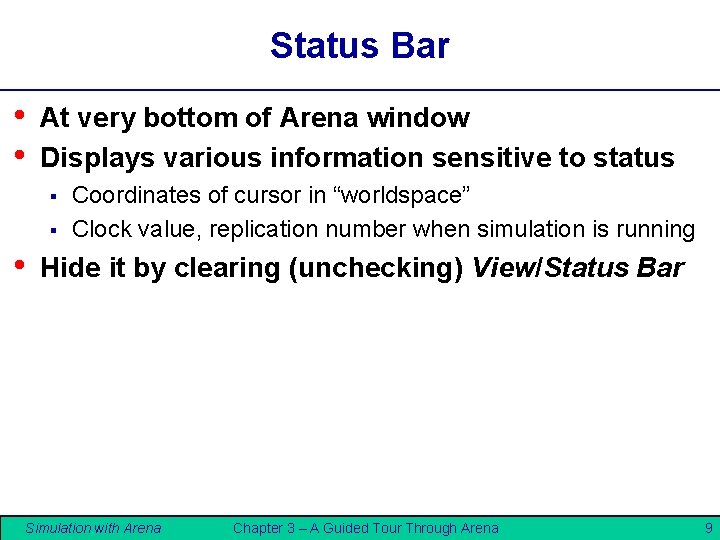
Status Bar • • At very bottom of Arena window Displays various information sensitive to status § § • Coordinates of cursor in “worldspace” Clock value, replication number when simulation is running Hide it by clearing (unchecking) View/Status Bar Simulation with Arena Chapter 3 – A Guided Tour Through Arena 9
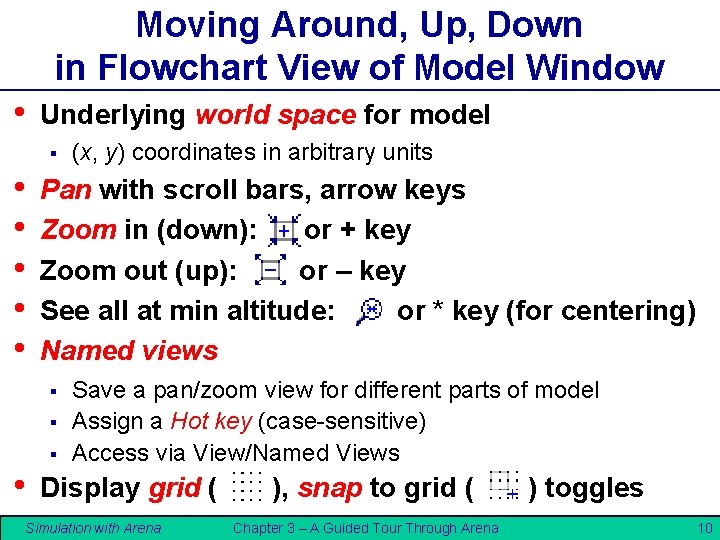
Moving Around, Up, Down in Flowchart View of Model Window • Underlying world space for model § • • • Pan with scroll bars, arrow keys Zoom in (down): or + key Zoom out (up): or – key See all at min altitude: or * key (for centering) Named views § § § • (x, y) coordinates in arbitrary units Save a pan/zoom view for different parts of model Assign a Hot key (case-sensitive) Access via View/Named Views Display grid ( Simulation with Arena ), snap to grid ( Chapter 3 – A Guided Tour Through Arena ) toggles 10
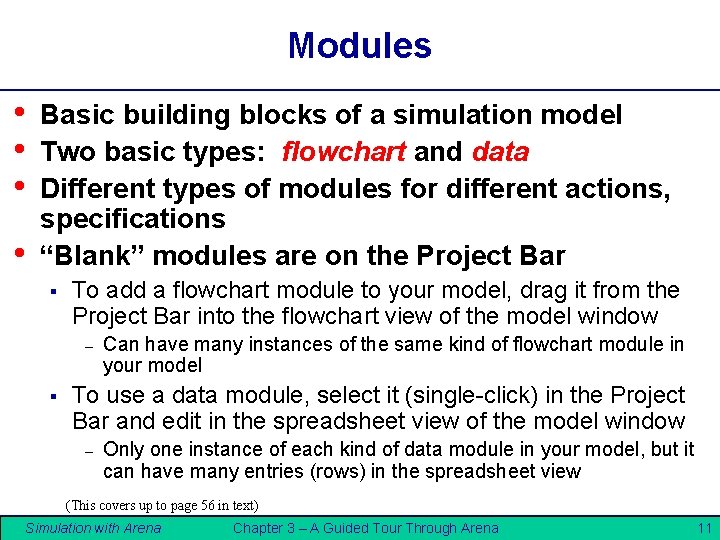
Modules • • Basic building blocks of a simulation model Two basic types: flowchart and data Different types of modules for different actions, specifications “Blank” modules are on the Project Bar § To add a flowchart module to your model, drag it from the Project Bar into the flowchart view of the model window – § Can have many instances of the same kind of flowchart module in your model To use a data module, select it (single-click) in the Project Bar and edit in the spreadsheet view of the model window – Only one instance of each kind of data module in your model, but it can have many entries (rows) in the spreadsheet view (This covers up to page 56 in text) Simulation with Arena Chapter 3 – A Guided Tour Through Arena 11
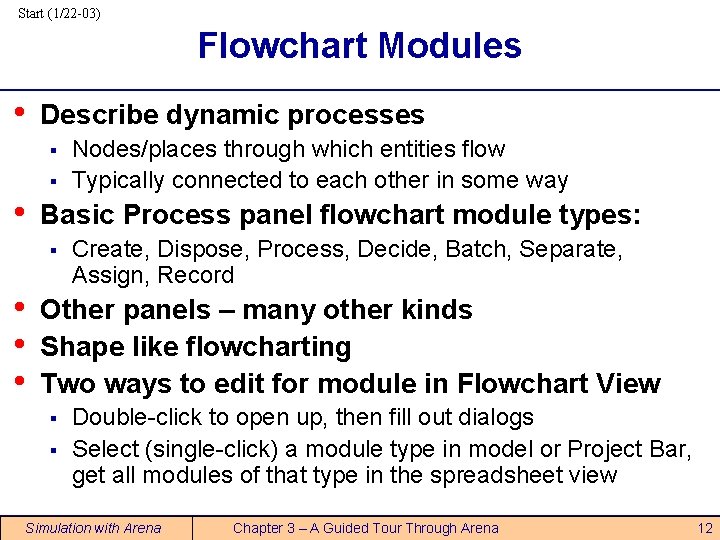
Start (1/22 -03) Flowchart Modules • Describe dynamic processes § § • Basic Process panel flowchart module types: § • • • Nodes/places through which entities flow Typically connected to each other in some way Create, Dispose, Process, Decide, Batch, Separate, Assign, Record Other panels – many other kinds Shape like flowcharting Two ways to edit for module in Flowchart View § § Double-click to open up, then fill out dialogs Select (single-click) a module type in model or Project Bar, get all modules of that type in the spreadsheet view Simulation with Arena Chapter 3 – A Guided Tour Through Arena 12
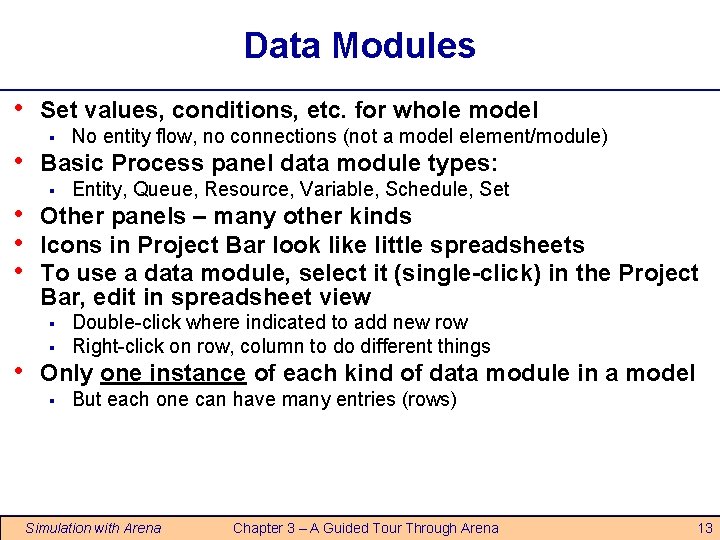
Data Modules • • • Set values, conditions, etc. for whole model § Basic Process panel data module types: § Entity, Queue, Resource, Variable, Schedule, Set Other panels – many other kinds Icons in Project Bar look like little spreadsheets To use a data module, select it (single-click) in the Project Bar, edit in spreadsheet view § • No entity flow, no connections (not a model element/module) § Double-click where indicated to add new row Right-click on row, column to do different things Only one instance of each kind of data module in a model § But each one can have many entries (rows) Simulation with Arena Chapter 3 – A Guided Tour Through Arena 13
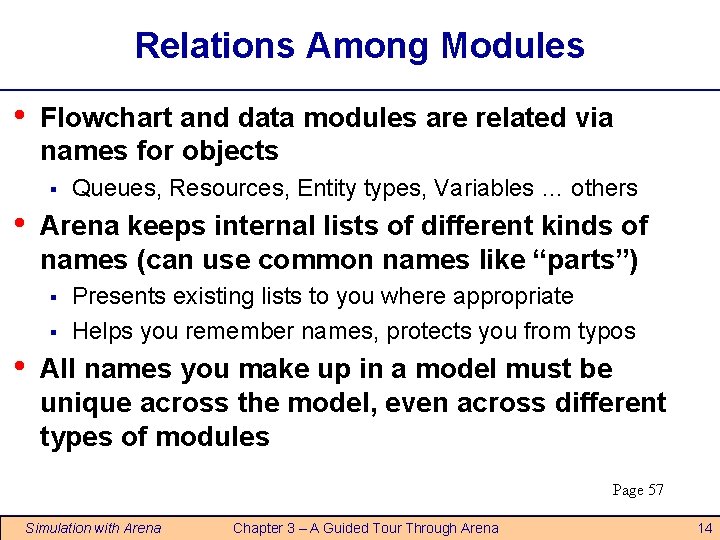
Relations Among Modules • Flowchart and data modules are related via names for objects § • Arena keeps internal lists of different kinds of names (can use common names like “parts”) § § • Queues, Resources, Entity types, Variables … others Presents existing lists to you where appropriate Helps you remember names, protects you from typos All names you make up in a model must be unique across the model, even across different types of modules Page 57 Simulation with Arena Chapter 3 – A Guided Tour Through Arena 14
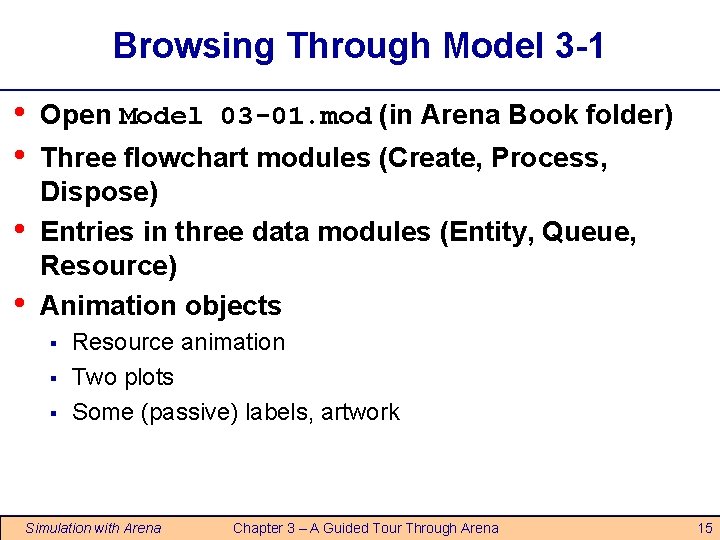
Browsing Through Model 3 -1 • • Open Model 03 -01. mod (in Arena Book folder) Three flowchart modules (Create, Process, Dispose) Entries in three data modules (Entity, Queue, Resource) Animation objects § § § Resource animation Two plots Some (passive) labels, artwork Simulation with Arena Chapter 3 – A Guided Tour Through Arena 15
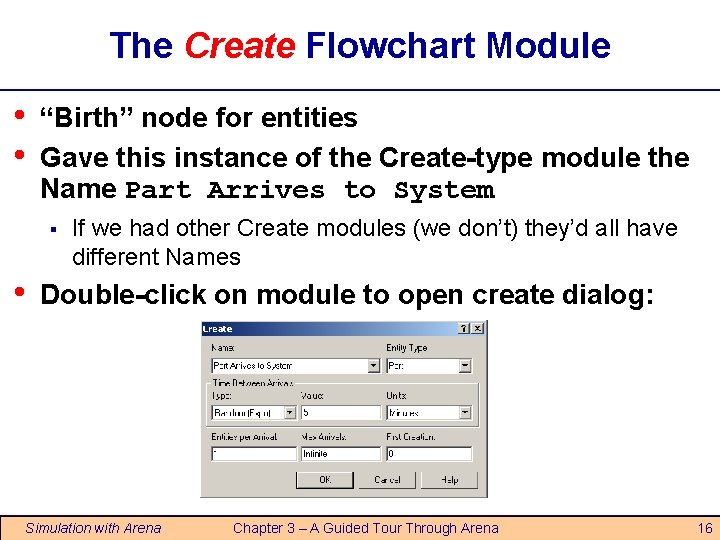
The Create Flowchart Module • • “Birth” node for entities Gave this instance of the Create-type module the Name Part Arrives to System § • If we had other Create modules (we don’t) they’d all have different Names Double-click on module to open create dialog: Simulation with Arena Chapter 3 – A Guided Tour Through Arena 16
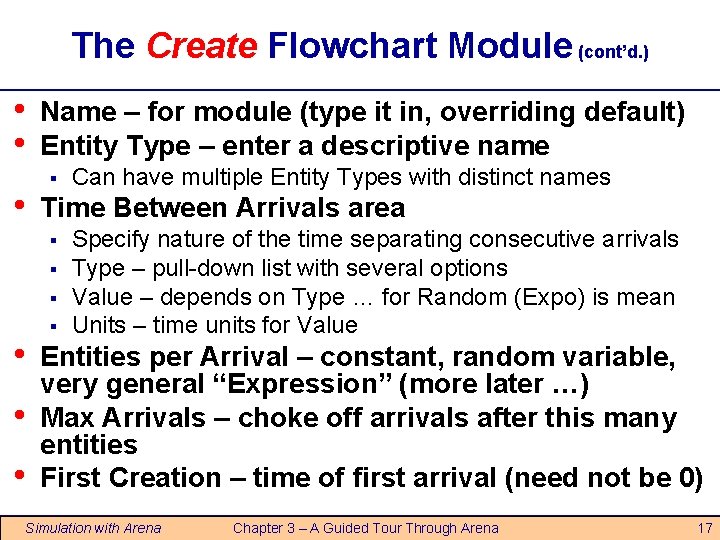
The Create Flowchart Module (cont’d. ) • • • Name – for module (type it in, overriding default) Entity Type – enter a descriptive name § Time Between Arrivals area § § § • • • Can have multiple Entity Types with distinct names § Specify nature of the time separating consecutive arrivals Type – pull-down list with several options Value – depends on Type … for Random (Expo) is mean Units – time units for Value Entities per Arrival – constant, random variable, very general “Expression” (more later …) Max Arrivals – choke off arrivals after this many entities First Creation – time of first arrival (need not be 0) Simulation with Arena Chapter 3 – A Guided Tour Through Arena 17
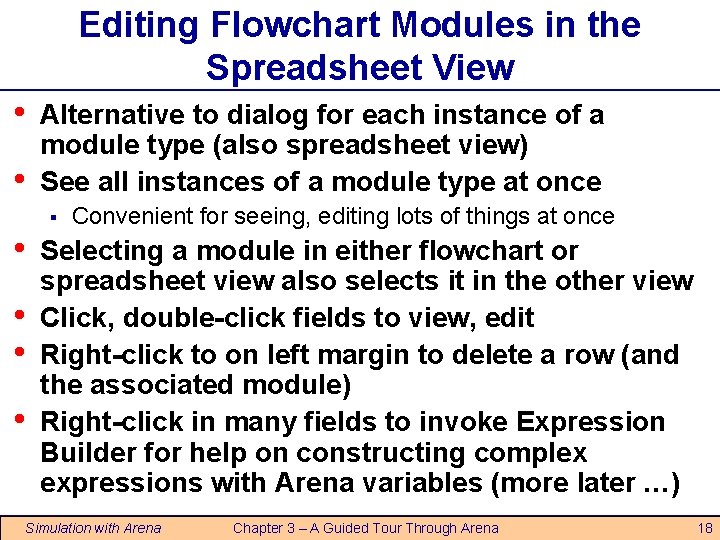
Editing Flowchart Modules in the Spreadsheet View • • Alternative to dialog for each instance of a module type (also spreadsheet view) See all instances of a module type at once § • • Convenient for seeing, editing lots of things at once Selecting a module in either flowchart or spreadsheet view also selects it in the other view Click, double-click fields to view, edit Right-click to on left margin to delete a row (and the associated module) Right-click in many fields to invoke Expression Builder for help on constructing complex expressions with Arena variables (more later …) Simulation with Arena Chapter 3 – A Guided Tour Through Arena 18
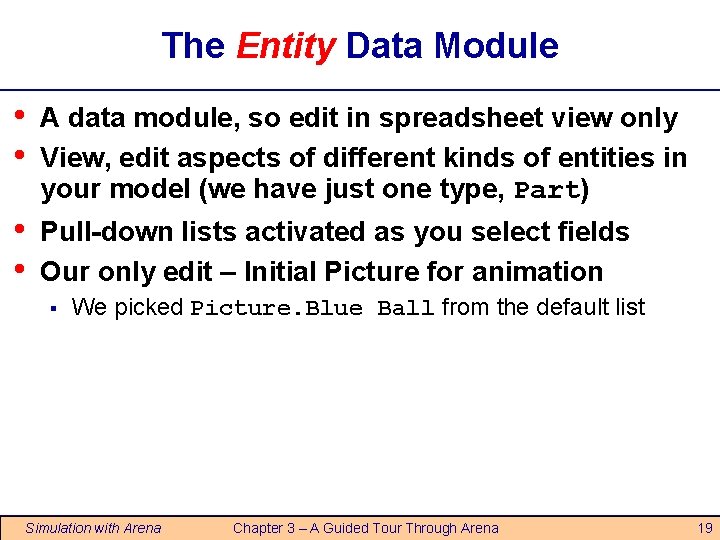
The Entity Data Module • • A data module, so edit in spreadsheet view only View, edit aspects of different kinds of entities in your model (we have just one type, Part) • • Pull-down lists activated as you select fields Our only edit – Initial Picture for animation § We picked Picture. Blue Ball from the default list Simulation with Arena Chapter 3 – A Guided Tour Through Arena 19
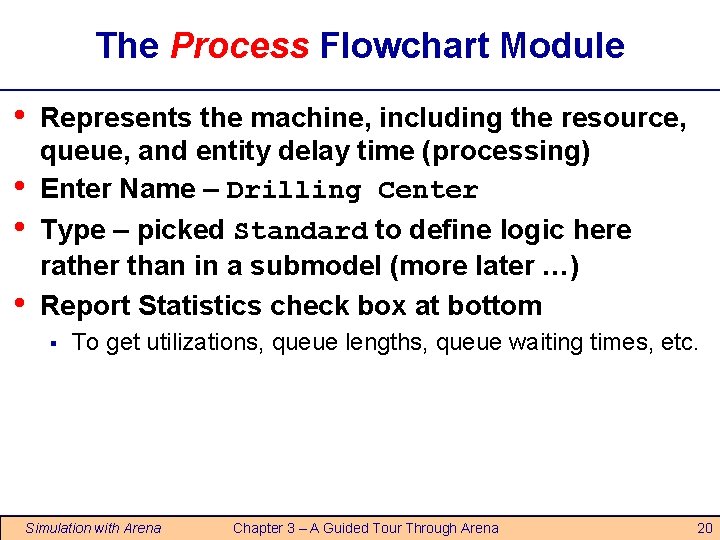
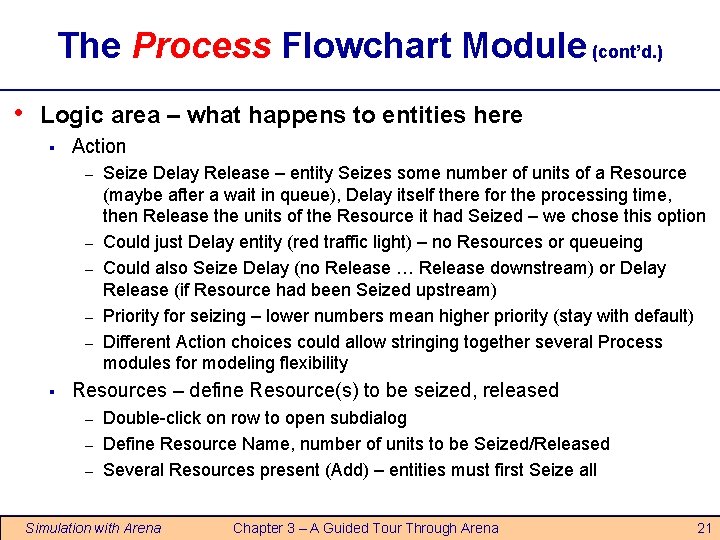
The Process Flowchart Module • • Represents the machine, including the resource, queue, and entity delay time (processing) Enter Name – Drilling Center Type – picked Standard to define logic here rather than in a submodel (more later …) Report Statistics check box at bottom § To get utilizations, queue lengths, queue waiting times, etc. Simulation with Arena Chapter 3 – A Guided Tour Through Arena 20
The Process Flowchart Module (cont’d. ) • Logic area – what happens to entities here § Action – – – § Seize Delay Release – entity Seizes some number of units of a Resource (maybe after a wait in queue), Delay itself there for the processing time, then Release the units of the Resource it had Seized – we chose this option Could just Delay entity (red traffic light) – no Resources or queueing Could also Seize Delay (no Release … Release downstream) or Delay Release (if Resource had been Seized upstream) Priority for seizing – lower numbers mean higher priority (stay with default) Different Action choices could allow stringing together several Process modules for modeling flexibility Resources – define Resource(s) to be seized, released – – – Double-click on row to open subdialog Define Resource Name, number of units to be Seized/Released Several Resources present (Add) – entities must first Seize all Simulation with Arena Chapter 3 – A Guided Tour Through Arena 21
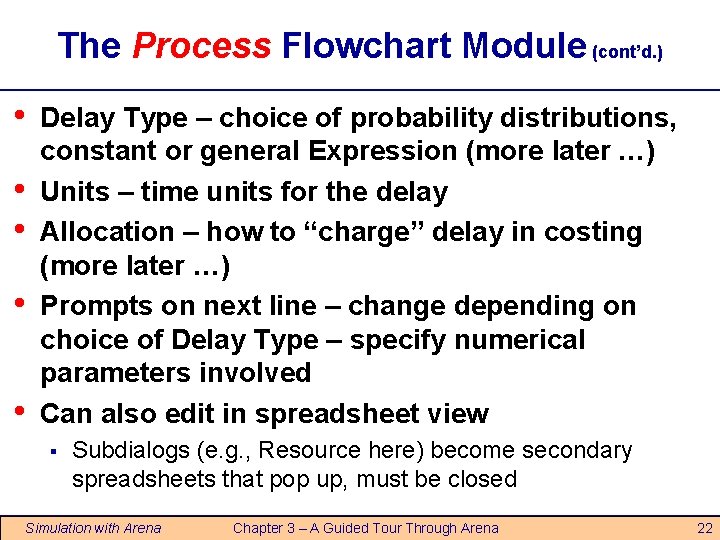
The Process Flowchart Module (cont’d. ) • • • Delay Type – choice of probability distributions, constant or general Expression (more later …) Units – time units for the delay Allocation – how to “charge” delay in costing (more later …) Prompts on next line – change depending on choice of Delay Type – specify numerical parameters involved Can also edit in spreadsheet view § Subdialogs (e. g. , Resource here) become secondary spreadsheets that pop up, must be closed Simulation with Arena Chapter 3 – A Guided Tour Through Arena 22
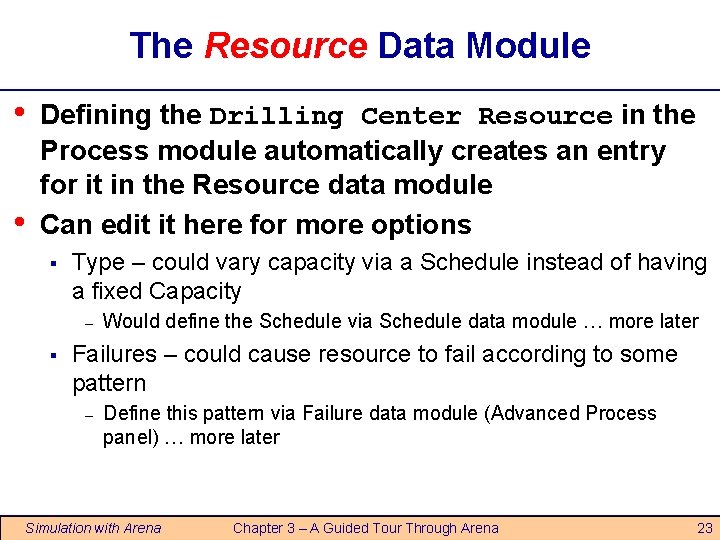
The Resource Data Module • • Defining the Drilling Center Resource in the Process module automatically creates an entry for it in the Resource data module Can edit it here for more options § Type – could vary capacity via a Schedule instead of having a fixed Capacity – § Would define the Schedule via Schedule data module … more later Failures – could cause resource to fail according to some pattern – Define this pattern via Failure data module (Advanced Process panel) … more later Simulation with Arena Chapter 3 – A Guided Tour Through Arena 23
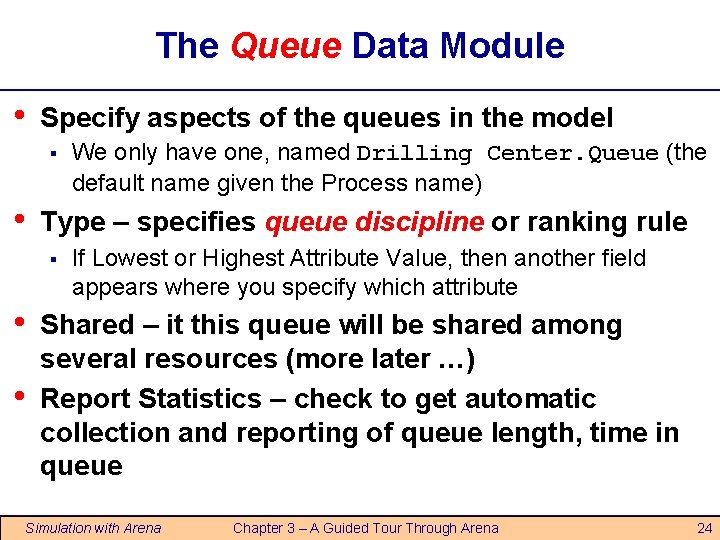
The Queue Data Module • Specify aspects of the queues in the model § • Type – specifies queue discipline or ranking rule § • • We only have one, named Drilling Center. Queue (the default name given the Process name) If Lowest or Highest Attribute Value, then another field appears where you specify which attribute Shared – it this queue will be shared among several resources (more later …) Report Statistics – check to get automatic collection and reporting of queue length, time in queue Simulation with Arena Chapter 3 – A Guided Tour Through Arena 24
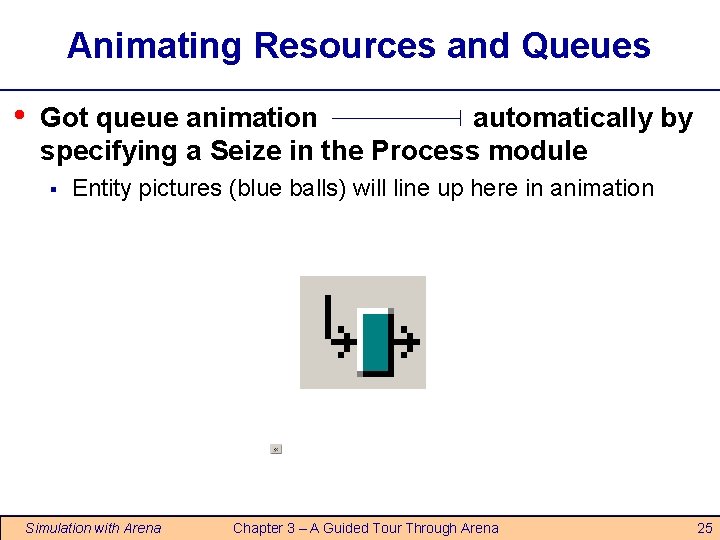
Animating Resources and Queues • Got queue animation automatically by specifying a Seize in the Process module § Entity pictures (blue balls) will line up here in animation Simulation with Arena Chapter 3 – A Guided Tour Through Arena 25
The Dispose Flowchart Module • • • Represents entities leaving model boundaries Name the module Decide on Record Entity Statistics (average and maximum time in system of entities exiting here, costing information) Simulation with Arena Chapter 3 – A Guided Tour Through Arena 26
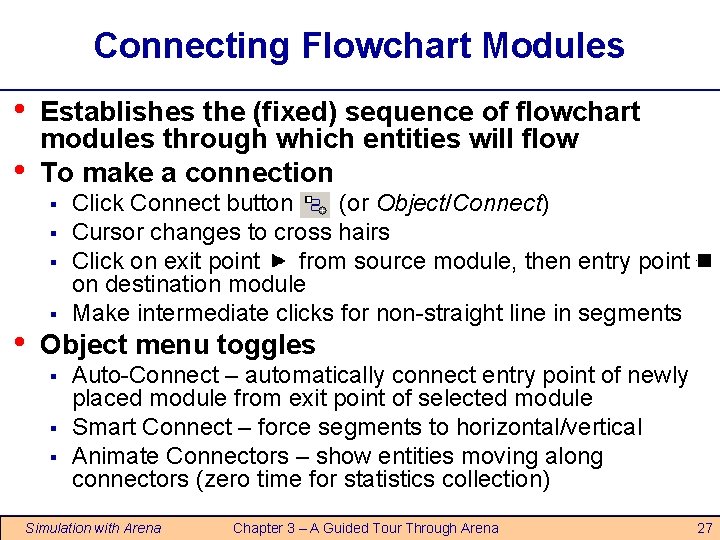
Connecting Flowchart Modules • • Establishes the (fixed) sequence of flowchart modules through which entities will flow To make a connection § § § • § Click Connect button (or Object/Connect) Cursor changes to cross hairs Click on exit point from source module, then entry point on destination module Make intermediate clicks for non-straight line in segments Object menu toggles § § § Auto-Connect – automatically connect entry point of newly placed module from exit point of selected module Smart Connect – force segments to horizontal/vertical Animate Connectors – show entities moving along connectors (zero time for statistics collection) Simulation with Arena Chapter 3 – A Guided Tour Through Arena 27
Dynamic Plots (so so feature) • • Trace variables, queues as simulation runs Disappear after run ends (to keep, must save data, postprocess via Output Analyzer — later) A kind of “data animation” Plot button from Animate toolbar… “Add” for § § • • § Expression to plot (help via Expression Builder … later) Min/Max y-axis values (initially guesses, maybe revise) Number of “corners” to show (# History Points) at a time Stepped option (for piecewise-constant curves) Colors In Plot dialog – Time Range (x axis), cosmetics Resize plot itself by dragging corners Simulation with Arena Chapter 3 – A Guided Tour Through Arena 28
Dressing Things Up • Add drawing objects from Draw toolbar § § • Similar to other drawing, CAD packages Object-oriented drawing tools (layers, etc. ), not just a painting tool Add Text to annotate things § Control font, size, color, orientation Simulation with Arena Chapter 3 – A Guided Tour Through Arena 29
Setting the Run Conditions • Run/Setup menu dialog – five tabs § § § Project Parameters – Title, your name, output statistics Replication Parameters – Number of Replications, Length of Replication (and Time Units), Base Time Units (output measures, internal computations), Warm-up Period (when statistics are cleared), Terminating Condition (complex stopping rules), Initialization options Between Replications Other three tabs specify animation speed, run conditions, and reporting preferences Terminating your simulation: § § § Simulation with Arena You must specify – part of modeling Arena has no default termination If you don’t specify termination, Arena will usually keep running forever Chapter 3 – A Guided Tour Through Arena 30
Running It • Plain-vanilla run: Click from Standard toolbar (like VCRs, CD players, etc. ) § § § • First time or after changes: Check √ Enters run mode — can move around but not edit Speed up (“Shift >” on keyboard) or slow down (“Shift<") animation display When done, asked if you want to see summary reports Click to get out of run mode Can pause run with Other run control, viewing, checking options Simulation with Arena Chapter 3 – A Guided Tour Through Arena 31
Viewing the Reports (overkill) • Click Yes in the Arena box at the end of the run § § § • Default installation shows Category Overview report – summarizes many things about the run § § • Opens up a new reports window (separate from model window) inside the Arena window Project Bar shows Reports panel, with different reports (each one would be a new window) Remember to close all reports windows before future runs Reports have “page” to browse ( and ) Also, “table contents” tree at left for quick jumps via , Times are in Base Time Units for the model Simulation with Arena Chapter 3 – A Guided Tour Through Arena 32
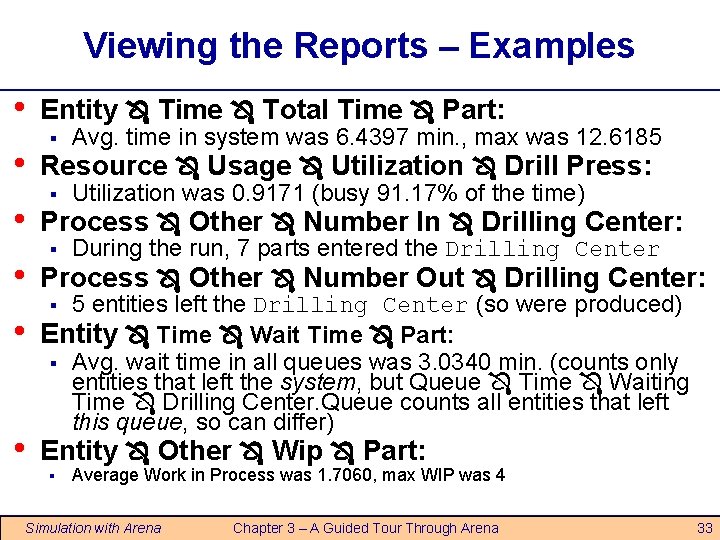
Viewing the Reports – Examples • • • Entity Time Total Time Part: Avg. time in system was 6. 4397 min. , max was 12. 6185 Resource Usage Utilization Drill Press: § Utilization was 0. 9171 (busy 91. 17% of the time) Process Other Number In Drilling Center: § During the run, 7 parts entered the Drilling Center Process Other Number Out Drilling Center: § 5 entities left the Drilling Center (so were produced) Entity Time Wait Time Part: § Avg. wait time in all queues was 3. 0340 min. (counts only entities that left the system, but Queue Time Waiting Time Drilling Center. Queue counts all entities that left this queue, so can differ) Entity Other Wip Part: § § Average Work in Process was 1. 7060, max WIP was 4 Simulation with Arena Chapter 3 – A Guided Tour Through Arena 33
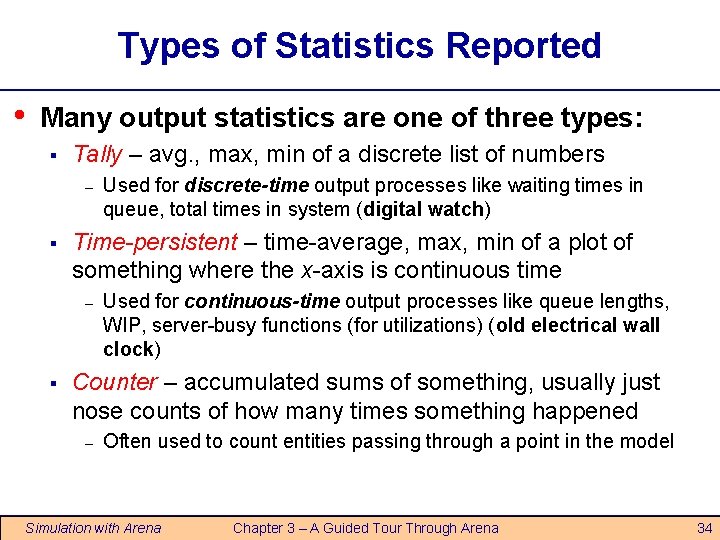
Types of Statistics Reported • Many output statistics are one of three types: § Tally – avg. , max, min of a discrete list of numbers – § Time-persistent – time-average, max, min of a plot of something where the x-axis is continuous time – § Used for discrete-time output processes like waiting times in queue, total times in system (digital watch) Used for continuous-time output processes like queue lengths, WIP, server-busy functions (for utilizations) (old electrical wall clock) Counter – accumulated sums of something, usually just nose counts of how many times something happened – Often used to count entities passing through a point in the model Simulation with Arena Chapter 3 – A Guided Tour Through Arena 34
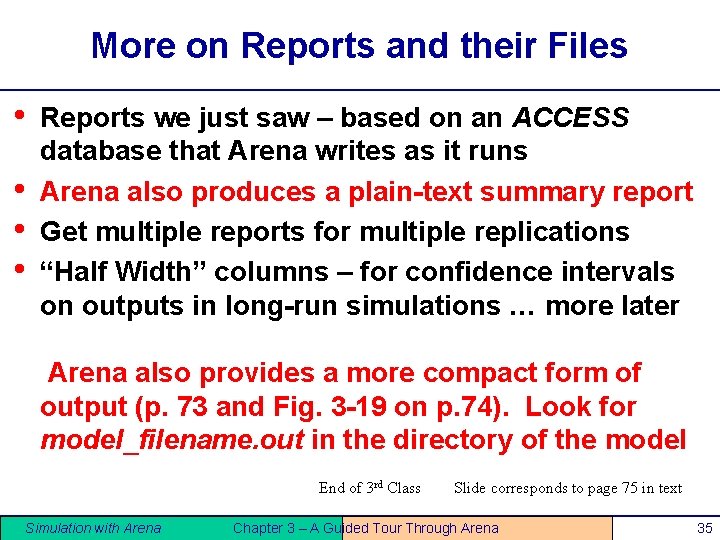
More on Reports and their Files • • Reports we just saw – based on an ACCESS database that Arena writes as it runs Arena also produces a plain-text summary report Get multiple reports for multiple replications “Half Width” columns – for confidence intervals on outputs in long-run simulations … more later Arena also provides a more compact form of output (p. 73 and Fig. 3 -19 on p. 74). Look for model_filename. out in the directory of the model End of 3 rd Class Simulation with Arena Slide corresponds to page 75 in text Chapter 3 – A Guided Tour Through Arena 35