
A guide to using the RCOphthJRCPTB CCT date

A guide to using the RCOphth/JRCPTB CCT date calculator tool Dr Anindita Hom-Choudhury ST 6 Ophthalmology Yorkshire & Humber

The CCT date calculator is a spreadsheet programmed with macros to help you calculate your CCT date. • When you open the Excel file, start by filling in your details and the date at the top. • Then fill in all of your activity from the date you started training, with each post/period in a new row. • WTE refers to whole-time-equivalent, so in this cell you enter your LTFT percentage (100 if full time) for that period. • Don’t worry about the last 2 columns, these will be automatically calculated.
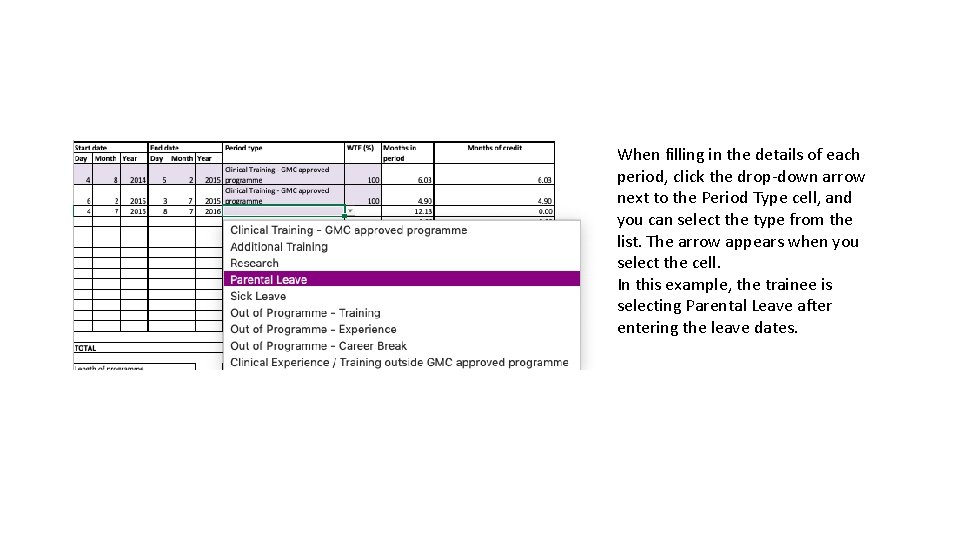
When filling in the details of each period, click the drop-down arrow next to the Period Type cell, and you can select the type from the list. The arrow appears when you select the cell. In this example, the trainee is selecting Parental Leave after entering the leave dates.
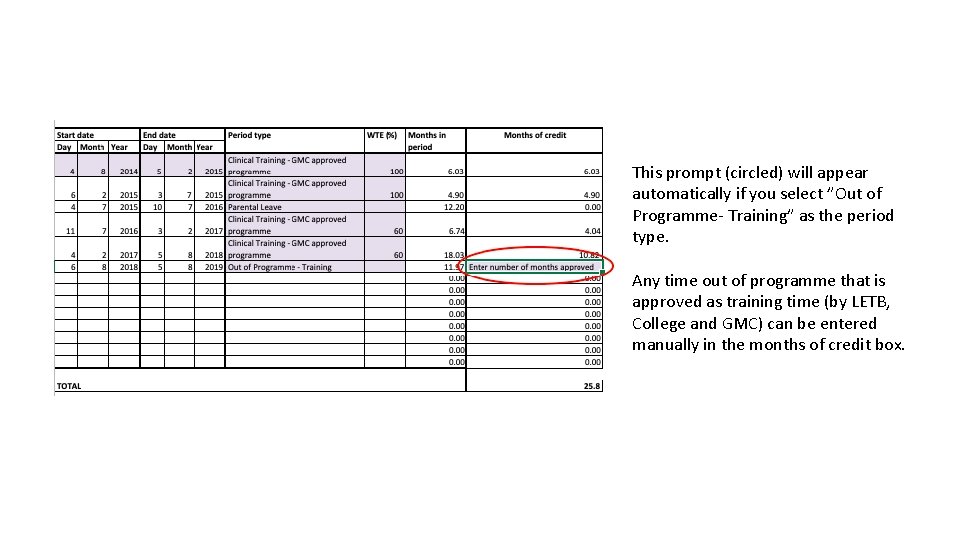
This prompt (circled) will appear automatically if you select ”Out of Programme- Training” as the period type. Any time out of programme that is approved as training time (by LETB, College and GMC) can be entered manually in the months of credit box.
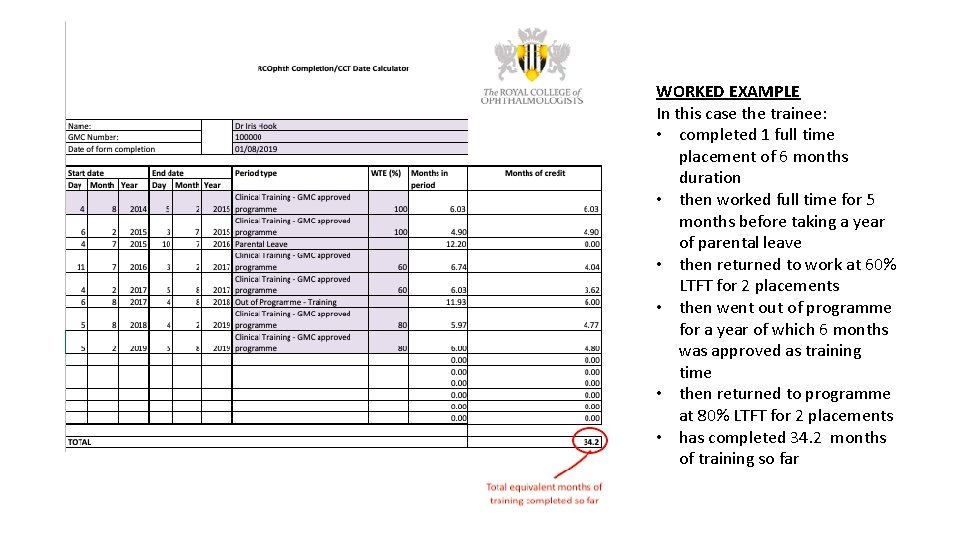
WORKED EXAMPLE In this case the trainee: • completed 1 full time placement of 6 months duration • then worked full time for 5 months before taking a year of parental leave • then returned to work at 60% LTFT for 2 placements • then went out of programme for a year of which 6 months was approved as training time • then returned to programme at 80% LTFT for 2 placements • has completed 34. 2 months of training so far
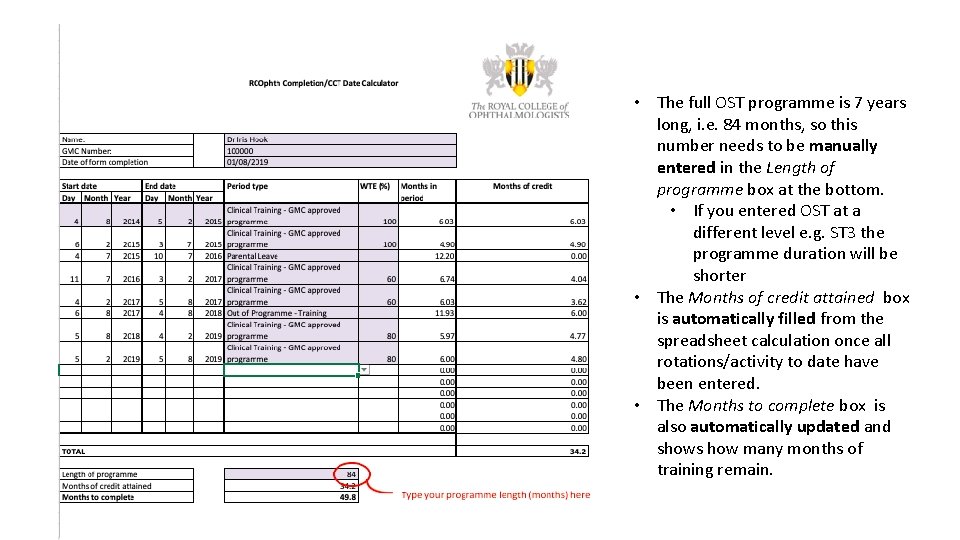
• The full OST programme is 7 years long, i. e. 84 months, so this number needs to be manually entered in the Length of programme box at the bottom. • If you entered OST at a different level e. g. ST 3 the programme duration will be shorter • The Months of credit attained box is automatically filled from the spreadsheet calculation once all rotations/activity to date have been entered. • The Months to complete box is also automatically updated and shows how many months of training remain.
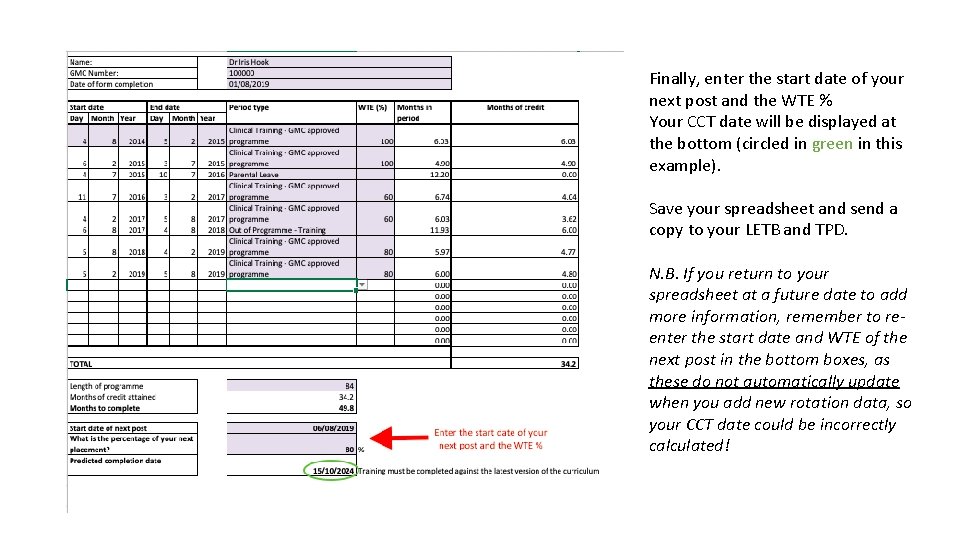
Finally, enter the start date of your next post and the WTE % Your CCT date will be displayed at the bottom (circled in green in this example). Save your spreadsheet and send a copy to your LETB and TPD. N. B. If you return to your spreadsheet at a future date to add more information, remember to reenter the start date and WTE of the next post in the bottom boxes, as these do not automatically update when you add new rotation data, so your CCT date could be incorrectly calculated!
- Slides: 7