
A Guide to Using Images in Power Point
- Slides: 20
A Guide to Using Images in Power. Point Amanda Cohen Fine Point Productions
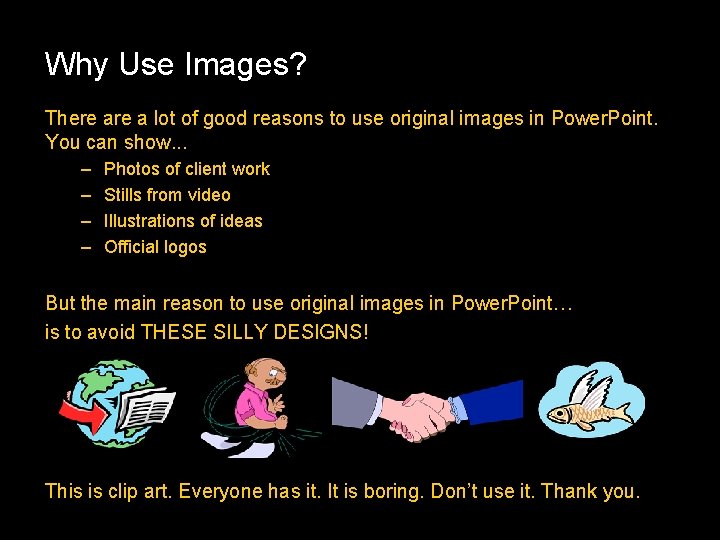
Why Use Images? There a lot of good reasons to use original images in Power. Point. You can show. . . – – Photos of client work Stills from video Illustrations of ideas Official logos But the main reason to use original images in Power. Point… is to avoid THESE SILLY DESIGNS! This is clip art. Everyone has it. It is boring. Don’t use it. Thank you.
What Kinds of Images Can I Use? • There are tons of different types of graphic files. The best ones to use in Power. Point are: – JPG – GIF – TIF • Each type can be created in Photo. Shop, and each one has advantages for different kinds of images
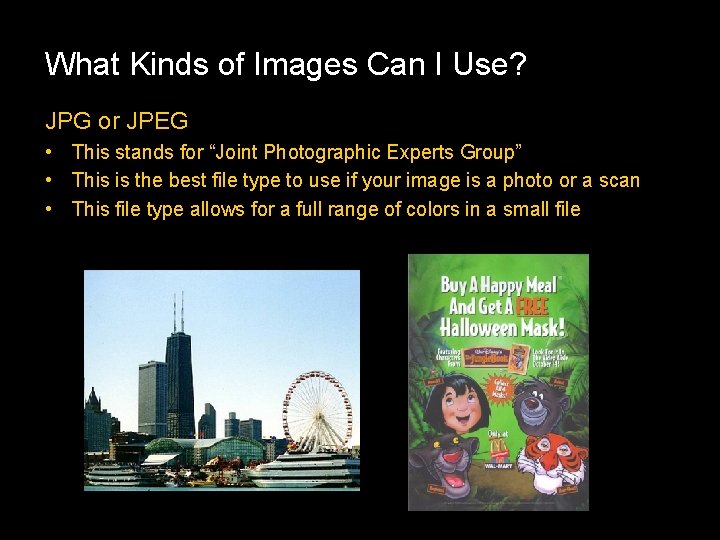
What Kinds of Images Can I Use? JPG or JPEG • This stands for “Joint Photographic Experts Group” • This is the best file type to use if your image is a photo or a scan • This file type allows for a full range of colors in a small file
What Kinds of Images Can I Use? GIF • This stands for “Graphical Interface Format” • This is the best file type to use for logos, line art, or other images with limited colors • GIF files only store colors that are actually used in the image
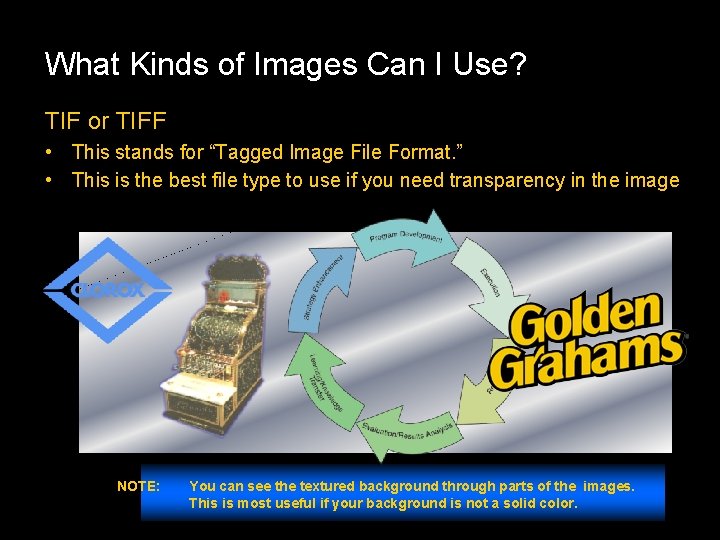
What Kinds of Images Can I Use? TIF or TIFF • This stands for “Tagged Image File Format. ” • This is the best file type to use if you need transparency in the image NOTE: You can see the textured background through parts of the images. This is most useful if your background is not a solid color.
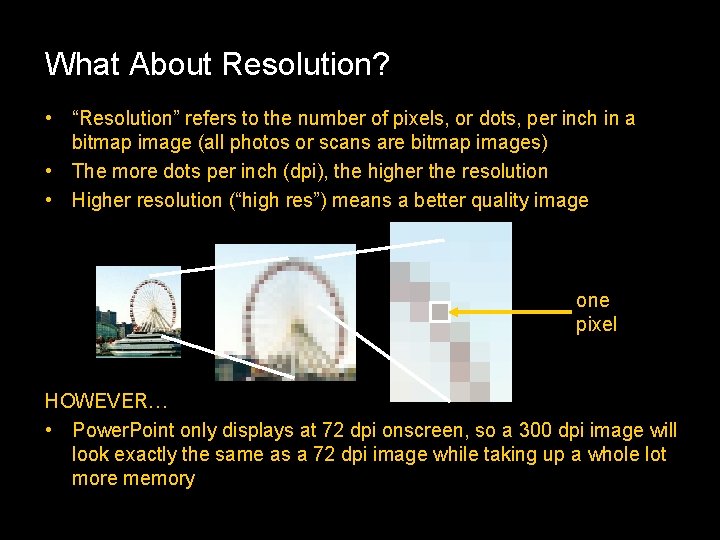
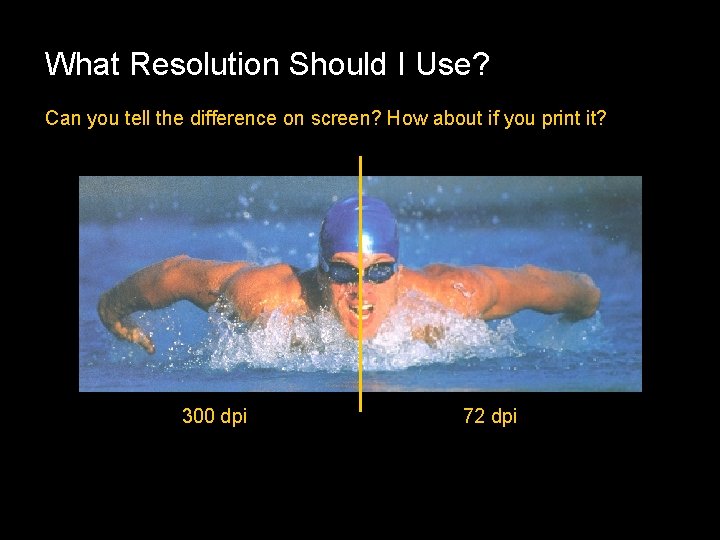
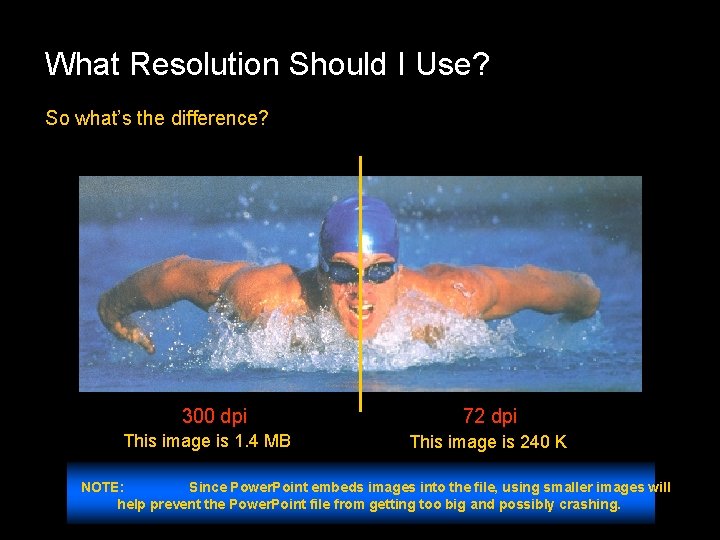
What About Resolution? • “Resolution” refers to the number of pixels, or dots, per inch in a bitmap image (all photos or scans are bitmap images) • The more dots per inch (dpi), the higher the resolution • Higher resolution (“high res”) means a better quality image one pixel HOWEVER… • Power. Point only displays at 72 dpi onscreen, so a 300 dpi image will look exactly the same as a 72 dpi image while taking up a whole lot more memory
What Resolution Should I Use? ON SCREEN PRINTING 72 dpi 300 dpi • If you are going to be showing the Power. Point presentation on screen only, use only images that are 72 dpi • If you are going to be printing the Power. Point presentation, you may use images that are 300 dpi • High res images will look better when printed but they will make your presentation file big, and possibly slow down the slide show NOTE: Power. Point is intended for on-screen presentations but is sometimes used for printing as well. Some users like to have a printed handout of the presentation or printed transparencies just in case.
What Resolution Should I Use? Can you tell the difference on screen? How about if you print it? 300 dpi 72 dpi
What Resolution Should I Use? So what’s the difference? 300 dpi This image is 1. 4 MB 72 dpi This image is 240 K NOTE: Since Power. Point embeds images into the file, using smaller images will help prevent the Power. Point file from getting too big and possibly crashing.
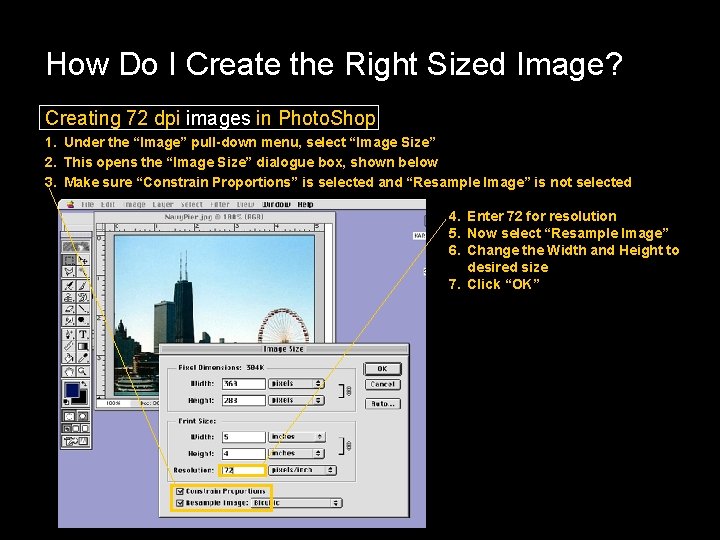
How Do I Create the Right Sized Image? Creating 72 dpi images in Photo. Shop 1. Under the “Image” pull-down menu, select “Image Size” 2. This opens the “Image Size” dialogue box, shown below 3. Make sure “Constrain Proportions” is selected and “Resample Image” is not selected 4. Enter 72 for resolution 5. Now select “Resample Image” 6. Change the Width and Height to desired size 7. Click “OK”
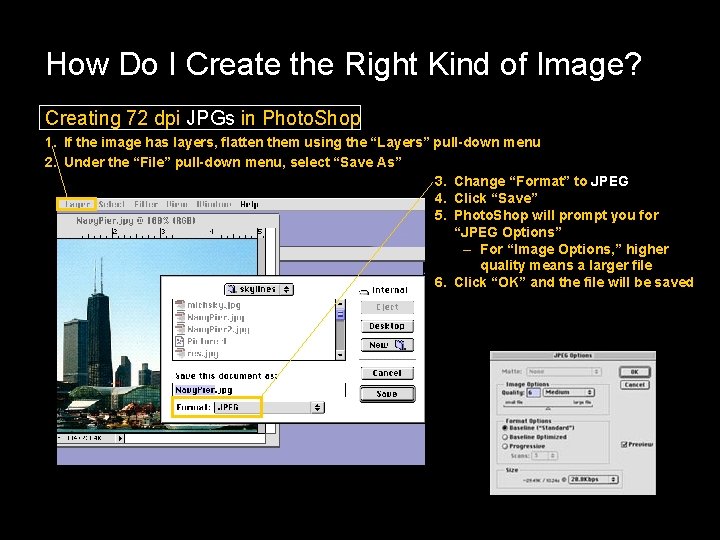
How Do I Create the Right Kind of Image? Creating 72 dpi JPGs in Photo. Shop 1. If the image has layers, flatten them using the “Layers” pull-down menu 2. Under the “File” pull-down menu, select “Save As” 3. Change “Format” to JPEG 4. Click “Save” 5. Photo. Shop will prompt you for “JPEG Options” – For “Image Options, ” higher quality means a larger file 6. Click “OK” and the file will be saved
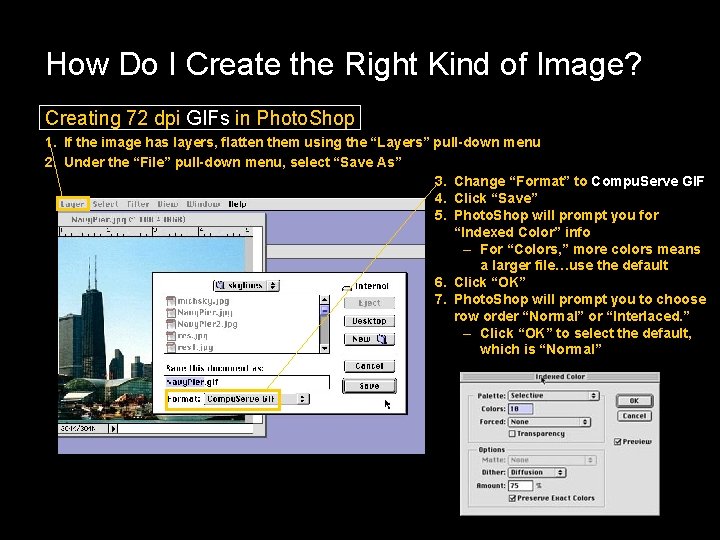
How Do I Create the Right Kind of Image? Creating 72 dpi GIFs in Photo. Shop 1. If the image has layers, flatten them using the “Layers” pull-down menu 2. Under the “File” pull-down menu, select “Save As” 3. Change “Format” to Compu. Serve GIF 4. Click “Save” 5. Photo. Shop will prompt you for “Indexed Color” info – For “Colors, ” more colors means a larger file…use the default 6. Click “OK” 7. Photo. Shop will prompt you to choose row order “Normal” or “Interlaced. ” – Click “OK” to select the default, which is “Normal”
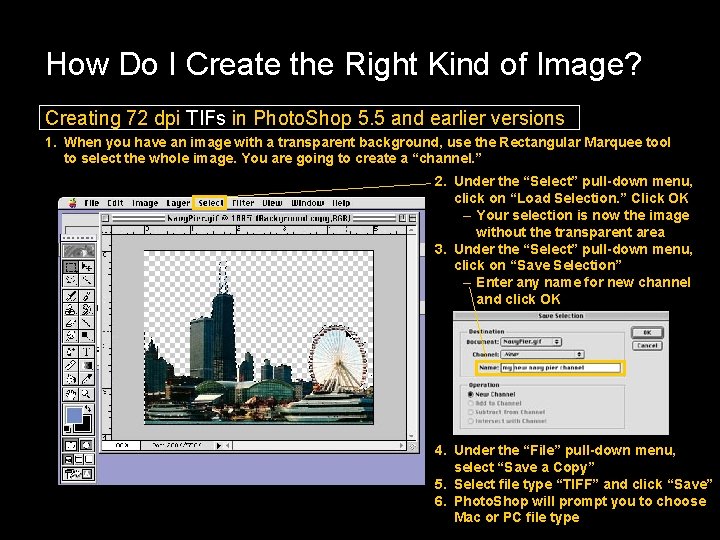
How Do I Create the Right Kind of Image? Creating 72 dpi TIFs in Photo. Shop 5. 5 and earlier versions 1. When you have an image with a transparent background, use the Rectangular Marquee tool to select the whole image. You are going to create a “channel. ” 2. Under the “Select” pull-down menu, click on “Load Selection. ” Click OK – Your selection is now the image without the transparent area 3. Under the “Select” pull-down menu, click on “Save Selection” – Enter any name for new channel and click OK 4. Under the “File” pull-down menu, select “Save a Copy” 5. Select file type “TIFF” and click “Save” 6. Photo. Shop will prompt you to choose Mac or PC file type
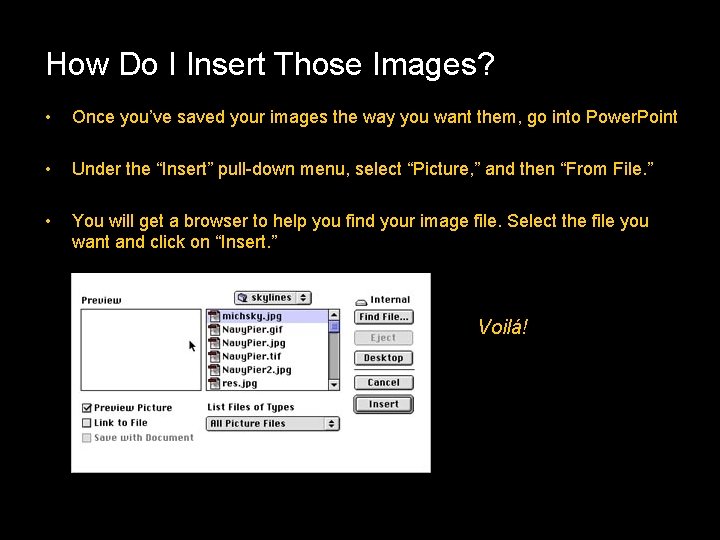
How Do I Insert Those Images? • Once you’ve saved your images the way you want them, go into Power. Point • Under the “Insert” pull-down menu, select “Picture, ” and then “From File. ” • You will get a browser to help you find your image file. Select the file you want and click on “Insert. ” Voilá! Your image is in Power. Point!
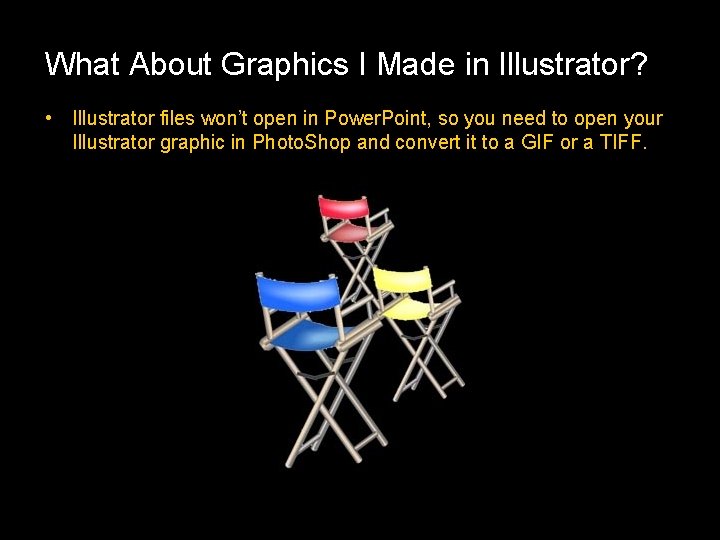
What About Graphics I Made in Illustrator? • Illustrator files won’t open in Power. Point, so you need to open your Illustrator graphic in Photo. Shop and convert it to a GIF or a TIFF.
How Do I Make a Certain Image Appear on Every Page? • Same way you make a certain piece of text appear on every page…you put it on the Slide Master. – In the “View” pull-down menu, select “Master” and then “Slide Master” – Insert image as before – If you want to move the image later, return to the “Slide Master” Why not just insert the image on each page? • Because each time you insert the image, it takes up that much more memory in the Power. Point file NOTE: You can also insert a full-sized background into the Slide Master by choosing Format/ Background/Fill Effects/Picture, and then browsing for your background image. Make sure it’s the right size… 72 dpi and usually 480 pixels tall by 680 pixels wide.
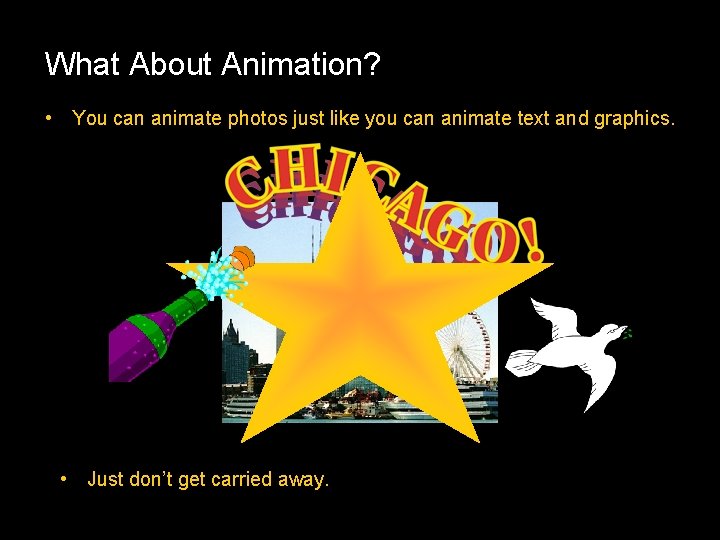
What About Animation? • You can animate photos just like you can animate text and graphics. • Just don’t get carried away.
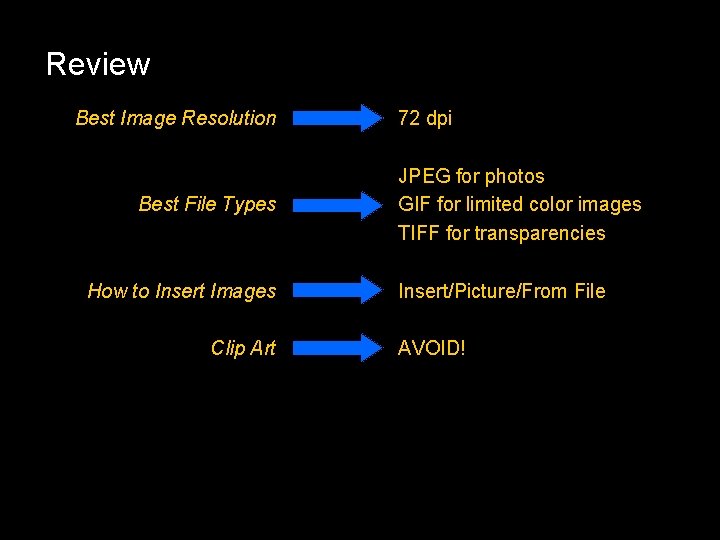
Review Best Image Resolution Best File Types How to Insert Images Clip Art 72 dpi JPEG for photos GIF for limited color images TIFF for transparencies Insert/Picture/From File AVOID!
A Guide to Using Images in Powerpoint Amanda Cohen Fine Point Productions Copyright 2001