
A guide to using Google Classroom at home
- Slides: 10
A guide to using Google Classroom at home
Why use Google Classroom? • Google Classroom is a digital platform embedded within Glow used to communicate our pupils and deliver learning tasks online. To begin with, we will use Google Classroom setting homework with the aim to fully embed it in the coming year. • These slides will take you through how Google Classroom works and what you will see as at home when you are accessing the work. The emphasis should very much be placed on the children to complete homework as normal with you as the adult assisting with the reading and technology.
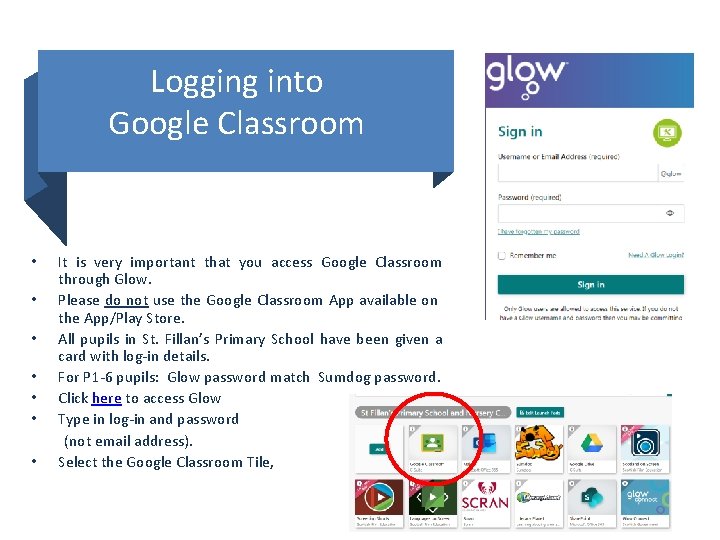
Logging into Google Classroom • • It is very important that you access Google Classroom through Glow. Please do not use the Google Classroom App available on the App/Play Store. All pupils in St. Fillan’s Primary School have been given a card with log-in details. For P 1 -6 pupils: Glow password match Sumdog password. Click here to access Glow Type in log-in and password (not email address). Select the Google Classroom Tile,
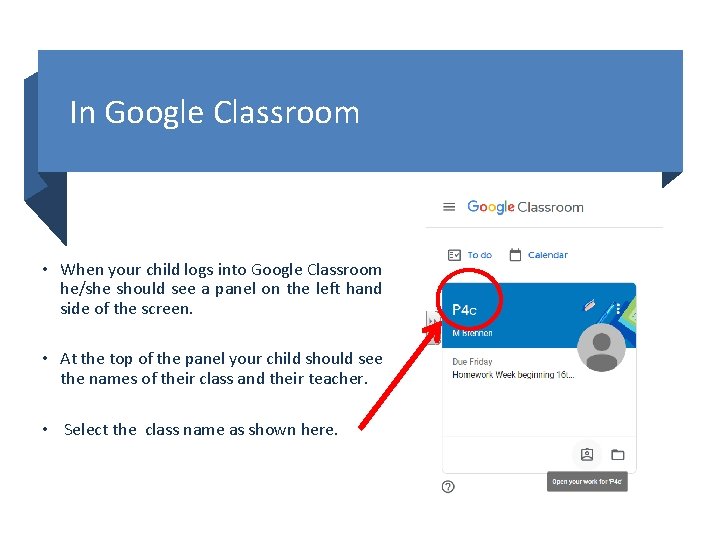
In Google Classroom • When your child logs into Google Classroom he/she should see a panel on the left hand side of the screen. • At the top of the panel your child should see the names of their class and their teacher. • Select the class name as shown here.
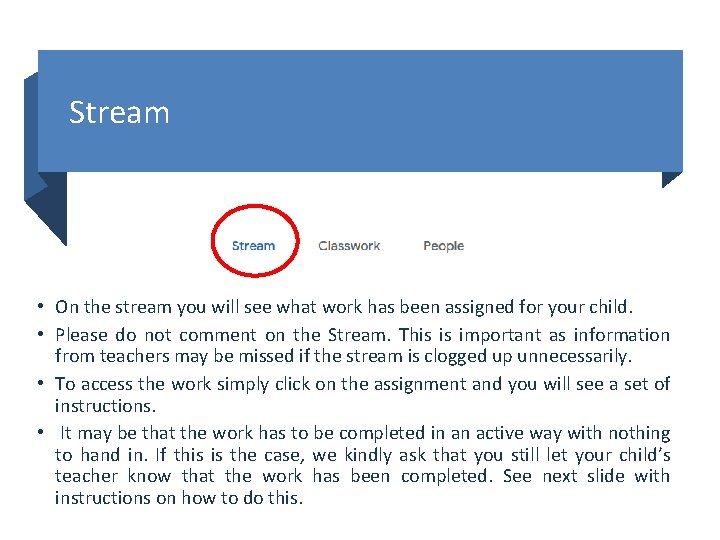
Stream • On the stream you will see what work has been assigned for your child. • Please do not comment on the Stream. This is important as information from teachers may be missed if the stream is clogged up unnecessarily. • To access the work simply click on the assignment and you will see a set of instructions. • It may be that the work has to be completed in an active way with nothing to hand in. If this is the case, we kindly ask that you still let your child’s teacher know that the work has been completed. See next slide with instructions on how to do this.
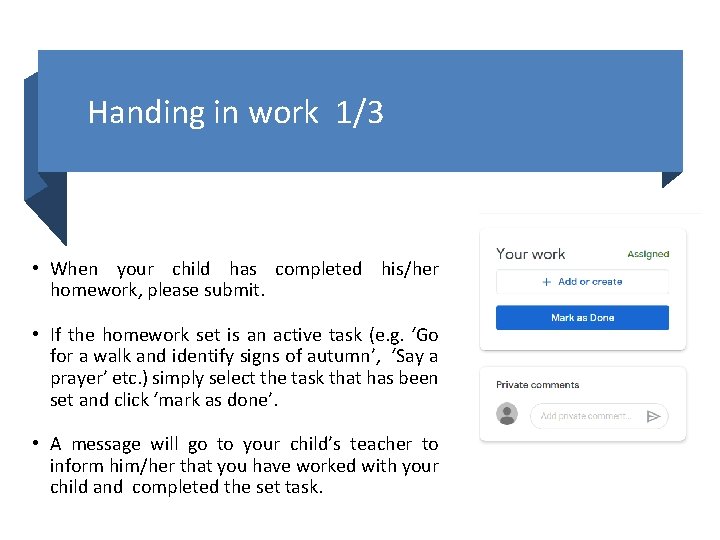
Handing in work 1/3 • When your child has completed his/her homework, please submit. • If the homework set is an active task (e. g. ‘Go for a walk and identify signs of autumn’, ‘Say a prayer’ etc. ) simply select the task that has been set and click ‘mark as done’. • A message will go to your child’s teacher to inform him/her that you have worked with your child and completed the set task.
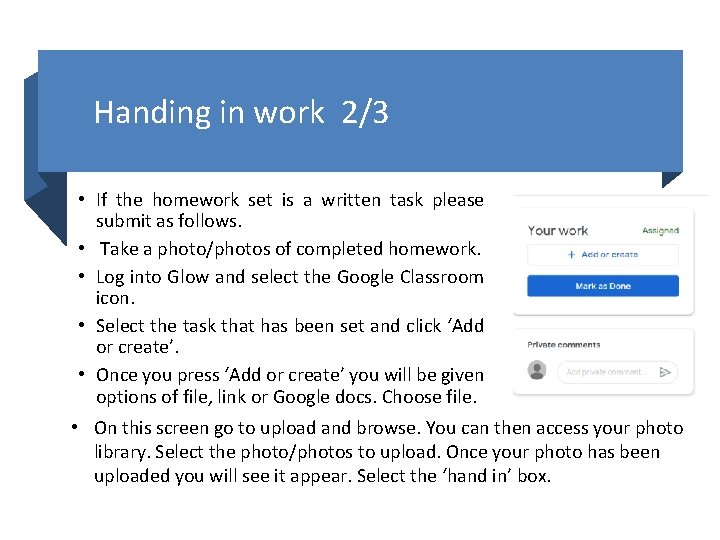
Handing in work 2/3 • If the homework set is a written task please submit as follows. • Take a photo/photos of completed homework. • Log into Glow and select the Google Classroom icon. • Select the task that has been set and click ‘Add or create’. • Once you press ‘Add or create’ you will be given options of file, link or Google docs. Choose file. • On this screen go to upload and browse. You can then access your photo library. Select the photo/photos to upload. Once your photo has been uploaded you will see it appear. Select the ‘hand in’ box.
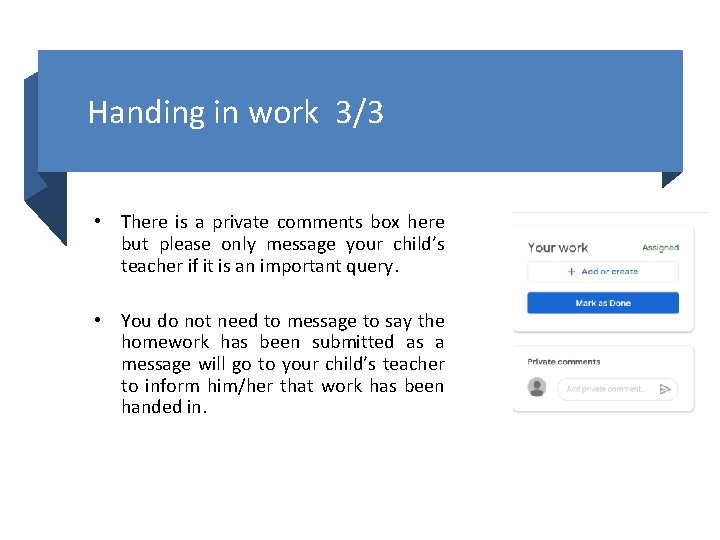
Handing in work 3/3 • There is a private comments box here but please only message your child’s teacher if it is an important query. • You do not need to message to say the homework has been submitted as a message will go to your child’s teacher to inform him/her that work has been handed in.
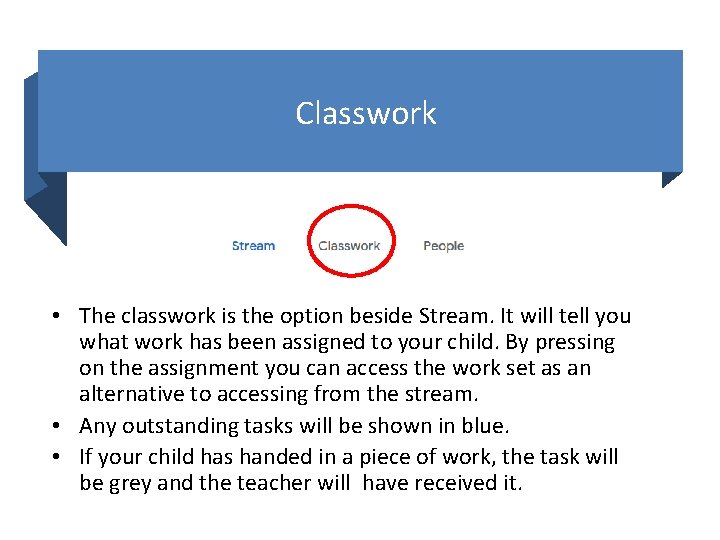
Classwork • The classwork is the option beside Stream. It will tell you what work has been assigned to your child. By pressing on the assignment you can access the work set as an alternative to accessing from the stream. • Any outstanding tasks will be shown in blue. • If your child has handed in a piece of work, the task will be grey and the teacher will have received it.
Good Luck! And please remember, we’re here to help. • We will use Google classroom throughout this school year. It has been chosen as it is a user friendly platform. We encourage you to take some time to familiarise yourself with the screens. • We appreciate your patience as staff are also learning to use this platform. We expect that there may be a few teething problems initially whilst we all become more proficient in the use of Google Classroom. • If you are having problems using Google Classroom please email Mrs Gibb or Mrs Bark: • gw 13 gibbbridie@glow. ea. glasgow. sch. uk gw 14 barkcatriona@glow. ea. glasgow. sch. uk