
A Guide to Managing and Maintaining Your PC
- Slides: 61
A+ Guide to Managing and Maintaining Your PC, 7 e Chapter 2 Introducing Operating Systems
Objectives • Learn about the various operating systems and the differences between them • Learn about the components of Windows operating systems • Learn how operating systems interface with users, files and folders, applications, and hardware A+ Guide to Managing and Maintaining Your PC, 7 e 2
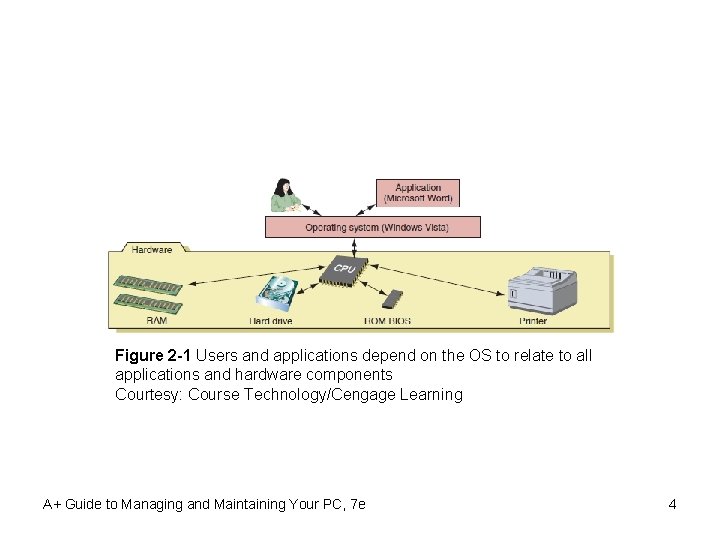
Operating Systems Past And Present • Operating system (OS) software – Controls a computer • OS services – – Manages hardware Runs applications Provides an interface for users Retrieves and manipulates files • OS acts as a “middleman” • Computer needs only one operating system A+ Guide to Managing and Maintaining Your PC, 7 e 3
Figure 2 -1 Users and applications depend on the OS to relate to all applications and hardware components Courtesy: Course Technology/Cengage Learning A+ Guide to Managing and Maintaining Your PC, 7 e 4
DOS (Disk Operating System) • First OS used by IBM computers/compatibles • Command line driven set of programs • Outdated as desktop computer operating system – Still available on troubleshooting disks or CDs A+ Guide to Managing and Maintaining Your PC, 7 e 5
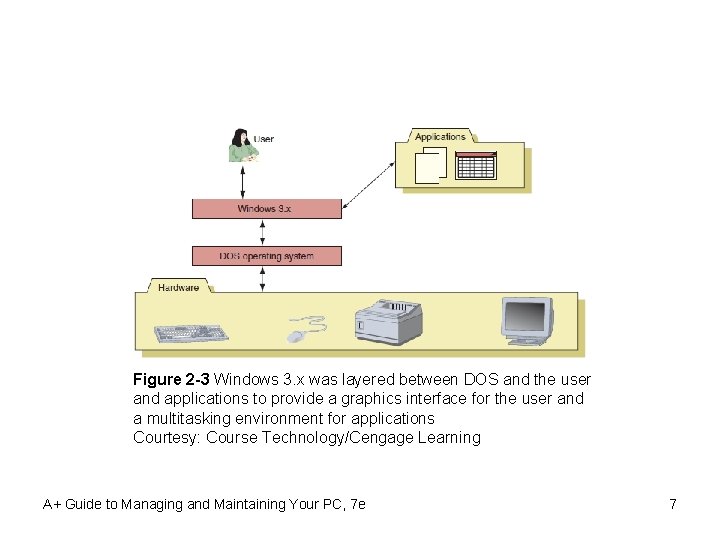
DOS with Windows 3. X • Refers to Windows 3. 1 and windows 3. 11 • Uses DOS as the operating system • Provides user friendly intermediate program between: – DOS, applications, and the user • Long lasting features provided: – – Graphical user interface (GUI) Windows desktop Windows concept Ability to keep more than one application open at the same time A+ Guide to Managing and Maintaining Your PC, 7 e 6
Figure 2 -3 Windows 3. x was layered between DOS and the user and applications to provide a graphics interface for the user and a multitasking environment for applications Courtesy: Course Technology/Cengage Learning A+ Guide to Managing and Maintaining Your PC, 7 e 7
Windows 9 x/ME • Refers to Windows 95, Windows 98, Windows Me • True operating system – Combines DOS core with GUI A+ Guide to Managing and Maintaining Your PC, 7 e 8
Windows NT • Two versions of Windows NT (New Technology): – Windows NT Workstation for desktops – Windows NT Server to control a network • Microsoft completely rewrote OS core – Totally eliminates DOS core – Introduced many new problems • First Windows OS using 32 bits at a time A+ Guide to Managing and Maintaining Your PC, 7 e 9
Windows 2000 • Upgrades Windows NT (desktop and server) • Came in several versions – Popular desktop OS • Improvements – – Stable environment, Plug and Play support Device Manager, Recovery Console, Active Directory Better network support Features specifically targeting notebook computers • Targeted towards corporate environment • Not backward compatible A+ Guide to Managing and Maintaining Your PC, 7 e 10
Windows XP • Integrates Windows 9 x/Me and Windows 2000 • Two main versions: Home Edition and Professional • Noteworthy new features: – Allows multiple users to log on simultaneously • Each with their own applications open – Incorporates Windows Messenger and Media Player – Adds advanced security, such as Windows Firewall • Stable – Service pack: major update or fix to an OS – Patch: minor fix A+ Guide to Managing and Maintaining Your PC, 7 e 11
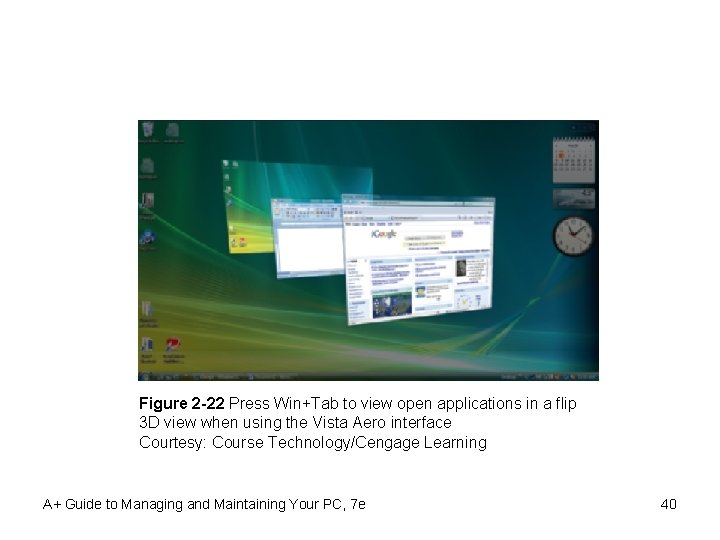
Windows Vista • Upgrade from Windows XP – Comes in five versions • Aero user interface – New 3 D user interface (not available on all versions) • Windows XP Start button – Replaced by Vista sphere with a Windows flag • Complaints – Lack of backward compatibility – Computer resources required – Slow performance A+ Guide to Managing and Maintaining Your PC, 7 e 12
Windows 7 • Next generation of Microsoft OS • Should correct Vista complaints • Expected to run on netbooks – Low-end inexpensive laptop • Small 9 - or 10 -inch screen, no optical drive – Generally used for Web browsing, e-mail, word processing A+ Guide to Managing and Maintaining Your PC, 7 e 13
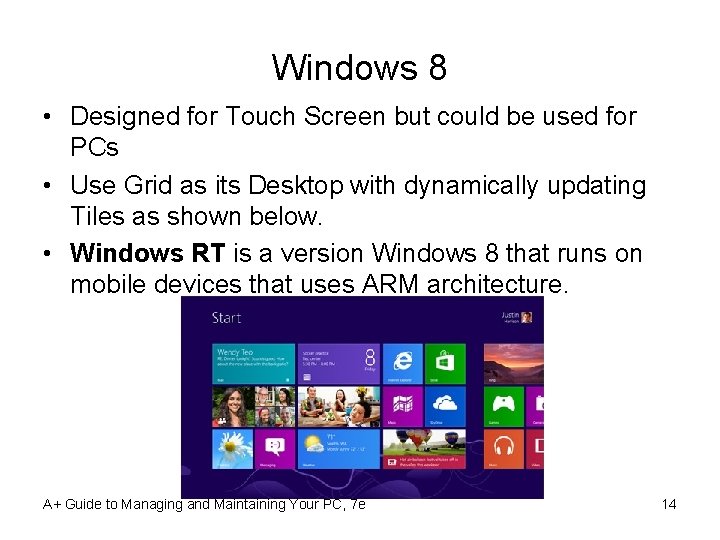
Windows 8 • Designed for Touch Screen but could be used for PCs • Use Grid as its Desktop with dynamically updating Tiles as shown below. • Windows RT is a version Windows 8 that runs on mobile devices that uses ARM architecture. A+ Guide to Managing and Maintaining Your PC, 7 e 14
MAC OS • Introduced in 1984 with Macintosh computers – Current version: Mac OS X (ten) – Can work on Intel-based computers • Boot Camp dual boot software by Apple available • VMWare Fusion creates a virtual machine • Features: – – Support for graphics and multimedia capabilities Use of the Finder program to provide the desktop Superior Plug and Play capabilities Excellent support for multitasking A+ Guide to Managing and Maintaining Your PC, 7 e 15
Linux • • Variation on UNIX OS kernel and source code freely distributed Many popular distributions Well suited for server applications – Sometimes used as a desktop OS • Not easy to install, use • Fewer applications than Windows, MAC OS • Used on netbooks (Small footprint) • Embedded operating system on mobile devices • Excellent training tool for learning Unix A+ Guide to Managing and Maintaining Your PC, 7 e 16
Linux (cont’d. ) • Shell – Relates to the user and to applications • First Linux, Unix shells – Commands entered at a command prompt • Two popular command-line shells for Unix, Linux – Older Bourne shell, newer Bourne-Again shell (BASH) • Many users prefer Windows-style GUI desktop – Built using X Windows – Most popular GUI shells • GNOME, KDE, Xfce A+ Guide to Managing and Maintaining Your PC, 7 e 17
How Windows 2000/XP/Vista Works • Windows 2000, XP, Vista – Three evolutions • Same basic operating system – Many things in common • • • Way they are built Main components User interface Other interfaces Four main functions A+ Guide to Managing and Maintaining Your PC, 7 e 18
What an Operating System Does • Four functions common to all operating systems – – Providing a user interface Managing files Managing applications Managing hardware A+ Guide to Managing and Maintaining Your PC, 7 e 19
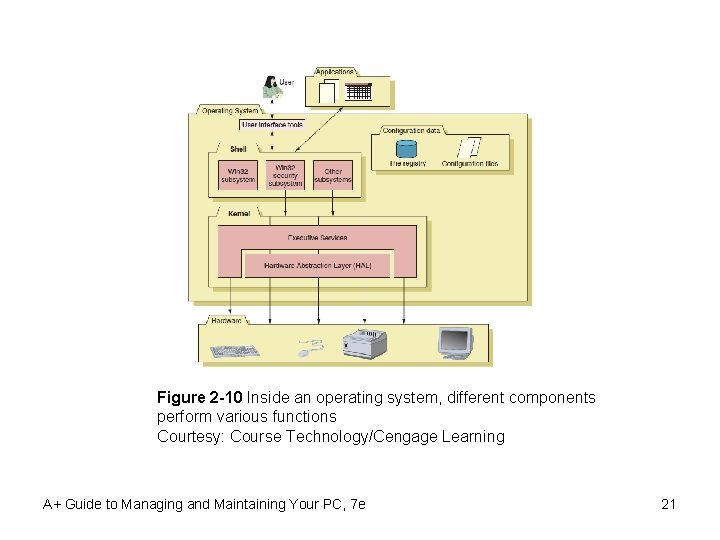
Components of Windows • Shell: relates to the user and to applications • Kernel: responsible for interacting with hardware • Configuration data – Information OS keeps about hardware, applications, data, users • Shell made up of subsystems – Operate in user mode • Subsystems have limited access to system information and can access hardware only through other OS services – Win 32 security subsystem A+ Guide to Managing and Maintaining Your PC, 7 e 20
Figure 2 -10 Inside an operating system, different components perform various functions Courtesy: Course Technology/Cengage Learning A+ Guide to Managing and Maintaining Your PC, 7 e 21
Components of Windows (cont’d. ) • Windows kernel – More power to communicate with hardware devices than the shell has – Operates in kernel mode – Applications cannot get to hardware devices without the shell passing those requests to the kernel – Two main components • The HAL (hardware abstraction layer) • Executive services interface A+ Guide to Managing and Maintaining Your PC, 7 e 22
Components of Windows (cont’d. ) • Configuration data – Used when OS first loaded and when needed by hardware, applications, users – Stored in: • Registry • Initialization files A+ Guide to Managing and Maintaining Your PC, 7 e 23
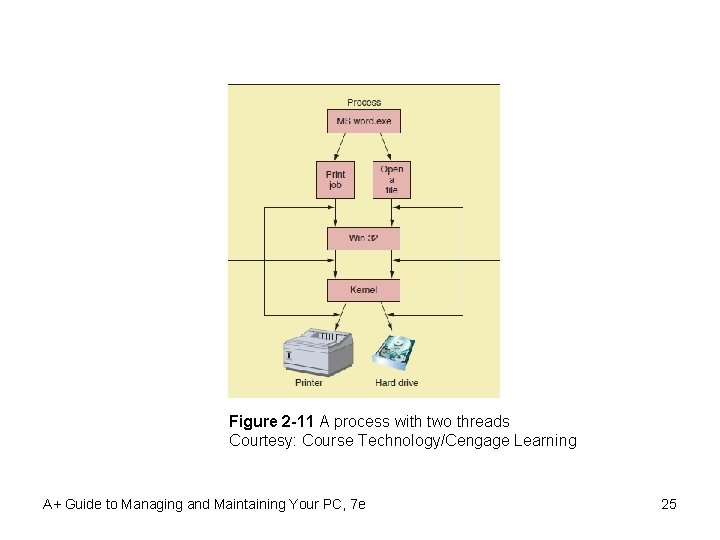
How Windows Manages Applications • Launching an application – Move from hard drive into memory • Process – Program running, together with the system resources assigned to it – Request resources through Win 32 subsystem • Called a thread • Thread – Single task • Multitasking A+ Guide to Managing and Maintaining Your PC, 7 e 24
Figure 2 -11 A process with two threads Courtesy: Course Technology/Cengage Learning A+ Guide to Managing and Maintaining Your PC, 7 e 25
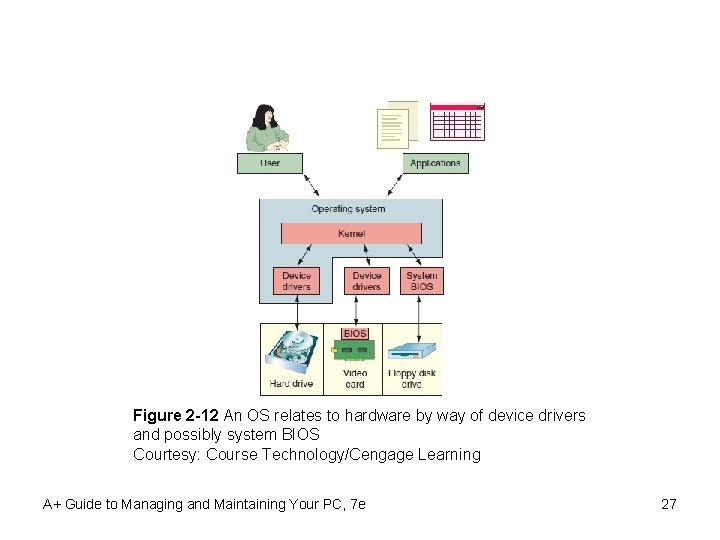
How Windows Manages Hardware • Device drivers – Small programs stored on the hard drive – Allow kernel to communicate with hardware – Provided by OS, vendors • At system startup: – BIOS provides instructions to the CPU for device communication • Drivers written to work for a specific OS • Four types of software – Operating system, applications, device drivers, BIOS A+ Guide to Managing and Maintaining Your PC, 7 e 26
Figure 2 -12 An OS relates to hardware by way of device drivers and possibly system BIOS Courtesy: Course Technology/Cengage Learning A+ Guide to Managing and Maintaining Your PC, 7 e 27
How Many Bits At A Time? • Central Processing Unit (CPU) – Also called a processor – Partly determines which operating system can be installed • Major consideration – Number of bits CPU processes at a time – Intel or AMD desktop and laptop processors sold today • Process 64 bits at a time – Older processors handled only 32 bits A+ Guide to Managing and Maintaining Your PC, 7 e 28
How Many Bits At A Time? (cont’d. ) • 32 -bit processors – x 86 processors • Intel used the number 86 in the model number of these earlier processors • Processors using underlying 32 -bit processing with 64 -bit instructions – Hybrid processors known as x 86 -64 bit processors – Handle a 32 -bit OS or a 64 -bit OS • 64 -bit processors – Fully implement 64 -bit processing • Intel Itanium and Xeon processors A+ Guide to Managing and Maintaining Your PC, 7 e 29
How Many Bits At A Time? (cont’d. ) • Windows 2000: 32 -bit OS • Windows XP Professional x 64 Edition: 64 -bit OS – All other Windows XP editions: 32 -bit OSs • Vista Home Basic, Home Premium, Business, Enterprise, Ultimate editions – 32 -bit or 64 -bit versions • Modern desktop, laptop processors today – Can handle either a 32 -bit or 64 -bit OS • Sometimes referred to as an x 86 or x 64 OS A+ Guide to Managing and Maintaining Your PC, 7 e 30
How Many Bits At A Time? (cont’d. ) • Discussion points – 64 -bit processing is faster than 32 -bit processing – 64 -bit OS requires that device drivers operating in kernel mode be 64 -bit drivers – Application is compiled to process 64 bits or 32 bits – 32 -bit OS can only address up to 4 GB of memory – Benefit from 64 -bit computing if: • Many applications open at the same time • You have high computing needs and enough hard drive space and memory A+ Guide to Managing and Maintaining Your PC, 7 e 31
How Many Bits At A Time? (cont’d. ) • Manufacturers often install a 32 -bit OS on a computer that could support a 64 -bit OS • 64 -bit computing tips – x 86 refers to 32 -bit processors and to 32 -bit operating systems – x 86 -64 refers to a 64 -bit OS or to 32 -bit processors that process 64 -bit instructions – IA 64 refers specifically to 64 -bit Intel processors – x 64 refers to 64 -bit operating systems A+ Guide to Managing and Maintaining Your PC, 7 e 32
Using Windows 2000/XP/Vista • PC support technician – Needs to be a Windows power user • Technician knowledge required – How Windows desktop organized and how it works – How to use Windows utilities • My Computer, Windows Explorer, Control Panel, System Information, Command Prompt window A+ Guide to Managing and Maintaining Your PC, 7 e 33
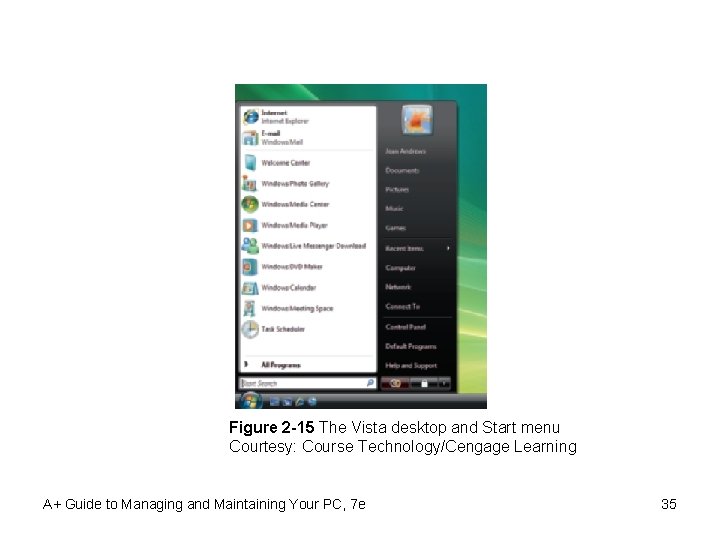
The Windows Vista Desktop • Primary tool provided by the Windows shell • Start menu – Username shown at the top right – Applications at the top left • “pinned” to the menu – Applications used often • Listed below the pinned applications (can change) – User-oriented applications • In the white column on the left side – Use files and OS utilities • Entries in the black column on the right side A+ Guide to Managing and Maintaining Your PC, 7 e 34
Figure 2 -15 The Vista desktop and Start menu Courtesy: Course Technology/Cengage Learning A+ Guide to Managing and Maintaining Your PC, 7 e 35
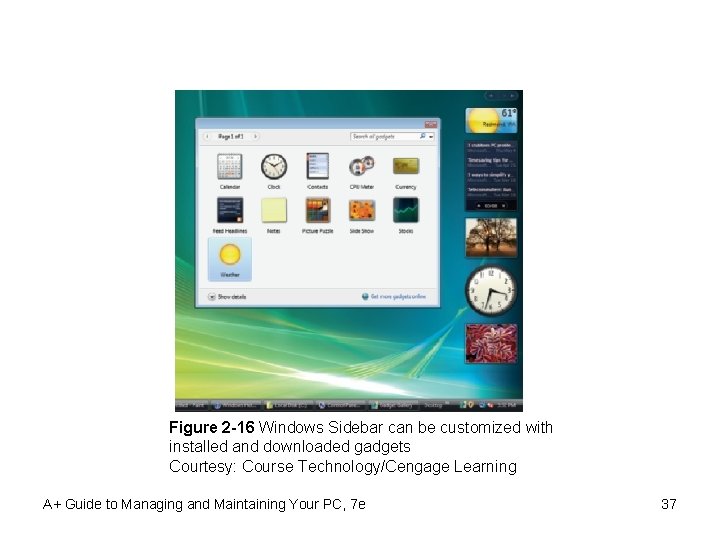
The Windows Vista Desktop (cont’d. ) • Vista sidebar and gadgets – New with Windows Vista – Windows Sidebar Properties box used to: • Start the sidebar each time Windows starts • Decide where sidebar appears • Remove gadgets in sidebar • Four ways to launch an application – – Use the Start menu Use the Search box Use Windows Explorer or the Computer window Use a shortcut icon A+ Guide to Managing and Maintaining Your PC, 7 e 36
Figure 2 -16 Windows Sidebar can be customized with installed and downloaded gadgets Courtesy: Course Technology/Cengage Learning A+ Guide to Managing and Maintaining Your PC, 7 e 37
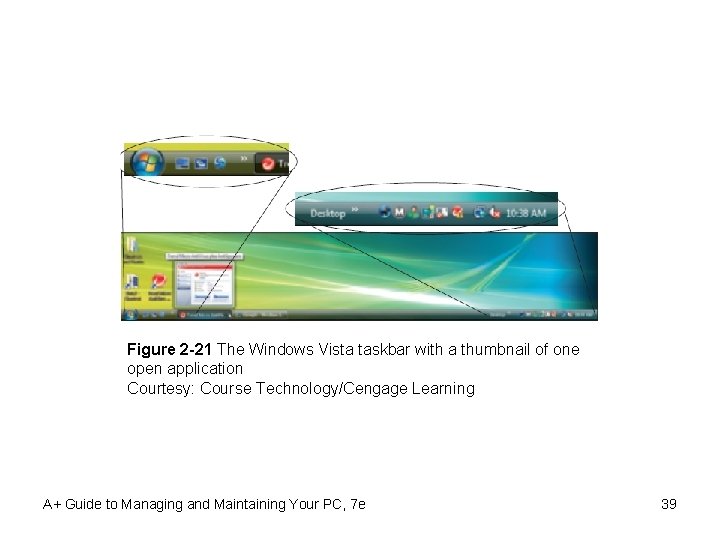
The Windows Vista Desktop (cont’d. ) • Taskbar – Bottom of Windows desktop • Information about open programs, quick access to others • Quick launch icons – Notification (system tray or systray) – Service: program that runs in the background – Supports or serves Windows or an application – Right-click the taskbar, use the shortcut menu • Control Start menu, taskbar, notification area, open applications A+ Guide to Managing and Maintaining Your PC, 7 e 38
Figure 2 -21 The Windows Vista taskbar with a thumbnail of one open application Courtesy: Course Technology/Cengage Learning A+ Guide to Managing and Maintaining Your PC, 7 e 39
Figure 2 -22 Press Win+Tab to view open applications in a flip 3 D view when using the Vista Aero interface Courtesy: Course Technology/Cengage Learning A+ Guide to Managing and Maintaining Your PC, 7 e 40
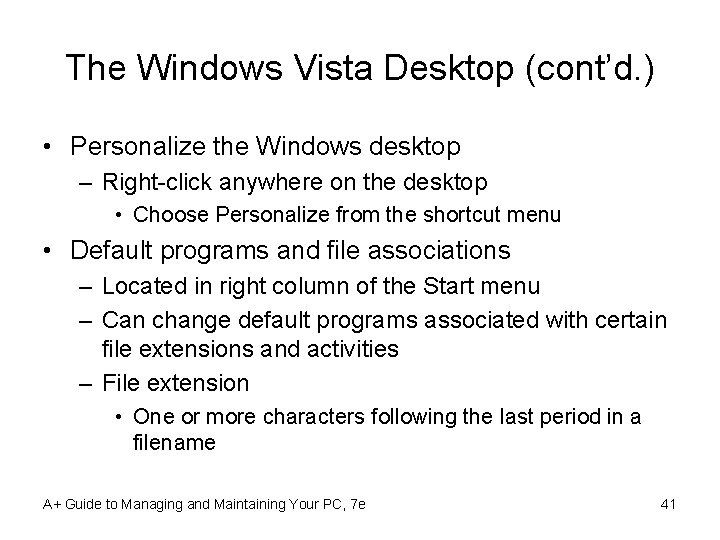
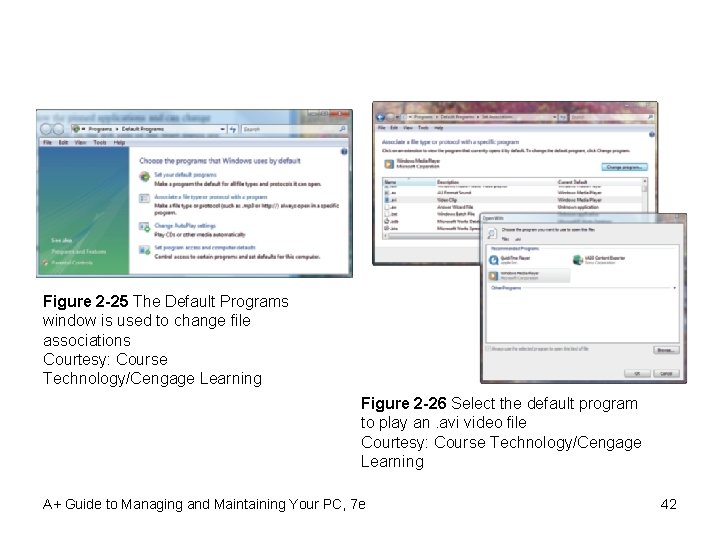
The Windows Vista Desktop (cont’d. ) • Personalize the Windows desktop – Right-click anywhere on the desktop • Choose Personalize from the shortcut menu • Default programs and file associations – Located in right column of the Start menu – Can change default programs associated with certain file extensions and activities – File extension • One or more characters following the last period in a filename A+ Guide to Managing and Maintaining Your PC, 7 e 41
Figure 2 -25 The Default Programs window is used to change file associations Courtesy: Course Technology/Cengage Learning Figure 2 -26 Select the default program to play an. avi video file Courtesy: Course Technology/Cengage Learning A+ Guide to Managing and Maintaining Your PC, 7 e 42
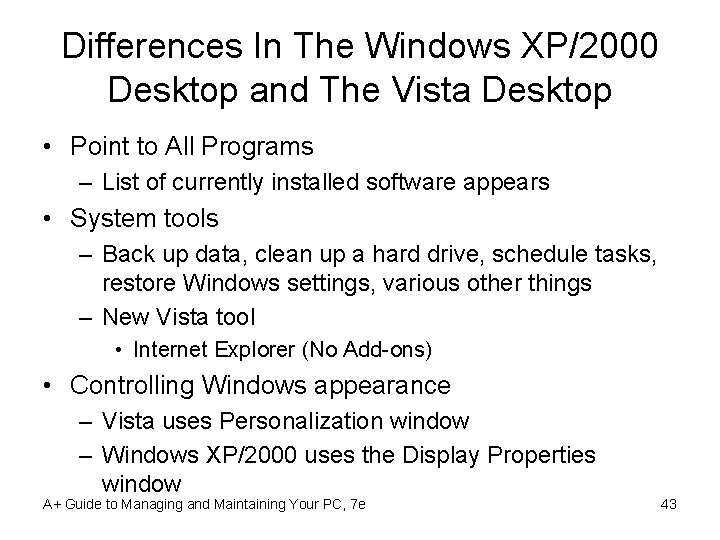
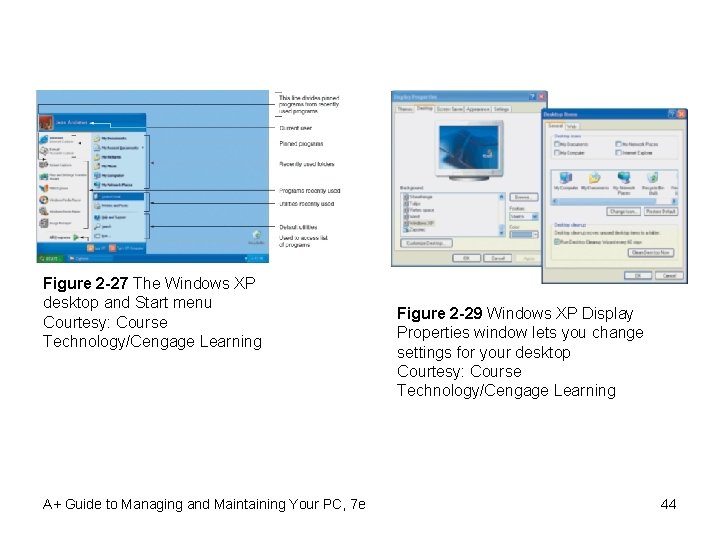
Differences In The Windows XP/2000 Desktop and The Vista Desktop • Point to All Programs – List of currently installed software appears • System tools – Back up data, clean up a hard drive, schedule tasks, restore Windows settings, various other things – New Vista tool • Internet Explorer (No Add-ons) • Controlling Windows appearance – Vista uses Personalization window – Windows XP/2000 uses the Display Properties window A+ Guide to Managing and Maintaining Your PC, 7 e 43
Figure 2 -27 The Windows XP desktop and Start menu Courtesy: Course Technology/Cengage Learning A+ Guide to Managing and Maintaining Your PC, 7 e Figure 2 -29 Windows XP Display Properties window lets you change settings for your desktop Courtesy: Course Technology/Cengage Learning 44
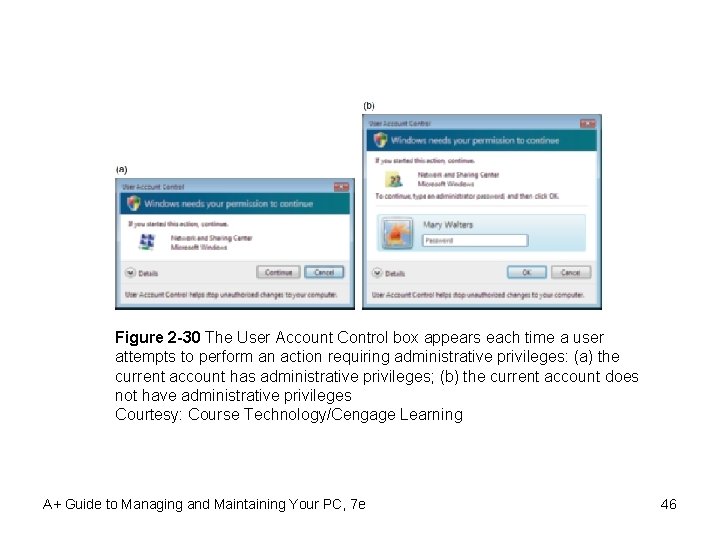
Differences In The Windows XP/2000 Desktop and The Vista Desktop (cont’d. ) • Vista user account control (UAC) box – Appears when action requires administrative privileges – Two Vista account types • Administrator account, standard account – Purposes • Prevent malicious background tasks from doing harm • Allow administrator to use less powerful account – Can be disabled – Uses color codes • Red, yellow, green, grey A+ Guide to Managing and Maintaining Your PC, 7 e 45
Figure 2 -30 The User Account Control box appears each time a user attempts to perform an action requiring administrative privileges: (a) the current account has administrative privileges; (b) the current account does not have administrative privileges Courtesy: Course Technology/Cengage Learning A+ Guide to Managing and Maintaining Your PC, 7 e 46
Windows Explorer And The Computer Window • Two most useful tools to explore files and folders • Access Computer or My Computer window – Windows Vista: click Start and click Computer – Windows XP: click Start and click My Computer – Windows 2000: double-click My Computer on the desktop • Open Windows Explorer – Right-click Computer or My Computer and select Explore from the menu – Right-click Start and select Explore from the menu A+ Guide to Managing and Maintaining Your PC, 7 e 47
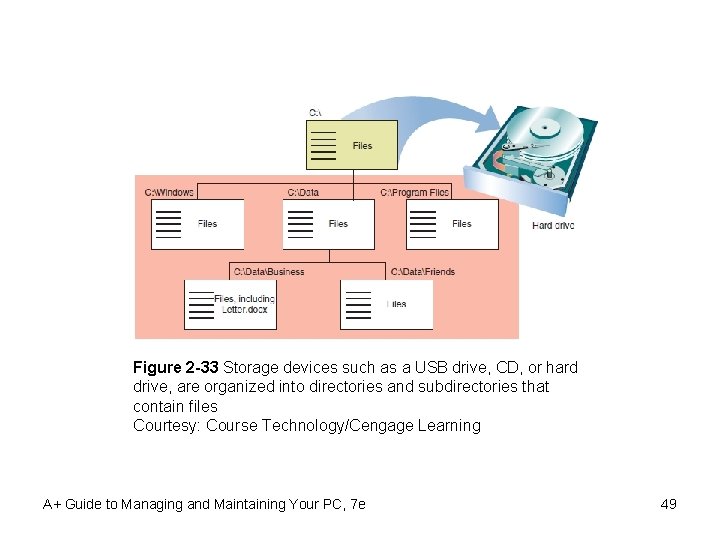
Windows Explorer And The Computer Window (cont’d. ) • Files and directories • Drives organized with single root directory – At top of the top-down hierarchical structure of subdirectories – Exception: hard drive • Divided into partitions • Each volume has its own root directory and hierarchical structure of subdirectories A+ Guide to Managing and Maintaining Your PC, 7 e 48
Figure 2 -33 Storage devices such as a USB drive, CD, or hard drive, are organized into directories and subdirectories that contain files Courtesy: Course Technology/Cengage Learning A+ Guide to Managing and Maintaining Your PC, 7 e 49
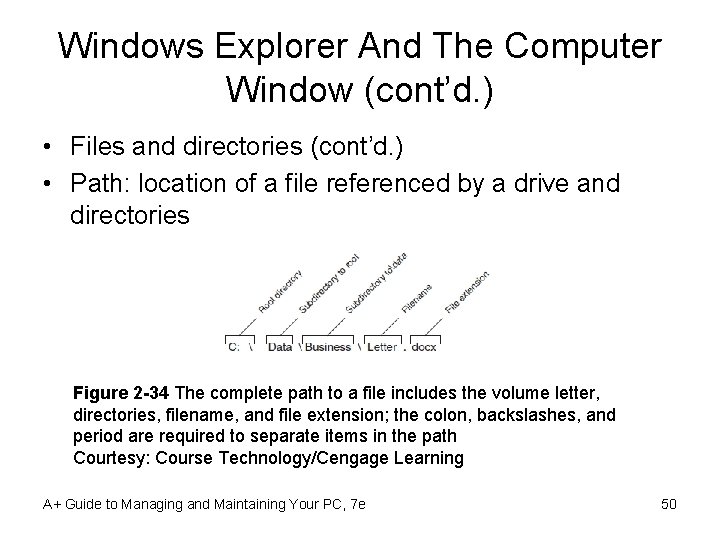
Windows Explorer And The Computer Window (cont’d. ) • Files and directories (cont’d. ) • Path: location of a file referenced by a drive and directories Figure 2 -34 The complete path to a file includes the volume letter, directories, filename, and file extension; the colon, backslashes, and period are required to separate items in the path Courtesy: Course Technology/Cengage Learning A+ Guide to Managing and Maintaining Your PC, 7 e 50
Windows Explorer And The Computer Window (cont’d. ) • Tips to navigate the directory structure – Double-click to drill down to subfolders inside folders – Right-click heading bar controls what information appears – Use top of the left pane in the Favorite Links area – Find a folder or file using the Search box (Vista) – Use forward and back arrows (Vista) • Default layout for files and folders – %System. Drive%Users folder – %System. Drive%Documents and Settings folder A+ Guide to Managing and Maintaining Your PC, 7 e 51
Windows Explorer And The Computer Window (cont’d. ) • Changing folder options – Controls how users view files in a folder, what users can do with the files – File extension • Used to identify file types (Windows) • Default: hide file types • Can view hidden files and file extensions A+ Guide to Managing and Maintaining Your PC, 7 e 52
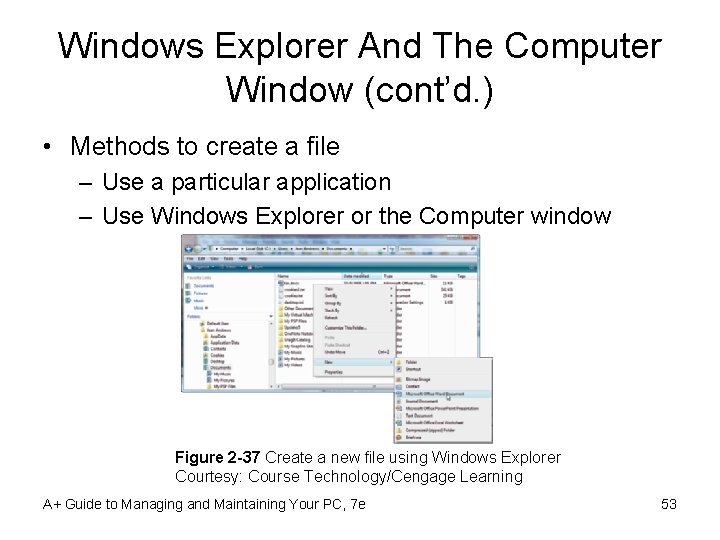
Windows Explorer And The Computer Window (cont’d. ) • Methods to create a file – Use a particular application – Use Windows Explorer or the Computer window Figure 2 -37 Create a new file using Windows Explorer Courtesy: Course Technology/Cengage Learning A+ Guide to Managing and Maintaining Your PC, 7 e 53
Windows Explorer And The Computer Window (cont’d. ) • Create a folder – Select parent folder • • • Right-click in the white area of the right pane Select New from the shortcut menu Select one of three choices for folder types Make a selection Folder is created and highlighted so that it may be renamed – Can create folders within folders – Windows desktop is itself a folder A+ Guide to Managing and Maintaining Your PC, 7 e 54
Windows Explorer And The Computer Window (cont’d. ) • Copy or delete files or folders – Copy • Right-click file, select Copy from the shortcut menu • Click in folder white area where the copied item goes • Select Paste from the shortcut menu – Alternative way to copy • Drag and drop item to its new location – Delete • Using Explorer, right-click the file or folder, select Delete from the shortcut menu – Recycle bin does not really delete files A+ Guide to Managing and Maintaining Your PC, 7 e 55
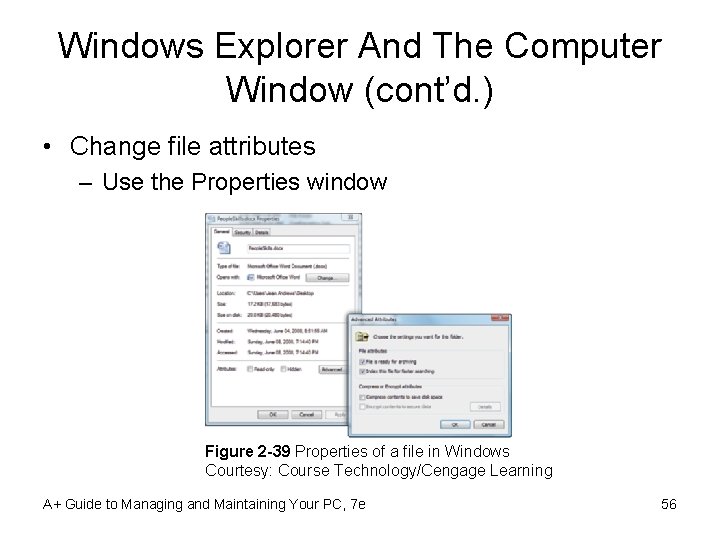
Windows Explorer And The Computer Window (cont’d. ) • Change file attributes – Use the Properties window Figure 2 -39 Properties of a file in Windows Courtesy: Course Technology/Cengage Learning A+ Guide to Managing and Maintaining Your PC, 7 e 56
The Control Panel • Contains applets used to manage the system • Accessing Control Panel in Vista and XP – Click Start and the click Control Panel • Two views: Category View and Classic View • Applets can be accessed directly – Launched using the Vista Start dialog box (Run dialog box in Windows 200/XP) – Example: enter Main. cpl to open Mouse Properties A+ Guide to Managing and Maintaining Your PC, 7 e 57
System Information Utility • Used to view detailed information about the system • Important features – – – Processor or BIOS version installed RAM is installed OS installation directory Hard drive size Names of currently running drivers • Open utility in Vista – Click Start, and enter Msinfo 32. exe in the Start box and press Enter A+ Guide to Managing and Maintaining Your PC, 7 e 58
Command Prompt Window • Used to enter multiple commands to perform a variety of tasks • Ways to open – Vista Start box or Windows 2000/XP Run box • Enter cmd. exe and press Enter – Click Start, All Programs, Accessories, and Command Prompt • Clear text: type cls • Close the window – Type exit and press Enter or click the X close window icon in the upper-right corner of the window A+ Guide to Managing and Maintaining Your PC, 7 e 59
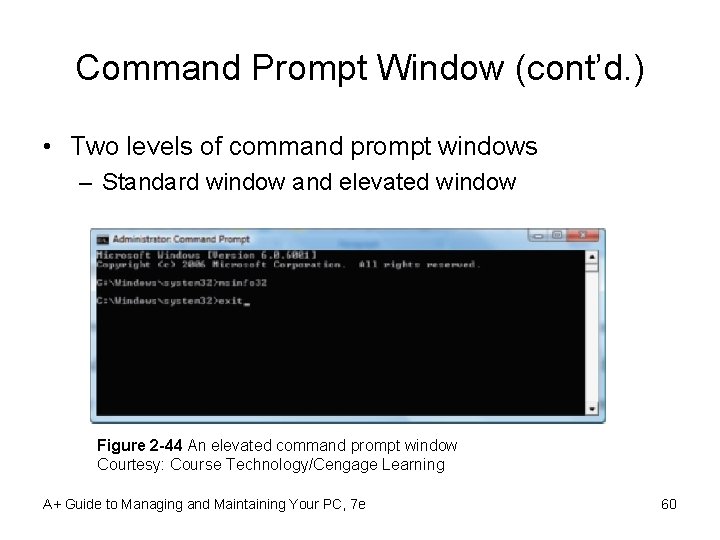
Command Prompt Window (cont’d. ) • Two levels of command prompt windows – Standard window and elevated window Figure 2 -44 An elevated command prompt window Courtesy: Course Technology/Cengage Learning A+ Guide to Managing and Maintaining Your PC, 7 e 60
Summary • OS manages system resources for users and applications • Many operating systems have evolved over time • Operating systems – Divided into a kernel and user shell – Provide user interface, manage files, manage applications, manage hardware • Tools – Windows desktop, Windows Explorer, System Properties, Control Panel, Device Manager, System Information, Windows Help A+ Guide to Managing and Maintaining Your PC, 7 e 61