
A Guide to Google Classroom For AACPS Parents
- Slides: 12
A Guide to Google Classroom For AACPS Parents (versión en español) AACPS Office of Instructional Technology, March 2020
What is Google Classroom? Think of Google Classroom as a classroom on the web. Teachers use Classroom to share assignments, resources, hold class discussions, and provide feedback to students. 2
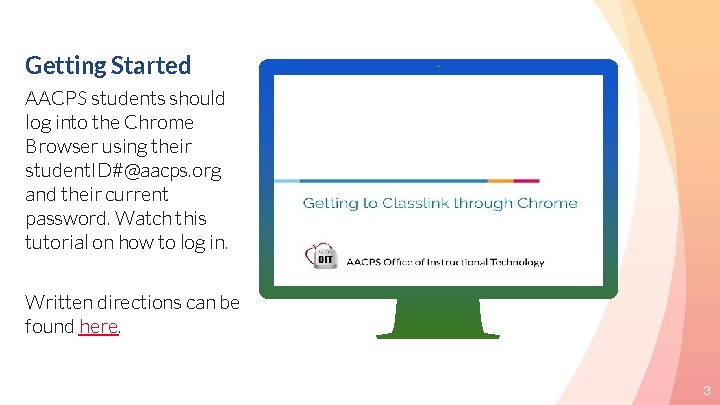
Getting Started AACPS students should log into the Chrome Browser using their student. ID#@aacps. org and their current password. Watch this tutorial on how to log in. Place your screenshot here Written directions can be found here. 3
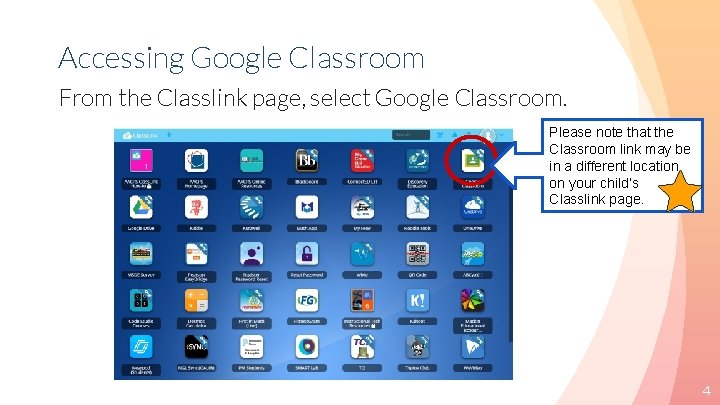
Accessing Google Classroom From the Classlink page, select Google Classroom. Please note that the Classroom link may be in a different location on your child’s Classlink page. 4
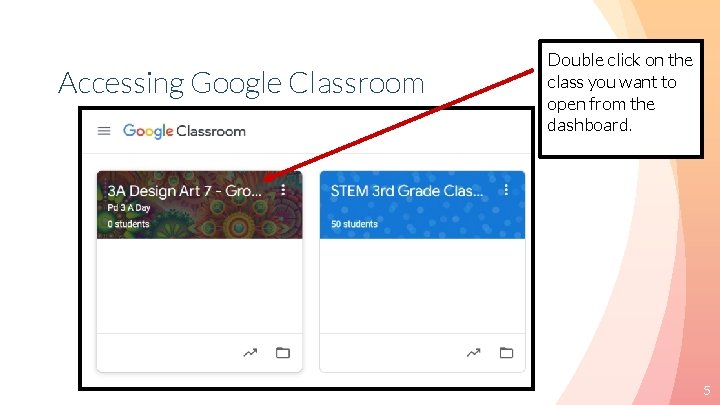
Accessing Google Classroom Double click on the class you want to open from the dashboard. 5
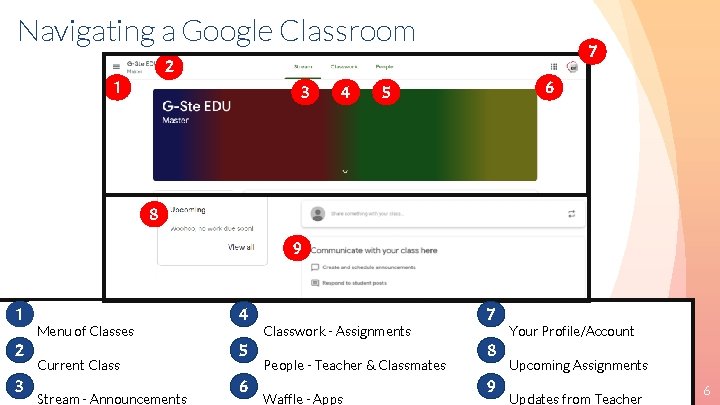
Navigating a Google Classroom 7 2 1 3 4 6 5 8 9 1 2 3 Menu of Classes Current Class Stream - Announcements 4 5 6 Classwork - Assignments People - Teacher & Classmates Waffle - Apps 7 8 9 Your Profile/Account Upcoming Assignments Updates from Teacher 6
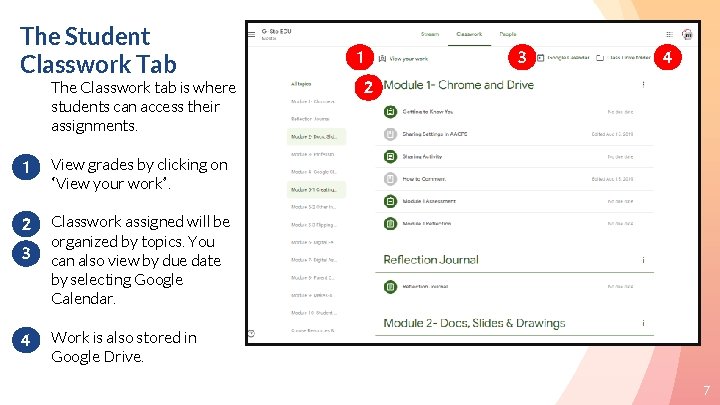
The Student Classwork Tab The Classwork tab is where students can access their assignments. 1 View grades by clicking on “View your work”. 2 3 Classwork assigned will be organized by topics. You can also view by due date by selecting Google Calendar. 4 Work is also stored in Google Drive. 1 3 4 2 7
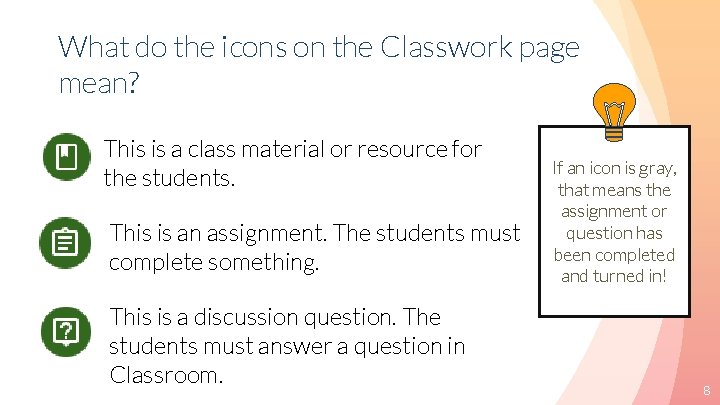
What do the icons on the Classwork page mean? This is a class material or resource for the students. This is an assignment. The students must complete something. This is a discussion question. The students must answer a question in Classroom. If an icon is gray, that means the assignment or question has been completed and turned in! 8
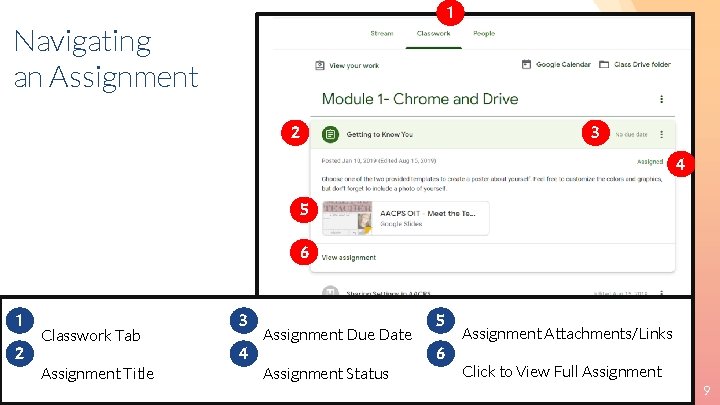
1 Navigating an Assignment 3 2 4 5 6 1 2 Classwork Tab Assignment Title 3 4 Assignment Due Date Assignment Status 5 6 Assignment Attachments/Links Click to View Full Assignment 9
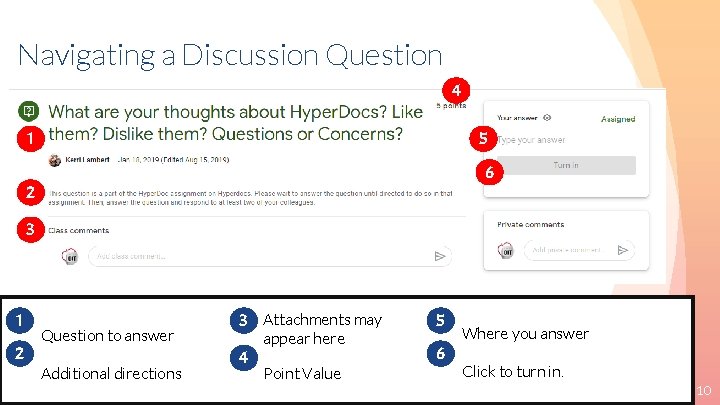
Navigating a Discussion Question 4 1 5 6 2 3 1 2 Question to answer Additional directions 3 Attachments may 5 4 6 appear here Point Value Where you answer Click to turn in. 10
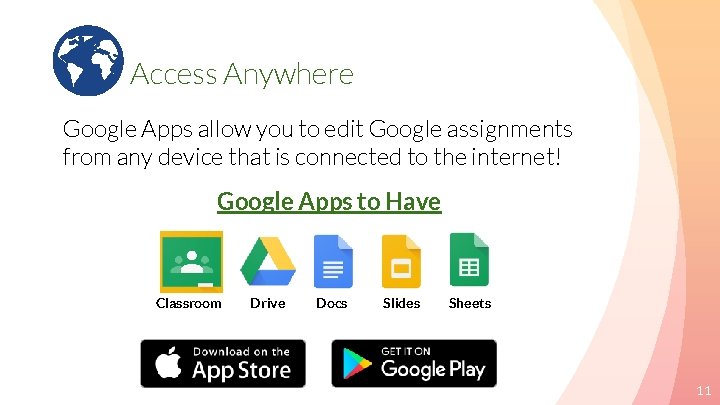
Access Anywhere Google Apps allow you to edit Google assignments from any device that is connected to the internet! Google Apps to Have Classroom Drive Docs Slides Sheets 11
Questions? Find help with common tools used in Classroom on this resource. Find at home lesson resources on the AACPS e. Learning Website Find more resources on using Classroom on the AACPS Google Resource Site 12