
A GUIDE TO GOOGLE CLASSROOM AND CLEVER APPS
- Slides: 19
A GUIDE TO GOOGLE CLASSROOM AND CLEVER APPS For Students and Families
WHAT IS GOOGLE CLASSROOM (GS)? Think of Google Classroom (GC) as your child’s digital link to learning. Teachers use Google Classroom to interactively teach lessons, post assignments, and other forms of communication with students and families. Students use GC in interactively learn from their teachers, complete and turn in assignments, and communicate with their teachers.
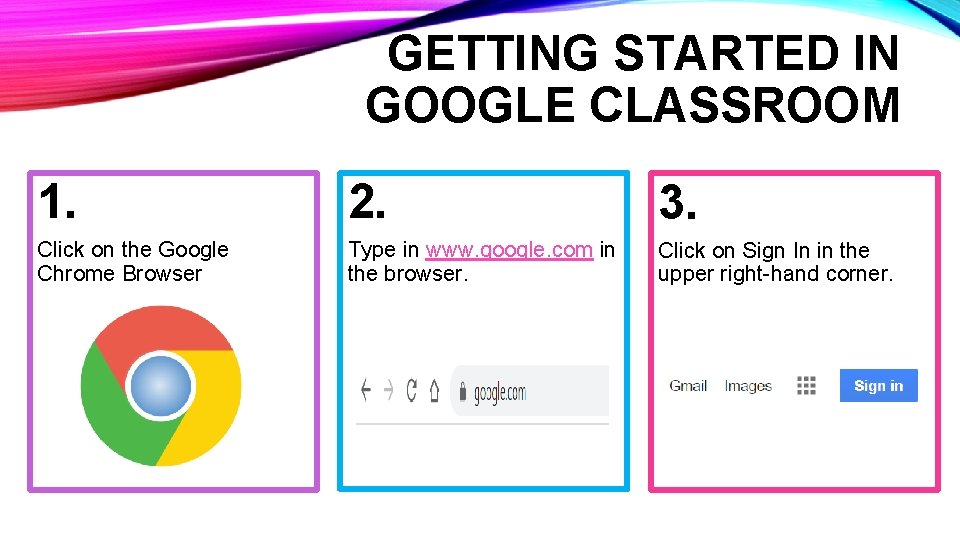
GETTING STARTED IN GOOGLE CLASSROOM 1. 2. 3. Click on the Google Chrome Browser Type in www. google. com in the browser. Click on Sign In in the upper right-hand corner.
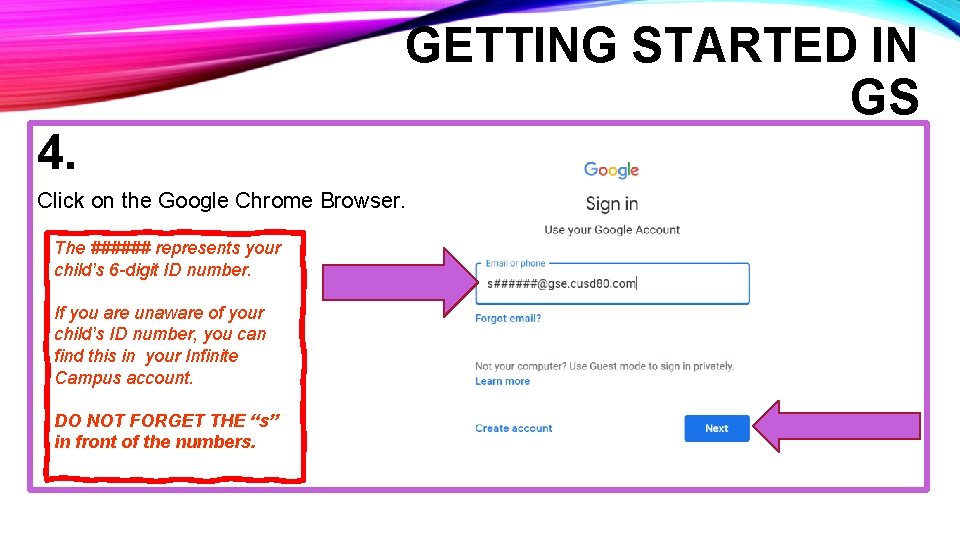
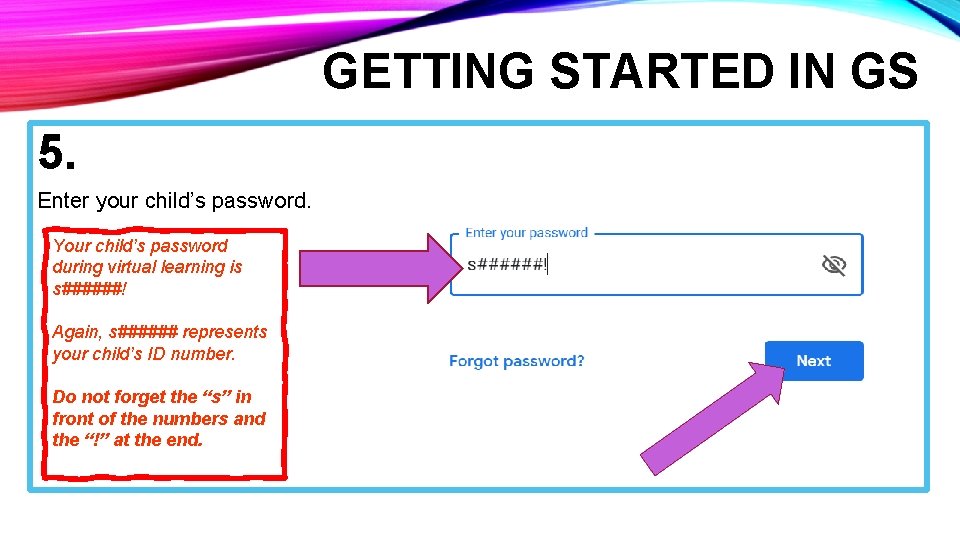
GETTING STARTED IN GS 4. Click on the Google Chrome Browser. The ###### represents your child’s 6 -digit ID number. If you are unaware of your child’s ID number, you can find this in your Infinite Campus account. DO NOT FORGET THE “s” in front of the numbers.
GETTING STARTED IN GS 5. Enter your child’s password. Your child’s password during virtual learning is s######! Again, s###### represents your child’s ID number. Do not forget the “s” in front of the numbers and the “!” at the end.
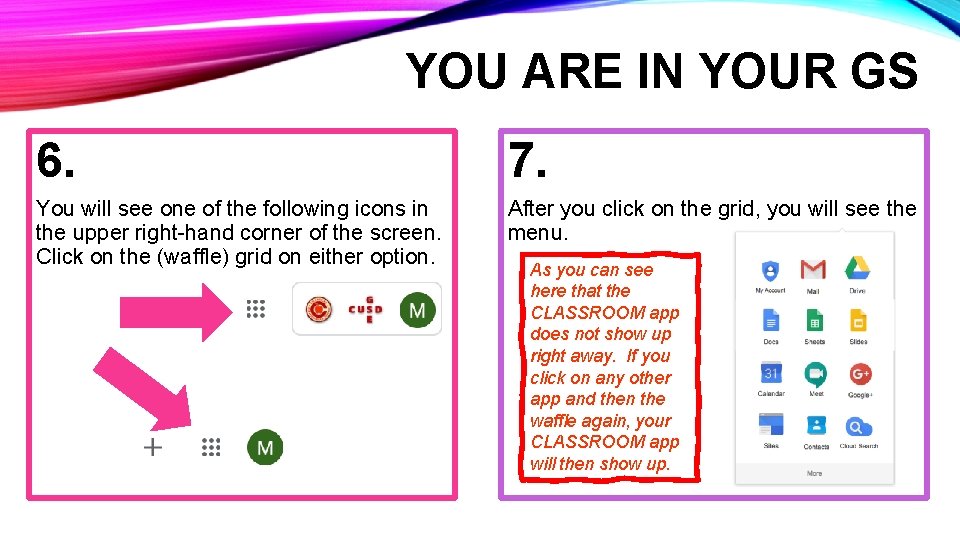
YOU ARE IN YOUR GS 6. 7. You will see one of the following icons in the upper right-hand corner of the screen. Click on the (waffle) grid on either option. After you click on the grid, you will see the menu. As you can see here that the CLASSROOM app does not show up right away. If you click on any other app and then the waffle again, your CLASSROOM app will then show up.
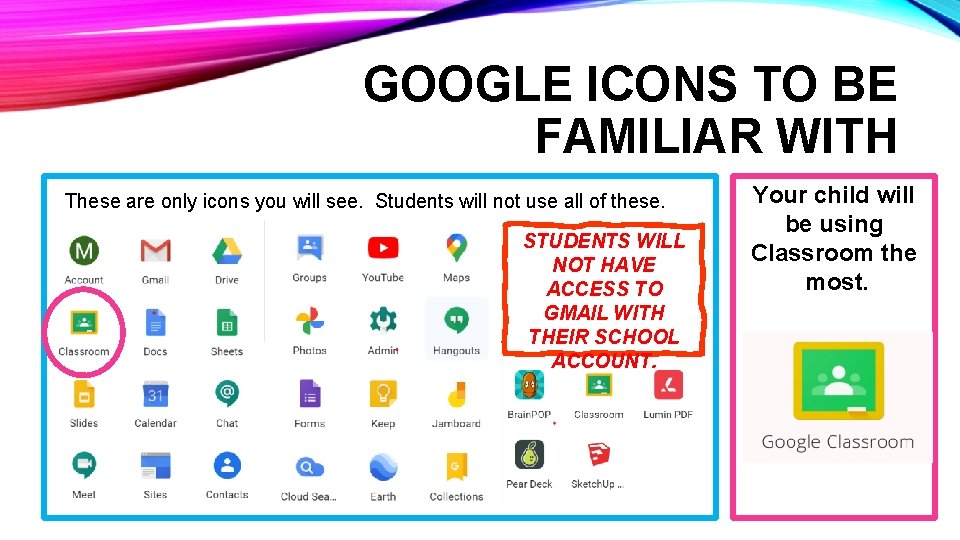
GOOGLE ICONS TO BE FAMILIAR WITH These are only icons you will see. Students will not use all of these. STUDENTS WILL NOT HAVE ACCESS TO GMAIL WITH THEIR SCHOOL ACCOUNT. Your child will be using Classroom the most.
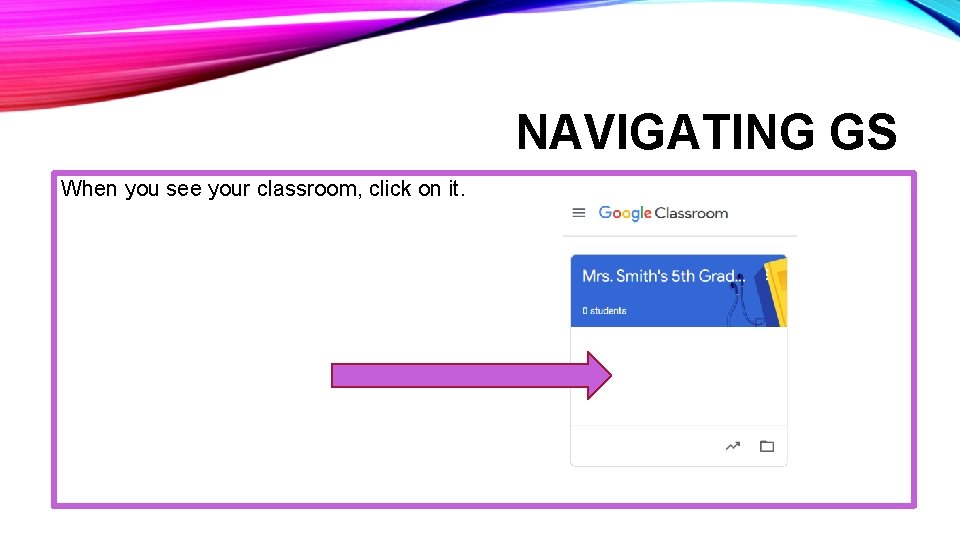
NAVIGATING GS When you see your classroom, click on it.
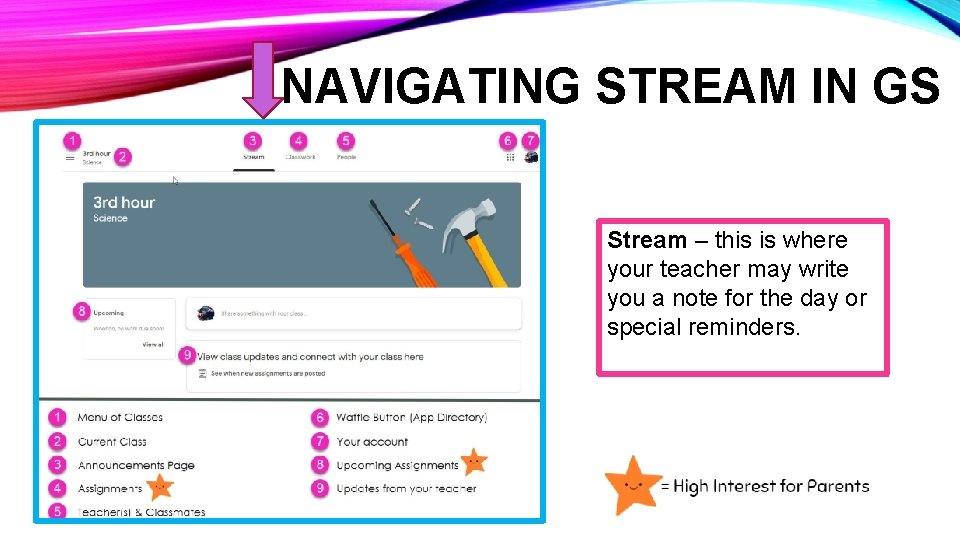
NAVIGATING STREAM IN GS Stream – this is where your teacher may write you a note for the day or special reminders.
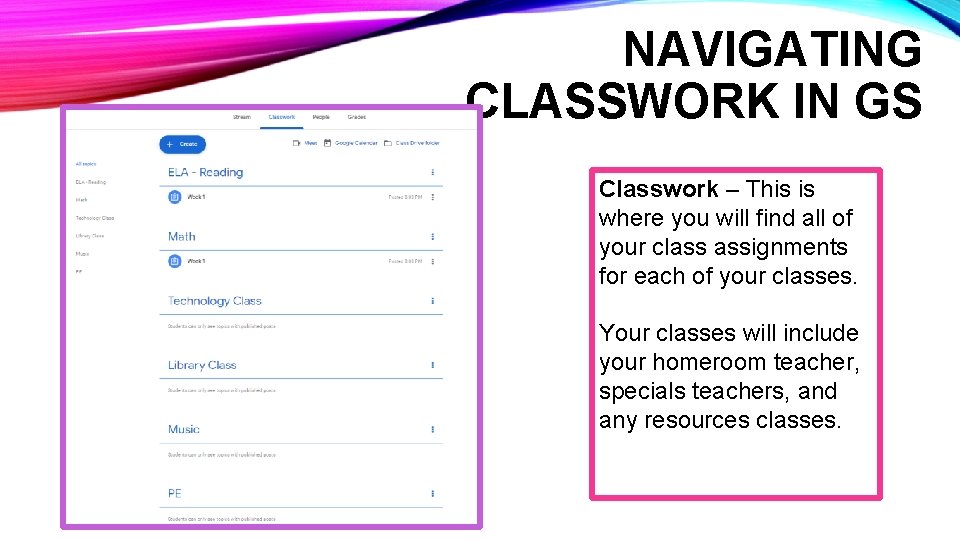
NAVIGATING CLASSWORK IN GS Classwork – This is where you will find all of your class assignments for each of your classes. Your classes will include your homeroom teacher, specials teachers, and any resources classes.
Google Meets Grid View Google Grid View allows for students and teachers to see all students and teachers while interacting in a Google Meet. Open the Google Chrome Browser first, then click on the link below to add the extension in your google meet. https: //chrome. google. com/webstore/detail/google-meet-gridview/kklailfgofogmmdlhgmjgenehkjoioip
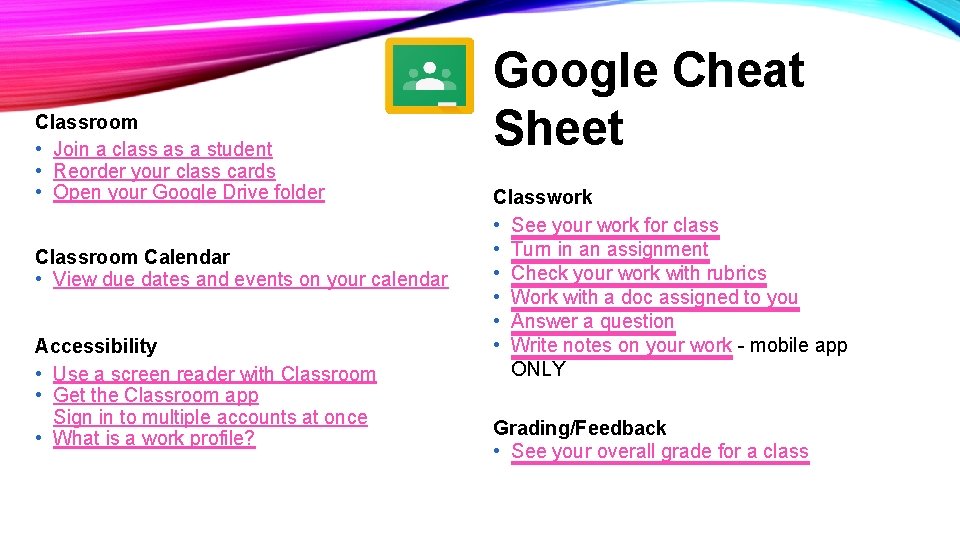
Classroom • Join a class as a student • Reorder your class cards • Open your Google Drive folder Classroom Calendar • View due dates and events on your calendar Accessibility • Use a screen reader with Classroom • Get the Classroom app Sign in to multiple accounts at once • What is a work profile? Google Cheat Sheet Classwork • See your work for class • Turn in an assignment • Check your work with rubrics • Work with a doc assigned to you • Answer a question • Write notes on your work - mobile app ONLY Grading/Feedback • See your overall grade for a class
ALL ABOUT CLEVER Clever is a service that makes it easier for schools to use many popular education technology products. It works by providing a simple developer interface (API) for third party education technology software to access important data from Student Information Systems (SIS) used by schools.
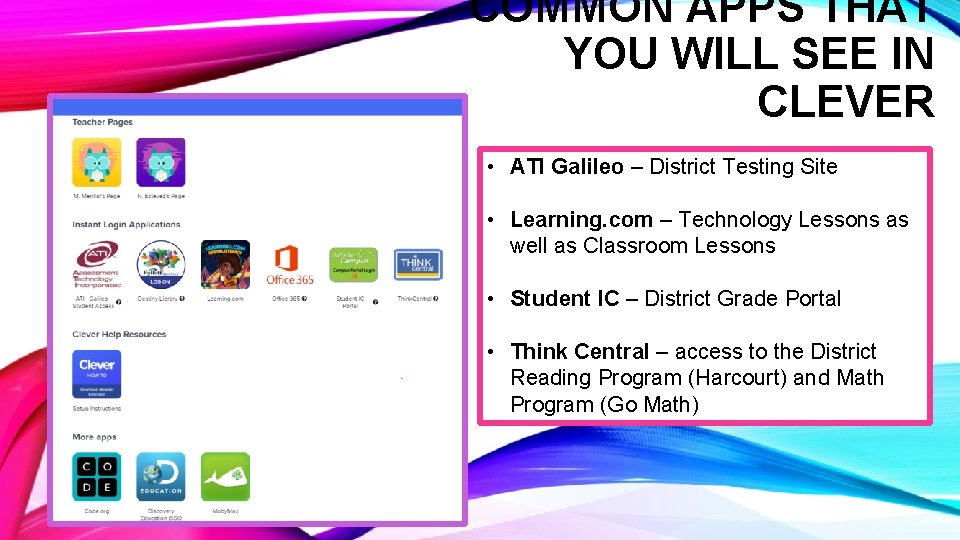
COMMON APPS THAT YOU WILL SEE IN CLEVER • ATI Galileo – District Testing Site • Learning. com – Technology Lessons as well as Classroom Lessons • Student IC – District Grade Portal • Think Central – access to the District Reading Program (Harcourt) and Math Program (Go Math)
INSIDE THE CLEVER APP: THINK CENTRAL p p a e h t s i d l n. a a r m t h a t r en a g C o M r k o P n Thi your G ading e t R a t th r u o c r Ha As long as you are logged into your Google account, when you click on any assignments assigned by your teachers in GS, it should take you right there.
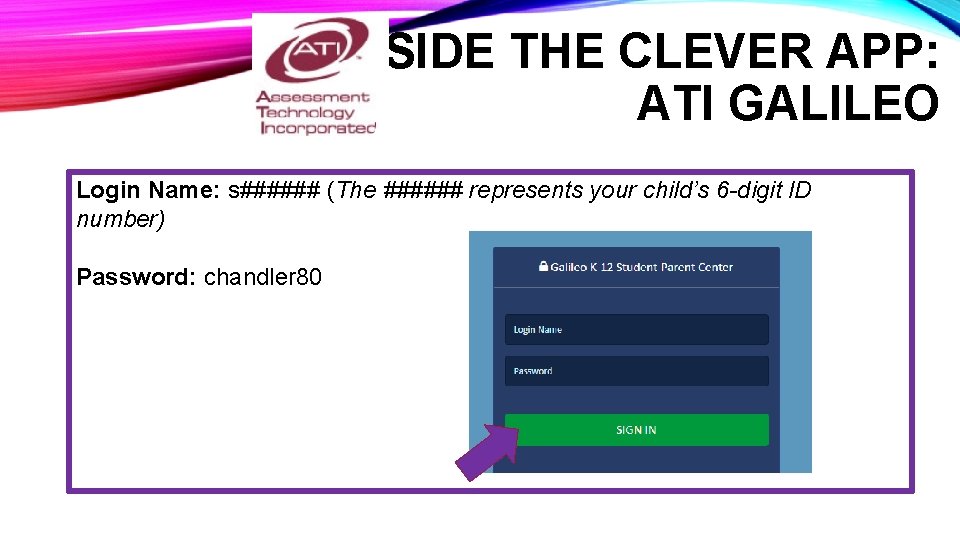
INSIDE THE CLEVER APP: ATI GALILEO Login Name: s###### (The ###### represents your child’s 6 -digit ID number) Password: chandler 80
INSIDE THE CLEVER APP: INFINITE CAMPUS (IC) Grade Portal - Infinite Campus is how the school communicate grades, school events, and all other important information. It is important that all parents have an account with the Parent Portal. Grade Portal Link - https: //www. cusd 80. com/Domain/5058 Student Username is s###### RETURNING PARENTS: You do not need to do anything, but log into your account. You will use the same account for the entire time your student(s) are enrolled in Chandler. If you have forgotten your password, you will need to contact Trisha Pfleiger, registrar, to reset. Student Password is is s######! NEW PARENTS: Please click on the link below to get directions on how to set up your Infinite Campus Account. https: //campus. cusd 80. com/campus/services/create. Parent. Portal. jsp Again, s###### represents your child’s ID number. STUDENTS: Students, you can check your grades or missing assignments from the student portal. Your user name and password are the same as your computer login at school.