
A guide to adding attachments to an email
- Slides: 25
A guide to adding attachments to an email George Dorrity 10. 5
§ Attachmeth are files that can be easily transferred through rth, photos and videos, and any othetrhr files. Attachments are useful because it is such an easy way to send important, finished feghmilds.
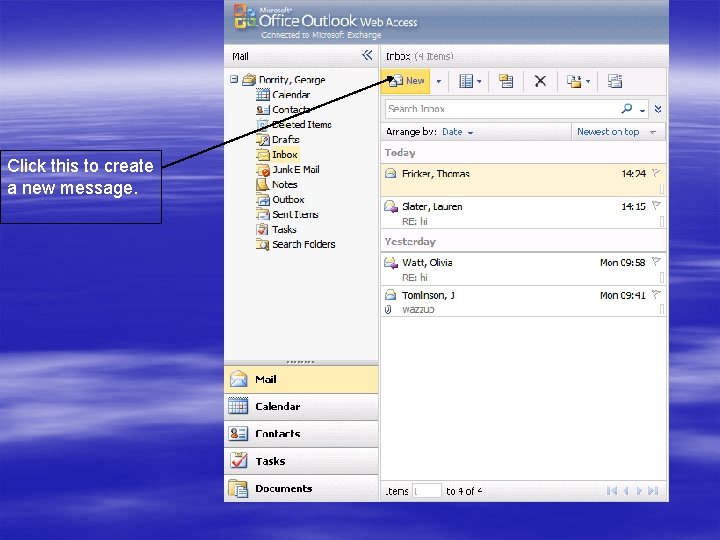
Click this to create a new message.
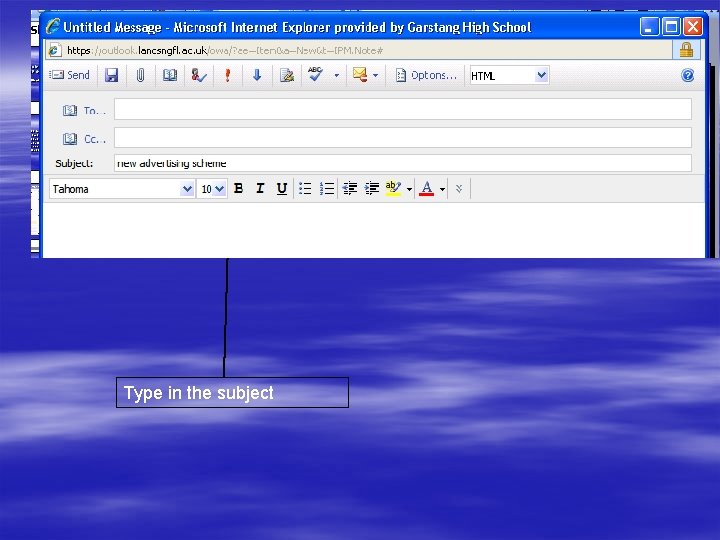
Type in the subject
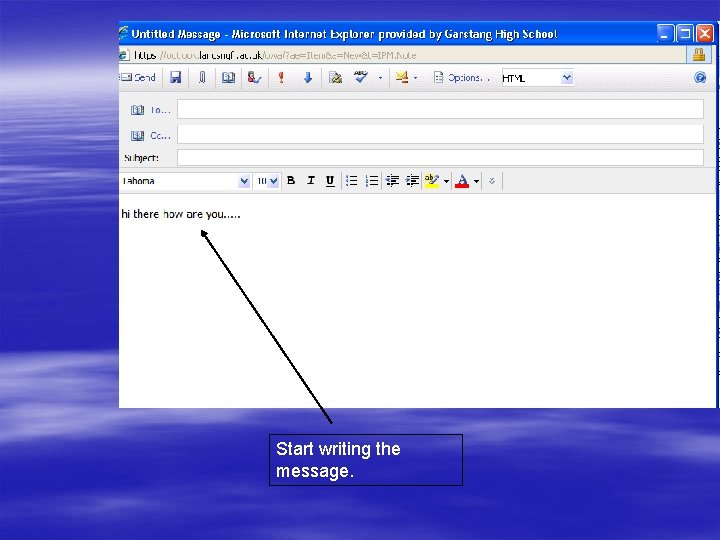
Start writing the message.
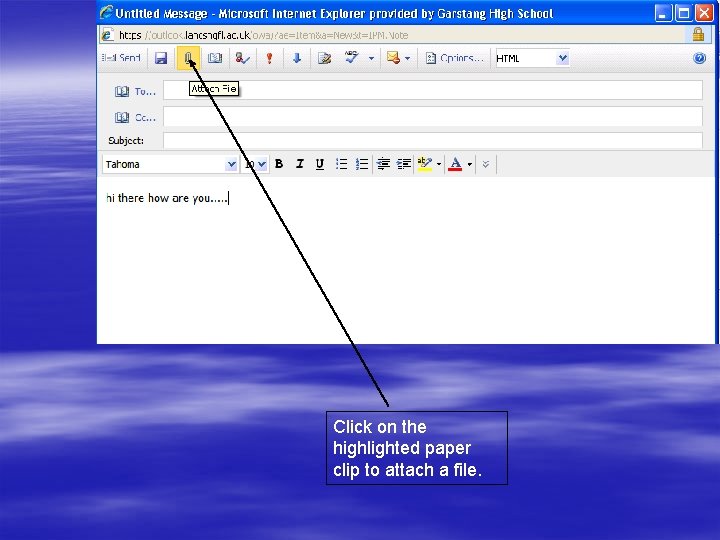
Click on the highlighted paper clip to attach a file.
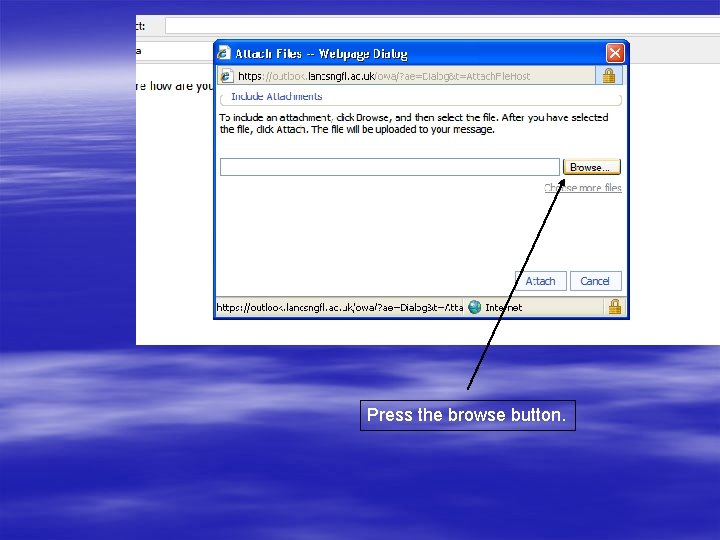
Press the browse button.
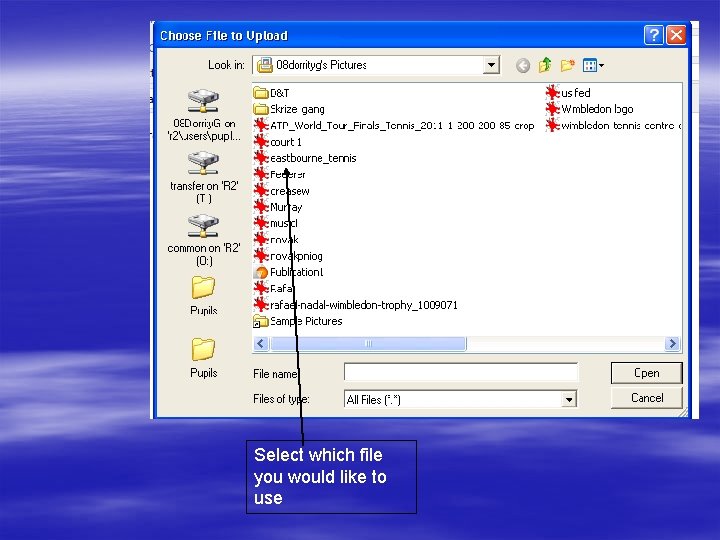
Select which file you would like to use
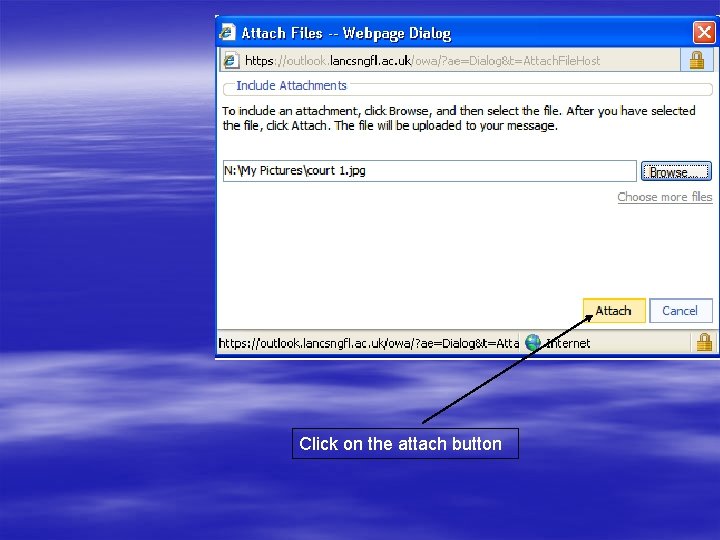
Click on the attach button
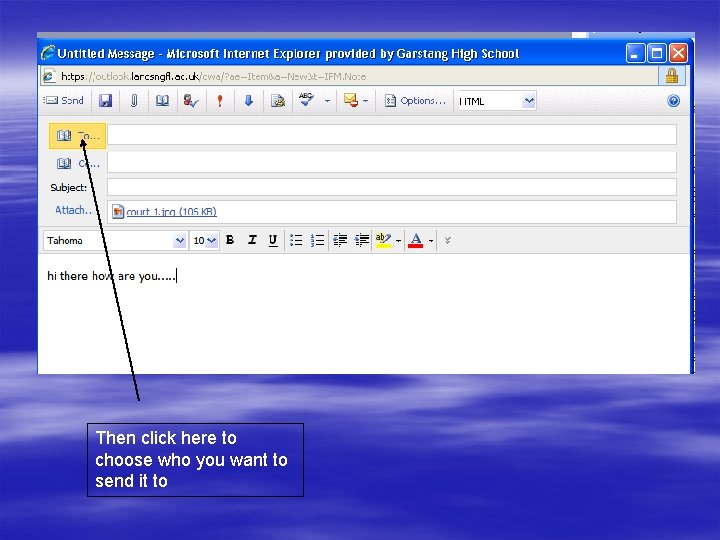
Then click here to choose who you want to send it to
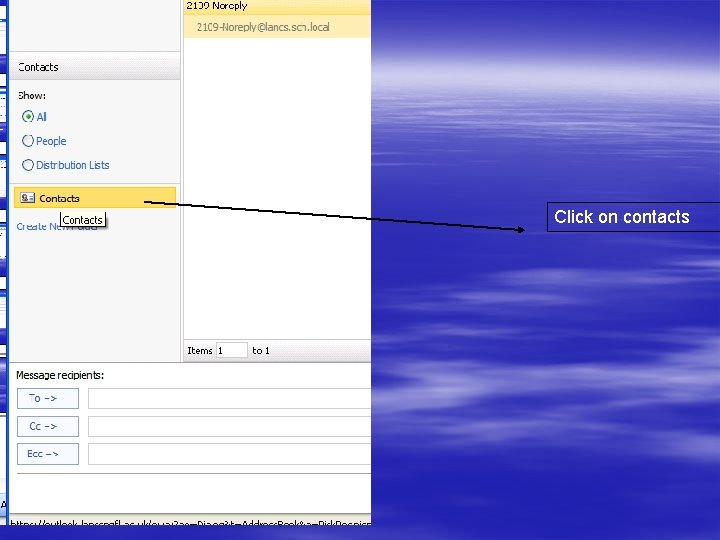
Click on contacts
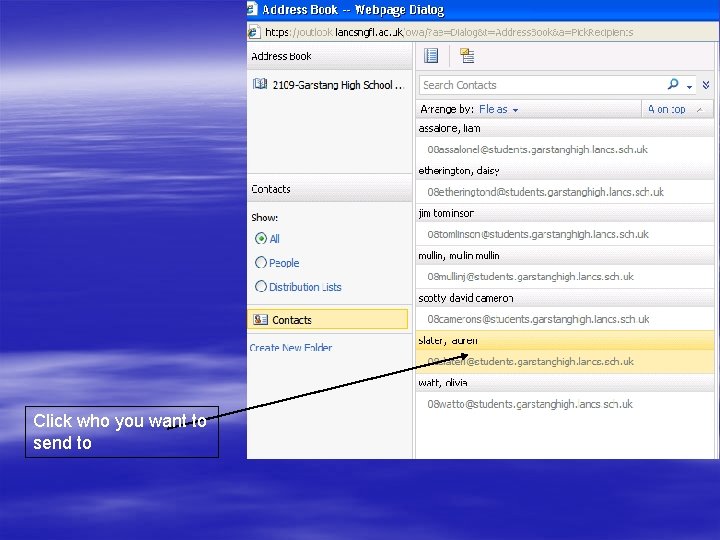
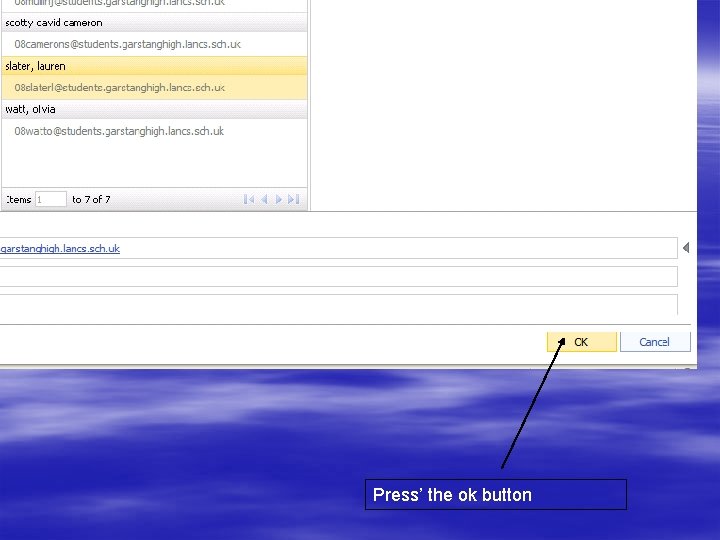
Click who you want to send to
Press’ the ok button
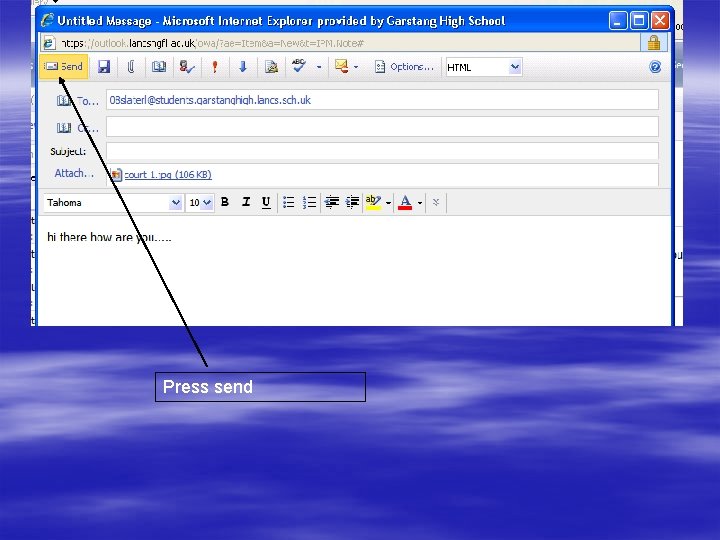
Press send
Adding an auto signature § Signatures on email are different to ones in real life. § Firstly, on email, an auto signature is a contact detail for you. § It includes your name, address, telephone number, your role and fax, or any other forms of contact. § They are useful because it means that you don’t have to type out all of your details, every time you send an email.
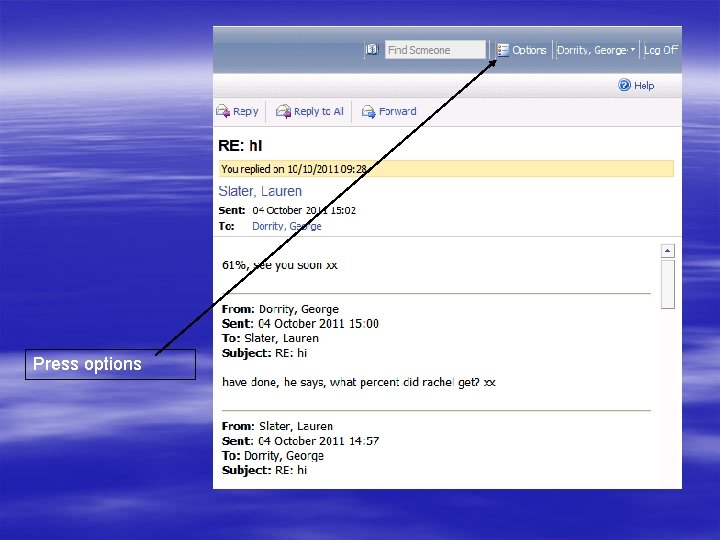
Press options
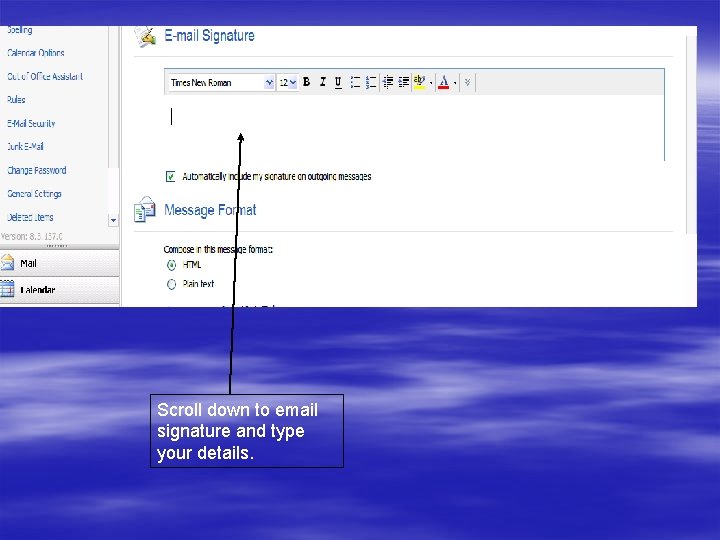
Scroll down to email signature and type your details.
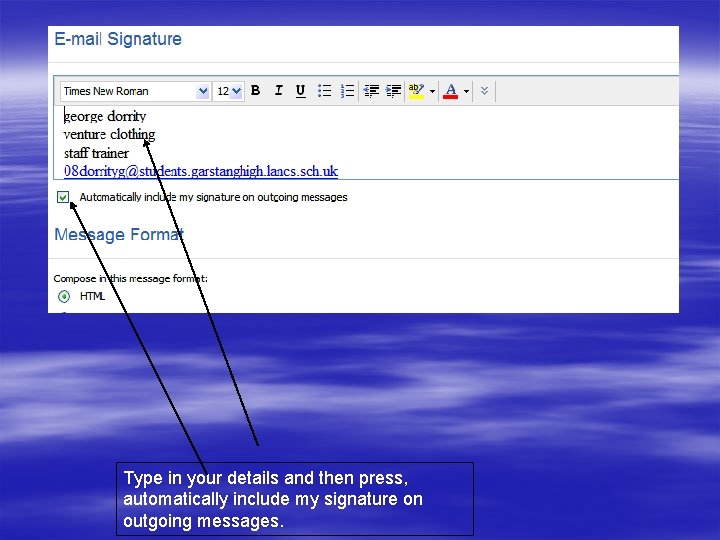
Type in your details and then press, automatically include my signature on outgoing messages.
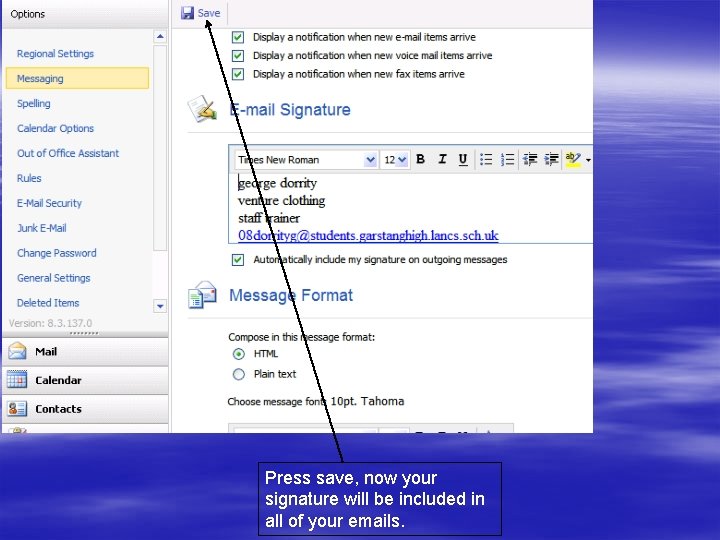
Press save, now your signature will be included in all of your emails.
Using folders § This will show you how to use folders in email. § Folders separate the type of messages, using groups of friends? § You can have, work folders, friends, or anything else. § Folders are useful because without them, your messages can get mixed up. § They also keep you organised and save time.
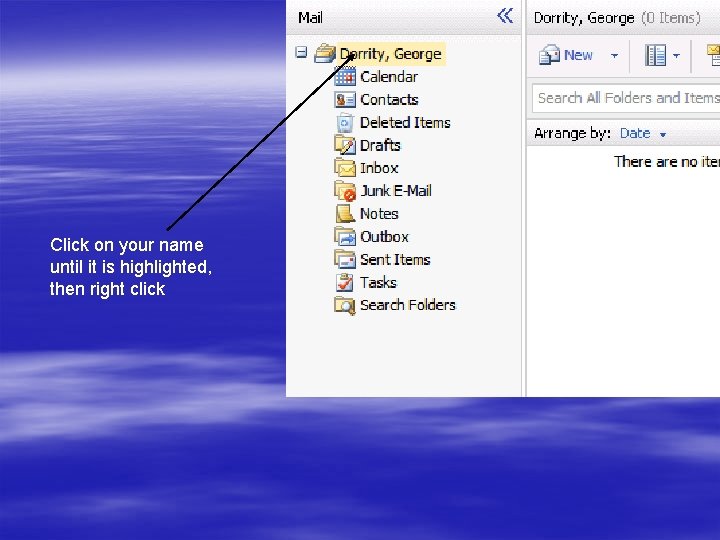
Click on your name until it is highlighted, then right click
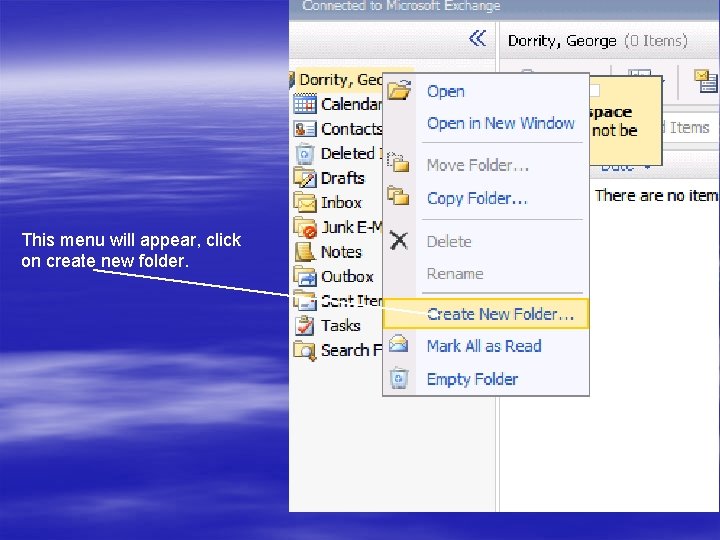
This menu will appear, click on create new folder.
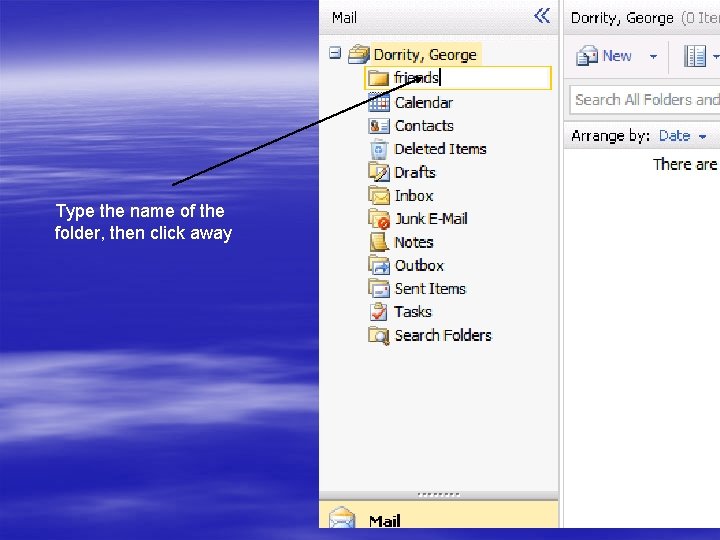
Type the name of the folder, then click away
Priorities § Priorities determine how important the message is. § When you send an email you choose how important it is. § If the email is your priority then you will receive and exclamation mark with it. § It usually means it needs a quick response.
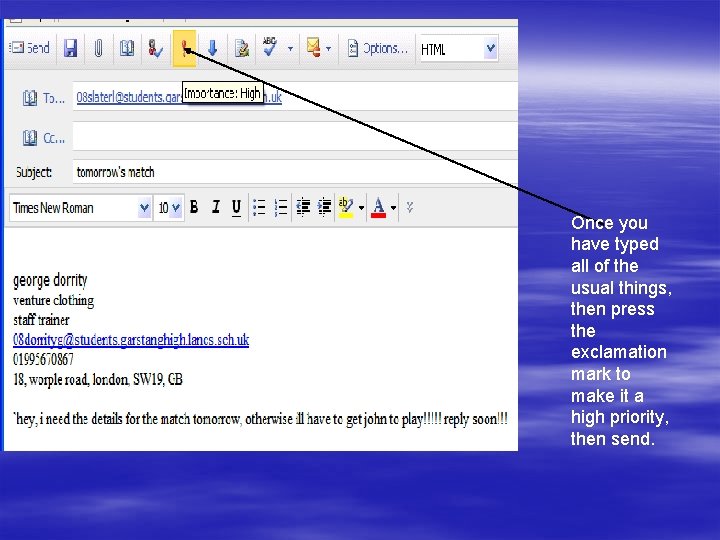
Once you have typed all of the usual things, then press the exclamation mark to make it a high priority, then send.