
A desktop environment typically consists of icons windows

- Slides: 7
A desktop environment typically consists of icons, windows, toolbars, folders, wallpapers and desktop widgets(text box, button)
ADVANTAGE & DISADVANTAGE OF GUI Topic Ease Control Multitasking Command line GUI Because of the memorization and Although new users may have a difficult at familiarity needed to operate a time learning to use the mouse to operate command line interface new users and use a GUI most users pick up this find it much more difficult to interface much easier when compared to a successfully navigate and operate a command line interface. Users have much more control of their Although a GUI offers plenty of control of a file system and operating system in a file system and operating system often command line interface. For example, advance users or users who need to do users can easily copy a specific file specific task may need to resort to a from one location to another with a command line to complete that task. one-line command. Although many command line GUI users have windows that enable a environments are capable of user to easily view, control, and manipulate multitasking they do not offer the multiple things at once and is commonly same ease and ability to view multiple much faster to do when compared to a things at once on one screen. command line.
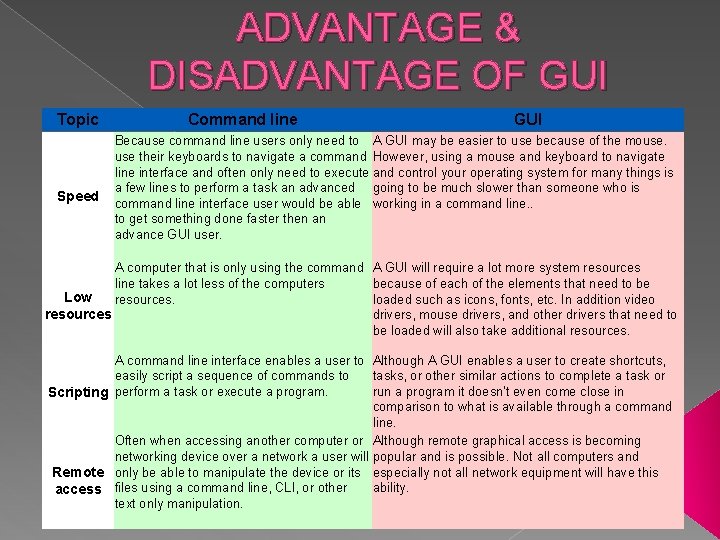
ADVANTAGE & DISADVANTAGE OF GUI Topic Speed Command line GUI Because command line users only need to A GUI may be easier to use because of the mouse. use their keyboards to navigate a command However, using a mouse and keyboard to navigate line interface and often only need to execute and control your operating system for many things is a few lines to perform a task an advanced going to be much slower than someone who is command line interface user would be able working in a command line. . to get something done faster then an advance GUI user. A computer that is only using the command A GUI will require a lot more system resources line takes a lot less of the computers because of each of the elements that need to be Low resources. loaded such as icons, fonts, etc. In addition video resources drivers, mouse drivers, and other drivers that need to be loaded will also take additional resources. A command line interface enables a user to Although A GUI enables a user to create shortcuts, easily script a sequence of commands to tasks, or other similar actions to complete a task or perform a task or execute a program. run a program it doesn't even come close in Scripting comparison to what is available through a command line. Often when accessing another computer or Although remote graphical access is becoming networking device over a network a user will popular and is possible. Not all computers and Remote only be able to manipulate the device or its especially not all network equipment will have this ability. access files using a command line, CLI, or other text only manipulation.
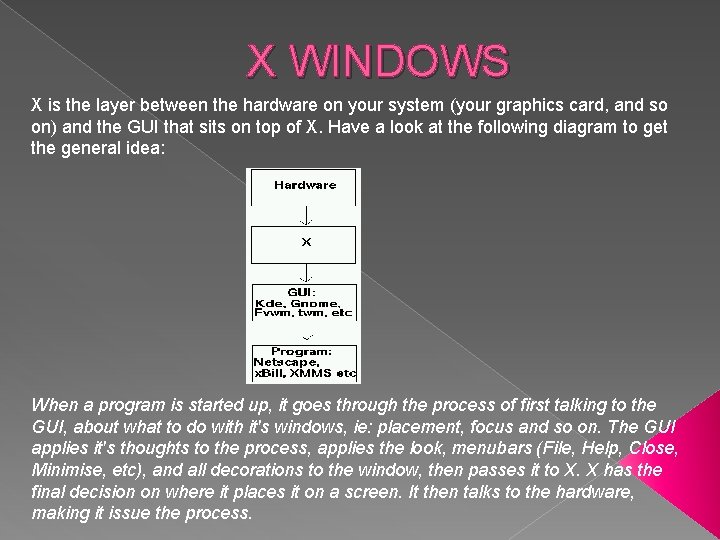
X WINDOWS X is the layer between the hardware on your system (your graphics card, and so on) and the GUI that sits on top of X. Have a look at the following diagram to get the general idea: When a program is started up, it goes through the process of first talking to the GUI, about what to do with it's windows, ie: placement, focus and so on. The GUI applies it's thoughts to the process, applies the look, menubars (File, Help, Close, Minimise, etc), and all decorations to the window, then passes it to X. X has the final decision on where it places it on a screen. It then talks to the hardware, making it issue the process.
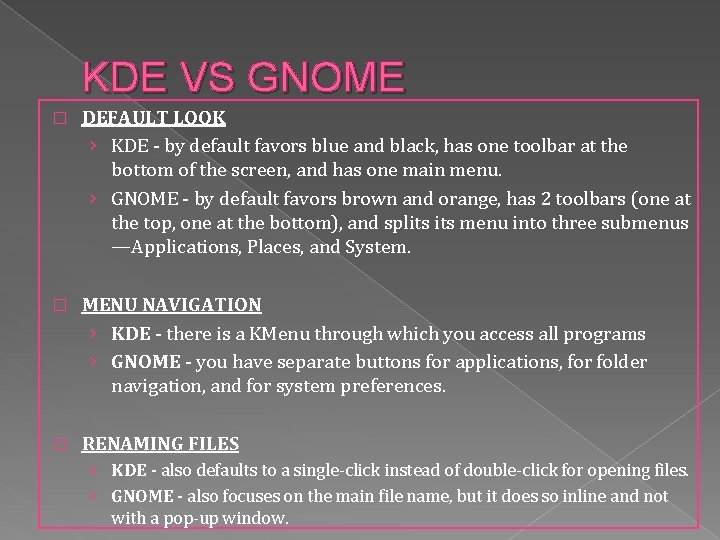
KDE VS GNOME � DEFAULT LOOK › KDE - by default favors blue and black, has one toolbar at the bottom of the screen, and has one main menu. › GNOME - by default favors brown and orange, has 2 toolbars (one at the top, one at the bottom), and splits menu into three submenus —Applications, Places, and System. � MENU NAVIGATION › KDE - there is a KMenu through which you access all programs › GNOME - you have separate buttons for applications, for folder navigation, and for system preferences. � RENAMING FILES › KDE - also defaults to a single-click instead of double-click for opening files. › GNOME - also focuses on the main file name, but it does so inline and not with a pop-up window.
KDE VS GNOME � SYSTEM PREFERENCES › KDE - has a System Settings central location for configuring system preferences. This can be accessed through the KMenu. › GNOME - by default, you access each preference one at a time by going to System > Preferences > and then selecting the item you want. � CHANGES › KDE - you have to click Apply or Save to get the changes to stick. › GNOME - changes usually take effect as you are choosing the new option. � EXITING › KDE - click on the KMenu and select Leave and then the next option. › GNOME - exit option recently moved from being in the System menu to being its own applet. You click it and the options come down.
KDE VS GNOME � SYSTEM PREFERENCES › KDE - has a System Settings central location for configuring system preferences. This can be accessed through the KMenu. › GNOME - by default, you access each preference one at a time by going to System > Preferences > and then selecting the item you want. � CHANGES › KDE - you have to click Apply or Save to get the changes to stick. › GNOME - changes usually take effect as you are choosing the new option. � EXITING › KDE - click on the KMenu and select Leave and then the next option. › GNOME - exit option recently moved from being in the System menu to being its own applet. You click it and the options come down.