
A Certification Guide Chapter 10 Mobile Devices Chapter
A+ Certification Guide Chapter 10 Mobile Devices
Chapter # 10 Objectives § § § Mobile Device Hardware – Basic hardware used by mobile devices – How to upgrade and replace memory cards and batteries Mobile Operating Systems – Differences between open-source and closed-source operating systems such as Android and i. OS. – Where to find applications and adjust displays. – GPS and how it relates to mobile devices is briefly covered. Mobile Network Connectivity – Network connectivity and how to connect email accounts Mobile Synchronization – Learn how to connect and synchronize i. OS and Android-based devices’ files and settings. Mobile Security – How to secure a mobile device through passcodes, antivirus software, and operating system updates – Backing up data, remote wiping of data, and soft and hard resets
Mobile Device Hardware § § § RISC processor Touchscreen DDR memory Lithium Ion Polymer – Often integrated into the device and nonreplaceable Micro USB ports – Battery charge via micro-USB port Mobile devices are not generally upgradeable except for software
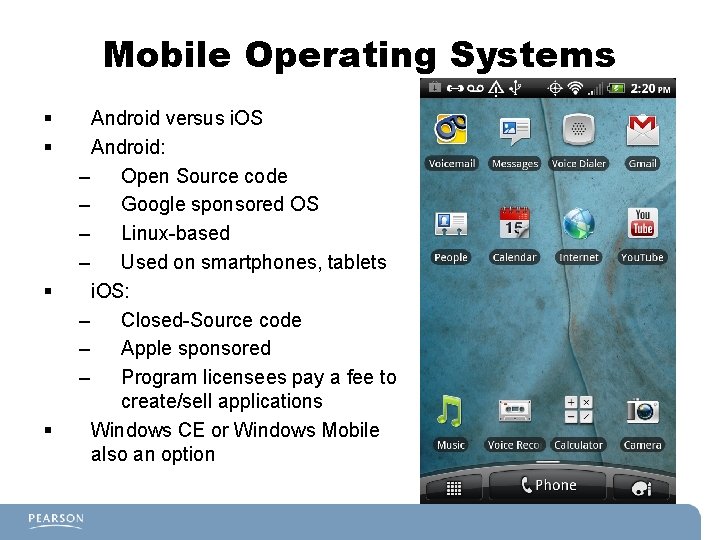
Mobile Operating Systems § § Android versus i. OS Android: – Open Source code – Google sponsored OS – Linux-based – Used on smartphones, tablets i. OS: – Closed-Source code – Apple sponsored – Program licensees pay a fee to create/sell applications Windows CE or Windows Mobile also an option

GPS and Geotracking § § § Global Positioning System – Worldwide System of Satellites – Requires a GPS receiver Must be enabled on tablet or phone Geotracking – Tracing and recording device location over time – Can be disabled by disabling GPS receiver
Mobile Network Connectivity § § Global System for Mobile Communications – GSM Cellular Connectivity • 3 G/4 G • Transmitter/Receiver adapt to slowest device Wi-Fi Networks – Uses WLAN antenna • 802. 11 b/g/n • Searches for available networks (SSID) • Select appropriate SSID and enter password • Troubleshooting involves – Adjusting range to be closer to wireless transmitter – Selecting correct SSID – Matching the encryption method
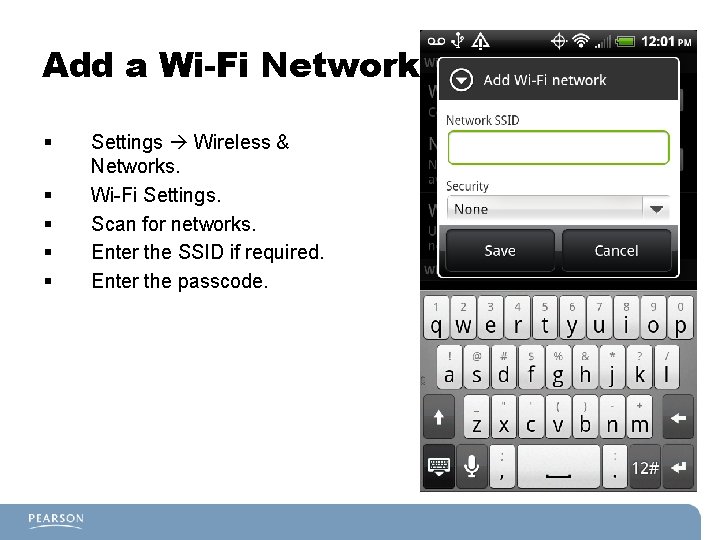
Add a Wi-Fi Network § § § Settings Wireless & Networks. Wi-Fi Settings. Scan for networks. Enter the SSID if required. Enter the passcode.
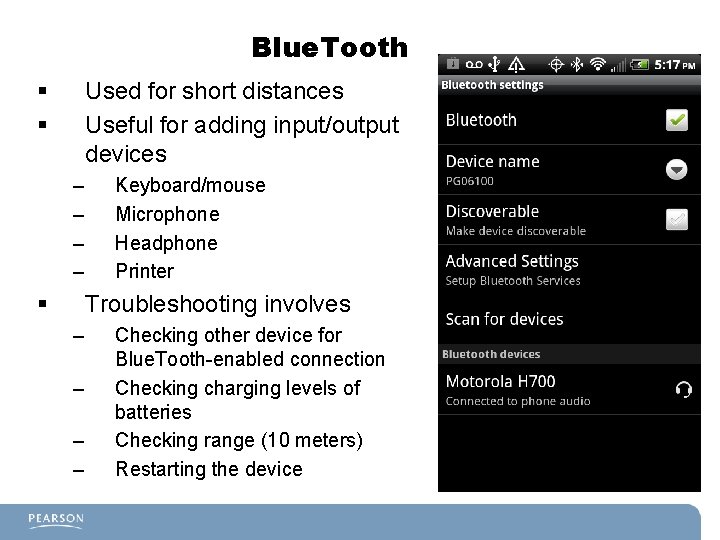
Blue. Tooth § § Used for short distances Useful for adding input/output devices – – § Keyboard/mouse Microphone Headphone Printer Troubleshooting involves – – Checking other device for Blue. Tooth-enabled connection Checking charging levels of batteries Checking range (10 meters) Restarting the device
Email Configuration § § § Web Based email POP 3, IMAP, Exchange Troubleshooting email issues – Check Internet access. – Verify username passwords are typed correctly. – Check port numbers to see if default or other port is used. – Check security settings for SSL or TLS.
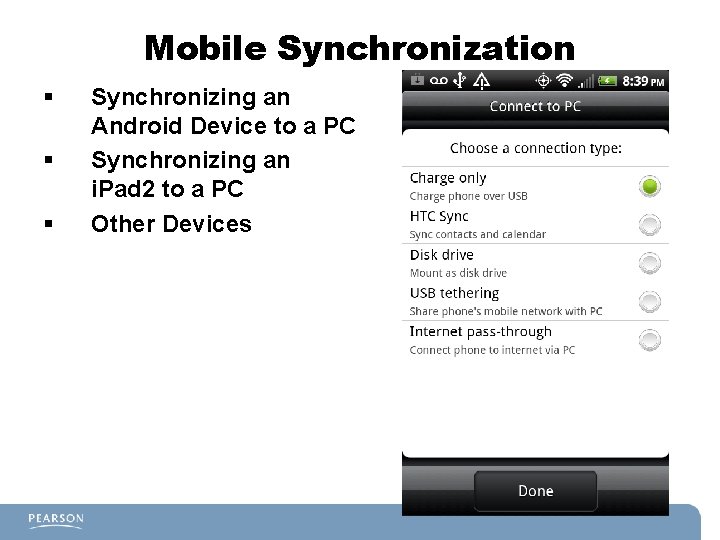
Mobile Synchronization § § § Synchronizing an Android Device to a PC Synchronizing an i. Pad 2 to a PC Other Devices
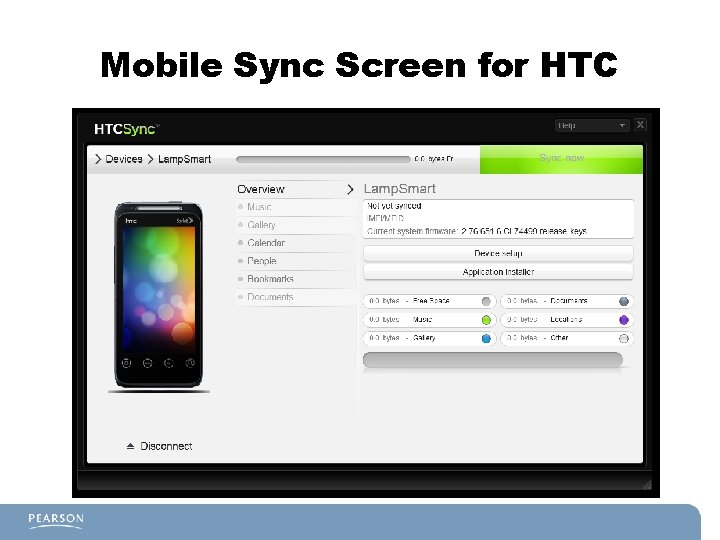
Mobile Sync Screen for HTC
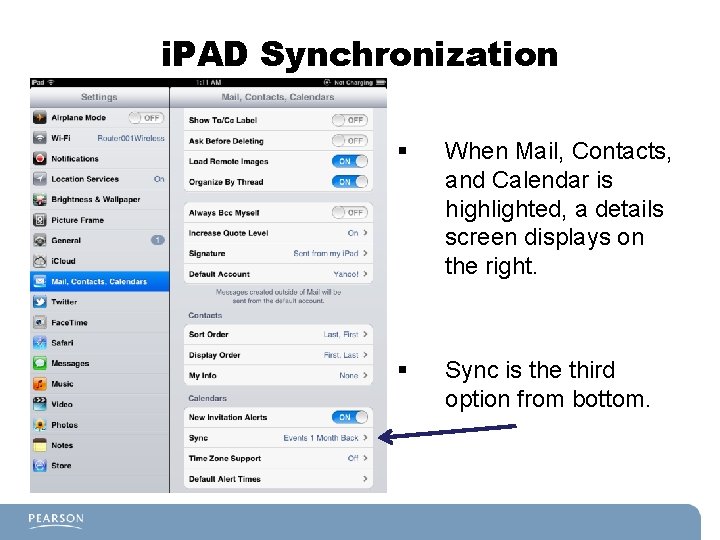
i. PAD Synchronization § When Mail, Contacts, and Calendar is highlighted, a details screen displays on the right. § Sync is the third option from bottom.
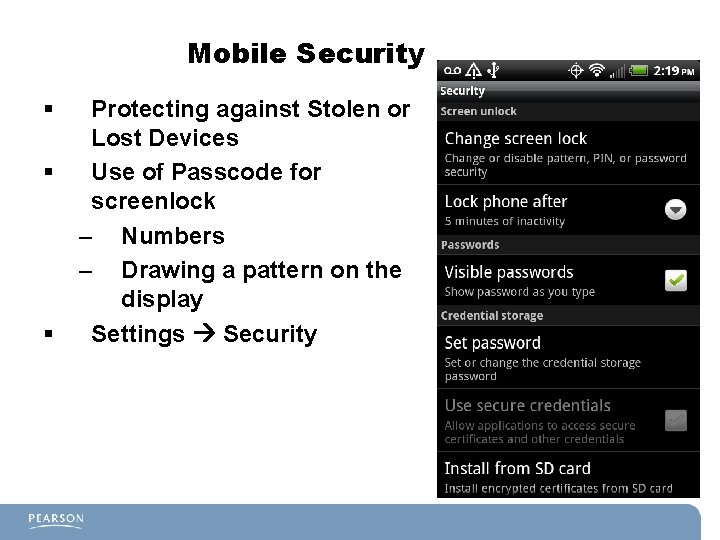
Mobile Security § § § Protecting against Stolen or Lost Devices Use of Passcode for screenlock – Numbers – Drawing a pattern on the display Settings Security
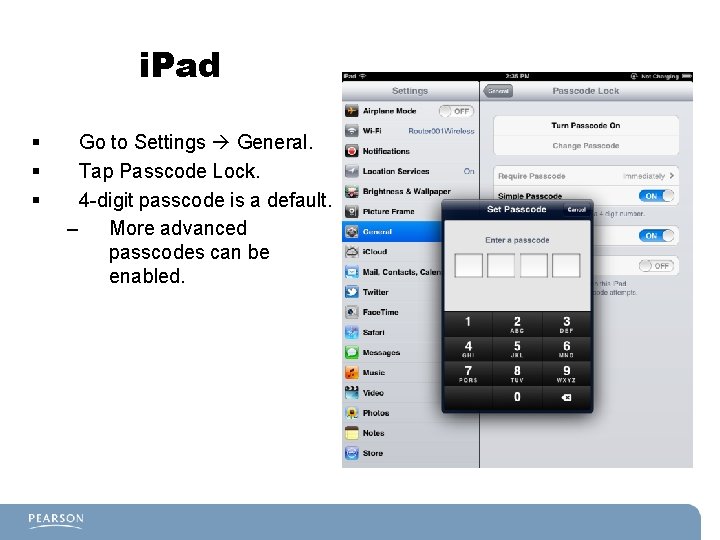
i. Pad § § § Go to Settings General. Tap Passcode Lock. 4 -digit passcode is a default. – More advanced passcodes can be enabled.
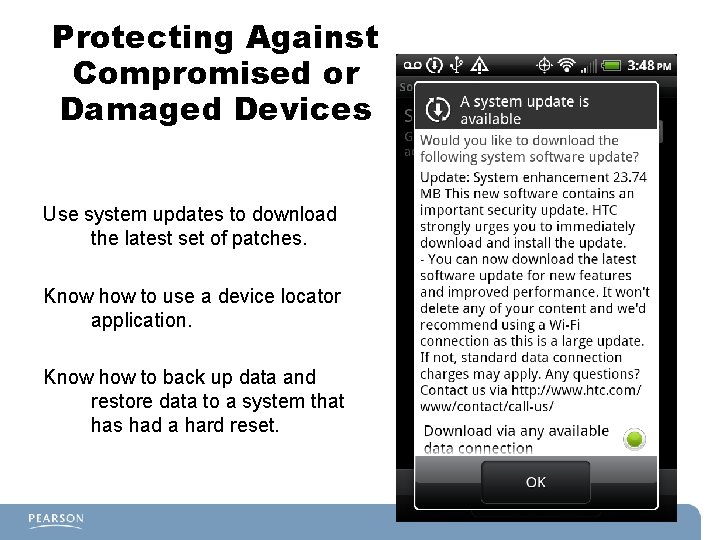
Protecting Against Compromised or Damaged Devices Use system updates to download the latest set of patches. Know how to use a device locator application. Know how to back up data and restore data to a system that has had a hard reset.
Management of Mobile Devices § § Mobile Device Management – Mc. Afee – Air. Watch – LANDesk – Sybase Software used to manage large numbers of users in organizations
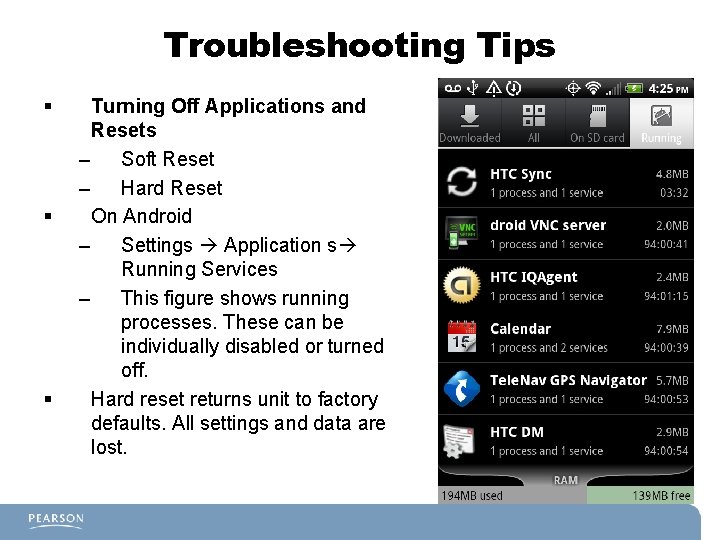
Troubleshooting Tips § § § Turning Off Applications and Resets – Soft Reset – Hard Reset On Android – Settings Application s Running Services – This figure shows running processes. These can be individually disabled or turned off. Hard reset returns unit to factory defaults. All settings and data are lost.
What Have You Learned? – – – Name at least two major mobile devices in common use. What is the difference between a soft reset and a hard reset? What security measures can be taken to protect a device from unauthorized use?
Chapter # 10 Summary § § § Mobile Device Hardware – Basic hardware used by mobile devices – How to upgrade and replace memory cards and batteries Mobile Operating Systems – Differences between open-source and closed-source operating systems such as Android and i. OS. – Where to find applications and adjust displays. – GPS and how it relates to mobile devices is briefly covered. Mobile Network Connectivity – Network connectivity and how to connect email accounts Mobile Synchronization – Learn how to connect and synchronize i. OS and Android-based devices’ files and settings. Mobile Security – How to secure a mobile device through passcodes, antivirus software, and operating system updates – Backing up data, remote wiping of data, and soft and hard resets
- Slides: 19