
4 Usage and Traffic Modeling Information Requirements for







- Slides: 34
4 | Usage and Traffic Modeling
Information Requirements for Usage Modeling These include: • Usage scenarios • Usage models • Personas • Capturing data for usage models: How many site locations are there? • How many users are at each site location? • How many users will always be remote? • What are the future growth estimates? • What sort of WAN technology/topology is deployed? • What is your overall WAN link speed? • What is the maximum/current available bandwidth for Skype for Business traffic per WAN link? • • Predefined usage models
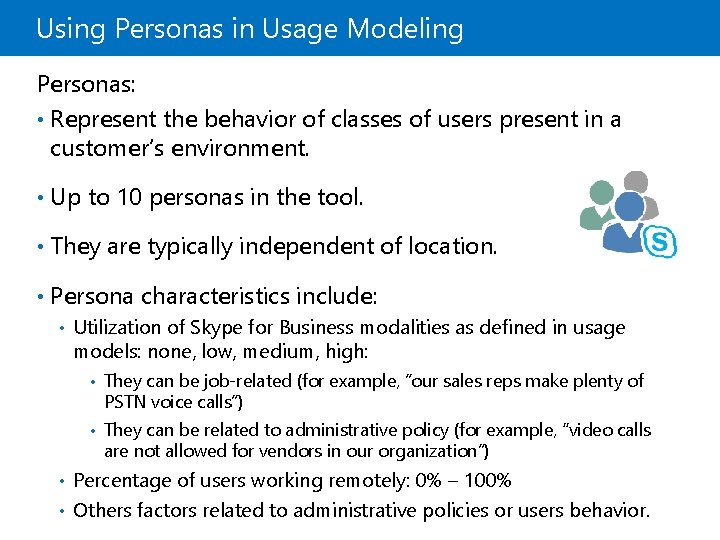
Using Personas in Usage Modeling Personas: • Represent the behavior of classes of users present in a customer’s environment. • Up to 10 personas in the tool. • They are typically independent of location. • Persona characteristics include: • Utilization of Skype for Business modalities as defined in usage models: none, low, medium, high: • They can be job-related (for example, ”our sales reps make plenty of PSTN voice calls”) • They can be related to administrative policy (for example, “video calls are not allowed for vendors in our organization”) Percentage of users working remotely: 0% – 100% • Others factors related to administrative policies or users behavior. •
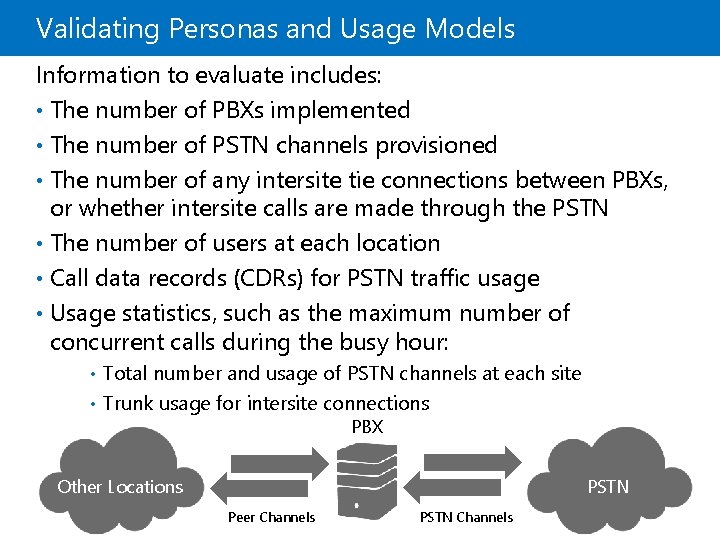
Validating Personas and Usage Models Information to evaluate includes: • The number of PBXs implemented • The number of PSTN channels provisioned • The number of any intersite tie connections between PBXs, or whether intersite calls are made through the PSTN • The number of users at each location • Call data records (CDRs) for PSTN traffic usage • Usage statistics, such as the maximum number of concurrent calls during the busy hour: Total number and usage of PSTN channels at each site • Trunk usage for intersite connections • PBX Other Locations PSTN Peer Channels PSTN Channels
Collecting Data to Validate Models for Estimating Call Flow This includes: • Maximum number of conferencing ports used. • Average maximum number of concurrent conferences. • Including the number of participants when that maximum occurs. • Average meeting size. • Average meeting duration. • Total minutes of conferencing used per day and per month.
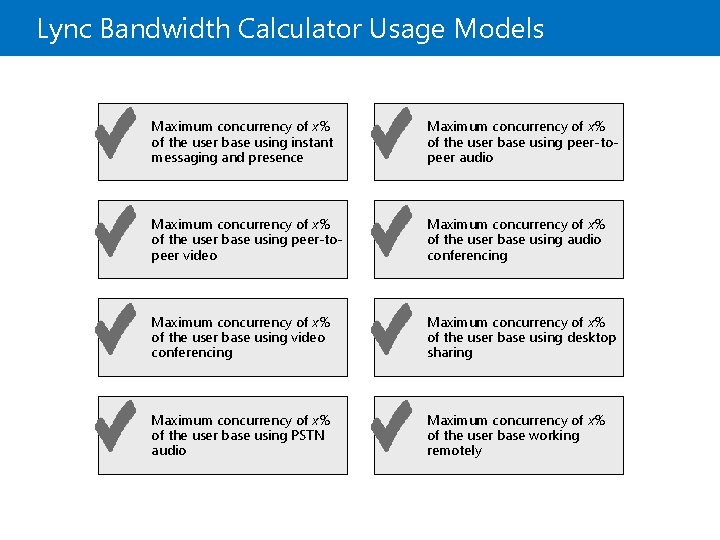
Lync Bandwidth Calculator Usage Models Maximum concurrency of x% of the user base using instant messaging and presence Maximum concurrency of x% of the user base using peer-topeer audio Maximum concurrency of x% of the user base using peer-topeer video Maximum concurrency of x% of the user base using audio conferencing Maximum concurrency of x% of the user base using video conferencing Maximum concurrency of x% of the user base using desktop sharing Maximum concurrency of x% of the user base using PSTN audio Maximum concurrency of x% of the user base working remotely
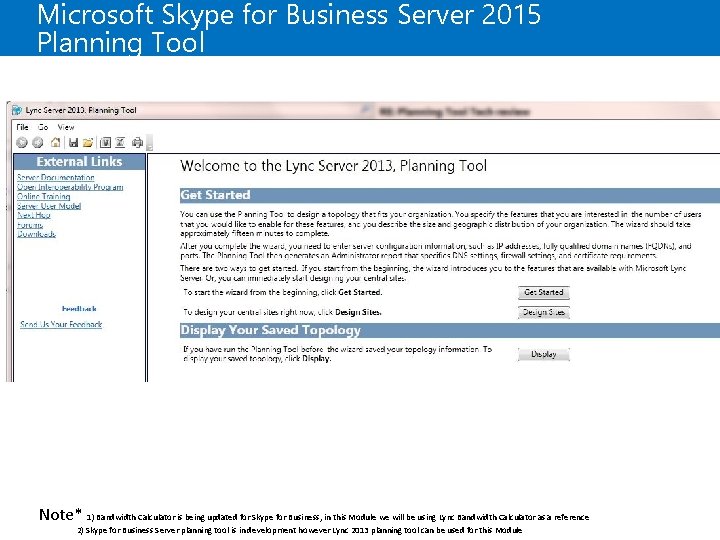
Microsoft Skype for Business Server 2015 Planning Tool Note* 1) Bandwidth Calculator is being updated for Skype for Business, in this Module we will be using Lync Bandwidth Calculator as a reference 2) Skype for Business Server planning tool is in development however Lync 2013 planning tool can be used for this Module
Call Flow Scenarios RDP Bandwidth Estimations Screen size Acceptable Optimal 1280 x 800 384 Kbps 1. 5 Mbps 1440 x 900 512 Kbps 2 Mbps 1680 x 1050 768 Kbps 2. 75 Mbps 1920 x 1200 1 Mbps 3. 5 Mbps Note: Sharing in the Microsoft Power. Point presentation graphics program is accomplished by using a different method for desktop sharing. Older versions of Skype for Business use a built-in Power. Point file viewer, or, for web presentations, the file is converted into a dynamic HTML stream that requires the Microsoft Silverlight browser plug-in. To improve this experience for Skype for Business Server 2015, an Office Web Application Server handles Power. Point presentations by using dynamic HTML and
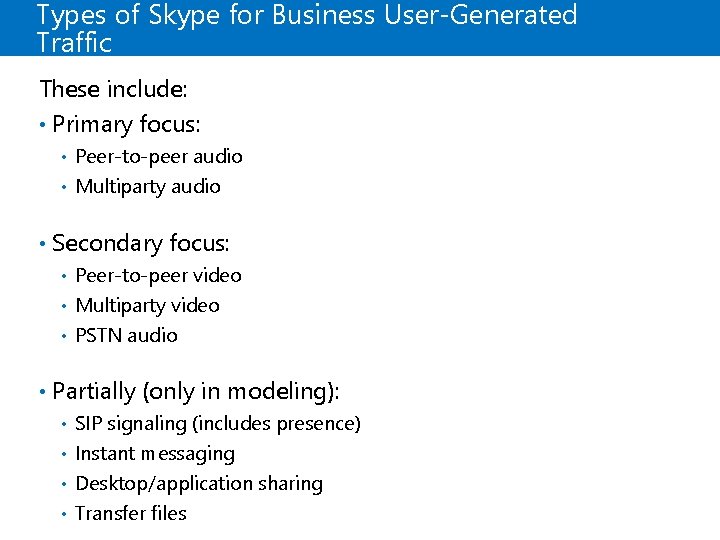
Types of Skype for Business User-Generated Traffic These include: • Primary focus: Peer-to-peer audio • Multiparty audio • • Secondary focus: Peer-to-peer video • Multiparty video • • PSTN audio • Partially (only in modeling): SIP signaling (includes presence) • Instant messaging • Desktop/application sharing • Transfer files •
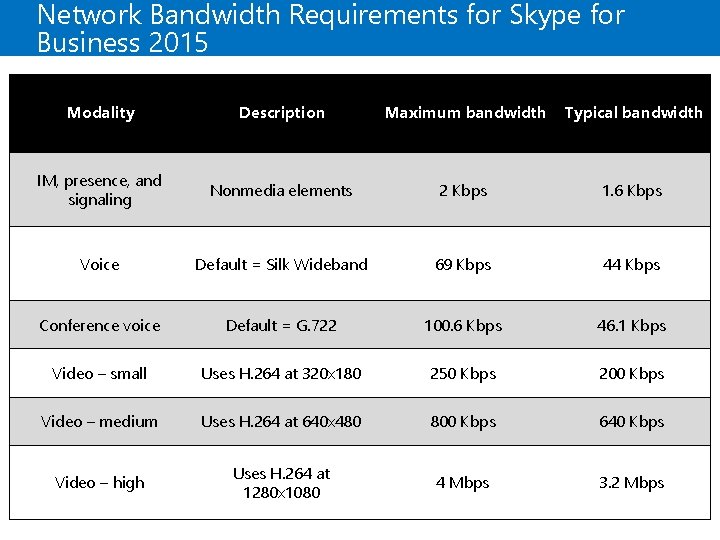
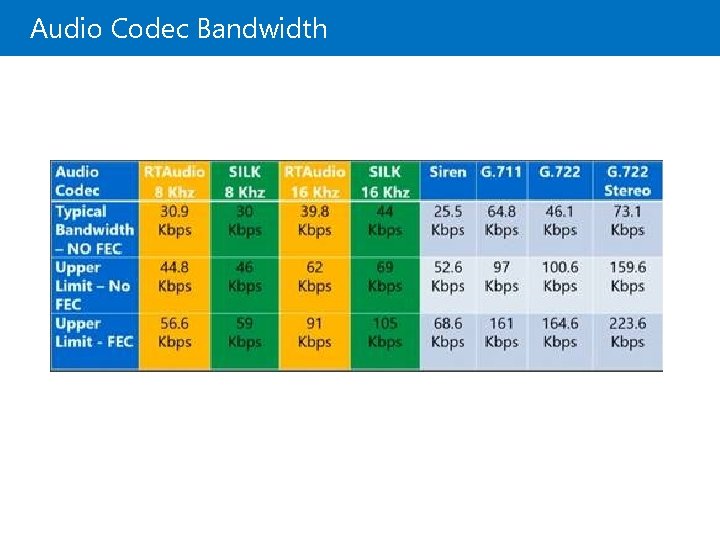
Network Bandwidth Requirements for Skype for Business 2015 Modality Description Maximum bandwidth Typical bandwidth IM, presence, and signaling Nonmedia elements 2 Kbps 1. 6 Kbps Voice Default = Silk Wideband 69 Kbps 44 Kbps Conference voice Default = G. 722 100. 6 Kbps 46. 1 Kbps Video – small Uses H. 264 at 320 x 180 250 Kbps 200 Kbps Video – medium Uses H. 264 at 640 x 480 800 Kbps 640 Kbps Video – high Uses H. 264 at 1280 x 1080 4 Mbps 3. 2 Mbps
Audio Codec Bandwidth
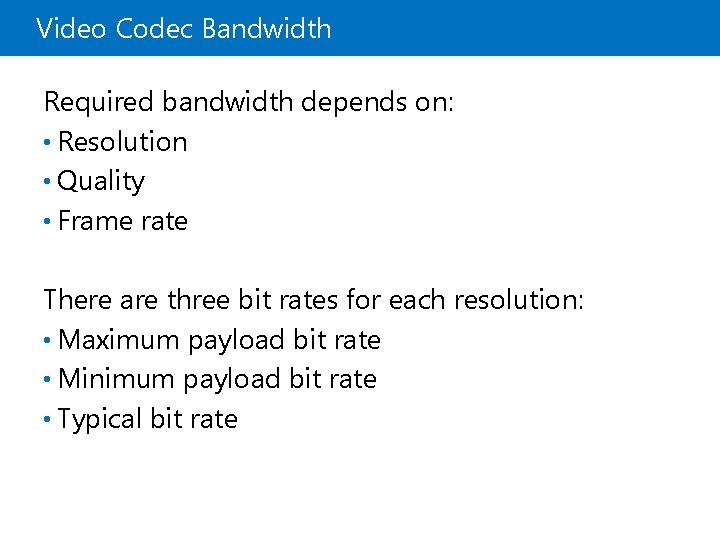
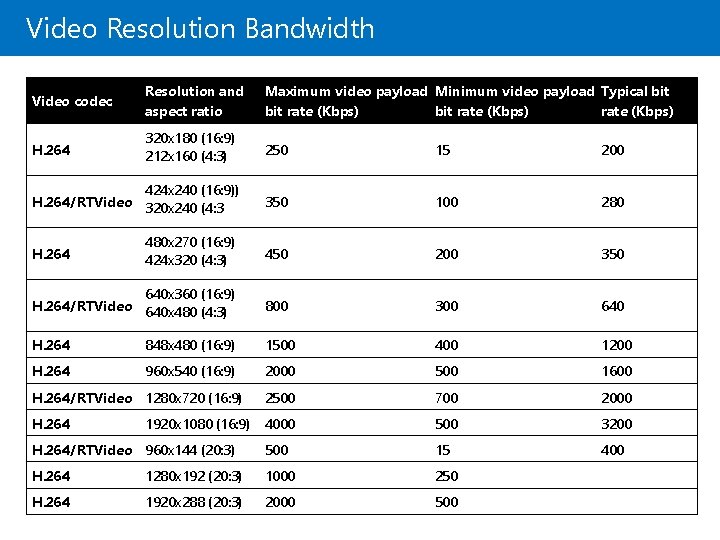
Video Codec Bandwidth Required bandwidth depends on: • Resolution • Quality • Frame rate There are three bit rates for each resolution: • Maximum payload bit rate • Minimum payload bit rate • Typical bit rate
Video Resolution Bandwidth Video codec Resolution and aspect ratio Maximum video payload Minimum video payload Typical bit rate (Kbps) H. 264 320 x 180 (16: 9) 212 x 160 (4: 3) 250 15 200 350 100 280 480 x 270 (16: 9) 424 x 320 (4: 3) 450 200 350 640 x 360 (16: 9) H. 264/RTVideo 640 x 480 (4: 3) 800 300 640 H. 264 848 x 480 (16: 9) 1500 400 1200 H. 264 960 x 540 (16: 9) 2000 500 1600 H. 264/RTVideo 1280 x 720 (16: 9) 2500 700 2000 H. 264 4000 500 3200 H. 264/RTVideo 960 x 144 (20: 3) 500 15 400 H. 264 1280 x 192 (20: 3) 1000 250 H. 264 1920 x 288 (20: 3) 2000 500 424 x 240 (16: 9)) H. 264/RTVideo 320 x 240 (4: 3 H. 264 1920 x 1080 (16: 9)
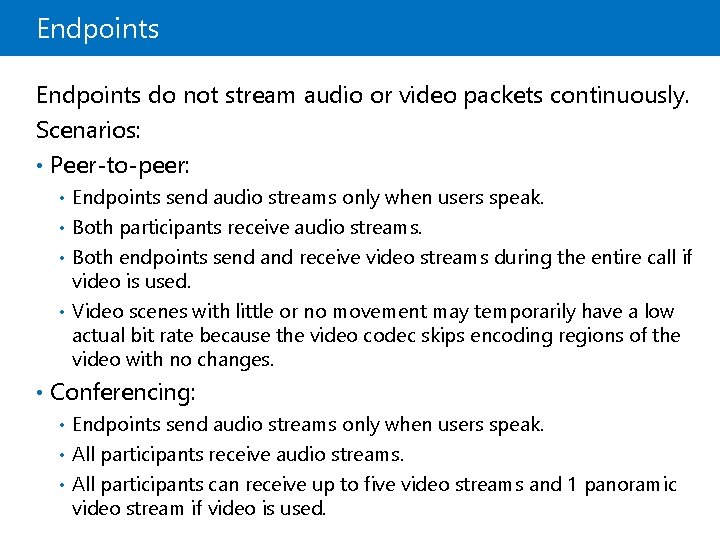
Endpoints do not stream audio or video packets continuously. Scenarios: • Peer-to-peer: • Endpoints send audio streams only when users speak. Both participants receive audio streams. • Both endpoints send and receive video streams during the entire call if video is used. • Video scenes with little or no movement may temporarily have a low actual bit rate because the video codec skips encoding regions of the video with no changes. • • Conferencing: Endpoints send audio streams only when users speak. • All participants receive audio streams. • All participants can receive up to five video streams and 1 panoramic video stream if video is used. •
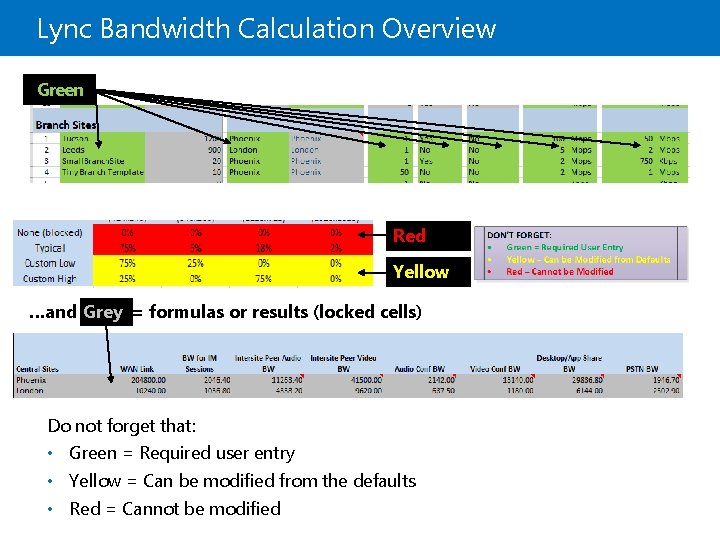
Lync Bandwidth Calculation Overview Green Red Yellow …and Grey = formulas or results (locked cells) Do not forget that: • Green = Required user entry • Yellow = Can be modified from the defaults • Red = Cannot be modified
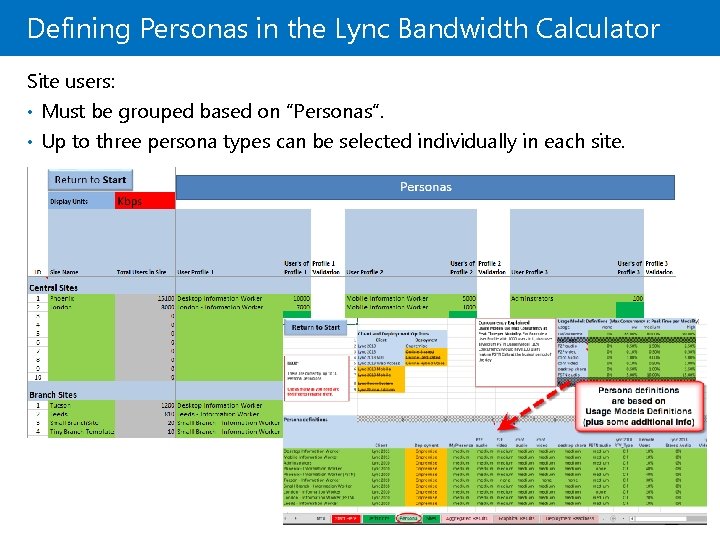
Defining Personas in the Lync Bandwidth Calculator Site users: • Must be grouped based on ”Personas”. • Up to three persona types can be selected individually in each site.
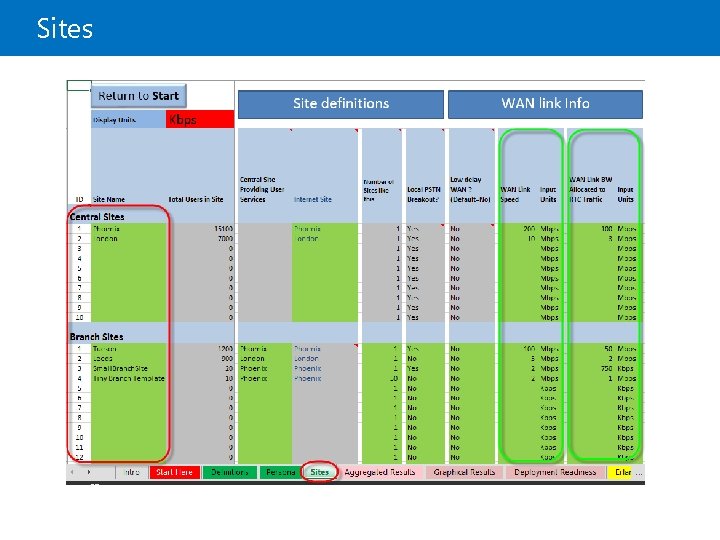
Sites
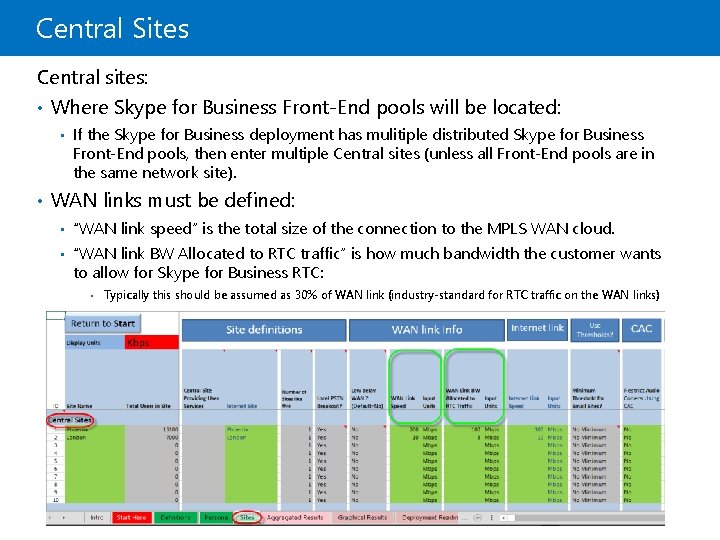
Central Sites Central sites: • Where Skype for Business Front-End pools will be located: • If the Skype for Business deployment has mulitiple distributed Skype for Business Front-End pools, then enter multiple Central sites (unless all Front-End pools are in the same network site). • WAN links must be defined: • “WAN link speed” is the total size of the connection to the MPLS WAN cloud. • “WAN link BW Allocated to RTC traffic” is how much bandwidth the customer wants to allow for Skype for Business RTC: • Typically this should be assumed as 30% of WAN link (industry-standard for RTC traffic on the WAN links) • Global “Red flag” threshold is set to this value, but it can be defined to a level expected by the customer
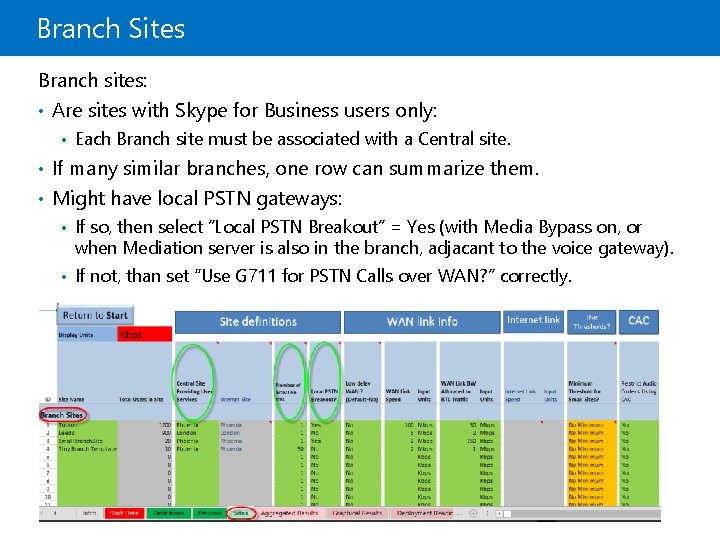
Branch Sites Branch sites: • Are sites with Skype for Business users only: • Each Branch site must be associated with a Central site. • If many similar branches, one row can summarize them. • Might have local PSTN gateways: • If so, then select ”Local PSTN Breakout” = Yes (with Media Bypass on, or when Mediation server is also in the branch, adjacant to the voice gateway). • If not, than set “Use G 711 for PSTN Calls over WAN? ” correctly.
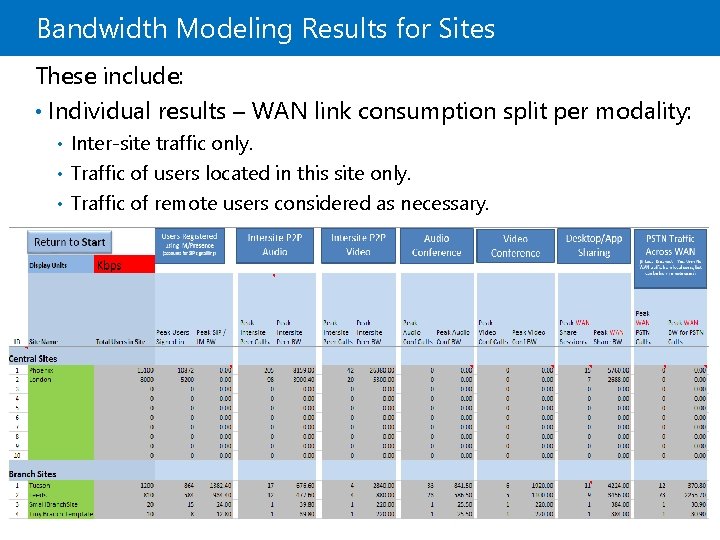
Bandwidth Modeling Results for Sites These include: • Individual results – WAN link consumption split per modality: Inter-site traffic only. • Traffic of users located in this site only. • Traffic of remote users considered as necessary. •
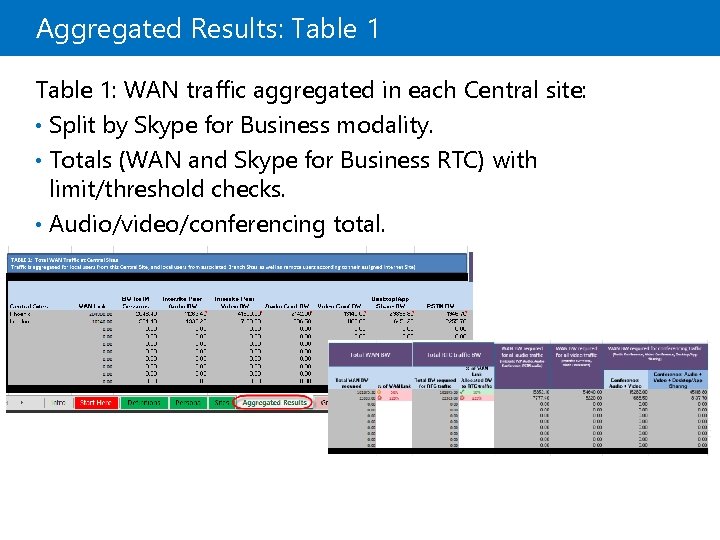
Aggregated Results: Table 1: WAN traffic aggregated in each Central site: • Split by Skype for Business modality. • Totals (WAN and Skype for Business RTC) with limit/threshold checks. • Audio/video/conferencing total.
Aggregated Results: Table 2: Internet traffic of remote users, aggregated in each Internet site: • Split by Skype for Business modality. • Totals with limit/threshold checks.
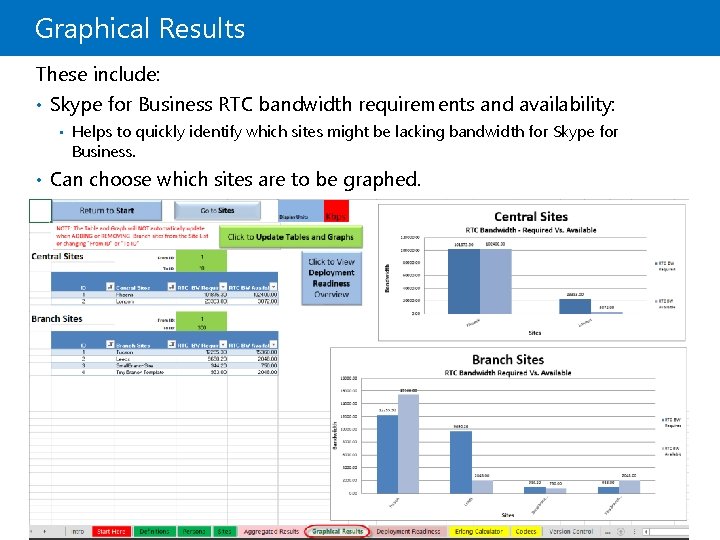
Graphical Results These include: • Skype for Business RTC bandwidth requirements and availability: • Helps to quickly identify which sites might be lacking bandwidth for Skype for Business. • Can choose which sites are to be graphed.
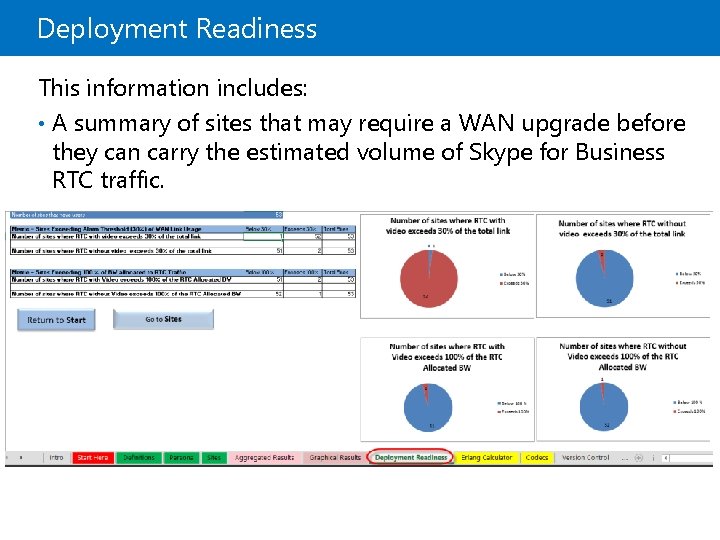
Deployment Readiness This information includes: • A summary of sites that may require a WAN upgrade before they can carry the estimated volume of Skype for Business RTC traffic.
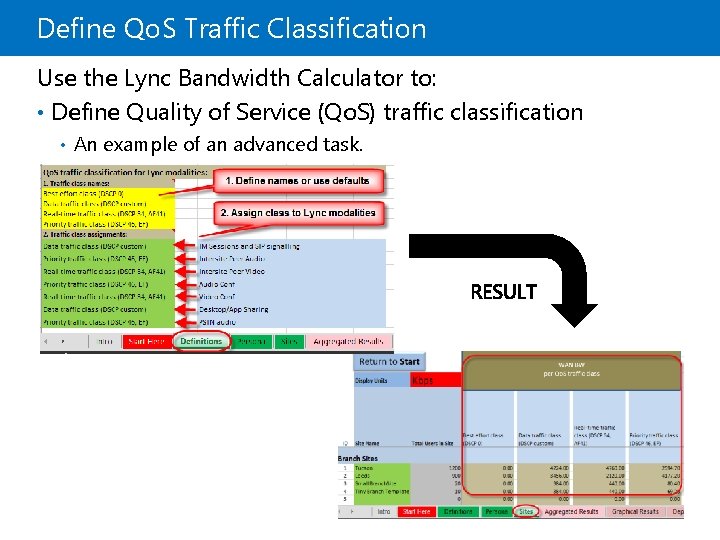
Define Qo. S Traffic Classification Use the Lync Bandwidth Calculator to: • Define Quality of Service (Qo. S) traffic classification • An example of an advanced task.
Erlang Calculator Calculations: • One Erlang equals one continuous call for 3600 seconds (the number of seconds in one hour). • To determine the number of Erlangs: • Multiply the number of calls during the busy hour (B) times the average call length in seconds (L), and then divide by 3600: Erlangs = (B*L)/3600
Traffic Simulation Tools These tools: • Generate real audio and video RTP/RTCP traffic • Centrally manage the probes. • Mark traffic with Quality of Service (Qo. S) markings. • Collect and graph the five baseline network characteristics. • Support all five baseline characteristics: • • • One-way network delay Average jitter Maximum jitter Average packet loss Burst packet loss (peak consecutive packets lost)
Simulating Bandwidth Requirements A well-designed traffic simulation sampling scenario enables you to: • Determine if congestion patterns develop • Determine if the Qo. S policies are effective and applied correctly • Gauge network response during congestion periods: • For example, dropped packets, delay and jitter effects, and so on
Identifying Sites for Traffic Simulation Take the following into consideration: • There is always a limit: • The standard network assessment is scoped for up to 20 sites. • Make sure to test in representative sites. • Do not test for insufficient bandwidth if this is already known. • Central sites should always host a simulation endpoint. • Focus on the possible weak parts of the network: • Where the Modeling phase revealed the link bandwidth might be barely enough. • Connections traveling between continents that are prone to packet loss and delay. • Connections with expected high utilization (users talk often). • Where there is existing knowledge of poor quality WAN links. • User input or preferences other than technical nature: • For example: ”That is the site where the chief executive officer (CEO) is based”
Skype for Business Server Real-Time Scenarios to Be Simulated For these: • Peer traffic should be evenly distributed between other remote location probes: • Audio traffic volume • Video traffic volume • Conference traffic should be between the remote probe and the data center probe: Audio traffic volume • Video traffic volume • • PSTN traffic should be between the remote probe and the data center probe: • Audio traffic volume
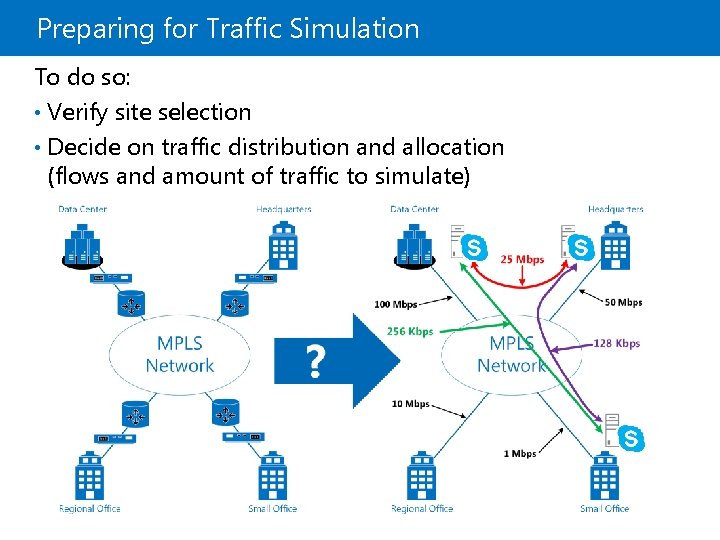
Preparing for Traffic Simulation To do so: • Verify site selection • Decide on traffic distribution and allocation (flows and amount of traffic to simulate)
Traffic Simulation Best Practices It is important to: • Verify site selection based on anticipated Skype for Business Server real-time services • Decide the level of traffic distribution and allocation required • Know key sites and bandwidth for traffic scenarios • Keep the list of sites to 20 or less • Test representative sites that will use Skype for Business Server RTC services • Focus on potential network weak points • Determine potential packet loss and delay for connections • Inquire about existing organizational knowledge regarding poor quality • Consider other site selection input other than technical • Consider traffic distribution and allocation between sites • Perform initial modeling with the Skype for Business Bandwidth Calculator
Skype for Business Server 2015 Stress and Performance Tool Package The Skype for Business Server 2015 Stress and Performance Tool (LSS) simulates the following types of user loads: • Instant messaging (IM) and presence • Audio/Video/Multi-View conferencing • Application sharing • Voice over IP (Vo. IP), including public switched telephone network (PSTN) simulation • Web Access Client conferencing • Conferencing Attendant • Response Groups • Distribution list expansion • Address book download and address book query • E 911 calls and Location Profile
© 2013 Microsoft Corporation. All rights reserved. Microsoft, Windows, Office, Azure, System Center, Dynamics and other product names are or may be registered trademarks and/or trademarks in the U. S. and/or other countries. The information herein is for informational purposes only and represents the current view of Microsoft Corporation as of the date of this presentation. Because Microsoft must respond to changing market conditions, it should not be interpreted to be a commitment on the part of Microsoft, and Microsoft cannot guarantee the accuracy of any information provided after the date of this presentation. MICROSOFT MAKES NO WARRANTIES, EXPRESS, IMPLIED OR STATUTORY, AS TO THE INFORMATION IN THIS PRESENTATION.