
4 Transaction Screen directory Transaction ContractorderdeliveryPurchase Screen name
- Slides: 31
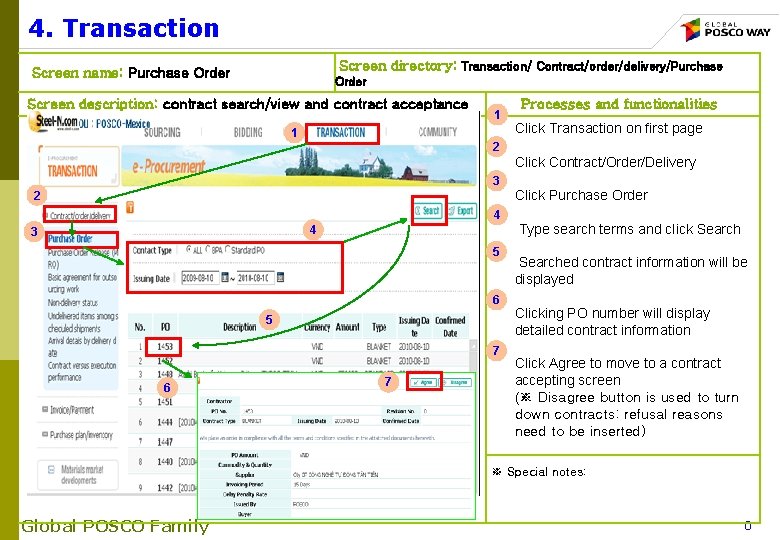
4. Transaction Screen directory: Transaction/ Contract/order/delivery/Purchase Screen name: Purchase Order Screen description: contract search/view and contract acceptance 1 1 Processes and functionalities Click Transaction on first page 2 Click Contract/Order/Delivery 3 2 4 4 3 5 6 5 7 6 7 Click Purchase Order Type search terms and click Searched contract information will be displayed Clicking PO number will display detailed contract information Click Agree to move to a contract accepting screen (※ Disagree button is used to turn down contracts: refusal reasons need to be inserted) ※ Special notes: Global POSCO Family 0
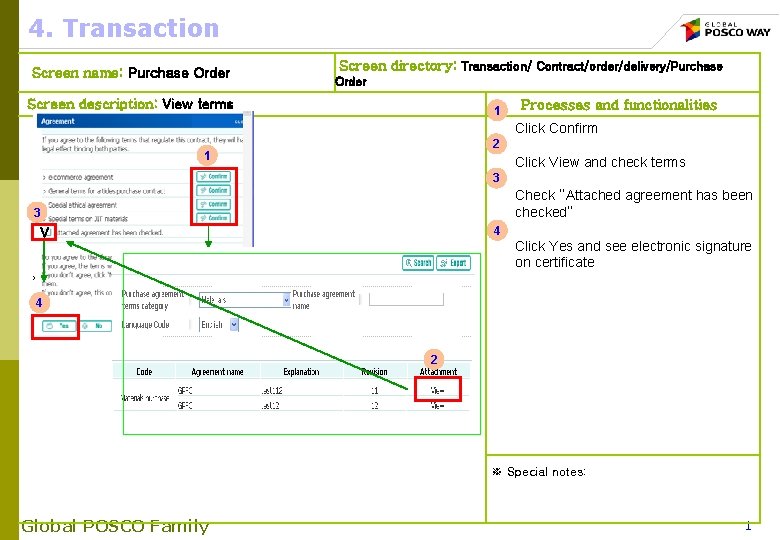
4. Transaction Screen name: Purchase Order Screen directory: Transaction/ Contract/order/delivery/Purchase Order Screen description: View terms 1 Processes and functionalities Click Confirm 2 1 Click View and check terms 3 Check “Attached agreement has been checked” 3 4 V Click Yes and see electronic signature on certificate 4 2 ※ Special notes: Global POSCO Family 1
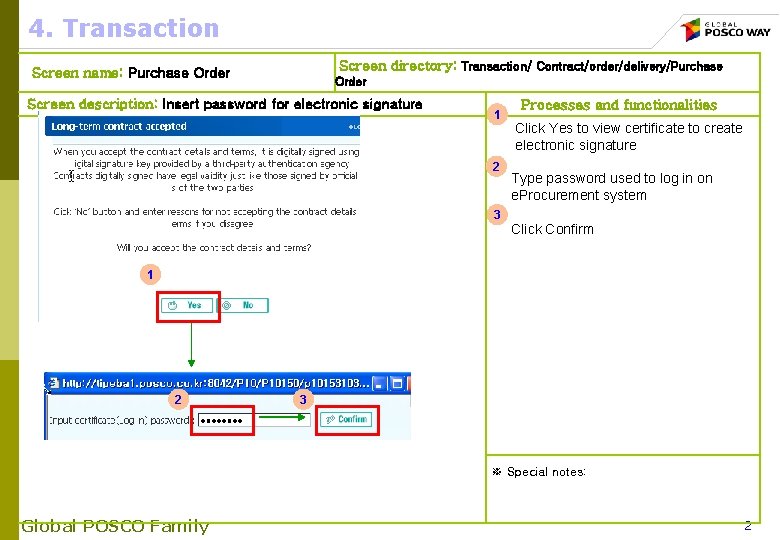
4. Transaction Screen directory: Transaction/ Contract/order/delivery/Purchase Screen name: Purchase Order Screen description: Insert password for electronic signature 1 2 3 Processes and functionalities Click Yes to view certificate to create electronic signature Type password used to log in on e. Procurement system Click Confirm 1 2 3 ※ Special notes: Global POSCO Family 2
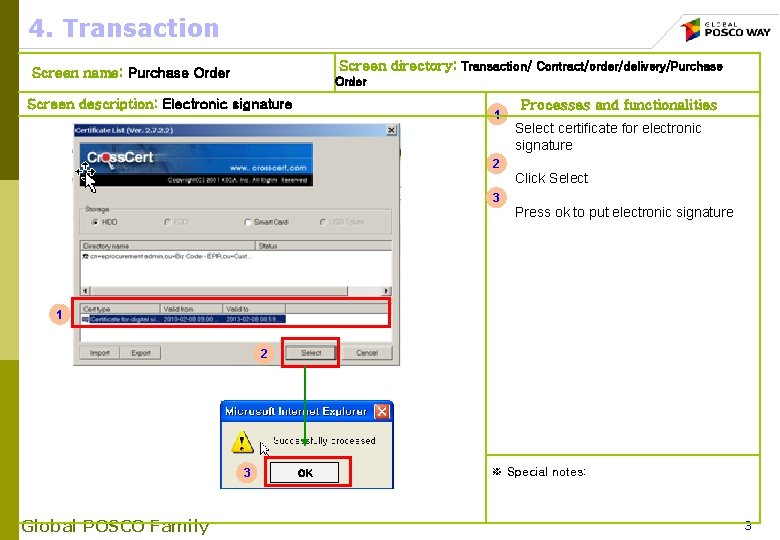
4. Transaction Screen directory: Transaction/ Contract/order/delivery/Purchase Screen name: Purchase Order Screen description: Electronic signature 1 Processes and functionalities Select certificate for electronic signature 2 Click Select 3 Press ok to put electronic signature 1 2 3 Global POSCO Family OK ※ Special notes: 3
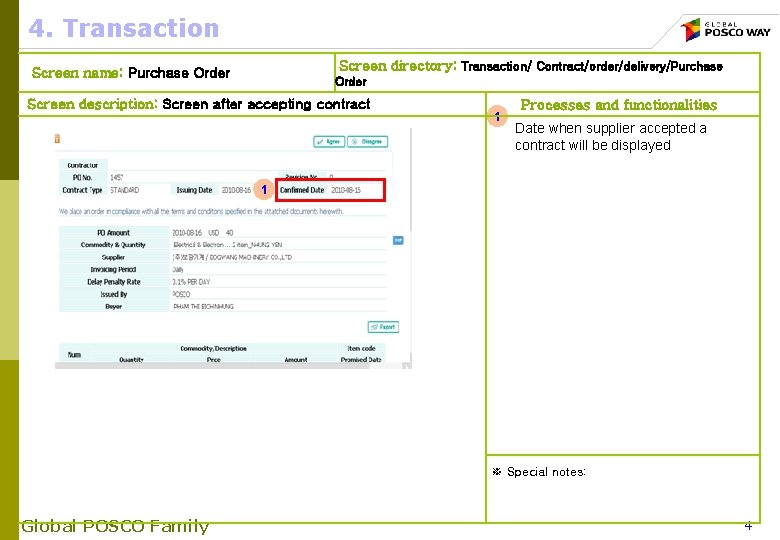
4. Transaction Screen directory: Transaction/ Contract/order/delivery/Purchase Screen name: Purchase Order Screen description: Screen after accepting contract 1 Processes and functionalities Date when supplier accepted a contract will be displayed 1 ※ Special notes: Global POSCO Family 4
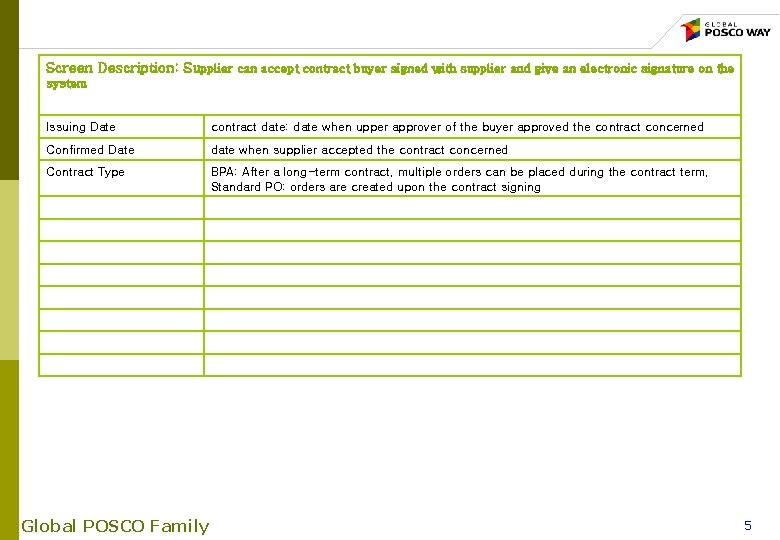
Screen Description: Supplier can accept contract buyer signed with supplier and give an electronic signature on the system Issuing Date contract date: date when upper approver of the buyer approved the contract concerned Confirmed Date date when supplier accepted the contract concerned Contract Type BPA: After a long-term contract, multiple orders can be placed during the contract term, Standard PO: orders are created upon the contract signing Global POSCO Family 5
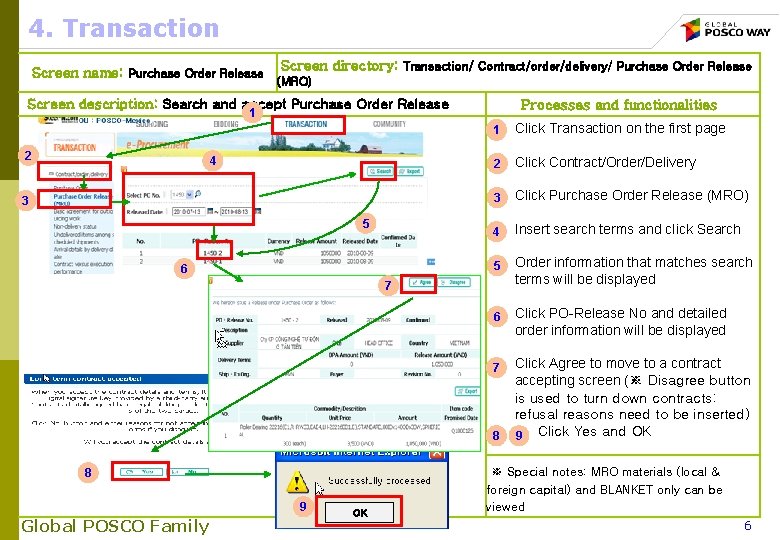
4. Transaction Screen directory: Transaction/ Contract/order/delivery/ Purchase Order Release Screen name: Purchase Order Release (MRO) Screen description: Search and accept Purchase Order Release Processes and functionalities 1 1 2 4 3 5 6 1 Click Transaction on the first page 2 Click Contract/Order/Delivery 3 Click Purchase Order Release (MRO) 4 Insert search terms and click Search 5 Order information that matches search terms will be displayed 6 Click PO-Release No and detailed order information will be displayed 7 Click Agree to move to a contract accepting screen (※ Disagree button is used to turn down contracts: refusal reasons need to be inserted) 9 Click Yes and OK 7 8 8 9 Global POSCO Family OK ※ Special notes: MRO materials (local & foreign capital) and BLANKET only can be viewed 6
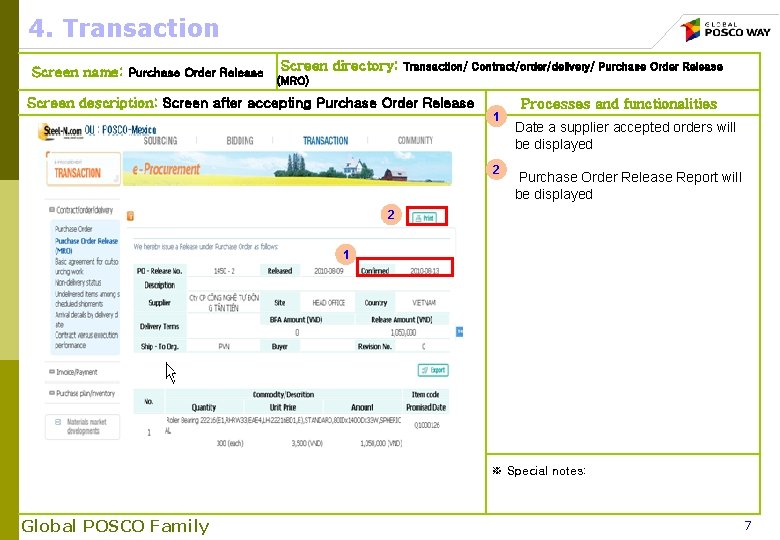
4. Transaction Screen name: Purchase Order Release Screen directory: Transaction/ Contract/order/delivery/ Purchase Order Release (MRO) Screen description: Screen after accepting Purchase Order Release 1 2 Processes and functionalities Date a supplier accepted orders will be displayed Purchase Order Release Report will be displayed 2 1 ※ Special notes: Global POSCO Family 7
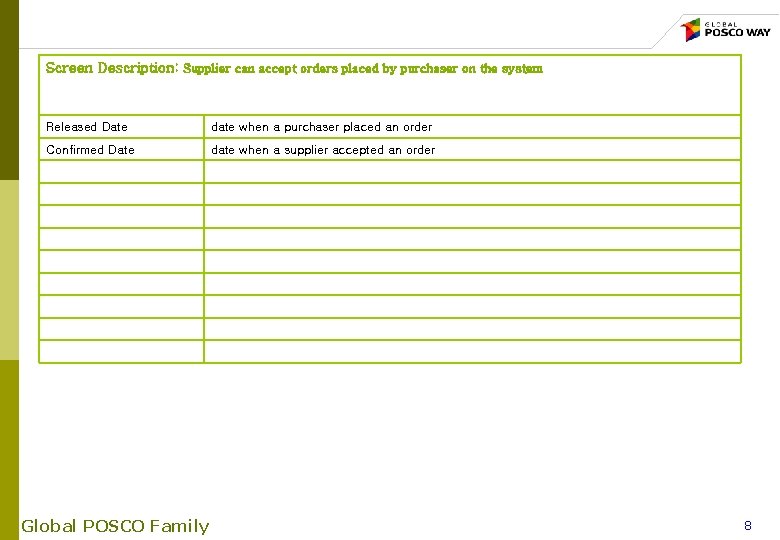
Screen Description: Supplier can accept orders placed by purchaser on the system Released Date date when a purchaser placed an order Confirmed Date date when a supplier accepted an order Global POSCO Family 8
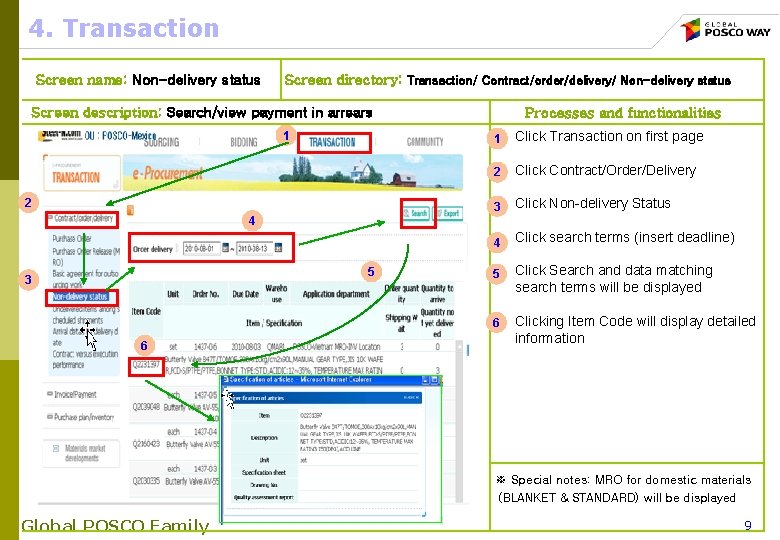
4. Transaction Screen name: Non-delivery status Screen directory: Transaction/ Contract/order/delivery/ Non-delivery status Screen description: Search/view payment in arrears 1 2 Processes and functionalities 1 Click Transaction on first page 2 Click Contract/Order/Delivery 3 Click Non-delivery Status 4 Click search terms (insert deadline) 4 5 3 6 5 Click Search and data matching search terms will be displayed 6 Clicking Item Code will display detailed information ※ Special notes: MRO for domestic materials (BLANKET & STANDARD) will be displayed Global POSCO Family 9
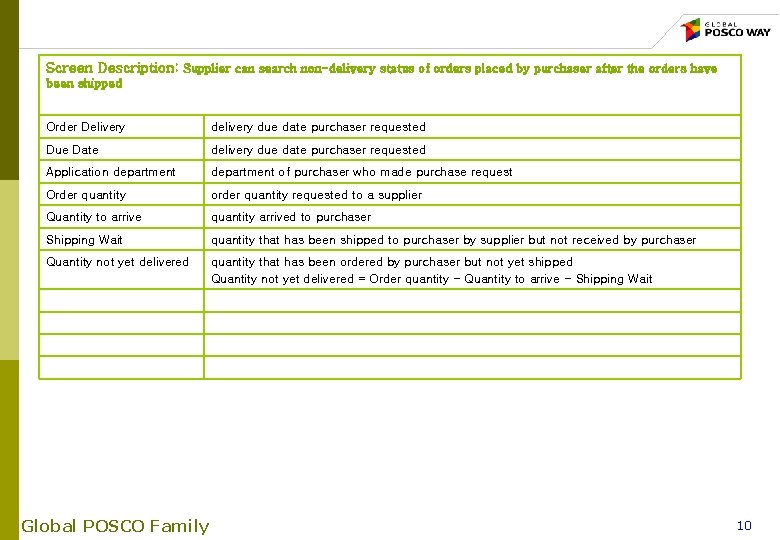
Screen Description: Supplier can search non-delivery status of orders placed by purchaser after the orders have been shipped Order Delivery due date purchaser requested Due Date delivery due date purchaser requested Application department of purchaser who made purchase request Order quantity order quantity requested to a supplier Quantity to arrive quantity arrived to purchaser Shipping Wait quantity that has been shipped to purchaser by supplier but not received by purchaser Quantity not yet delivered quantity that has been ordered by purchaser but not yet shipped Quantity not yet delivered = Order quantity - Quantity to arrive - Shipping Wait Global POSCO Family 10
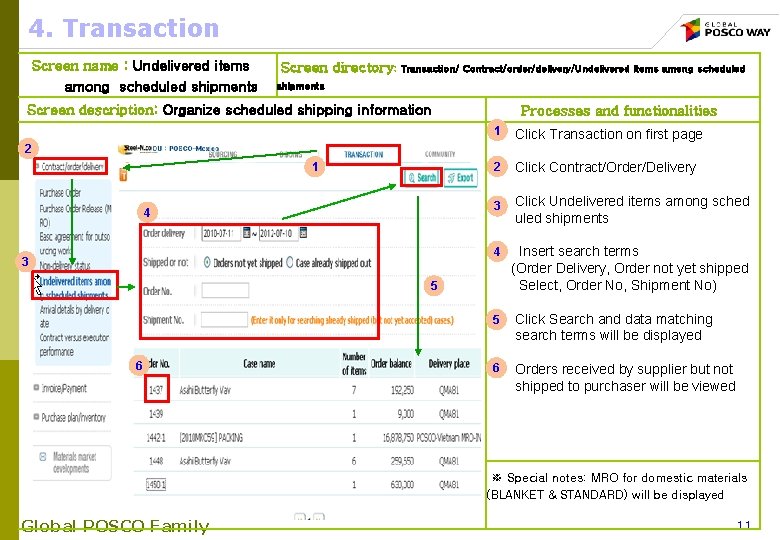
4. Transaction Screen name : Undelivered items among scheduled shipments Screen directory: Transaction/ Contract/order/delivery/Undelivered items among scheduled shipments Screen description: Organize scheduled shipping information Processes and functionalities 1 Click Transaction on first page 2 Click Contract/Order/Delivery 3 Click Undelivered items among sched uled shipments 2 1 4 4 3 5 6 Insert search terms (Order Delivery, Order not yet shipped Select, Order No, Shipment No) 5 Click Search and data matching search terms will be displayed 6 Orders received by supplier but not shipped to purchaser will be viewed ※ Special notes: MRO for domestic materials (BLANKET & STANDARD) will be displayed Global POSCO Family 11
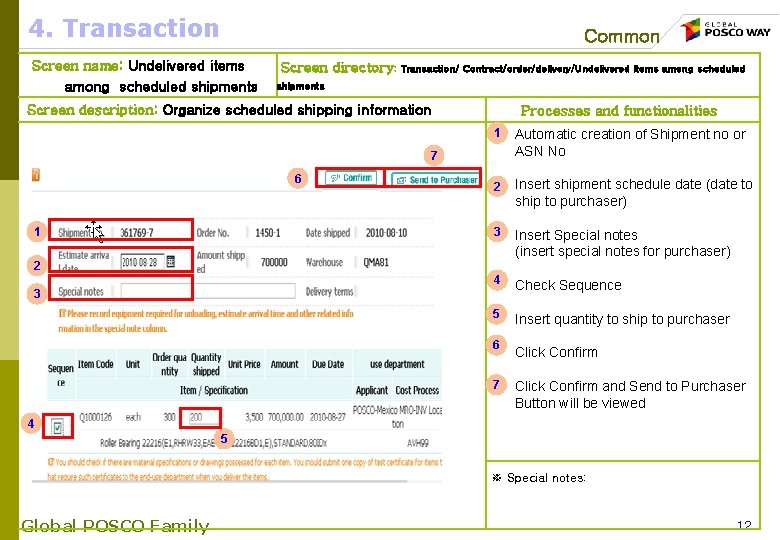
4. Transaction Common Screen name: Undelivered items among scheduled shipments Screen directory: Transaction/ Contract/order/delivery/Undelivered items among scheduled shipments Screen description: Organize scheduled shipping information Processes and functionalities 1 Automatic creation of Shipment no or ASN No 2 Insert shipment schedule date (date to ship to purchaser) 3 Insert Special notes (insert special notes for purchaser) 4 Check Sequence 5 Insert quantity to ship to purchaser 6 Click Confirm 7 Click Confirm and Send to Purchaser Button will be viewed 7 6 1 2 3 4 5 ※ Special notes: Global POSCO Family 12
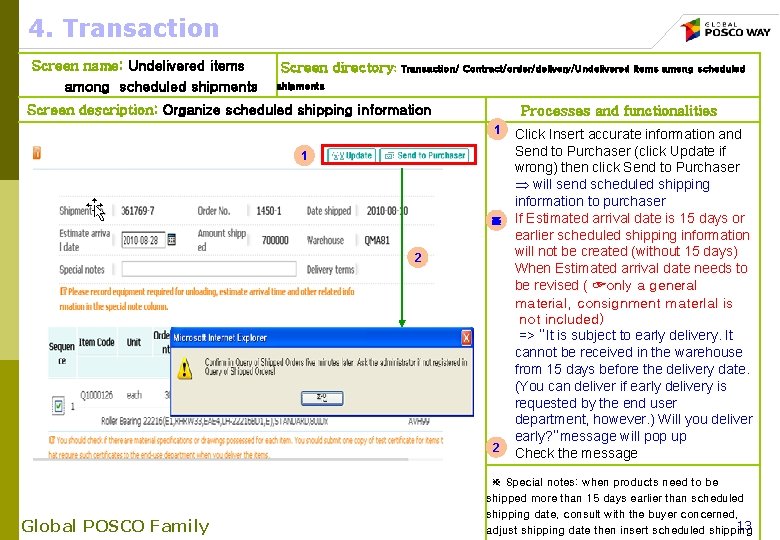
4. Transaction Screen name: Undelivered items among scheduled shipments Screen directory: Transaction/ Contract/order/delivery/Undelivered items among scheduled shipments Screen description: Organize scheduled shipping information Processes and functionalities 1 1 2 Global POSCO Family Click Insert accurate information and Send to Purchaser (click Update if wrong) then click Send to Purchaser Þ will send scheduled shipping information to purchaser ※ If Estimated arrival date is 15 days or earlier scheduled shipping information will not be created (without 15 days) When Estimated arrival date needs to be revised ( ☞only a general material, consignment mater. Ial is not included) => “It is subject to early delivery. It cannot be received in the warehouse from 15 days before the delivery date. (You can deliver if early delivery is requested by the end user department, however. ) Will you deliver early? ”message will pop up 2 Check the message ※ Special notes: when products need to be shipped more than 15 days earlier than scheduled shipping date, consult with the buyer concerned, 13 adjust shipping date then insert scheduled shipping
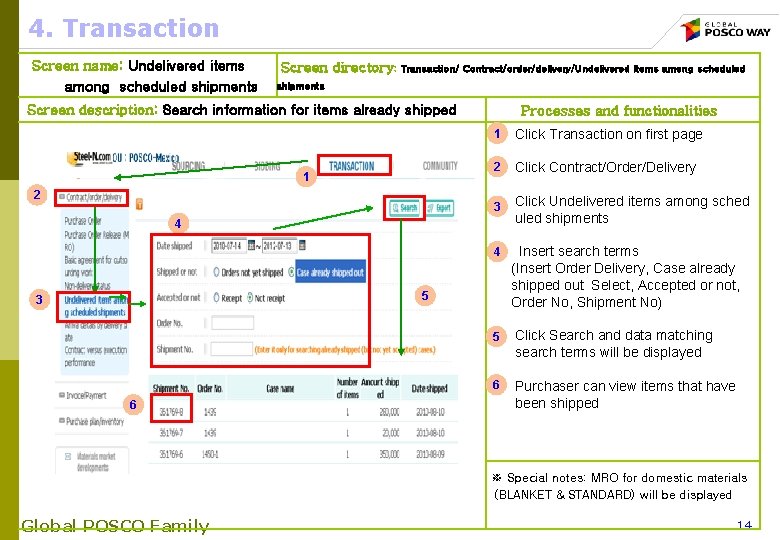
4. Transaction Screen name: Undelivered items among scheduled shipments Screen directory: Transaction/ Contract/order/delivery/Undelivered items among scheduled shipments Screen description: Search information for items already shipped 1 2 Processes and functionalities 1 Click Transaction on first page 2 Click Contract/Order/Delivery 3 Click Undelivered items among sched uled shipments 4 4 5 3 6 Insert search terms (Insert Order Delivery, Case already shipped out Select, Accepted or not, Order No, Shipment No) 5 Click Search and data matching search terms will be displayed 6 Purchaser can view items that have been shipped ※ Special notes: MRO for domestic materials (BLANKET & STANDARD) will be displayed Global POSCO Family 14
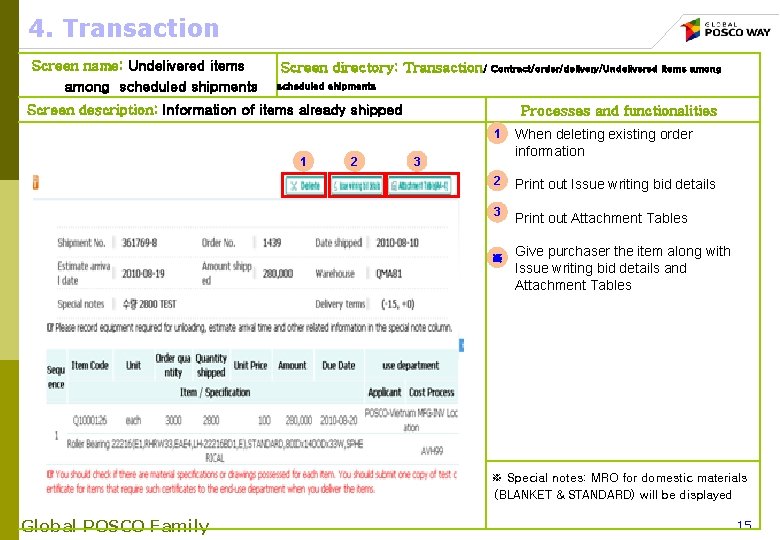
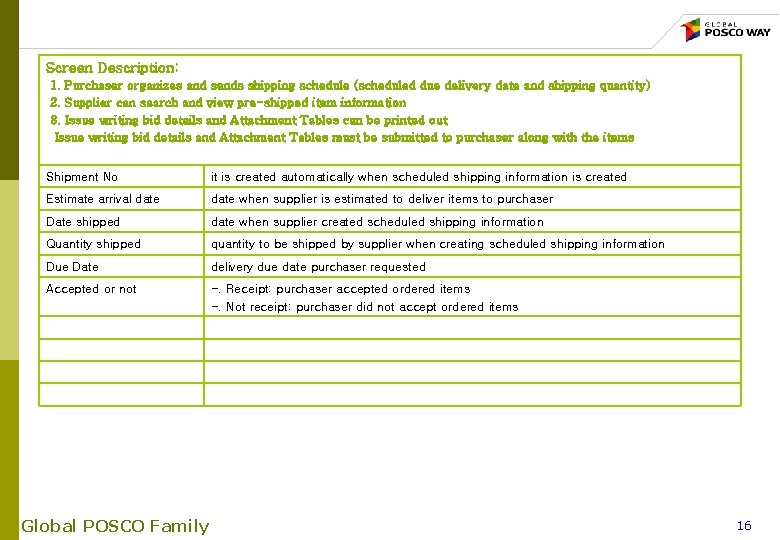
4. Transaction Screen name: Undelivered items among scheduled shipments Screen directory: Transaction/ Contract/order/delivery/Undelivered items among scheduled shipments Screen description: Information of items already shipped 1 2 Processes and functionalities 1 When deleting existing order information 2 Print out Issue writing bid details 3 Print out Attachment Tables 3 ※ Give purchaser the item along with Issue writing bid details and Attachment Tables ※ Special notes: MRO for domestic materials (BLANKET & STANDARD) will be displayed Global POSCO Family 15
Screen Description: 1. Purchaser organizes and sends shipping schedule (scheduled due delivery date and shipping quantity) 2. Supplier can search and view pre-shipped item information 3. Issue writing bid details and Attachment Tables can be printed out Issue writing bid details and Attachment Tables must be submitted to purchaser along with the items Shipment No it is created automatically when scheduled shipping information is created Estimate arrival date when supplier is estimated to deliver items to purchaser Date shipped date when supplier created scheduled shipping information Quantity shipped quantity to be shipped by supplier when creating scheduled shipping information Due Date delivery due date purchaser requested Accepted or not -. Receipt: purchaser accepted ordered items -. Not receipt: purchaser did not accept ordered items Global POSCO Family 16
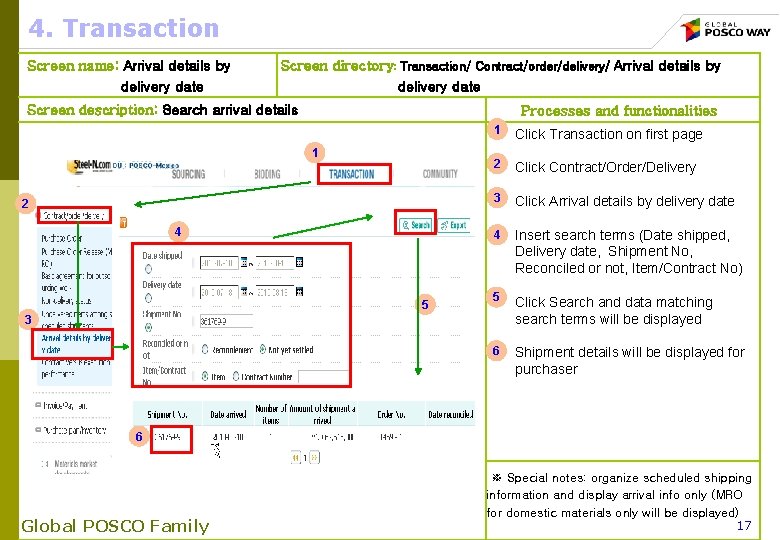
4. Transaction Screen name: Arrival details by delivery date Screen directory: Transaction/ Contract/order/delivery/ Arrival details by delivery date Screen description: Search arrival details Processes and functionalities 1 2 4 5 1 Click Transaction on first page 2 Click Contract/Order/Delivery 3 Click Arrival details by delivery date 4 Insert search terms (Date shipped, Delivery date, Shipment No, Reconciled or not, Item/Contract No) 5 Click Search and data matching search terms will be displayed 6 Shipment details will be displayed for purchaser 3 6 Global POSCO Family ※ Special notes: organize scheduled shipping information and display arrival info only (MRO for domestic materials only will be displayed) 17
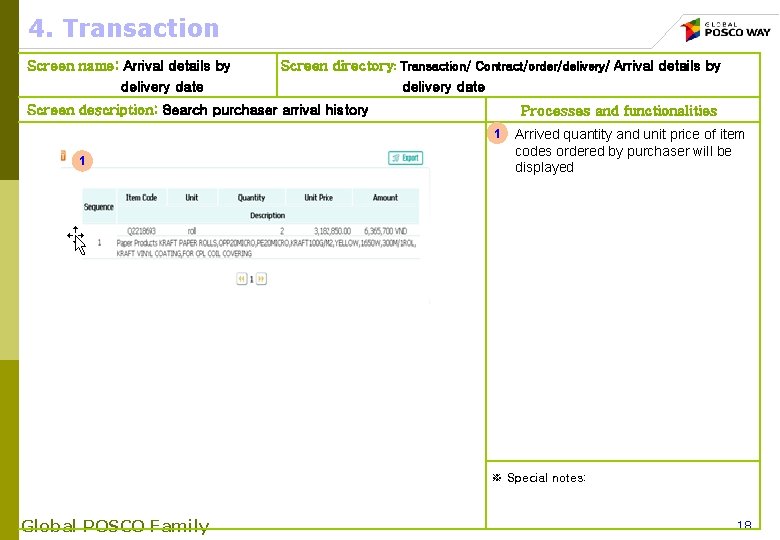
4. Transaction Screen name: Arrival details by delivery date Screen directory: Transaction/ Contract/order/delivery/ Arrival details by delivery date Screen description: Search purchaser arrival history Processes and functionalities 1 1 Arrived quantity and unit price of item codes ordered by purchaser will be displayed ※ Special notes: Global POSCO Family 18
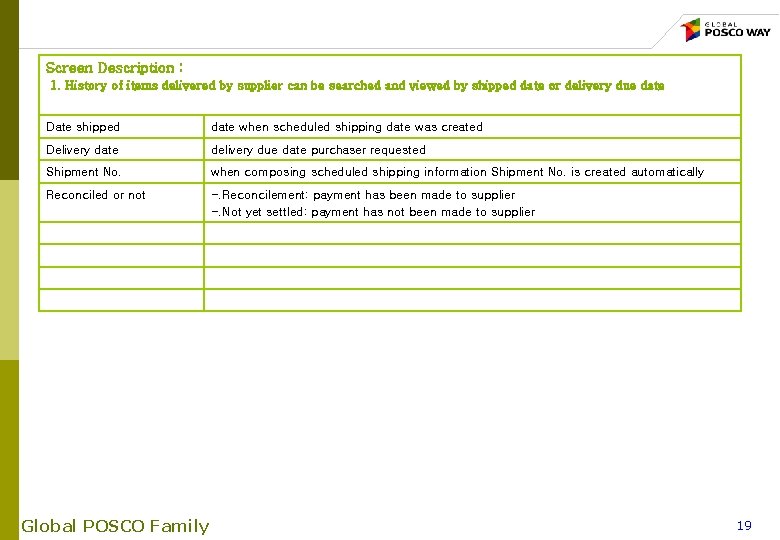
Screen Description : 1. History of items delivered by supplier can be searched and viewed by shipped date or delivery due date Date shipped date when scheduled shipping date was created Delivery date delivery due date purchaser requested Shipment No. when composing scheduled shipping information Shipment No. is created automatically Reconciled or not -. Reconcilement: payment has been made to supplier -. Not yet settled: payment has not been made to supplier Global POSCO Family 19
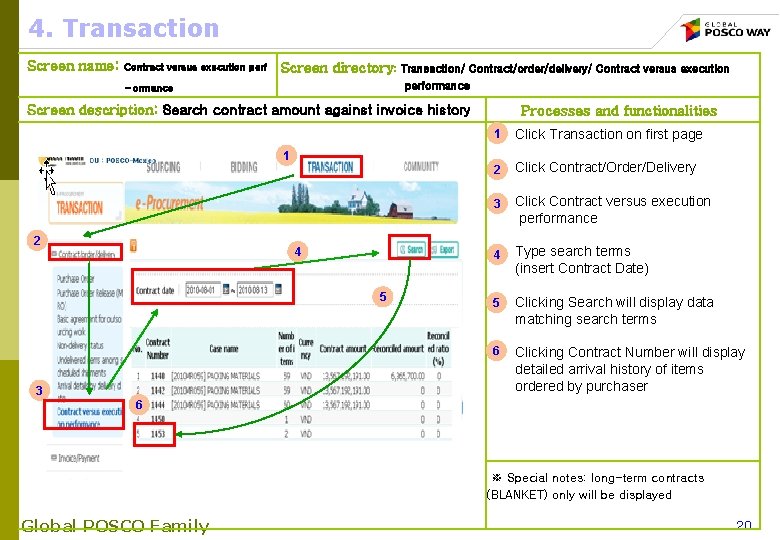
4. Transaction Screen name: Contract versus execution perf Screen directory: Transaction/ Contract/order/delivery/ Contract versus execution performance - ormance Screen description: Search contract amount against invoice history Processes and functionalities 1 Click Transaction on first page 2 Click Contract/Order/Delivery 3 Click Contract versus execution performance 4 Type search terms (insert Contract Date) 5 Clicking Search will display data matching search terms 6 Clicking Contract Number will display detailed arrival history of items ordered by purchaser 1 2 4 5 3 6 ※ Special notes: long-term contracts (BLANKET) only will be displayed Global POSCO Family 20
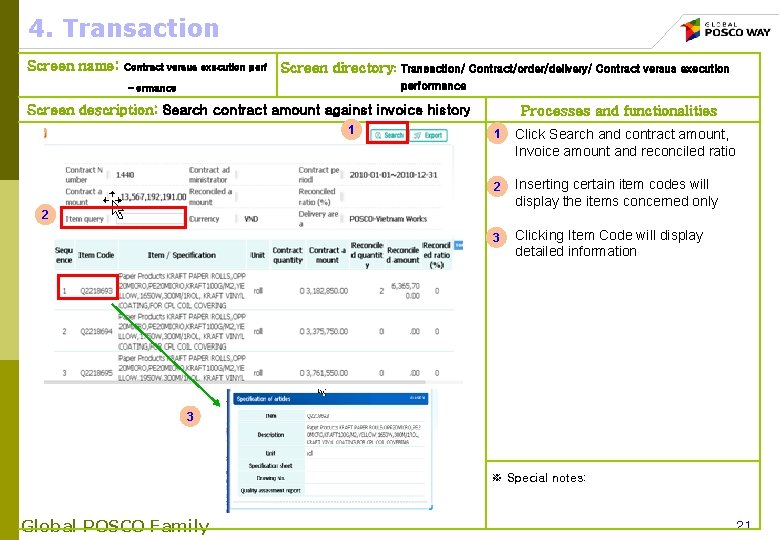
4. Transaction Screen name: Contract versus execution perf Screen directory: Transaction/ Contract/order/delivery/ Contract versus execution performance - ormance Screen description: Search contract amount against invoice history 1 Processes and functionalities 1 Click Search and contract amount, Invoice amount and reconciled ratio 2 Inserting certain item codes will display the items concerned only 3 Clicking Item Code will display detailed information 2 3 ※ Special notes: Global POSCO Family 21
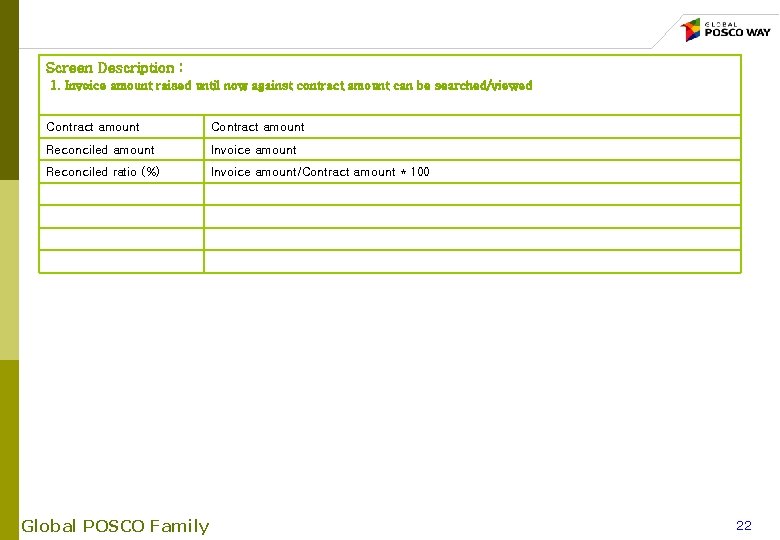
Screen Description : 1. Invoice amount raised until now against contract amount can be searched/viewed Contract amount Reconciled amount Invoice amount Reconciled ratio (%) Invoice amount/Contract amount * 100 Global POSCO Family 22
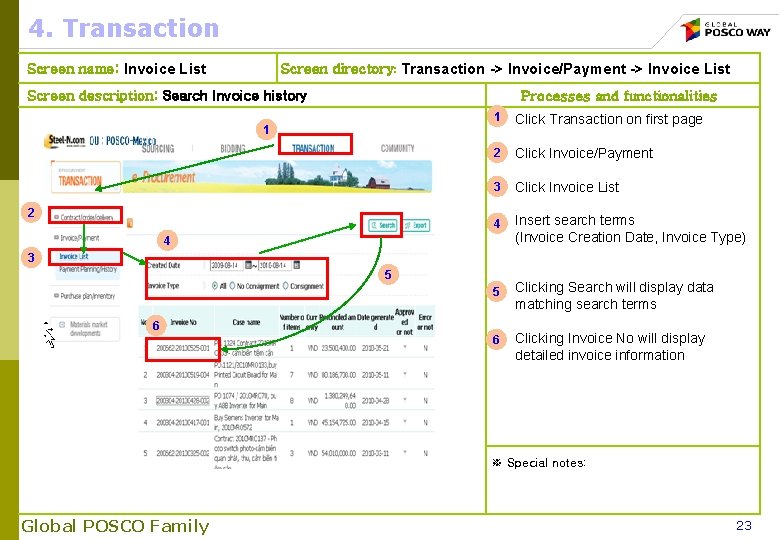
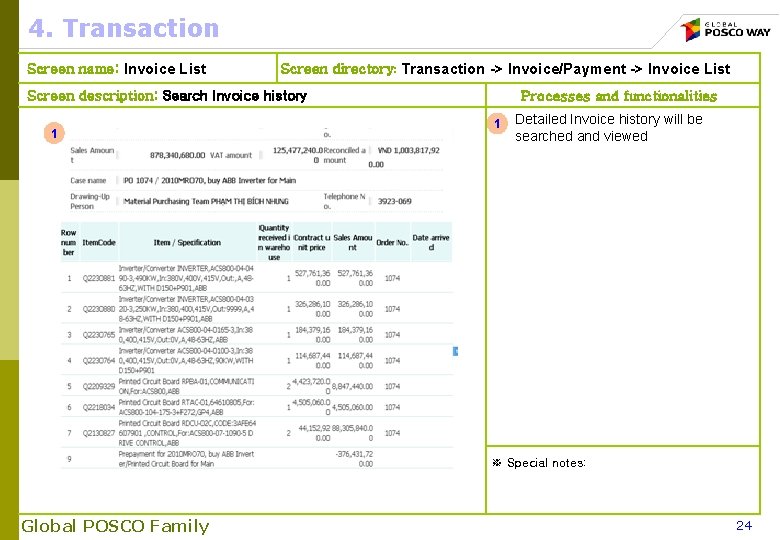
4. Transaction Screen name: Invoice List Screen directory: Transaction -> Invoice/Payment -> Invoice List Screen description: Search Invoice history Processes and functionalities 1 Click Transaction on first page 2 Click Invoice/Payment 3 Click Invoice List 4 Insert search terms (Invoice Creation Date, Invoice Type) 5 Clicking Search will display data matching search terms 6 Clicking Invoice No will display detailed invoice information 1 2 4 3 5 6 ※ Special notes: Global POSCO Family 23
4. Transaction Screen name: Invoice List Screen directory: Transaction -> Invoice/Payment -> Invoice List Screen description: Search Invoice history 1 Processes and functionalities 1 Detailed Invoice history will be searched and viewed ※ Special notes: Global POSCO Family 24
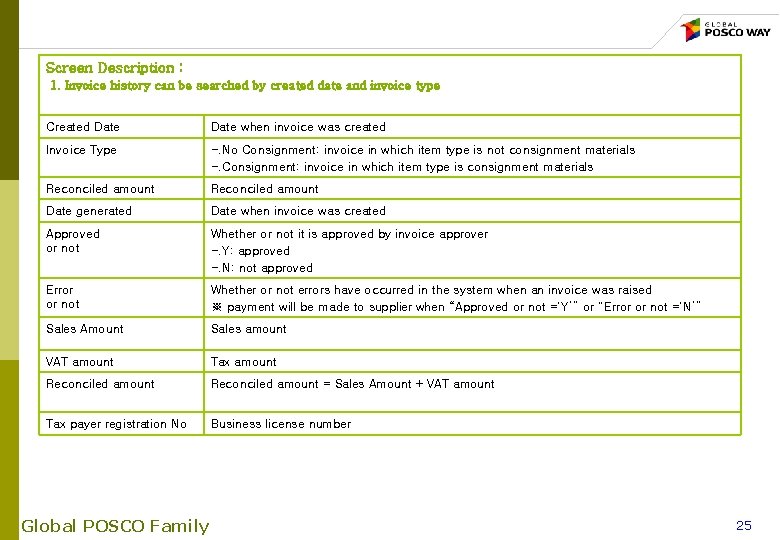
Screen Description : 1. Invoice history can be searched by created date and invoice type Created Date when invoice was created Invoice Type -. No Consignment: invoice in which item type is not consignment materials -. Consignment: invoice in which item type is consignment materials Reconciled amount Date generated Date when invoice was created Approved or not Whether or not it is approved by invoice approver -. Y: approved -. N: not approved Error or not Whether or not errors have occurred in the system when an invoice was raised ※ payment will be made to supplier when “Approved or not =‘Y’” or “Error or not =‘N’” Sales Amount Sales amount VAT amount Tax amount Reconciled amount = Sales Amount + VAT amount Tax payer registration No Business license number Global POSCO Family 25
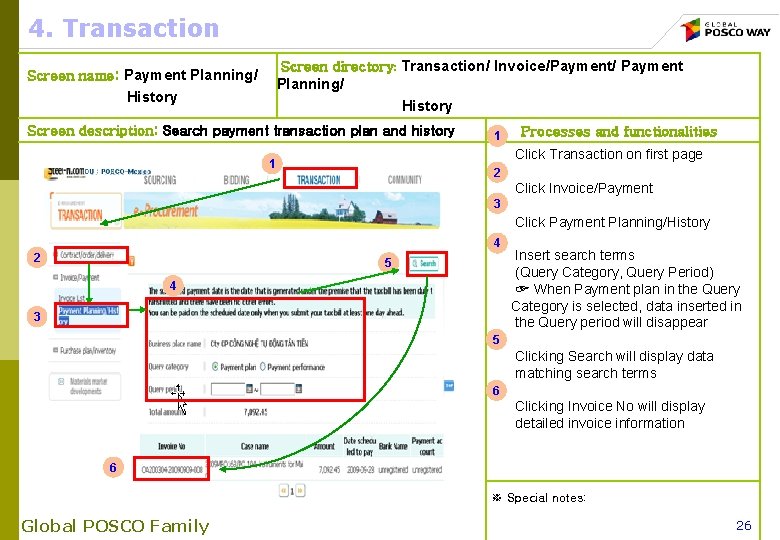
4. Transaction Screen directory: Transaction/ Invoice/Payment/ Payment Screen name: Payment Planning/ History Screen description: Search payment transaction plan and history 1 Processes and functionalities Click Transaction on first page 1 2 Click Invoice/Payment 3 Click Payment Planning/History 4 2 5 4 3 Insert search terms (Query Category, Query Period) ☞ When Payment plan in the Query Category is selected, data inserted in the Query period will disappear 5 Clicking Search will display data matching search terms 6 Clicking Invoice No will display detailed invoice information 6 ※ Special notes: Global POSCO Family 26
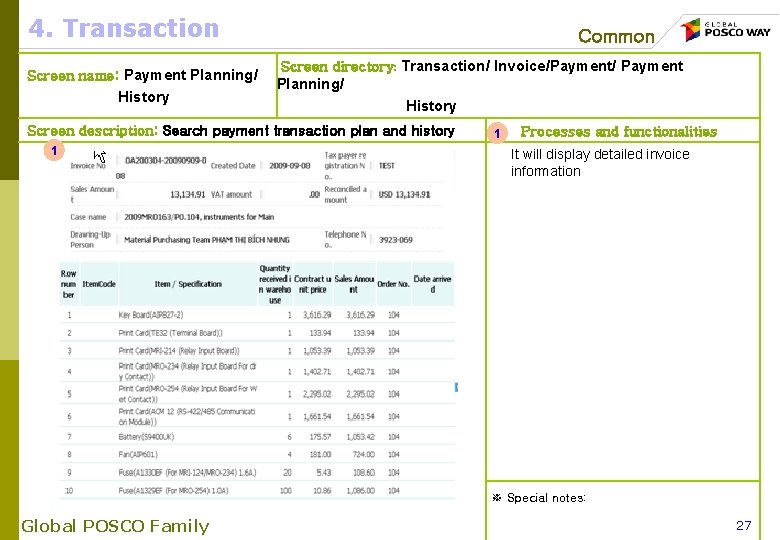
4. Transaction Screen name: Payment Planning/ History Common Screen directory: Transaction/ Invoice/Payment/ Payment Planning/ History Screen description: Search payment transaction plan and history 1 1 Processes and functionalities It will display detailed invoice information ※ Special notes: Global POSCO Family 27
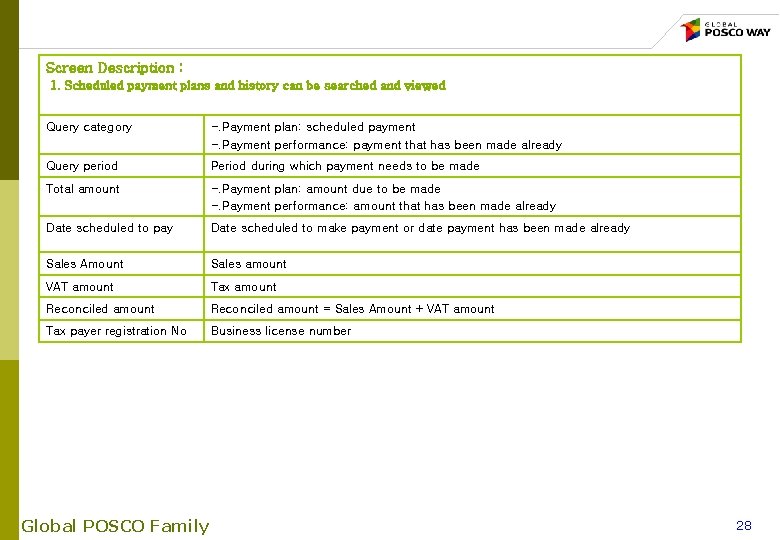
Screen Description : 1. Scheduled payment plans and history can be searched and viewed Query category -. Payment plan: scheduled payment -. Payment performance: payment that has been made already Query period Period during which payment needs to be made Total amount -. Payment plan: amount due to be made -. Payment performance: amount that has been made already Date scheduled to pay Date scheduled to make payment or date payment has been made already Sales Amount Sales amount VAT amount Tax amount Reconciled amount = Sales Amount + VAT amount Tax payer registration No Business license number Global POSCO Family 28
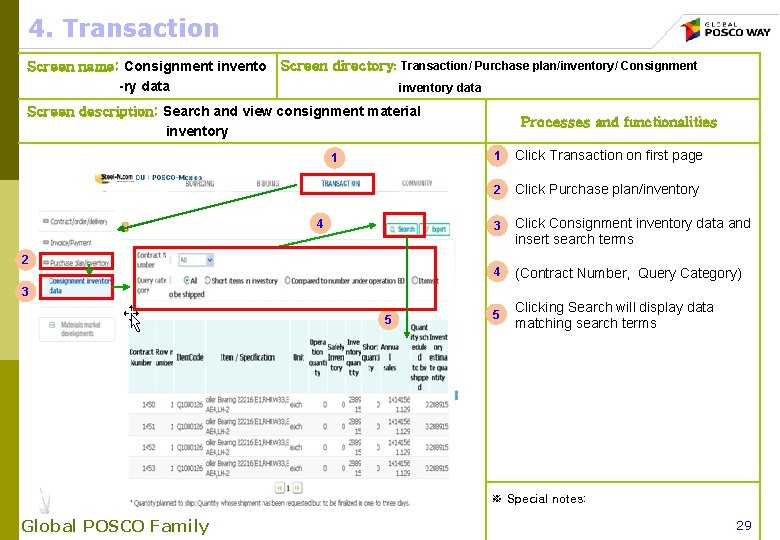
4. Transaction Screen name: Consignment invento -ry data Screen directory: Transaction/ Purchase plan/inventory/ Consignment inventory data Screen description: Search and view consignment material inventory 1 4 2 Processes and functionalities 1 Click Transaction on first page 2 Click Purchase plan/inventory 3 Click Consignment inventory data and insert search terms 4 (Contract Number, Query Category) 5 Clicking Search will display data matching search terms 3 5 ※ Special notes: Global POSCO Family 29
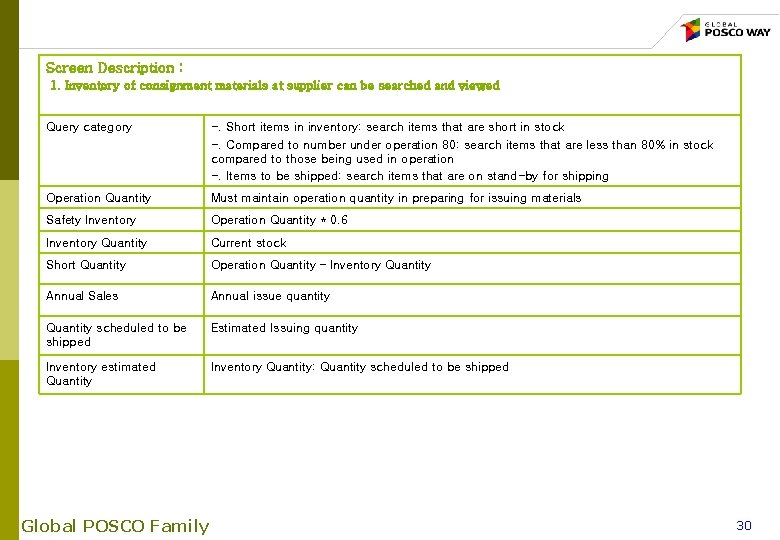
Screen Description : 1. Inventory of consignment materials at supplier can be searched and viewed Query category -. Short items in inventory: search items that are short in stock -. Compared to number under operation 80: search items that are less than 80% in stock compared to those being used in operation -. Items to be shipped: search items that are on stand-by for shipping Operation Quantity Must maintain operation quantity in preparing for issuing materials Safety Inventory Operation Quantity * 0. 6 Inventory Quantity Current stock Short Quantity Operation Quantity – Inventory Quantity Annual Sales Annual issue quantity Quantity scheduled to be shipped Estimated Issuing quantity Inventory estimated Quantity Inventory Quantity: Quantity scheduled to be shipped Global POSCO Family 30