
4 1 Starting from Scratch Photoshop CC 2018
- Slides: 6
#4 -1: Starting from Scratch (Photoshop CC 2018+)
Goals in this module 4. 1 Create a new project. 4. 2 Import assets into a project. 4. 3 Make, manage, and manipulate selections. 4. 4 Transform images. 4. 5 Create and manage layers and masks. 4. 6 Use basic retouching techniques — including color correction, blending, cloning, and filters — to manipulate a digital image. 4. 7 Create a vector drawing, such as an icon, button, or layout. 4. 8 Add and manipulate type. 4. 9 Add filters.
Goals you HAVE practiced already 4. 1 Create a new project. 4. 2 Import assets into a project. 4. 3 Make, manage, and manipulate selections. 4. 4 Transform images. 4. 5 Create and manage layers and masks. 4. 6 Use basic retouching techniques — including color correction, blending, cloning, and filters — to manipulate a digital image. 4. 7 Create a vector drawing, such as an icon, button, or layout. 4. 8 Add and manipulate type. 4. 9 Add filters.
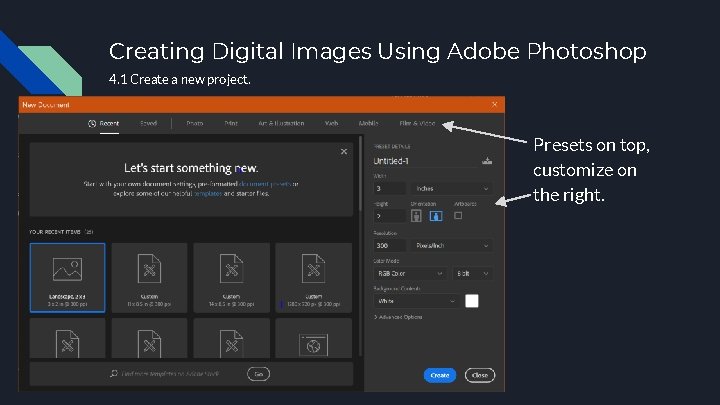
Creating Digital Images Using Adobe Photoshop 4. 1 Create a new project. Presets on top, customize on the right.
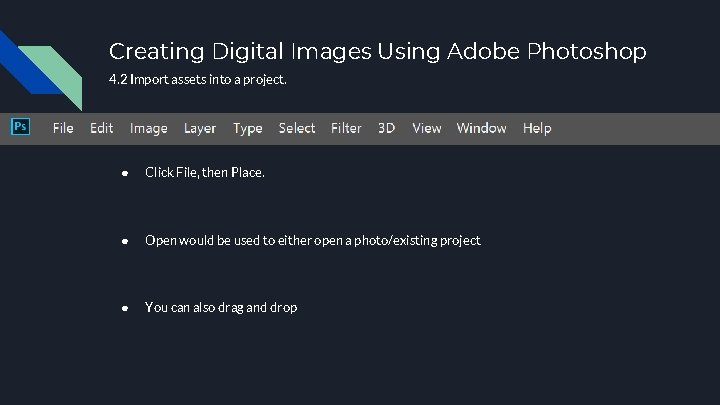
Creating Digital Images Using Adobe Photoshop 4. 2 Import assets into a project. ● Click File, then Place. ● Open would be used to either open a photo/existing project ● You can also drag and drop
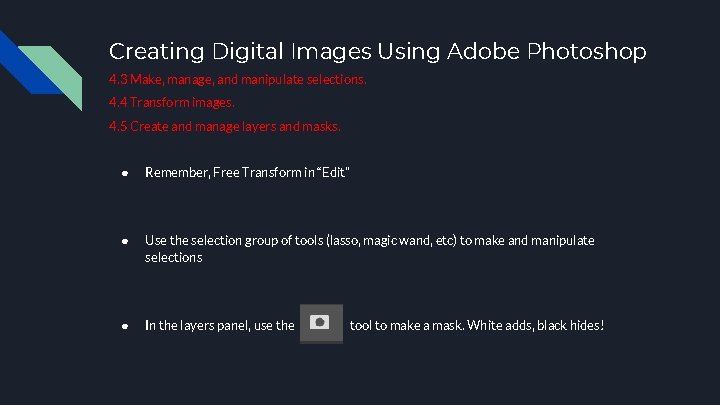
Creating Digital Images Using Adobe Photoshop 4. 3 Make, manage, and manipulate selections. 4. 4 Transform images. 4. 5 Create and manage layers and masks. ● Remember, Free Transform in “Edit” ● Use the selection group of tools (lasso, magic wand, etc) to make and manipulate selections ● In the layers panel, use the tool to make a mask. White adds, black hides!