
3 2 GRAPHICSI Alpha blending within games ALPHA
3. 2. GRAPHICSI Alpha blending within games
ALPHA BLENDING An exploration of the use of alpha blending within games
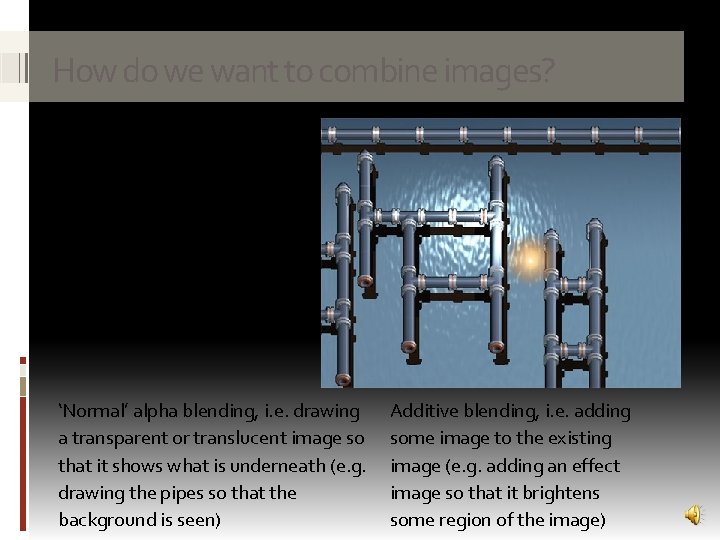
How do we want to combine images? In games there are two common ways in which images are combined. . . ‘Normal’ alpha blending, i. e. drawing a transparent or translucent image so that it shows what is underneath (e. g. drawing the pipes so that the background is seen) Additive blending, i. e. adding some image to the existing image (e. g. adding an effect image so that it brightens some region of the image)
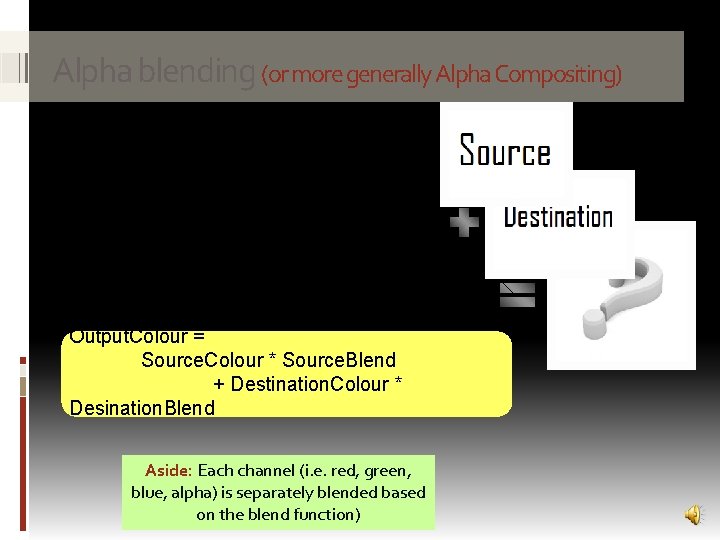
Alpha blending (or more generally Alpha Compositing) Alpha blending is typically done in hardware and controls how two images are combined to produce a single composite image (one image is termed the source, the other the destination – the source image is added to the destination image). The most common blend function is: Output. Colour = Source. Colour * Source. Blend + Destination. Colour * Desination. Blend Aside: Each channel (i. e. red, green, blue, alpha) is separately blended based on the blend function)
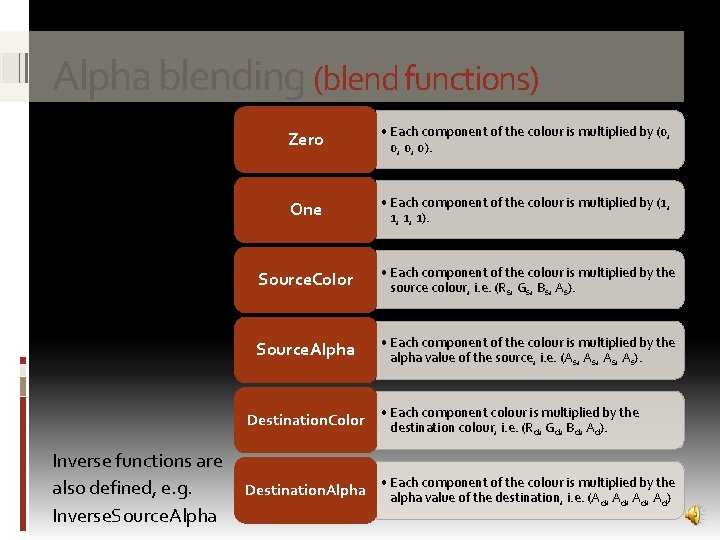
Alpha blending (blend functions) A wide range of different blend functions are defined, including those shown: Inverse functions are also defined, e. g. Inverse. Source. Alpha Zero • Each component of the colour is multiplied by (0, 0, 0, 0). One • Each component of the colour is multiplied by (1, 1, 1, 1). Source. Color • Each component of the colour is multiplied by the source colour, i. e. (Rs, Gs, Bs, As). Source. Alpha • Each component of the colour is multiplied by the alpha value of the source, i. e. (As, As, As). Destination. Color • Each component colour is multiplied by the destination colour, i. e. (Rd, Gd, Bd, Ad). Destination. Alpha • Each component of the colour is multiplied by the alpha value of the destination, i. e. (Ad, Ad, Ad)
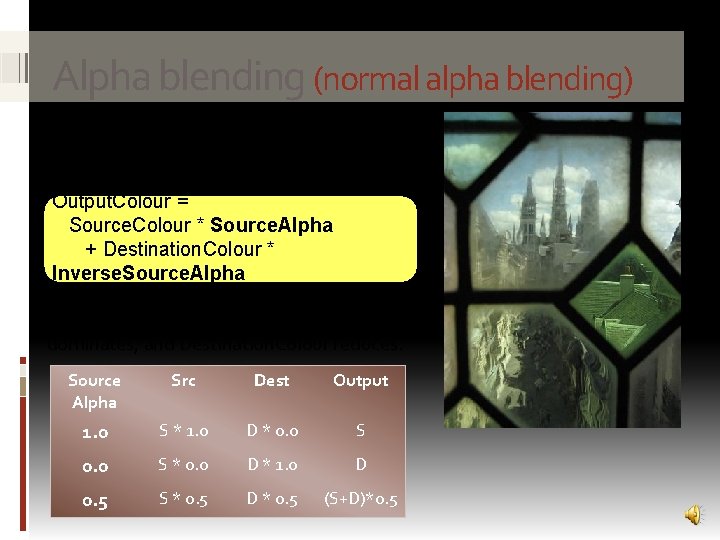
Alpha blending (normal alpha blending) The combination of blend functions that provides ‘normal’ alpha blending, i. e. enabling translucency, is shown below: Output. Colour = Source. Colour * Source. Alpha + Destination. Colour * Inverse. Source. Alpha As Source. Alpha increases, Source. Colour dominates, and Destination. Colour reduces. Source Alpha Src Dest Output 1. 0 S * 1. 0 D * 0. 0 S * 0. 0 D * 1. 0 D 0. 5 S * 0. 5 D * 0. 5 (S+D)*0. 5

Alpha blending (getting the right order) The order in which images are combined is important if using this form of blending, i. e. Images that are ‘behind’ a transparent image must be drawn first before the transparent image is drawn Aside: In XNA use Sprite. Batch Sprite. Sort. Mode Back. To. Front to draw back to front. If player is to be drawn behind pillar, player must be drawn before pillar Player (transparent background) Pillar (50% transparency)

Alpha blending (additive blending) A less common, but popular, means of alpha blending is additive blending: Output. Colour = Source. Colour * Source. Alpha + Destination. Colour * One Additive blending is commutative, i. e. It does not matter the order in which images are combined, the end result is the same. Using this form of blending there is no need to sort by depth order when combining images (although it can be more difficult to ‘visualise’ the output)
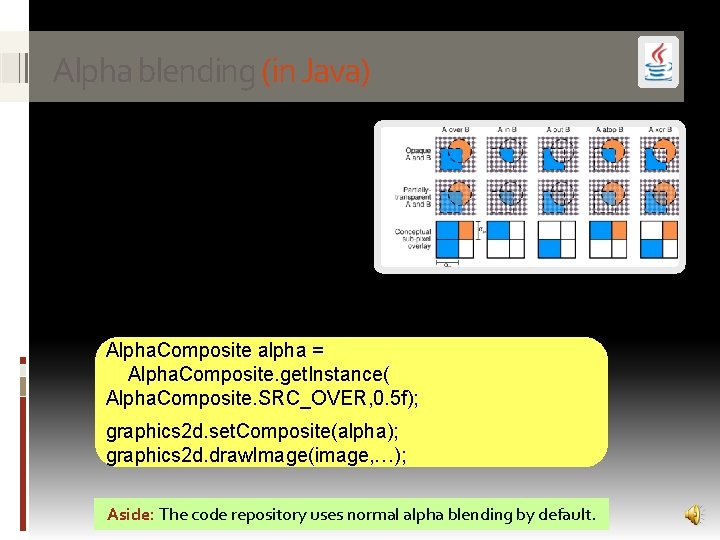
Alpha blending (in Java) The java. awt. Alpha. Composite class uses what are called the Porter-Duff compositing rules to implement alpha compositing. Mostly commonly the SRC_OVER rule is used (equivalent to normal alpha blending). Alpha. Composite alpha = Alpha. Composite. get. Instance( Alpha. Composite. SRC_OVER, 0. 5 f); graphics 2 d. set. Composite(alpha); graphics 2 d. draw. Image(image, …); Aside: The code repository uses normal alpha blending by default.
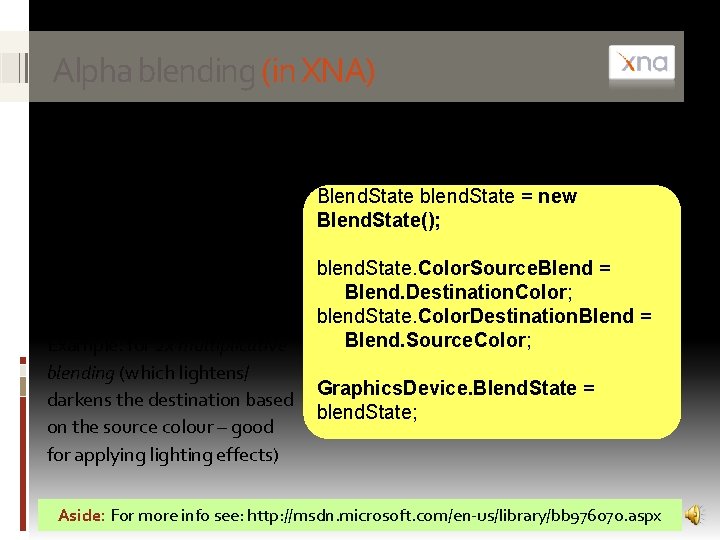
Alpha blending (in XNA) Sprite. Batch supports both normal alpha blending and additive blending, via the Blend. State (which can be Alpha. Bend, Additive, or None). Other forms of additive blending can be directly specified by changing the render state within the sprite batch. Example: for 2 x multiplicative blending (which lightens/ darkens the destination based on the source colour – good for applying lighting effects) Blend. State blend. State = new Blend. State(); blend. State. Color. Source. Blend = Blend. Destination. Color; blend. State. Color. Destination. Blend = Blend. Source. Color; Graphics. Device. Blend. State = blend. State; Aside: For more info see: http: //msdn. microsoft. com/en-us/library/bb 976070. aspx
SUMMARY : STEPS INYOUR GAME DESIGN Image loading, management and rendering summary
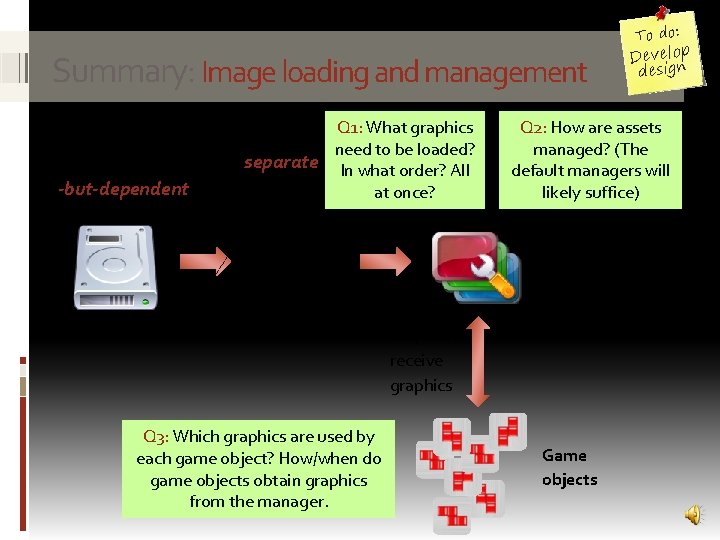
To do: Summary: Image loading and management In your game design you should Q 1: What graphics need to be loaded? consider the following separate In what order? All -but-dependent processes. at once? Load graphics Q 2: How are assets managed? (The default managers will likely suffice) Asset Manager Request / receive graphics Q 3: Which graphics are used by each game object? How/when do game objects obtain graphics from the manager. Develop design Game objects
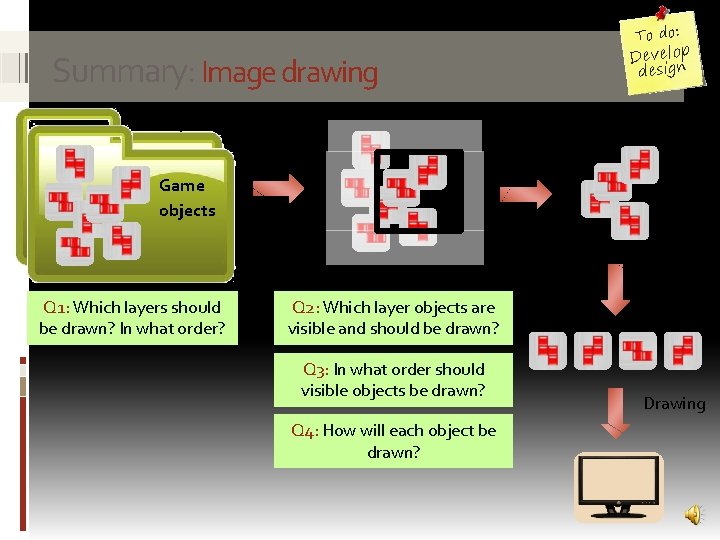
To do: Develop design Summary: Image drawing Layers Game objects Q 1: Which layers should be drawn? In what order? Drawing a layer Q 2: Which layer objects are visible and should be drawn? Q 3: In what order should visible objects be drawn? Q 4: How will each object be drawn? Visible objects Draw ordering Drawing
DEVELOPINGYOUR GAME DESIGN Having another stab at producing your own game design
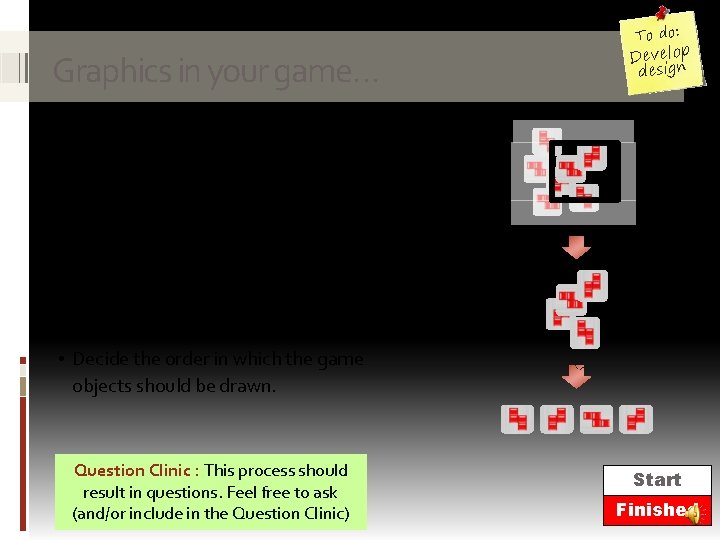
To do: Graphics in your game… Develop design Using your own game idea, take a game screen (I’d suggest the main game layer) and: • Briefly identify key game objects within the layer • Decide if any visibility culling is possible, and if so, what. • Decide the order in which the game objects should be drawn. Question Clinic : This process should result in questions. Feel free to ask (and/or include in the Question Clinic) Start Finished 10 9 8 7 6 5 4 3 2 30 1 mins min sec
EXTRACTINGIMAGES Making a transparent / translucent image
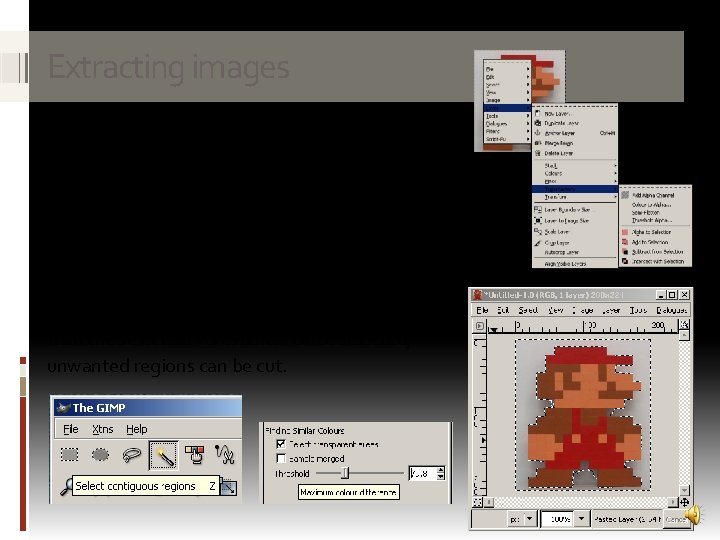
Extracting images Most popular image editing programs, e. g. GIMP, will enable you to make/edit transparent/ translucent images. To do this you may need to make sure the image has an alpha channel The ‘magic wand’ selection tool can be used to select regions (it may be necessary to play with the selection threshold). Once selected, unwanted regions can be cut.
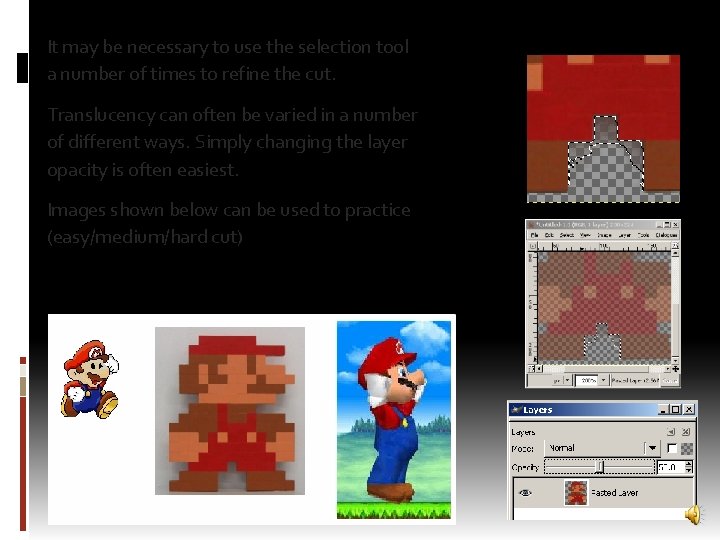
It may be necessary to use the selection tool a number of times to refine the cut. Translucency can often be varied in a number of different ways. Simply changing the layer opacity is often easiest. Images shown below can be used to practice (easy/medium/hard cut)
Summary Today we explored: ü The theory and uses of alpha blending ü Summary of key questions when using graphics ü Started to plan how graphics will be selected, drawn in your game. : o d o T Clinic n io t s e u Q e t ü Comple the e t a r e it / e t le ü Comp r loading, design fo and g in r e d r o , g in select in your s e g a im g in draw game. that e d o c e m o s e ü Writ ages. im s y la p is d d loads an
- Slides: 19