
232 Healthcare Portal Instructions for 232 Lenders Processing
- Slides: 26
232 Healthcare Portal Instructions for 232 Lenders Processing an Other Project Action Request January 4, 2017 1
Training Agenda • Welcome – Vance T. Morris – Acting Associate Deputy Assistant Secretary for the Office of Healthcare Programs (OHP) • Asset Management Overview – Tim Gruenes – Director of Asset Management for the Office of Residential Facilities (ORCF) • Training – April Edmunds – 232 Healthcare Portal Manager
SUBMITTING A OTHER PROJECT ACTION REQUEST • Unlike a Reserve for Replacement requests and Non-Critical Repair Escrow requests, there is only one type of Other Project Action request submission: – Non-Lender Delegated: • Forwarded to AE for further review.
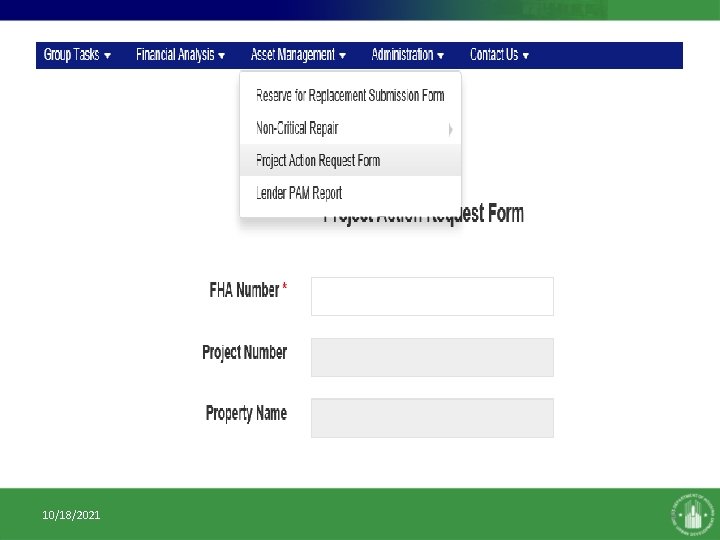
REVIEWING AND PROCESSING RESERVE FOR REPLACEMENT ESCROW REQUESTS • This section will provide instructions on submitting Other Project Action (OPA) requests submitted by HUD approved Lenders. – Click on the Asset Management tab. – Click on Project Action Request Form
10/18/2021 5
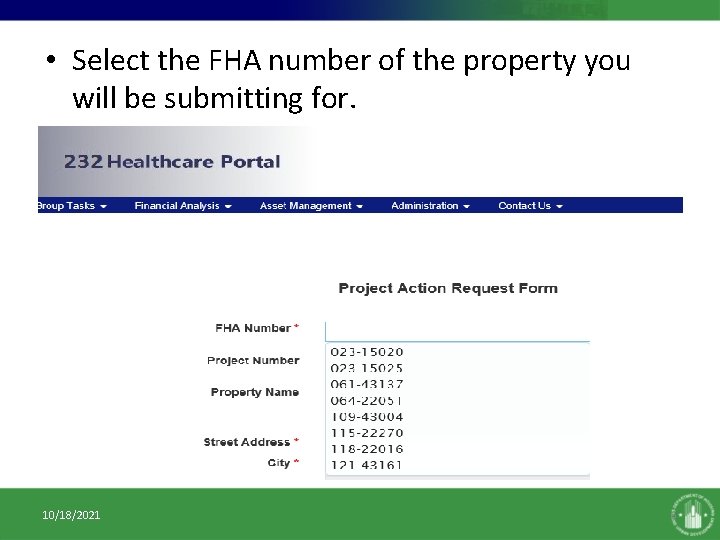
• Select the FHA number of the property you will be submitting for. 10/18/2021 6
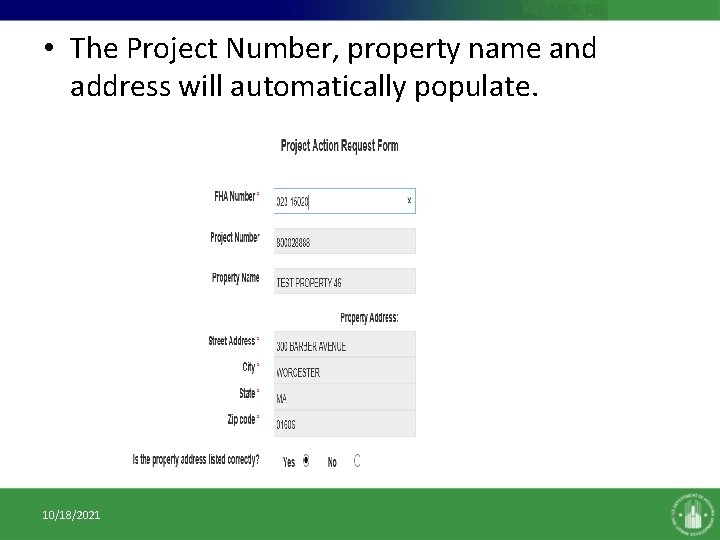
• The Project Number, property name and address will automatically populate. 10/18/2021 7
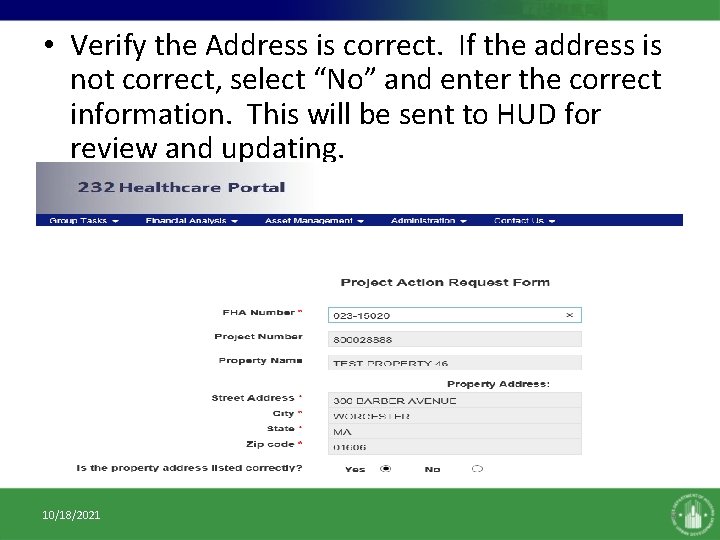
• Verify the Address is correct. If the address is not correct, select “No” and enter the correct information. This will be sent to HUD for review and updating. 10/18/2021 8
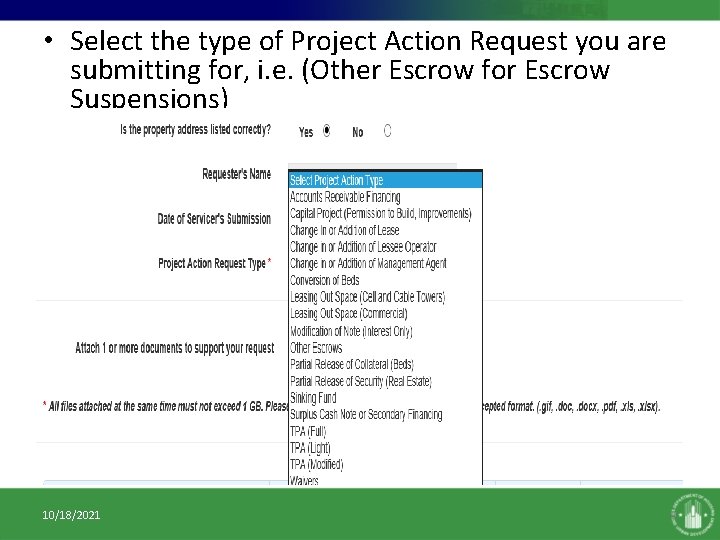
• Select the type of Project Action Request you are submitting for, i. e. (Other Escrow for Escrow Suspensions) 10/18/2021 9
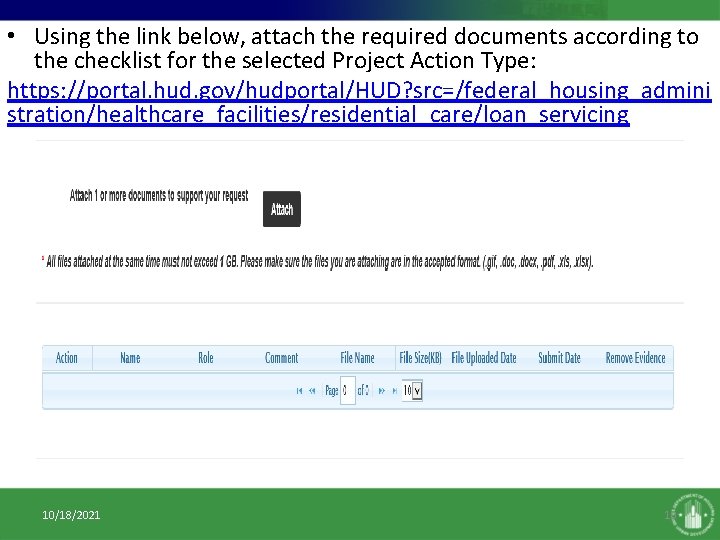
• Using the link below, attach the required documents according to the checklist for the selected Project Action Type: https: //portal. hud. gov/hudportal/HUD? src=/federal_housing_admini stration/healthcare_facilities/residential_care/loan_servicing 10/18/2021 10
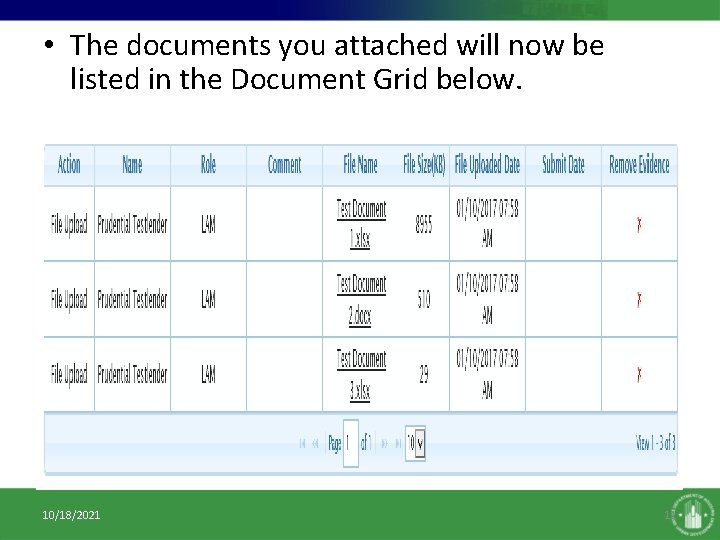
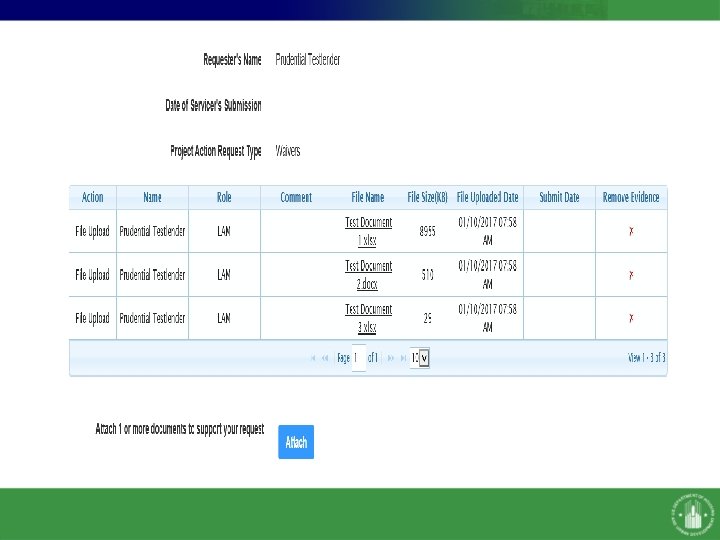
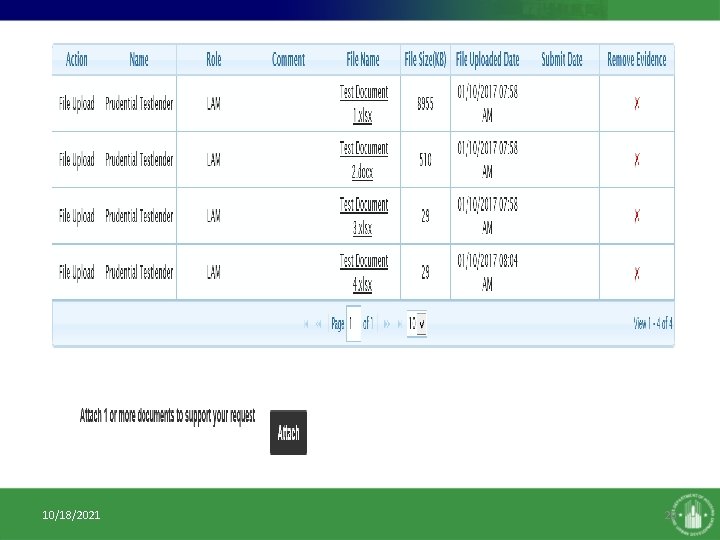
• The documents you attached will now be listed in the Document Grid below. 10/18/2021 11
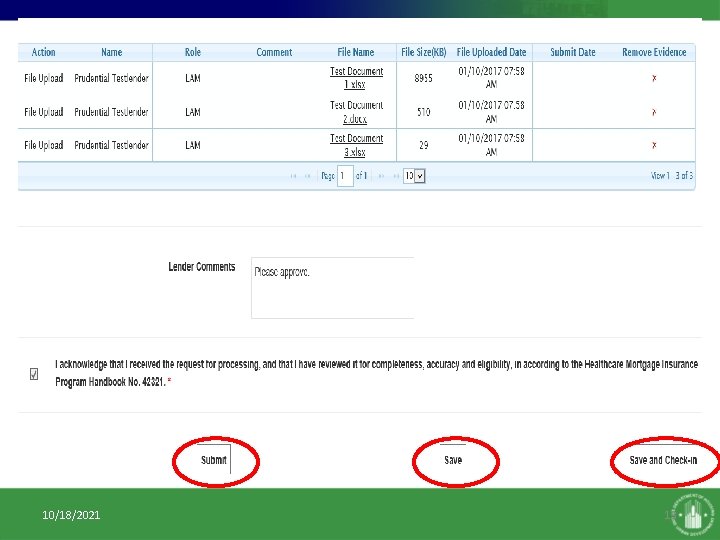
• You can now either: – Submit the document – Request is sent to HUD for further review – Save the document – Document is saved and only you can access it, unless either you, a LAM, BAM or Administrator unlock it to be released to the Group Task (this action does not submit the document to HUD). – Save and Check-in the document – Saved and released to the group task for further processing (this action does not submit the document to HUD). 10/18/2021 12
10/18/2021 13
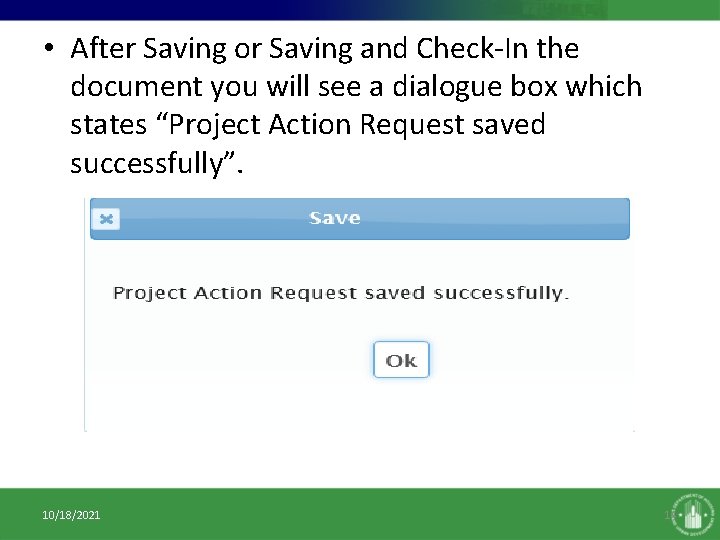
• After Saving or Saving and Check-In the document you will see a dialogue box which states “Project Action Request saved successfully”. 10/18/2021 14
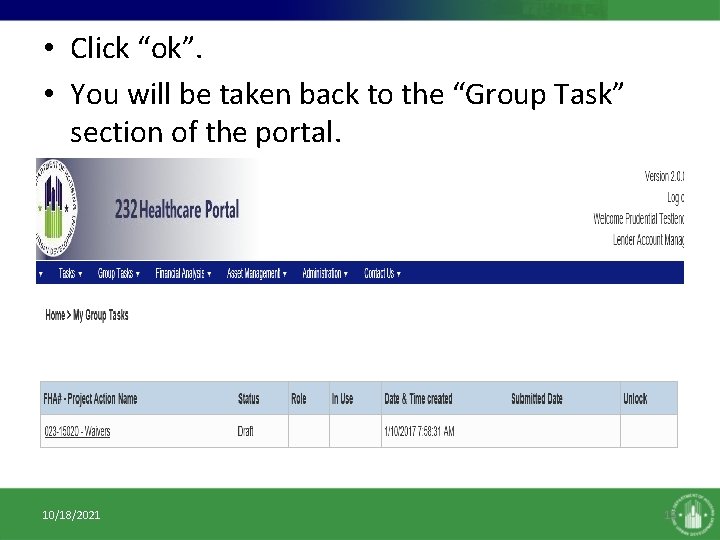
• Click “ok”. • You will be taken back to the “Group Task” section of the portal. 10/18/2021 15
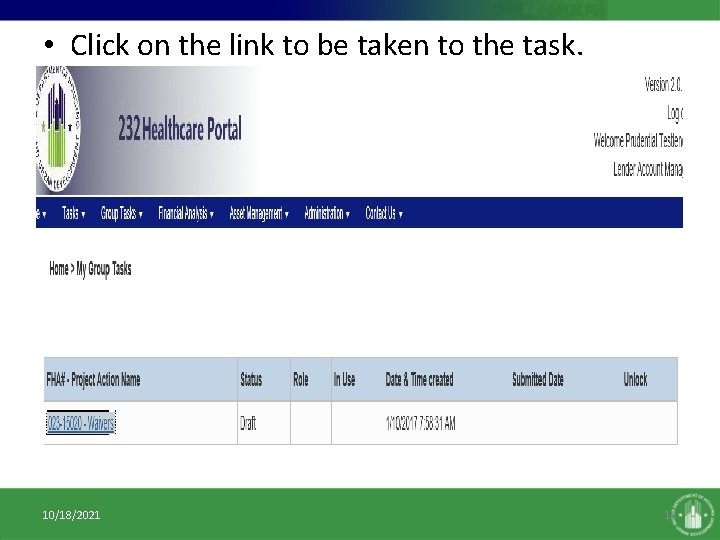
• Click on the link to be taken to the task. 10/18/2021 16
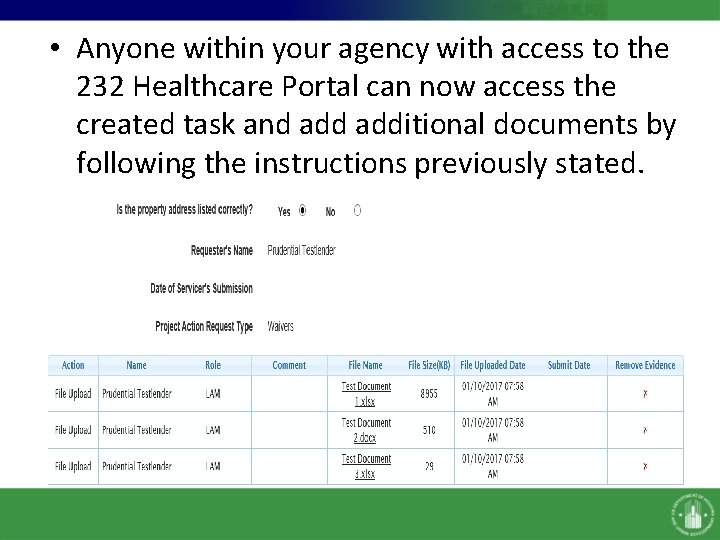
• Anyone within your agency with access to the 232 Healthcare Portal can now access the created task and additional documents by following the instructions previously stated.
• NOTE: Only the person who uploaded a document can delete that document by clicking on the “x” in the “Remove Evidence” column of the Document Grid.
10/18/2021 20
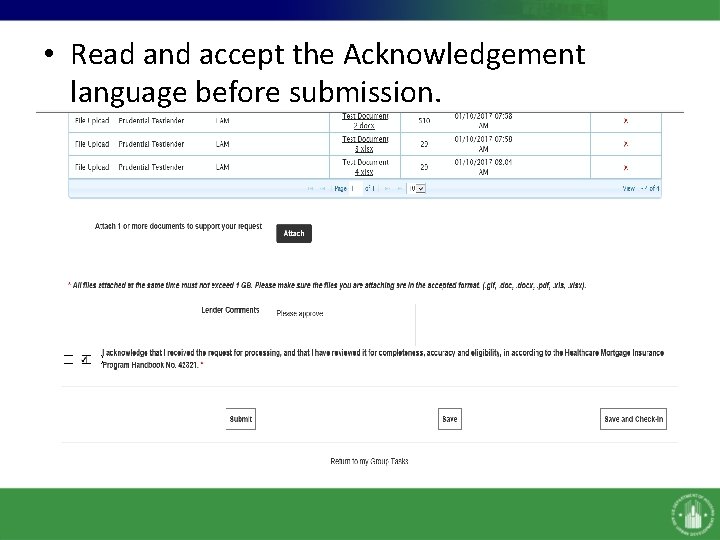
• Read and accept the Acknowledgement language before submission.
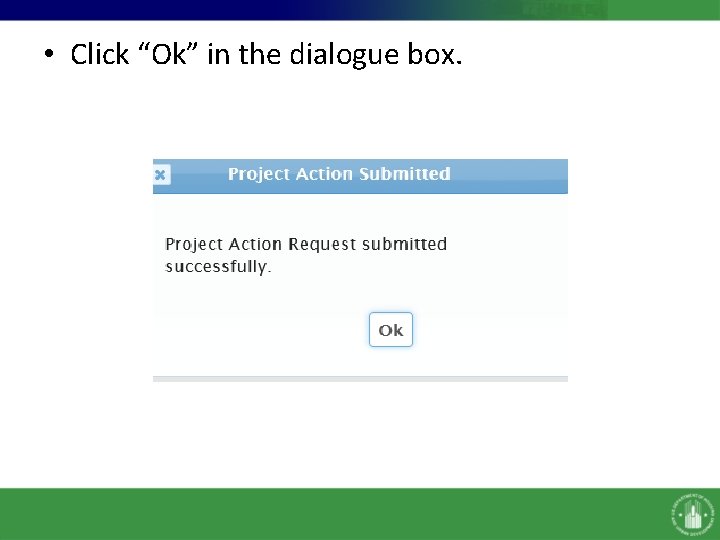
• Click “Ok” in the dialogue box.
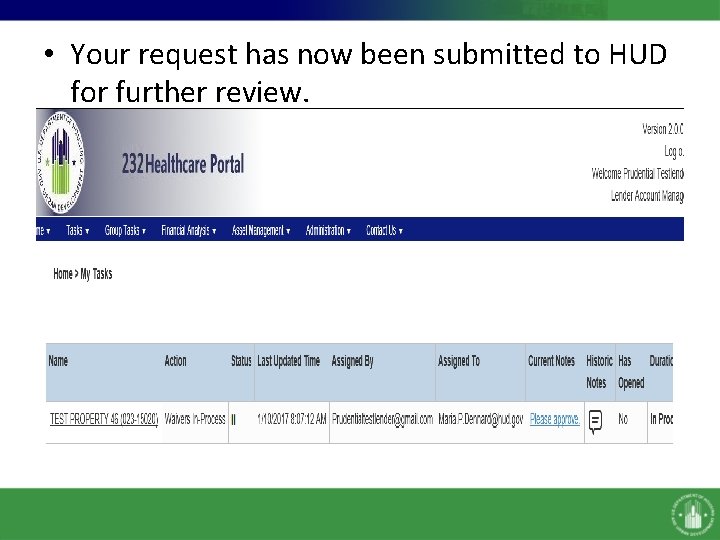
• Your request has now been submitted to HUD for further review.
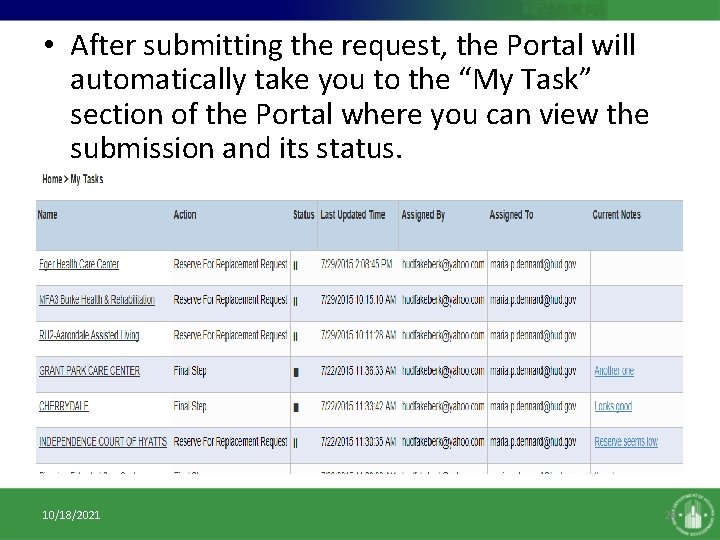
• After submitting the request, the Portal will automatically take you to the “My Task” section of the Portal where you can view the submission and its status. 10/18/2021 24
You have now submitted an Other Project Action request for this property. 10/18/2021 25
Questions 10/18/2021 26