
2021 SBD Review Process Training CDE Assessment Unit
2021 SBD Review Process Training CDE Assessment Unit 2020
Outline • Overview of SBD review process • SBD step-by-step • Additional resources • Q/A 2
SBD Manual • Please download the SBD Manual! https: //www. cde. state. co. us/assessment/trainings 3
Student Biographical Data Review Process The SBD Review Process provides districts with an opportunity to verify the accuracy of student data after testing but prior to reporting and accountability calculations • Vendors provide portals for districts to use to validate data prior to testing. • Data used in the SBD review process comes from the vendor system after testing. • The exception is College Board (CO PSAT/SAT). College Board does not have a data portal. The SBD review process is the ONLY opportunity for a district to verify the accuracy of student data before or after testing. • The SBD review process can be used to validate/update student information that is not in the vendor portal. One example is SASID validation. • The SBD review process is not required BUT is highly recommended. • Requests for performance framework reconsideration or AMAO appeals will only be considered for districts that participate in the SBD review process. 4
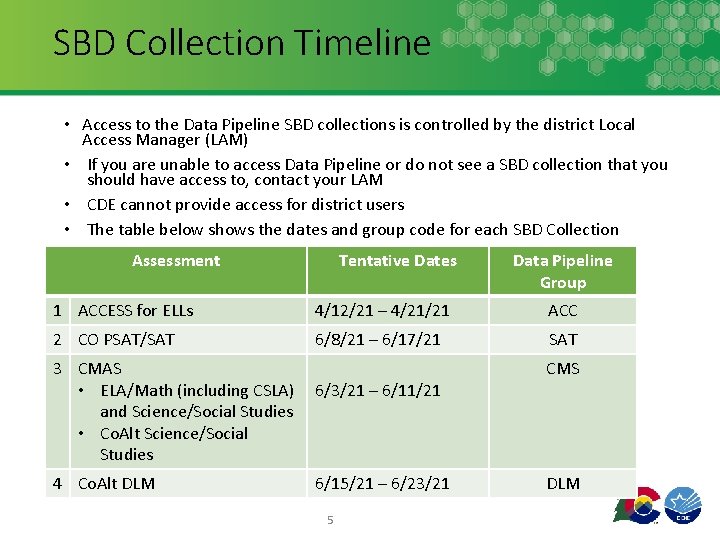
SBD Collection Timeline • Access to the Data Pipeline SBD collections is controlled by the district Local Access Manager (LAM) • If you are unable to access Data Pipeline or do not see a SBD collection that you should have access to, contact your LAM • CDE cannot provide access for district users • The table below shows the dates and group code for each SBD Collection Assessment Tentative Dates Data Pipeline Group 1 ACCESS for ELLs 4/12/21 – 4/21/21 ACC 2 CO PSAT/SAT 6/8/21 – 6/17/21 SAT 3 CMAS • ELA/Math (including CSLA) and Science/Social Studies • Co. Alt Science/Social Studies 4 Co. Alt DLM 6/3/21 – 6/11/21 6/15/21 – 6/23/21 5 CMS DLM
SBD Support • SBD support is available by phone or email • CDE has a team that responds to emails and to phone calls. Please use the SBD Support phone number and email address. Do not contact a specific person at CDE. • Provides a single point of contact for all collections • Emails create support tickets that can be tracked to ensure that questions are answered quickly – Remember not to send student PII by email! • Members of multiple CDE units are available to answer different questions (Assessment, Accountability, and Information Management Systems) • Phone Number: 720 -696 -0185 • Email address: sbdsupport@cde. state. co. us 6
SBD Review: Step-by-Step Guide 7
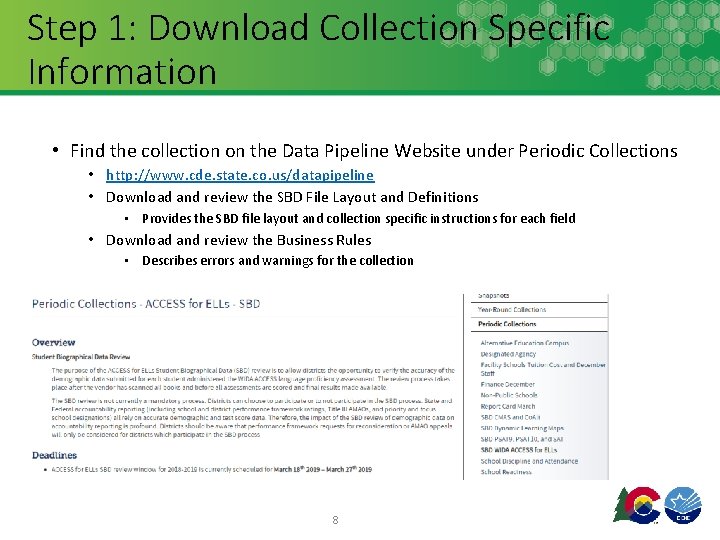
Step 1: Download Collection Specific Information • Find the collection on the Data Pipeline Website under Periodic Collections • http: //www. cde. state. co. us/datapipeline • Download and review the SBD File Layout and Definitions • Provides the SBD file layout and collection specific instructions for each field • Download and review the Business Rules • Describes errors and warnings for the collection 8
Step 2: Log in to Data Pipeline • On the Identity Management website (https: //cdeapps. cde. state. co. us/index. html), select Data Pipeline under Applications on the left side of the screen. • Enter your username and password • Check: • There is no red banner at the top of the screen • Your user role is correct • The collection you are working on appears on the left side of the screen • Most log in issues must be handled by your LAM 9
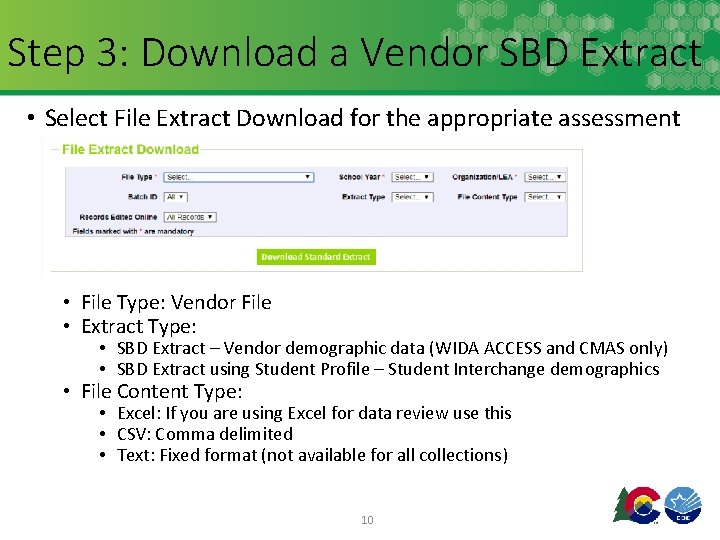
Step 3: Download a Vendor SBD Extract • Select File Extract Download for the appropriate assessment • File Type: Vendor File • Extract Type: • SBD Extract – Vendor demographic data (WIDA ACCESS and CMAS only) • SBD Extract using Student Profile – Student Interchange demographics • File Content Type: • Excel: If you are using Excel for data review use this • CSV: Comma delimited • Text: Fixed format (not available for all collections) 10
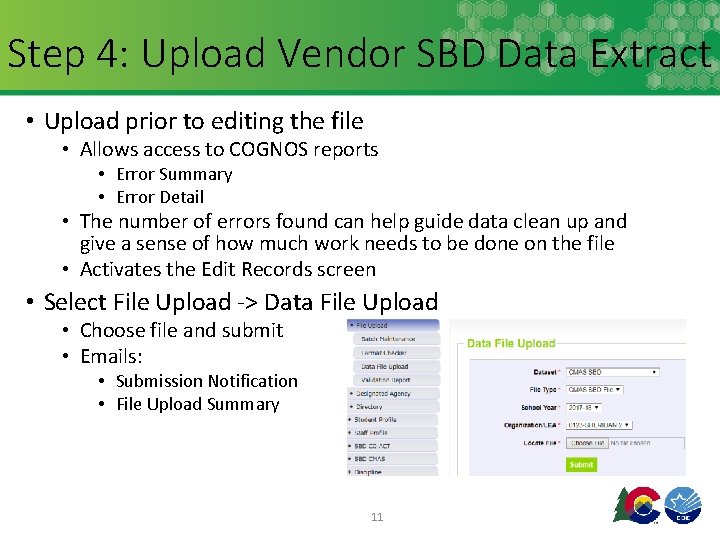
Step 4: Upload Vendor SBD Data Extract • Upload prior to editing the file • Allows access to COGNOS reports • Error Summary • Error Detail • The number of errors found can help guide data clean up and give a sense of how much work needs to be done on the file • Activates the Edit Records screen • Select File Upload -> Data File Upload • Choose file and submit • Emails: • Submission Notification • File Upload Summary 11
Step 5: Review Errors and Warnings • The number of errors and warnings are available in three places • Validation Report • Pipeline Report • COGNOS Error Summary Report • Identifying specific records with errors can be done in three places • COGNOS Error Detail Report • Download as an excel file to review • Pipeline Report – View Details • Same layout as the Error Detail Report • Edit Records Page • Choose records with errors and warnings • Fields with errors will be red, warnings will be yellow 12

Step 6: Correct Data Errors • Correcting errors using the Vendor SBD Extract File • Open the vendor file in your chosen program • Update data in records with errors • Start with SASID errors • SAT/PSAT Missing SASID report • Use the Data File Layout and Field Definitions and Business Rules document to figure out how to correct the data • Business rules will explain errors, for example “Date First Enrolled US cannot be blank” • Upload the file periodically to check your progress • Once you are down to just a few errors it may be faster to use the Edit Records screen 13
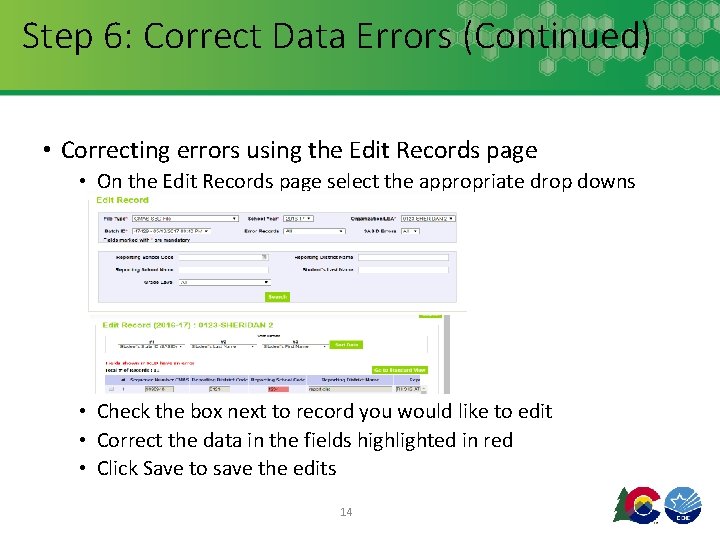
Step 6: Correct Data Errors (Continued) • Correcting errors using the Edit Records page • On the Edit Records page select the appropriate drop downs • Check the box next to record you would like to edit • Correct the data in the fields highlighted in red • Click Save to save the edits 14
Step 7: Data Validation • Data Pipeline can only check for certain types of errors • It cannot check that your demographic data is accurate (i. e. , that a student is actually Hispanic or not) • It cannot validate that students have the correct invalidation codes • The Data File Layout will have instructions for how to select the appropriate invalidation • Do not change/make up data just to clear errors! • If you have a lot of missing data, check a different extract • Maybe the interchange data or vendor data is better • Making up data can cause issues with reporting and accountability • If you have an error that cannot be cleared, but the data is correct contact SBD Support • Warnings are used to inform users of situations that may indicate errors but not necessarily (more than 10% Native American) • Warnings do not prevent data submission 15
Step 7: Data Validation (Continued) • Download the COGNOS SBD Summary Report • Compare your district summary numbers to last year’s final data • Large changes in the number of students in a category could indicate a coding error or incorrect data submitted to the Interchange or vendor system • Review Invalidations • Check for students who were invalidated who may have scores • Check that Parent Excuses are correctly applied • CMAS has a calculated invalidation code to combine all the different fields that go in to determining the invalidation • College Board assessments have invalidations bubbled by the schools so it is important to double check that they have been correctly applied • DLM - Some districts have chosen not to apply Parent Excuses in the vendor system, make sure you review with your DAC if you are expected to add these during SBD 16

Step 8: Submit SBD Data • Download your final SBD extract for your records • This is especially important if you use the Edit Records page • Select Status Dashboard under the appropriate assessment collection • Review the data on the Status Dashboard to make sure you are ready to submit • Validation Errors and RITS Errors must be zero unless SBD Support has ignored errors • If errors are ignored you must submit without making any additional changes or uploading a new file or it will reset the ignore errors status • Click Submit to CDE and Yes in the pop-up window • If you need to make additional changes after submission SBD Support can unlock your data 17

Moving Students • All SBD collections allow a district to move students between schools within their district • Moving between districts is collection specific • WIDA ACCESS and CMAS – submit a Failsafe document to CDE through Syncplicity • CO PSAT/SAT - Do Not send a Failsafe • The SBD layout will include the Pre-ID and Testing District and School • If these do not match, the Responsible District and School will be filled in with your district • Both districts will see the student records and have a chance to review the data and agree on the appropriate Responsible District and School (CDE will monitor students submitted with conflicting Responsible Districts and will contact the data respondents) • DLM – Do Not send a Failsafe • The SBD layout includes the Responsible and the Testing School • Responsible school is updateable • If you are moving a student out of your district, contact the receiving district to make sure that they are aware of the student and agree to the move (CDE will also verify moves against RITS and Interchange data) 18
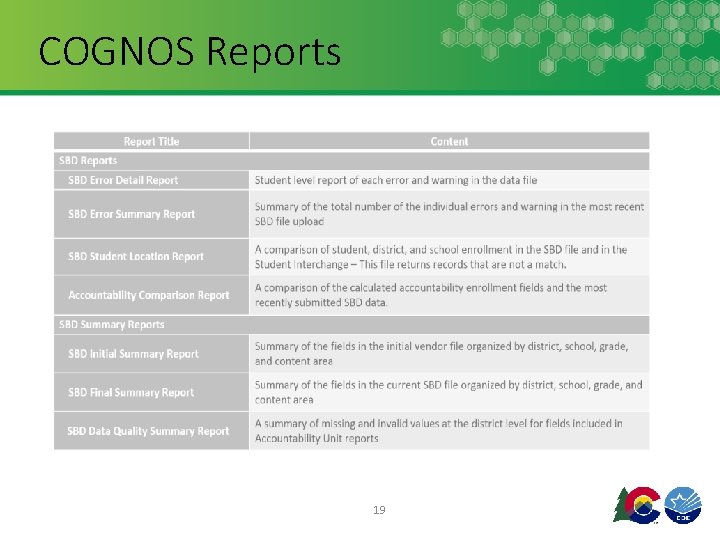
COGNOS Reports 19
Troubleshooting • See the SBD Manual for common issues and trouble shooting techniques • Users generally have issues at three different points in the SBD process • Logging in to Data Pipeline • Generally these issues must be resolved by the district LAM • CDE cannot change or grant user permissions • Uploading a Data file • This is usually an issue with the file format, see the manual for common issues and how to identify them • Clearing Errors • Usually the Data File Layout and Definitions and Business Rules documents are enough to identify why an error is occurring • If you think an error is triggering incorrectly, contact SBD Support 20
Additional Resources 21
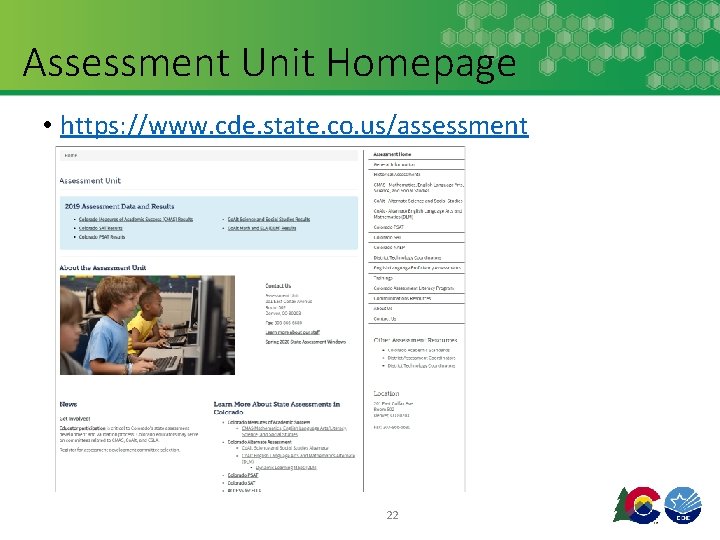
Assessment Unit Homepage • https: //www. cde. state. co. us/assessment 22
Invalidation Instructions • Instructions for applying invalidations during SBD are in the File Layout and Definitions documents • There also instructions for applying invalidations in the assessment materials with details on the appropriate uses of each code • ACCESS for ELLs – Colorado Specific Information • http: //www. cde. state. co. us/assessment/coloradospecificaccessinformatio n 1118 • CMAS Procedures Manual • http: //www. cde. state. co. us/assessment/cmas_coalt_proceduresmanual_s p 21 • CO SAT/PSAT – School Day Supervisor Manual • https: //collegereadiness. collegeboard. org/pdf/co-sat-sd-coordinatormanual. pdf • DLM – DLM Special Circumstance Codes • http: //www. cde. state. co. us/assessment/dlmspecialcircumstancecodes 23
COVID-19 Invalidations • For 2020 -2021 school year we have added an invalidation code for students who did not test due to COVID-19 • It should only be used for students who did not test because they were not attending school in-person either due to school not being in-person or the family choosing not to attend in person • Students who only stay home for the test would be considered standard Parent Opt-outs 1/3/2022 24
Questions? • If you have questions before the SBD Window opens please contact: • Jasmine Carey (carey_j@cde. state. co. us) • During the window please use the SBD Support contact: • sbdsupport@cde. state. co. us, 720 -696 -0185 25
- Slides: 25