
2019 New England Division Convention Boxborough MA GEORGE
2019 New England Division Convention - Boxborough, MA GEORGE BLAKESLEE – N 1 GB SEPTEMBER 6, 2019 GETTING STARTED WINLINK EXPRESS USING WINMOR WINLINK GLOBAL RADIO EMAIL
Agenda Overview Digital Communication 4 -Part Presentation (1 hour @) 1. Winlink RF/internet email 2. NBEMS FLDIGI 3. NBEMS FLMSG & FLAMP 4. Advanced Topics, Hints, Kinks
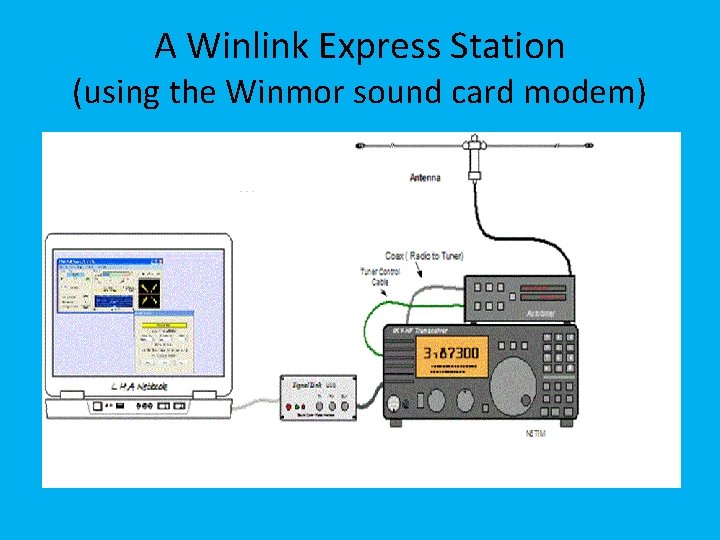
A Winlink Express Station (using the Winmor sound card modem)
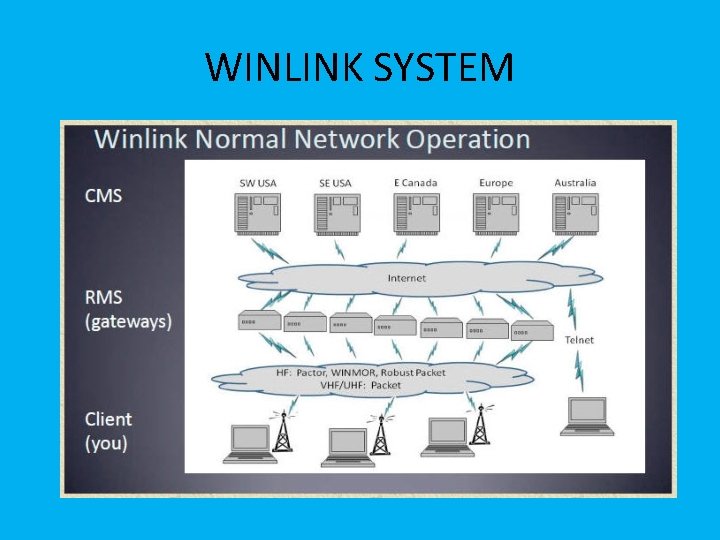
WINLINK SYSTEM
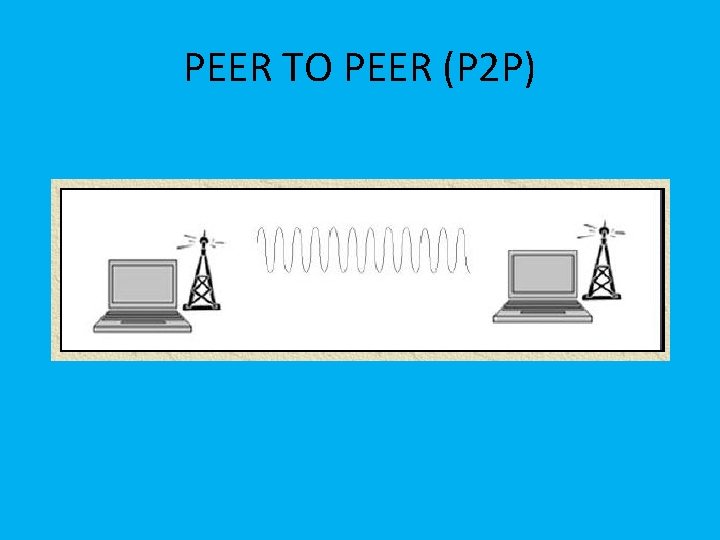
PEER TO PEER (P 2 P)
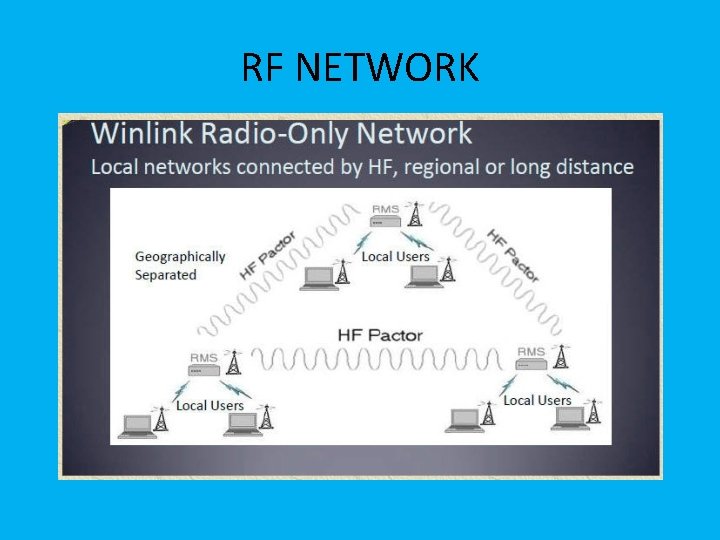
RF NETWORK
SYSTEM REQUIREMENTS • Microsoft-supported 32 or 64 bit Windows OS (Windows 10, Windows 7 or Windows 2003 Server, or later), or under Windows on Apple Mac machines using a VM engine or dual boot arrangement. • We no longer recommend Windows XP for common support and security reasons, and we will not address technical problems that arise as this OS ages without Microsoft support. • The program makes minimal CPU demands with the exception of WINMOR operation. The heavy DSP demands of WINMOR require a computer of at least 700 MHz Pentium/Celeron class and at least 512 Meg of memory. • If multiple applications are running concurrently, we recommend a faster computer and more RAM.
DEFINITIONS • RMS - RADIO MESSAGE SERVER • "RMS Gateway" refers to any RMS station connected to one or more CMS (Common Mail Server) in the "cloud". Or, it can refer to an HSMM or D-Star gateway connecting to any CMS using the Telnet protocol. These stations are "gateways" to the CMS for user (client) stations. • The Common Message Servers (CMS) are the common coordinating engines at the heart of the Winlink 2000 "star" Network configuration.
WINMOR • Winmor is an HF digital soundcard mode designed primarily for use with the Winlink Express radio-email network. Winmor provides an alternative to expensive PACTOR hardware modems at speeds between Pactor 1 and 2. • Winmor, the Winmor software modem, and the WINLINK Express application were developed by Rick Muething, KN 6 KB and Vic Poor, W 5 SMM. The Winmor modem includes innovative features such as a “busy frequency” detector to reduce potential interference.
Em. Comm Usage • WINLINK Express may be used as a client for emergency communications. • It has some special features for Em. Comm, such as HTML/CSS forms creation and formless content transport, plus a library of pre-created forms to use. • Before adopting WINLINK Express as your program for Em. Comm, please check with your local Em. Comm group for their plans. • This may be your ARES, RACES, MARS etc. organization that will be responsible for providing training and support.
Download Winlink Express From https: //www. winlink. org/Winlink. Express • Winlink_express_install_1 -4 -4 -0. zip From http: //www. greg-hand. com/versions/ • itshfbc_161207. exe
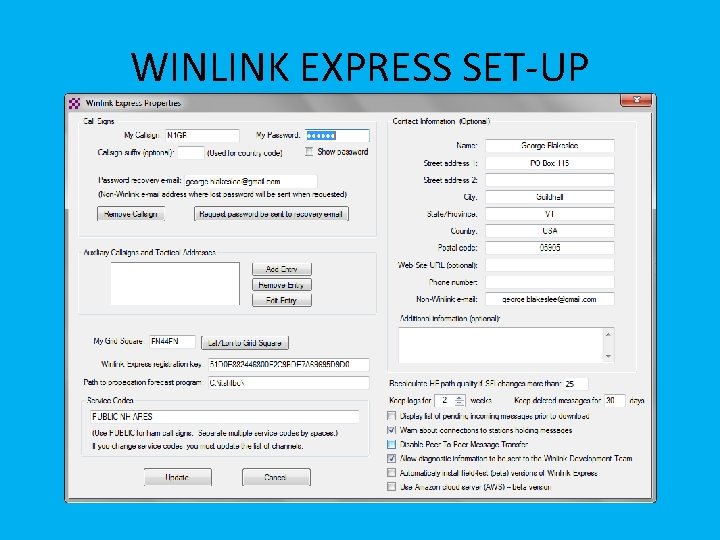
WINLINK EXPRESS SET-UP
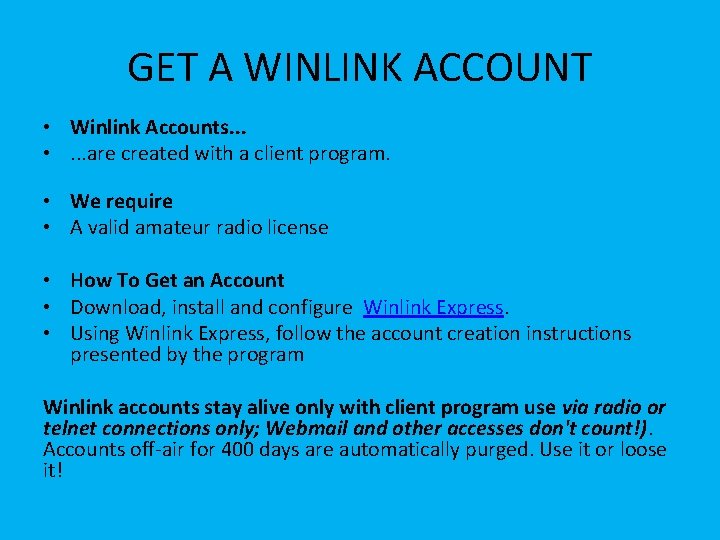
GET A WINLINK ACCOUNT • Winlink Accounts. . . • . . . are created with a client program. • We require • A valid amateur radio license • How To Get an Account • Download, install and configure Winlink Express. • Using Winlink Express, follow the account creation instructions presented by the program Winlink accounts stay alive only with client program use via radio or telnet connections only; Webmail and other accesses don't count!). Accounts off-air for 400 days are automatically purged. Use it or loose it!
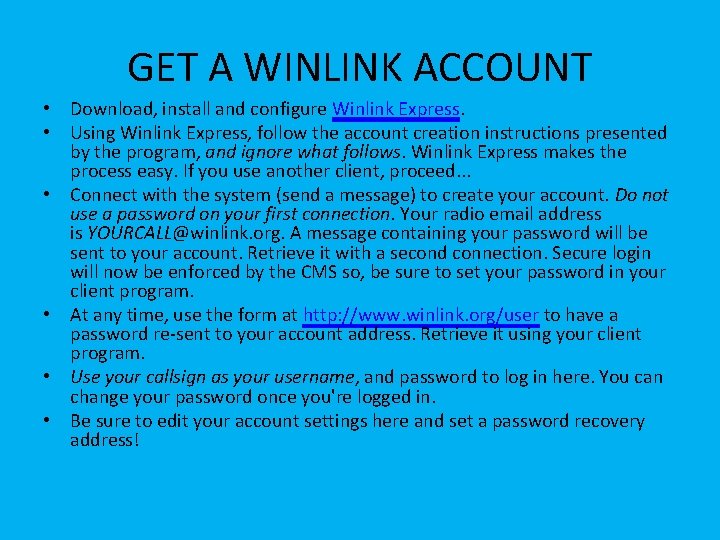
GET A WINLINK ACCOUNT • Download, install and configure Winlink Express. • Using Winlink Express, follow the account creation instructions presented by the program, and ignore what follows. Winlink Express makes the process easy. If you use another client, proceed. . . • Connect with the system (send a message) to create your account. Do not use a password on your first connection. Your radio email address is YOURCALL@winlink. org. A message containing your password will be sent to your account. Retrieve it with a second connection. Secure login will now be enforced by the CMS so, be sure to set your password in your client program. • At any time, use the form at http: //www. winlink. org/user to have a password re-sent to your account address. Retrieve it using your client program. • Use your callsign as your username, and password to log in here. You can change your password once you're logged in. • Be sure to edit your account settings here and set a password recovery address!

LIVE DEMO OUTBOUND & INBOUND (TELNET) CONNECTION
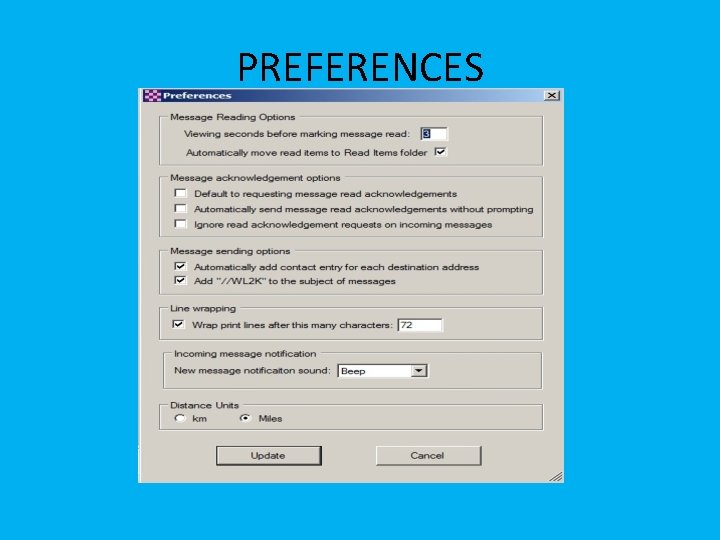
PREFERENCES
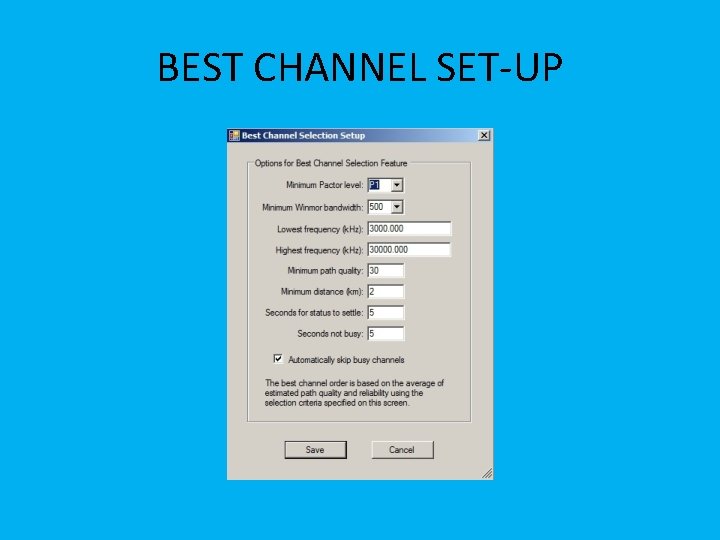
BEST CHANNEL SET-UP
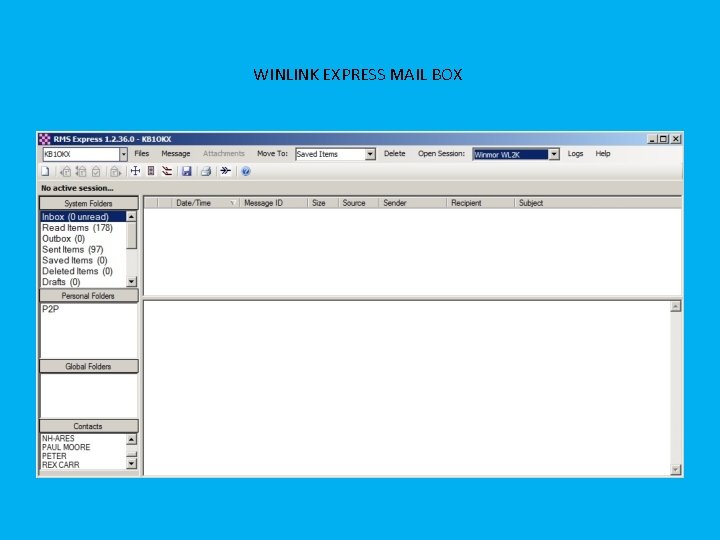
WINLINK EXPRESS MAIL BOX
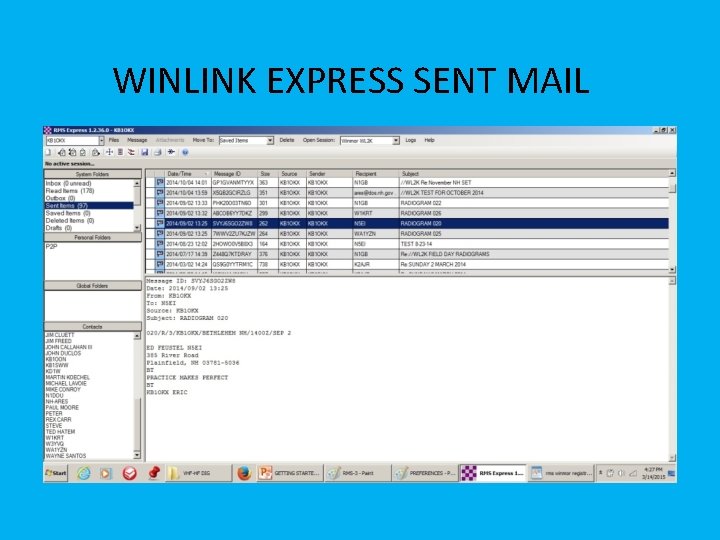
WINLINK EXPRESS SENT MAIL
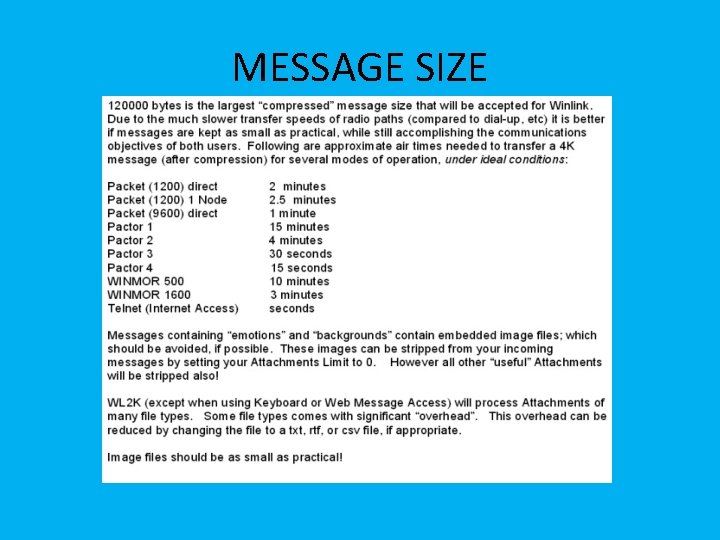
MESSAGE SIZE
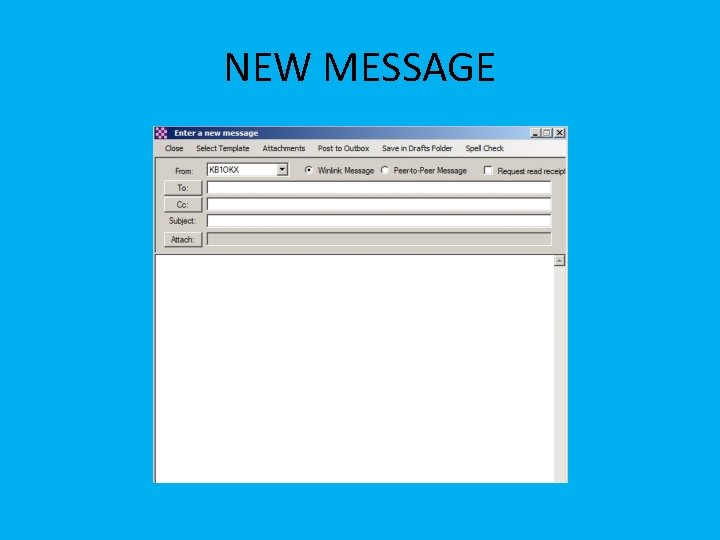
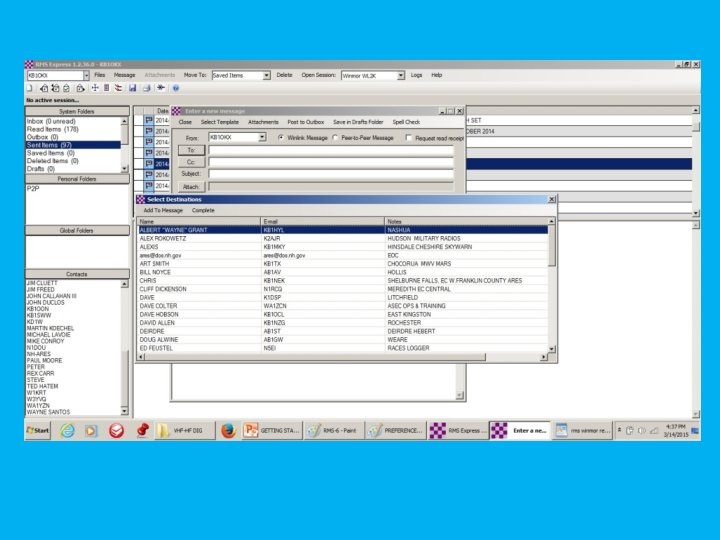
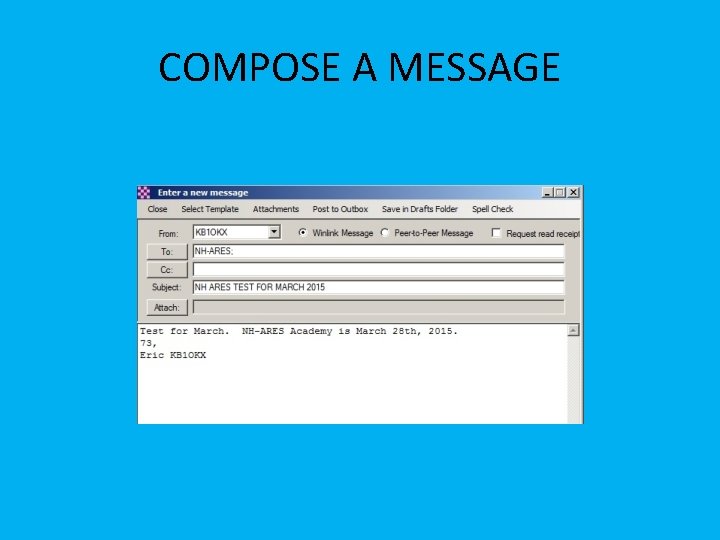
NEW MESSAGE
COMPOSE A MESSAGE
OUTBOX
CHECK WINMOR CAPTURE AND PLAYBACK DEVICE
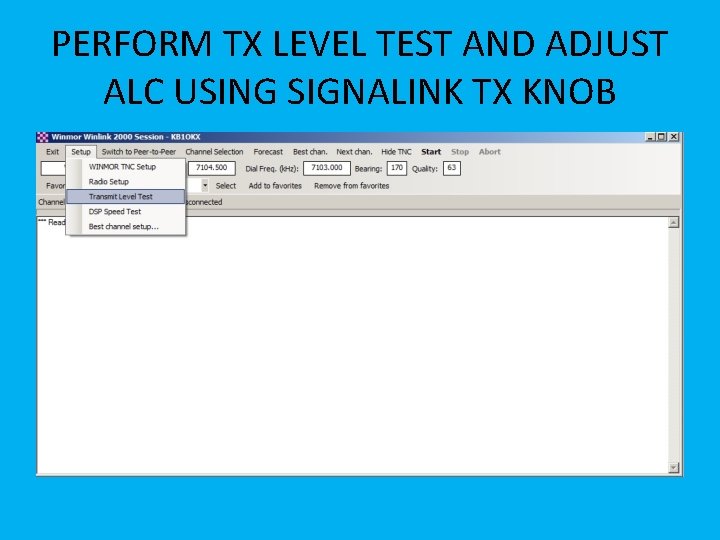
PERFORM TX LEVEL TEST AND ADJUST ALC USING SIGNALINK TX KNOB
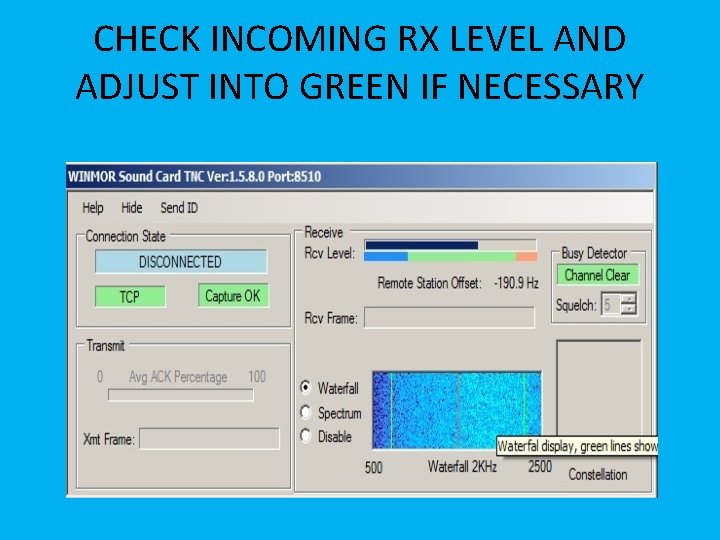
CHECK INCOMING RX LEVEL AND ADJUST INTO GREEN IF NECESSARY
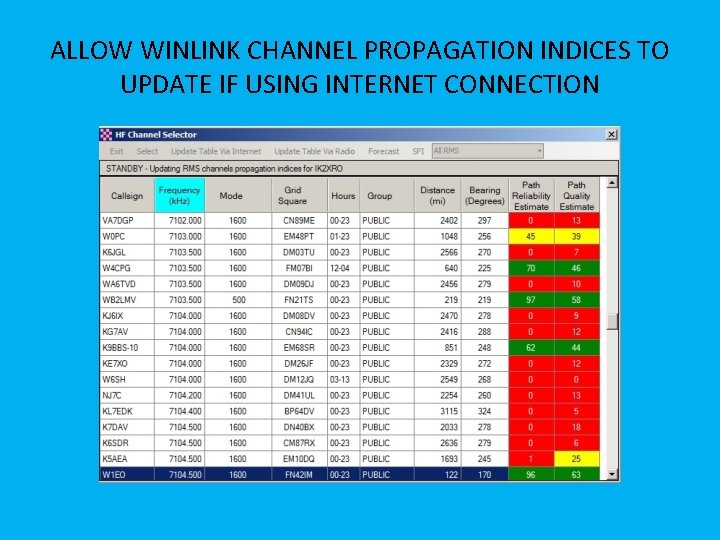
ALLOW WINLINK CHANNEL PROPAGATION INDICES TO UPDATE IF USING INTERNET CONNECTION
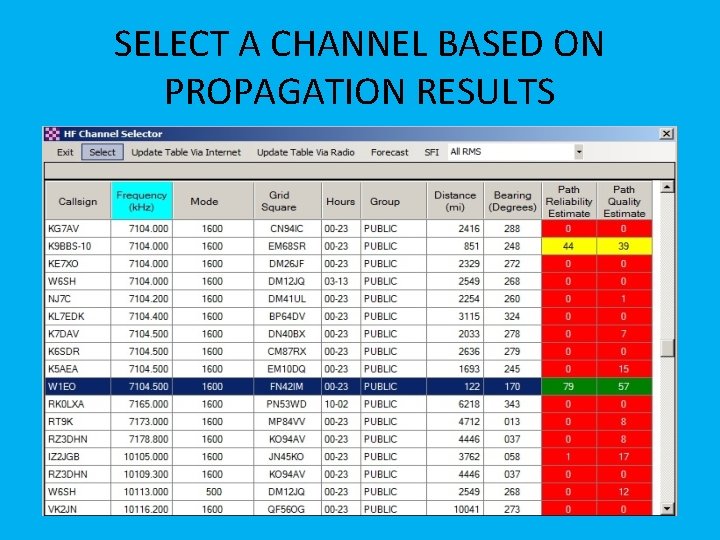
SELECT A CHANNEL BASED ON PROPAGATION RESULTS
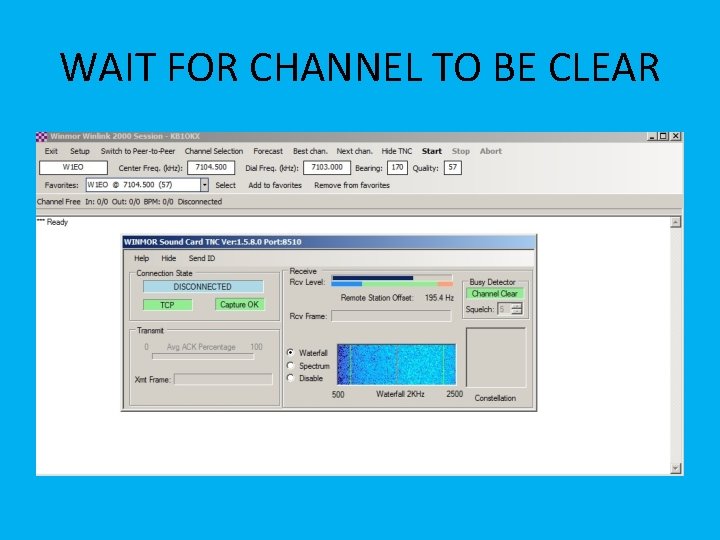
WAIT FOR CHANNEL TO BE CLEAR
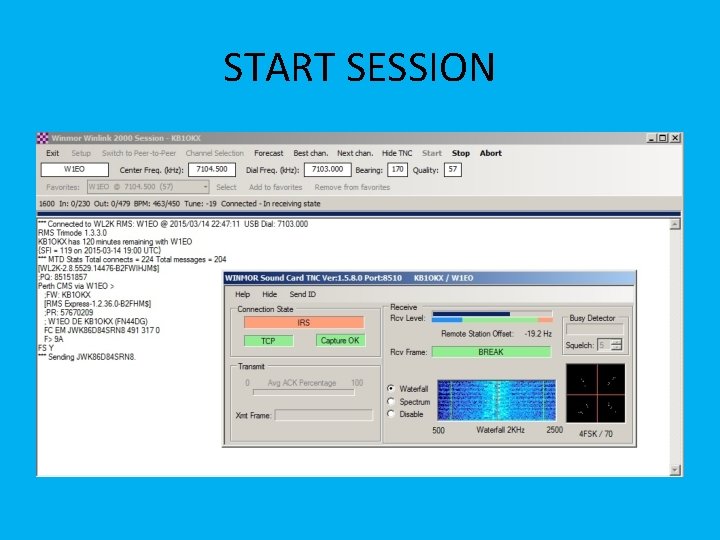
START SESSION
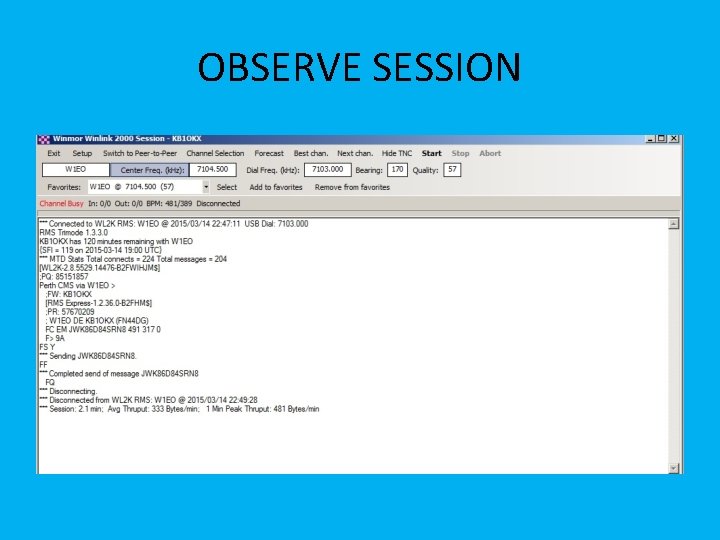
OBSERVE SESSION
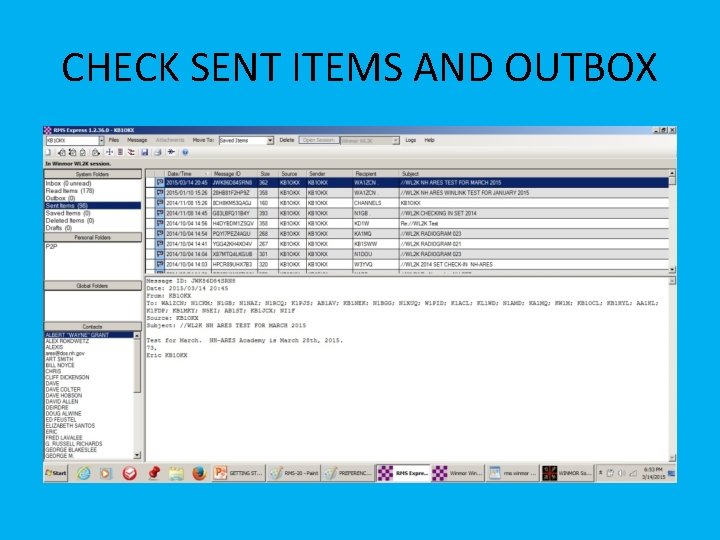
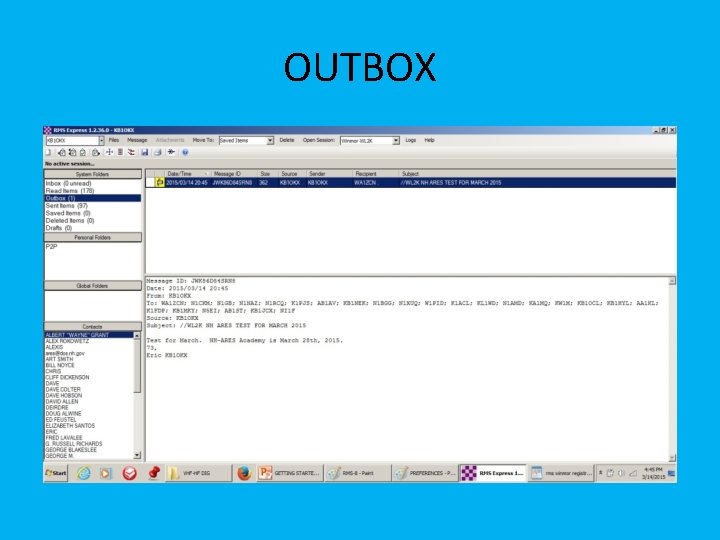
CHECK SENT ITEMS AND OUTBOX
![VIDEO DEMO OUTBOUND & INBOUND (RF) CONNECTION [10 MIN]](http://slidetodoc.com/presentation_image_h2/81199629160bdff1ba2bc6c05960b0de/image-34.jpg "VIDEO DEMO OUTBOUND & INBOUND (RF) CONNECTION [10 MIN]")
VIDEO DEMO OUTBOUND & INBOUND (RF) CONNECTION [10 MIN]
P 2 P CONNECTION • • 1. WHEN COMPOSING MAIL CHECK “P 2 P”. 2. OPEN WINMOR P 2 P SESSION. 3. EVERYTHING ELSE IS THE SAME. 4. NOT A MULTICAST MODE.
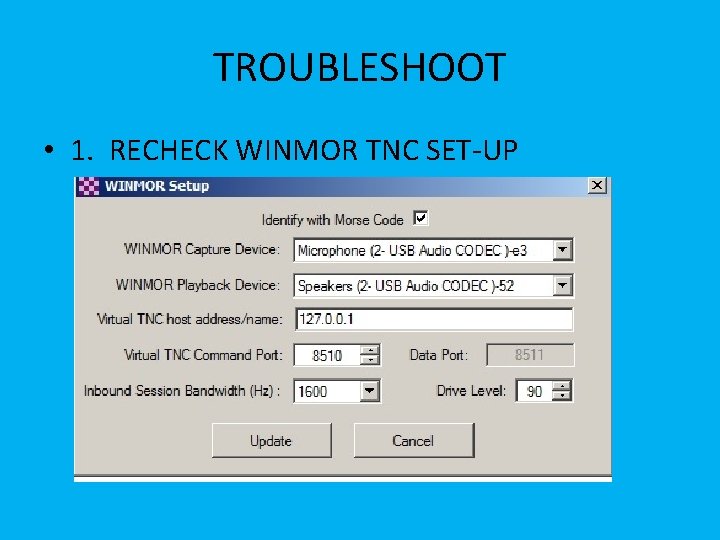
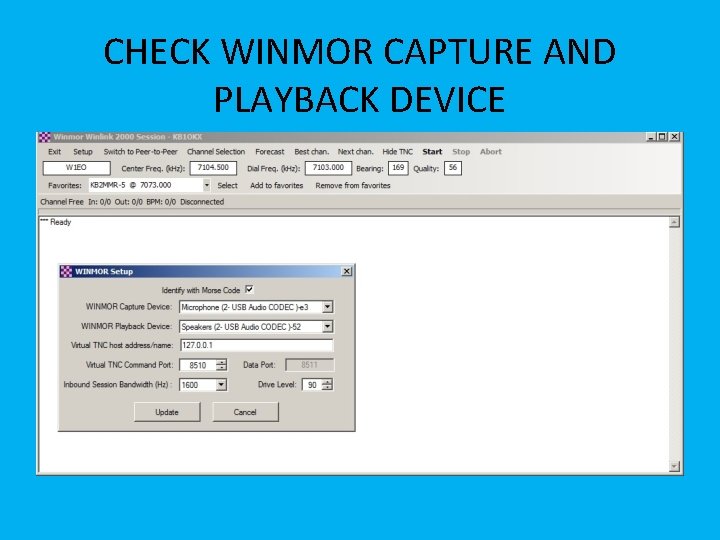
TROUBLESHOOT • 1. RECHECK WINMOR TNC SET-UP
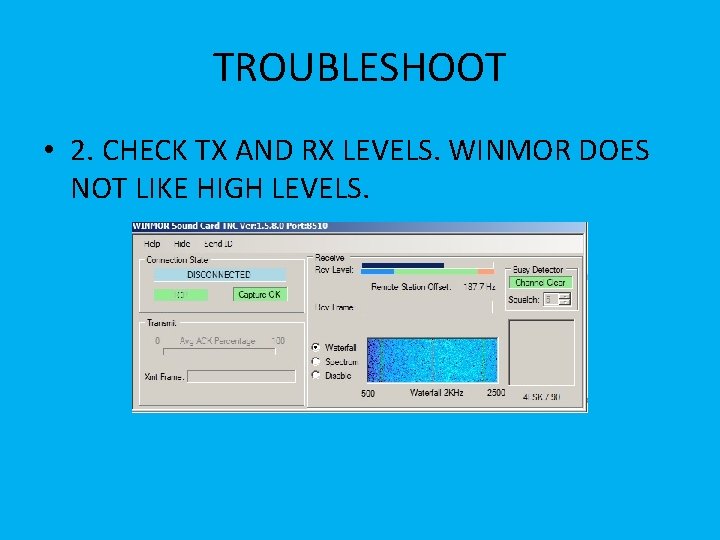
TROUBLESHOOT • 2. CHECK TX AND RX LEVELS. WINMOR DOES NOT LIKE HIGH LEVELS.
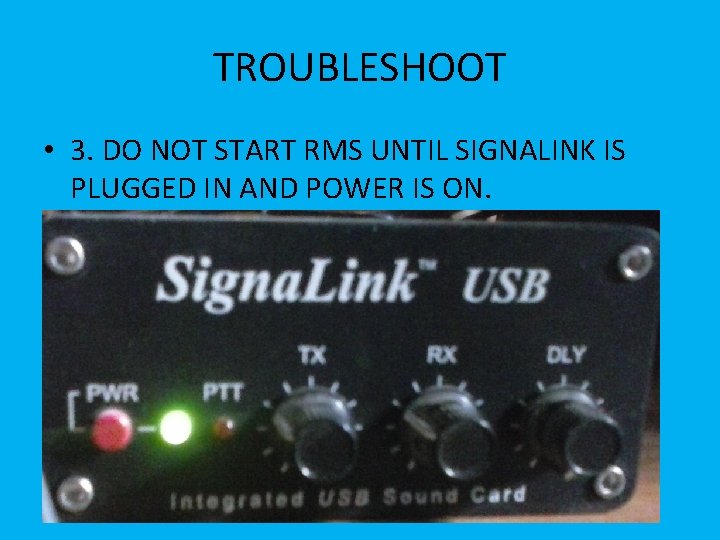
TROUBLESHOOT • 3. DO NOT START RMS UNTIL SIGNALINK IS PLUGGED IN AND POWER IS ON.
USAGE AND UPDATES • ACCOUNTS MUST BE USED TO REMAIN ACTIVE. 400 DAYS INACTIVE AND THE ACCOUNTS EXPIRE. • UPDATE AS OFTEN AS POSSIBLE. • GET ON THE MONTHLY TEST LIST BY EMAILING ME AT george. blakeslee@gmail. com

Now get on the air!
- Slides: 40