
2019 CALENDAR YEAREND CLOSING PROCEDURES USASR CYE Procedures
- Slides: 36
2019 CALENDAR YEAR-END CLOSING PROCEDURES
USAS-R CYE Procedures • Verify 1099 Data • Month End Close • Calendar Year End Close • 1099 Procedures • TR 1099 Program 2
Verify 1099 Data 3
Verify 1099 Data • Verify Vendors that will receive 1099 s and their relevant data • 1099 Vendors • 1099 Type • Taxable Amounts • Tax ID number & Type • 1099 Name & Address 4
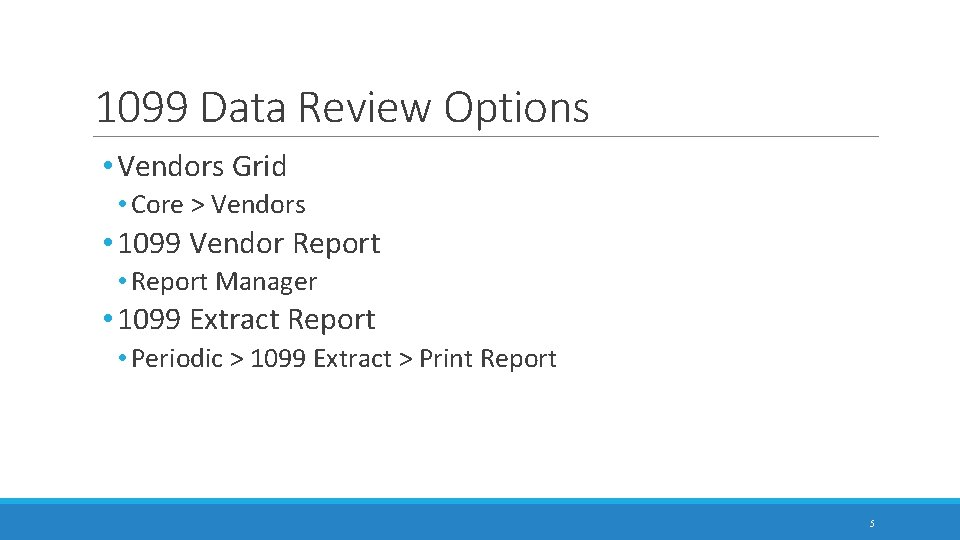
1099 Data Review Options • Vendors Grid • Core > Vendors • 1099 Vendor Report • Report Manager • 1099 Extract Report • Periodic > 1099 Extract > Print Report 5
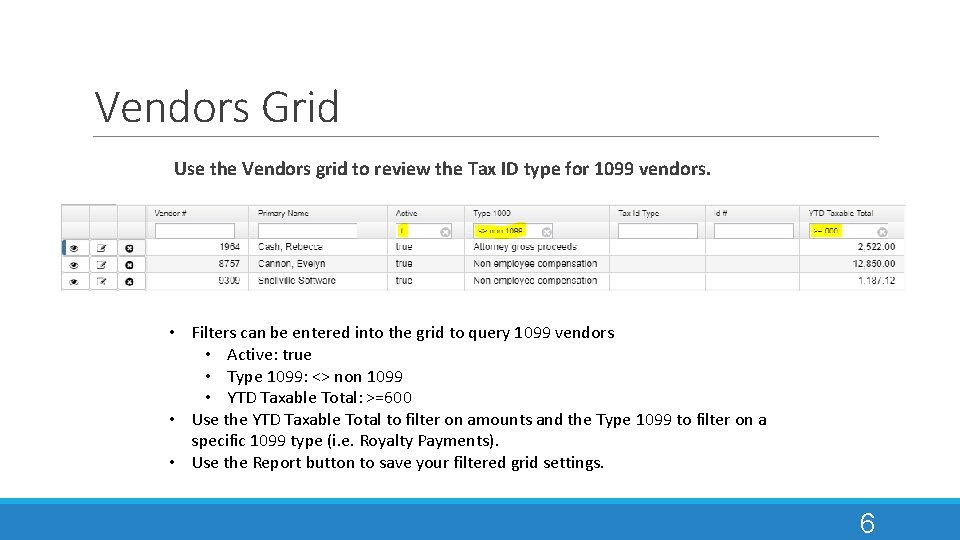
Vendors Grid Use the Vendors grid to review the Tax ID type for 1099 vendors. • Filters can be entered into the grid to query 1099 vendors • Active: true • Type 1099: <> non 1099 • YTD Taxable Total: >=600 • Use the YTD Taxable Total to filter on amounts and the Type 1099 to filter on a specific 1099 type (i. e. Royalty Payments). • Use the Report button to save your filtered grid settings. 6
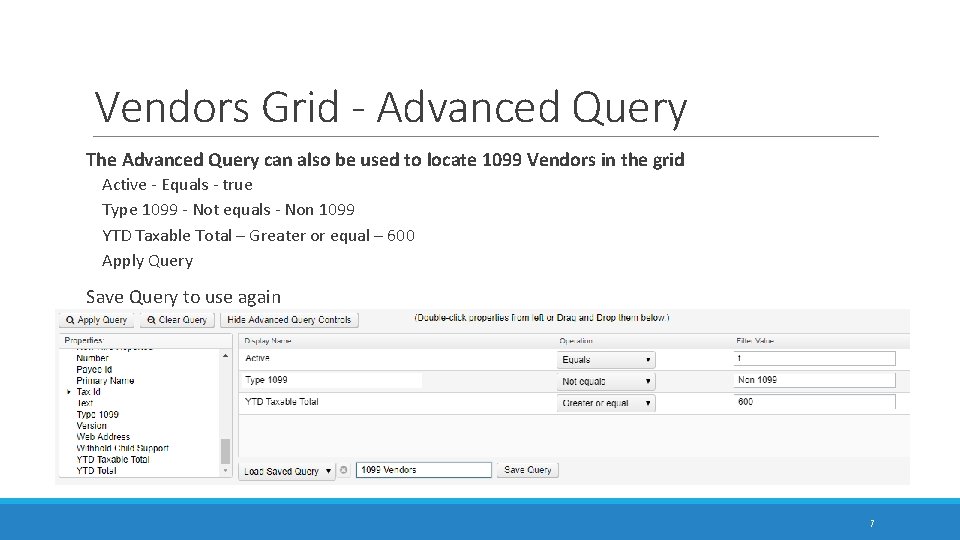
Vendors Grid - Advanced Query The Advanced Query can also be used to locate 1099 Vendors in the grid Active - Equals - true Type 1099 - Not equals - Non 1099 YTD Taxable Total – Greater or equal – 600 Apply Query Save Query to use again 7
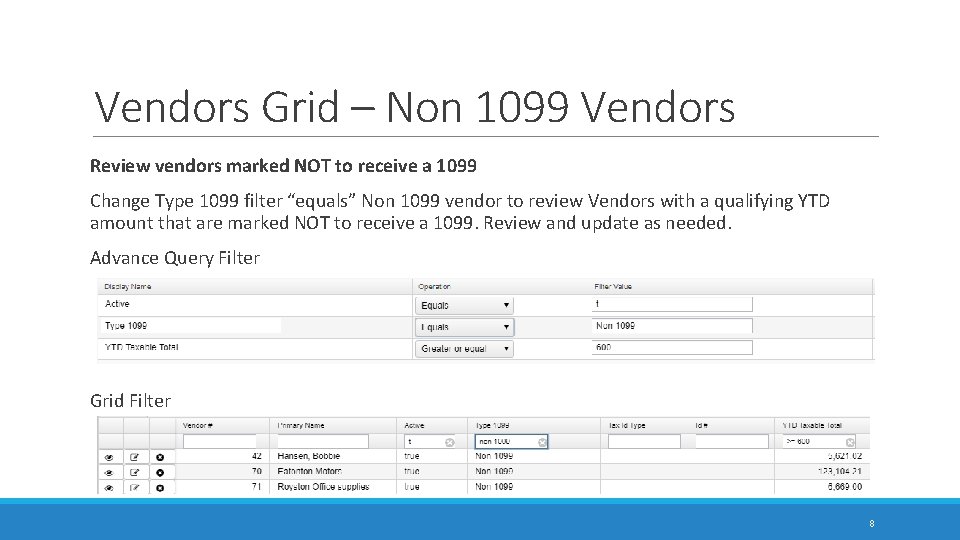
Vendors Grid – Non 1099 Vendors Review vendors marked NOT to receive a 1099 Change Type 1099 filter “equals” Non 1099 vendor to review Vendors with a qualifying YTD amount that are marked NOT to receive a 1099. Review and update as needed. Advance Query Filter Grid Filter 8
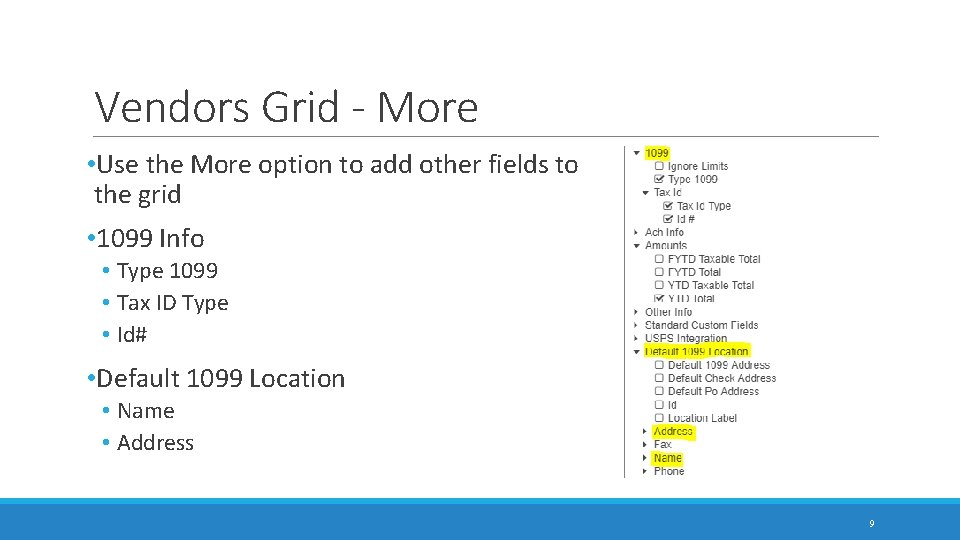
Vendors Grid - More • Use the More option to add other fields to the grid • 1099 Info • Type 1099 • Tax ID Type • Id# • Default 1099 Location • Name • Address 9
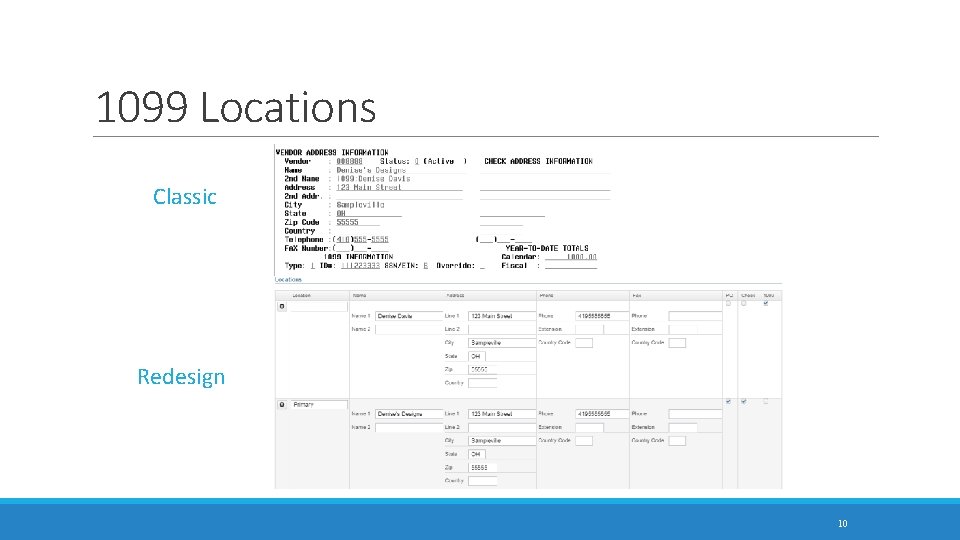
1099 Locations Classic Redesign 10
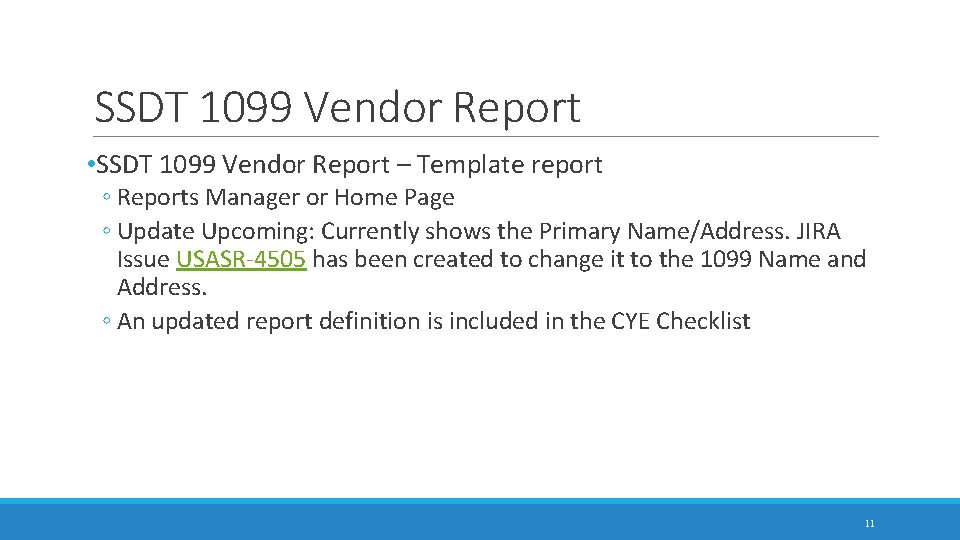
SSDT 1099 Vendor Report • SSDT 1099 Vendor Report – Template report ◦ Reports Manager or Home Page ◦ Update Upcoming: Currently shows the Primary Name/Address. JIRA Issue USASR-4505 has been created to change it to the 1099 Name and Address. ◦ An updated report definition is included in the CYE Checklist 11
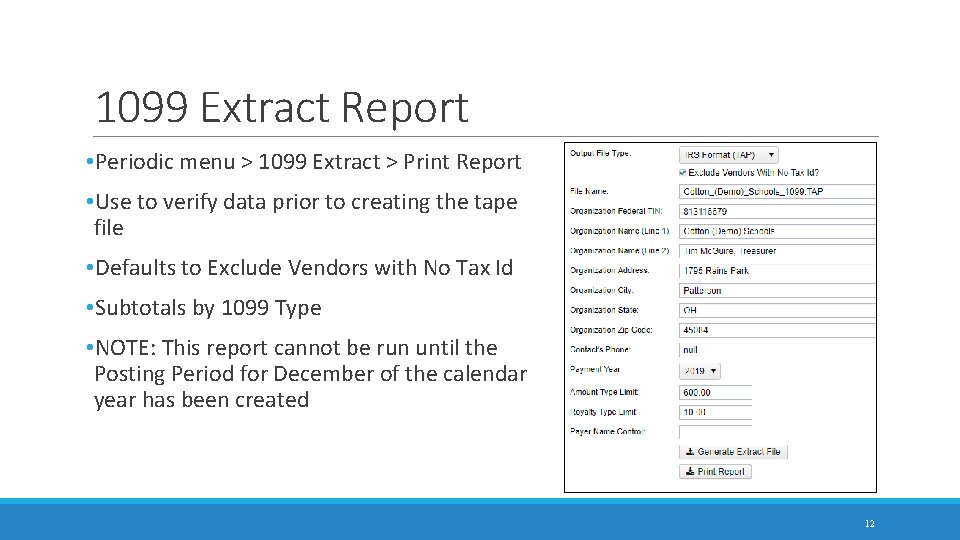
1099 Extract Report • Periodic menu > 1099 Extract > Print Report • Use to verify data prior to creating the tape file • Defaults to Exclude Vendors with No Tax Id • Subtotals by 1099 Type • NOTE: This report cannot be run until the Posting Period for December of the calendar year has been created 12
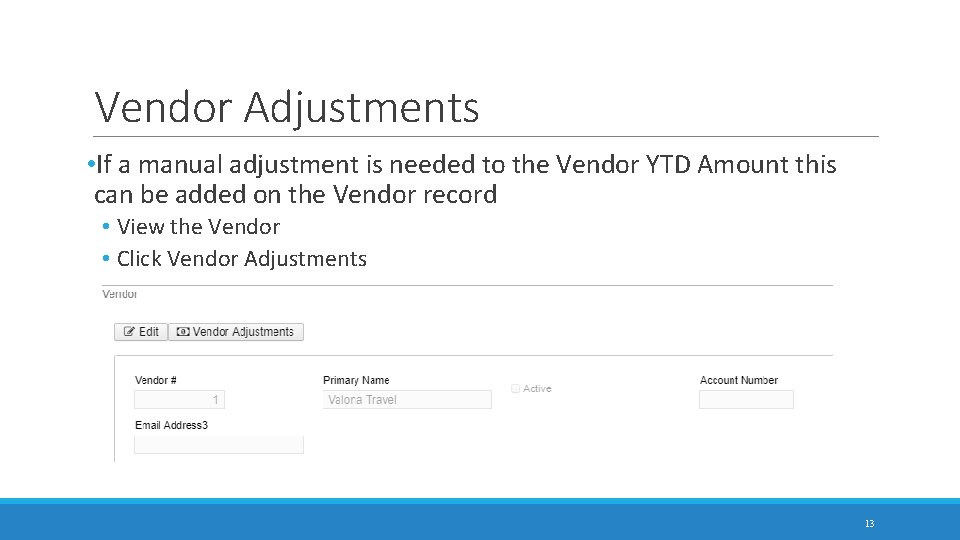
Vendor Adjustments • If a manual adjustment is needed to the Vendor YTD Amount this can be added on the Vendor record • View the Vendor • Click Vendor Adjustments 13
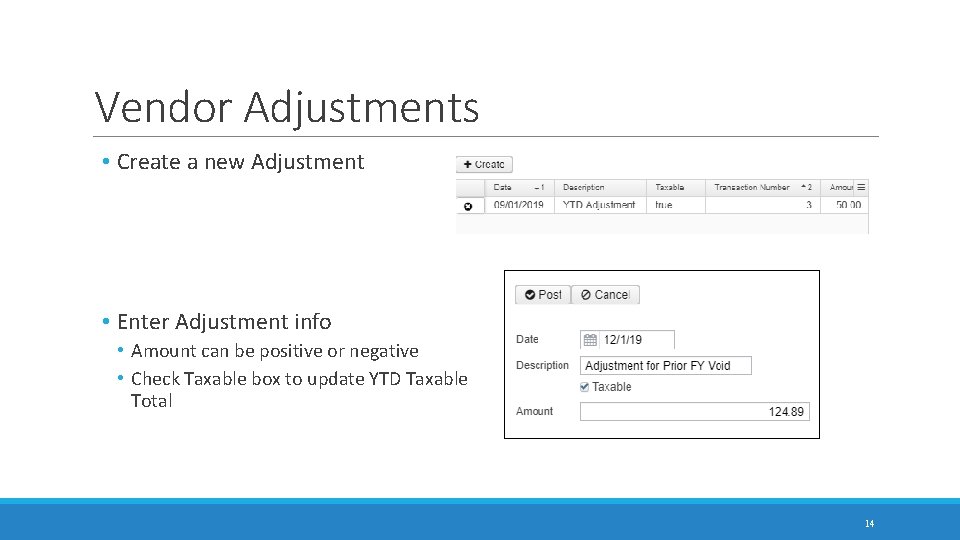
Vendor Adjustments • Create a new Adjustment • Enter Adjustment info • Amount can be positive or negative • Check Taxable box to update YTD Taxable Total 14
Month End Closing 15
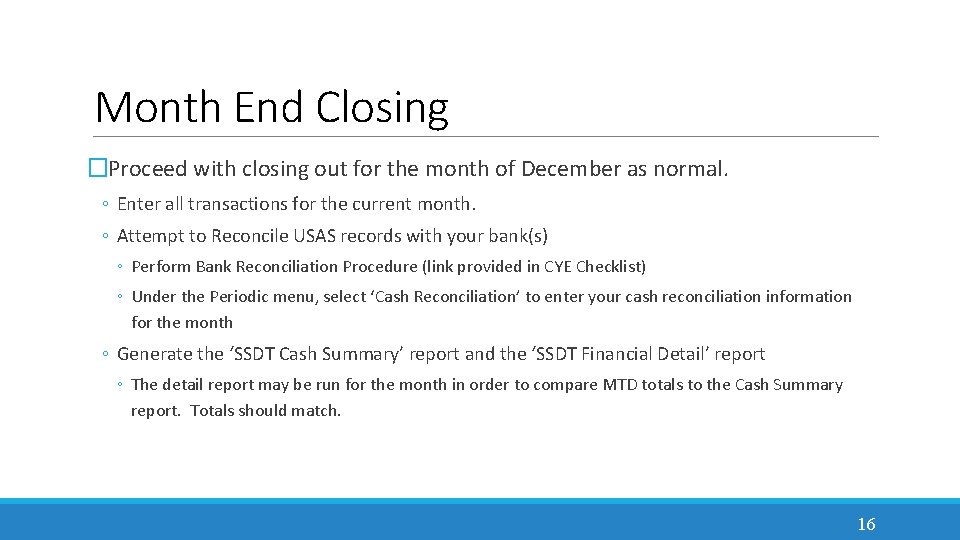
Month End Closing �Proceed with closing out for the month of December as normal. ◦ Enter all transactions for the current month. ◦ Attempt to Reconcile USAS records with your bank(s) ◦ Perform Bank Reconciliation Procedure (link provided in CYE Checklist) ◦ Under the Periodic menu, select ‘Cash Reconciliation’ to enter your cash reconciliation information for the month ◦ Generate the ‘SSDT Cash Summary’ report and the ‘SSDT Financial Detail’ report ◦ The detail report may be run for the month in order to compare MTD totals to the Cash Summary report. Totals should match. 16
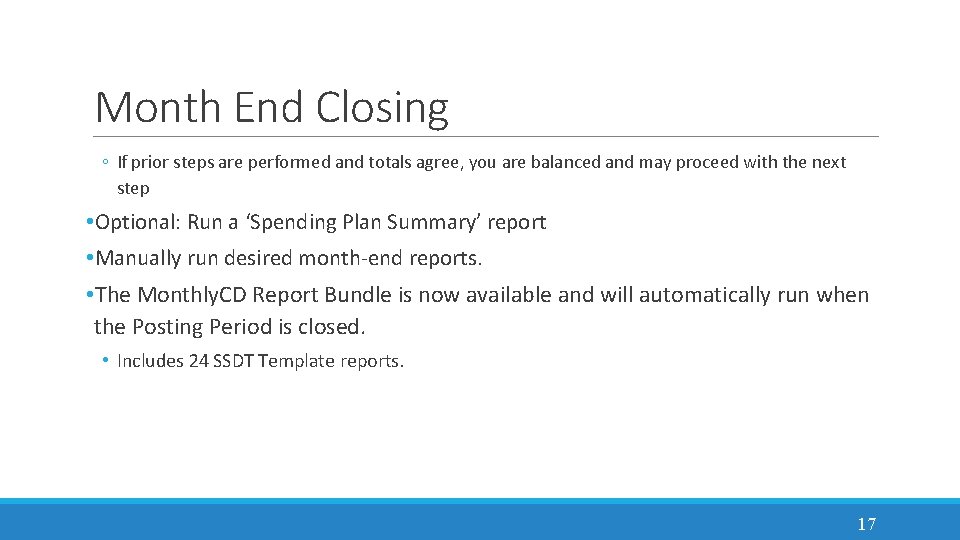
Month End Closing ◦ If prior steps are performed and totals agree, you are balanced and may proceed with the next step • Optional: Run a ‘Spending Plan Summary’ report • Manually run desired month-end reports. • The Monthly. CD Report Bundle is now available and will automatically run when the Posting Period is closed. • Includes 24 SSDT Template reports. 17
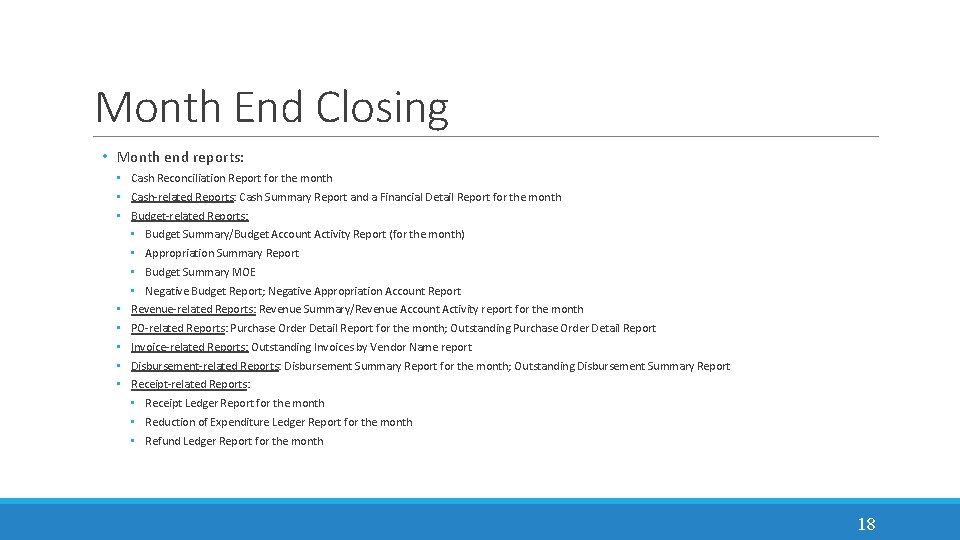
Month End Closing • Month end reports: • Cash Reconciliation Report for the month • Cash-related Reports: Cash Summary Report and a Financial Detail Report for the month • Budget-related Reports: • Budget Summary/Budget Account Activity Report (for the month) • Appropriation Summary Report • Budget Summary MOE • Negative Budget Report; Negative Appropriation Account Report • Revenue-related Reports: Revenue Summary/Revenue Account Activity report for the month • PO-related Reports: Purchase Order Detail Report for the month; Outstanding Purchase Order Detail Report • Invoice-related Reports: Outstanding Invoices by Vendor Name report • Disbursement-related Reports: Disbursement Summary Report for the month; Outstanding Disbursement Summary Report • Receipt-related Reports: • Receipt Ledger Report for the month • Reduction of Expenditure Ledger Report for the month • Refund Ledger Report for the month 18
Calendar Year End Closing 19
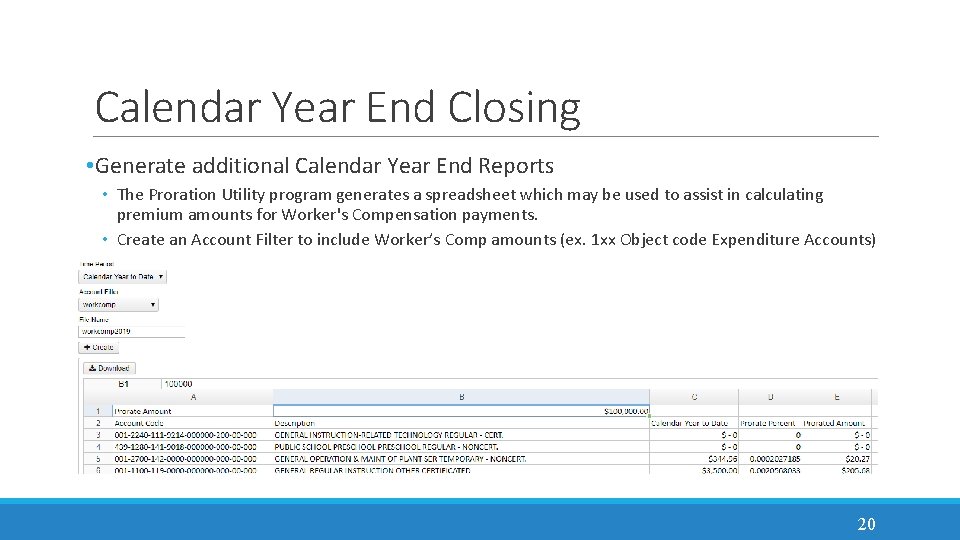
Calendar Year End Closing • Generate additional Calendar Year End Reports • The Proration Utility program generates a spreadsheet which may be used to assist in calculating premium amounts for Worker's Compensation payments. • Create an Account Filter to include Worker’s Comp amounts (ex. 1 xx Object code Expenditure Accounts) 20
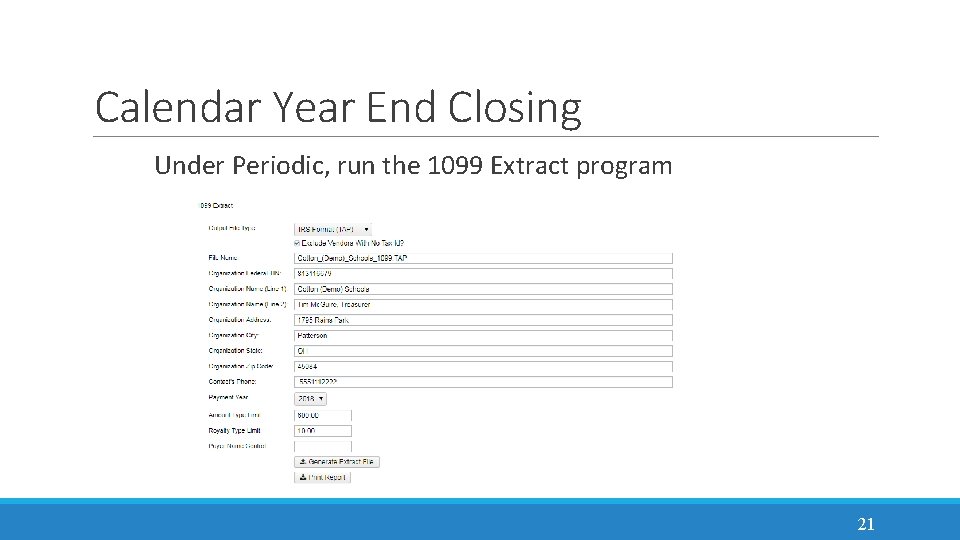
Calendar Year End Closing Under Periodic, run the 1099 Extract program 21
Calendar Year End Closing • Select 2019 as the Payment Year • Select the appropriate Output File Type: • Edge Format (XML) is the output file to be used when printing 1099 s • IRS Format (TAP) is the output file used to generate the TAP file for IRS submission • Review the File Name, TIN, Address and contact information • Click on 'Generate Extract File' to generate the selected output file type • Click on 'Print Report' to generate the 1099 Extract Report in PDF format 22
Calendar Year End Closing � District notifies the ITC that 1099 XML is ready to be printed and data submitted to IRS. � Close December: � Under Core, click on Posting Periods. � Click on to create the new posting period. Select the month, enter the calendar year and checkmark the 'current' box to make the new posting period the current period. � Click on to 'Close' the December period. � Monthly. CD will generate automatically when the posting period is closed. � You are now closed for the month and calendar year. 23
Monthly. CD • Automatically runs when the posting period is closed • Will generate 24 SSDT Template reports • Reports can be viewed under Utilities > File Archive • Additional Notes • If you need to reopen a posting period, the Monthly. CD Bundle will automatically run again when the period is closed. • Delete the previous Monthly Archive OR Disable the bundle before re-closing • Wait until the bundle has completed before closing another month • Closing a period will generate 24 reports to generate so you should refrain from running other reports while the bundle completes • This process should ONLY be used for months going forward – There will be a way to regenerate the reports for previously closed periods in the future 24
1099 Procedures 25
1099 Submissions to IRS REMINDER: A couple of years ago, a new federal law moved up the 1099 deadline. Those reporting nonemployee compensation (Box 7) such as payments to independent contractors submitted to the IRS are due by Jan. 31. The new law makes it easier for the IRS to find and stop refund fraud. Recommendation: If you electronically submit 1099 data on behalf of your districts via the IRS FIRE system, we recommend setting your own deadline with your districts to notify you when they have completed the F 1099 program. 26
Example: ITC 1099 Procedures ITC will receive a secure email from a Redesign district stating they completed the 1099 extract program, attaching their 1099. XML and 1099. TAP extract files. They will upload the 1099. XML file into the EDGE software to generate 1099 forms to print on self-sealing 1099 -MISC laser forms. When saving the 1099. TAP, it will be renamed referencing the district (i. e. W 1099. TAP). Next, they’ll file transfer it to the VMS side (using ASCII transfer type into an empty subdirectory on the VMS side). 27
Example: ITC 1099 Procedures After the 1099 s are printed, the 1099 s are run through an envelope sealer to seal the 1099 s. Each district will receive: ◦ Copies of each 1099 (vendor copy and district copy) ◦ Instructions on how to distribute the 1099 s 28
TR 1099 Program CREATING AND TRANSMITTING THE 1099 DATA TO IRS 29
1099 Requirements and Test Submissions • We covered the 1099 Reporting Requirements and IRS Test Submission steps during our Classic CYE Webinar so please reference those slides on the Classic Powerpoint. 30
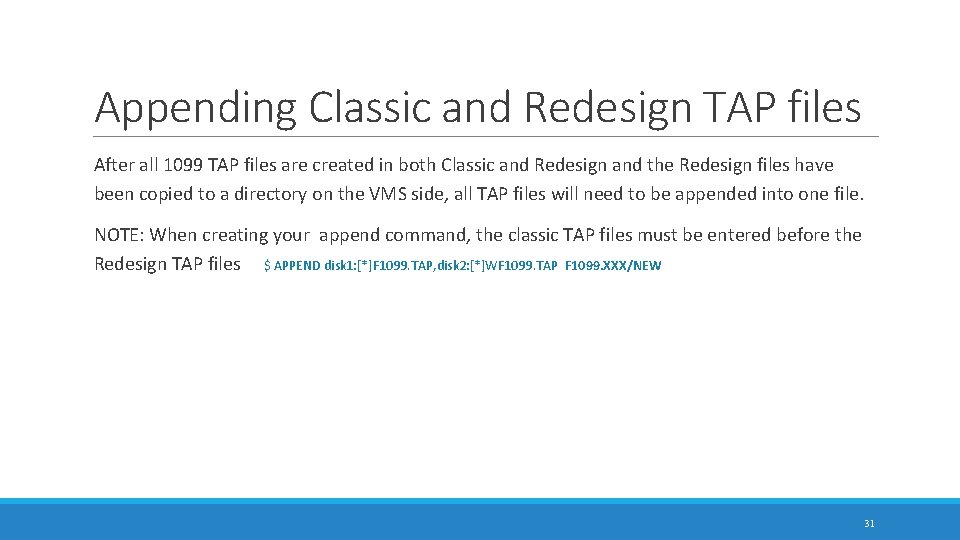
Appending Classic and Redesign TAP files After all 1099 TAP files are created in both Classic and Redesign and the Redesign files have been copied to a directory on the VMS side, all TAP files will need to be appended into one file. NOTE: When creating your append command, the classic TAP files must be entered before the Redesign TAP files $ APPEND disk 1: [*]F 1099. TAP, disk 2: [*]WF 1099. TAP F 1099. XXX/NEW 31
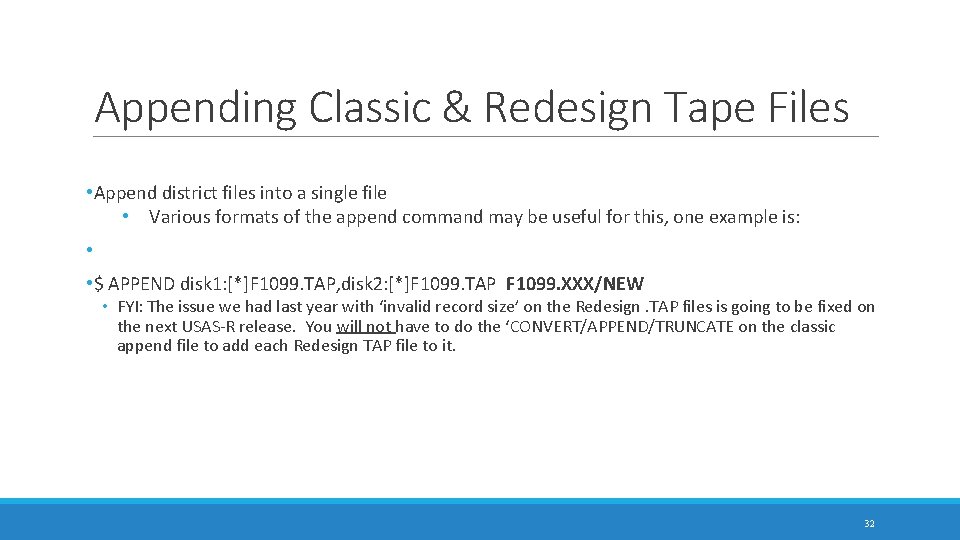
Appending Classic & Redesign Tape Files • Append district files into a single file • Various formats of the append command may be useful for this, one example is: • • $ APPEND disk 1: [*]F 1099. TAP, disk 2: [*]F 1099. TAP F 1099. XXX/NEW • FYI: The issue we had last year with ‘invalid record size’ on the Redesign. TAP files is going to be fixed on the next USAS-R release. You will not have to do the ‘CONVERT/APPEND/TRUNCATE on the classic append file to add each Redesign TAP file to it. 32
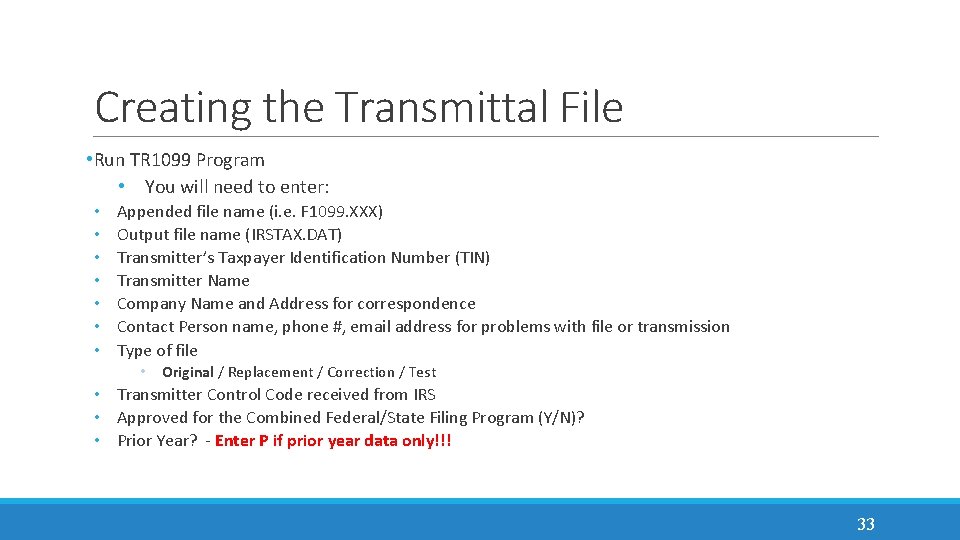
Creating the Transmittal File • Run TR 1099 Program • You will need to enter: • • Appended file name (i. e. F 1099. XXX) Output file name (IRSTAX. DAT) Transmitter’s Taxpayer Identification Number (TIN) Transmitter Name Company Name and Address for correspondence Contact Person name, phone #, email address for problems with file or transmission Type of file • Original / Replacement / Correction / Test • Transmitter Control Code received from IRS • Approved for the Combined Federal/State Filing Program (Y/N)? • Prior Year? - Enter P if prior year data only!!! 33
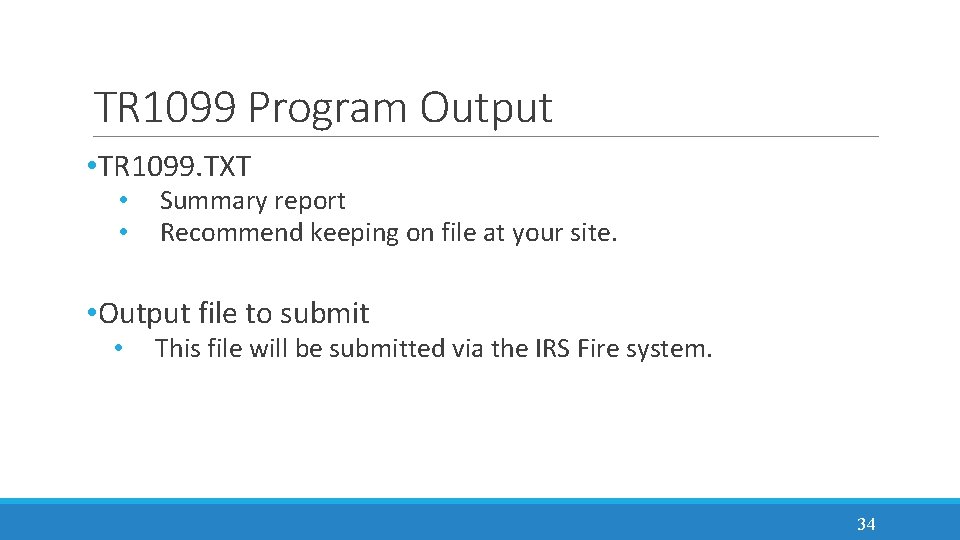
TR 1099 Program Output • TR 1099. TXT • • Summary report Recommend keeping on file at your site. • Output file to submit • This file will be submitted via the IRS Fire system. 34
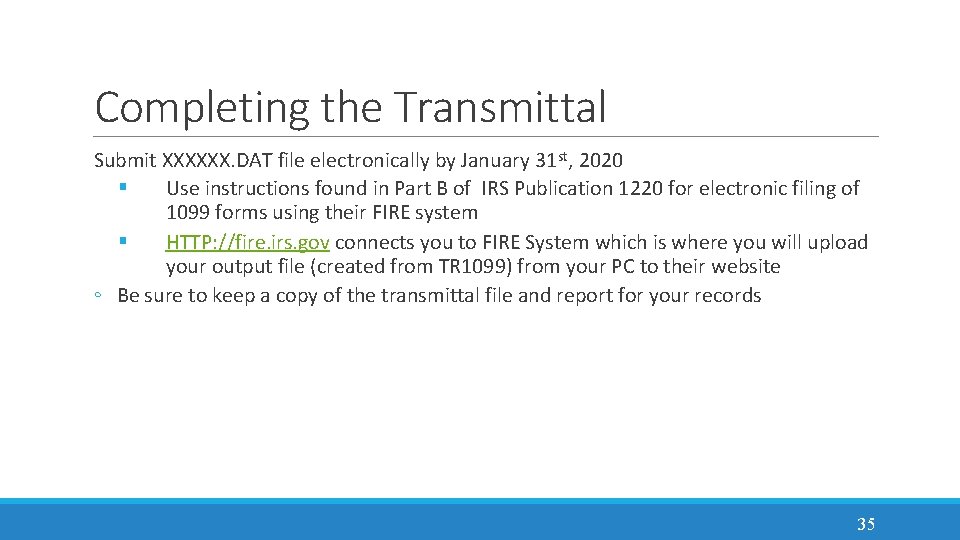
Completing the Transmittal Submit XXXXXX. DAT file electronically by January 31 st, 2020 § Use instructions found in Part B of IRS Publication 1220 for electronic filing of 1099 forms using their FIRE system § HTTP: //fire. irs. gov connects you to FIRE System which is where you will upload your output file (created from TR 1099) from your PC to their website ◦ Be sure to keep a copy of the transmittal file and report for your records 35
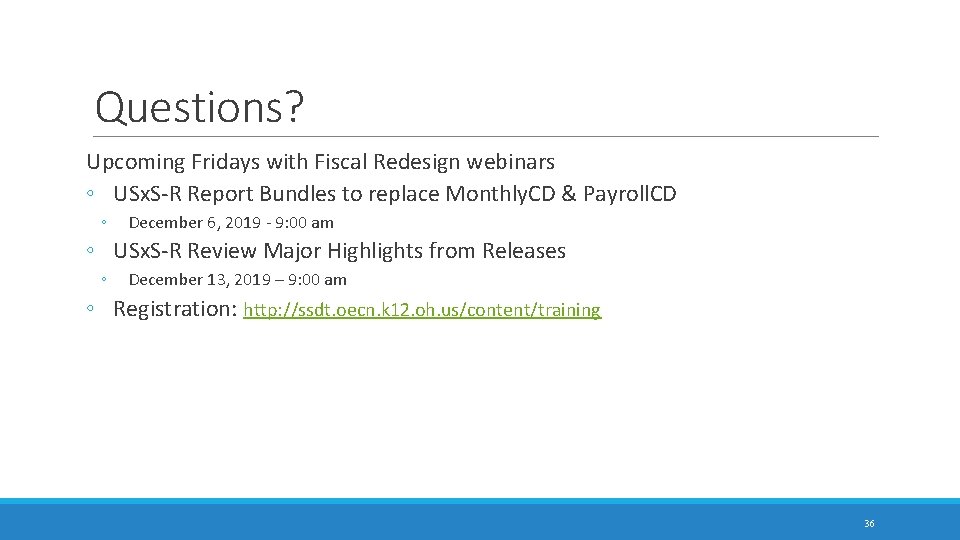
Questions? Upcoming Fridays with Fiscal Redesign webinars ◦ USx. S-R Report Bundles to replace Monthly. CD & Payroll. CD ◦ December 6, 2019 - 9: 00 am ◦ USx. S-R Review Major Highlights from Releases ◦ December 13, 2019 – 9: 00 am ◦ Registration: http: //ssdt. oecn. k 12. oh. us/content/training 36