
2019 2020 Tenure and Promotion Faculty Information System


- Slides: 15
2019 -2020 Tenure and Promotion Faculty Information System Team
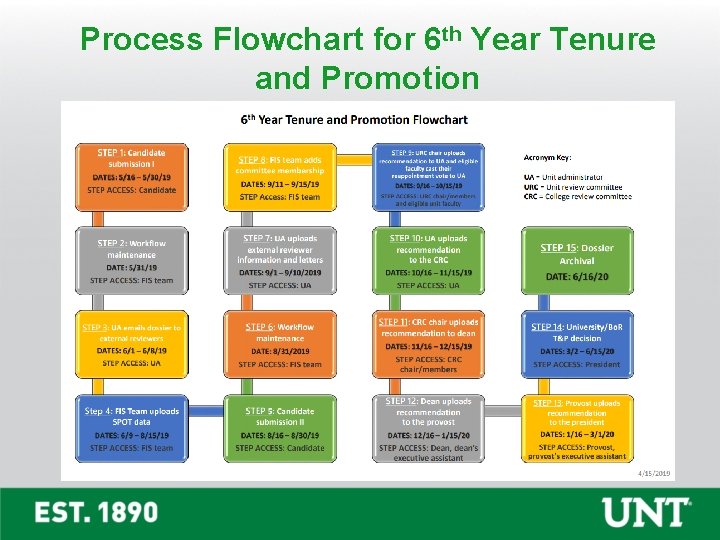
Process Flowchart for 6 th Year Tenure and Promotion
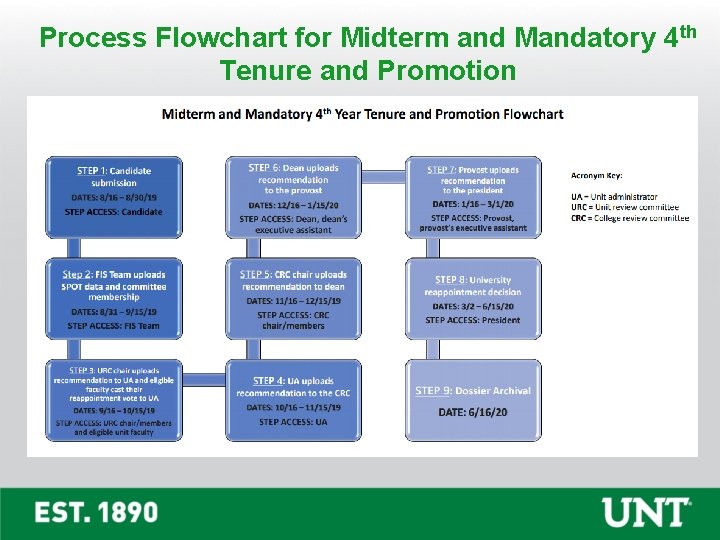
Process Flowchart for Midterm and Mandatory 4 th Tenure and Promotion
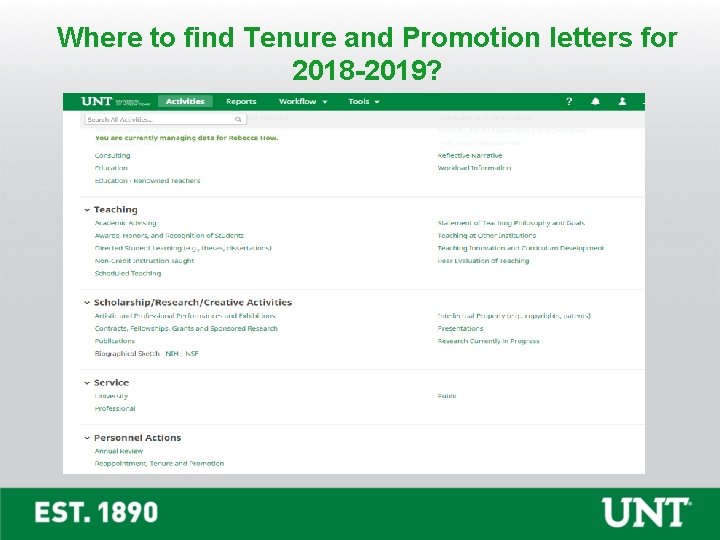
Where to find Tenure and Promotion letters for 2018 -2019?
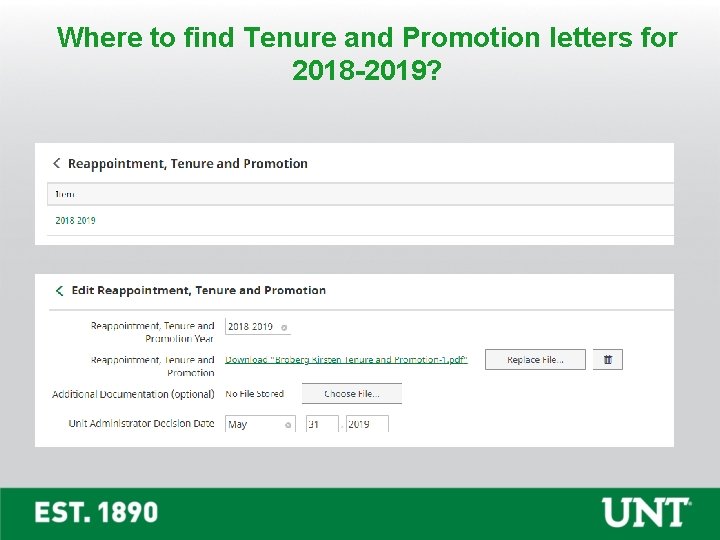
Where to find Tenure and Promotion letters for 2018 -2019?
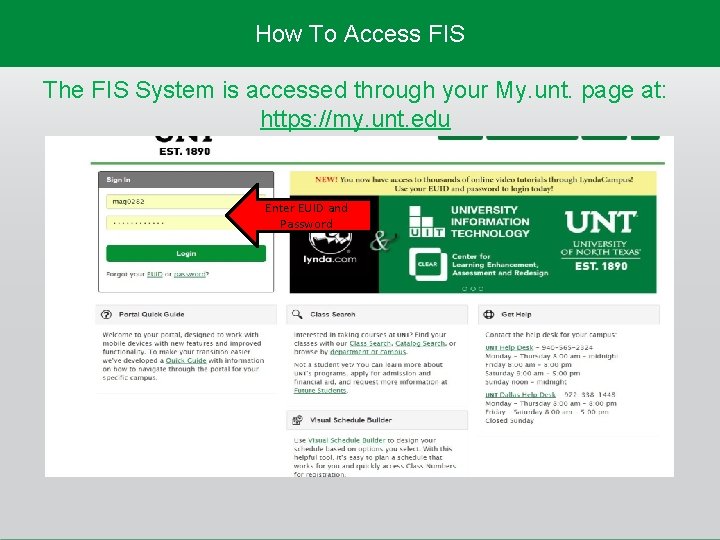
How To Access FIS The FIS System is accessed through your My. unt. page at: https: //my. unt. edu Enter EUID and Password
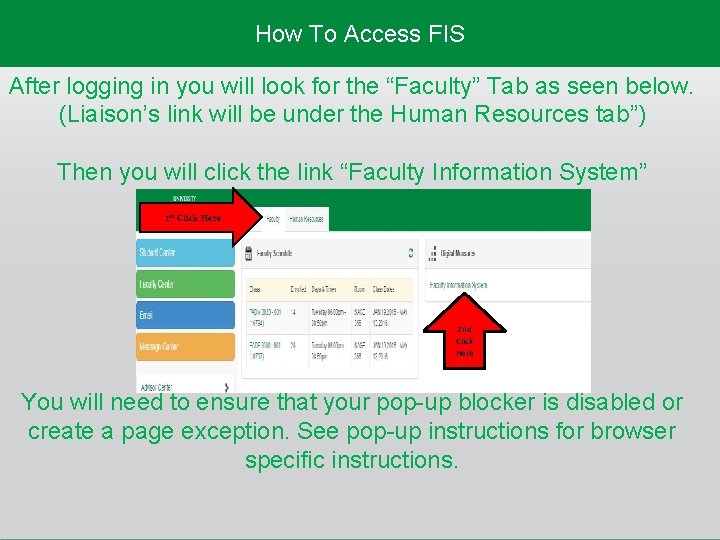
How To Access FIS After logging in you will look for the “Faculty” Tab as seen below. (Liaison’s link will be under the Human Resources tab”) Then you will click the link “Faculty Information System” 1 st Click Here 2 nd Click Here You will need to ensure that your pop-up blocker is disabled or create a page exception. See pop-up instructions for browser specific instructions.
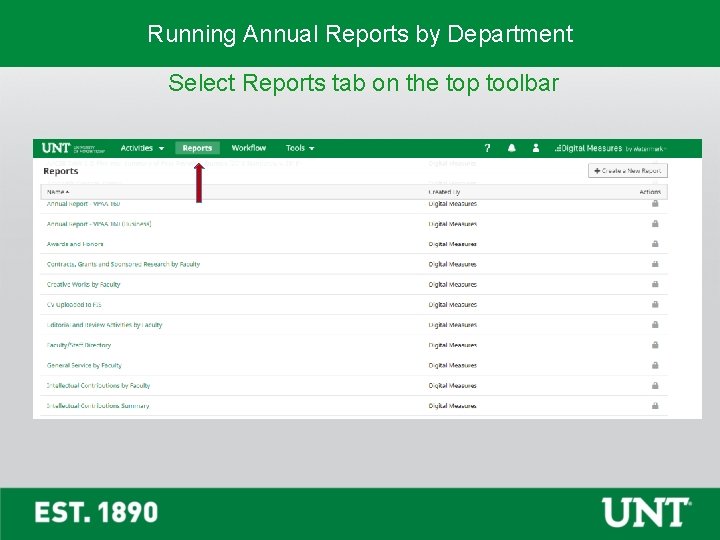
Running Annual Reports by Department Select Reports tab on the top toolbar
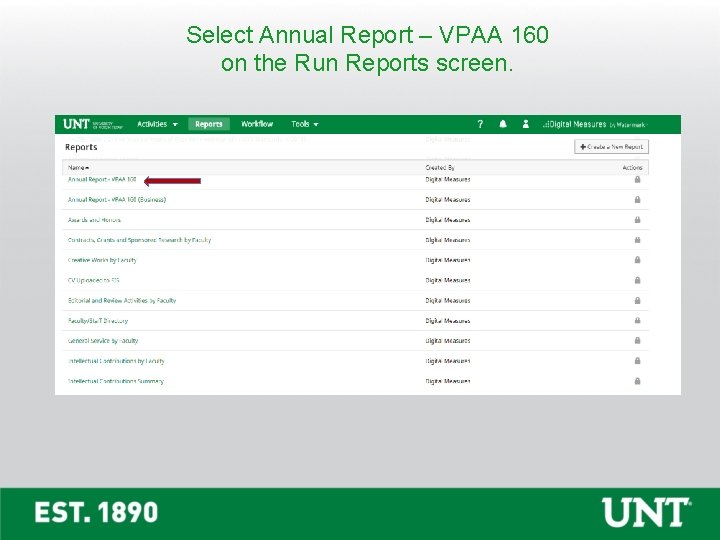
Select Annual Report – VPAA 160 on the Run Reports screen.
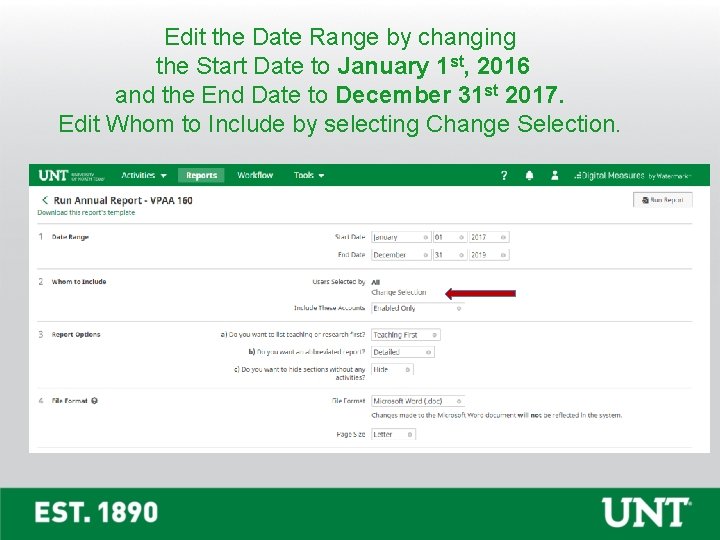
Edit the Date Range by changing the Start Date to January 1 st, 2016 and the End Date to December 31 st 2017. Edit Whom to Include by selecting Change Selection.
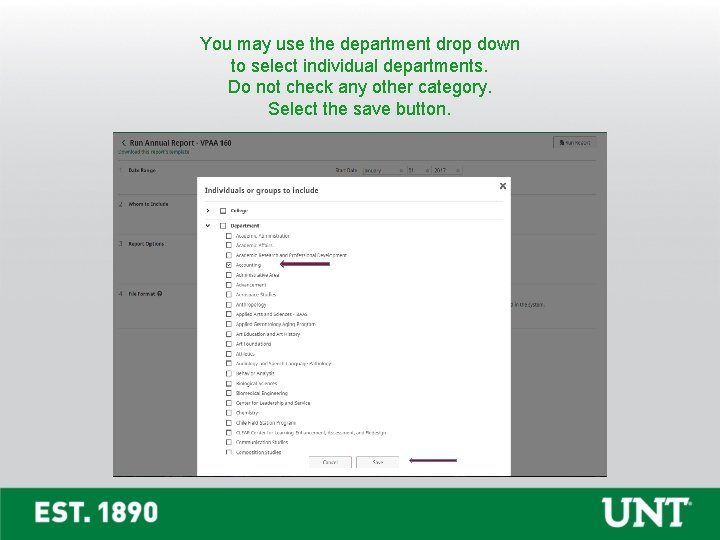
You may use the department drop down to select individual departments. Do not check any other category. Select the save button.
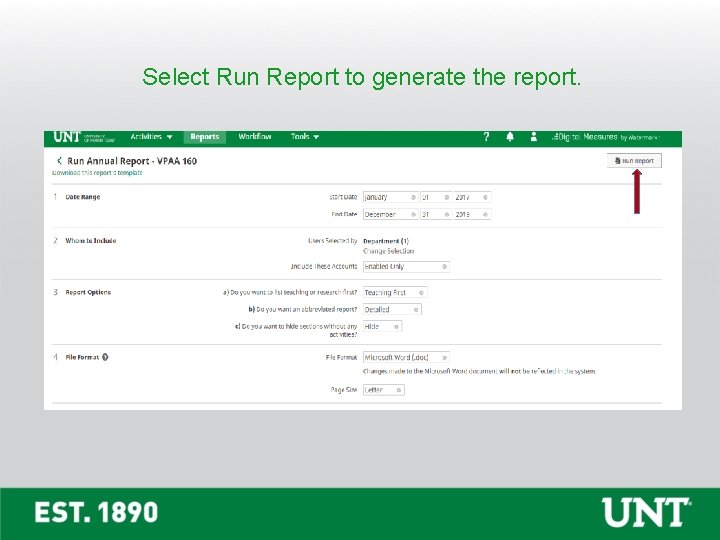
Select Run Report to generate the report.
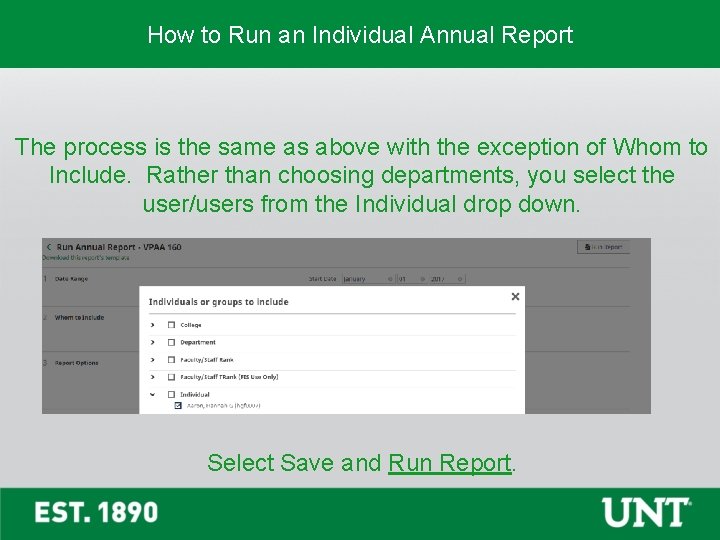
How to Run an Individual Annual Report The process is the same as above with the exception of Whom to Include. Rather than choosing departments, you select the user/users from the Individual drop down. Select Save and Run Report.
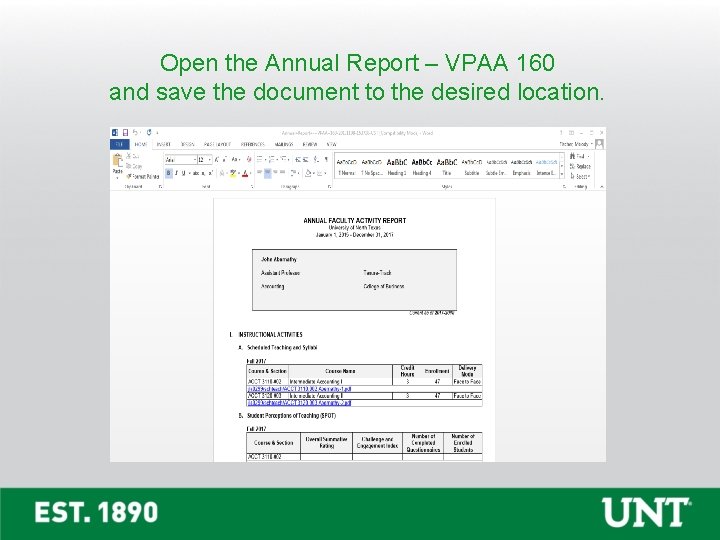
Open the Annual Report – VPAA 160 and save the document to the desired location.
You may contact the FIS Team by email or phone for assistance. Faculty. Info@unt. edu 940 -369 -6108