
2017 STAAR Test Administrator Training Supplemental Training Required

- Slides: 26
2017 STAAR Test Administrator Training Supplemental Training Required for Online Test Administrators
Please Note: This training does NOT take the place of reading the appropriate manuals. References to pages in the STAAR Test Administrator Manual are included in this training.
Additional Training Requirements ∗ This is a supplemental training for test administrators assigned to an online test. ∗ All test administrators must also complete the “ 2017 STAAR Test Administrator Training ∗ Some test administrators will complete additional face-toface training with the campus testing coordinator ∗ Test administrators providing certain accommodations ∗ ∗ ∗ Oral Administration Braille Large Print Transcribe Other as needed
Agenda ∗ ∗ ∗ Test Security & Confidentiality Requirements STAAR Time Limits Policies & Procedures Allowable test administration procedures Accommodations Training, Preparation, Monitoring & Completing Test Sessions ∗ Test Administration Directions
Accommodations, page 15 Content Supports and Language and Vocabulary Supports ∗ Students who are eligible (504, SPED, LEP) for either content supports or language and vocabulary supports will take STAAR online. ∗ These types of accommodations are embedded into the online system and appear as pop-ups or rollovers throughout STAAR selections, test questions, and answer choices. These pop-ups and rollovers contain text support such as definitions, simplified wording, bulleted lists, graphic organizers, etc. depending on whether the support is for content or language and vocabulary. ∗ See the Accommodation Resources webpage for accommodation guidelines.
Accommodations Oral/Signed Administration Oral administration is a designated support in which test questions and answer choices are read aloud or signed to a student who meets the eligibility criteria. When conducting an oral administration of an online assessment, the oral administration will be provided through the text-to-speech feature and the test administrator will not read any test content to a student. There are only 2 examples of when a test administrator is allowed to read online test content: * grade 3 reading assistance on a mathematics test (See Accessibility Features) * writing prompt (See Accessibility Features) If students are struggling understanding the “voice” in the test to speech, help the student adjust the volume, adjust the speed of the voice, ensure the earphones are working, etc. If none of these trouble shooting issues resolve the “voice” to where the student can understand the word or phrase, the TA may read the word or phrase. This should be extremely rare. Additional Training Required for Oral Administration of Paper Assessments
STAAR with Embedded Supports (online only) STAAR with Embedded Supports (only available in the online test version) ∗ Text-to-Speech (replaces oral administration delivered by test administrator) ∗ Language Supports ∗ Content & Vocabulary Supports The test administrator may provide a signed administration of the online test for deaf and hard-of-hearing students who cannot access the text-to-speech function. For online tests, the test administrator may read required reference materials and allowable accommodations for all students. This includes: ∗ dictionary during grades 6– 8 and EOC reading and writing assessments ∗ state-supplied mathematics and science reference materials. ∗ grade 3 reading assistance on a mathematics test (See Accessibility Features) ∗ writing prompt (See Accessibility Features)
Prepare for Testing Prepare for Online Testing ∗ Ensure that students have reviewed the student tutorial for the online testing system. ∗ The campus coordinators will generate and print student test tickets at least one day before the test administration ∗ Obtain secure student test tickets from CTC • Student test tickets contain the unique username, password, Session ID needed to log in to take the test, and if applicable, embedded supports. ∗ Student test tickets must be stored in a secure location prior to the test administration and then returned to the CTC at the conclusion of the session. ∗ Students will need scratch paper and pencils • Graph paper, hand held calculators and dictionaries must be provided for online tests when required for paper tests. • Headphones/earbuds will be required for students allowed to access the text to speech feature.
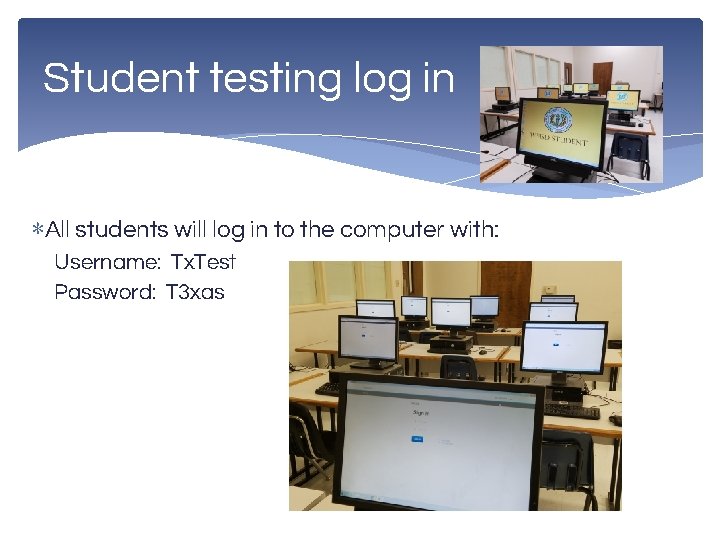
Student testing log in ∗All students will log in to the computer with: Username: Tx. Test Password: T 3 xas
Prepare for Testing Receive Test Materials from Campus Coordinator and Prepare for Distribution Test administrators for online administrations must ensure that the following required materials are available on the day of testing: • • • testing group rosters and required forms student test tickets scratch paper and graph paper (if applicable) pencils or pens dictionaries (for STAAR grades 6– 8 reading, STAAR grade 7 writing, English II only) one graphing calculator per student (for STAAR grade 8 mathematics, Algebra I only) one calculator for every five students (for biology only) campuses have the option of providing thesauruses for English I & English II headphones for students receiving text-to-speech when multiple students are being tested in the same room
Prepare for Testing Receive Test Materials from Campus Coordinator and Prepare for Distribution • Test administrators must be thoroughly familiar with the dictionary policy that has been established for STAAR. Refer to the STAAR Dictionary Policy for more information. • Test administrators must be thoroughly familiar with the calculator policy that has been established for STAAR. Refer to the STAAR Calculator Policy for more information. • Reference materials and graph paper for STAAR mathematics assessments are included in the test booklets. These materials are printed on perforated pages so that students can remove them and use them during the test administration. For students testing online, reference materials and graph paper are available in the assessment in the Online Testing Platform. Paper versions of these materials that are specifically appropriate for online test administrations may be downloaded and printed from the Texas Assessment Resources webpage.
Monitor Online Administrations Special Note Regarding Technology The campus is required to have procedures in place to prevent the use of cell phones and personal electronic devices during test administrations. Each test administrator must be trained in campus procedures. Electronic devices can disrupt the testing environment and compromise the security and confidentiality of the test. In rare situations when using technology-based accommodations, students are NOT permitted internet access during testing. Also, electronic devices with internet or photographic capabilities are not allowable.
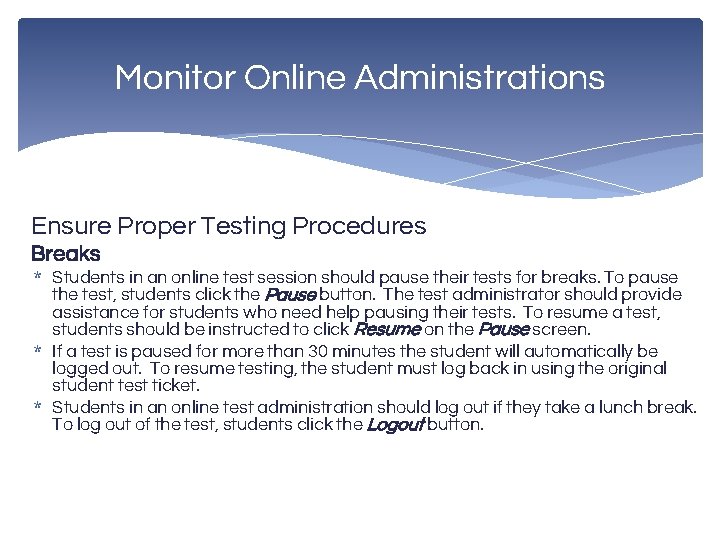
Monitor Online Administrations Ensure Proper Testing Procedures Breaks * Students in an online test session should pause their tests for breaks. To pause the test, students click the Pause button. The test administrator should provide assistance for students who need help pausing their tests. To resume a test, students should be instructed to click Resume on the Pause screen. * If a test is paused for more than 30 minutes the student will automatically be logged out. To resume testing, the student must log back in using the original student test ticket. * Students in an online test administration should log out if they take a lunch break. To log out of the test, students click the Logout button.
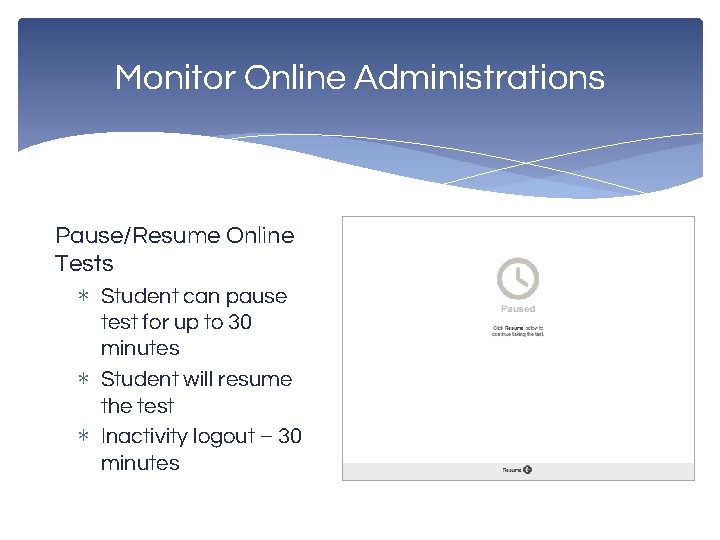
Monitor Online Administrations Pause/Resume Online Tests ∗ Student can pause test for up to 30 minutes ∗ Student will resume the test ∗ Inactivity logout – 30 minutes
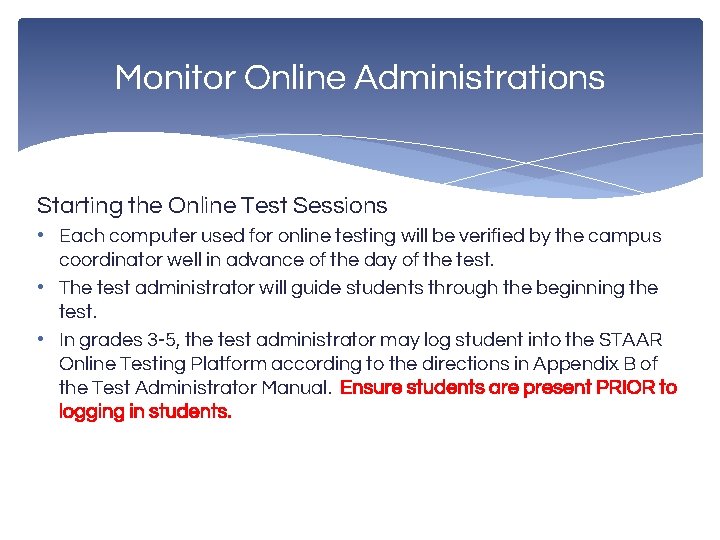
Monitor Online Administrations Starting the Online Test Sessions • Each computer used for online testing will be verified by the campus coordinator well in advance of the day of the test. • The test administrator will guide students through the beginning the test. • In grades 3 -5, the test administrator may log student into the STAAR Online Testing Platform according to the directions in Appendix B of the Test Administrator Manual. Ensure students are present PRIOR to logging in students.
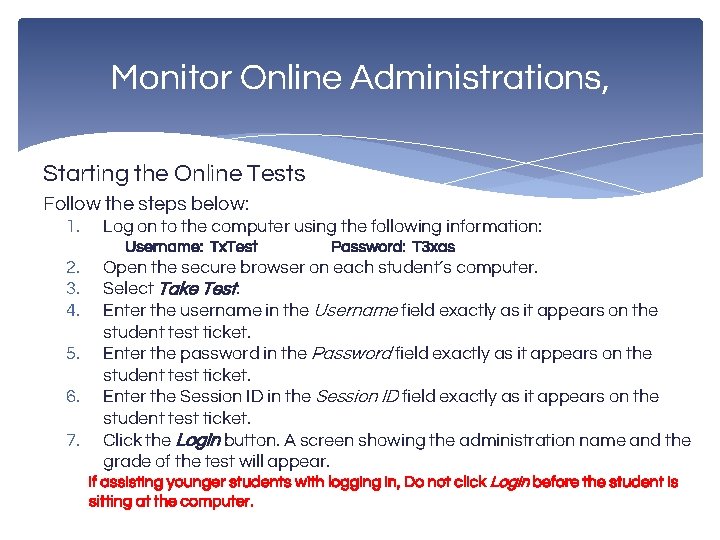
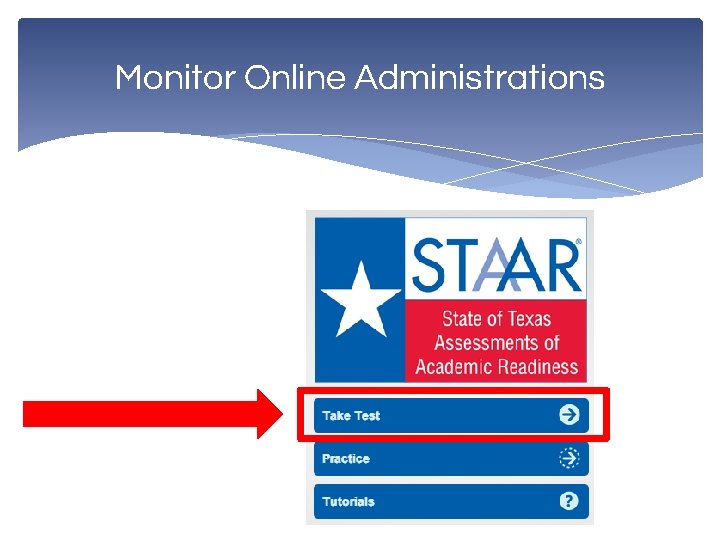
Monitor Online Administrations, Starting the Online Tests Follow the steps below: 1. Log on to the computer using the following information: Username: Tx. Test 2. 3. 4. 5. 6. 7. Password: T 3 xas Open the secure browser on each student’s computer. Select Take Test. Enter the username in the Username field exactly as it appears on the student test ticket. Enter the password in the Password field exactly as it appears on the student test ticket. Enter the Session ID in the Session ID field exactly as it appears on the student test ticket. Click the Login button. A screen showing the administration name and the grade of the test will appear. If assisting younger students with logging in, Do not click Login before the student is sitting at the computer.
Monitor Online Administrations
Monitor Online Administrations Monitor and Manage Online Test Sessions • If students are not present for the online test administration for which they were originally scheduled, contact your campus coordinator. The student may test during a makeup test session. • It is not necessary to print a new student test ticket. Test administrators should train students to raise their hand when finished so the TA can assist with submitting the test. The TA should remind students that they should not click the Submit and End Test button until they have finished the test. Once a test is submitted, it cannot be restarted by the test administrator.
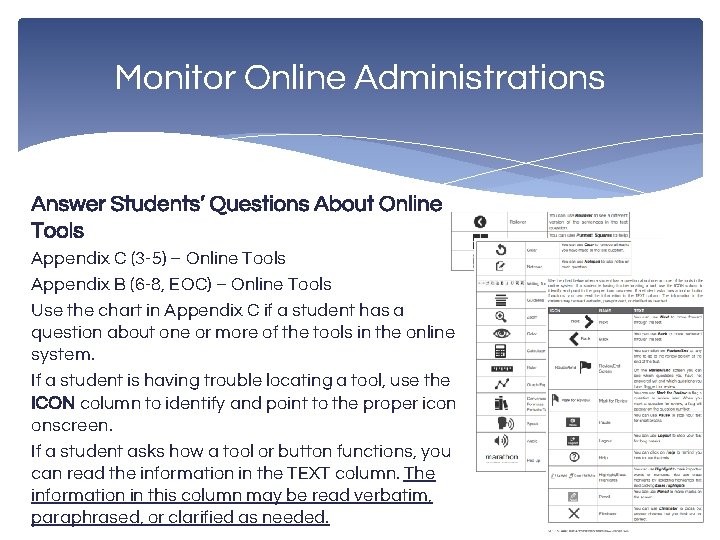
Monitor Online Administrations Answer Students’ Questions About Online Tools Appendix C (3 -5) – Online Tools Appendix B (6 -8, EOC) – Online Tools Use the chart in Appendix C if a student has a question about one or more of the tools in the online system. If a student is having trouble locating a tool, use the ICON column to identify and point to the proper icon onscreen. If a student asks how a tool or button functions, you can read the information in the TEXT column. The information in this column may be read verbatim, paraphrased, or clarified as needed.
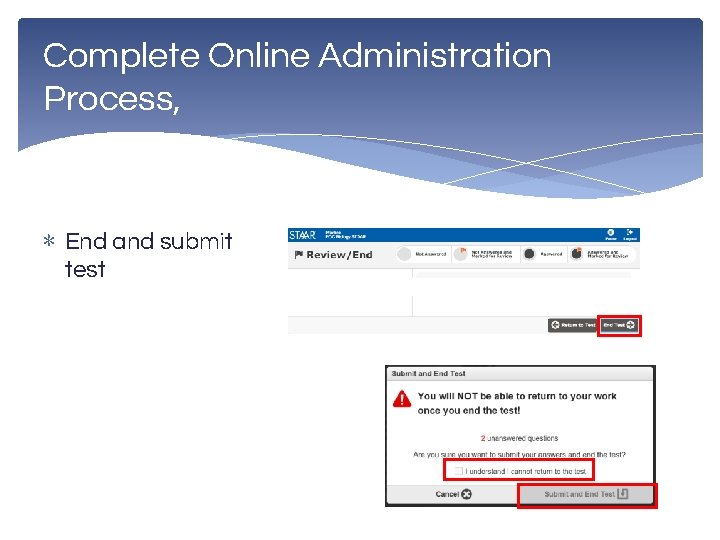
Complete Online Administration Process, pgs. 37 -38; EOC pgs. 36 -37 Submit the Test * Once a student has submitted a test, the student will no longer be active in the test session and cannot access the test with his or her student test ticket. The following steps submit the test and end the session for a student. 1. On the Review/End page of the test, click End Test. 2. Check the “I understand I cannot return to the test” box. 3. Select the Submit and End Test button. * The test will be submitted for scoring via the Assessment Management System as soon as the student clicks the Submit and End Test button. * The campus may choose to have the test administrator submit the test, instead of allowing students to do so. * Students who cannot finish their tests due to illness or a testing irregularity should NOT click the Submit and End Test button. The student should LOG OUT of the test.
Complete Online Administration Process, ∗ End and submit test
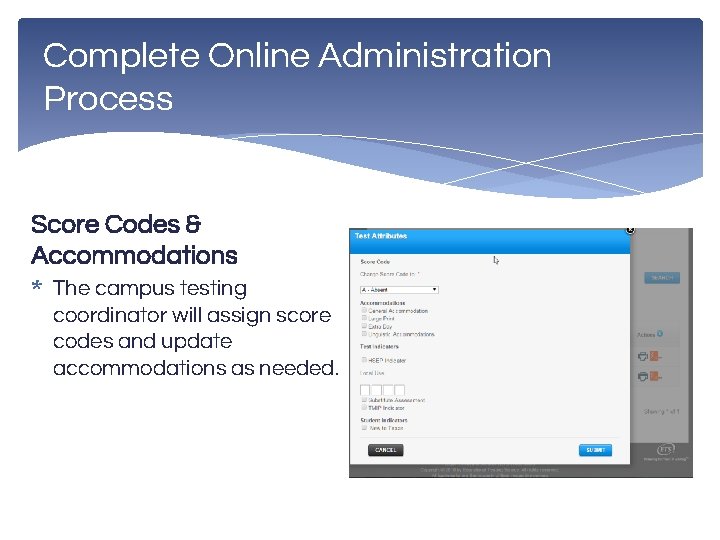
Complete Online Administration Process Score Codes & Accommodations * The campus testing coordinator will assign score codes and update accommodations as needed.
Complete Online Administration Process Return All Student Test Tickets, Testing Group Rosters, and Test Administration Materials to the Campus Coordinator • Collect all test tickets before students leave the testing room. • For students who were absent from the test, return these test tickets to your CTC. Students can use these test tickets during makeup testing. • Missing or damaged tickets can be accessed or reprinted in the STAAR Assessment Management System. • Student test tickets and any reference materials, scratch paper, or graph paper used during testing must be returned to the campus coordinator after the test session.
Guide to the Test Administration Directions Before reading the online administration directions aloud, distribute the following materials to your students if they do not already have them: * student test tickets (unless test administrator is logging grades 3 -5 students in) * pencils * scratch paper * headphones for students receiving text-to-speech Test administrators must be thoroughly familiar with the dictionary and calculator policies that have been established for STAAR.
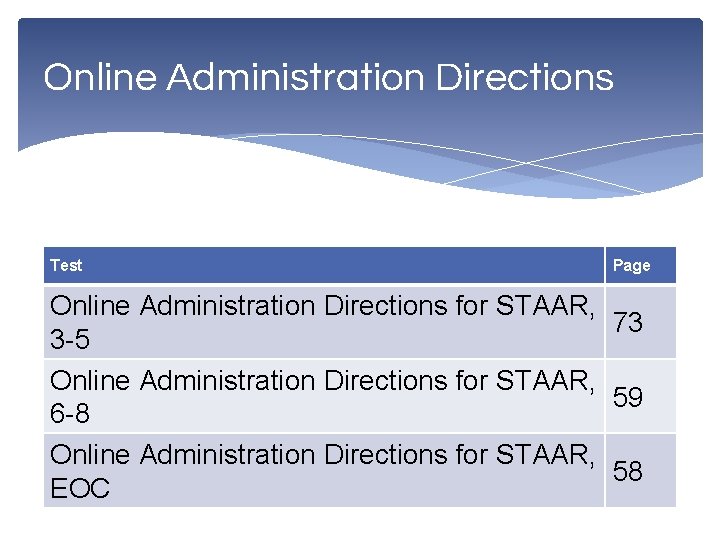
Online Administration Directions Test Page Online Administration Directions for STAAR, 73 3 -5 Online Administration Directions for STAAR, 59 6 -8 Online Administration Directions for STAAR, 58 EOC
Questions?