
2016 2017 ARR Process Submission Tips and Guidelines
2016 – 2017 ARR Process & Submission Tips and Guidelines June 6, 2017 Rose Tremblay, Senior Consultant Contracts Community Sector

What is the ARR (Annual Reconciliation Report) • An Excel based reporting tool designed specifically for health service provider year-end reporting • Provides the Ministry with information on your agency’s annual financial performance • Actual expenditures and services are reconciled with Ministry funding for accountability purposes • Reconciled with your audited financial statements for completeness and accuracy • Enables the Ministry to identify unspent funds to be recovered Rose Tremblay, Senior Consultant Contracts 2

Getting Started on the ARR • 2016 -17 ARR report template is similar in format to last year’s template • The ARR User Guide prepared for 2016 -17 will be very helpful as a how-to-complete refresh. • User Guide is available on the Health Data Branch Web Portal at www. hsimi. on. ca. Access to this website requires preregistration if you haven’t already done so. Rose Tremblay, Senior Consultant Contracts 3
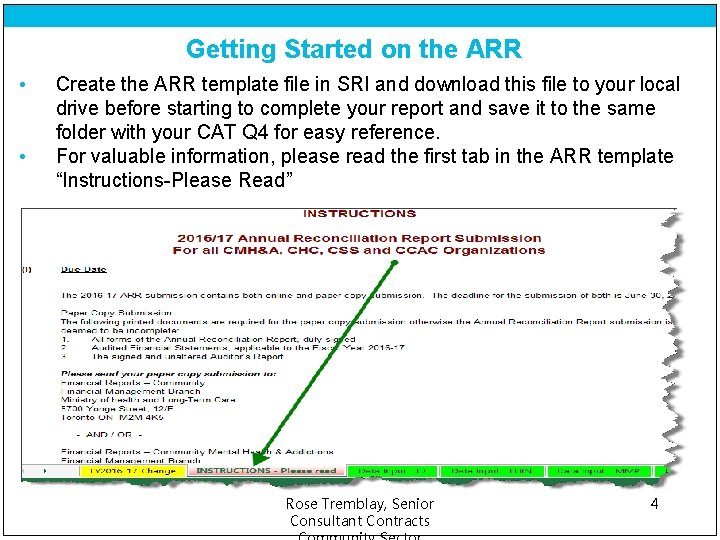
Getting Started on the ARR • • Create the ARR template file in SRI and download this file to your local drive before starting to complete your report and save it to the same folder with your CAT Q 4 for easy reference. For valuable information, please read the first tab in the ARR template “Instructions-Please Read” Rose Tremblay, Senior Consultant Contracts 4

Getting Started on the ARR • The ARR and the Q 4 SRI are not linked, but your Q 4 SRI report must be completed before you start the ARR report • Have a copy of your Q 4 SRI handy to facilitate data input to the ARR template • Work your way through the tabs/worksheets in the ARR template in sequential order, starting with the Data Input-ID tab • The ID worksheet must provide a contact name should there be questions about the information submitted Rose Tremblay, Senior Consultant Contracts 5

Completing the ARR – Data Input • LHIN Programs, Ministry Managed Programs (MMP), and other MMP are reported on one ARR template, but on separate Data Input Tabs – Green tabs • Report tabs are Purple in colour, and will automatically calculate and populate related fields once the data input has been completed Rose Tremblay, Senior Consultant Contracts 6

Completing the ARR – Data Input • Clear cells in the Data Input worksheets require manual data input where applicable • Cells with a blue, grey, light blue, green, or orange colour do not permit data entry. • These coloured cells calculate values based on the inputs in the other cells • Warning, please do not insert, edit, or delete any tab, row, or column in the ARR template. Rose Tremblay, Senior Consultant Contracts 7

Completing the ARR – TPBEs • The Data Input worksheets must be completed by TPBE (Transfer Payment Business Entity) • TPBEs being reported by your agency are selected from dropdown menus along the top of the Data Input worksheet • For example, if your agency has a LHIN funded CSS program and Attendant Outreach, you must select a “LHIN-CSS” TPBE and a “AO” TPBE along the top of the Data Input-LHIN worksheet. Your agency will have two data input columns to complete • NOTE: There is no selection for SF Sessional Fees in the dropdown menu. Please use CMHP and record Sessional Fees on lines 24 and 39 accordingly. Rose Tremblay, Senior Consultant Contracts 8

Completing the ARR – Funding Initiative • If your agency receives separate funding for the following initiatives, the revenues and expenses must be reported separately from the overall funding allocation for 2016 -17. • CCAC – QBP, CCAC – Health Links, PSW Wage Enhancement, Self Management, and Complex Diabetes Care • CHC – Health Links, CHC- Uninsured Fund, CHC – Physician Fund, CHC – Physiotherapy Episode of Care, CHC – Diabetes Education Program (LHIN) • CSS – Diabetes Education Program (LHIN), CSS – Health Links, PSW Wage Enhancement Rose Tremblay, Senior Consultant Contracts 9

Completing the PSW Funding Initiative • Funding for the PSW Wage Enhancement Initiative (PSW) will be reconciled separately • HSPs are required to report the aggregated PSW funding and expenditures separately in the ARR • Settlement of PSW funding for 2016 -17 will be determined based on total PSW funding provided over the last three years minus eligible expenses incurred in 2016 -17 as set out in the Directive Addenda • 2016 -17 PSW funding includes all annualized PSW funding provided in Year 1 (2014 -15) and Year 2 (2015 -16), subsequently rolled over to Year 3 (2016 -17); and all new PSW funding approved and provided in Year 3 Rose Tremblay, Senior Consultant Contracts 10

Completing the PSW Funding Initiative • For settlement purposes, HSPs are permitted to use 2016 -17 funding surplus from their general operating funds to offset deficits related to the PSW initiative. • Note: other funding initiatives cannot be used to offset PSW wage enhancement initiative deficits. • HSPs will not be permitted to use the surplus funding from the PSW initiative to offset other non-PSW related deficits/pressures. • Please refer to specific details regarding this initiative outlined in the ARR user guide (page 21) Rose Tremblay, Senior Consultant Contracts 11
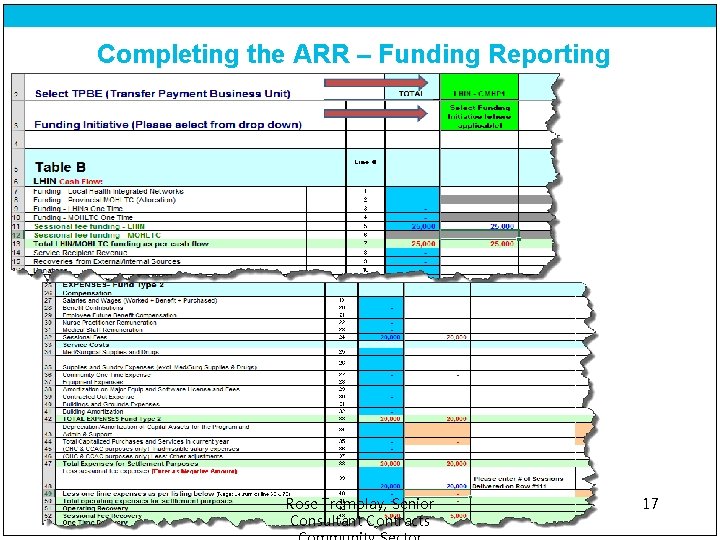
Completing the ARR – Funding Reporting • In order for your ARR report to accurately calculate the recovery amount (if any), the LHIN funding and expenses need to be reported on the correct lines in Table B • Use your payment notices to ensure all LHIN funding is reported by the appropriate TPBE • The total funding reported on line 7 of your ARR (Total LHIN/ MOHLTC funding as per cash flow) should match your fiscal allocation amount on your payment notice • Funding from other sources should be reported on lines 8 through 12 • All funding reported in this section of Table B is Fund Type 2 funding. The total funding on line 14 will be used for settlement purposes Rose Tremblay, Senior Consultant Contracts 12

Completing the ARR – Funding Reporting Rose Tremblay, Senior Consultant Contracts 13

Completing the ARR – Funding Reporting Rose Tremblay, Senior Consultant Contracts 14
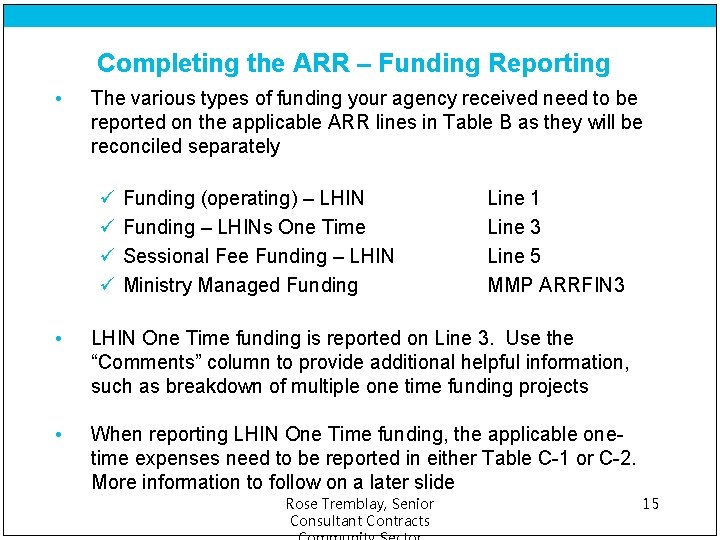
Completing the ARR – Funding Reporting • The various types of funding your agency received need to be reported on the applicable ARR lines in Table B as they will be reconciled separately ü ü Funding (operating) – LHIN Funding – LHINs One Time Sessional Fee Funding – LHIN Ministry Managed Funding Line 1 Line 3 Line 5 MMP ARRFIN 3 • LHIN One Time funding is reported on Line 3. Use the “Comments” column to provide additional helpful information, such as breakdown of multiple one time funding projects • When reporting LHIN One Time funding, the applicable onetime expenses need to be reported in either Table C-1 or C-2. More information to follow on a later slide Rose Tremblay, Senior Consultant Contracts 15
Completing the ARR – Funding Reporting • Your ARR submission reconciles Sessional Fees funded by the LHIN and are reported in a separate TBPE (CMHP 1) on line 5 • Sessional Fee Supplements are settled through another area in the Ministry and are not part of this reconciliation • Applicable Sessional Fee expenses are reported in this same TBPE in Table B on both lines 24 and 39. (enter as a minus on line 39) • Unspent Sessional Fee funding will be shown on its own as “Sessional Fee Recovery” on line 43 of Table B • If you report Sessional Fee expenses, you must complete the number of sessions delivered on line 111 Rose Tremblay, Senior Consultant Contracts 16
Completing the ARR – Funding Reporting Rose Tremblay, Senior Consultant Contracts 17
Completing the ARR – Expenses Reporting • The applicable program expenses should be entered on lines 19 through 32 • The expenses should be taken from your Q 4 SRI report, so have a copy handy • The depreciation/amortization and capitalized purchases will automatically be deducted on lines 34 and 35 respectively for settlement purposes • The total expenses reported on line 38 will be used for settlement purposes Rose Tremblay, Senior Consultant Contracts 18
Completing the ARR – Expenses Reporting • If your agency has reported One Time funding on Line 3, your One Time expenses need to be reported in the applicable tables: ü Table C-1 Report capitalized purchases made from one time funding ü Table C-2 Report operating expenses paid from one time funding (the most commonly used table) ü Table D-1 Report one time capitalized purchases made with base operating funding ü Table D-2 Report one time non-capitalized expenditures > $5, 000 made with base operating funding • Expenses reported in Table C-2 also need to be included in lines 19 to 32 on Table B Rose Tremblay, Senior Consultant Contracts 19

Completing the ARR – Expenses Reporting • ü Table C-1 Report capitalized purchases made from one time funding by TPBE ü Table C-2 Report operating expenses paid from one time funding (the most commonly used table) by TPBE Expenses reported in Table C-2 also need to be included in lines 19 to 32 on Table B Rose Tremblay, Senior Consultant Contracts 20
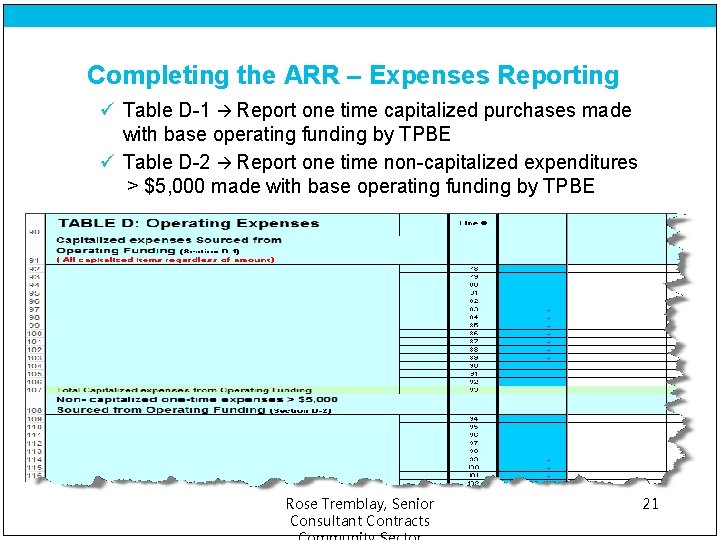
Completing the ARR – Expenses Reporting ü Table D-1 Report one time capitalized purchases made with base operating funding by TPBE ü Table D-2 Report one time non-capitalized expenditures > $5, 000 made with base operating funding by TPBE Rose Tremblay, Senior Consultant Contracts 21
Completing the ARR – One Time Expenses • Please Note: You must obtain written approval from the LHIN / Ministry prior to making unbudgeted capital purchases or incurring non-capitalized expenses greater than $5, 000 • And as a reminder: It is important that LHIN approval be sought in advance for any transfer, reallocation, or other expenditure not originally budgeted. Reallocations in excess of $5, 000 without LHIN approval of the change will result in recoveries of funds Rose Tremblay, Senior Consultant Contracts 22
Completing the ARR – Other Data Input • Ministry Managed Programs (MMP) and other MMP Data Input tabs/worksheets are completed in a similar fashion should your agency have MMP and other MMP revenues and expenses. If not, these tabs can be ignored • Complete the Data Input FT 1(Fund Type 1) and FT 3 (Fund Type 3) tab/worksheet if applicable to your agency Rose Tremblay, Senior Consultant Contracts 23

Completing the ARR – Review, Review • When data input has been completed in all relevant data Input worksheets, take a moment to review your entries to ensure all fields have been completed as necessary, and any calculated settlement recoveries are correct and match your Q 4 SRI report. • Similarly, the purple coloured Report tabs calculate and populate your ARR report once the data input is complete. Take a moment to review the report worksheets for accuracy and completeness • Careful review at this stage in your submission will make the remaining steps of your ARR much smoother. Rose Tremblay, Senior Consultant Contracts 24

Reconciliation to Audited Financial Statements • Agencies must ensure the ARR submission reconciles with the Audited Financial Statements; both Revenues and Expenses • Total Revenues and Total Expenses for all Fund Types (Report - Total Agency ARRFin 1 - Table G) must match your audited financial statements Rose Tremblay, Senior Consultant Contracts 25
Note to Auditors • Please note the following when submitting your Auditor’s Report: • The wording of the Auditor’s Report should not be altered • The Auditor’s Report can be copied to your Auditor’s letterhead • The Auditor’s Report needs to be addressed to the Ministry of Health and Long-Term Care • The Auditor’s Report needs to be signed by your Auditor and submission is a mandatory step in the ARR process • Print reports from the Purple tabs and select at the top left of the screen Rose Tremblay, Senior Consultant Contracts 26
Auditor’s Report • Prior to the commencement of an audit, it is suggested that Auditors be provided with copies of: • Community Financial Policy • Chapters 3 and 4 of OHRS (found on Health Data Branch portal www. hsimi. on. ca) • Funding approval letters that may provide details and specifications or restrictions to funding i. e. PSW initiative • SAA agreement and amending funding letters Rose Tremblay, Senior Consultant Contracts 27
Certification by Provider • This form (purple tab) can be printed and must be signed by 2 signing officers of your organization i. e. Board Chair and Senior Director. • Please have 2 copies with signatures for both ministry and LHIN submissions. Rose Tremblay, Senior Consultant Contracts 28
Your ARR Submission • Your ARR submission is both an online (SRI) and a paper copy submission; the deadline for both is June 30, 2017 • Your ARR package must be uploaded to SRI including Auditor Report and Audited Financial Statements Ø For technical assistance, please call 1 -800 -495 -9986 or contact sri@ontario. ca Rose Tremblay, Senior Consultant Contracts 29
Hard copy ARR Submission For CSS, CHC and CCAC funded programs: • A paper copy of your ARR package with all ARR forms duly signed, Audited Financial Statements, and signed Auditor’s Report must be submitted to the Ministry and the LHIN: Financial Reports-Community Financial Management Branch Ministry of Health & Long-Term Care 5700 Yonge Street, 12 th Floor Toronto, ON M 2 M 4 K 5 South East LHIN 71 Adam Street Belleville, ON K 8 N 5 K 3 Attention: Anne Hagerman Rose Tremblay, Senior Consultant Contracts 30
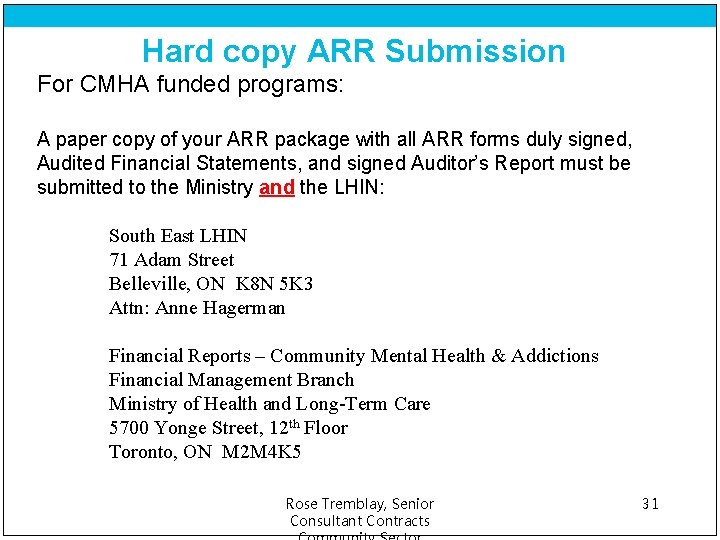
Hard copy ARR Submission For CMHA funded programs: A paper copy of your ARR package with all ARR forms duly signed, Audited Financial Statements, and signed Auditor’s Report must be submitted to the Ministry and the LHIN: South East LHIN 71 Adam Street Belleville, ON K 8 N 5 K 3 Attn: Anne Hagerman Financial Reports – Community Mental Health & Addictions Financial Management Branch Ministry of Health and Long-Term Care 5700 Yonge Street, 12 th Floor Toronto, ON M 2 M 4 K 5 Rose Tremblay, Senior Consultant Contracts 31
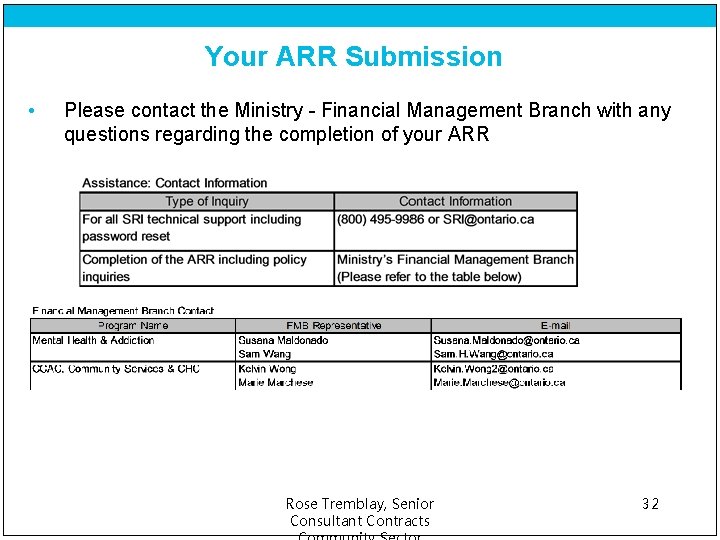
Your ARR Submission • Please contact the Ministry - Financial Management Branch with any questions regarding the completion of your ARR Rose Tremblay, Senior Consultant Contracts 32
Some handy links ! • SRI@ontario. ca Resetting password, submission issue, complaints • Health. Info@ontario. ca TB Submission/OHFS issue • FMBAudit. Confirmation@ontario. ca Funding Confirmation for year-end purpose • FMBHSPUpdates@ontario. ca Request for change of HSP information including bank account • FMBARRSubmission@ontario. ca Resubmission of duplicate ARR Rose Tremblay, Senior Consultant Contracts 33
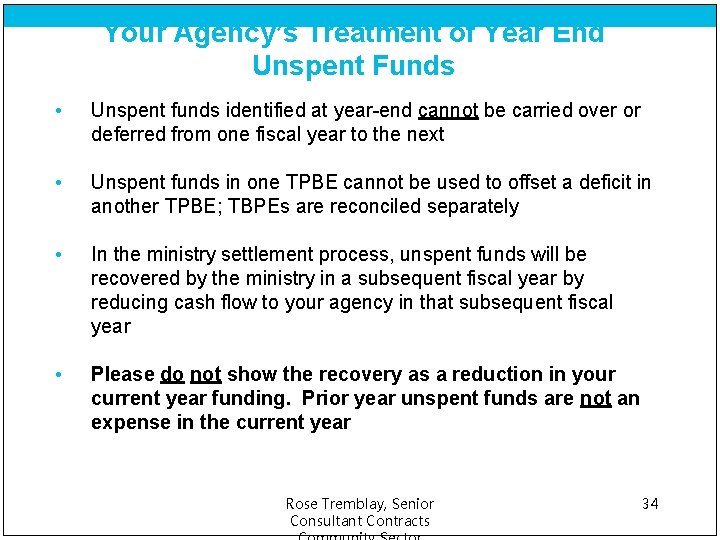
Your Agency’s Treatment of Year End Unspent Funds • Unspent funds identified at year-end cannot be carried over or deferred from one fiscal year to the next • Unspent funds in one TPBE cannot be used to offset a deficit in another TPBE; TBPEs are reconciled separately • In the ministry settlement process, unspent funds will be recovered by the ministry in a subsequent fiscal year by reducing cash flow to your agency in that subsequent fiscal year • Please do not show the recovery as a reduction in your current year funding. Prior year unspent funds are not an expense in the current year Rose Tremblay, Senior Consultant Contracts 34
Your Agency’s Treatment of Year End Unspent Funds • Correct treatment of unspent funds is to establish a liability on your Balance Sheet for the amount to be returned as of March 31, and set aside the necessary cash in a “Due to LHIN/MOH account • When the recovery is completed by the ministry, the liability is then reversed and the cash previously set aside is utilized to offset the recovery made • Unspent funds recoveries will be shown on your payment notice as a Prior Year Recovery (PRYR) Rose Tremblay, Senior Consultant Contracts 35
What comes next - Year End Settlements • Year End Settlements are prepared by the ministry based on the results of the ministry’s reconciliation of your ARR submission (timeframe may be 6 to 18 months) • Ministry Settlement Reports require a signature sign-off from the LHIN before any identified recoveries are processed in the payment system • Discussions may occur between your agency, the LHIN, and the ministry if omissions/errors have been made on your ARR and subsequent re-submission of amended ARRs have been allowed Rose Tremblay, Senior Consultant Contracts 36
Questions ? ARR-gh!!! Rose Tremblay, Senior Consultant Contracts 37
- Slides: 37