
2013 03 21 Java GUI API Layout Managers

![� Java GUI API � Layout Managers [Sample code] Show. Flow. Layout. java 、](https://slidetodoc.com/presentation_image_h/0f9b82ce386600e46e19495ec1794d4b/image-2.jpg "� Java GUI API � Layout Managers [Sample code] Show. Flow. Layout. java 、")

- Slides: 13
2013. 03. 21
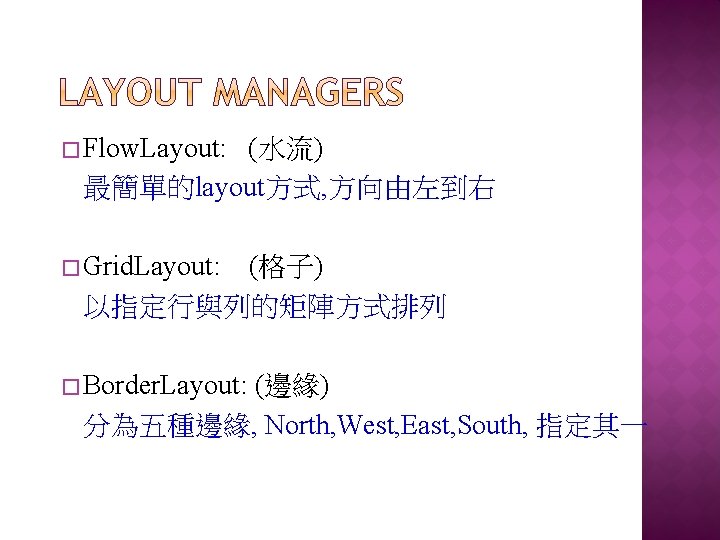
� Java GUI API � Layout Managers [Sample code] Show. Flow. Layout. java 、 Show. Grip. Layout. java、 Show. Border. Layout. java Test. Image. Icon. java
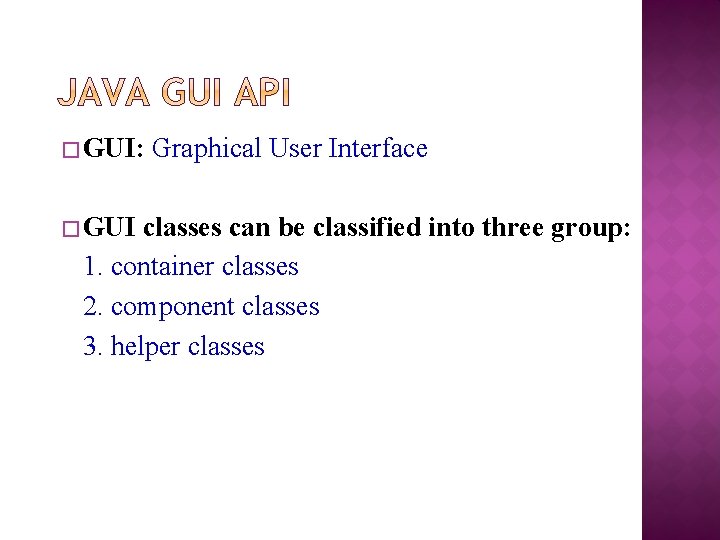
� GUI: � GUI Graphical User Interface classes can be classified into three group: 1. container classes 2. component classes 3. helper classes
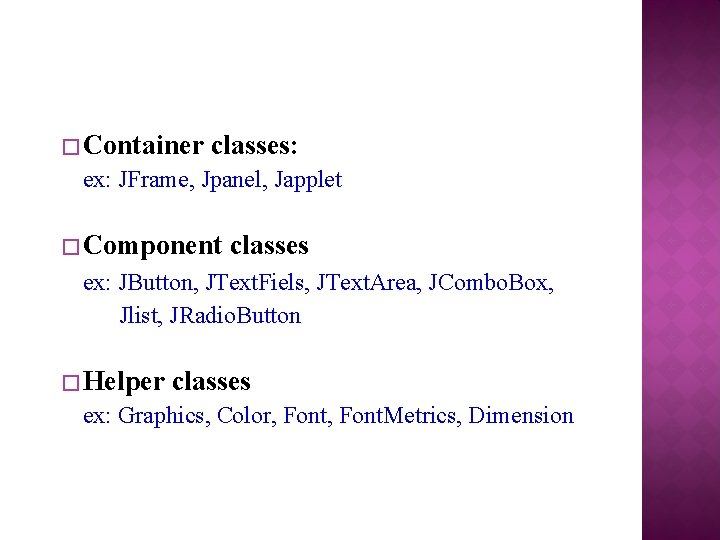
� Container classes: ex: JFrame, Jpanel, Japplet � Component classes ex: JButton, JText. Fiels, JText. Area, JCombo. Box, Jlist, JRadio. Button � Helper classes ex: Graphics, Color, Font. Metrics, Dimension
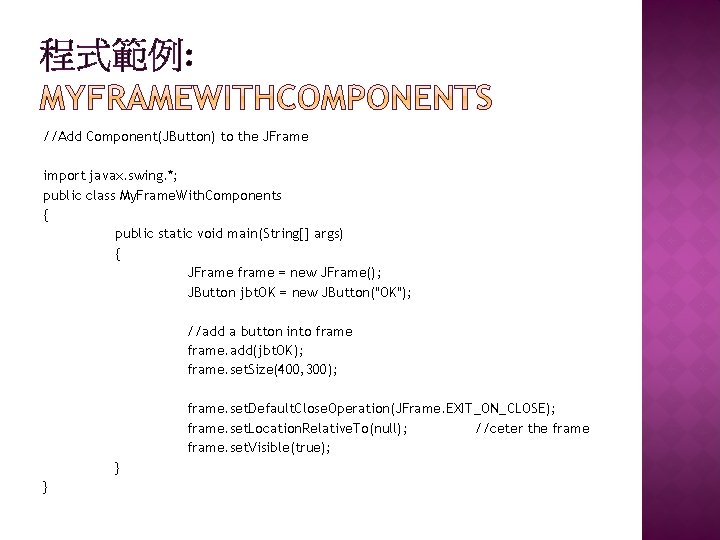
程式範例: //Add Component(JButton) to the JFrame import javax. swing. *; public class My. Frame. With. Components { public static void main(String[] args) { JFrame frame = new JFrame(); JButton jbt. OK = new JButton("OK"); //add a button into frame. add(jbt. OK); frame. set. Size(400, 300); frame. set. Default. Close. Operation(JFrame. EXIT_ON_CLOSE); frame. set. Location. Relative. To(null); //ceter the frame. set. Visible(true); } }
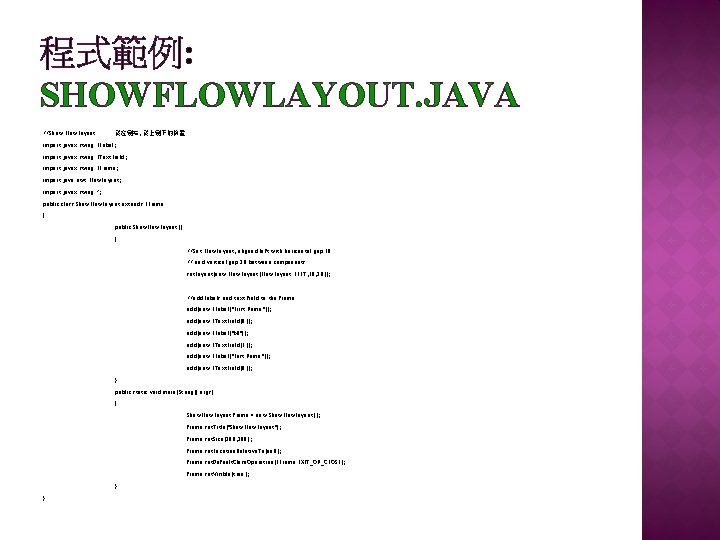
程式範例: SHOWFLOWLAYOUT. JAVA //Show Flow. Layout 從左到右, 從上到下的佈置 import javax. swing. JLabel; import javax. swing. JText. Field; import javax. swing. JFrame; import java. awt. Flow. Layout; import javax. swing. *; public class Show. Flow. Layout extends JFrame { public Show. Flow. Layout() { //Set Flow. Layout, aligned left with horizontal gap 10 // and vertical gap 20 between components set. Layout(new Flow. Layout(Flow. Layout. LEFT, 10, 20)); //add labels and text field to the frame add(new JLabel("First Name")); add(new JText. Field(8)); add(new JLabel("MI")); add(new JText. Field(1)); add(new JLabel("Last Name")); add(new JText. Field(8)); } public static void main(String[] args) { Show. Flow. Layout frame = new Show. Flow. Layout(); frame. set. Title("Show. Flow. Layout"); frame. set. Size(200, 200); frame. set. Location. Relative. To(null); frame. set. Default. Close. Operation(JFrame. EXIT_ON_CLOSE); frame. set. Visible(true); } }
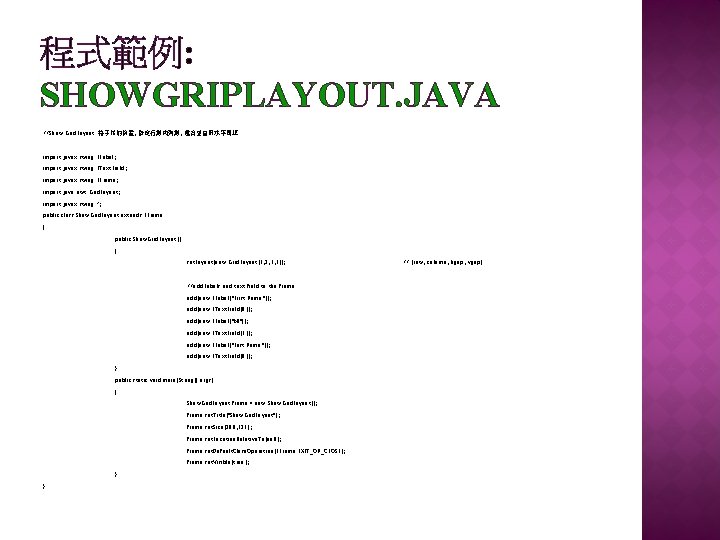
程式範例: SHOWGRIPLAYOUT. JAVA //Show Grid. Layout 格子狀的佈置, 指定行數和列數, 還有垂直跟水平間距 import javax. swing. JLabel; import javax. swing. JText. Field; import javax. swing. JFrame; import java. awt. Grid. Layout; import javax. swing. *; public class Show. Grid. Layout extends JFrame { public Show. Grid. Layout() { set. Layout(new Grid. Layout(3, 2, 5, 5)); //add labels and text field to the frame add(new JLabel("First Name")); add(new JText. Field(8)); add(new JLabel("MI")); add(new JText. Field(1)); add(new JLabel("Last Name")); add(new JText. Field(8)); } public static void main(String[] args) { Show. Grid. Layout frame = new Show. Grid. Layout(); frame. set. Title("Show. Grid. Layout"); frame. set. Size(200, 125); frame. set. Location. Relative. To(null); frame. set. Default. Close. Operation(JFrame. EXIT_ON_CLOSE); frame. set. Visible(true); } } // (row, column, hgap, vgap)
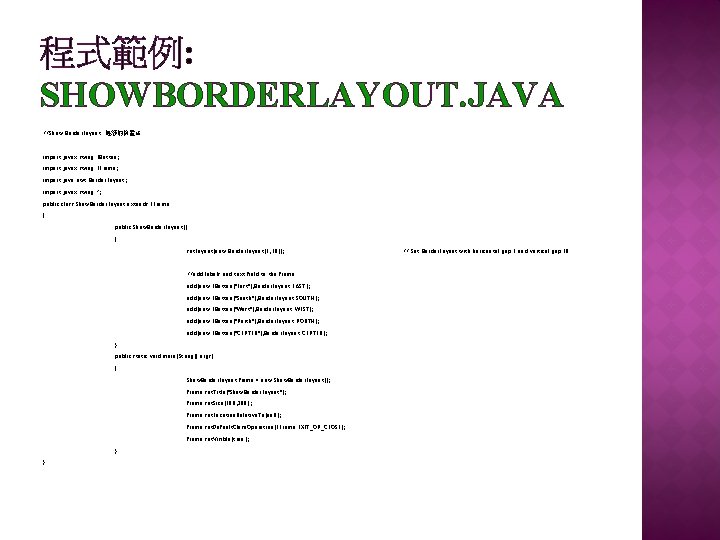
程式範例: SHOWBORDERLAYOUT. JAVA //Show Border. Layout 邊緣的佈置法 import javax. swing. JButton; import javax. swing. JFrame; import java. awt. Border. Layout; import javax. swing. *; public class Show. Border. Layout extends JFrame { public Show. Border. Layout() { set. Layout(new Border. Layout(5, 10)); //add labels and text field to the frame add(new JButton("East"), Border. Layout. EAST); add(new JButton("South"), Border. Layout. SOUTH); add(new JButton("West"), Border. Layout. WEST); add(new JButton("North"), Border. Layout. NORTH); add(new JButton("CENTER"), Border. Layout. CENTER); } public static void main(String[] args) { Show. Border. Layout frame = new Show. Border. Layout(); frame. set. Title("Show. Border. Layout"); frame. set. Size(300, 200); frame. set. Location. Relative. To(null); frame. set. Default. Close. Operation(JFrame. EXIT_ON_CLOSE); frame. set. Visible(true); } } // Set Border. Layout with horizontal gap 5 and vertical gap 10
� Java currently supports three image formats: GIF 、JPEG 、PNG Image. Icon icon = new Image. Icon(“image/us. gif”); � An image icon can be displayed in a label or a button using: new JLabel(image. Icon) new JButton(image. Icon)
程式範例: TESTIMAGEICON. JAVA // 圖形介面加入Image import javax. swing. *; import java. awt. *; public class Test. Image. Icon extends JFrame { private Image. Icon us. Icon = new Image. Icon(". /us. gif"); private Image. Icon my. Icon = new Image. Icon(". /my. jpg"); private Image. Icon fr. Icon = new Image. Icon(". /fr. gif"); private Image. Icon uk. Icon = new Image. Icon(". /uk. gif"); public Test. Image. Icon() { set. Layout(new Grid. Layout(1, 4, 5, 5)); add(new JLabel(us. Icon)); add(new JLabel(my. Icon)); add(new JButton(fr. Icon)); add(new JButton(uk. Icon)); } /** Main method */ public static void main(String[] args) { Test. Image. Icon frame = new Test. Image. Icon(); frame. set. Title("Test. Image. Icon"); frame. set. Location. Relative. To(null); // Center the frame. set. Default. Close. Operation(JFrame. EXIT_ON_CLOSE); frame. set. Size(1200, 250); frame. set. Visible(true); } }
� Ppt下載: � http: //oss. csie. fju. edu. tw/~jastine 01/ppt. html