
2 D3 D ambient noise tomography processing using
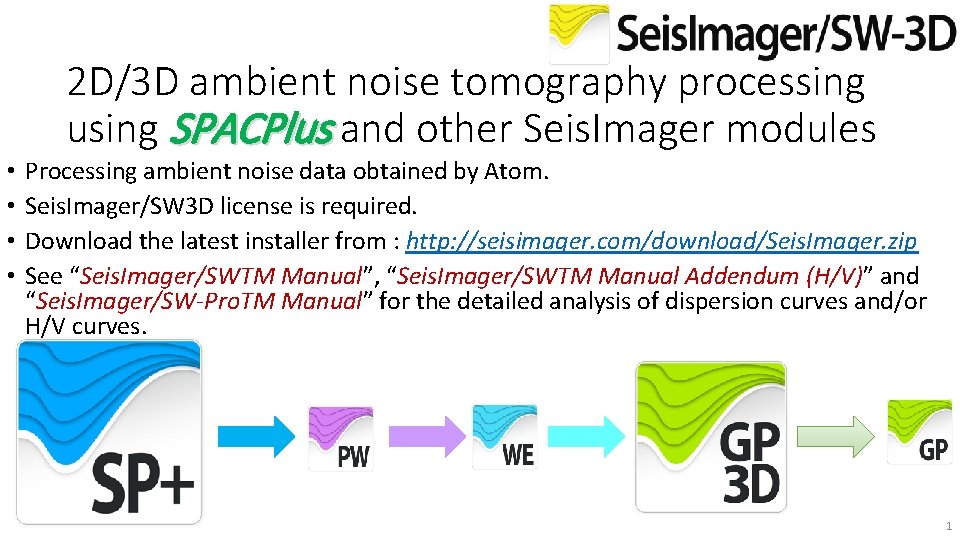
• • 2 D/3 D ambient noise tomography processing using SPACPlus and other Seis. Imager modules Processing ambient noise data obtained by Atom. Seis. Imager/SW 3 D license is required. Download the latest installer from : http: //seisimager. com/download/Seis. Imager. zip See “Seis. Imager/SWTM Manual”, “Seis. Imager/SWTM Manual Addendum (H/V)” and “Seis. Imager/SW-Pro. TM Manual” for the detailed analysis of dispersion curves and/or H/V curves. 1
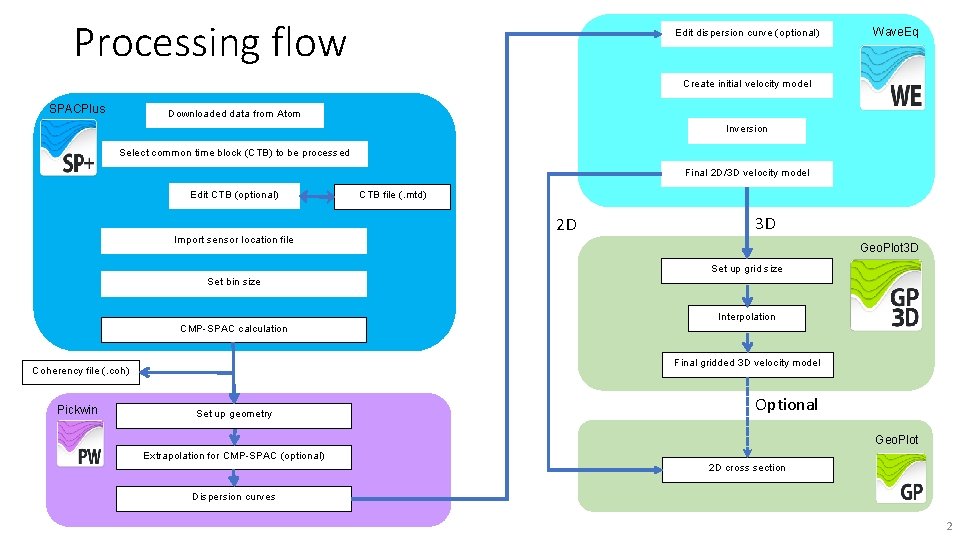
Processing flow Edit dispersion curve (optional) Wave. Eq Create initial velocity model SPACPlus Downloaded data from Atom Inversion Select common time block (CTB) to be processed Final 2 D/3 D velocity model Edit CTB (optional) Import sensor location file CTB file (. mtd) 3 D 2 D Geo. Plot 3 D Set up grid size Set bin size Interpolation CMP-SPAC calculation Final gridded 3 D velocity model Coherency file (. coh) Pickwin Optional Set up geometry Geo. Plot Extrapolation for CMP-SPAC (optional) 2 D cross section Dispersion curves 2
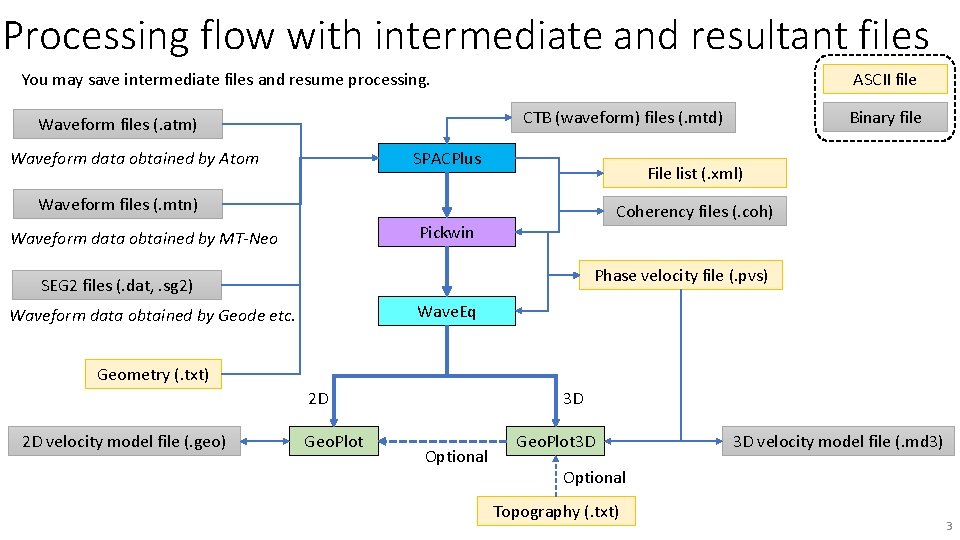
Processing flow with intermediate and resultant files You may save intermediate files and resume processing. ASCII file Binary file CTB (waveform) files (. mtd) Waveform files (. atm) Waveform data obtained by Atom SPACPlus File list (. xml) Waveform files (. mtn) Coherency files (. coh) Pickwin Waveform data obtained by MT-Neo Phase velocity file (. pvs) SEG 2 files (. dat, . sg 2) Wave. Eq Waveform data obtained by Geode etc. Geometry (. txt) 2 D 2 D velocity model file (. geo) Geo. Plot 3 D Optional Geo. Plot 3 D 3 D velocity model file (. md 3) Optional Topography (. txt) 3
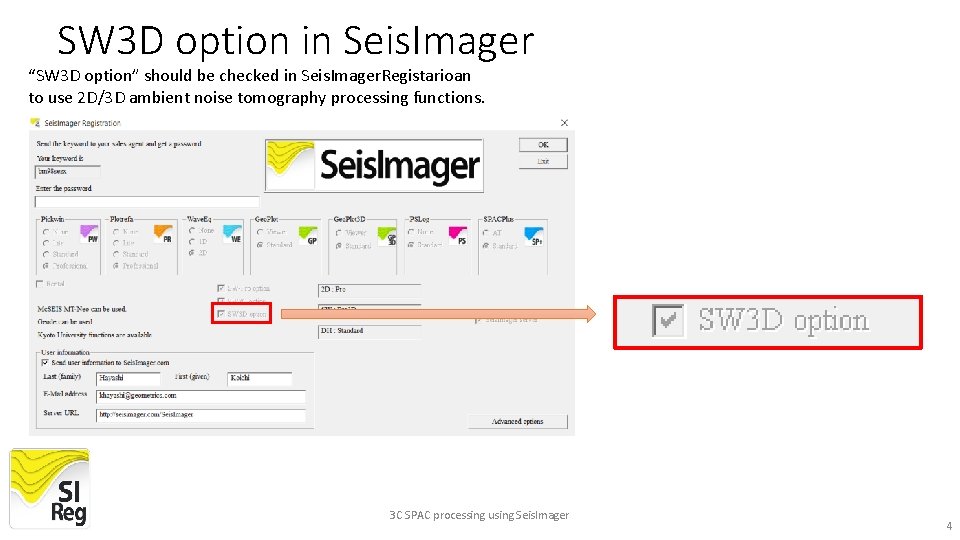
SW 3 D option in Seis. Imager “SW 3 D option” should be checked in Seis. Imager. Registarioan to use 2 D/3 D ambient noise tomography processing functions. 3 C SPAC processing using Seis. Imager 4
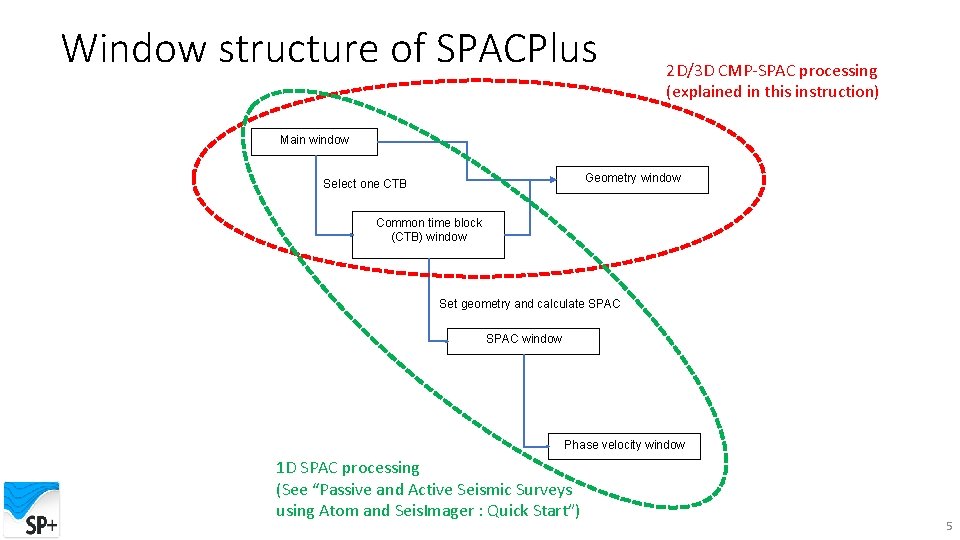
Window structure of SPACPlus 2 D/3 D CMP-SPAC processing (explained in this instruction) Main window Geometry window Select one CTB Common time block (CTB) window Set geometry and calculate SPAC window Phase velocity window 1 D SPAC processing (See “Passive and Active Seismic Surveys using Atom and Seis. Imager : Quick Start”) 5
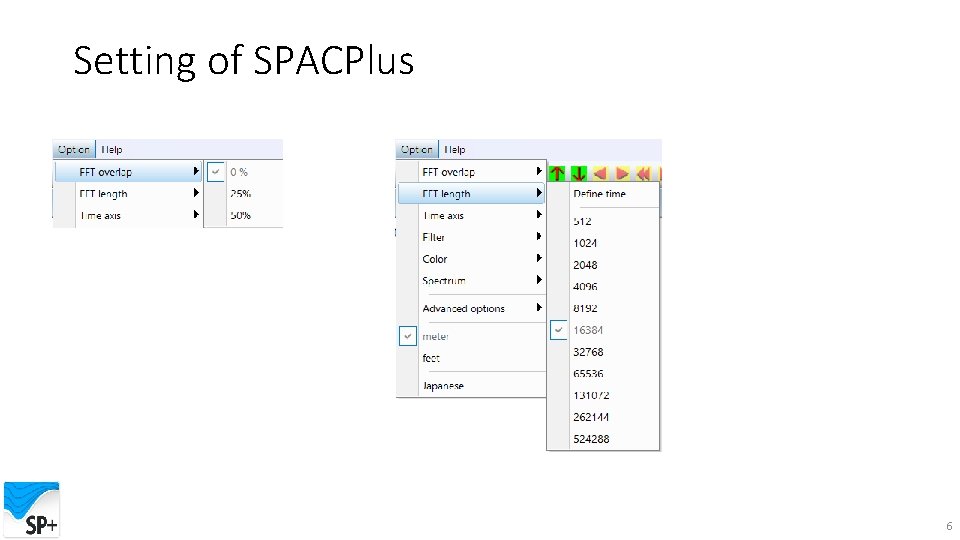
Setting of SPACPlus 6
1. Import waveform data files 7
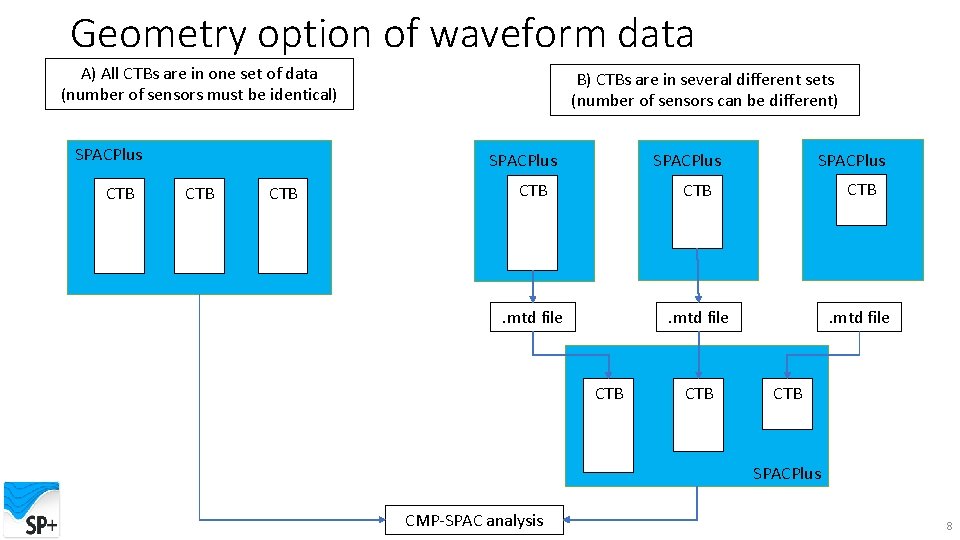
Geometry option of waveform data A) All CTBs are in one set of data (number of sensors must be identical) SPACPlus CTB B) CTBs are in several different sets (number of sensors can be different) CTB SPACPlus CTB CTB . mtd file CTB CTB SPACPlus CMP-SPAC analysis 8
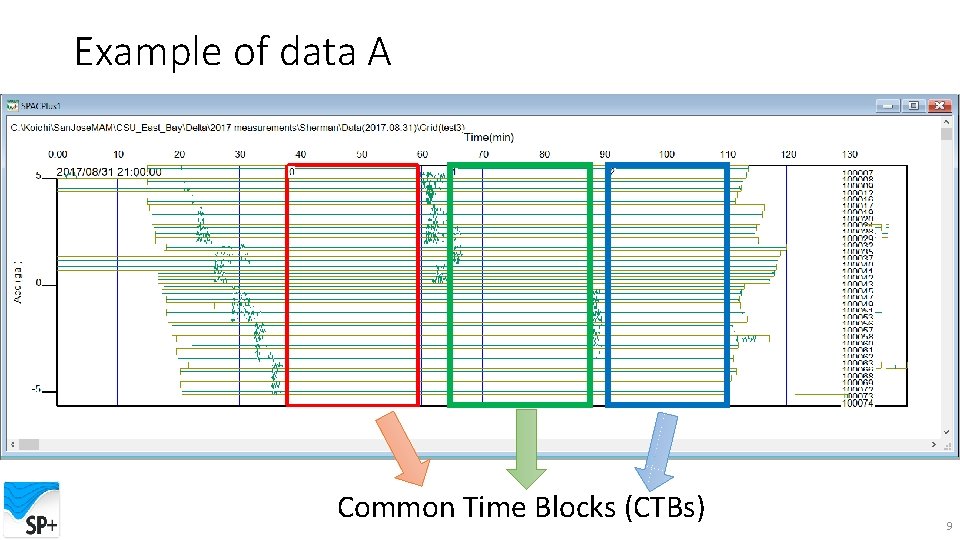
Example of data A Common Time Blocks (CTBs) 9
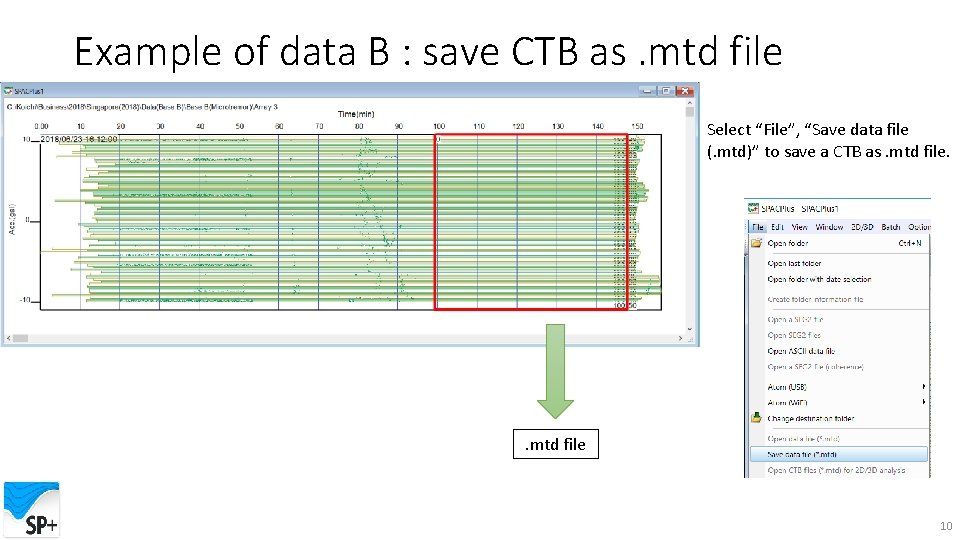
Example of data B : save CTB as. mtd file Select “File”, “Save data file (. mtd)” to save a CTB as. mtd file 10
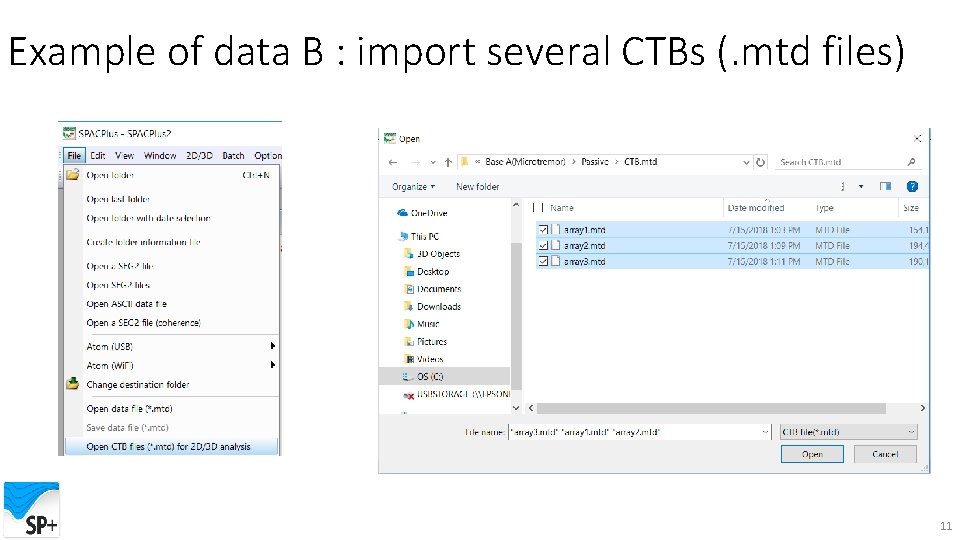
Example of data B : import several CTBs (. mtd files) 11
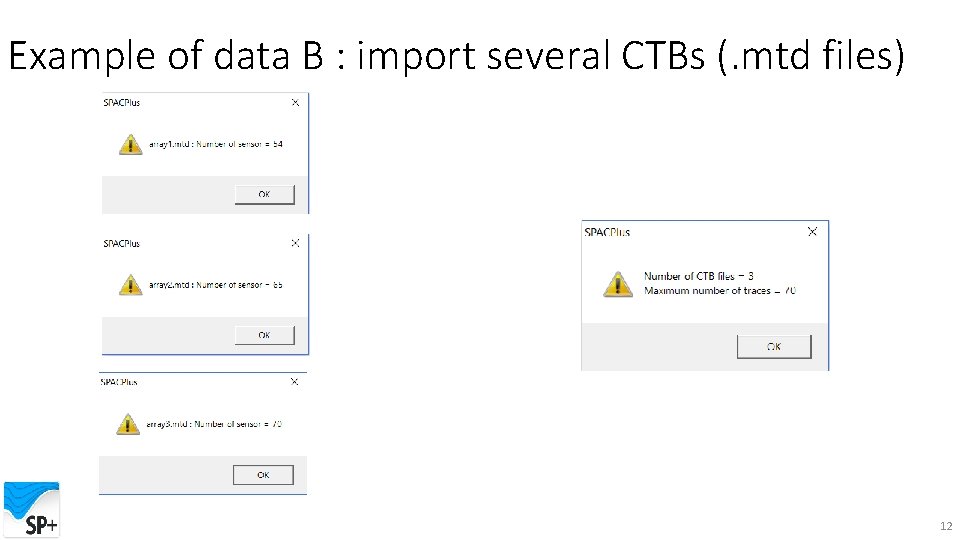
Example of data B : import several CTBs (. mtd files) 12
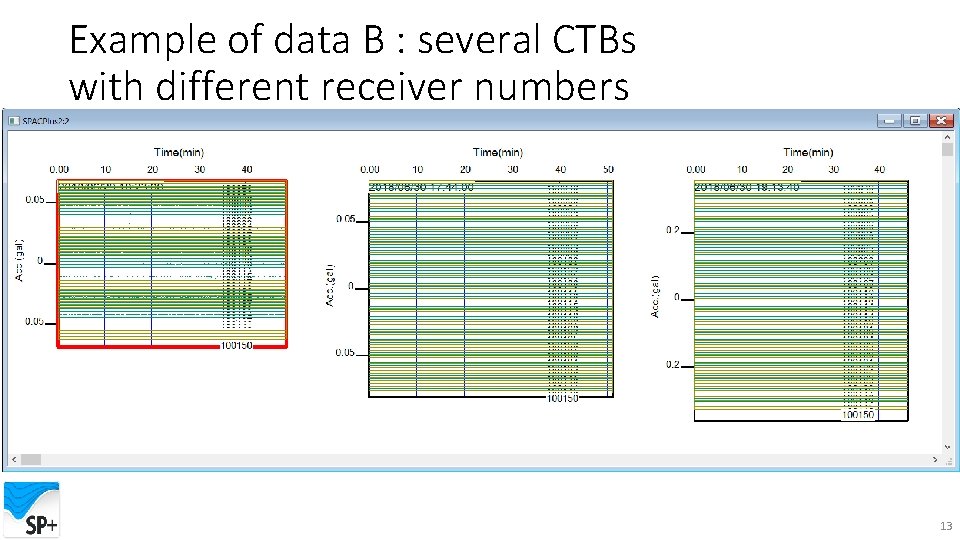
Example of data B : several CTBs with different receiver numbers 13
2. Prepare and import a geometry file 14
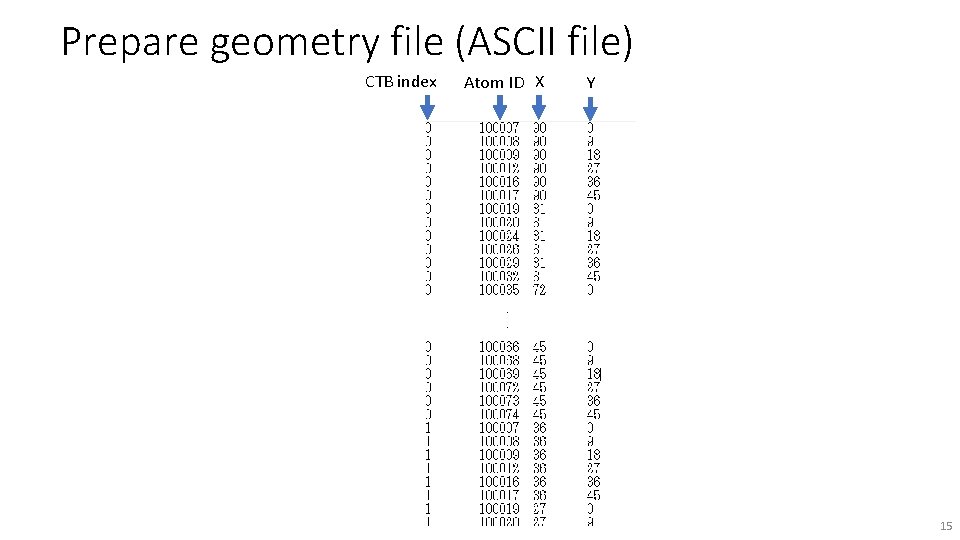
Prepare geometry file (ASCII file) CTB index Atom ID X Y . . 15
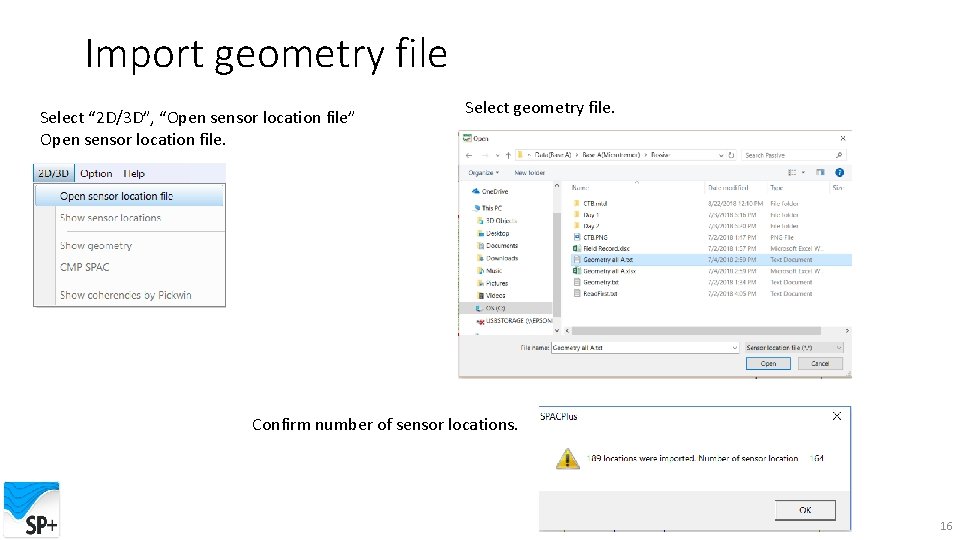
Import geometry file Select “ 2 D/3 D”, “Open sensor location file” Open sensor location file. Select geometry file. Confirm number of sensor locations. 16
3. Show and edit sensor locations (geometry) 17
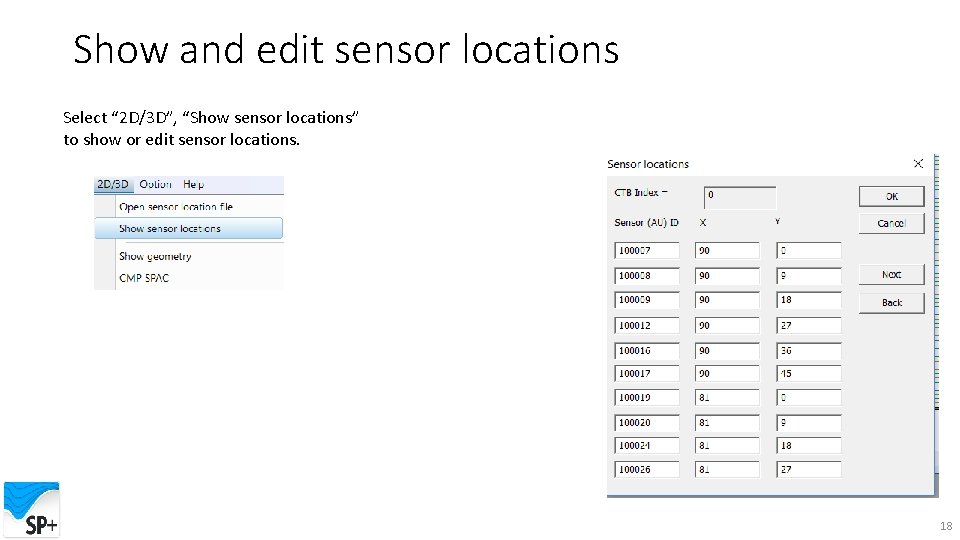
Show and edit sensor locations Select “ 2 D/3 D”, “Show sensor locations” to show or edit sensor locations. 18
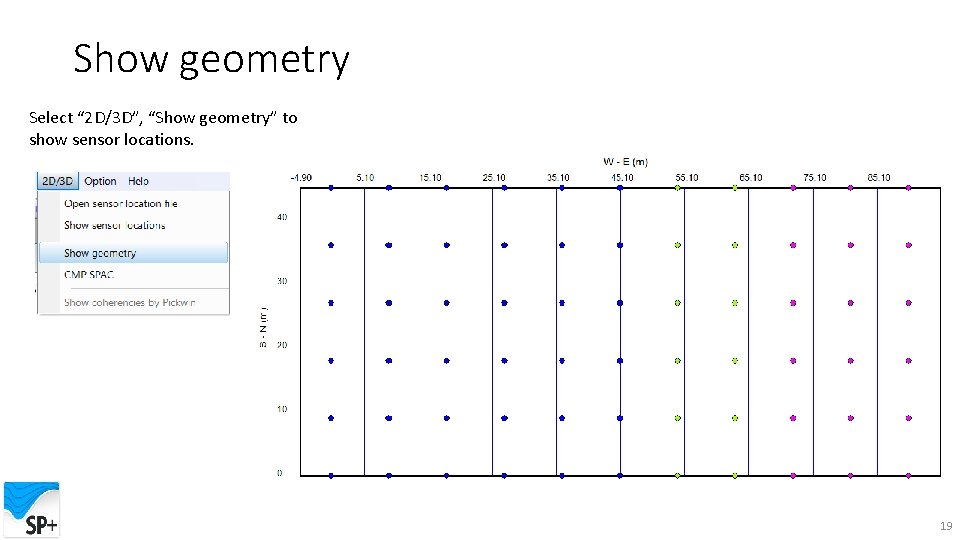
Show geometry Select “ 2 D/3 D”, “Show geometry” to show sensor locations. 19

4. Set up bin size 20
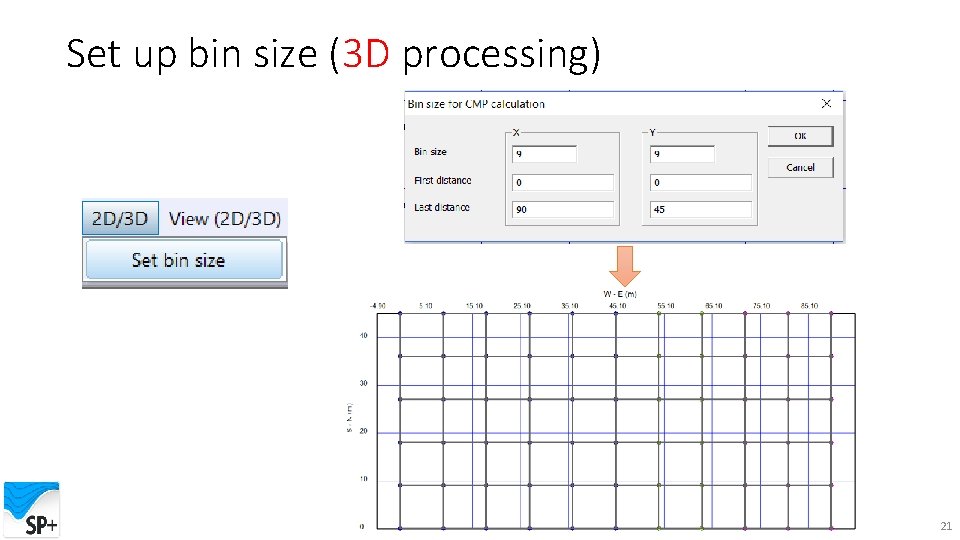
Set up bin size (3 D processing) 21
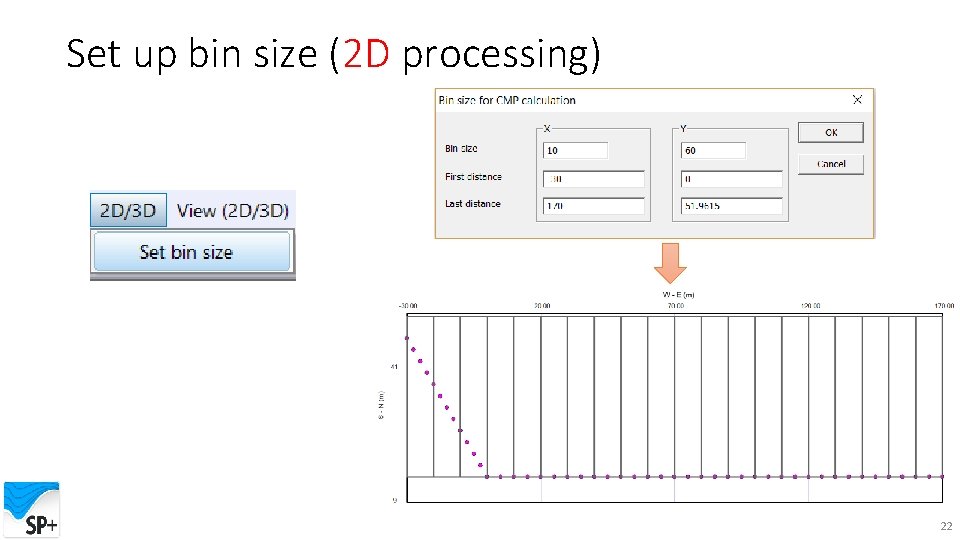
Set up bin size (2 D processing) 22
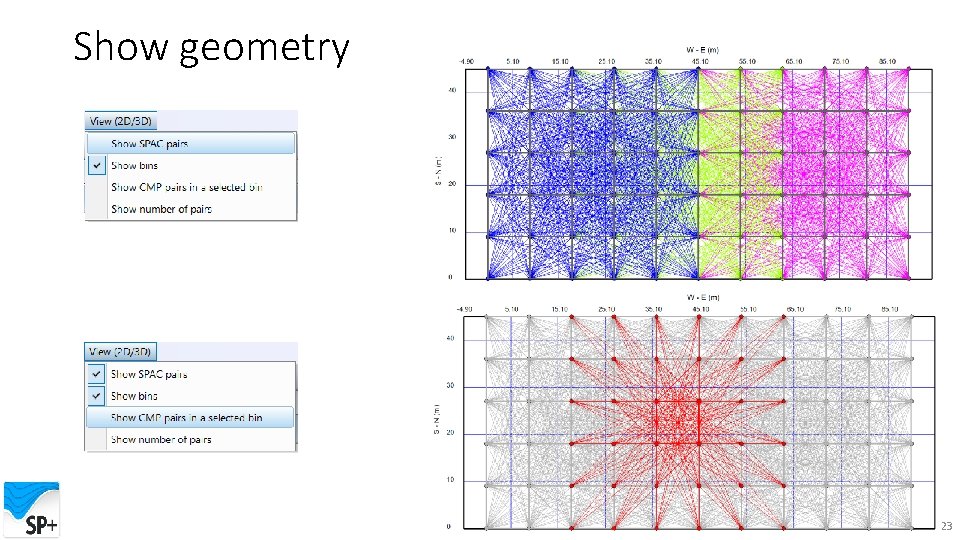
Show geometry 23
5. Calculate CMP-SPACs 24
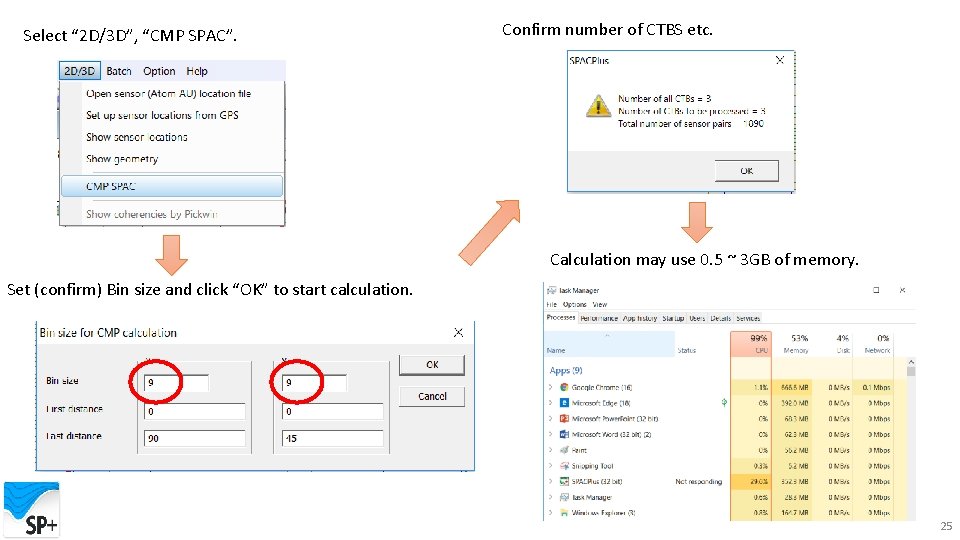
Select “ 2 D/3 D”, “CMP SPAC”. Confirm number of CTBS etc. Calculation may use 0. 5 ~ 3 GB of memory. Set (confirm) Bin size and click “OK” to start calculation. 25
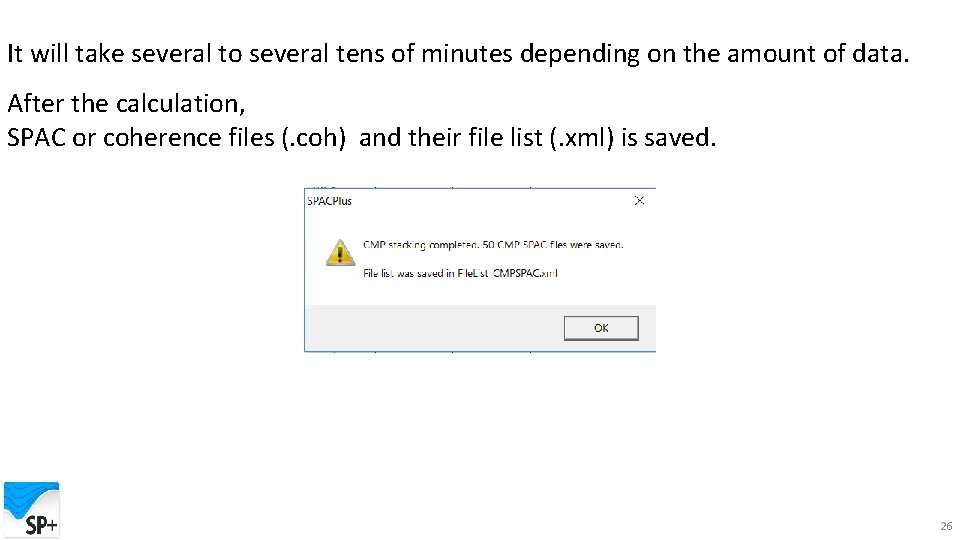
It will take several to several tens of minutes depending on the amount of data. After the calculation, SPAC or coherence files (. coh) and their file list (. xml) is saved. 26
6. Show CMP-SPACs by Pickwin 27
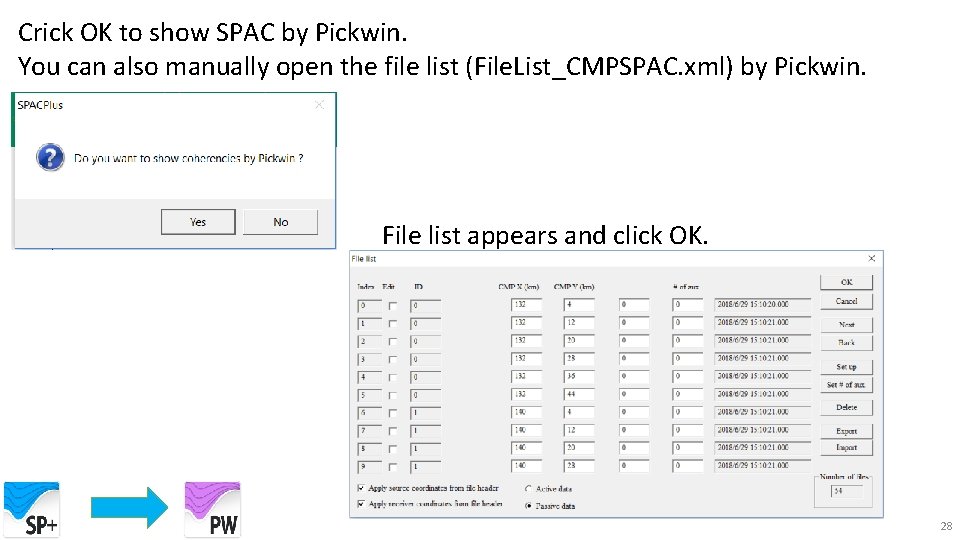
Crick OK to show SPAC by Pickwin. You can also manually open the file list (File. List_CMPSPAC. xml) by Pickwin. File list appears and click OK. 28
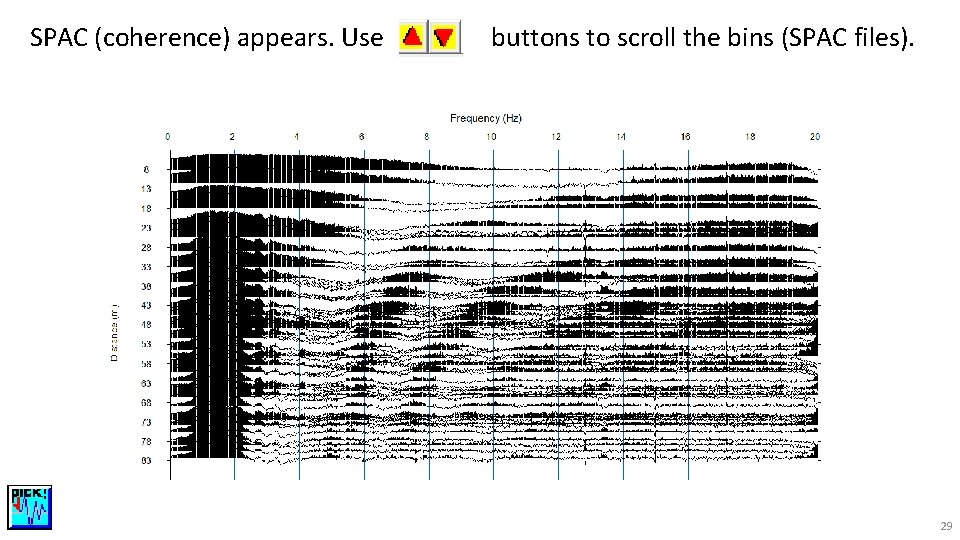
SPAC (coherence) appears. Use buttons to scroll the bins (SPAC files). 29
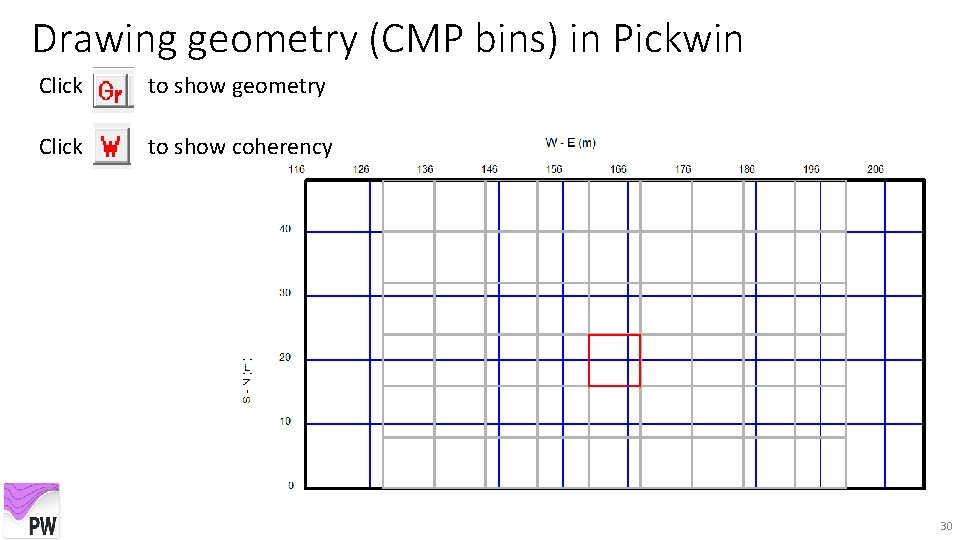
Drawing geometry (CMP bins) in Pickwin Click to show geometry Click to show coherency 30
6. 1 Set up geometry and extrapolate CMPSPAC (optional) If the number of coherencies have large difference among CMP-SPACs, the coherencies can be extrapolated to calculate stable and consistent dispersion curves. If you do not need to do the extrapolation, proceed step 7. 31
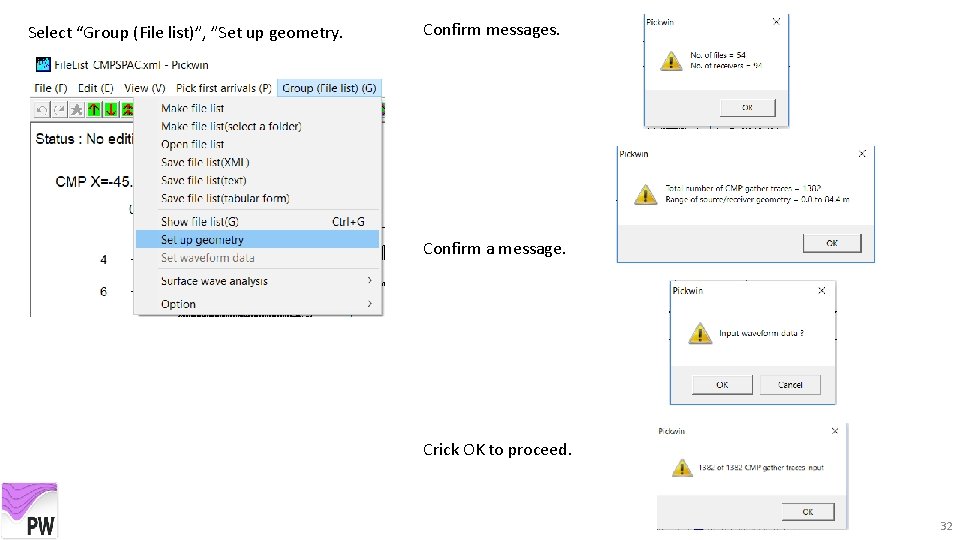
Select “Group (File list)”, ”Set up geometry. Confirm messages. Confirm a message. Crick OK to proceed. 32
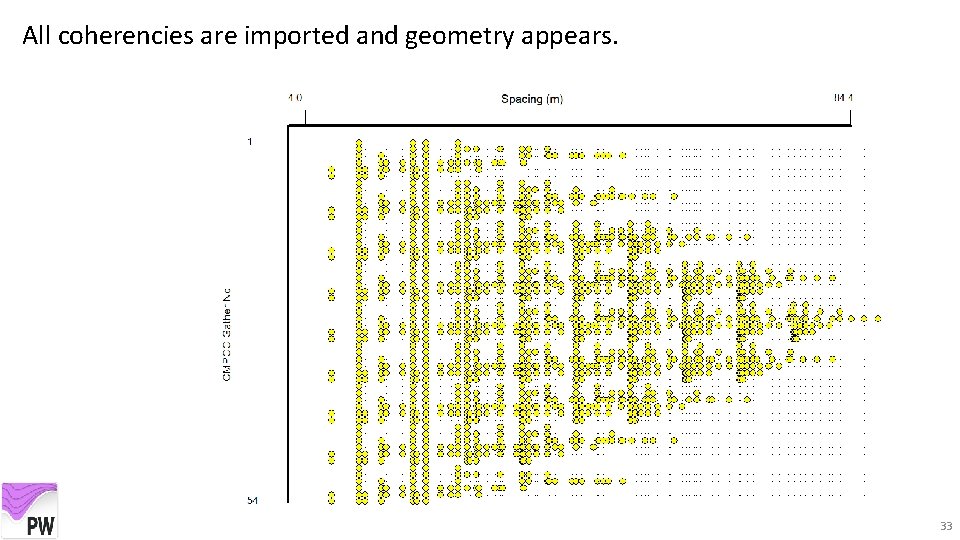
All coherencies are imported and geometry appears. 33
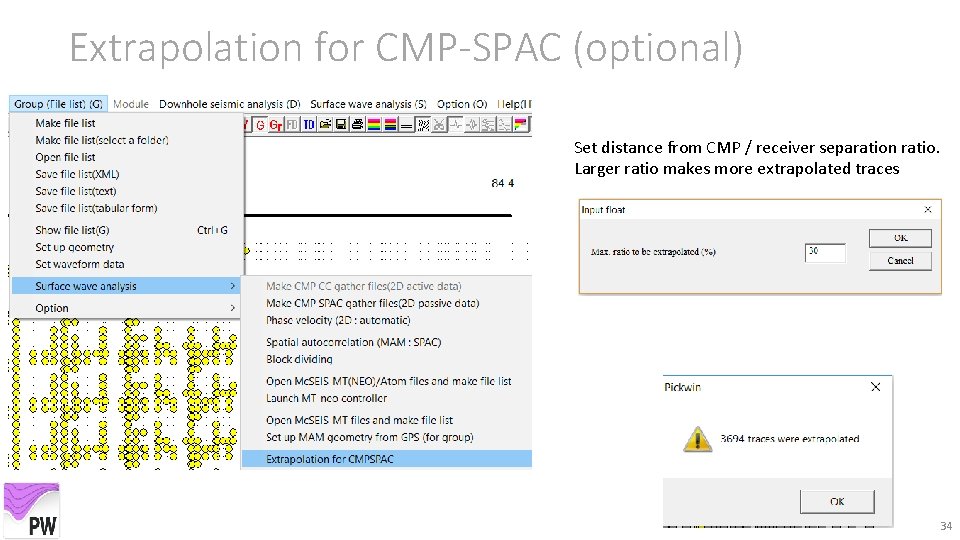
Extrapolation for CMP-SPAC (optional) Set distance from CMP / receiver separation ratio. Larger ratio makes more extrapolated traces 34
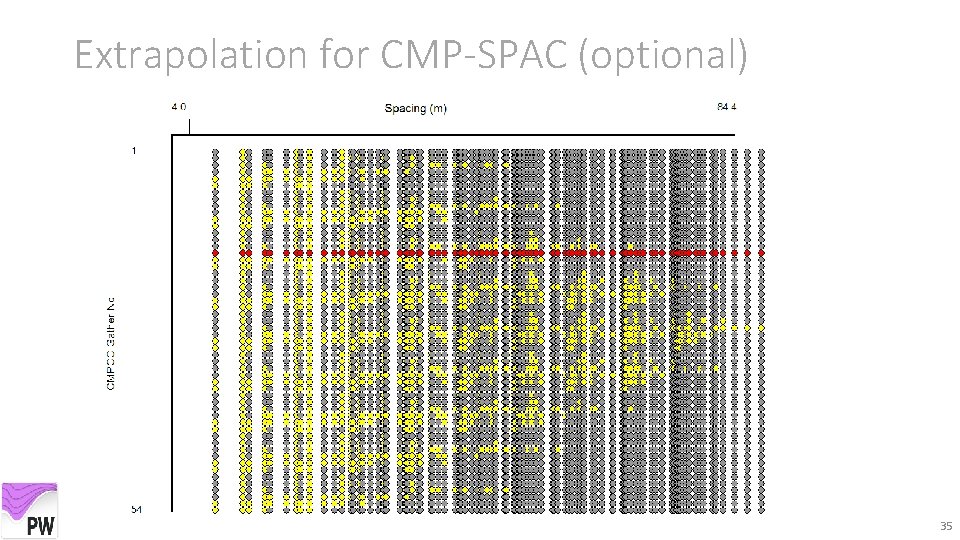
Extrapolation for CMP-SPAC (optional) 35
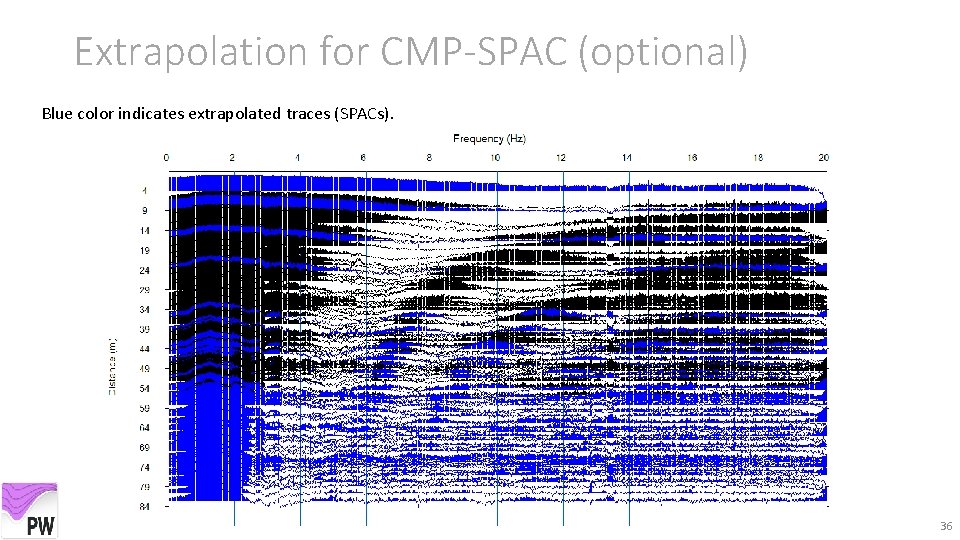
Extrapolation for CMP-SPAC (optional) Blue color indicates extrapolated traces (SPACs). 36
7. Calculate dispersion curves 37
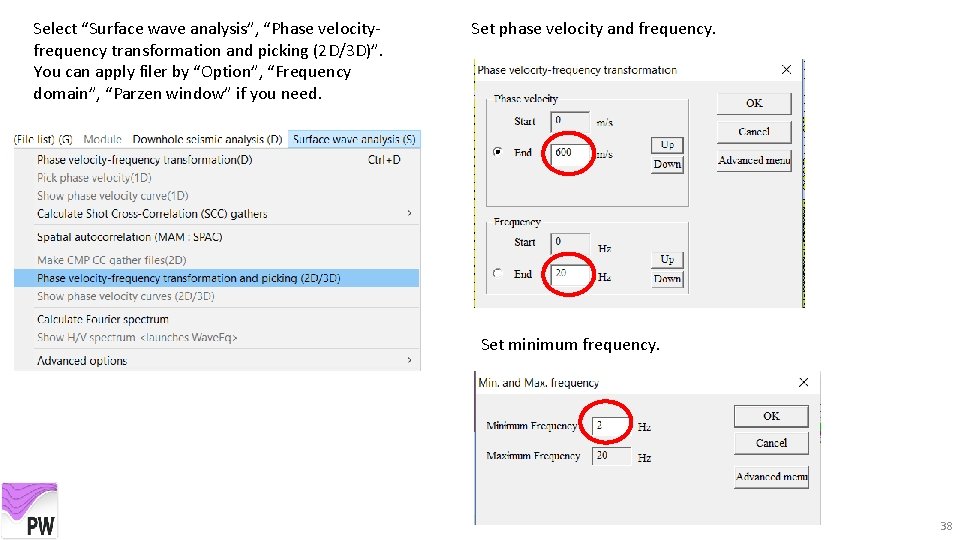
Select “Surface wave analysis”, “Phase velocityfrequency transformation and picking (2 D/3 D)”. You can apply filer by “Option”, “Frequency domain”, “Parzen window” if you need. Set phase velocity and frequency. Set minimum frequency. 38
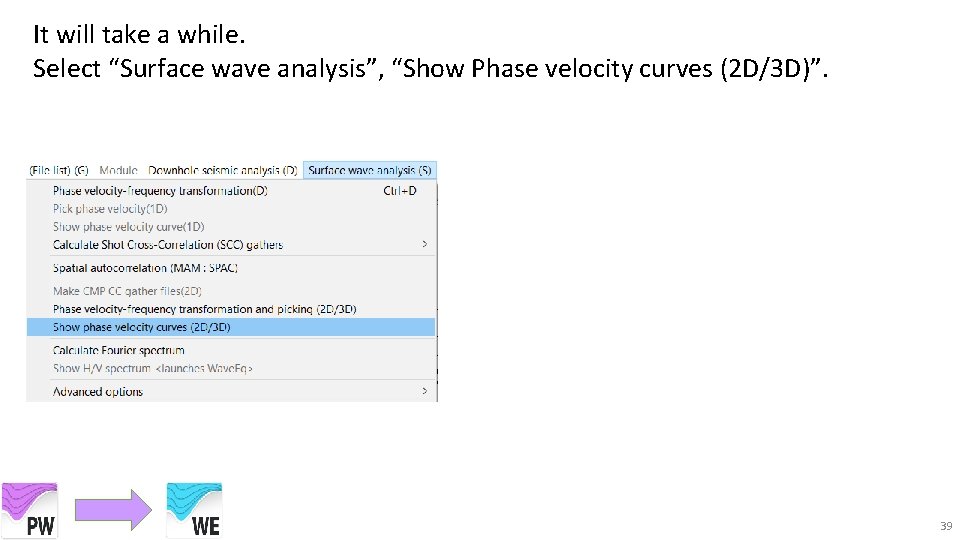
It will take a while. Select “Surface wave analysis”, “Show Phase velocity curves (2 D/3 D)”. 39
8. Show and edit dispersion curves by Wave. Eq 40
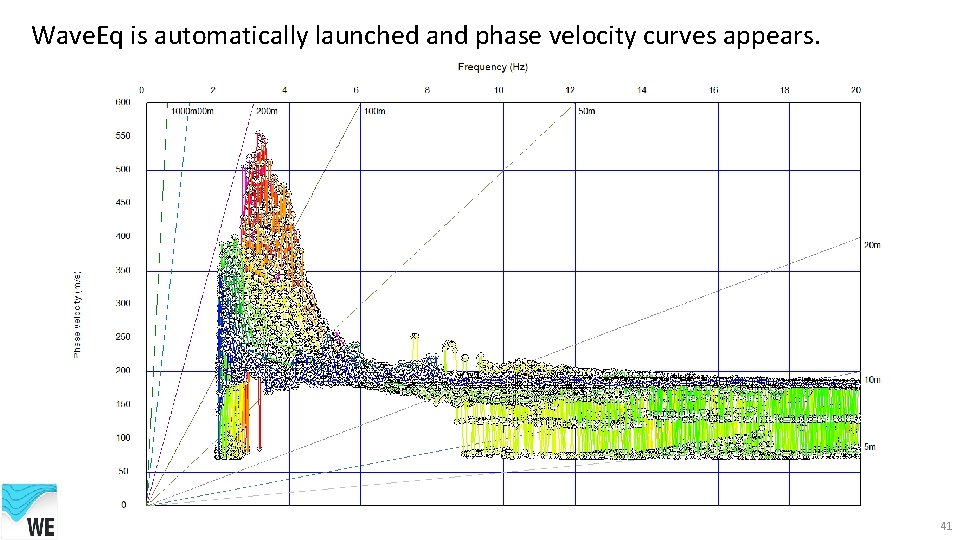
Wave. Eq is automatically launched and phase velocity curves appears. 41
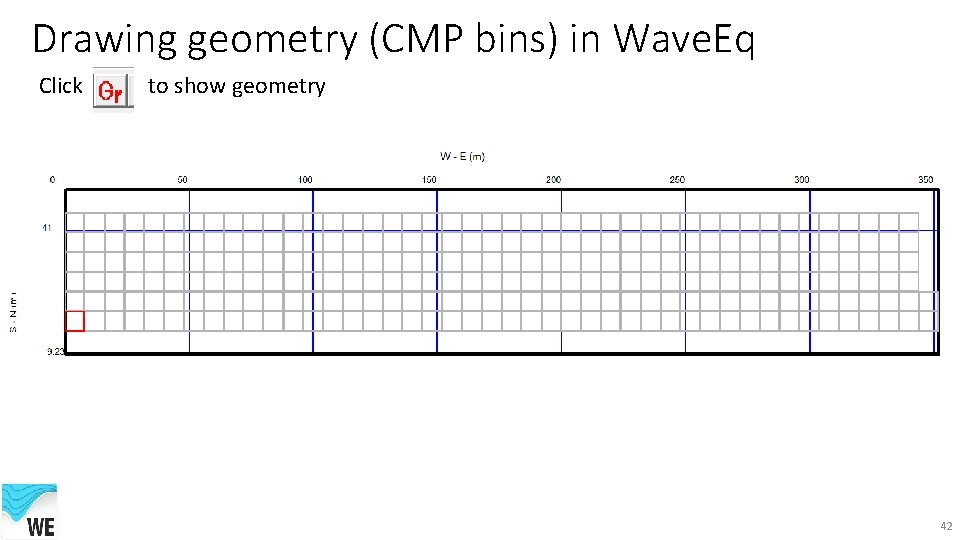
Drawing geometry (CMP bins) in Wave. Eq Click to show geometry 42
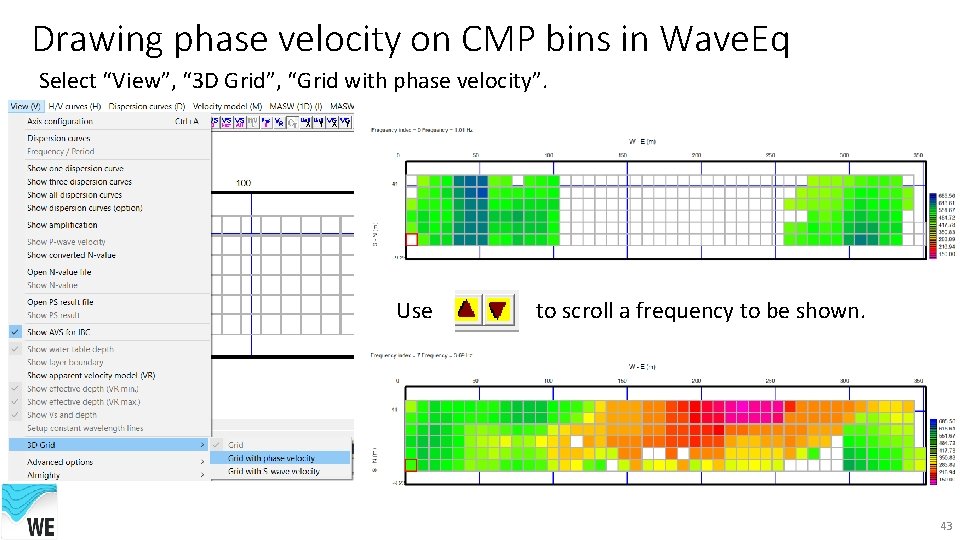
Drawing phase velocity on CMP bins in Wave. Eq Select “View”, “ 3 D Grid”, “Grid with phase velocity”. Use to scroll a frequency to be shown. 43
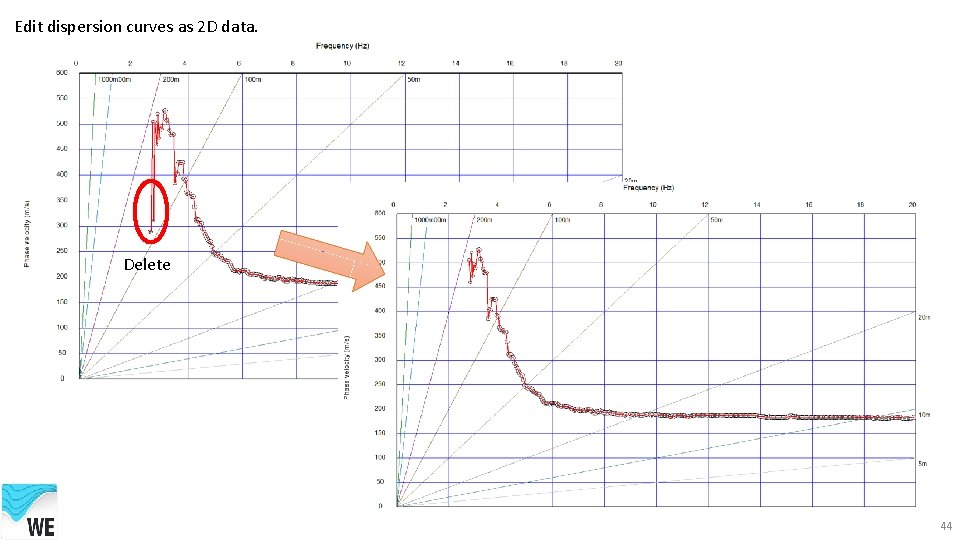
Edit dispersion curves as 2 D data. Delete 44
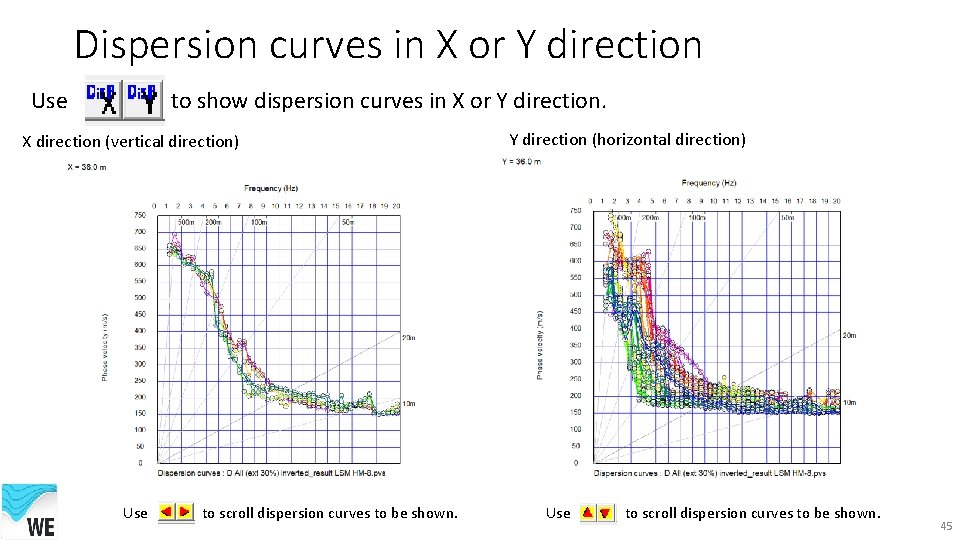
Dispersion curves in X or Y direction Use to show dispersion curves in X or Y direction. X direction (vertical direction) Use to scroll dispersion curves to be shown. Y direction (horizontal direction) Use to scroll dispersion curves to be shown. 45
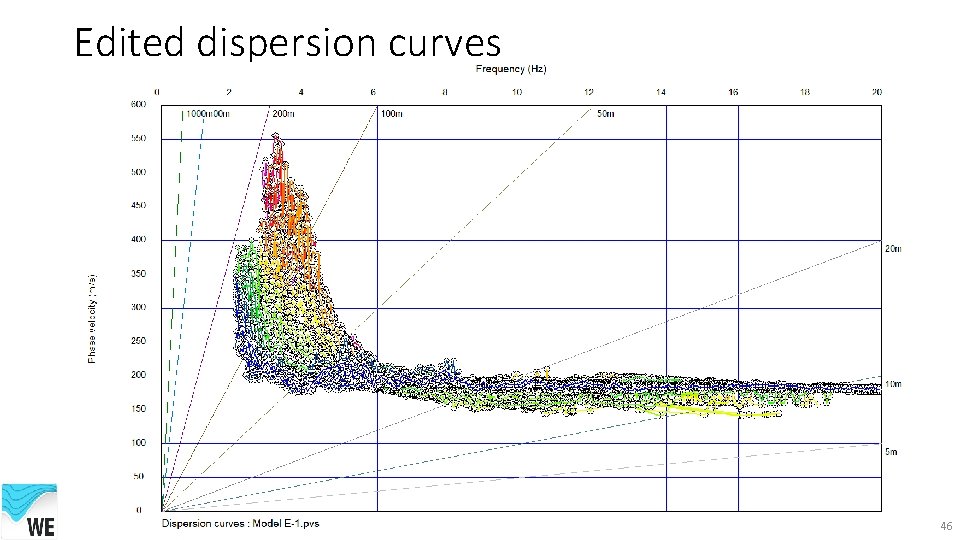
Edited dispersion curves 46
9. Create initial velocity model 47
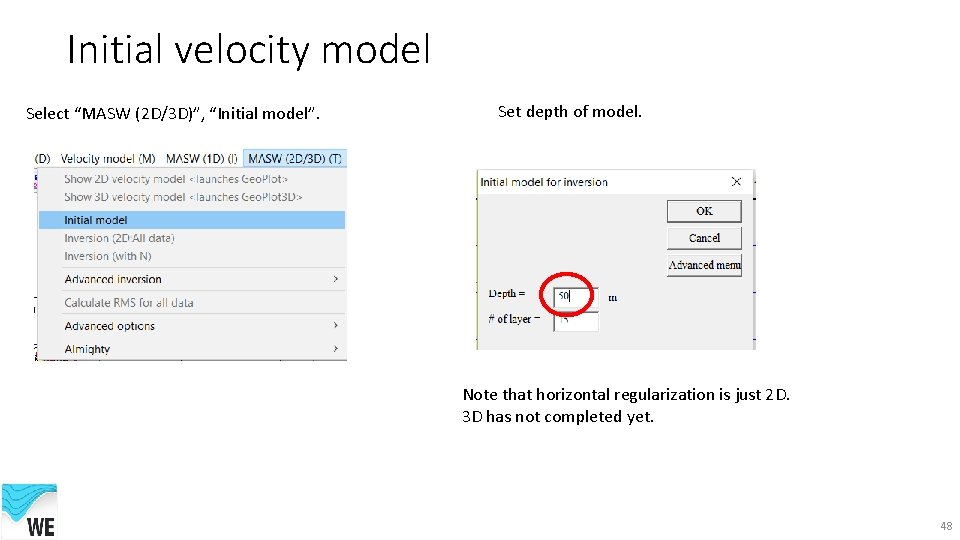
Initial velocity model Select “MASW (2 D/3 D)”, “Initial model”. Set depth of model. Note that horizontal regularization is just 2 D. 3 D has not completed yet. 48
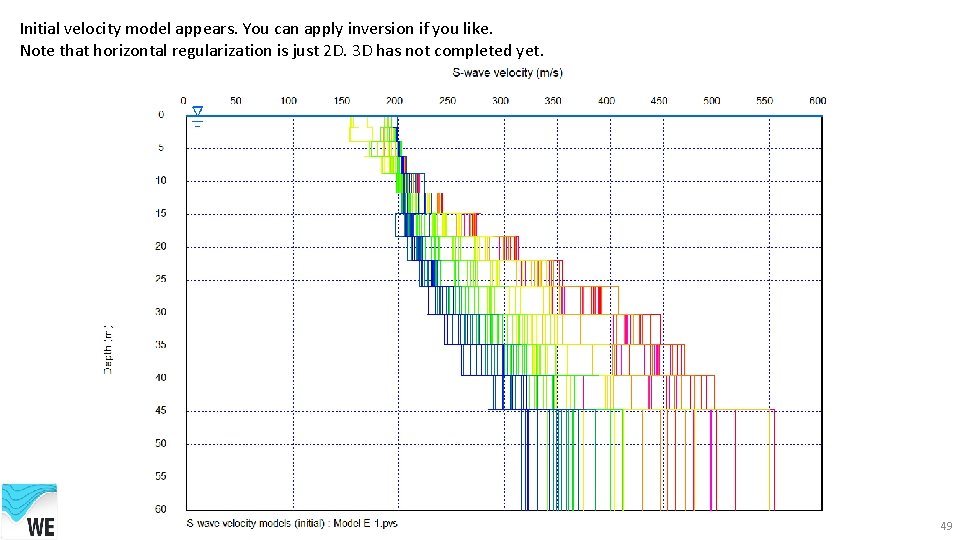
Initial velocity model appears. You can apply inversion if you like. Note that horizontal regularization is just 2 D. 3 D has not completed yet. 49
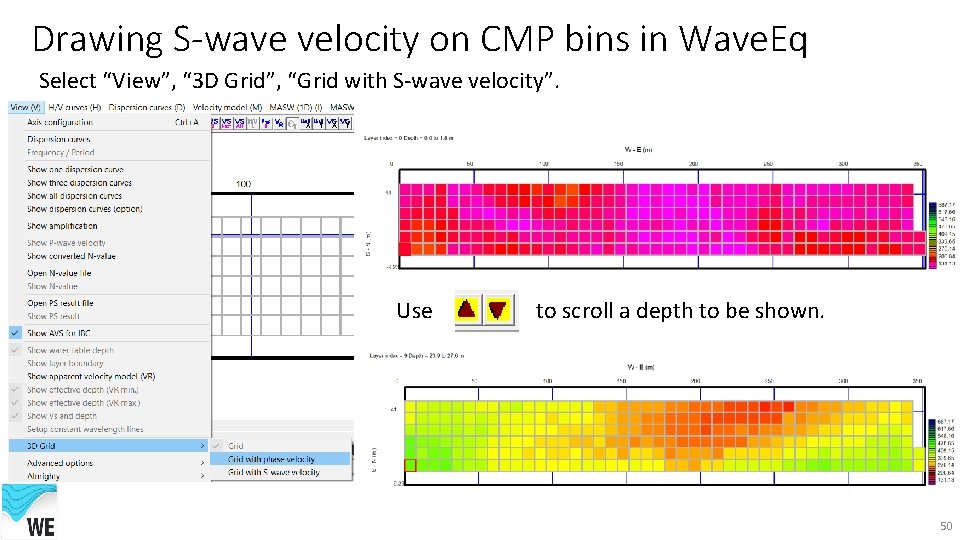
Drawing S-wave velocity on CMP bins in Wave. Eq Select “View”, “ 3 D Grid”, “Grid with S-wave velocity”. Use to scroll a depth to be shown. 50
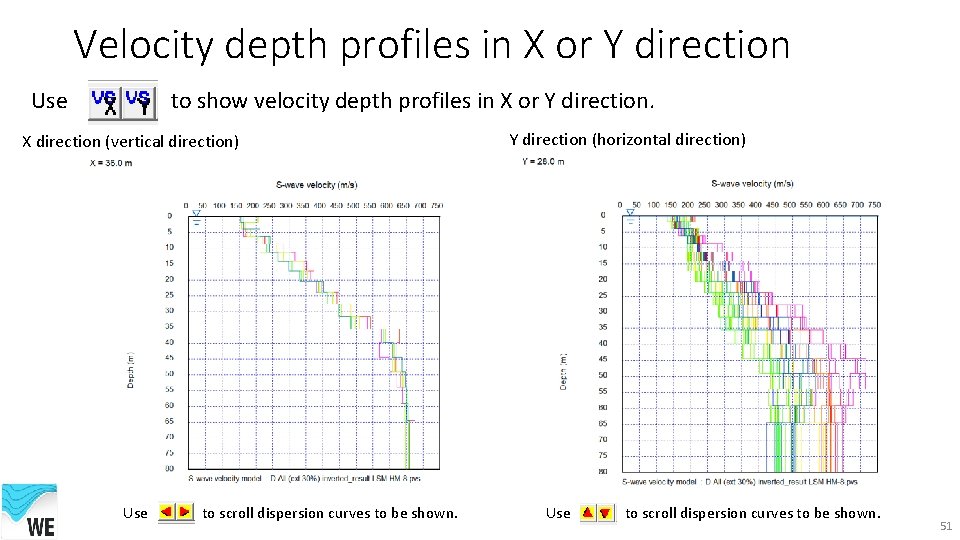
Velocity depth profiles in X or Y direction Use to show velocity depth profiles in X or Y direction. X direction (vertical direction) Use to scroll dispersion curves to be shown. Y direction (horizontal direction) Use to scroll dispersion curves to be shown. 51
10. Show 3 D velocity model by Geo. Plot 3 D 52
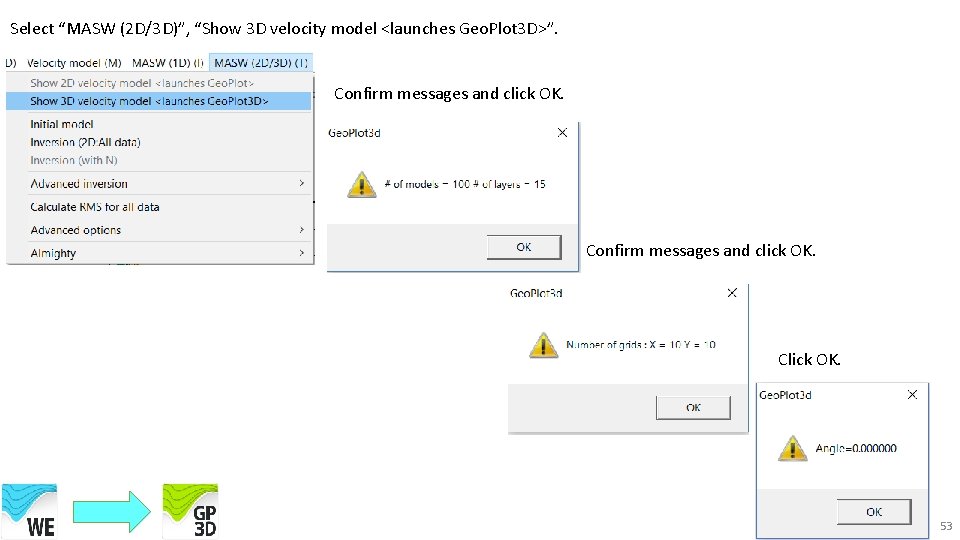
Select “MASW (2 D/3 D)”, “Show 3 D velocity model <launches Geo. Plot 3 D>”. Confirm messages and click OK. Click OK. 53
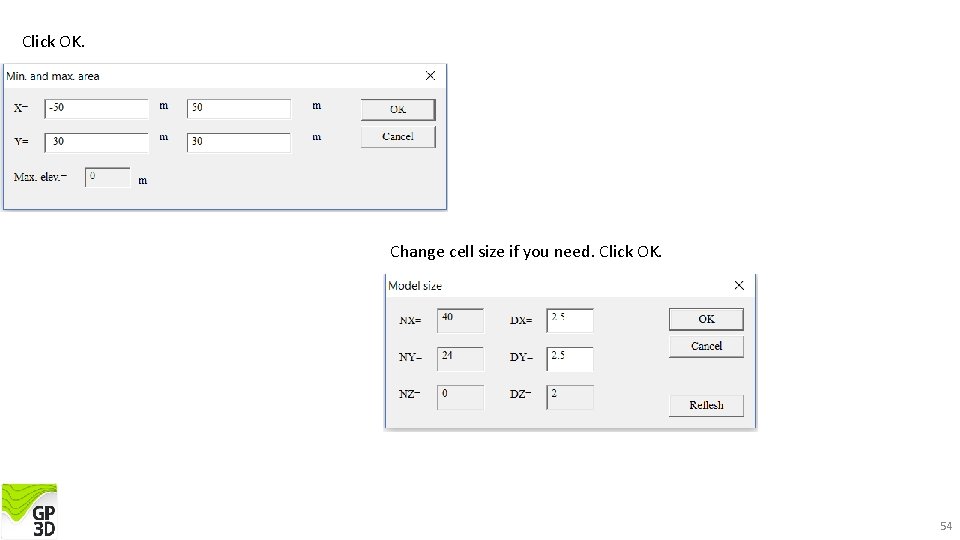
Click OK. Change cell size if you need. Click OK. 54
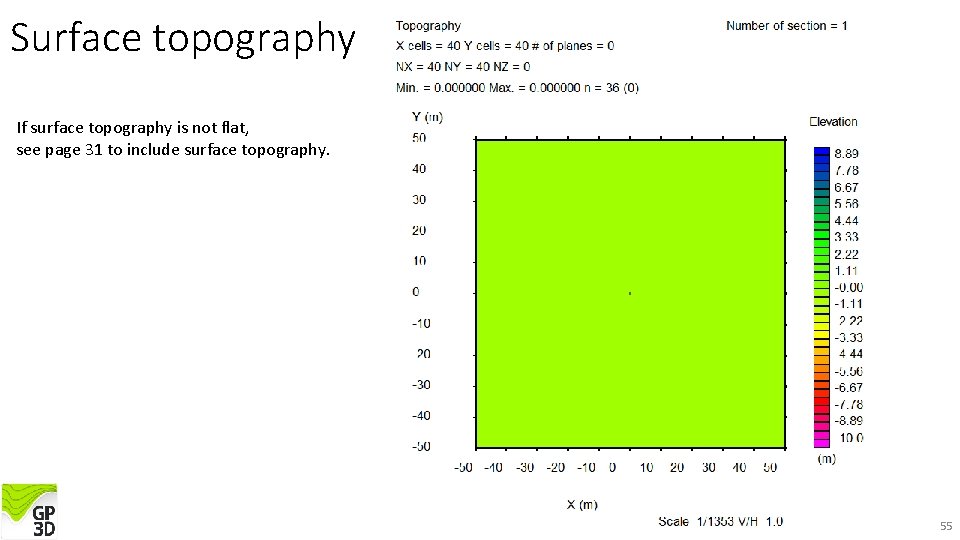
Surface topography If surface topography is not flat, see page 31 to include surface topography. 55
10. 1 Create 3 D velocity model by Geo. Plot 3 D 56
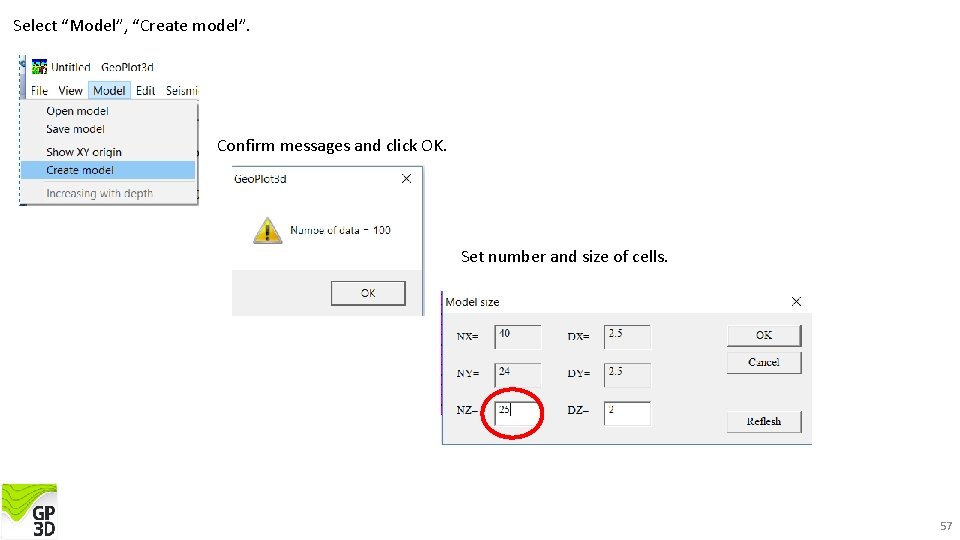
Select “Model”, “Create model”. Confirm messages and click OK. Set number and size of cells. 57
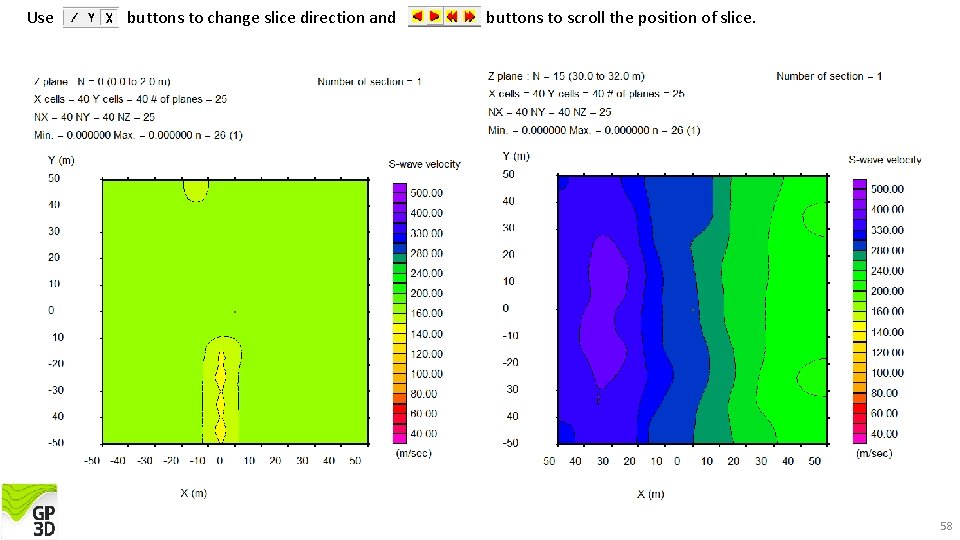
Use buttons to change slice direction and buttons to scroll the position of slice. 58
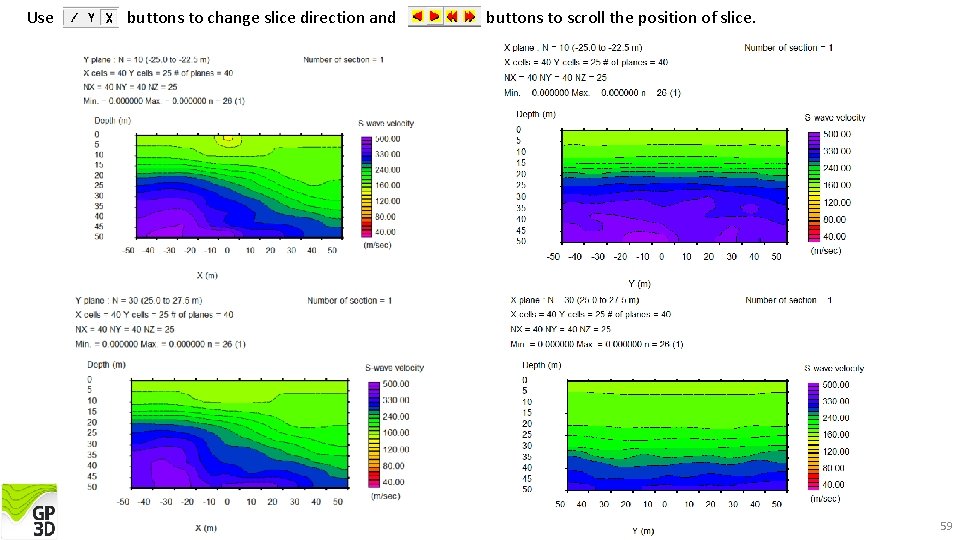
Use buttons to change slice direction and buttons to scroll the position of slice. 59
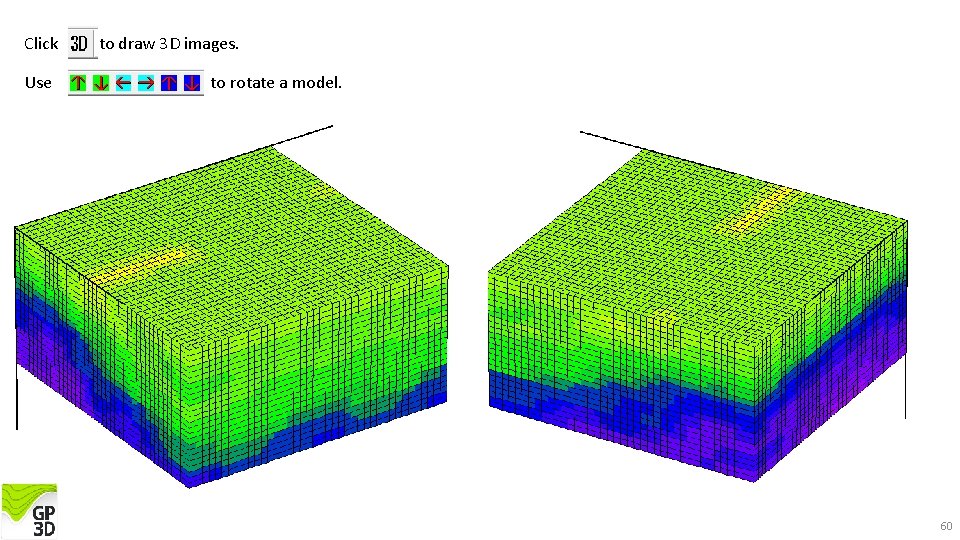
Click Use to draw 3 D images. to rotate a model. 60
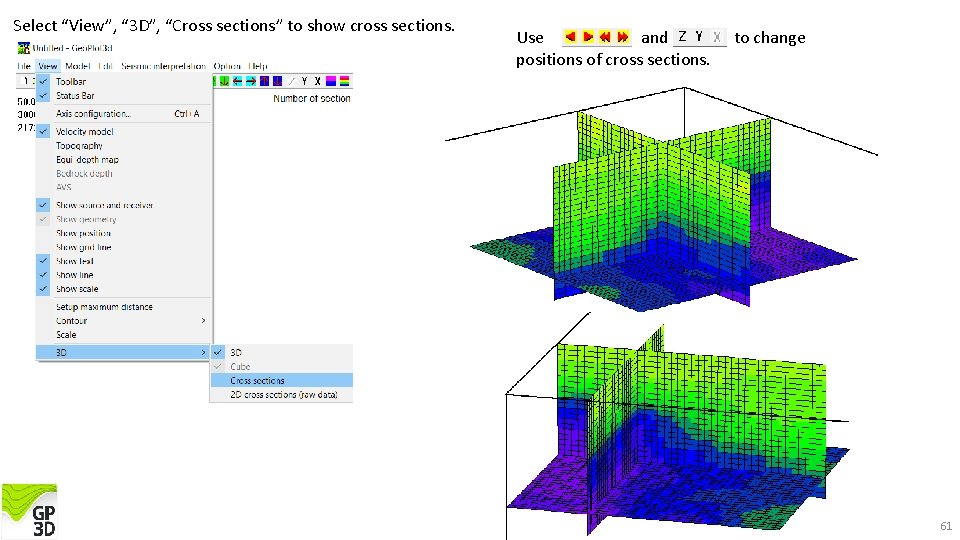
Select “View”, “ 3 D”, “Cross sections” to show cross sections. Use and positions of cross sections. to change 61
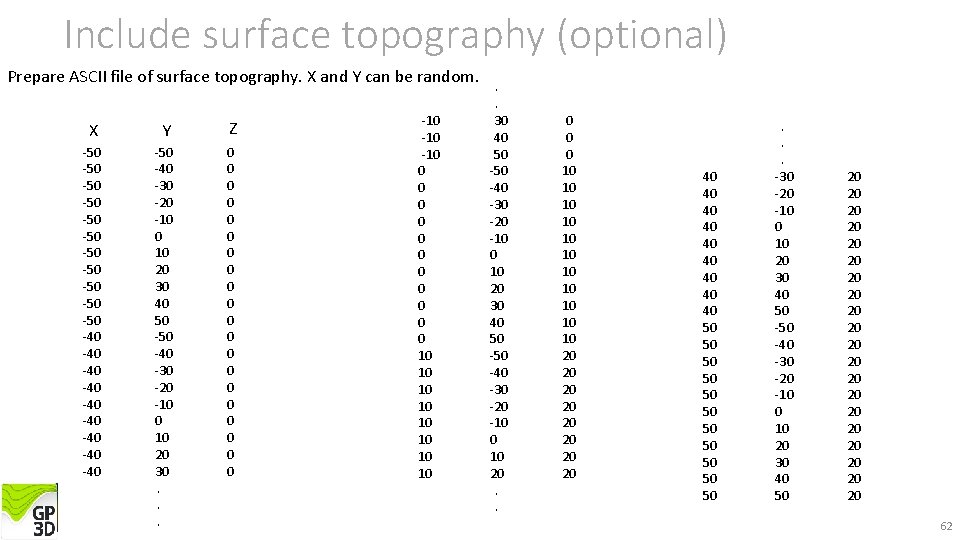
Include surface topography (optional) Prepare ASCII file of surface topography. X and Y can be random. X Y Z -50 -50 -50 -40 -40 -40 -50 -40 -30 -20 -10 0 10 20 30 40 50 -40 -30 -20 -10 0 10 20 30. . . 0 0 0 0 0 -10 -10 0 0 10 10 . . 30 40 50 -50 -40 -30 -20 -10 0 10 20. . 0 0 0 10 10 10 20 20 40 40 40 50 50 50 . . . -30 -20 -10 0 10 20 30 40 50 -40 -30 -20 -10 0 10 20 30 40 50 20 20 20 20 20 62
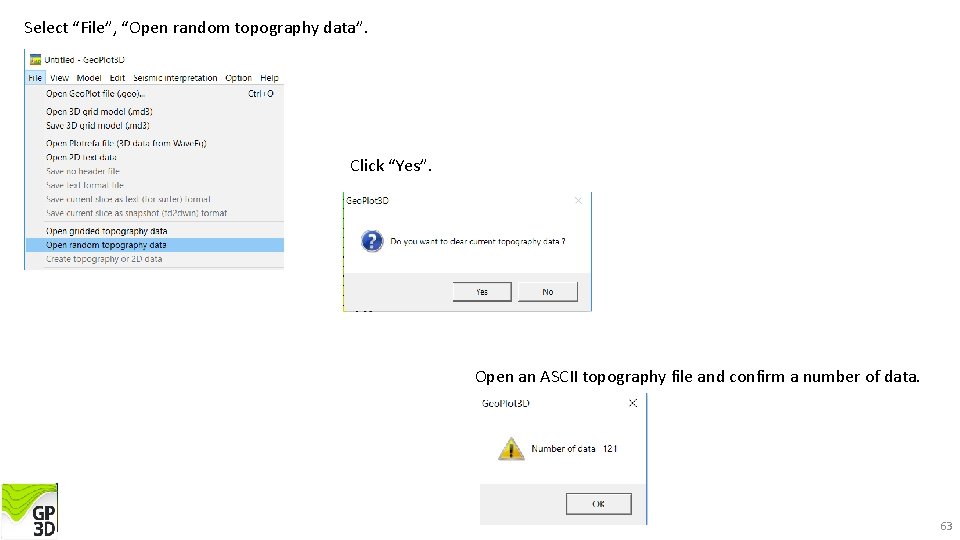
Select “File”, “Open random topography data”. Click “Yes”. Open an ASCII topography file and confirm a number of data. 63
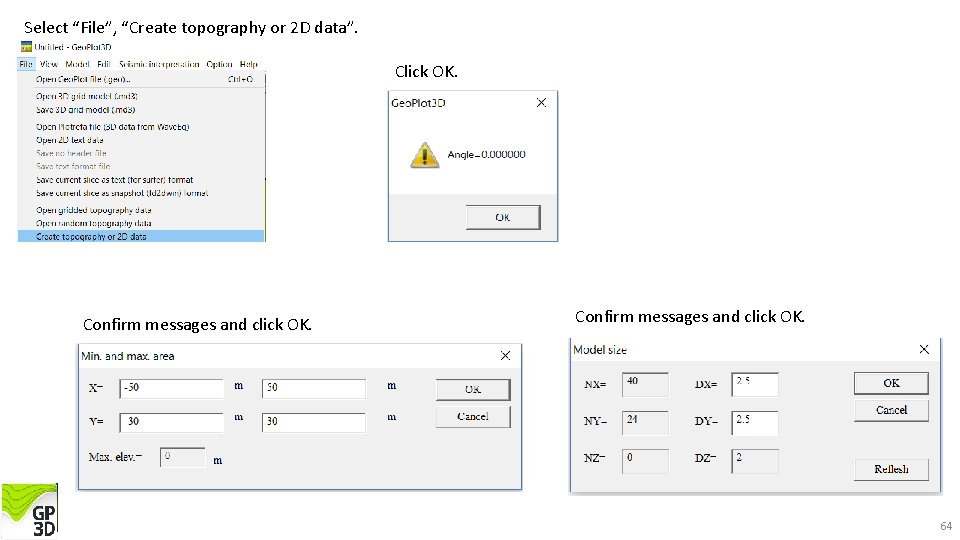
Select “File”, “Create topography or 2 D data”. Click OK. Confirm messages and click OK. 64
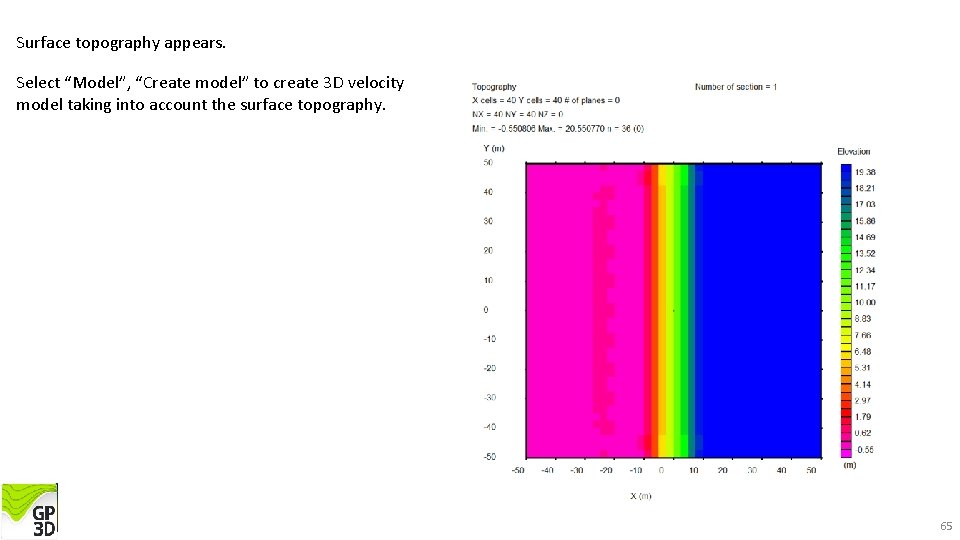
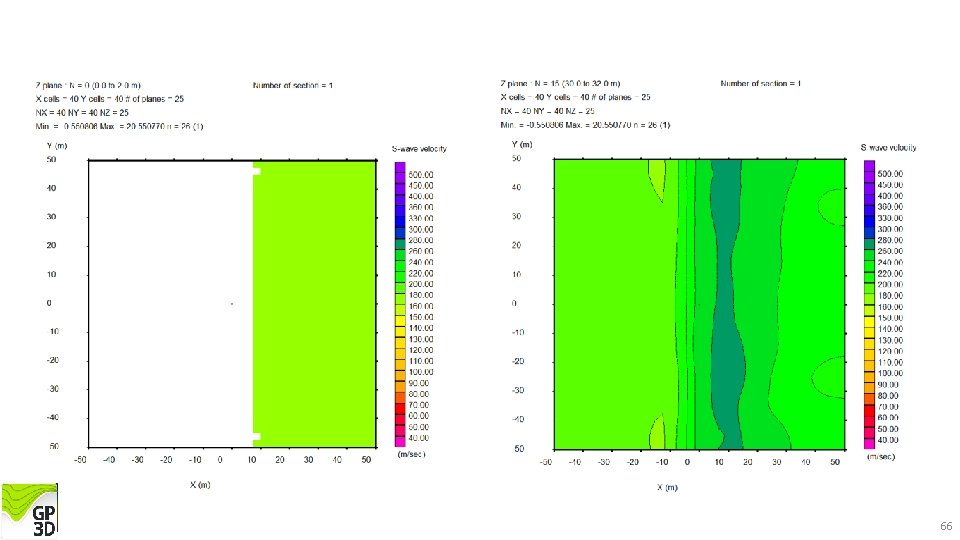
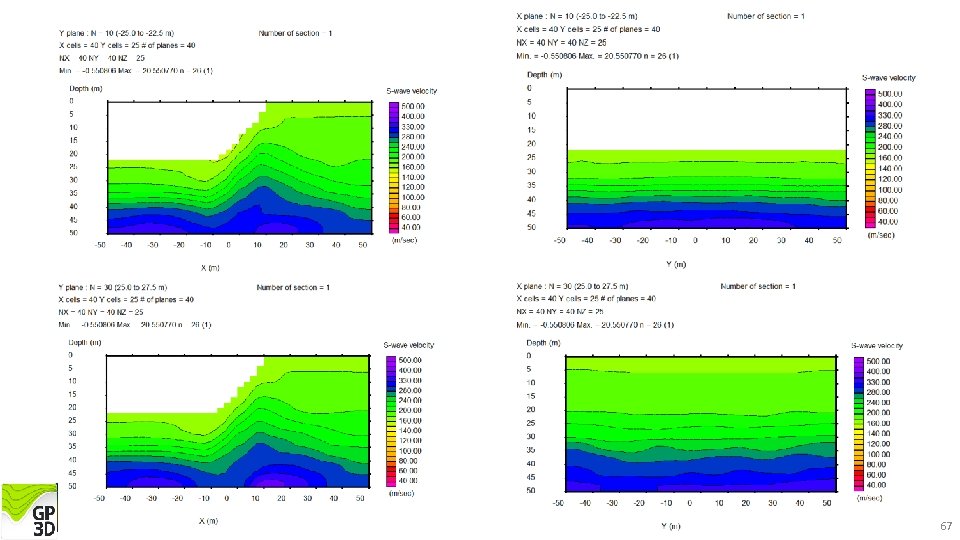
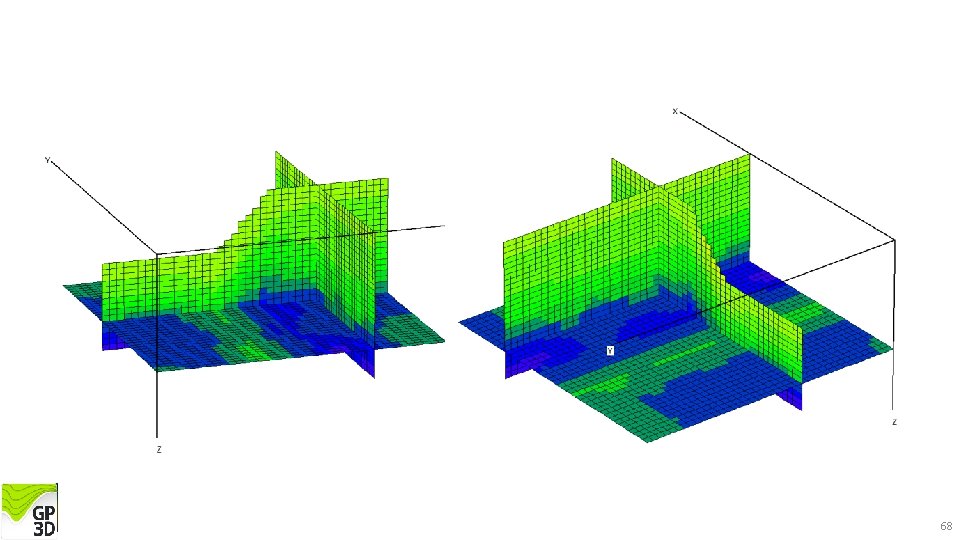
Surface topography appears. Select “Model”, “Create model” to create 3 D velocity model taking into account the surface topography. 65
66
67
68
- Slides: 68