
2 D Design and Animation Basic Animation Keyframe
2 D Design and Animation Basic Animation –
Keyframe and Property Keyframe A keyframe is a frame where a new symbol instance appears in the Timeline. It can also be a frame that includes Action. Scipt code to control some aspects of your document. Keyframe and Property Keyframe is a frame in which you define a change to an object’s properties for an animation.
Keyframe A keyframe represents a new instance or copy of an object, such as a new instance of a movie clip symbol. A keyframe is represented by a solid dot. When you create a frame-byframe animation, most frames are keyframes because you're creating new content in each frame to create the illusion of movement.
Blank Keyframe A blank keyframe is a placeholder for symbols you plan to add later.
Tweened frame It is a frame that is part of a motion tween.
Static frame Any frame that is not part of a motion tween.
Labels Frames in the Timeline You can add labels in frames in the timeline to organize the contents. Frame labels can only be applied to keyframes, so its best to create a separate layer in the timeline. 1. Select the frame you wish to label in the timeline. 2. Enter the label name in the property inspector.
Insert Frame in the Timeline 1. Select Insert > Timeline > Frame (F 5). 2. To create a new Keyframe, select Insert > Timeline > Keyframe (F 6) or right-click the frame where you want to place a keyframe, and select Insert Keyframe from the context menu. 3. To create a new Blank Keyframe, select Insert > Timeline > Blank Keyframe, or right-click
Tween is an animation that is created by specifying a value for an object property in one keyframe and another value for that same property in another keyframe. Flash calculates the values for that property in between those two frames. The term tween comes from the words "in between. ” Objects that can be tweened include movie clip symbols, graphic symbols, button symbols, and text fields.
Classic tween A classic tween works the way old motion tweens used to, in versions CS 3 and earlier. In this kind of motion tween, you'd have to manually create all your keyframes and connect all of them with motion tweens that followed point A to point B. A classic tween affects position and rotation. Classic tween is used in older Timeline animation method
Motion tween A motion tween animates symbols moving in space; when you create a motion tween, then you can click on any frame in the tween, move the symbol on that frame, and watch Flash automatically build a motion path animating the frames between that frame and the next keyframe. Any frame where you've manually moved the tweened symbol becomes a keyframe. A motion tween affects position and rotation.
Motion tween When you create a motion tween, every tween span has a single target object for the entire duration of the tween span. Therefore, the keyframe is always (and only) at the first frame of a tween span.
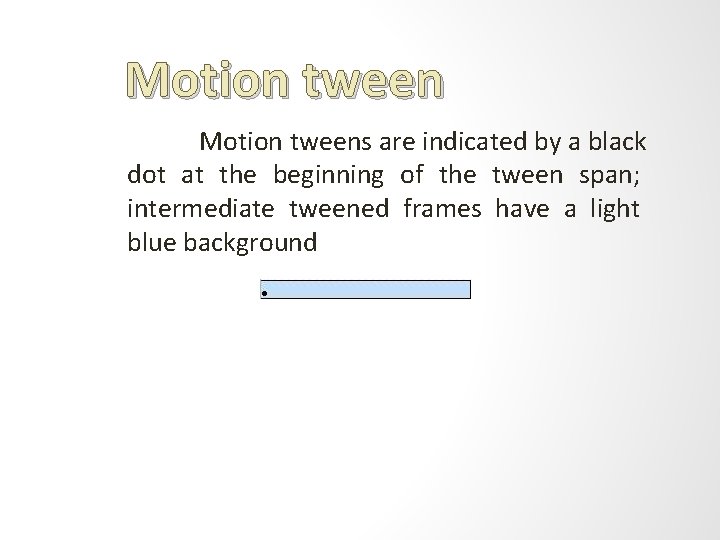
Motion tweens are indicated by a black dot at the beginning of the tween span; intermediate tweened frames have a light blue background
Shape tweens, on the other hand, perform distortions on non-symbol shapes/vector graphics. If you create one shape on one keyframe and another shape on another keyframe, you can connect those two shapes with a shape tween. The tween will perform whatever calculations and morphs needed to transform the first shape into the second. tween A shape tween is a transformation
Shape tweens do not share the concept of property keyframes or a single object per tween. A shape tween creates an animation by interpolating between two shapes or objects, as it did in previous versions of Flash.
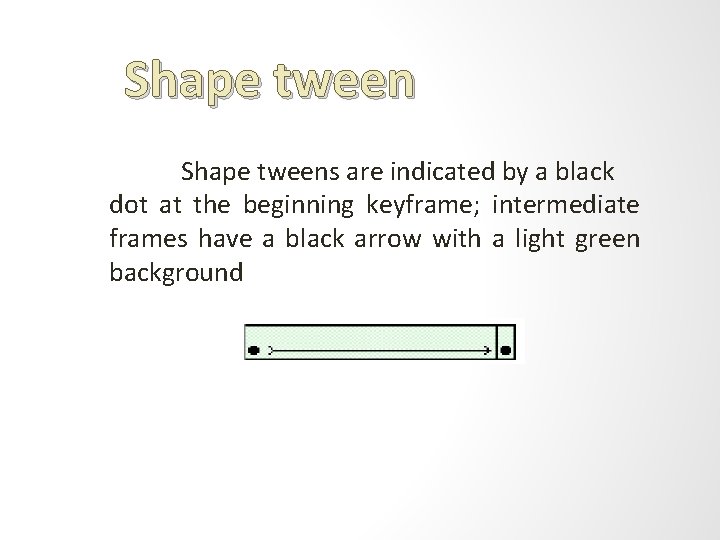
Shape tweens are indicated by a black dot at the beginning keyframe; intermediate frames have a black arrow with a light green background
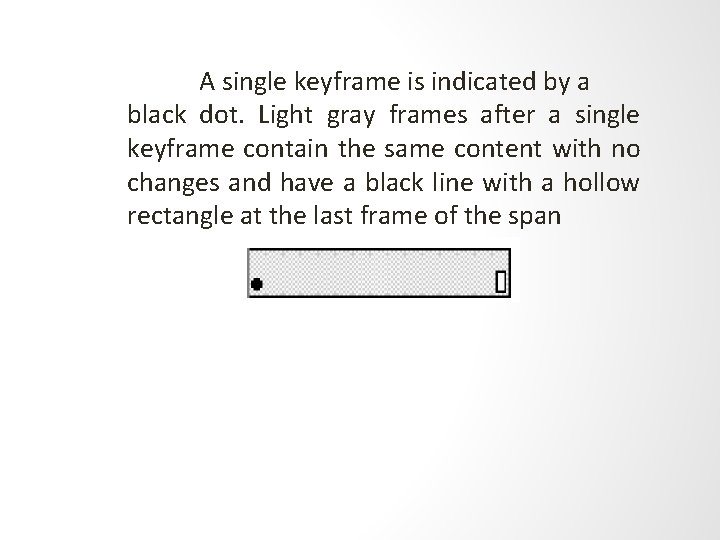
A single keyframe is indicated by a black dot. Light gray frames after a single keyframe contain the same content with no changes and have a black line with a hollow rectangle at the last frame of the span
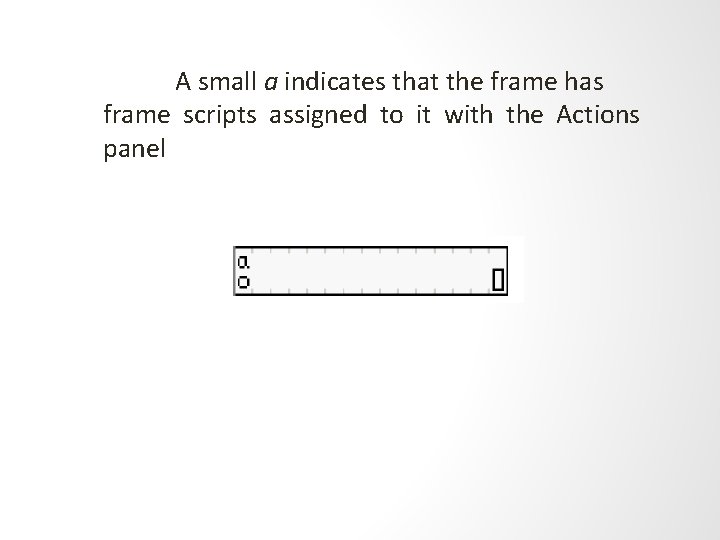
A small a indicates that the frame has frame scripts assigned to it with the Actions panel
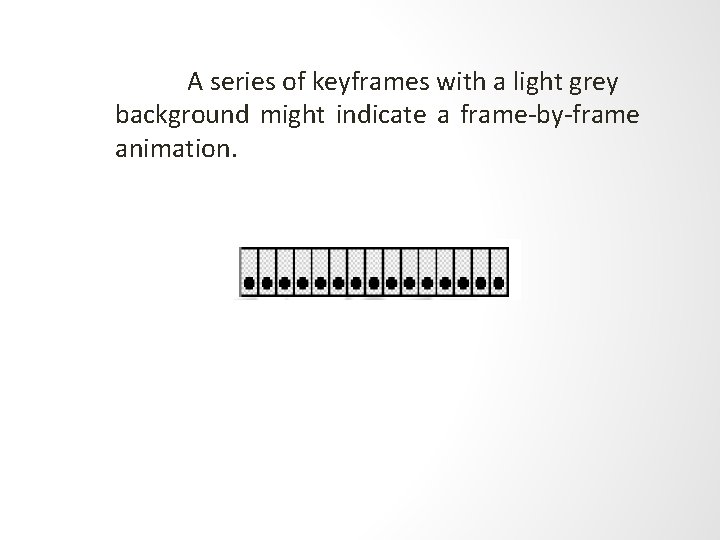
A series of keyframes with a light grey background might indicate a frame-by-frame animation.
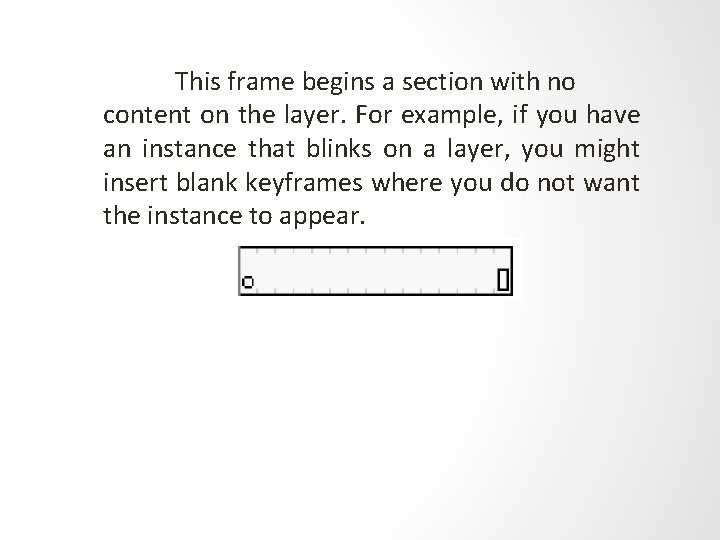
This frame begins a section with no content on the layer. For example, if you have an instance that blinks on a layer, you might insert blank keyframes where you do not want the instance to appear.
- Slides: 20